
Riva ASR Plugin Samples#
The pack ships two sample applications. They cover the two most common shapes of an NVIGI integration: a real-time 3D application with an ImGui overlay, and a minimal command-line tool. Both target the GGML Riva ASR plugins (nvigi.plugin.asr.riva-ggml.*) and run the plugin in offline mode — the full audio buffer is transcribed in a single evaluate() call.
For the underlying API, see the Programming Guide for RIVA ASR GGML. For runtime DLL inventory and pack layout, see the Developer Pack Overview.
1. Samples Overview#
Sample |
What it shows |
Source |
|---|---|---|
|
ASR running alongside a real-time 3D renderer (D3D12 or Vulkan), backend / model / scheduling-mode switching at runtime, CIG graphics interop. |
|
|
The smallest possible end-to-end integration: load a backend DLL, create an instance, transcribe a WAV or a microphone capture, shut down. |
|
2. The 3D Sample#
nvigi.3d combines NVIGI with Donut to demonstrate ASR running alongside real-time 3D rendering. It can drive any of the four Riva ASR backends — CUDA, Vulkan, D3D12, or CPU — and renders with D3D12 by default; pass -vk to render with Vulkan.
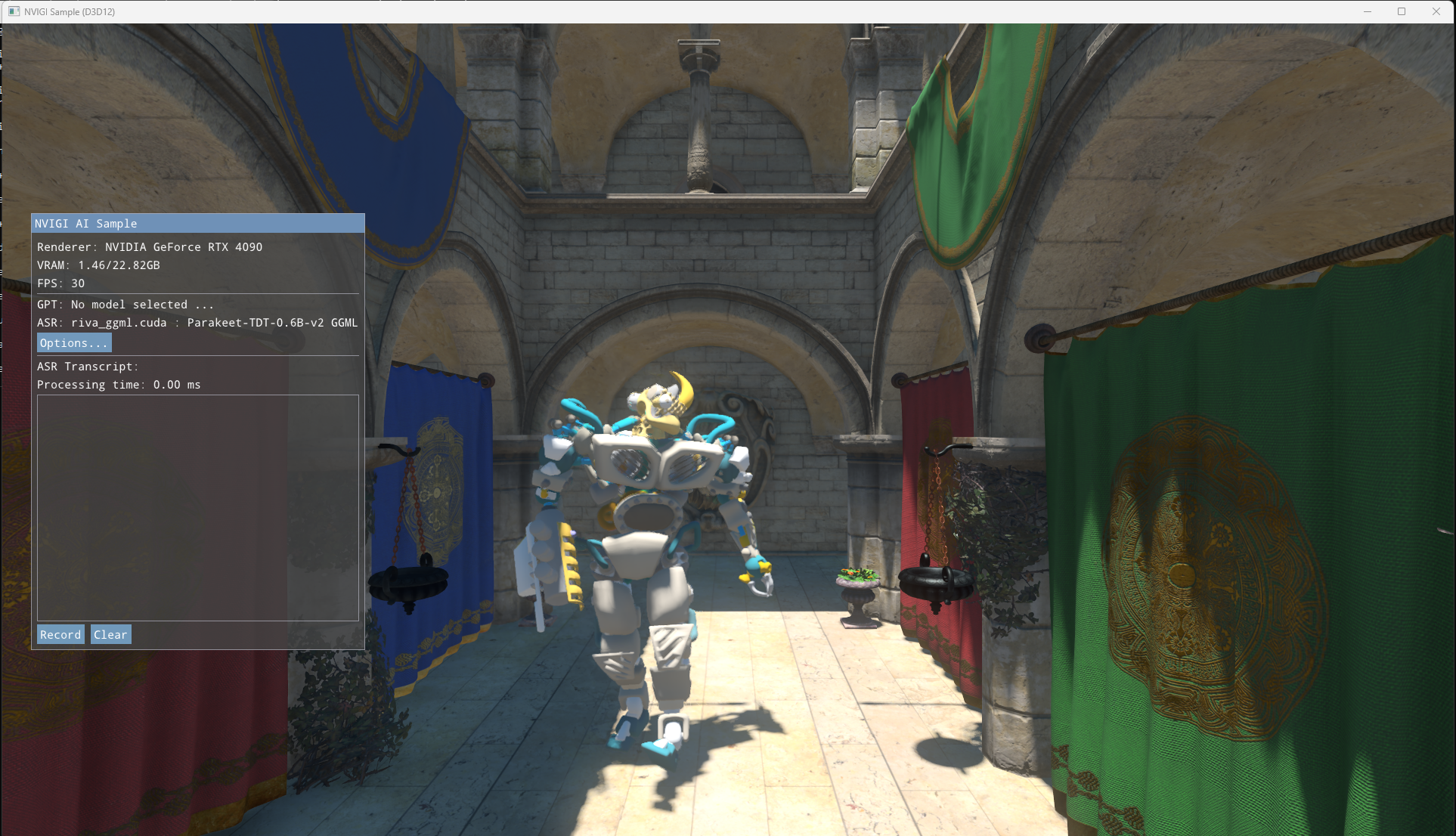
Fig. Donut 3D Sample#
The interesting code lives in source/samples/nvigi.3d/src/nvigi/NVIGIContext.{h,cpp}. That class is the only place the sample touches NVIGI; if you are looking for “how do I wire this into my engine”, that is the file to read.
2.1 Launching the Sample#
The pre-built executable lives at <PACK_ROOT>/bin/x64/nvigi.3d.exe. Double-click it from Explorer, or run it from a command prompt.
The sample has two launch modes:
Command |
Renderer |
ASR backends visible in the UI |
|---|---|---|
|
D3D12 (default) |
CUDA, D3D12, CPU |
|
Vulkan |
CUDA, Vulkan, CPU |
Pick the -vk mode when you want to exercise the Vulkan Riva ASR backend with real graphics sharing. The D3D12 renderer cannot share resources with the Vulkan ASR plugin (and vice versa), so the UI filters the backend dropdown to the compatible set.
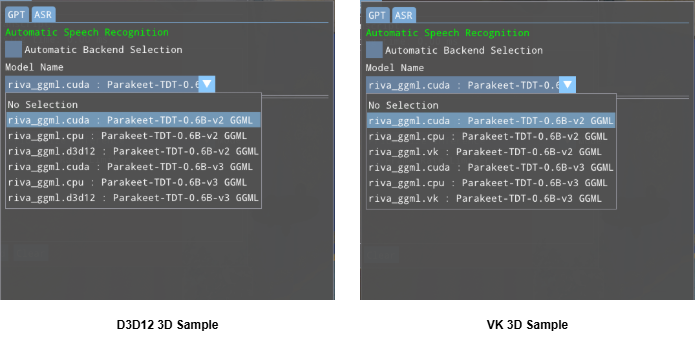
Fig. ASR backend dropdowns side-by-side: the default D3D12 launch (left) ; nvigi.3d.exe -vk (right).#
The sample looks for assets relative to the executable:
Asset |
Search path |
|---|---|
Models |
|
Scene / fonts / logo |
|
The code walks upward from the executable directory several times to find these, so the shipped layout works with no flags. Pass -pathToModels <path> to override the model search.
2.2 Using the Sample#
The main UI panel on the left shows:
Top bar — Renderer (D3D12 / Vulkan), VRAM usage, FPS.
Model status — The currently loaded model, or
Loading model please wait…while a switch is in flight.Options… — Opens the popup described below.
ASR Transcript — Scrollable text box with the latest transcription and a
Processing time: X mscounter.Record / Stop / Clear — Microphone capture controls. Click Record, speak, click Stop; the plugin processes the complete buffer in one call and prints the full transcription. Clear resets the transcript.
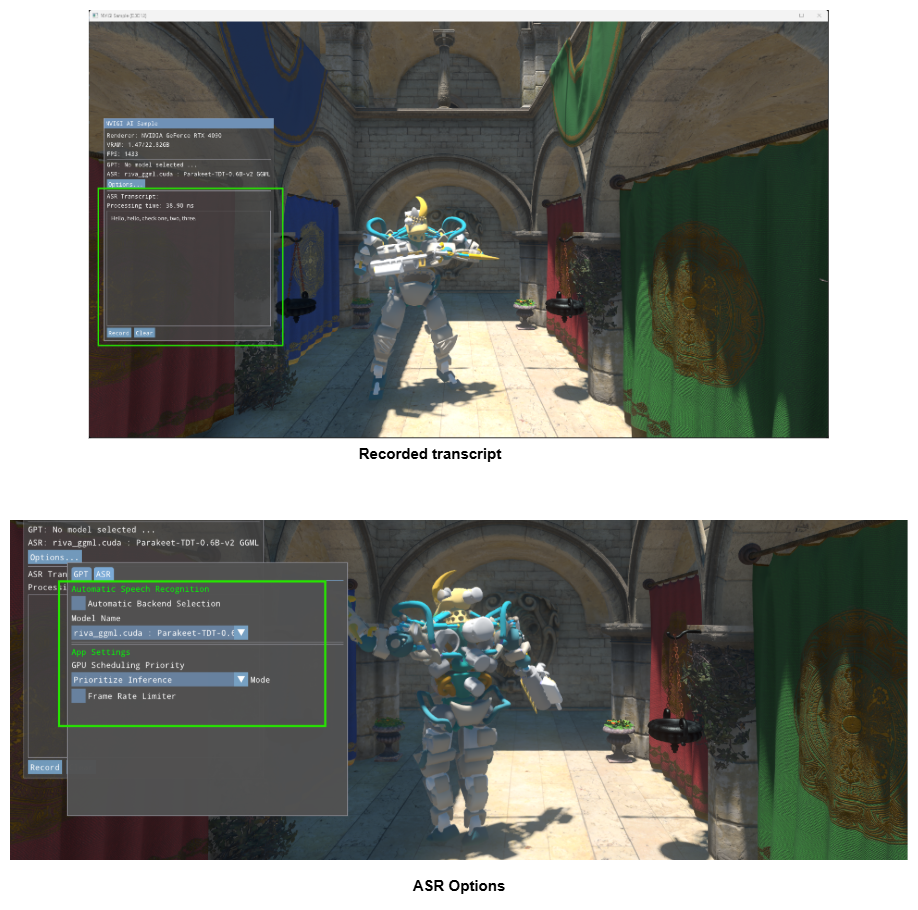
Fig. 3D Sample text box and ASR Options#
The plugin is offline-only. Text appears after you stop recording, not while you speak. See the programming guide for the full capability matrix.
If the transcript is empty, check Windows microphone settings, the input level, and that the right device is the system default — the sample uses the default Windows recording device.
Options Popup#
The popup exposes:
Automatic Backend Selection — When on, the sample picks a backend via
NVIGIContext::SelectAutoPlugin(CUDA → Vulkan/D3D12 depending on the renderer → CPU). When off, you pick model and backend explicitly from the drop-downs. EditSelectAutoPlugininNVIGIContext.cppto change the priority.Model — Switch between Parakeet-TDT-0.6B-v2 (English) and Parakeet-TDT-0.6B-v3 (multilingual).
GPU Scheduling Priority — Prioritize Graphics / Prioritize Inference / Balanced. Takes effect on the next inference via
IHWICommon::SetGpuInferenceSchedulingMode. Only meaningful on the CUDA backend with CIG; silently ignored elsewhere or on driver R574 and older. See appendix C of the programming guide.Frame Rate Limiter + Target FPS — Cap the renderer. The 3D sample’s graphics load is tiny and would otherwise free-run at hundreds of FPS, which is not representative of a real game. Capping it (e.g. to 60 or 120) lets you see how ASR latency and scheduling modes behave under realistic GPU contention.
The model and backend drop-downs are grayed out while ASR is recording or inferring — switching mid-flight would force an expensive reload.
2.3 Logging#
The pre-built sample opens a console window that streams NVIGI log messages during init, model load, inference, and shutdown. To also write to a file:
.\nvigi.3d.exe -logToFile ..\logs
Writes to ..\logs\nvigi-log.txt. The directory must already exist — the sample does not create it.
2.4 Command-line Options#
The most useful flags. Most of the rendering options come from Donut’s device manager; only the ones a normal user touches are listed.
Argument |
Effect |
|---|---|
|
Override model search. Should point at the models tree (e.g. |
|
Enable file logging to |
|
Disable CUDA-In-Graphics for debugging / A-B comparison. |
|
Skip NVIGI DLL signature check. Ignored in Production builds. |
|
Render with Vulkan (default is D3D12) and only show Vulkan-compatible plugins in the UI. |
|
Window size. |
|
Enable NVRHI and graphics-API validation layers. |
|
Verbose logging. |
|
Enable Vsync. |
|
Load a custom scene. |
|
Skip 3D scene rendering (UI only). |
2.5 Notes#
The Vulkan rendering path is considered experimental in this release.
The sample is designed for local systems. Running over Remote Desktop is not recommended.
3. The Command-Line ASR Sample#
nvigi.asr.sample is the smallest end-to-end integration that still exercises the whole stack. It loads a backend DLL, creates an instance, transcribes either a WAV file or a microphone capture in one evaluate() call, prints the result with timing, and tears everything down.
The whole sample is a single file: source/samples/nvigi.asr.sample/sample_asr.cpp. If you want a copy-pasteable starting point for your own integration, this is it.
3.1 Running the Sample#
From <PACK_ROOT>\bin\x64:
.\nvigi.asr.sample.exe -m ..\..\data\nvigi.models
With no -w, the sample captures from the default Windows microphone — press Enter to start, Enter again to stop, then it transcribes the full buffer offline and prints the result. With -w <path>, it transcribes the WAV instead.
-m / --model-dir is required and must point at the directory that contains the per-GUID model files under nvigi.plugin.asr.riva-ggml/{GUID}/ (i.e. <PACK_ROOT>/data/nvigi.models).
3.2 Command-Line Options#
The argument surface is intentionally small — it mirrors the small surface of the GGML plugin.
Usage: nvigi.asr.sample [options]

Options:
  --help                            Show this help message
  -s, --sdk <path>                  SDK location (defaults to the exe's directory)
  -m, --model-dir <path>            Path to the RIVA ASR models directory (required)
      --model <name|guid>           parakeet-v2, parakeet-v3, or a {GUID}  (default: parakeet-v2)
  -b, --backend <cuda|vk|d3d12|cpu> Backend to use  (default: cuda)
  -w, --wav-file <path>             Path to a 16 kHz / 16-bit / mono WAV file. If omitted, uses the microphone.
No
--mode,--chunk-size,--partial,--language, or--vram. Streaming and language selection were knobs of the previous ORT plugin; the GGML plugin is offline-only and language is determined by the model (v2 = English, v3 = multilingual auto-detect).
3.3 Examples#
All examples assume <PACK_ROOT>\bin\x64 is the current directory.
:: WAV file, CUDA backend (default) — jfk.wav ships with the pack
.\nvigi.asr.sample.exe -w ..\..\data\nvigi.test\nvigi.asr\jfk.wav -m ..\..\data\nvigi.models

:: CPU backend
.\nvigi.asr.sample.exe -b cpu -w ..\..\data\nvigi.test\nvigi.asr\jfk.wav -m ..\..\data\nvigi.models

:: Vulkan backend
.\nvigi.asr.sample.exe -b vk -w ..\..\data\nvigi.test\nvigi.asr\jfk.wav -m ..\..\data\nvigi.models

:: D3D12 backend
.\nvigi.asr.sample.exe -b d3d12 -w ..\..\data\nvigi.test\nvigi.asr\jfk.wav -m ..\..\data\nvigi.models

:: Multilingual model — supply your own non-English WAV
.\nvigi.asr.sample.exe --model parakeet-v3 -w <your_non_english.wav> -m ..\..\data\nvigi.models

:: Microphone (no -w)
.\nvigi.asr.sample.exe -m ..\..\data\nvigi.models
jfk.wav ships at <PACK_ROOT>/data/nvigi.test/nvigi.asr/jfk.wav (English, 16 kHz, 16-bit PCM, mono) as a ready-to-run sample. The pack does not ship a non-English WAV; replace <your_non_english.wav> with your own 16 kHz, 16-bit PCM, mono file when trying parakeet-v3.
3.4 Sample Output#
The CLI sample keeps stdout focused on sample output and enables verbose NVIGI file logging. It disables NVIGI console logging and installs a quiet log callback, so plugin INFO lines, including the per-stage Preprocessing | Encoder | Decoder | Total timing line from evaluate(), are written to nvigi_log_*.txt under the SDK/log path without being echoed to stdout.
> .\nvigi.asr.sample.exe -w ..\..\data\nvigi.test\nvigi.asr\jfk.wav -m ..\..\data\nvigi.models
=== NVIGI ASR Sample ===
Model directory: ..\..\data\nvigi.models
Model: parakeet-v2 (GUID: {163BD6DC-248D-4238-BC9B-B76D2AB1C3DD})
SDK path: C:\...\_riva_asr_pack\bin\x64\
Backend: cuda
Input source: WAV file: ..\..\data\nvigi.test\nvigi.asr\jfk.wav

NVIGI SDK initialized successfully
Loaded RIVA-ggml ASR plugin (cuda backend)
ASR instance created

Processing WAV file: ..\..\data\nvigi.test\nvigi.asr\jfk.wav
WAV file loaded: ..\..\data\nvigi.test\nvigi.asr\jfk.wav
  Sample rate: 16000 Hz
  Channels: 1
  Duration: 11 seconds

Starting offline transcription...
Processing entire audio...
Processing completed in 25 ms
Real-time factor (RTF): 0.00227273x

Final transcription:  And so, my fellow Americans, ask not what your country can do for you, ask what you can do for your country.

Shutting down...
Done.
3.5 What the Source Shows#
Read sample_asr.cpp end-to-end as a minimal reference. The key beats, in order:
NVIGI startup —
LoadLibraryExA("nvigi.core.framework.dll"), resolvenvigiInit/nvigiShutdown/nvigiLoadInterface/nvigiUnloadInterface, callnvigiInitwith annvigi::Preferencespopulated with the plugin and log directories.Backend selection — Map
-b cuda|vk|d3d12|cputo the matching plugin ID (nvigi::plugin::asr::riva_ggml::{cuda,vulkan,d3d12,cpu}::kId) and load the interface vianvigiGetInterfaceDynamic.Model resolution —
modelNameToGUID()mapsparakeet-v2/parakeet-v3to GUIDs. Raw{GUID}strings are passed through.Instance creation — Build
nvigi::CommonCreationParameters(model path, GUID, VRAM budget, thread count), chain annvigi::ASRRivaGGMLCreationParametersset to the matchingbackendenum, and calliasr->createInstance. Warmup happens entirely inside the plugin during this call.Offline inference — Fill an
nvigi::InferenceDataAudioslot from the decoded WAV or microphone buffer, pass an emptyASRRivaGGMLRuntimeParameters(the struct is reserved for forward-compat), and callinstance->evaluate. The callback fires once with the final transcription.Cleanup —
destroyInstance→nvigiUnloadInterface→nvigiShutdown→FreeLibrary.
The full API walkthrough with the equivalent code shape is in the programming guide, sections 1.0 through 9.0.
4. Building the Samples#
The plugin DLLs ship pre-built in <PACK_ROOT>/bin/x64/. The only thing this section builds is the two sample EXEs (nvigi.3d.exe, nvigi.asr.sample.exe).
Network prerequisites: If you plan to run setup.bat, your network must allow outbound HTTPS access to d1b766znqykvab.cloudfront.net. If that host is blocked or your HTTP/HTTPS proxy is not configured, packman cannot download the build tools and prebuilt dependencies required by setup.bat; use the pre-built binaries only.
:: From <PACK_ROOT>
.\setup.bat                       :: generates _project/vs2022/nvigi.rivaASR.sln
.\build.bat -Release              :: defaults to -Debug; also accepts -Production. Add -fast for incremental.
.\copy_sdk_binaries.bat Release   :: stages the built sample EXEs into bin\x64 next to the plugin DLLs
After copy_sdk_binaries.bat <cfg>, the EXEs land at:
<PACK_ROOT>/bin/x64/nvigi.3d.exe<PACK_ROOT>/bin/x64/nvigi.asr.sample.exe
copy_sdk_binaries.bat does not compile anything — it only shuffles the configuration’s build outputs from _artifacts/<sample>/<cfg>_x64/ into bin/x64/ so the EXEs sit next to the plugin DLLs they need to load. Always re-run it after every rebuild, with the matching <cfg>.
To build just one sample, open _project/vs2022/nvigi.rivaASR.sln in Visual Studio 2022 and build the nvigi.3d or nvigi.asr.sample project, then re-run copy_sdk_binaries.bat <cfg>.
Build prerequisites: Visual Studio 2022 with the C++ desktop workload. The local-Donut workflow (below) additionally requires CMake 3.20+ on the PATH.
Visual Studio version note: Visual Studio 2022 is the recommended and primary validated toolchain for this package. Visual Studio 2026 is not extensively validated for the 3D sample and should be treated as experimental.
The shipped scripts are VS2022-oriented:
setup.batdefaults to Premake’svs2022action and generates_project/vs2022/nvigi.rivaASR.sln.setup.bat vs2026is not accepted by the shipped script and fails withError: Unrecognized switch: vs2026.build.battreats_project/vs2022/nvigi.rivaASR.slnas a VS2022 build and searches only for Visual Studio 2022 usingvswhere -version [17,18). On a machine with only newer Visual Studio versions installed, such as VS2026,setup.batmay still generate the solution, butbuild.batwill not discover the newer installation and fails before compilation.
To experiment with building this package on a newer Visual Studio version, update the pack-root scripts explicitly:
In
setup.bat, add the new version switch if you want users to pass it, for examplevs2026. If the bundled Premake only supports actions throughvs2022, keep generating thevs2022solution format and document that the folder name is the project format, not the required installed IDE version.In
build.bat, do not infer the required Visual Studio installation from the_project/vs2022folder name. Instead, find an installed Visual Studio or Build Tools instance with C++ tools, call that instance’sVsDevCmd.bat, and run MSBuild on the generated solution. A version-agnostic discovery command is:for /f "usebackq tokens=1* delims=: " %%i in (` .\tools\vswhere.exe -latest -products * -requires Microsoft.VisualStudio.Component.VC.Tools.x86.x64 `) do ( if /i "%%i"=="installationPath" ( set VS_PATH=%%j goto :found_vs ) )
Then keep the usual build shape:
for /f "delims=" %%F in ('dir /b /s "%VS_PATH%\vsdevcmd.bat" 2^>nul') do set VSDEVCMD_PATH=%%F
call "%VSDEVCMD_PATH%"
msbuild .\_project\vs2022\nvigi.rivaASR.sln /m /t:%bld% /property:Configuration=%cfg%
If you build with the native VS2026 compiler/toolset rather than a VS2022-compatible toolset, make sure the generated projects use the matching VS2026 platform toolset and that public headers are self-contained. In particular,
nvigi_core/include/nvigi_ai.hmust include<cstring>because it usesstrcmp.After any script or toolchain change, rebuild both samples and re-run
copy_sdk_binaries.bat <cfg>so the rebuilt EXEs and 3D sample shaders are staged intobin\x64.
4.1 Running in the Debugger#
The samples need to be launched from bin\x64 so they can find the plugin DLLs that copy_sdk_binaries.bat placed there. One-time per project (nvigi.3d or nvigi.asr.sample):
In Visual Studio, open the project’s Properties → Debugging.
Command —
$(SolutionDir)..\..\bin\x64\nvigi.3d.exe(ornvigi.asr.sample.exe).Command Arguments — whatever you need from section 2.4 / 3.2.
Working Directory —
$(SolutionDir)..\..\bin\x64.
Build the configuration you want (Release is recommended — optimized but symbol-rich), re-run copy_sdk_binaries.bat <cfg>, set the project as the startup project, and F5.
These debugging settings live in .vcxproj.user files and survive re-runs of setup.bat. They only need to be re-applied if you manually delete _project/ or the .user files.
4.2 Building Against a Local Donut (3D sample only)#
The default 3D-sample build uses a pre-built Donut pulled by packman. To build against your own Donut checkout — useful when debugging Donut itself or testing patches:
From a VS2022 Developer Command Prompt,
cd <PACK_ROOT>/source/samples/nvigi.3d/opt-local-donut..\01_pull.bat— clones Donut over HTTPS at the commit matching the shipped pre-built. Optionally check out a different commit or edit the source underDonut/..\02_setup.bat— runs CMake to generate the Donut build files. Requires the Vulkan SDK thatsetup.bat(at the pack root) pulled into<PACK_ROOT>/external/vulkanSDK/— run that first if you haven’t..\03_build.bat— builds Donut into_package/donut/for Release, Production, and Debug (in that order).Edit
<PACK_ROOT>/source/samples/nvigi.3d/premake.lua:Comment out
donut_dir = externaldir.."donut"Uncomment
donut_dir = ROOT.."source/samples/nvigi.3d/opt-local-donut/_package/donut"
From
<PACK_ROOT>, re-runsetup.bat(regenerates the solution against your local Donut), thenbuild.bat -<cfg>(rebuildsnvigi.3d.exe), thencopy_sdk_binaries.bat <cfg>. The rebuilt executable lands at<PACK_ROOT>/bin/x64/nvigi.3d.exe, ready to run.