> This page is for version 11 (default).
> For other versions, use one of these documentation indexes:
> - 11 (default): https://docs.nvidia.com/base-command-manager/product-manuals/11/llms.txt
> - 10: https://docs.nvidia.com/base-command-manager/product-manuals/10/llms.txt

> For clean Markdown of any page, append .md to the page URL.
> For a complete documentation index, see https://docs.nvidia.com/base-command-manager/product-manuals/llms.txt.
> For AI client integration (Claude Code, Cursor, etc.), connect to the MCP server at https://docs.nvidia.com/base-command-manager/product-manuals/_mcp/server.

# Configuring The Cluster

After the NVIDIA Base Command Manager software has been installed on the head node, the cluster must be configured. For convenience, the regular nodes on the cluster use a default software image stored on the head node. The image is supplied to the regular nodes during a process called provisioning (Chapter [5](/admin/provisioning)), and both the head node and the regular nodes can have their software modified to suit exact requirements (Chapter [9](/admin/softwareimagemanagement)). This chapter however goes through a number of basic cluster configuration aspects that are required to get all the hardware up and running on the head and regular nodes.

Section [3.1](#31-main-cluster-configuration-settings) explains how some of the main cluster configuration settings can be changed.

Section [3.2](#32-network-settings) details how the internal and external network parameters of the cluster can be changed.

Section [3.3](#33-configuring-bridge-interfaces) describes the setting up of network bridge interfaces.

Section [3.4](#34-configuring-vlan-interfaces) describes VLAN configuration.

Section [3.5](#35-configuring-bonded-interfaces) describes the setting up of network bond interfaces.

Section [3.6](#36-configuring-infiniband-interfaces) covers how InfiniBand is set up.

Section [3.7](#37-configuring-bmc-ipmiilodraccimcredfish-interfaces) describes how Baseboard Management Controllers such as IPMI, iLO, DRAC, CIMC, and Redfish are set up.

Section [3.8](#38-configuring-switches-and-pdus) describes how switches are set up.

Section [3.9](#39-configuring-cumulus-switches) describes how Cumulus switches are configured.

Section [3.11](#311-configuring-the-netq-network-management-system) describes how NetQ can be integrated with BCM.

Section [3.12](#312-configuring-ufm) describes how UFM can be integrated with BCM.

Section [3.13](#313-disk-layouts-disked-semi-diskless-and-diskless-node-configuration) explains how disk layouts are configured, as well as how diskless nodes are set up.

Section [3.14](#314-configuring-nfs-volume-exports-and-mounts) describes how NFS volumes are exported from an NFS server and mounted to nodes using the integrated approach of BCM.

Section [3.15](#315-managing-and-configuring-services) describes how services can be run from BCM.

Section [3.16](#316-managing-and-configuring-a-rack) describes how a rack can be configured and managed with BCM.

Section [3.17](#317-configuring-gpu-settings) describes how GPUs can be configured with BCM.

Section [3.18](#318-configuring-sampling-from-a-prometheus-exporter) describes how sampling from a Prometheus exporter can be configured with BCM.

Section [3.19](#319-configuring-custom-scripts) describes how custom scripts can replace some of the default scripts in use.

Section [3.20](#320-cluster-configuration-without-execution-by-cmdaemon) discusses configuration alternatives that are not based on CMDaemon.

Section [3.21](#321-saving-a-backup-of-configuration-files-with-versionconfigfiles) describes how the configuration files prior to a configuration change can be saved.

More elaborate aspects of cluster configuration such as power management, user management, package management, and workload management are covered in later chapters.

## 3.1  Main Cluster Configuration Settings

While both front ends—`cmsh` and Base View—can be used to carry out cluster management (Chapter [2](/admin/clustermanagement)), the BCM manuals often describe configuration with an arbitrary front end rather than for both front ends.

This is because the front ends are usually analogous enough to each other when carrying out a configuration procedure, so that describing the procedure for the other front end in detail as well is mostly wasteful. If the procedures differ significantly, then guidance is typically given on the differences.

Thus, for example, both `cmsh` and Base View can be used for the global configuration of cluster settings. For the `cmsh` front end, the configuration is done using `partition` mode. The analog to global configuration in the Base View front end relies on the navigation path: `Cluster` > `Settings`.

This section now continues with the Base View description.

The navigation path: `Cluster > Settings` brings up Base View’s cluster settings window (figure [3.1](#fig-base-view-clustersettings)):

![Cluster Settings](/base-command-manager/product-manuals/_fern-img/f3d53599fa2fe3343e11edd0152d34041dc85aebf54c1b846e7ad09f817e162b.webp)

*Figure 3.1: Cluster Settings*

The navigational overview ([here](/admin/clustermanagement#2422-navigating-the-cluster-with-base-view-a-tree-map-of-locations-from-the-cluster-resource)) indicates how the main cluster `Settings` window fits into the organizational layout of BCM.

The cluster `Settings` tab window allows changes to be made to many of the global cluster settings, typically using a grouping configuration that corresponds to the partition-level configuration in `cmsh`. The values that can be set for these global settings can in some cases be overridden by more specific configuration levels, such as (configuration-)overlay-level, category-level, or node-level configuration. The main cluster settings in figure [3.1](#fig-base-view-clustersettings) are about name-related settings, cluster networking settings, and some other miscellaneous global cluster settings.

### 3.1.1  Cluster Configuration: Various Cluster-wide Settings

In the Base View cluster `Settings` tab window of figure [3.1](#fig-base-view-clustersettings), the following cluster-wide settings can be viewed and modified:

* `Cluster name`: Default value: `BCM 11 Cluster`.

* `Administrator email`: Default value: Specified during installation ([figure 3.8 in Chapter 3 of the *Installation Manual*](/installation/installing#fig-clustersettings)).

* `Name servers`: No default value, or picked up using DHCP.

* `Time servers`: Default values: `0.pool.ntp.org`, `1.pool.ntp.org`, `2.pool.ntp.org`.

* `Search domains`: No default value.

* `Externally visible IP`: Default value: `0.0.0.0`.

* `Time zone`: Default value: Specified during installation ([figure 3.8 in Chapter 3 of the *Installation Manual*](/installation/installing#fig-clustersettings)).

* `BMC settings`: This allows BMC and related settings to be managed.

  The following objects already exist by default on a new cluster, and can have their settings modified:

  * BMC (section [3.1.3.1](#3131-bmc-ipmiilo-drac-cimc-redfish-settings))

  * SNMP (section [3.8.2](#382-configuring-snmp))

  * Provisioning (Chapter [5](/admin/provisioning), section [5.2.4](/admin/provisioning#524-provisioning-nodes-housekeeping))

  The following objects do not already exist by default on a new cluster, which means that clicking on them to configure them begins the process of creating the object, prompting the administrator to enter values for the object:

  * SELinux ([Chapter 12 of the *Installation Manual*](/installation/selinux))

  * Access (section [3.9.1](#391-cumulus-switches-access-configuration-initialization-and-network-device-discovery))

  * ZTP (section [3.9](#39-configuring-cumulus-switches))

  * ZTP new switch

  * NetQ (section [3.11](#311-configuring-the-netq-network-management-system))

  * UFM (section [3.12](#312-configuring-ufm))

  * NMX Manager ([section 2.3 of the *NVIDIA Mission Control Manual*](/nvidia-mission-control/nmxmsettings#23-nmx-server-authentication-configuration-in-bcm))

  The BMC and related settings are described in their associated sections.

* `External network`: Default value: as defined during selection of network topology during installation. The `Management network` can also be configured in this section.

  * `Management network`: Default value: as defined during selection of network topology during installation.

  Network topology selection during installation is covered in [section 3.3.9 of the *Installation Manual*](/installation/installing#339-network-topology).

* `Default category`: Default value: `default`. This value is inherited as the default object name for `category` mode.

* `ArchOS`: No default value. This specifies an architecture and OS.

* `Sign installer certificates`: Default value: `AUTO`. Described in section [5.4.1](/admin/provisioning#541-requesting-a-node-certificate).

* `Failover`: No default value.

* `Failover groups`: No default value.

* `Default burn configuration`: Default value: `default-destructive`.

* `Wlm job power usage settings`: No default value.

* `Leak action policies`: Default value: `Default building policy`.

* `Building Management System`: Default value: `NVIDIA-conforming BMS`.

* `Prometheus metric forwarders`: No default value.

### 3.1.2  Cluster Configuration: Some Network-Related Settings

The following network-related settings are also described in the context of external network settings for the cluster object, in section [3.2.3](#323-changing-network-parameters), as well as in the quickstart in [Chapter 1 of the *Installation Manual*](/installation/quickstart).

#### 3.1.2.1  Nameserver And Search Domains Used By Cluster

* If Base View is used, then the settings window can be used to set the IP address of the nameserver and the names of the search domains for the cluster.

  By default, the nameserver is the internal (regular-nodes-facing) IP address of the head node. Multiple nameservers can be added. If the value is set to `0.0.0.0`, then the address supplied via DHCP to the head node is used. Alternatively, a static value can be set. Static IP addresses must be used for external addresses in the case of the cluster being configured with high availability.

* If `cmsh` is used instead of Base View, then the changes to the `nameserver` and `searchdomain` values can instead be carried out via `partition` mode ([here](#3233-changing-external-network-parameters-for-the-cluster)).

**Limit to the number of search domains:** In older versions of glibc (before 2.26), the number of names that can be set as search domains used by the cluster has a hardcoded maximum limit of 6, with a total of 256 characters.

From glibc 2.26 onward, this operating system limit no longer applies to normal lookups. BCM applies its own limit instead, using the `MaximalSearchDomains` `GlobalConfig` directive (Appendix [C](/admin/cmdconf), [here](/admin/cmdconf#c55-maximalsearchdomains-directive)), which defaults to 64 search domains, and which can be set to any value from 1 to 1024.

Raising `MaximalSearchDomains` above 6 only has an effect on a cluster running glibc 2.26 or later. On an older glibc, only the first 6 configured search domains are used, regardless of the directive’s setting.

#### 3.1.2.2  Changing The Order In `resolv.conf`

For clusters, CMDaemon by default automatically writes the `/etc/resolv.conf` by using the following sources, and in the following order:

1. Global network

2. Other networks

3. Category search domains

4. Partition search domains

Because older glibc versions only support 6 entries in `/etc/resolv.conf`, it is sometimes useful to exclude or reorder the preceding sources.

For a network object, there are two fields that control the position of the domain name in the file `/etc/resolv.conf`:

**Example**

```bash
[basecm11]% network use ibnet
[basecm11->network[ibnet]]% show
...
Exclude from search domain       no
Search domain index              0
```

If the `Exclude from search domain` field is set to `yes`, then the domain name for the network is not used.

The `Search domain index` field specifies the position of the domain name. A value of `0` means CMDaemon automatically determines its location.

The index of the category and partition search domains can also be changed by appending a number, in the suffix format `:` \<*index*>, to the domain name:

**Example**

```bash
[basecm11]% partition
[basecm11->partition[base]]% get searchdomains
example.com:1
domain.test:6
```

If an index is set for one search domain, then setting indices for all search domains is recommended. Search domains without indices are handled automatically by CMDaemon.

CMDaemon sorts all search domains according to index, and writes `/etc/resolv.conf` with the 6 that have the lowest index, with the lowest index first.

#### 3.1.2.3  Setting The Stub Resolver For Ubuntu Hosts

For Ubuntu, CMDaemon generates a `/etc/resolv.conf` file (Appendix [A](/admin/generatedfiles)), and symlinks it to the `resolv.conf` managed by `systemd` at `/etc/run/systemd/resolve/resolve.conf`.

However, a default Ubuntu without BCM uses a systemd stub resolver service (`man systemd-resolved.8`) that listens on the IP address 127.0.0.53. Sometimes a stub resolver is also useful in BCM for containers such as enroot containers (section [7.3.3](/admin/workloadmanagement#733-installation-and-configuration-of-enroot-and-pyxis-with-slurm-to-run-containerized-jobs)) that mount and use `/etc/resolv.conf`.

To enable resolution for such containers on a node via the stub resolver instead of the uplink resolver, the resolver can be set using the extra `resolve` parameter, using the `-e|--extra` setting:

**Example**

```bash
basecm11->device[node001]]% # to set it to the stub resolver:
basecm11->device[node001]]% set -e resolv stub
basecm11->device*[node001*]]% commit        # wait a bit
basecm11->device[node001]]% # to set it back to the BCM value:
basecm11->device[node001]]% set -e resolv uplink
basecm11->device*[node001*]]% commit       # wait a bit
```

#### 3.1.2.4  Externally Visible IP Address

The externally visible IP address are public (non-RFC 1918) IP addresses to the cluster. These can be set to be visible on the external network.

* If using Base View, the navigation path is:\
  `Cluster` > `Settings` > `Externally visible IP`.

* For `cmsh`, the parameter `externallyvisibleip` can be set via `partition` mode.

#### 3.1.2.5  Time server(s)

Time server hostnames can be specified for the NTP client on the head node.

* If using Base View, the navigation path is via `Cluster` > `Settings` > `NAME SERVERS`.

* For `cmsh`, the parameter `timeservers` can be set via `partition` mode.

#### 3.1.2.6  Time Zone

The time zone setting can be set at various grouping levels:

If applied to the entire cluster, and if it is applied in `partition` mode, then:

* In Base View, the time zone parameters can be jumped to via the navigation path:\
  `Cluster` > `Settings` > `Time zone`

* In `cmsh`, the time zone can be selected in `partition` mode, using the `base` object. Tab-completion prompting after entering “`set timezone`” displays a list of several hundred possible time zones, from which one can be chosen:

  **Example**

  ```bash
  [basecm11]% partition use base
  [basecm11->partition[base]]% set timezone america/los_angeles
  [basecm11->partition*[base*]]% commit
  ```

A time zone setting can also be applied at the level of a node, category, edge site, and cloud region. As is usual in the BCM hierarchy, the value set for the larger grouping is the default value used by the members of that group, while a value set specifically for the individual members of that group overrides such a default.

### 3.1.3  Miscellaneous Settings

#### 3.1.3.1  BMC (IPMI/iLO, DRAC, CIMC, Redfish) Settings

The BMC (Baseboard Management Controller) access settings can be configured in Base View via the navigation path:\
<code>Cluster > Settings > BMC Settings > </code>

This opens up a window so that the BMC settings can be managed:

* `User name`: (default: `bright`)

* `Password`: (default: random string generated during head node installation)

* `User ID`: (default: `4`)

* `Power reset delay`: During a reset, this is the time, in seconds, that the machine is off, before it starts powering up again (default: `0`)

* `Extra arguments`: (default: none)

* `privilege`: (default: `administrator`)

The defaults in the preceding are set when the BMC interfaces are configured during head node installation. If the BMC interfaces are not set then, then the defaults are also unset.

BMC configuration is discussed in more detail in section [3.7](#37-configuring-bmc-ipmiilodraccimcredfish-interfaces).

#### 3.1.3.2  Administrator E-mail Setting

By default, the distribution which BCM runs on sends e-mails for the administrator to the root e-mail address. The administrator e-mail address can be changed within BCM so that these e-mails are received elsewhere.

* In Base View, an e-mail address (or space-separated addresses) can be set in the `Administrator e-mail` field via the navigation path `Cluster` > `Settings` > `Administrator e-mail`

* In `cmsh`, the e-mail address (or space-separated addresses) can be set in `partition` mode, using the `base` object as follows:

  **Example**

  ```bash
  [basecm11]% partition use base
  [basecm11->partition[base]]% set administratore-mail alf@example.com beth@example.com
  [basecm11->partition*[base*]]% commit
  ```

The following critical states or errors cause e-mails to be sent to the e-mail address:

* By default, a month before the cluster license expires, a reminder e-mail is sent to the administrator account by CMDaemon. A daily reminder is sent if the expiry is due within a week.

* A service on the head node that fails on its first ever boot.

* When an automatic failover fails on the head or regular node.

#### 3.1.3.3  SMTP Relay Host Mailserver Setting

The head node uses Postfix as its SMTP server. The default base distribution configuration is a minimal Postfix installation, and so has no value set for the SMTP relay host. To set its value:

* in Base View: the `Relay Host` field, with the navigation path:

  `Cluster > Settings > Search domains > Relay Host`

  sets the SMTP relay host for the cluster resource.

* in `cmsh`: the `relayhost` property can be set for the `base` object within `partition` mode:

  **Example**

  ```bash
  [root@basecm11 ~]# cmsh
  [basecm11]% partition use base
  [basecm11-> partition[base]]% set relayhost mail.example.com
  [basecm11-> partition[base*]]% commit
  ```

Postfix on the regular nodes is configured to use the head node as a relay host and is normally left untouched by the administrator.

If the regular node configuration for Postfix is changed due to a `partition` mode change, then a node reboot deploys the change for the node. Setting the `AdvancedConfig` ([here](/admin/cmdconf#c80-advancedconfig-directive)) `SmtpPartitionRelayHostInImages` to `0` disables the changing of the relay host on the regular node.

Further Postfix changes can be done directly to the configuration files as is done in the standard distribution. The changes must be done after the marked auto-generated sections, and should not conflict with the auto-generated sections.

A convenient way to check mail is functioning is to run BCM’s `testemail` command. The command is run from within the `main` mode of `cmsh`. It sends a test e-mail out using CMDaemon:

```bash
[root@basecm11 ~]# mailq; ls -al /var/spool/mail/root
Mail queue is empty
-rw------- 1 root mail 0 Sep  8 11:11 /var/spool/mail/root
[root@basecm11 ~]# cmsh -c "main; testemail"
Mail delivered to postfix
You have new mail in /var/spool/mail/root
[root@basecm11 ~]# mailq; ls -al /var/spool/mail/root
Mail queue is empty
-rw------- 1 root mail 749 Sep  8 11:12 /var/spool/mail/root
```

The test e-mail destination is the administrator e-mail address discussed in the preceding section.

#### 3.1.3.4  Failover Settings

To access options to the high availability (HA) feature of the cluster for head nodes, the administrator can click on the `Failover` option in Base View. This opens up a subwindow that can be used to configure HA-related parameters (section [15.4.6](/admin/ha#1546-high-availability-parameters)).

#### 3.1.3.5  Failover Groups Settings

To access options to the high availability feature of the cluster for groups of regular nodes, the administrator can click on the `Failover groups` option in Base View. This opens up a subwindow that can be used to configure failover-groups-related parameters (section [15.5](/admin/ha#155-ha-for-regular-nodes-and-edge-director-nodes)).

#### 3.1.3.6  Burn Configs

Burning nodes is covered in [Chapter 11 of the *Installation Manual*](/installation/burn). Burn configuration settings for the cluster can be accessed in Base View via the following navigation paths:

* `Cluster > Settings > Default burn configuration`

  This allows the `Default burn configuration` for a node burn run to be modified.

* `Cluster > Settings > Burn configs`

  This lists the possible burn configuration settings in a subwindow, and allows changes to some of their properties of each item of the list.

#### 3.1.3.7  FIPS Mode

To be compliant with the Federal Information Processing Standards of the USA, Linux-based systems are required to follow some security standards. This is known as FIPS compliance.

FIPS compliance on regular nodes can be set per node or per category.

The existing FIPS status can be checked with the `sysinfo` command at node level:

**Example**

```bash
[head->device]% sysinfo node002
Name                      Value
------------------------- ---------------------------------
...
FIPS                      No
```

Or even just with a `get`:

**Example**

```bash
[head->device]% get node002 fips
no
```

FIPS can be enabled per node:

**Example**

```bash
[head->device]% set node002 fips yes
[head->device*]% commit
[head->device]% reboot node002
        [time passes]
        [node002 finishes reboot]
[head->device]% sysinfo node002 | grep FIPS
FIPS                      Yes
```

FIPS can be enabled per category:

**Example**

```bash
[head->device]% sysinfo node002
[head->device]% category
[head->category]% set default fips yes
[head->category*]% commit
Successfully committed 1 Categories
[head->category]%
...[notice] head: node001 [   UP   ], restart required (fips)
...[notice] head: node002 [   UP   ], restart required (fips)
[head->category]% device reboot -n node001..node002
[head->category]% device
[head->device]% get node001 fips; get node002 fips
yes
yes
```

As is usual in BCM, the node-level setting overwrites the category-level setting.

Setting FIPS compliance on the head node itself via CMDaemon is not allowed. This is because FIPS GRUB configuration could, in some unusual cases, result in an unbootable head node. The cluster administrator must consider the existing state of the head node with due care before manually re-configuring it for FIPS.

### 3.1.4  Limiting The Maximum Number Of Open Files

#### 3.1.4.1  Configuring The System Limit On Open Files: The `/proc/sys/fs/file-max` Setting

The maximum number of open files allowed on a running Linux operating system is determined by `/proc/sys/fs/file-max`. To configure this setting so that it is persistent, the Linux operating system uses a `/etc/sysctl.conf` file and `*.conf` files under `/etc/sysctl.d/`. Further information on these files can be found via the man page, `man sysctl.conf.5`. BCM adheres to this standard method, and places a settings file `90-cm-sysctl.conf` in the directory `/etc/sysctl.d`.

By default, the value set for `file-max` by NVIDIA Base Command Manager is 131072. An on-premises head node typically is not used to run applications that exceed this value, and the settings file `90-cm-sysctl.conf` is therefore not available for modification by the CMDaemon front ends (`cmsh` and Base View). For edge and cloud director installations, the installation scripts take care of modifying `file-max` since such installations can have many more open files. Cluster administrators are thus not expected to have a need to modify the value of `file-max` in most use cases.

However, if there is a need to modify the value of `file-max`, then a subsequent, extra, configuration file, such as `/etc/sysctl.d/91-site-sysctl-file-max-tweak.conf` can be added under `/etc/sysctl.d/`, so that the BCM version is not intefered with directly.

#### 3.1.4.2  Configuring The User Limit On Open Files: The `nofile` Setting

The maximum number of open files allowed for a user can be seen on running `ulimit -n`. The value is defined by the `nofile` parameter of ulimit.

By default the value set by BCM is 131072.

Ulimit limits are limits to restrict the resources used by users. If the `pam_limits.so` module is used to apply ulimit limits, then the resource limits can be set via the `/etc/security/limits.conf` file and `*.conf` files in the `/etc/security/limits.d` directory. Further information on these files can be found via the man page, `man limits.conf.5`.

Resource limits that can be set for user login sessions include the number of simultaneous login sessions, the number of open files, and memory limits.

The maximum number of open files for a user is unlimited by default for an operating system that is not managed by BCM. However, it is set to 131072 by default for a system managed by BCM. The `nofile` value is defined by BCM in:

* in `/etc/security/limits.d/91-cm-limits.conf` on the head node

* in `/cm/images/` \<*software image name*>`/etc/security/limits.d/91-cm-limits.conf` in the software image that the regular node picks up.

The values set in `91-cm-limits.conf` are typically sufficient for a user session, unless the user runs applications that are resource hungry and consume a lot of open files.

#### 3.1.4.3  Deciding On Appropriate Ulimit, Limit, And System Limit Values

Decreasing the `nofile` value in `/etc/security/limits.d/91-cm-limits.conf` (but leaving the `/proc/sys/fs/file-max` untouched), or increasing `/proc/sys/fs/file-max` (but leaving the `nofile` value of 131072 per session as is), may help the system stay under the maximum number of open files allowed.

In general, users should not be allowed to use the head node as a compilation server, or as a test bed, before running their applications. This is because user errors can unintentionally cause the head node to run out of resources and crash it.

Depending what is running on the server, and the load on it, the administrator may wish to increase the resource limit values.

A very rough rule-of-thumb that may be useful as a first approximation to set `file-max` optimally is suggested in the kernel source code. The suggestion is to simply multiply the system memory (in MB) by 10 per MB, and make the resulting number the `file-max` value. For example, if the node has 128 GB of memory, then 1280000 can be set as the `file-max` value.

Fine-tuning to try and ensure that the operating system no longer runs out of file handles, and to try and ensure the memory limits for handling the load are not exceeded, is best achieved via an empirical trial-and-error approach.

## 3.2  Network Settings

A simplified quickstart guide to setting up the external head node network configuration on a vendor-prepared cluster is given in [Chapter 6 of the *Installation Manual*](/installation/ipaddresschange). This section ([3.2](#32-network-settings)) covers network configuration more thoroughly.

After the cluster is set up with the correct license as explained in [Chapter 4 of the *Installation Manual*](/installation/licensing), the next configuration step is to define the networks that are present (sections [3.2.1](#321-configuring-networks) and [3.2.2](#322-adding-networks)).

During BCM installation at least three default network objects were created:

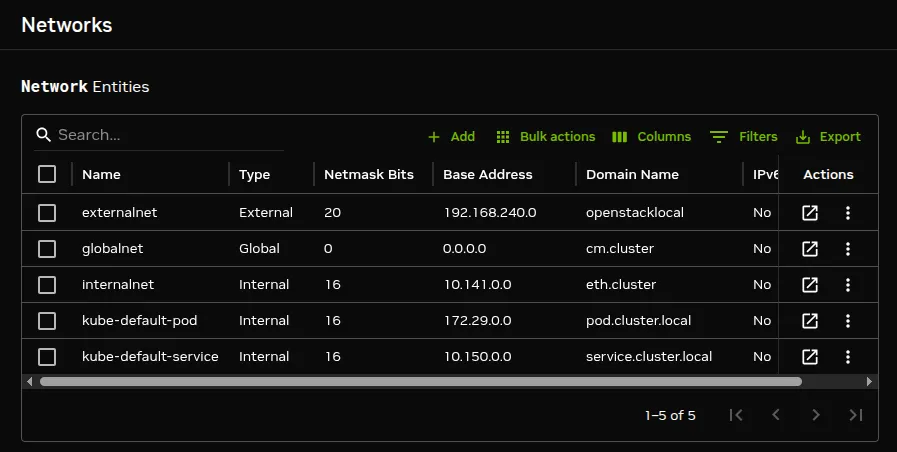
`internalnet`: the primary internal cluster network, and the default management network. This is used for booting non-head nodes and for all cluster management communication. In the absence of other internal networks, `internalnet` is also used for storage and communication between compute jobs. Changing the configuration of this network is described [here](#3234-changing-internal-network-parameters-for-the-cluster) under the subheading “Changing Internal Network Parameters For The Cluster”.

`externalnet`: the network connecting the cluster to the outside world (typically a corporate or campus network). Changing the configuration of this network is described [here](#3233-changing-external-network-parameters-for-the-cluster) under the subheading “Changing External Network Parameters For The Cluster”. This is the only network for which BCM also supports IPv6.

`globalnet`: the special network used to set the domain name for nodes so that they can be resolved whether they are cloud nodes or not. This network is described further [here](#3235-changing-the-global-network-parameters-for-the-cluster) under the subheading “Changing The Global Network Parameters For The Cluster”.

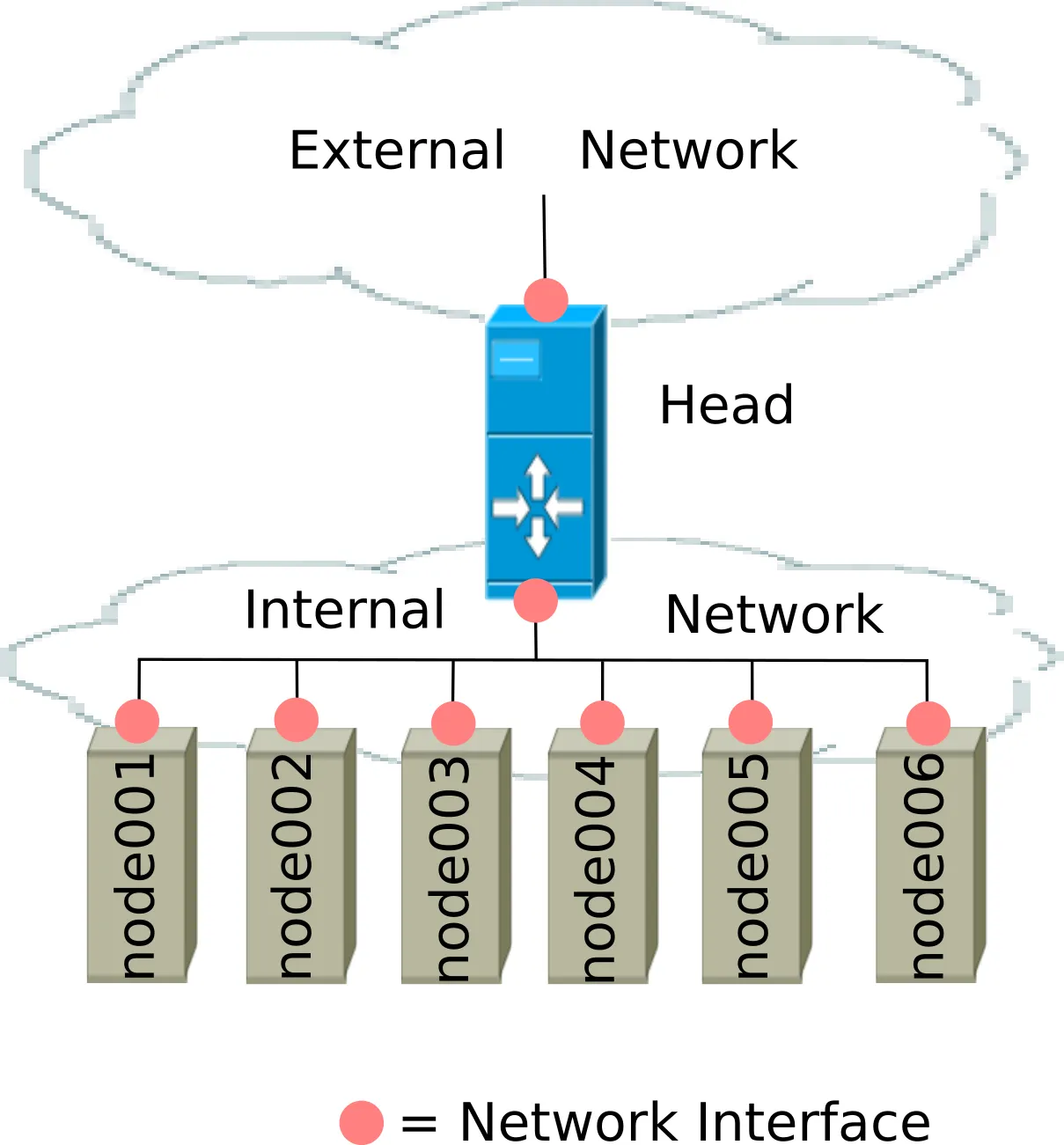
For a Type 1 cluster ([section 3.3.9 of the *Installation Manual*](/installation/installing#339-network-topology)) the internal and external networks are illustrated conceptually by figure [3.2](#fig-networksettingsconcepts).
![Network Settings Concepts](/base-command-manager/product-manuals/_fern-img/618198eec9a86292ad9098daf9211df5892f7d9bed3d52ca2701158f0a1e559e.webp)

*Figure 3.2: Network Settings Concepts*

The configuration of network settings is completed when, after having configured the general network settings, specific IP addresses are then also assigned to the interfaces of devices connected to the networks.

* Changing the configuration of the head node external interface is described [here](#theipaddressofthecluster) under the subheading “The IP address of the cluster”.

* Changing the configuration of the internal network interfaces is described [here](#theipaddressesandotherinterfacevaluesoftheinternalnetwork) under the subheading “The IP addresses and other interface values of the internal network”.

  * How to set a persistent identity for an interface—for example, to ensure that a particular interface that has been assigned the name `eth3` by the kernel keeps this name across reboots—is covered in section [5.8.1](/admin/provisioning#581-node-fails-to-pxe-boot), [here](/admin/provisioning#5811-interface-naming-conventions-post-rhel7-recommended).

* Changing the configuration of `globalnet` is described [here](#3235-changing-the-global-network-parameters-for-the-cluster) under the subheading “Changing The Global Network Parameters For The Cluster”. IP addresses are not configured at the `globalnet` network level itself.

### 3.2.1  Configuring Networks

The `network` mode in `cmsh` gives access to all network-related operations using the standard object commands. Section [2.5.3](/admin/clustermanagement#253-working-with-objects) introduces `cmsh` modes and working with objects.

In Base View, a network can be configured via the navigation path `Networking` > `Networks`, which opens up the `Network list` subwindow (figure [3.3](#fig-base-view-networks)):
![Networks](/base-command-manager/product-manuals/_fern-img/9491fb063f1577dd439a5825047aec4ac845810af9e903b94c2d6711520a8cf2.webp)

*Figure 3.3: Networks*

In the context of the OSI Reference Model, each network object represents a layer 3 (i.e. Network Layer) IP network, and several layer 3 networks can be layered on a single layer 2 network (e.g. routes on an Ethernet segment).

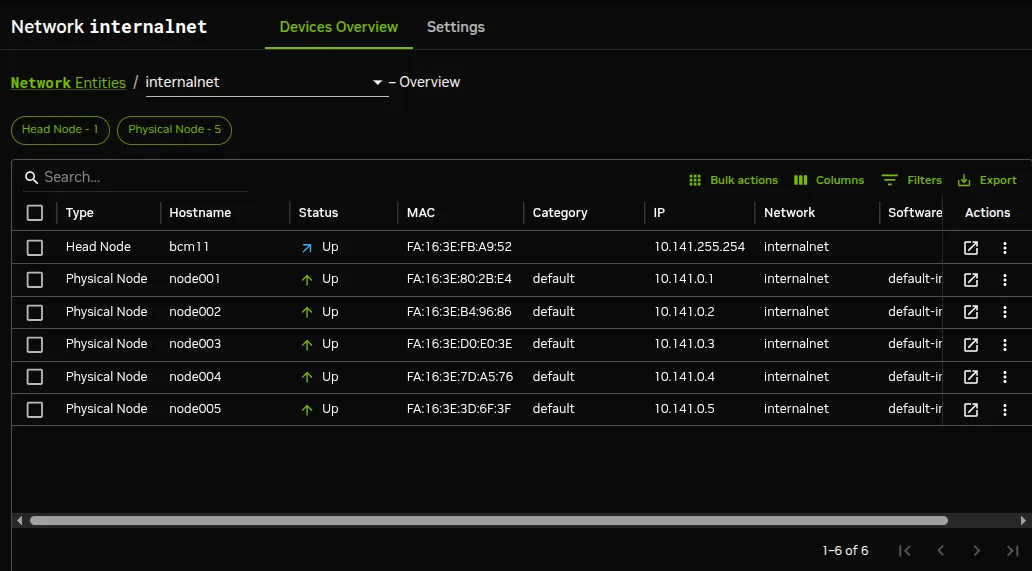
Opening up the subwindow for a network such as `internalnet` or `externalnet` brings up the `Devices Overview` tab window, which lists the devices on the network and associated properties. For example, the `internal` network typically has some nodes and other devices attached to it, each with their IP addresses and statuses (figure [3.4](#fig-base-view-network-overview)).
![Network Overview](/base-command-manager/product-manuals/_fern-img/4cb59b4263109980afedc08c69c17bdde481f9c79aec29a456af12a53b4c048f.webp)

*Figure 3.4: Network Overview*

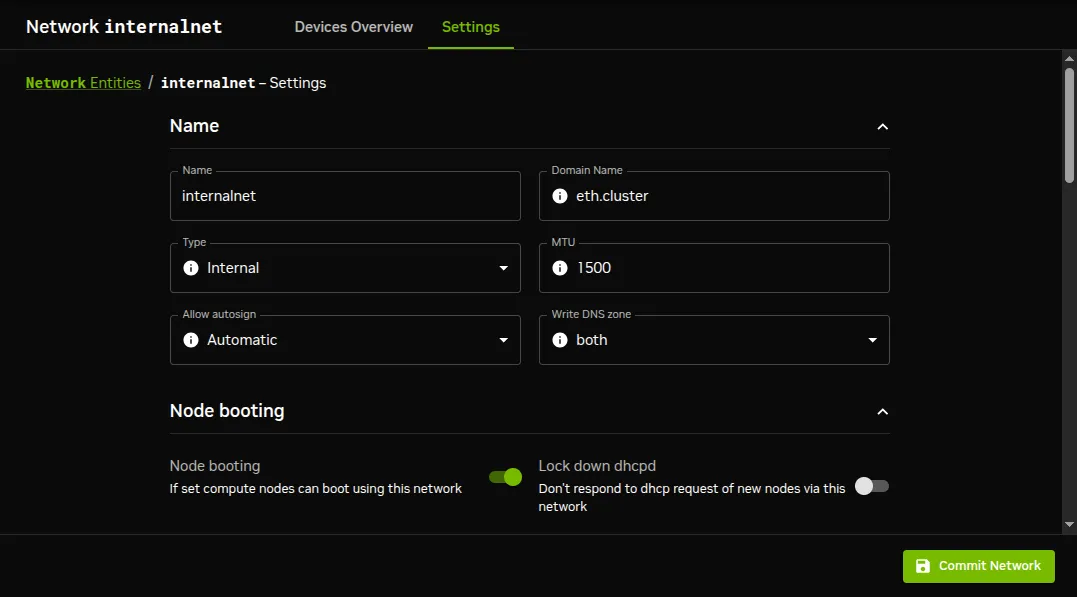
Selecting the `Settings` tab window opens a scrollable pane that allows a number of network properties to be changed (figure [3.5](#fig-base-view-network-settings)).
![Network Settings](/base-command-manager/product-manuals/_fern-img/dac90b1180c515f08588410ac6a084288046d30fcf15b6334a5aef7c1efec9b4.webp)

*Figure 3.5: Network Settings*

The properties of figure [3.5](#fig-base-view-network-settings) are introduced in table [3.1](#tablenetwork-configuration-settings):

<table>
  <colgroup>
    <col />

    <col />
  </colgroup>

  <thead>
    <tr>
      <th>
        **Property**
      </th>

      <th>
        **Description**
      </th>
    </tr>
  </thead>

  <tbody>
    <tr>
      <td>
        `Name`
      </td>

      <td>
        Name of this network.
      </td>
    </tr>

    <tr>
      <td>
        `Domain Name`
      </td>

      <td>
        DNS domain associated with the network.
      </td>
    </tr>

    <tr>
      <td>
        `Type`
      </td>

      <td>
        Menu options to set the network type. Options are 

        `Internal`

        , 

        `External`

        , 

        `Tunnel`

        , 

        `Global`

        , 

        `Cloud`

        , or 

        `NetMap`

         network.
      </td>
    </tr>

    <tr>
      <td>
        `MTU`
      </td>

      <td>
        Maximum Transmission Unit. The maximum size of an IP packet transmitted without fragmenting.
      </td>
    </tr>

    <tr>
      <td>
        `Allow autosign`
      </td>

      <td>
        Set if node-installer certificate sign requests are signed automatically.
      </td>
    </tr>

    <tr>
      <td>
        `Write DNS zone`
      </td>

      <td>
        Set which DNS zones should be written (forward or reverse).
      </td>
    </tr>

    <tr>
      <td>
        `Node booting`
      </td>

      <td>
        Enabling means nodes are set to boot from this network (useful in the case of nodes on multiple networks). For an internal subnet called 

        `<`

        *subnet*

        `>`

        , when node booting is set, CMDaemon adds a subnet configuration 

        `/etc/dhcpd.<`

        *subnet*

        `>.conf`

         on the head node, which is accessed from 

        `/etc/dhcpd.conf`

        . 

        \


        • It can be set in Base View using the navigation path 

        <code>Networking > Networks > internalnet >  > Settings > Node booting</code>

        .

        \


        • It can be set in cmsh using the network mode, selecting the network for the node, and then setting nodebooting.
      </td>
    </tr>

    <tr>
      <td>
        `Lock down dhcpd`
      </td>

      <td>
        Enabling means new nodes are not offered a PXE DHCP IP address from this network, i.e. DHCPD is “locked down”. A DHCP “deny unknown-clients” option is set by this action, so no new DHCP leases are granted to unknown clients for the network. Unknown clients are nodes for which BCM has no MAC addresses associated with the node. 

        \


        • It can be set in Base View via the Networking resource, selecting a network, and then setting Lock down dhcpd from within the network settings.

        \


        • It can be set in cmsh via the network mode, selecting a network, and then setting lockdowndhcpd.
      </td>
    </tr>

    <tr>
      <td>
        `IMEX`
      </td>

      <td>
        Enabling means the network is used for the NVIDIA IMEX peer list. The fully qualified domain name (FQDN) of each node on this network is then written to 

        `/etc/nvidia-imex/nodes_config.cfg`

         instead of the short hostname (section 

        [7.5.1.4](/admin/workloadmanagement#7514-imex)

         for the resulting configuration file and further IMEX details). It can be set in cmsh using the network mode, selecting the network, and then setting imex.
      </td>
    </tr>

    <tr>
      <td>
        `IMEX IP`
      </td>

      <td>
        Enabling means the IMEX peer list in 

        `nodes_config.cfg`

         is written using the IP address of each node on this network rather than the FQDN. Requires 

        `IMEX`

         to also be enabled on the network (section 

        [7.5.1.4](/admin/workloadmanagement#7514-imex)

        ). It can be set in cmsh using the network mode, selecting the network, and then setting imex ip.
      </td>
    </tr>

    <tr>
      <td>
        `Management allowed`
      </td>

      <td>
        Enabling means that the network has nodes managed by the head node.
      </td>
    </tr>

    <tr>
      <td>
        `Search domain index`
      </td>

      <td>
        The position of the network domain in the 

        `resolv.conf`

         file. A value of 

        `0`

         means the position is determined automatically.
      </td>
    </tr>

    <tr>
      <td>
        `Exclude from search domain`
      </td>

      <td>
        Enabling means the domain name for the network is not used.
      </td>
    </tr>

    <tr>
      <td>
        `Disable automatic exports`
      </td>

      <td>
        Enabling means that exports of built-in filesystems are not done automatically for the network.
      </td>
    </tr>

    <tr>
      <td>
        `Base address`
      </td>

      <td>
        Base address of the network (also known as the 

        *network address*

        ).
      </td>
    </tr>

    <tr>
      <td>
        `Dynamic range start/end`
      </td>

      <td>
        Start/end IP addresses of the DHCP range temporarily used by nodes during PXE boot on the internal network. These are addresses that do not conflict with the addresses assigned and used by nodes during normal use.
      </td>
    </tr>

    <tr>
      <td>
        `Netmask bits`
      </td>

      <td>
        Prefix-length, or number of bits in netmask. The part after the “/” in CIDR notation.
      </td>
    </tr>

    <tr>
      <td>
        `Gateway`
      </td>

      <td>
        Default route IP address
      </td>
    </tr>

    <tr>
      <td>
        `Gateway metric`
      </td>

      <td>
        Gateway metric
      </td>
    </tr>

    <tr>
      <td>
        `IPv6 enabled`
      </td>

      <td>
        Enables IPv6
      </td>
    </tr>

    <tr>
      <td>
        `IPv6 gateway`
      </td>

      <td>
        Sets IPv6 gateway
      </td>
    </tr>

    <tr>
      <td>
        `IPv6 base address`
      </td>

      <td>
        Sets IPv6 base address
      </td>
    </tr>

    <tr>
      <td>
        `IPv6 netmask bits`
      </td>

      <td>
        Sets IPv6 netmask bits
      </td>
    </tr>

    <tr>
      <td>
        `Cloud Subnet ID`
      </td>

      <td>
        Cloud ID of subnet
      </td>
    </tr>

    <tr>
      <td>
        `EC2AvailabilityZone`
      </td>

      <td>
        AWS availability zone in which the subnet exists
      </td>
    </tr>

    <tr>
      <td>
        `Layer3`
      </td>

      <td>
        If set to 

        `yes`

         it creates layer 3 connections with /31 netmasks. The following parameters can then be set: 

        \


        • Layer3 route: Sets a layer 3 route

        \


        • Layer3 ecmp: Creates a layer 3 network with equal-cost multi-path

        \


        • Layer3 split static route: Create a layer 3 network with split static route
      </td>
    </tr>

    <tr>
      <td>
        `Notes`
      </td>

      <td>
        Notes can be added for the network
      </td>
    </tr>
  </tbody>
</table>

*Table 3.1: Network Configuration Settings*

#### 3.2.1.1  Basic Networking Concepts And The `sipcalc` Utility

In basic networking concepts, a network is a range of IP addresses. The first address in the range is the *base address*. The length of the range, i.e. the *subnet*, is determined by the *netmask*, which uses CIDR notation. CIDR notation is the so-called / (“slash”) representation, in which, for example, a CIDR notation of 192.168.0.1/28 implies an IP address of 192.168.0.1 with a traditional netmask of 255.255.255.240 applied to the 192.168.0.0 network. The netmask 255.255.255.240 implies that bits 28–32 of the 32-bit dotted-quad number 255.255.255.255 are unmasked, thereby implying a 4-bit-sized host range of 16 (i.e. 2\[4]) addresses.

The `sipcalc` utility can be installed on the head node, and is a useful tool for calculating or checking such IP subnet values (`man sipcalc.1` or `sipcalc -h` for help on this utility):

**Example**

```bash
user@basecm11:~$ sipcalc 192.168.0.1/28
-[ipv4 : 192.168.0.1/28] - 0

[CIDR]
Host address            - 192.168.0.1
Host address (decimal)  - 3232235521
Host address (hex)      - C0A80001
Network address         - 192.168.0.0
Network mask            - 255.255.255.240
Network mask (bits)     - 28
Network mask (hex)      - FFFFFFF0
Broadcast address       - 192.168.0.15
Cisco wildcard          - 0.0.0.15
Addresses in network    - 16
Network range           - 192.168.0.0 - 192.168.0.15
Usable range            - 192.168.0.1 - 192.168.0.14

```

#### 3.2.1.2  DNS Domains And Zones

Every network has an associated DNS domain which can be used to access a device through a particular network. For `internalnet`, the default DNS domain is set to `eth.cluster`, which means that the hostname `node001.eth.cluster` can be used to access device `node001` through the primary internal network. If a dedicated storage network has been added with DNS domain `storage.cluster`, then `node001.storage.cluster` can be used to reach `node001` through the storage network. Internal DNS zones are generated automatically based on the network definitions and the defined nodes on these networks. For networks marked as external, no DNS zones are generated.

#### 3.2.1.3  Layer 3 Properties

Setting the layer 3 properties of table [3.1](#tablenetwork-configuration-settings) with `set layer3 yes` configures the nodes in the (main) network range to be routed by a switch with layer 3 features. The default netmask when `layer3` is set to `yes` is /31 (255.255.255.254) for each device and switch port pair in the subnets that are created by this setting, while routing stays defined by the netmask of the (main) network, and the routing is handled by the layer 3 features of the switch.

The netmask for layer 3 networking can be set to /30 with `set -e layer3bits 30`. This is needed for some DataDirect Networks switches.

### 3.2.2  Adding Networks

Once a network has been added, it can be used in the configuration of network interfaces for devices.

In Base View the `Add` button in the `Networks` subwindow (figure [3.3](#fig-base-view-networks)) can be used to add a new network. After the new network has been added, the `Settings` pane (figure [3.5](#fig-base-view-network-settings)) can be used to further configure the newly-added network.

In `cmsh`, a new network can be added from within `network` mode using the `add` or `clone` commands.

The default assignment of networks (internalnet to `Management network` and externalnet to `External network`) can be changed using Base View, via the `Settings` window of the cluster object, which uses the navigation path:

`Cluster > Settings > External network > {External network|Management network}`

In `cmsh` the assignment to `Management network` and `External network` can be set or modified from the `base` object in `partition` mode:

**Example**

```bash
[root@basecm11 ~]# cmsh
[basecm11]% partition use base
[basecm11->partition[base]]% set managementnetwork internalnet; commit
[basecm11->partition[base]]% set externalnetwork externalnet; commit
```

### 3.2.3  Changing Network Parameters

After both internal and external networks are defined, it may be necessary to change network-related parameters from their original or default installation settings.

#### 3.2.3.1  Changing The Head Or Regular Node Hostname

To reach the `head node` from inside the cluster, the alias `master` may be used at all times. Setting the hostname of the head node itself to `master` is not recommended.

The name of a cluster is sometimes used as the hostname of the head node. The cluster name, the head node hostname, and the regular node hostnames, all have their own separate names as a property of their corresponding objects. The name can be changed in a similar manner for each.

For example, to change the hostname of the head node, the device object corresponding to the head node must be modified.

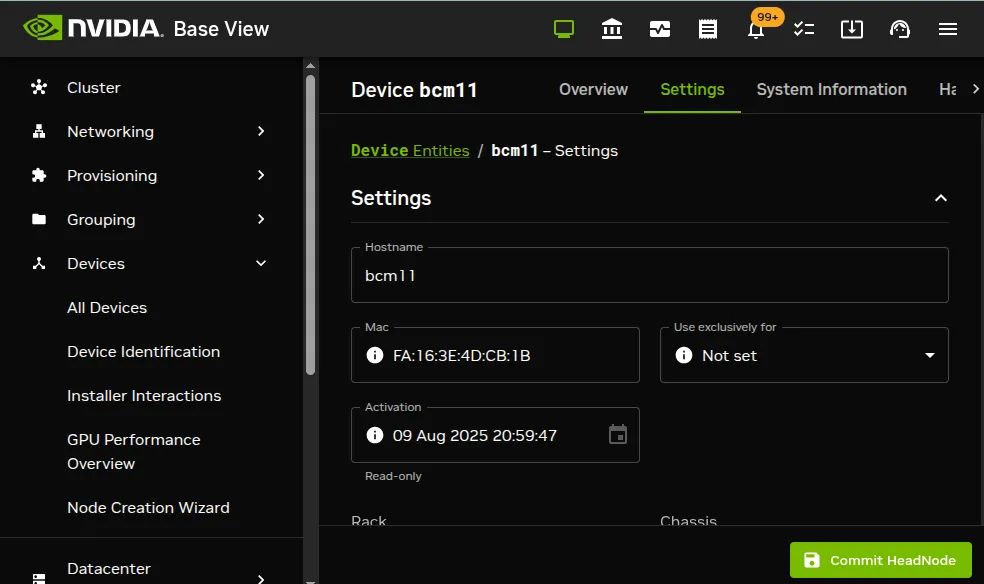
* In Base View, the navigation path for modifying the host name is <code>Devices > All Devices > Head Node >  > Settings > Hostname > Commit HeadNode</code>. That is, under the `Devices` resource, the `All Devices` option is selected. The head node is selected from the devices displayed, and its subwindow-opening box in the `Actions` column is then clicked. This opens the device overview pane. The `Settings` option can then be selected. The `Hostname` record can then be modified (figure [3.6](#fig-base-view-headnodesettings)), and saved by clicking on the `Commit HeadNode` icon. When setting a hostname, a domain is not included.

  After the change, as suggested by Base View, the head node must be rebooted.
![Head Node Settings](/base-command-manager/product-manuals/_fern-img/4e539e1578d3c96e0b95bc4d315fce9d0f74178d4d89bb189057de1a0eff46ca.webp)

*Figure 3.6: Head Node Settings*

* In `cmsh`, the hostname of the head node can also be changed, via device mode:

  **Example**

  ```bash
  [root@basecm11 ~]# cmsh
  [basecm11]% device use basecm11
  [basecm11->device[basecm11]]% set hostname foobar
  [foobar->device*[foobar*]]% commit
  [foobar->device[foobar]]%
  Tue Jan 22 17:35:29 2013 [warning] foobar: Reboot required: Hostname changed
  [foobar->device[foobar]]% quit
  [root@basecm11 ~]# sleep 30; hostname -f foobar.cm.cluster
  [root@basecm11 ~]#
  ```

  The prompt string shows the new hostname after a short time, when a new shell is started.

  After the hostname has been set, as suggested by `cmsh`, the head node must be rebooted.

#### 3.2.3.2  Adding Hostnames To The Internal Network

Additional hostnames, whether they belong to the cluster nodes or not, can be added as name/value pairs to the `/etc/hosts` file(s) within the cluster. This should be done only outside the specially-marked CMDaemon-managed section. It can be done to the file on the head node, or to the file on the software image for the regular nodes, or to both, depending on where the resolution is required.

However, for hosts that are on the internal network of the cluster, such as regular nodes, it is easier and wiser to avoid adding additional hostnames via `/etc/hosts`.

Instead, it is recommended to let BCM manage host name resolution for devices on the `internalnet` through its DNS server on the `internalnet` interface. The host names can be added to the `additionalhostnames` object, from within `interfaces` submode for the head node. The `interfaces` submode is accessible from the `device` mode. Thus, for the head node, with `eth1` as the interface for `internalnet`:

**Example**

```bash
[basecm11]% device use basecm11
[basecm11->device[basecm11]]% interfaces
[basecm11->device[basecm11]->interfaces]% use eth1
[basecm11->device[basecm11]->interfaces[eth1]]% set additionalhostnames test
[basecm11->device*[basecm11*]->interfaces*[eth1*]]% commit
[basecm11->device[basecm11]->interfaces[eth1]]%
Fri Oct 12 16:48:47 2012 [notice] basecm11: Service named was restarted
[basecm11->device[basecm11]->interfaces[eth1]]% !ping test
PING test.cm.cluster (10.141.255.254) 56(84) bytes of data.
...
```

Multiple hostnames can be added as space-separated entries.

The `named` service automatically restarts within about 20 seconds after committal, implementing the configuration changes. This kind of restart is a feature (section [3.15.1](#3151-why-use-the-cluster-manager-for-services)) of changes made to service configurations by Base View or `cmsh`.

#### 3.2.3.3  Changing External Network Parameters For The Cluster

**The external network parameters of the cluster:** When a cluster interacts with an external network, such as a company or a university network, its connection behavior is determined by the settings of two objects: firstly, the external network settings of the `Networks` resource, and secondly, by the cluster network settings.

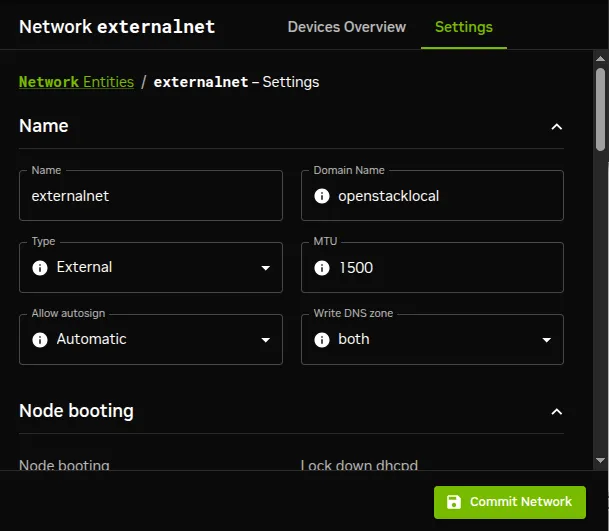
1. **The external network object** contains the network settings for all objects configured to connect to the external network, for example, a head node. Network settings are configured in Base View under the `Networking` resource, then under the `Networks` subwindow, then within the `Settings` option for a selected network. Figure [3.5](#fig-base-view-network-settings) shows a settings window for when the `internalnet` item has been selected, but in the current case the `externalnet` item must be selected instead. The following parameters can then be configured:

   * the IP network parameters of the cluster (but not the IP address of the cluster):

     * `Base address`: the network address of the external network (the “IP address of the external network”). This is not to be confused with the IP address of the cluster, which is described shortly after this.

     * `Broadcast address`: the broadcast address of the external network. This should not be confused with the broadcast IP address of the internal network.

     * `Dynamic range start` and `Dynamic range end`: Not used by the external network configuration.

     * `Netmask bits`: the netmask size, or prefix-length, of the external network, in bits.

     * `Gateway`: the default route for the external network.

   * the `network name` (what the external network itself is called), by default this is defined as `externalnet` in the base partition on a newly installed Type 1 cluster,

   * the `Domain Name`: the network domain (LAN domain, i.e. what domain machines on the external network use as their domain),

   * the `External network` checkbox: this is checked for a Type 1 cluster,

   * and MTU size (the maximum value for a TCP/IP packet before it fragments on the external network—the default value is 1500).

2. **The cluster object** contains other network settings used to connect to the outside. These are configured in Base View using the navigation path:

   `Cluster > Settings`

   and are described in section [3.1.1](#311-cluster-configuration-various-cluster-wide-settings):

   * e-mail address(es) for the cluster administrator,

   * any additional external name servers used by the cluster to resolve external host names. As an aside: by default, only the head node name server is configured, and by default it only serves hosts on the internal network via the internal interface. Enabling the `PublicDNS` directive (Appendix [C.54](/admin/cmdconf#c54-publicdns-directive)) allows the head node name server to resolve queries about internal hosts from external hosts via any interface, including the external interface.

   * the DNS search domain (what the cluster uses as its domain),

   * and NTP time servers  (used to synchronize the time on the cluster with standard time) and time zone settings.

   These settings can also be adjusted in `cmsh` in the `base` object under `partition` mode.

Changing the networking parameters of a cluster (apart from the IP address of the cluster) therefore requires making changes in the settings of the two preceding objects.

**Adding custom DNS zones:**  BCM appends a BIND DNS `include` directive to the bottom of the head node name server’s generated configuration file, so that administrator-defined DNS zones are preserved across regeneration. The path of both files depends on the distribution:

* on Ubuntu:

  * configuration file `/etc/bind/named.conf`

  * include file `/etc/bind/named.conf.include`

* on RHEL 9/10 and SLES 15:

  * configuration file `/etc/named.conf`

  * include file `/etc/named.conf.include`

Custom zone definitions placed in the include file are not touched by BCM. The zone file itself can be placed in any directory the administrator chooses; it is not tied to the distribution-specific `named.conf`/include file paths in the preceding. For example:

**Example**

```bash
zone "runai.superpod-nvidia.local" {
    type master;
    file "<path-to-zone-directory>/runai.superpod-nvidia.local.zone";
};
```

These and other related BIND DNS files that are managed by CMDaemon on the head node are listed in Appendix [A.1](/admin/generatedfiles#a1-system-configuration-files-created-or-modified-by-cmdaemon-on-head-nodes).

By default, the head node name server only resolves such zones for queries from the internal network. To resolve them from other networks, the `PublicDNS` directive (Appendix [C.54](/admin/cmdconf#c54-publicdns-directive)) must also be set to `true`.

**The IP address of the cluster:**  The cluster object itself does not contain an IP address value. This is because it is the cluster network topology type that determines whether a direct interface exists from the cluster to the outside world. Thus, the IP address of the cluster in the Type 1, Type 2, and Type 3 configurations ([section 3.3.9 of the *Installation Manual*](/installation/installing#339-network-topology)) is defined by the cluster interface that faces the outside world. For Type 1, this is the interface of the head node to the external network (figure [3.2](#fig-networksettingsconcepts)). For Type 2 and Type 3 interfaces the cluster IP address is effectively that of an upstream router, and thus not a part of BCM configuration. Thus, logically, the IP address of the cluster is not a part of the cluster object or external network object configuration.

For a Type 1 cluster, the head node IP address can be set in BCM, separately from the cluster object settings. This is then the IP address of the cluster according to the outside world.

**Setting the network parameters of the cluster and the head node IP address:** These values can be set using Base View or `cmsh`:

* ##### With Base View:

  The cluster network object and associated settings are accessed as follows:

  **The external network object:**

  The external network object is accessed via the navigation path:

  <code>
    Networking > Networks > externalnet > 

     \> Settings
  </code>

  which reaches the window shown in figure [3.7](#fig-base-view-network-settings-externalnet):
![Network Settings For External Network](/base-command-manager/product-manuals/_fern-img/d21c32639b84f65ec84b91f4f93759148f593dd8eb42247c625f9bacadf2060f.webp)

*Figure 3.7: Network Settings For External Network*

**The cluster object:**

The cluster object and associated settings are accessed using the navigation path:

`Cluster > Settings`

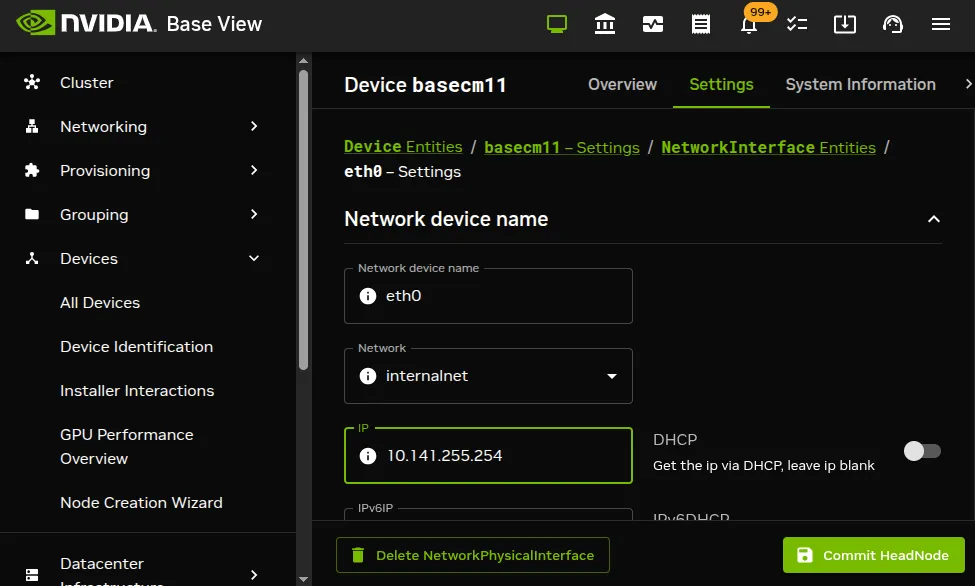
**The head node IP address:** For a head node `basecm11`, where the IP address is used by the interface `eth0`, the static IP address can be set via the navigation path:

<code>
  Devices > All Devices > Head Node > 

   \> Settings > Interfaces > 

   \> eth0 > 

   \> IP
</code>

as seen in figure [3.8](#fig-base-view-headnode-networksetup-editbox).
![Setting The IP Address On A Head Node In Base View](/base-command-manager/product-manuals/_fern-img/8bc236ee05a7ab183d8b12fa50122c303c2328074007e4fc6633f172fcd15646.webp)

*Figure 3.8: Setting The IP Address On A Head Node In Base View*

* ##### With `cmsh`:

  The preceding Base View configuration can also be done in `cmsh`, using the `network`, `partition` and `device` modes, as in the following example:

  **Example**

  ```bash
  [basecm11]% network use externalnet
  [basecm11->network[externalnet]]% set baseaddress 192.168.1.0
  [basecm11->network*[externalnet*]]% set netmaskbits 24
  [basecm11->network*[externalnet*]]% set gateway 192.168.1.1
  [basecm11->network*[externalnet*]]% set gatewaymetric 1
  [basecm11->network*[externalnet*]]% commit
  [basecm11->network[externalnet]]% partition use base
  [basecm11->partition[base]]% set nameservers 192.168.1.1
  [basecm11->partition*[base*]]% set searchdomains x.com y.com
  [basecm11->partition*[base*]]% append timeservers ntp.x.com
  [basecm11->partition*[base*]]% commit
  [basecm11->partition[base]]% device use basecm11
  [basecm11->device[basecm11]]% interfaces
  [basecm11->device[basecm11]->interfaces]% use eth1
  [basecm11->device[basecm11]->interfaces[eth1]]% set ip 192.168.1.176
  [basecm11->device[basecm11]->interfaces*[eth1*]]% commit
  [basecm11->device[basecm11]->interfaces[eth1]]%
  ```

  After changing the external network configurations, a reboot of the head node is necessary to activate the changes.

**Using DHCP to supply network values for the external interface:**

Connecting the cluster via DHCP on the external network is not generally recommended for production clusters. This is because DHCP-related issues can complicate networking troubleshooting compared with using static assignments.

For a Type 1 network, the cluster and head node can be made to use some of the DHCP-supplied external network values as follows:

* In Base View, the DHCP setting of figure [3.8](#fig-base-view-headnode-networksetup-editbox) can be set to `Enabled`

* Alternatively, in `cmsh`, within interfaces mode for the head node interface, the value of the parameter DHCP can be set:

  ```bash
  [basecm11->device[basecm11]->interfaces[eth0]]% set dhcp yes
  ```

The gateway address, the name server(s), and the external IP address of the head node are then obtained via a DHCP lease. Time server configuration for `externalnet` is not picked up from the DHCP server, having been set during installation ([figure 3.8 in Chapter 3 of the *Installation Manual*](/installation/installing#fig-clustersettings)). The time servers can be changed using Base View using the navigation path:

`Cluster > Settings > Time servers`

(figure [3.1](#fig-base-view-clustersettings)), or using `cmsh` in `partition` mode as in the preceding example. The time zone can be changed similarly.

It is usually sensible to reboot after implementing these changes in order to test the changes are working as expected.

#### 3.2.3.4  Changing Internal Network Parameters For The Cluster

When a cluster interacts with the internal network that the regular nodes and other devices are on, its connection behavior with the devices on that network is determined by settings in:

1. the internal network of the `Networks` resource ([here](#internalnetworkobjectnetworksettings))

2. the cluster network for the internal network ([here](#internalnetworkparametersclusterobject))

3. the individual device network interface ([here](#theipaddressesandotherinterfacevaluesoftheinternalnetwork))

4. the node categories network-related items for the device ([here](#internalnetworknetworkingcategoryvalues)), in the case of the device being a regular node.

In more detail:

**1. The internal network object:**  has the network settings for all devices connecting to the internal network, for example, a login node, a head node via its `internalnet` interface, or a managed switch on the internal network. In Base View, the settings can be configured under the `Networking` resource, then under the `Networks` subwindow, then within the `Settings` option for the `internalnet` item (figure [3.5](#fig-base-view-network-settings)). In `cmsh` the settings can be configured by changing the values in the `internalnet` object within `cmsh`’s `network` mode. Parameters that can be changed include:

* the IP network parameters of the internal network (but not the internal IP address):

* the “`domain name`” of the network. This is the LAN domain, which is the domain machines on this network use as their domain. By default, set to a name based on the network interface type used on the internal network, for example `eth.cluster`. In any case, the FQDN must be unique for every node in the cluster.

* the network name, or what the internal network is called. By default, set to `internalnet`.

* The `MTU` size, or the maximum value for a TCP/IP packet before it fragments on this network. By default, set to 1500.

**2. The cluster object:**  has other network settings that the internal network in the cluster uses. These particulars are configured in the `Settings` option of the cluster object resource in Base View (figure [3.1](#fig-base-view-clustersettings)). The `cmsh` equivalents can be configured from the `base` object in `partition` mode. Values that can be set include:

* the “`Management network`”. This is the network over which CMDaemon manages the nodes. Management means that CMDaemon on the head node communicates with CMDaemons on the other nodes. The communication includes CMDaemon calls and monitoring data. By default, the management network is set to `internalnet` for Type 1 and Type 2 networks, and `managementnet` in Type 3 networks. It is a partition-level cluster-wide setting by default. Partition-level settings can be overridden by the category level setting, and node-level settings can override category level or partition level settings.

* the “`Node name`” can be set to decide the prefix part of the node name. By default, set to `node`.

* the “`Node digits`” can be set to decide the possible size of numbers used for suffix part of the node name. By default, set to `3`.

* the “`Default category`”. This sets the category the nodes are in by default. By default, it is set to `default`.

* the “`Default software image`”. This sets the image the nodes use by default, for new nodes that are not in a category yet. By default, it is set to `default-image`.

* the “`Name server`”. This sets the name server used by the cluster. By default, it is set to the head node. The default configuration uses the internal network interface and serves only internal hosts. Internal hosts can override using this value at category level ([here](#3234-changing-internal-network-parameters-for-the-cluster)). By default external hosts cannot use this service. To allow external hosts to use the service for resolving internal hosts, the `PublicDNS` directive (Appendix [C.54](/admin/cmdconf#c54-publicdns-directive)) must be set to `True`.

**3. The internal IP addresses and other internal interface values:**  In Base View, the network for a node, such as a physical node `node001`, can be configured via a navigation path

<code>
  Devices > All Devices > Physical Node > 

   \> Settings > Interfaces > BOOTIF > 
</code>

The subwindow that opens up then allows network configuration to be done for such nodes in a similar way to figure [3.8](#fig-base-view-headnode-networksetup-editbox). In `cmsh` the configuration can be done by changing properties from the `interfaces` submode that is within the `device` mode for the node.

The items that can be set include:

* the `Network device name`: By default, this is set to `BOOTIF` for a node that boots from the same interface as the one from which it is provisioned.

* the `Network`: By default, this is set to a value of `internalnet`.

* the `IP` address: By default, this is automatically assigned a static value, in the range `10.141.0.1` to `10.141.255.255`, with the first node being given the first address. Using a static IP address is recommended for reliability, since it allows nodes that lose connectivity to the head node to continue operating. The static address can be changed manually, in case there is an IP address or node ID conflict due to an earlier inappropriate manual intervention.

  Administrators who want DHCP addressing on the internal network, despite the consequences, can set it via a checkbox.

* `onnetworkpriority`: This sets the priority of DNS resolution queries for the interface on the network. The range of values that it can take is from 0 to 4294967295. Resolution takes place via the interface with the higher value.

  The default priority value for a network interface is set according to its type. These defaults are:

  | **Type** | **Value** |
  | :------- | :-------- |
  | Bridge   | 80        |
  | Bond     | 70        |
  | Physical | 60        |
  | VLAN     | 50        |
  | Alias    | 40        |
  | Tunnel   | 30        |
  | Netmap   | 20        |
  | BMC      | 10        |

* `Additional Hostname`: In the case of nodes this is in addition to the default node name set during provisioning. The node name set during provisioning takes a default form of `node` \<*`3 digit number`*>, as explained earlier [here](#internalnetworkparametersclusterobject) in the section describing the cluster object settings.

For, example, a regular node that has an extra interface, `eth1`, can have its values set as follows:

**Example**

```bash
[basecm11] device interfaces node001
[basecm11->device[node001]->interfaces]% add physical eth1
[basecm11->...->interfaces*[eth1*]]% set network externalnet
[basecm11->...->interfaces*[eth1*]]% set additionalhostnames extra01
[basecm11->...->interfaces*[eth1*]]% set ip 10.141.1.1
[basecm11->...->interfaces*[eth1*]]% commit
[basecm11->...->interfaces[eth1]]% ..
[basecm11->...->interfaces]% ..
[basecm11->device[node001]]% reboot
```

**4. Node category network values:**  are settings for the internal network that can be configured for node categories. For example, for the default category called `default` this can be carried out:

* via Base View, using the `Settings` option for the category. This is in the navigation path <code>Grouping > Categories >  > Settings</code>

* or via the `category` mode in `cmsh`, for the `default` node category.

If there are individual node settings that have been configured in Base View or `cmsh`, then the node settings override the corresponding category settings for those particular nodes.

The category properties involved in internal networking that can be set include:

* `Default gateway`: The default gateway route for nodes in the node category. If unset, or 0.0.0.0 (the default), then the node default gateway route is decided by the internal network object `Gateway` value. If the default gateway is set as a node category value, then nodes use the node category value as their default gateway route instead.

* `Management network`: The management network is the network used by CMDaemon to manage devices. The default setting is a property of the node object. It can be set as a category property.

* `Name server`, `Time server`, `Search domain`: The default setting for these on all nodes is set by the node-installer to refer to the head node, and is not configurable at the node level using Base View or `cmsh`. The setting can however be set as a category property, either as a space-separated list of entries or as a single entry, to override the default value.

**Application to generic network devices:**  The preceding details for the internal network parameters of the cluster, starting from [here](#3234-changing-internal-network-parameters-for-the-cluster), are applicable to regular nodes, but they are often also applicable to generic network devices (section [2.1.1](/admin/clustermanagement#211-devices)). Benefits of adding a generic device to be managed by BCM include that:

* the name given to the device during addition is automatically placed in the internal DNS zone, so that the device is accessible by name

* the device status is automatically monitored via an ICMP ping (Appendix [G.2.1](/admin/metricshealthchecksactions#g21-regular-health-checks)).

* the device can be made to work with the health check and metric framework. The scripts used in the framework will however almost certainly have to be customized to work with the device

After changing network configurations, a reboot of the device is necessary to activate the changes.

#### 3.2.3.5  Changing The Global Network Parameters For The Cluster

The global network `globalnet` is a unique network used to set up a common name space for all nodes in a cluster in BCM. It is required in BCM because of the added cloud extension functionality, described in the *Cloudbursting Manual*. Regular nodes and regular cloud nodes are thus both named under the `globalnet` domain name, which is `cm.cluster` by default. So, for example, if default host names for regular nodes (node001, node002, ...) and regular cloud nodes (cnode001, cnode002, ...) are used, node addresses with the domain are:

* node001.cm.cluster for node001

* cnode001.cm.cluster for cnode001

The only parameter that can be sensibly changed on `globalnet` is the domain name, which is `cm.cluster` by default.

Removing `globalnet` should not be done because it will cause various networking failures, even for clusters deploying no cloud nodes.

Details on how resolution is carried out with the help of `globalnet` are given in [section 6.6.1 of the *Cloudbursting Manual*](/cloudbursting/cloudconsiderations#661-resolution-and-globalnet).

#### 3.2.3.6  Setting Static Routes In The `staticroutes` Submode Of `cmsh`

To route via a specific gateway, the `staticroutes` submode can be used. This can be set for regular nodes and head nodes via the `device` mode, and for node categories via the `category` mode.

On a newly-installed cluster with a type 1 network ([section 3.3.9 of the *Installation Manual*](/installation/installing#339-network-topology)), a node by default routes packets using the head node as the default gateway.

If the administrator would like to configure a regular node to use another gateway to reach a printer on another subnet, as illustrated by figure [3.9](#fig-staticroute-to-a-printer):
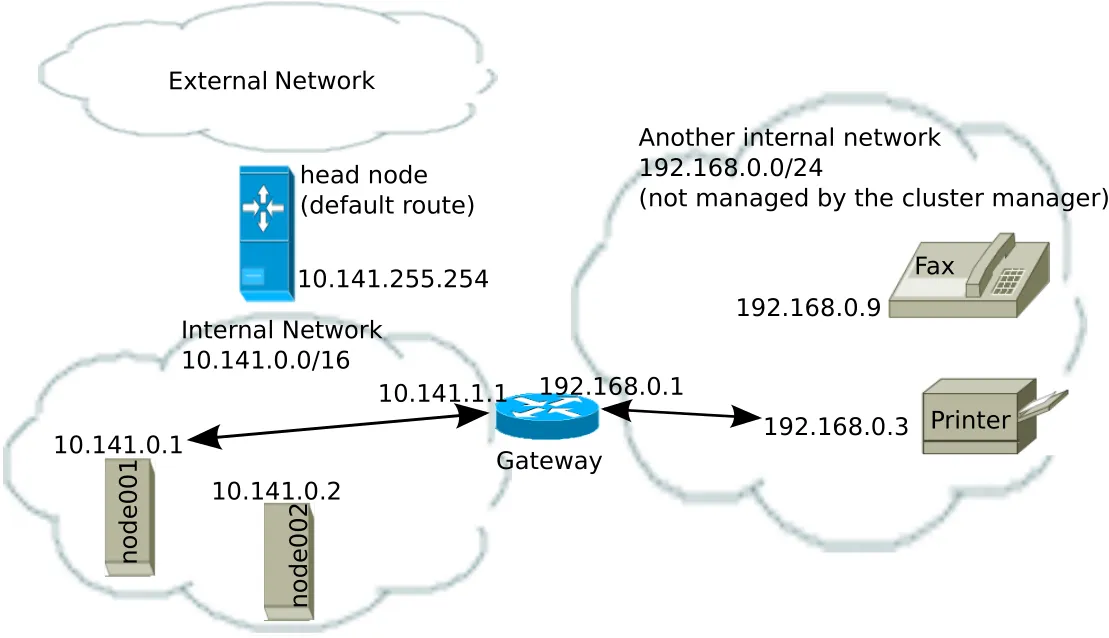
![Example Of A Static Route To A Printer On Another Subnet](/base-command-manager/product-manuals/_fern-img/f1d39212878c9946149a3ce872005c83e9c393372609a04f86ed2da62ed20780.webp)

*Figure 3.9: Example Of A Static Route To A Printer On Another Subnet*

then an example session for setting the static route is as follows:

**Example**

```bash
[root@basecm11 ~]# cmsh
[basecm11 ]% device use node001
[basecm11->device[node001]]%
[basecm11->device[node001]]% staticroutes
[basecm11->device[node001]->staticroutes]% list
Name (key)                       Gateway          Destination
-------------------------------- ---------------- --------------
[basecm11->device[node001]->staticroutes]% add printerroute
[basecm11->...*[printerroute*]]% set gateway 10.141.1.1
[basecm11->...*[printerroute*]]% set destination 192.168.0.3
[basecm11->...*[printerroute*]]% set networkdevicename bootif
[basecm11->...*[printerroute*]]% commit
[basecm11->...[printerroute]]% show
Parameter                        Value
-------------------------------- -------------------------------
Destination                      192.168.0.3/32
Gateway                          10.141.1.1
Name                             printerroute
Network Device Name              bootif
Revision
[basecm11->device[node001]->staticroutes[printerroute]]% exit
[basecm11->device[node001]->staticroutes]% list
Name (key)                       Gateway          Destination
-------------------------------- ---------------- --------------
printerroute                     10.141.1.1       192.168.0.3/32
[basecm11->device[node001]->staticroutes]% exit; exit
[basecm11->device]% reboot node001
```

In the preceding example, the regular node `node001`, with IP address 10.141.0.1 can connect to a host 192.168.0.3 outside the regular node subnet using a gateway with the IP addresses 10.141.1.1 and 192.168.0.1. The route is given the arbitrary name `printerroute` for administrator and CMDaemon convenience, because the host to be reached in this case is a print server. The `networkdevicename` is given the interface name `bootif`. If another device interface name is defined in CMDaemon, then that can be used instead. If there is only one interface, then `networkdevicename` need not be set.

After a reboot of the node, the route that packets from the node follow can be seen with a traceroute or similar. The `ping` utility with the `-R` option can often track up to 9 hops, and can be used to track the route:

**Example**

```bash
[root@basecm11 ~]# ssh node001 ping -c1 -R 192.168.0.3
PING 192.168.0.3 (192.168.0.3) 56(124) bytes of data.
64 bytes from 192.168.0.3: icmp_seq=1 ttl=62 time=1.41 ms
RR:     10.141.0.1
        10.141.1.1
        192.168.0.1
        192.168.0.3
        192.168.0.3
        192.168.0.1
        10.141.1.1
        10.141.0.1

--- 192.168.0.3 ping statistics ---
1 packets transmitted, 1 received, 0% packet loss, time 1ms
rtt min/avg/max/mdev = 1.416/1.416/1.416/0.000 ms
[root@basecm11->device[node001]->staticroutes]%
```

The routing is achieved by CMDaemon making sure that whenever the network interface is brought up, the OS of the regular node runs a routing command to configure the routing tables. The command executed for the given example is either:

```bash
    route add -host 192.168.0.3 gw 10.141.1.1
```

or its modern iproute2 equivalent:

```bash
    ip route add 192.168.0.3 via 10.141.1.1
```

If the device `bootif` is `eth0`—which is often the case—then the command is run from the network interface configuration file: `/etc/sysconfig/network-scripts/ifcfg-eth0` (or `/etc/sysconfig/network/ifcfg-eth0` in SUSE).

**If the device is a head node:** then rebooting it to have the new route become active is a clean way to implement the change. However doing this may not be acceptable to cluster users due to the downtime, and the associated interruption of jobs. A quicker update to the interface that should work is using operating system networking scripts. For example, if the interface with the route is `eth0`, then the interface can be brought down and up again with `ifdown eth0 && ifup eth0`. If the various networking configurations have been applied in a way that persists over reboots, then they should be applied automatically to the interface as it starts up.

#### 3.2.3.7  Port Forwarding With `portforward`

**Why port forwarding is useful:** In a typical type 1 network setup ([section 3.3.9 of the *Installation Manual*](/installation/installing#339-network-topology)), only the head nodes are accessible from the external network. So, the compute nodes cannot be accessed directly from the external network.

Accessing a compute node port may however be needed for some workflows. For example, a user on a laptop on the external network may wish to access a compute node port directly.

To allow this direct access to a compute node port, port forwarding rules can be set up from within the `device` mode of `cmsh`. Configuring port forwarding with BCM is designed to be easier than doing port forwarding directly in the operating system.

**The port forwarding help text:** The help text for the `portforward` command summarizes how to use it:

```bash
[basecm11->device]% help portforward
Name:

  portforward - Forward a port on the active head node to IP

Usage:

  portforward create <IP> <port> <active-head-node-port>
  portforward destroy [IP] [port] [active-head-node-port]
  portforward bmc [device] [https-interface-port] [console-port]
  portforward list

Examples:

  portforward create 10.148.0.1 443 8443    Create a mapping from head:8443 to 10.148.0.1:443
  portforward create node001 8081 8181      Create a mapping from head:8181 to the management IP of node001:8081
  portforward create node001:rf0 443 8443   Create a mapping from head:8443 to the redfish IP of node001:443
  portforward destroy 10.148.0.1            Destroy all port forwarding to 10.148.0.1
  portforward destroy                       Destroy all port forwarding
  portforward bmc                           Create a mapping to the BMC of the current device
  portforward bmc node001                   Create a mapping to the BMC of node001
  portforward list                          List all active mappings
```

**An illustration of port forwarding working:** The following example indicates how BCM port forwarding works. A laptop user on the external network may wish to connect to port 1234 on compute node `node001` by connecting to the head node port 4321. There is no port 4321 open on the head node to start with, until a `portforward` command is run:

**Example**

```bash
[basecm11->device]% connections master | grep 4321
[basecm11->device]% portforward create node001 1234 4321
[basecm11->device]% connections master | grep 4321
basecm11  TCP6     0.0.0.0                    4321     0.0.0.0         0        Listening
```

The `connections` command is described [here](#3243-viewing-connections-in-cmsh).

In the background on the active head there is a new `socat` process that is created for each port forward:

```bash
[basecm11->device]% !ps x | grep [s]ocat
 159559 ?        S      0:00 /usr/bin/socat tcp-listen:4321,reuseaddr,fork tcp:10.141.0.1:1234
```

The `socat` process forwards any packets from external network interface of the head node to the internal network interface of the compute node, as illustrated by the following ASCII diagram:

```bash
                 external            internal
company laptop   <------>    head    <------>  node001
                 <-- 4321:10.141.0.1:1234 -->
```

The forwarding can be tested by setting up a `netcat` listening process on port 1234 of `node001`:

```bash
[basecm11->device]% ssh node001 "nc -l 1234"
```

and then typing something to port 4321 on the head node:

```bash
root@basecm11:~# nc basecm11 4321
Hello, World!
^C
```

The `Ctrl-C` interrupts the session on the head node.

The `Hello, World!` text entered on the head node shows up on the `netcat` listener on `node001`. The session on the compute node ends with the `Ctrl-C` interrupt on the head node:

```bash
[basecm11->device]% ssh node001 "nc -l 1234"
Hello, World!
[basecm11->device]%
```

A successful session as just illustrated means that port forwarding is working as expected.

If the session is unsuccessful, then it may be because the port is blocked by a firewall. By default, the head node runs a firewall, Shorewall, ([here](/installation/thirdparty#72-shorewall)), which may need to have its rules adjusted.

**Listing active port forwarding rules:** All are listed with the list command:

**Example**

```bash
[basecm11->device]% portforward list
Device       IP           Port         Head port    Sessions
------------ ------------ ------------ ------------ --------
node001      10.141.0.1   8081         8181         1
node002      10.141.0.2   8081         8281         1
node003      10.141.0.3   8081         8381         1
node004      10.141.0.4   8081         8481         1
```

`Sessions` denotes the number of `cmsh` instances that started the exact same rule. This is normally 1. Each request is tracked via a `cmsh` session unique identifier to prevent killing a port forward rule placed by someone else.

**Destroying (removing) every rule:** A specific rule can be removed by specifying its compute node IP address and compute node port. All rules are removed with the destroy option used on its own:

**Example**

```bash
[basecm11->device]% portforward destroy
Destroyed: 4 port forward
```

**BMC port forwarding:** For BMC port forwarding 2 rules are created.

* A rule for the BMC management interface on 443

* A rule for the BMC console port (5900 or 17900 depending on the type of interface)

### 3.2.4  Tools For Viewing Cluster Connections And Connectivity

#### 3.2.4.1  Viewing Node Routes With `routes` In `cmsh`

The `cmsh` `routes` command is a wrapper around the Linux `route` command, and is designed to run in parallel over nodes. It is intended to get a fast route overview for one or more nodes, and display it for easy comparison.

To get a full overview of the routes for all nodes, the command is run without any options:

**Example**

```bash
[root@basecm11 ~]# cmsh
[basecm11]% device
[basecm11->device]% routes
Hostname  Destination      Gateway          Netmask          Flags     Metric  Ref  Use  Interface
--------- ---------------- ---------------- ---------------- --------- ------- ---- ---- ---------
basecm11 0.0.0.0          192.168.255.254  0.0.0.0          UG (0003)  0       0    0    eth1
basecm11 10.141.0.0       0.0.0.0          255.255.0.0      U (0001)   0       0    0    eth0
basecm11 169.254.169.254  192.168.241.1    255.255.255.255  UGH (0007) 0       0    0    eth1
basecm11 192.168.240.0    0.0.0.0          255.255.240.0    U (0001)   0       0    0    eth1
node001  0.0.0.0          10.141.255.254   0.0.0.0          UG (0003)  0       0    0    ens3
node001  10.141.0.0       0.0.0.0          255.255.0.0      U (0001)   0       0    0    ens3
```

To select or filter the output, the grouping options of `routes`, or the text processing utility `awk` can be used. Grouping options are options to select nodes, groups, categories, and so on, and are described in the cluster management chapter, [here](/admin/clustermanagement#2559-looping-over-objects-with-foreach), while a handy link for `awk` one-liners is [http://tuxgraphics.org/\~guido/scripts/awk-one-liner.html](http://tuxgraphics.org/~guido/scripts/awk-one-liner.html).

Selection or filtering makes it very easy to detect badly-configured nodes. For example, when the expected gateway is \<*expected-gateway*>, the following command may be used to display only the unexpected gateways:

**Example**

```bash
[root@basecm11 ~]# cmsh
[basecm11]% device
[basecm11->device]% routes --category default | awk '{if ($3 != "<expected-gateway>") print $0}'
...
```

#### 3.2.4.2  Viewing IP Addresses With `ipaddresses` In `cmsh`

The `ipaddresses` command, in `device` mode, lists the configured and detected IP addresses for one or more devices. By default, link-local addresses (`169.254.0.0/16` and `fe80::/10`) are excluded from the listing, since they are rarely of interest to an administrator. The `--all` option includes them in this default listing; it has no effect on the following `--check` output, which always excludes link-local and BMC interfaces.

**Example**

```bash
[basecm11->device]% ipaddresses node001
Hostname Name IP         MAC               PCI Bus ID State
-------- ---- ---------- ----------------- ---------- -----
node001  eth0 10.141.0.1 FA:16:3E:F0:C4:EA            up
node001  eth1 10.141.1.1 FA:16:3E:B5:7D:02            up
```

The output lists one row per configured or detected address. The preceding example omits the `Netmask`, `MTU`, `Speed`, and `Duplex` columns to fit the page; the full set of columns is:

* `Hostname`: the node the interface belongs to.

* `Name`: the interface name.

* `IP`: the IP address on that interface.

* `Netmask`: the netmask for the address.

* `MAC`: the interface’s MAC address.

* `PCI Bus ID`: the PCI bus address of the NIC that the IP address is assigned to, for example `0000:03:00.0`. This identifies which physical network interface corresponds to a given IP address on a node, which is useful on hosts with several NICs. It is blank for interfaces with no discoverable PCI device, such as virtual NICs, as in the preceding example. The REST API exposes the same value as the `pciBusId` field on the `IPAddress` entity.

* `MTU`: the interface’s maximum transmission unit.

* `Speed`: the negotiated link speed, or `-` if not available.

* `Duplex`: the negotiated duplex mode, or `unknown` if not detected.

* `State`: whether the interface is `up` or `down`.

The `--check` option compares the IP address configured in BCM for each interface against the address actually detected on the device, and reports any mismatch:

**Example**

```bash
[basecm11->device]% ipaddresses node001 --check
Hostname Interface Configured    Detected       State
-------- --------- ------------- -------------- --------
node001  eth0      10.141.0.1    10.141.0.1     OK
node001  eth1      10.141.128.1  10.141.128.1   OK
```

If any interface is not `OK`, the command exits with a non-zero status, though the table is still printed in full:

**Example**

```bash
[basecm11->device]% ipaddresses node001 --check
Hostname Interface Configured    Detected       State
-------- --------- ------------- -------------- ---------------
node001  eth0      10.141.0.1    10.141.0.1     OK
node001  eth1      10.141.128.1  10.141.128.99  Mismatch
node001  eth2      10.141.255.2  -              Not detected
node001  eth3      -             10.2.0.5       Not configured
```

The `State` column values are:

* `OK`: the configured and detected addresses match, or the interface uses DHCP and an address was detected.

* `Mismatch`: both a configured and a detected address are present, but they differ.

* `Not detected`: an address is configured, but nothing was detected on the interface.

* `Not configured`: an address was detected, but nothing is configured in BCM for that interface.

The standard node selection options (`-n`, `-c`, `-g`, `-r`) can be used with `--check` to target a set of devices, for example `ipaddresses -r rack01 --check`. The `--check` option cannot be combined with `--import`, and `--json` is ignored when `--check` is used.

#### 3.2.4.3  Viewing Connections In `cmsh`

The `connections` command can be run from within the `device` mode of `cmsh`. It is a parallel wrapper to view active TCP and UDP connections. That is, it runs as a simple command over multiple devices at the same time.

Running `connections` without options displays a full overview of the currently active TCP and UDP ports on all devices (output truncated):

**Example**

```bash
[basecm11->device]% connections
Node      Type     Source   Port  Destination  Port  State
--------- -------- -------- ----- ------------ ----- ----------
basecm11  TCP      0.0.0.0  22    0.0.0.0      0     Listening
basecm11  TCP      0.0.0.0  25    0.0.0.0      0     Listening
basecm11  TCP      0.0.0.0  111   0.0.0.0      0     Listening
basecm11  TCP      0.0.0.0  636   0.0.0.0      0     Listening
...
```

Filtering with `grep` can then show which nodes are listening on which ports. For example, nodes listening for DNS queries (port 53) can be found with:

**Example**

```bash
[basecm11->device]% connections | head -2; connections | grep Listen | grep " 53"
Node      Type     Source             Port     Destination     Port     State
--------- -------- ------------------ -------- --------------- -------- -----------
basecm11  TCP      10.141.255.254     53       0.0.0.0         0        Listening
basecm11  TCP      127.0.0.1          53       0.0.0.0         0        Listening
basecm11  TCP      192.168.200.162    53       0.0.0.0         0        Listening
```

and shows that only the head node is listening on that port, providing DNS.

Some third party tools require a free port on all nodes for a service to listen on. Filtering and sorting the output of the connections command allows the administrator to find all the existing used ports across all nodes:

**Example**

```bash
[basecm11->device]% connections | awk 'print $4' | sort -un
Port
22
25
53
67
68
69
...
```

Options to the `connections` command can be seen by running `help connections`. Options include node grouping options (such as `-n|--nodes`, `-c|--category`, and `-t|--type`), and filtering out TCP6 and UDP6 connections (`--no-tcp6`, `--no-udp6`).

#### 3.2.4.4  Viewing Connections In Base View

The preceding `connections` command in `device` mode of `cmsh` has a Base View version. This is the `Network Connections` pane display, which is accessible using:

`All devices > Bulk actions > Connectivity > Network Connections`

#### 3.2.4.5  Viewing Connectivity in `cmsh`

The `connectivity` command can be run from within the `device` mode of `cmsh`. It runs ICMP pings along each node route on a network of the cluster. By default the network is the management network.

By default the output displays if the connection is OK, the ping sequence ID (counting starts from zero), and the latency between the source and destination:

**Example**

```bash
[basecm11->device]% connectivity
Source    Destination Result       ID   Latency
--------- ----------- ------------ ---- ------------
basecm11  node001     Ok           0    0.4ms
basecm11  node002     Ok           0    0.3ms
basecm11  node003     Ok           0    0.4ms
basecm11  basecm11    Ok           0    0.1ms
```

Pings where the source and destination have identical names are carried out via identical interfaces.

Further options to the `connectivity` command can be seen by running `help connectivity`. Options include the ability to set ping timeouts and the cluster network on which to ping, as well as node grouping options.

For larger clusters, the following type of connectivity check may be a helpful diagnostic:

**Example**

```bash
[basecm11->device]% connectivity --statistics --count 100 --delay 0.01
Name        Value
----------- --------
OK          400
Total       400
Count       2
Average     0.35ms
Minimum     0.35ms
Maximum     0.35ms
Uniformity  100.0%
```

The preceding shows how uniform nodes are in ping timings. A significant spread in uniformity can indicate network problems.

#### 3.2.4.6  Viewing Connectivity in Base View

The preceding `connectivity` command in `device` mode of `cmsh` has a Base View version. This is the `Ping All` pane display, which is accessible using:

`All devices > Bulk actions > Connectivity > Ping All`

#### 3.2.4.7  Viewing Network Performance With `cm-iperf.py`

A handy tool for checking the network performance of the nodes on a cluster is `cm-iperf.py`.

The nodes to be checked must be specified with the `-n|--node` option:

**Example**

```bash
basecm11:~#  /cm/local/apps/cmd/scripts/cm-iperf.py  -n node001..node004
Thread  Port    Server          Client          Target          Bitrate
======= ======= =============== =============== =============== =================
0       5000    node001         node002         node001         7.89 Gbits/sec
0       5001    node001         node003         node001         7.84 Gbits/sec
0       5002    node001         node004         node001         8.22 Gbits/sec
0       5003    node002         node003         node002         7.53 Gbits/sec
0       5004    node002         node004         node002         8.60 Gbits/sec
0       5005    node003         node004         node003         7.59 Gbits/sec
```

For a Type 1 cluster ([section 3.3.9 of the *Installation Manual*](/installation/installing#339-network-topology)) with n nodes, the total number of connection pairs that can be evaluated is:

```math
\left(\begin{matrix}
    n\\
        2
  \end{matrix}\right) = \cfrac{(n)(n-1)}{2}
```

For a 4-node cluster this means 6 network connection pairs are displayed, as is seen in the preceding example.

Each pair is checked for about 10s. This means that for a 1000-node cluster, the time for a default run would take about 2 months. The following options are therefore useful:

* `--count`: specify the number of pairs that are checked

* `-r|--random`: have the connection pairs chosen in a random sequence

* `-p|--parallel`: specify the number of parallel threads to runs the process

**Example**

```bash
basecm11:~#  /cm/local/apps/cmd/scripts/cm-iperf.py  -n node001..node004 --count 5 -r -p 2
```

Further options can be viewed with the `-h|--help` option.

## 3.3  Configuring Bridge Interfaces

Bridge interfaces can be used to divide one physical network into two separate network segments at layer 2 without creating separate IP subnets. A bridge thus connects the two networks together at layer 3 in a protocol-independent way.

The network device name given to the bridge interface is of the form `br`*`<number>`*. The following example demonstrates how to set up a bridge interface in `cmsh`, where the name `br0` is stored by the parameter `networkdevicename`.

**Example**

```bash
[basecm11->device[node001]->interfaces]% add bridge br0
[basecm11->...->interfaces*[br0*]]% set network internalnet
[basecm11->...->interfaces*[br0*]]% set ip 10.141.1.1
[basecm11->...->interfaces*[br0*]]% show
Parameter                      Value
------------------------------ ------------------
Additional Hostnames
DHCP                           no
Forward Delay                  0
IP                             10.141.1.1
Interfaces
MAC                            00:00:00:00:00:00
Network                        internalnet
Network device name            br0
Revision
SpanningTreeProtocol           no
Type                           bridge
```

A bridge interface is composed of one or more physical interfaces. The IP and network fields of the member interfaces must be empty:

**Example**

```bash
[basecm11->...->interfaces*[br0*]]% set interfaces eth1 eth2; exit
[basecm11->...->interfaces*]% clear eth1 ip; clear eth1 network
[basecm11->...->interfaces*]% clear eth2 ip; clear eth2 network
[basecm11->...->interfaces*]% use br0; commit
```

The `BOOTIF` interface is also a valid interface option.

Currently, the following bridge properties can be set:

* `SpanningTreeProtocol`: sets the spanning tree protocol to be on or off. The default is off.

* `Forward Delay`: sets the delay for forwarding Ethernet frames, in seconds. The default is 0.

Additional properties, if required, can be set manually using the `brctl` command in the OS shell.

When listing interfaces in `cmsh`, if an interface is a member of a bond (or bridge) interface, then the corresponding bond or bridge interface name is shown in parentheses after the member interface name:

**Example**

```bash
[headnode->device[node001]->interfaces]% list
Type         Network device name  IP               Network
------------ -------------------- ---------------- ----------------
bond         bond0 [prov]         10.141.128.1     internalnet
bridge       br0                  10.141.128.2     internalnet
physical     eth0                 10.141.0.1       internalnet
physical     eth1 (bond0)         0.0.0.0
physical     eth2 (bond0)         0.0.0.0
physical     eth3 (br0)           0.0.0.0
physical     eth4 (br0)           0.0.0.0
```

It is possible to create a bridge interface with no IP address configured, that is, with an IP address of 0.0.0.0. This can be done for security reasons, or when the number of available IP addresses on the network is scarce. As long as such a bridge interface has a network assigned to it, it is properly configured on the nodes and functions as a bridge on the network.

## 3.4  Configuring VLAN interfaces

A VLAN (Virtual Local Area Network) is an independent logical LAN within a physical LAN network. VLAN tagging is used to segregate VLANs from each other. VLAN tagging is the practice of inserting a VLAN ID tag into a packet frame header, so that each packet can be associated with a VLAN.

The physical network then typically has sections that are VLAN-aware or VLAN-unaware. The nodes and switches of the VLAN-aware section are configured by the administrator to decide which traffic belongs to which VLAN.

A VLAN interface can be configured for an interface within BCM using `cmsh` or Base View.

### 3.4.1  Configuring A VLAN Interface Using `cmsh`

In the following `cmsh` session, a regular node interface that faces a VLAN-aware switch is made VLAN-aware, and assigned a new interface—an alias interface. It is also assigned a network, and an IP address within that network:

**Example**

```bash
[root@basecm11 ~]# cmsh
[basecm11]% device interfaces node001
[basecm11->device[node001]->interfaces]% list
Type         Network device name  IP             Network
------------ -------------------- -------------- ------------
physical     BOOTIF [prov]        10.141.0.1     internalnet
[basecm11->device[node001]->interfaces]% list -h | tail -4
Arguments:
   type
     alias, bmc, bond, bridge, netmap, physical, tunnel, vlan

[basecm11->device[node001]->interfaces]% add vlan BOOTIF.1
[basecm11->device*[node001*]->interfaces*[BOOTIF.1*]]% commit
[basecm11->device[node001]->interfaces[BOOTIF.1]]% show

Parameter                 Value
------------------------- ------------------------
Additional Hostname
DHCP                      no
IP                        0.0.0.0
MAC                       00:00:00:00:00:00
Network
Network device name       BOOTIF.1
Reorder HDR               no
Revision
Type                      vlan
[basecm11->...[BOOTIF.1]]% set network internalnet
[basecm11->...[BOOTIF.1*]]% set ip 10.141.2.1; commit
```

The `Reorder HDR` setting in a VLAN, if enabled, moves the ethernet header around to make it look exactly like a real ethernet device. This setting controls the `REORDER_HDR` setting in the file at `/etc/sysconfig/network-scripts/ifcfg-` \<*interface*> on the node.

### 3.4.2  Configuring A VLAN Interface Using Base View

Within Base View a VLAN interface can be added for a node such as `node001` using the navigation path:\
<code>Devices > All Devices > node001  > Settings > Interfaces  > + Add > vlan</code>\
(figure [3.10](#fig-base-view-configuring-vlan)).
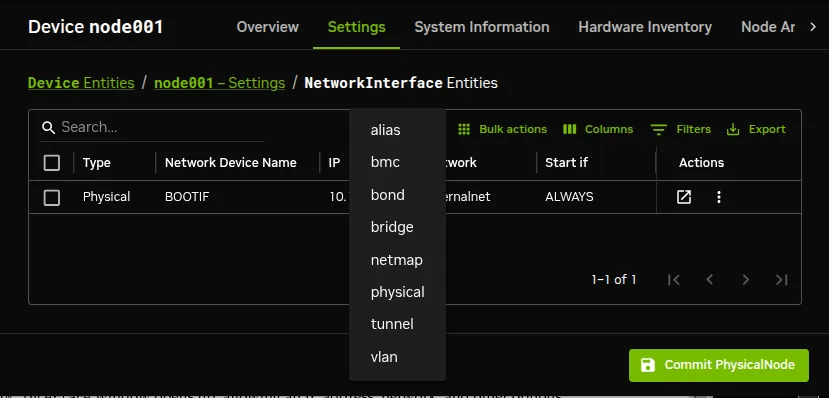
![Configuring a VLAN via Base View](/base-command-manager/product-manuals/_fern-img/afe989b4aee345eee204c19e13d233da5b0d009bd2818e9871afce769f050617.webp)

*Figure 3.10: Configuring a VLAN via Base View*

A `Network VLAN Interface` window opens up, allowing an IP address, network, and other options to be configured for the VLAN interface.

## 3.5  Configuring Bonded Interfaces

### 3.5.1  Adding A Bonded Interface

The Linux bonding driver allows multiple physical network interfaces that have been configured previously (for example, as [here](#3234-changing-internal-network-parameters-for-the-cluster)) to be bonded as a single logical bond interface. The behavior of such interfaces is determined by their bonding mode. The modes provide facilities such as hot standby or load balancing.

The driver is included by default on head nodes. To configure a non-head node to use a bonded interface, a Linux kernel module called the `bonding` module must be included in the kernel modules list of the software image of the node. A bonding interface can then be created, and its properties set as follows:

**Example**

```bash
[basecm11->device[node001]->interfaces]% add bond bond0
[...->device*[node001*]->interfaces*[bond0*]]% set network internalnet
[...->device*[node001*]->interfaces*[bond0*]]% set ip 10.141.128.1
[...->device*[node001*]->interfaces*[bond0*]]% set mode 3
[...->device*[node001*]->interfaces*[bond0*]]% set interfaces eth1 eth2
```

Each bonded interface has a unique set of object properties, called bonding options, that specify how the bonding device operates. The bonding options are a string containing one or more options formatted as `option=value` pairs, with pairs separated from each other by a space character.

A bonded interface also always has a mode associated with it. By default it is set to `0`, corresponding to a balanced round-robin packet transmission.

The 7 bonding modes are:

* 0 – balance-rr

* 1 – active-backup

* 2 – balance-xor

* 3 – broadcast

* 4 – 802.3ad

* 5 – balance-tlb

* 6 – balance-alb

Technically, outside of Base View or `cmsh`, the bonding mode is just another bonding option specified as part of the options string. However in BCM the bonding mode value is set up using the dedicated `mode` property of the bonded interface, for the sake of clarity. To avoid conflict with the value of the `mode` property, trying to commit a bonding mode value as an `option=value` pair will fail validation.

### 3.5.2  Single Bonded Interface On A Regular Node

A single bonded interface on a node can be configured and coexist in several ways on nodes with multiple network interfaces. Possibilities and restrictions are illustrated by the following:

* The bonded interface may be made up of two member interfaces, and a third interface outside of the bond could be the boot interface. (The boot interface is the node interface used to PXE boot the node before the kernel loads (section [5.1](/admin/provisioning#51-before-the-kernel-loads))).

* The boot interface could itself be a member of the bonded interface. If the boot interface is a member of a bonded interface, then this is the first bonded interface when interfaces are listed as in the example [here](#33-configuring-bridge-interfaces).

* The bonded interface could be set up as the provisioning interface. However, the provisioning interface cannot itself be a member of a bonded interface. (The provisioning interface is the node’s interface that picks up the image for the node after the initial ramdisk is running. Chapter [5](/admin/provisioning) covers this in more detail).

* A bonded interface can be set up as the provisioning interface, while having a member interface which is used for PXE booting.

### 3.5.3  Multiple Bonded Interface On A Regular Node

A node can also have multiple bonded interfaces configured. Possibilities and restrictions are illustrated by the following:

* Any one of the configured bonded interfaces can be configured as the provisioning interface. However, as already mentioned in the case of single bond interfaces (section [3.5.2](#352-single-bonded-interface-on-a-regular-node)), a particular member of a bonded interface cannot be made the provisioning interface.

* When a bonded interface is set as the provisioning interface, then during the node-installer phase of boot, the node-installer brings up the necessary bonded interface along with all its member interfaces so that node provisioning is done over the bonded interface.

### 3.5.4  Bonded Interfaces On Head Nodes And HA Head Nodes

It is also possible to configure bonded interfaces on head nodes.

For a single head node setup, this is analogous to setting up bonding on regular nodes.

For a high availability (HA) setup (Chapter [15](/admin/ha)), bonding is possible for `internalnet` as well as for `externalnet`, but it needs the following extra changes:

* For the bonded interface on `internalnet`, the shared internal IP alias interface name (the value of `networkdevicename`, for example, `eth0:0` in figure [15.1](/admin/ha#1514-failover-network-topology)) for that IP address should be renamed to the bonded alias interface name on `internalnet` (for example, `bond0:0`).

* For the bonded interface on `externalnet`, the shared external IP alias interface name (the value of `networkdevicename`, for example, `eth1:0` in figure [15.1](/admin/ha#1514-failover-network-topology)) for that IP address should be renamed to the bonded alias interface name on `externalnet` (for example, `bond1:0`).

* Additionally, when using a bonded interface name for the internal network, the value of the provisioning network interface name (the value of `provisioninginterface`, for example, `eth0`) for the head nodes, must be changed to the name of the bonded interface (for example, `bond0 [prov]`) on the internal network. The `provisioninginterface` value setting is described further [here](/admin/provisioning#5473-interface-used-to-receive-image-data-provisioninginterface).

  **Example**

  ```bash
  [headnode1->device[headnode1]->interfaces]% list
  Type         Network device name  IP               Network
  ------------ -------------------- ---------------- ------------
  alias        bond0:0              10.141.255.252   internalnet
  alias        bond1:0              10.150.57.1      externalnet
  bond         bond0 [prov]         10.141.255.254   internalnet
  bond         bond1                10.150.57.3      externalnet
  physical     eth0 (bond0)         0.0.0.0
  physical     eth1 (bond0)         0.0.0.0
  physical     eth2 (bond1)         0.0.0.0
  physical     eth3 (bond1)         0.0.0.0
  ```

### 3.5.5  Tagged VLAN On Top Of a Bonded Interface

It is possible to set up a tagged VLAN interface on top of a bonded interface. There is no requirement for the bonded interface to have an IP address configured in this case. The IP address can be set to `0.0.0.0`, however a network must be set.

**Example**

```bash
[headnode1->device[node001]->interfaces]% list
Type         Network device name  IP               Network
------------ -------------------- ---------------- ------------
bond         bond0                0.0.0.0          internalnet
physical     eth0 [prov]          10.141.0.1       internalnet
physical     eth1 (bond0)         0.0.0.0
physical     eth2 (bond0)         0.0.0.0
vlan         bond0.3              10.150.1.1       othernet
```

### 3.5.6  Association Of MAC Address With A Bonded Interface

BCM has MAC settings for interfaces as well as for nodes.

When a node is provisioned via PXE booting (Chapter [5](/admin/provisioning)), the MAC on the NIC that is being booted from is matched with the MAC property of the node. This is how the node is identified.

If a bonded interface is used, then any interface may be used for PXE booting. Each interface has its own MAC address, which means that the interface MAC address may not match the assigned node MAC address. In BCM 11 and later versions, the node-installer recognizes any MAC address in a bonded interface.

### 3.5.7  Further Notes On Bonding

If using bonding to provide failover services, then the kernel module option setting for media independent interface monitoring, `miimon`, which is set to be off by default (set to 0), should be given a non-zero value.

The `miimon` setting is the time period in milliseconds between checks of the interface carrier state. A common value is `miimon=100`.

Its value is set in the bonding device configuration file.

* For RHEL and derivatives, and for SLES distributions, the file is in a network script along a file path such as `/etc/sysconfig/network-scripts/ifcfg-bond0`.

  The line within the stanza for the `ifcfg-bond0` file might look like:

  **Example**

  ```bash
      BONDING_MODULE_OPTS="mode=active-backup miimon=100"
  ```

  and can be set manually.

  * For RHEL and derivatives, it can alternatively be configured with front-end tools such as the `nmcli` tool, `nmtui`, or others.

    **Example**

    ```bash
        # nmcli connection add type bond con-name bond0 ifname bond0 bond.options \
          "mode=active-backup,miimon=100"
    ```

  * For SLES, YaST can be used as a front-end tool (`YaST` > `System` > `Network Settings`).

* For Ubuntu, the interface definitions are in a file, either `/etc/network/interfaces`, or a file under `/etc/network/interfaces.d/`.

  The line to set the value of `miimon` follows a form such as:

  * `bond-miimon 100`

  instead of

  * `miimon=100`

  and can be set manually.

  Alternatively, Canonical’s `netplan` ([https://netplan.io](https://netplan.io)) utility can be used to set the network configuration files. The `netplan` YAML configuration key to set `bond-miimon` is [`mii-monitor-interval.`](https://netplan.io/reference#properties-for-device-type-bonds)

When listing interfaces in `cmsh`, if an interface is a member of a bond or bridge interface, then the corresponding bonded or bridge interface name is shown in parentheses after the member interface name. Section [3.3](#33-configuring-bridge-interfaces), on configuring bridge interfaces, shows an example of such a listing from within `cmsh` [here](#33-configuring-bridge-interfaces).

More on bonded interfaces (including a detailed description of bonding options and modes) can be found at [http://www.kernel.org/doc/Documentation/networking/bonding.txt](http://www.kernel.org/doc/Documentation/networking/bonding.txt).

## 3.6  Configuring InfiniBand Interfaces

On clusters with an InfiniBand interconnect, the InfiniBand Host Channel Adapter (HCA) in each node must be configured before it can be used.

This section describes how to set up the InfiniBand service on the nodes for regular use. Setting up InfiniBand for booting and provisioning purposes is described in Chapter [5](/admin/provisioning), while setting up InfiniBand for NFS is described in section [3.14.4](#3144-configuring-nfs-volume-exports-and-mounts-over-rdma-with-ofed-drivers).

### 3.6.1  Installing Software Packages

On a standard NVIDIA Base Command Manager cluster, the OFED (OpenFabrics Enterprise Distribution) packages that are part of the Linux base distribution are used. These packages provide RDMA implementations allowing high bandwidth/low latency interconnects on OFED hardware. The implementations can be used by InfiniBand hardware.

By default, all relevant OFED packages are installed on the head node and software images. It is possible to replace the distribution OFED with a non-distribution OFED. The replacement can be for the entire cluster, or only for certain software images. Administrators may choose to switch to a different OFED version if the HCAs used are not supported by the distribution OFED version, or to increase performance by using an OFED version that has been optimized for a particular HCA. Installing a DOCA Mellanox OFED stack onto BCM is covered in [Chapter 10](/installation/nvidiamlnxofed) of the *Installation Manual*.

If the InfiniBand network is enabled during cluster installation, then the `infiniband.conf` and `rdma.conf` modules in the subdirectory `etc/rdma/modules/` are automatically configured for the detected hardware.

The relevant InfiniBand HCA kernel modules are then automatically loaded during the init stage by systemd. Verifying that InfiniBand is active can be done after the cluster is up and running by running `ibstat`:

```bash
auser@head:~$ ibstat
CA 'mlx5_0'
        CA type: MT4123
        Number of ports: 1
        Firmware version: 20.31.2006
        Hardware version: 0
        Node GUID: 0xb8599f0300e4222a
        System image GUID: 0xb
        Port 1:
                State: Active
                Physical state: LinkUp
...
```

### 3.6.2  Mellanox Adapter Settings With `mlxconfig`

The device mode `mlxconfig` command displays and sets Mellanox adapter configuration on nodes. It is useful for checking the runtime state that the NVIDIA `mlxconfig` utility reports, and for applying selected supported settings from BCM.

**Example**

```bash
[basecm11->device]% mlxconfig node001 --adapters
Hostname  Interface  PCI           HCA     Card Name              Port
--------  ---------  ------------  ------  ---------------------  ----
node001   ib0        0000:03:00.0  mlx5_0  MCX653105A-HDA_Ax_Bx   1
```

Without `--adapters`, the command expands each matching adapter into the known mlxconfig fields. The output shows the BCM field name, the current value, the pending value, and whether a reboot is required for pending changes to take effect. The output can be limited to an interface, PCI address, port, or detail level:

**Example**

```bash
[basecm11->device]% mlxconfig node001 --interface ib0
[basecm11->device]% mlxconfig node001 --pci-address 0000:03:00.0 --port 1
[basecm11->device]% mlxconfig node001 --detail-level 1
```

To set a value immediately on a node, use `--set`. A per-port field can be selected either from the interface context or by using a port suffix in the field name:

**Example**

```bash
[basecm11->device]% mlxconfig node001 --interface ib0 --set link_type=ETH
[basecm11->device]% mlxconfig node001 --pci-address 0000:03:00.0 --port 1 --set link_type=ETH
[basecm11->device]% mlxconfig node001 --pci-address 0000:03:00.0 --set link_type_p1=ETH
```

Some mlxconfig changes are pending until the node is rebooted. When this is the case, the set result indicates that a reboot is required.

#### 3.6.2.1  Persistent mlxconfig Policy With Extra Values

Persistent Mellanox adapter settings can be declared through `extra_values` entries whose keys start with `MLX_`. The desired settings can be defined on a category, on a node, or on a network interface. When the same field is defined at more than one level, the precedence is:

```bash
category.extra_values  <  node.extra_values  <  interface.extra_values
```

Category and node settings apply to all discovered Mellanox adapters on the node. Interface settings apply to the selected interface. For VLAN and bond interfaces, BCM resolves the setting to the underlying physical interface or interfaces before applying it.

The key name after `MLX_` can use a BCM field name, such as `link_type_p1`, or a native mlxconfig field name, such as `KEEP_ETH_LINK_UP_P1`. Values may be strings, booleans, or numbers. Boolean values are applied to mlxconfig as `1` or `0`.

**Example**

```bash
[basecm11->category[default]]% set -e MLX_link_type_p1 ETH
[basecm11->category*[default*]]% commit
[basecm11->device[node001]]% set -e MLX_num_vfs 16
[basecm11->device[node001]->interfaces[ib0]]% set -e MLX_KEEP_ETH_LINK_UP_P1 true
[basecm11->device*[node001*]->interfaces*[ib0*]]% commit
```

The settings are reconciled by the node after it connects to the head node and again during the periodic node update. The apply step is idempotent: BCM does not set a field again if the current or pending mlxconfig value already matches the desired value. If the local mlxconfig binary is missing, no Mellanox adapter is discovered, or mlxconfig rejects a value, BCM raises a warning event.

The `--desired` option shows the declared policy from the cluster configuration. It does not query the node or run mlxconfig, so it can be used to inspect the intended policy even before the node has applied it.

**Example**

```bash
[basecm11->device]% mlxconfig node001 --desired
Hostname  Source         Interface  Field                 Value
--------  -------------  ---------  --------------------  -----
node001   category:gpu   *          link_type_p1          ETH
node001   node           *          num_vfs               16
node001   interface:ib0  ib0        KEEP_ETH_LINK_UP_P1   true
```

### 3.6.3  Subnet Managers

Every InfiniBand subnet requires at least one subnet manager to be running. The subnet manager takes care of routing, addressing and initialization on the InfiniBand fabric. Some InfiniBand switches include subnet managers. However, on large InfiniBand networks or in the absence of a switch-hosted subnet manager, a subnet manager needs to be started on at least one node inside of the cluster. When multiple subnet managers are started on the same InfiniBand subnet, one instance will become the active subnet manager whereas the other instances will remain in passive mode. It is recommended to run 2 subnet managers on all InfiniBand subnets to provide redundancy in case of failure.

On a Linux machine that is not running BCM, an administrator sets a subnet manager service (usually `opensm`, but `opensmd` in SLES) to start at boot-time with a command such as:

`systemctl enable opensm.service`

However, for clusters managed by BCM, a subnet manager is best set up using CMDaemon. There are two ways of setting CMDaemon to start up the subnet manager on a node at boot time:

1. by assigning a role.

   In `cmsh` this can be done with:

   ```bash
   [root@basecm11 ~]# cmsh -c "device roles <node>; assign subnetmanager; commit"
   ```

   where `<node>` is the name of a node on which it will run, for example: `basecm11`, `node001`, `node002`...

   In Base View, the subnet manager role is assigned by selecting a head node or regular node from the `Devices` resource, and assigning it the “`Subnet manager role`”. The navigation path for this, for a node `node002` for example, is:

   <code>
     Devices > All Devices > node002

      \> Settings > Roles

      \> + Add > [SubnetManagerRole]
   </code>

2. by setting the service up. Services are covered more generally in section [3.15](#315-managing-and-configuring-services).

   In `cmsh` this is done with:

   **Example**

   ```bash
   [root@basecm11 ~]# cmsh
   [basecm11]% device services node001
   [basecm11->device[node001]->services]% add opensm
   [basecm11->device[node001]->services*[opensm*]]% set autostart yes
   [basecm11->device[node001]->services*[opensm*]]% set monitored yes
   [basecm11->device[node001]->services*[opensm*]]% commit
   [basecm11->device[node001]->services[opensm]]%
   ```

   In Base View the subnet manager service is configured by selecting a head node or regular node from the resources tree, and adding the service to it. The navigation path for this, for a node `node002` for example, is:

   <code>
     Devices > All Devices > node002

      \> Settings > Services

      \> + Add
   </code>

When the head node in a cluster is equipped with an InfiniBand HCA, it is a good candidate to run as a subnet manager for smaller clusters.

On large clusters a dedicated node is recommended to run the subnet manager.

### 3.6.4  InfiniBand Network Settings

Although not strictly necessary, it is recommended that InfiniBand interfaces are assigned an IP address (i.e. IP over IB). First, a network object in the cluster management infrastructure should be created. The procedure for adding a network is described in section [3.2.2](#322-adding-networks). The following settings are recommended as defaults:

<table>
  <colgroup>
    <col />

    <col />
  </colgroup>

  <thead>
    <tr>
      <th>
        **Property**
      </th>

      <th>
        **Value**
      </th>
    </tr>
  </thead>

  <tbody>
    <tr>
      <td>
        `Name`
      </td>

      <td>
        `ibnet`
      </td>
    </tr>

    <tr>
      <td>
        `Domain name`
      </td>

      <td>
        `ib.cluster`
      </td>
    </tr>

    <tr>
      <td>
        `Type`
      </td>

      <td>
        `internal`
      </td>
    </tr>

    <tr>
      <td>
        `Base address`
      </td>

      <td>
        `10.149.0.0`
      </td>
    </tr>

    <tr>
      <td>
        `Netmask bits`
      </td>

      <td>
        `16`
      </td>
    </tr>

    <tr>
      <td rowspan="2">
        `MTU`
      </td>

      <td>
        up to 

        `4k`

         in datagram mode
      </td>
    </tr>

    <tr>
      <td>
        up to 

        `64k`

         in connected mode
      </td>
    </tr>
  </tbody>
</table>

By default, an InfiniBand interface is set to datagram mode, because it scales better than connected mode. It can be configured to run in connected mode by setting the `connectedmode` property:

**Example**

```bash
[basecm11->device[node001]->interfaces[ib0]]% set connectedmode yes
```

For nodes that are PXE booting or are getting provisioned over InfiniBand, the mode setting in the node-installer script has to be changed accordingly.

**Example**

```bash
[root@basecm11 ~]# echo datagram > /cm/node-installer/scripts/ipoib_mode
```

Once the network has been created all nodes must be assigned an InfiniBand interface on this network. The easiest method of doing this is to create the interface for one node device and then to clone that device several times.

For large clusters, a labor-saving way to do this is using the `addinterface` command (section [3.7.1](#371-bmc-network-settings)) as follows:

```bash
[root@basecm11 ~]# echo "device
addinterface -n node001..node150 physical ib0 ibnet 10.149.0.1
commit" | cmsh -x
```

When the head node is also equipped with an InfiniBand HCA, it is important that a corresponding interface is added and configured in the cluster management infrastructure.

**Example**

Assigning an IP address on the InfiniBand network to the head node:

```bash
[basecm11->device[basecm11]->interfaces]% add physical ib0
[basecm11->device[basecm11]->interfaces*[ib0*]]% set network ibnet
[basecm11->device[basecm11]->interfaces*[ib0*]]% set ip 10.149.255.254
[basecm11->device[basecm11]->interfaces*[ib0*]]% commit
```

As with any change to the network setup, the head node needs to be restarted to make the above change active.

### 3.6.5  Verifying Connectivity

After all nodes have been restarted, the easiest way to verify connectivity is to use the `ping` utility

**Example**

Pinging node015 while logged in to node014 through the InfiniBand interconnect:

```bash
[root@node014 ~]# ping node015.ib.cluster
PING node015.ib.cluster (10.149.0.15) 56(84) bytes of data.
64 bytes from node015.ib.cluster (10.149.0.15): icmp_seq=1 ttl=64
time=0.086 ms
...
```

If the ping utility reports that ping replies are being received, the InfiniBand is operational. The `ping` utility is not intended to benchmark high speed interconnects. For this reason it is usually a good idea to perform more elaborate testing to verify that bandwidth and latency are within the expected range.

The quickest way to stress-test the InfiniBand interconnect is to use the Intel MPI Benchmark (IMB), which is installed by default in `/cm/shared/apps/imb/current`. The `setup.sh` script in this directory can be used to create a template in a user’s home directory to start a run.

**Example**

Running the Intel MPI Benchmark using `openmpi` to evaluate performance of the InfiniBand interconnect between `node001` and `node002`:

```bash
[root@basecm11 ~]# su - cmsupport
[cmsupport@basecm11 ~]$ cd /cm/shared/apps/imb/current/
[cmsupport@basecm11 current]$ ./setup.sh
[cmsupport@basecm11 current]$ cd ~/BenchMarks/imb/2017
[cmsupport@basecm11 2017]$ module load openmpi/gcc
[cmsupport@basecm11 2017]$ module initadd openmpi/gcc
[cmsupport@basecm11 2017]$ make -f make_mpi2
[cmsupport@basecm11 2017]$ mpirun -np 2 -machinefile ../nodes IMB-MPI1 PingPong
#---------------------------------------------------
# Benchmarking PingPong
# #processes = 2
#---------------------------------------------------
       #bytes #repetitions      t[usec]   Mbytes/sec
            0         1000         0.78         0.00
            1         1000         1.08         0.88
            2         1000         1.07         1.78
            4         1000         1.08         3.53
            8         1000         1.08         7.06
           16         1000         1.16        13.16
           32         1000         1.17        26.15
           64         1000         1.17        52.12
          128         1000         1.20       101.39
          256         1000         1.37       177.62
          512         1000         1.69       288.67
         1024         1000         2.30       425.34
         2048         1000         3.46       564.73
         4096         1000         7.37       530.30
         8192         1000        11.21       697.20
        16384         1000        21.63       722.24
        32768         1000        42.19       740.72
        65536          640        70.09       891.69
       131072          320       125.46       996.35
       262144          160       238.04      1050.25
       524288           80       500.76       998.48
      1048576           40      1065.28       938.72
      2097152           20      2033.13       983.71
      4194304           10      3887.00      1029.07

# All processes entering MPI_Finalize
```

To run on nodes other than `node001` and `node002`, the `../nodes` file must be modified to contain different hostnames. To perform other benchmarks, the `PingPong` argument should be omitted.

## 3.7  Configuring BMC (IPMI/iLO/DRAC/CIMC/Redfish) Interfaces

BCM can initialize and configure the baseboard management controller (BMC) that may be present on devices. This ability can be set during the installation on the head node ([figure 3.15 of the *Installation Manual*](/installation/installing#fig-mi-bmcconfiguration)), or it can be set after installation as described in this section. The IPMI, iLO, DRAC, CIMC, or Redfish interface that is exposed by a BMC is treated in the cluster management infrastructure as a special type of network interface belonging to a device. In the most common setup a dedicated network (i.e. IP subnet) is created for BMC communication. The `10.148.0.0/16` network is used by default for BMC interfaces by BCM.

### 3.7.1  BMC Network Settings

The first step in setting up a BMC is to add the BMC network as a network object in the cluster management infrastructure. The procedure for adding a network is described in section [3.2.2](#322-adding-networks). The following settings are recommended as defaults:

<table>
  <colgroup>
    <col />

    <col />
  </colgroup>

  <thead>
    <tr>
      <th>
        **Property**
      </th>

      <th>
        **Value**
      </th>
    </tr>
  </thead>

  <tbody>
    <tr>
      <td>
        `Name`
      </td>

      <td>
        `bmcnet`

        , 

        `ilonet`

        , 

        `ipminet`

        , 

        `dracnet`

        , 

        `cimcnet`

        , or 

        `rfnet`
      </td>
    </tr>

    <tr>
      <td>
        `Domain name`
      </td>

      <td>
        `bmc.cluster`

        , 

        `ilo.cluster`

        , 

        `ipmi.cluster`

        , 

        `drac.cluster`

        , 

        `cimc.cluster`

        , or 

        `rf.cluster`
      </td>
    </tr>

    <tr>
      <td>
        `Type `
      </td>

      <td>
        `Internal`
      </td>
    </tr>

    <tr>
      <td>
        `Base address`
      </td>

      <td>
        `10.148.0.0`
      </td>
    </tr>

    <tr>
      <td>
        `Netmask bits`
      </td>

      <td>
        `16`
      </td>
    </tr>

    <tr>
      <td>
        `Broadcast address`
      </td>

      <td>
        `10.148.255.255`
      </td>
    </tr>
  </tbody>
</table>

Once the network has been created, all nodes must be assigned a BMC interface, of type `bmc`, on this network. The easiest method of doing this is to create the interface for one node device and then to clone that device several times.

For larger clusters this can be laborious, and a simple `bash` loop can be used to do the job instead:

```bash
[basecm11 ~]# for ((i=1; i<=150; i++)) do
echo "
device interfaces node$(printf '%03d' $i)
add bmc ipmi0
set network bmcnet
set ip 10.148.0.$i
commit"; done | cmsh -x     # -x usefully echoes what is piped into cmsh
```

The preceding loop can conveniently be replaced with the `addinterface` command, run from within the `device` mode of `cmsh`:

```bash
[basecm11 ~]# echo "
device
addinterface -n node001..node150 bmc ipmi0 bmcnet 10.148.0.1
commit" | cmsh -x
```

The `help` text in `cmsh` gives more details on how to use `addinterface`.

Most administrators are likely to simply run it as an interactive session in `cmsh`, running the `help addinterface` command for reference, and then supplying the options for the nodes and interface settings in `device` mode. For example, as in the following session:

```bash
[root@basecm11 ~]# cmsh
[basecm11]% device
[basecm11->device]% help addinterface
Name:
          addinterface - Add a network interface to one or more nodes

Usage:
          addinterface [OPTIONS] <type> <devicename> <network> <firstip>

Options:
...help text omitted...
Examples:
          addinterface -n node001..node010 physical ib0 ibnet 10.149.0.1

[basecm11->device]% addinterface -n node001..node150 bmc ipmi0 bmcnet 10.148.0.1
[basecm11->device*]% commit
```

In order to be able to communicate with the BMC interfaces, the head node also needs an interface on the BMC network. Depending on how the BMC interfaces are physically connected to the head node, the head node has to be assigned an IP address on the BMC network one way or another. There are two possibilities for how the BMC interface is physically connected:

* When the BMC interface is connected to the primary internal network, the head node should be assigned an alias interface configured with an IP address on the BMC network.

* When the BMC interface is connected to a dedicated physical network, the head node must also be physically connected to this network. A physical interface must be added and configured with an IP address on the BMC network.

**Example**

Assigning an IP address on the BMC network to the head node using an alias interface:

```bash
[basecm11->device[basecm11]->interfaces]% add alias eth0:0
[basecm11->device[basecm11]->interfaces*[eth0:0*]]% set network bmcnet
[basecm11->device[basecm11]->interfaces*[eth0:0*]]% set ip 10.148.255.254
[basecm11->device[basecm11]->interfaces*[eth0:0*]]% commit
[basecm11->device[basecm11]->interfaces[eth0:0]]%
Mon Dec 6 05:45:05 basecm11: Reboot required: Interfaces have been modified
[basecm11->device[basecm11]->interfaces[eth0:0]]% ..;..
[basecm11->device[basecm11]]% reboot
```

As with any change to the network setup, the head node needs to be restarted to make the above change active.

BMC connectivity from the head node to the IP addresses of the configured interfaces on the regular nodes can be tested with Bash one-liner such as:

**Example**

```bash
[root@basecm11 ~]# for i in $(cmsh -c "device; foreach -t physicalnode (interfaces; \
use ilo0; get ip)"); do ping -c1 $i; done | grep -B1 packet
--- 10.148.0.1 ping statistics ---
1 packets transmitted, 0 received, 100% packet loss, time 0ms
--- 10.148.0.2 ping statistics ---
1 packets transmitted, 0 received, 100% packet loss, time 0ms
--- 10.148.0.3 ping statistics ---
1 packets transmitted, 0 received, 100% packet loss, time 0ms
...
```

In the preceding example the packet loss demonstrates there is a connection problem between the head node and the BMC subnet.

### 3.7.2  BMC Authentication

The node-installer described in Chapter [5](/admin/provisioning) is responsible for the initialization and configuration of the BMC interface of a device. In addition to a number of network-related settings, the node-installer also configures BMC authentication credentials. By default BMC interfaces are configured with username `bright` and a random password that is generated during the installation of the head node. The password is stored by CMDaemon. It can be managed from `cmsh` from within the `base` object of `partition` mode, in the `bmcsettings` submode. This means that by default, each BMC in the cluster has that username and password set during node boot.

For example, the current values of the BMC username and password for the entire cluster can be obtained and changed as follows:

**Example**

```bash
[basecm11]% partition use base
[basecm11->partition[base]]% bmcsettings
[basecm11->partition[base]->bmcsettings]% get username
bright
[basecm11->partition[base]->bmcsettings]% get password
Za4ohni1ohMa2zew
[basecm11->partition[base]->bmcsettings]% set username bmcadmin
[basecm11->partition*[base*]->bmcsettings*]% set password
enter new password: ******
retype new password: ******
[basecm11->partition*[base*]->bmcsettings*]% commit
```

In Base View, selecting the cluster item in the resources pane, and then using the `Settings` option, allows the BMC settings to be edited.

The BMC authentication credentials, and also some other BMC properties can be set cluster-wide, category, or per node. As usual, category settings override cluster-wide settings, and node settings override category settings. The relevant properties are:

<table>
  <colgroup>
    <col />

    <col />
  </colgroup>

  <thead>
    <tr>
      <th>
        **Property**
      </th>

      <th>
        **Description**
      </th>
    </tr>
  </thead>

  <tbody>
    <tr>
      <td>
        `BMC User ID`
      </td>

      <td>
        User type. Normally set to 

        `4`

         for administrator access.
      </td>
    </tr>

    <tr>
      <td>
        `BMC User Name`
      </td>

      <td>
        User name used when sending a BMC command
      </td>
    </tr>

    <tr>
      <td>
        `BMC Password`
      </td>

      <td>
        Password for specified user name when sending a BMC command
      </td>
    </tr>

    <tr>
      <td>
        `BMC Power reset delay`
      </td>

      <td>
        Delay, in seconds, before powering up (default value: 

        `0`

        )
      </td>
    </tr>

    <tr>
      <td>
        `BMC extra arguments`
      </td>

      <td>
        Extra arguments passed to BMC commands
      </td>
    </tr>

    <tr>
      <td>
        `BMC privilege`
      </td>

      <td>
        Possible options are 

        \


        • administrator

        \


        • callback

        \


        • OEMproprietary

        \


        • operator

        \


        • user
      </td>
    </tr>
  </tbody>
</table>

#### 3.7.2.1  Viewing The Effective BMC Settings (`-s|--show`)

Because BMC settings can be set cluster-wide, per category, and per node, it is not always obvious which values a particular node actually uses. The `bmcsettings` command therefore accepts a `-s`|`--show` option that prints the effective settings without entering the `bmcsettings` submode.

When `--show` is used, BCM resolves the settings along the inheritance chain. For a node this is the node first, then its category, then the `base` partition. For a category it is the category first, then the `base` partition. The first level that has the settings defined is displayed, and a comment line indicates where the displayed values come from. If no level has the settings defined, then `< not set >` is shown instead.

```bash
[basecm11->device[node001]]% bmcsettings --show
# category:default
Parameter                        Value
-------------------------------- ------------------------------------------------
User name                        bmcadmin
Password                         ********
User ID                          4
Privilege                        administrator
...
```

The same `-s`|`--show` option is available for the other settings submodes that hold a single settings object and follow the same inheritance, such as `accesssettings`, `dpusettings`, `ztpsettings`, `snmpsettings`, `selinuxsettings`, and `proxysettings`. Submodes that hold a list of objects, such as `roles` or `interfaces`, do not support it. Availability can also depend on the device type: `snmpsettings`, for example, applies to switches, rack sensors, and power distribution units, so running `snmpsettings --show` on a regular node displays the command usage instead of settings.

BMC configuration on a head node is done directly.

For regular nodes BCM stores the BMC configuration, and uses it:

* to configure the BMC interface from the node-installer

* to authenticate to the BMC interface after it has come up

BMC management operations, such as power cycling nodes and collecting hardware metrics, can then be performed after the node has been provisioned again.

If BMC authentication fails, then an explanation for why can often be found in the node-installer log at `/var/log/node-installer`.

The `credentialsoverview` command (section [3.7.3](#373-auditing-cluster-credentials-with-the-credentialsoverview-command)) within `device` mode is the recommended utility for seeing which BMC username and password each device ends up using, once the device → category → partition inheritance is resolved.

### 3.7.3  Auditing Cluster Credentials With The `credentialsoverview` Command

The `credentialsoverview` command within `device` mode lists the effective Access and BMC credentials per device.

It walks the device → category → partition inheritance chain, so that the cluster administrator can see which of the levels actually supplies the setting for the Access and BMC credentials.

Access settings are described in section [3.9.1.1](#3911-cumulus-switches-access-configuration) for Cumulus switches, but are also used cluster-wide. The BMC settings are described in section [3.7.2](#372-bmc-authentication).

If used without arguments, then the command lists the output for every device on the cluster. The usual device-selection flags, such as a hostname list or range, `-c`|`--category`, `-t`|`--type`, `-g`|`--group`, `-r`|`--rack`, and so on, can be used to narrow the list to a specific subset.

The password columns never show plaintext. Instead they show a short SHA-256 fingerprint, salted with the running `cmsh` session’s PID and start time, so that:

* within a single `cmsh` session, identical underlying passwords render as identical hex blobs, which is the whole point: two devices with diverging passwords stand out immediately

* across `cmsh` sessions, the same password produces a different fingerprint, so that a hex blob copied from someone else’s scrollback cannot be used to recognise a password on a different login.

* Empty password fields render as:

  * `<not set>`   for settings objects that exist and have no credential values supplied by a level

  * `-`   for settings objects that do not yet exist, or for objects that are redacted by CMDaemon, in cases when the `cmsh` user lacks the `ACCESS_SETTINGS_TOKEN` or `BMC_USERNAME_PASSWORD_TOKEN` profile token

**Example**

```bash
[basecm11->device]% credentialsoverview node001..node003 node001-dpu
Device       Access user      Access pass   BMC user                     BMC pass
node001      -                -             root (category: default)     4b9c2d1e8a3f
node002      -                -             root (category: default)     4b9c2d1e8a3f
node003      -                -             root (category: default)     9e7f3a2c1b0d
node001-dpu  ubuntu (device)  c0ffee123456  root (category: dpu)         7d8a9b4c5e6f
```

In the preceding example, `node003` is the odd one out because its BMC password fingerprint differs from the other members of its category.

**Example**

```bash
[basecm11->device]% credentialsoverview node003..node004
Device       Access user      Access pass   BMC user                     BMC pass
node003      -                -             root (category: default)     9e7f3a2c1b0d
node004      -                -             <not set> (partition: base)  <not set>
```

In the preceding example, `node004` has not had its BMC user or password set, even though the BMC object exists.

The `--inverse` flag flips the table so that each distinct `(access_user, access_pass, bmc_user, bmc_pass)` tuple is shown once, with the matching hostnames listed beside it. Rows are sorted ascending by count, so outliers land at the top of the output:

**Example**

```bash
[basecm11->device]% credentialsoverview --inverse -t node
Count  Access user      Access pass   BMC user  BMC pass      Devices
1      -                -             root      9e7f3a2c1b0d  node003
1      ubuntu (device)  c0ffee123456  root      7d8a9b4c5e6f  node001-dpu
2      -                -             root      4b9c2d1e8a3f  node001, node002
```

Standard table-formatting flags also apply: `-d`|`--delimiter` sets a custom column separator (`{}` or `{<digits>}` is used for JSON output, just like for other `cmsh` list commands), and `-v`|`--verbose` enables multi-line wrapping, which is useful when a single tuple in `--inverse` mode covers a long list of hostnames.

### 3.7.4  Interfaces Settings

#### 3.7.4.1  Interface Name

It is recommended that the network device name of a BMC interface start with `ipmi`, `ilo`, `drac`, `cimc`, or `rf`, according to whether the BMC is running with IPMI, iLO, DRAC, CIMC, or Redfish. Numbers are appended to the base name, resulting in, for example: `ipmi0`.

#### 3.7.4.2  Obtaining The IP address

BMC interfaces can have their IP addresses configured statically, or obtained from a DHCP server.

Only a node with a static BMC IP address has BMC power management done by BCM. If the node has a DHCP-assigned BMC IP address, then it requires custom BMC power management (section [4.1.4](/admin/power#414-custom-power-control)) due to its dynamic nature.

#### 3.7.4.3  Dell OpenManage And `racadm` Installation

The Dell OpenManage utilities are provided with BCM only for RHEL8-based distributions at the time of writing of this section (September 2023).

If Dell was chosen as the hardware vendor when the BCM ISO was created for installation, and chosen as the hardware manufacturer when the head node was configured in the BCM installer ([section 3.3.10 of the *Installation Manual*](/installation/installing#3310-head-node-settings)), then the Dell OpenManage utilities are located under `/opt/dell` on the head node.

If Dell was chosen as the hardware manufacturer when nodes are configured in the BCM installer ([section 3.3.11 of the *Installation Manual*](/installation/installing#3311-compute-nodes-settings)), then the default software image that is used by the node has the Dell OpenManage utilities, located on the head node at `/cm/images/default-image/opt/dell`.

The Dell OpenManage utilities contain the `racadm` binary to carry out remote access control administration. The `racadm` tool can be used to issue power commands (Chapter [4](/admin/power)). BCM runs commands similar to the following to issue the power commands:

```bash
/opt/dell/srvadmin/sbin/racadm -r <DRAC interface IP address> -u <bmcusername> -p <bmcpassword>\
 serveraction powerstatus
/opt/dell/srvadmin/sbin/racadm -r <DRAC interface IP address> -u <bmcusername> -p <bmcpassword>\
 serveraction hardreset
```

The BMC username/password values can be obtained from `cmsh` as follows:

```bash
[root@basecm11 ~]# cmsh
[basecm11]% partition use base
[basecm11->partition[base]]% bmcsettings
[basecm11->partition[base]->bmcsettings]% get password
12345
[basecm11->partition[base]->bmcsettings]% get username
tom
[basecm11->partition[base]->bmcsettings]%
```

Sometimes the `bright` user does not have the right privilege to get the correct values. The `racadm` commands then fail.

The `bright` user privilege can be raised using the following command:

```bash
/opt/dell/srvadmin/sbin/racadm -r <DRAC interface IP address> -u root -p <root password> set \
iDRAC.Users.4.Privilege 511
```

Here it is assumed that the BMC user has the username `bright`, a userID `4`, and the privilege can be set to `511`.

### 3.7.5  Identification With A BMC

### 3.7.6  Identification At A Lower Level, Directly With `ipmitool`

Sometimes it is useful to identify a node using BMC commands. This can be done by, for example, blinking a light via a BMC command on the node:

**Example**

```bash
ipmitool -U <bmcusername> -P <bmcpassword> -H <host IP> chassis identify 1
```

The exact implementation may be vendor-dependent, and need not be an `ipmitool` command. Such commands can be scripted and run from CMDaemon.

The `ipmitool` command is provided by loading the `ipmitool` modules environment. The modules environment (section [2.2](/admin/clustermanagement#22-modules-environment)) is provided by the `cm-ipmitool` and the `cm-freeipmi` packages.

For testing without a BMC, the example script at `/cm/local/examples/cmd/bmc_identify` can be used if the environment variable `$CMD_HOSTNAME` is set. The logical structure of the script can be used as a basis for carrying out an identification task when a physical BMC is in place, by customizing the script and then placing the script in a directory for use.

To have such a custom BMC script run from CMDaemon, [the `BMCIdentifyScript` advanced configuration directive](/admin/cmdconf#c60-bmcidentifyscript-directive) ([here](/admin/cmdconf#c60-bmcidentifyscript-directive)) can be used.

The `ipmitool` command can also be used for troubleshooting during provisoning ([here](/admin/provisioning#588-node-installer-cannot-start-bmc-ipmiilo-interface)).

### 3.7.7  Identification At A Higher Level, With The `identify` Command Of Device Mode

In addition to using `ipmitool` directly, BCM provides the `identify` command in `device` mode as a convenient wrapper. It supports turning the identification LED on or off, as well as querying its current status:

**Example**

```bash
[basecm11->device]% identify -n node001 on
[basecm11->device]% identify -n node001 off
[basecm11->device]% identify -n node001 status
```

The standard node selection options (`-n`, `-c`, `-g`, `-r`) can be used to target specific nodes.

### 3.7.8  BMC Event Log

The `bmceventlog` command in `device` mode retrieves the BMC event log for one or more nodes using Redfish. This is useful for diagnosing hardware issues such as fan failures, power events, and sensor threshold violations.

**Example**

```bash
[basecm11->device]% bmceventlog -n node001
Device   id  message                                     severity  timestamp
-------- --- ------------------------------------------- --------- --------------------------
node001  6   Host Powered ON.                            OK        2025-11-17T21:28:32+00:00
node001  401 Sensor 'Chassis_0_FAN_2_REAR' reading       Critical  2026-01-14T03:07:36+00:00
             of 0.000000 (RPMS) is below the
             2204.000000 lower critical threshold.
```

Options to `bmceventlog` include:

* `--tail <count>`: Show only the last `<count>` events. The default is 100.

* `--clear`: Clear the BMC event log.

* `-v, --verbose`: Show additional details.

* `--debug`: Enable debug output.

### 3.7.9  BMC Reset

The `bmcreset` command in `device` mode performs a hardware reset of the BMC controller on one or more nodes. This can be useful when the BMC becomes unresponsive or needs to be restarted after a configuration change.

**Example**

```bash
[basecm11->device]% bmcreset -n node001
```

Resetting the BMC temporarily disrupts out-of-band management access to the node. The BMC typically takes a few minutes to become available again after a reset. Power state and the running OS on the node are not affected.

### 3.7.10  BMC Port Queries

#### 3.7.10.1  BMC Port Accessibility

The netcat utility can be used to detect if the default UDP port 623 for standard IPMI services on a network is open. For a service on IP address 10.184.154.15 the following session query can be carried out:

**Example**

```bash
nc -vz -u 10.184.154.15 623
Connection to 10.184.154.15 623 port [udp/asf-rmcp] succeeded!
```

The `asf-rmcp` part indicates the Alert Standard Format Remote Management And Control Protocol over UDP.

#### 3.7.10.2  BMC Version

The IPMI version can often be discovered using the `nmap` port scanner with the `ipmi-version` LUA script:

**Example**

```bash
nmap -sU --script ipmi-version -p 623 10.184.154.15
```

### 3.7.11  Leak Detection

For liquid-cooled systems some leak detection commands may be available:

* the `leakdetection` command in `device` mode enables or disables leak detection on nodes. Leak detection monitors coolant leak sensors using the BMC.

* the `leakinfo` command in `device` mode displays detected leaks.

* The `leakdetectionoverview` command ([section 3.3.2.3](/nvidia-mission-control/rackmanagement#3323-the-leakdetectionoverview-command) of the *NVIDIA Mission Control Manual*) is a rack-centric approach to leak detection, available in the NVIDIA Mission Control edition of BCM. Basic `rack` mode is described in section [3.16](#316-managing-and-configuring-a-rack) of the *Administrator Manual*.

Enabling leakdetection on a node001, and disabling leakdetection for a rack `rack01` could be carried out with:

**Example**

```bash
[basecm11->device]% leakdetection enable -n node001
[basecm11->device]% leakdetection disable -r rack01
```

Options to `leakdetection` include:

* `enable`: Enable leak detection on the specified devices.

* `disable`: Disable leak detection on the specified devices.

* `-m, --message <message>`: Add an information message that is displayed in the device status.

The standard node selection options (`-n`, `-c`, `-g`, `-r`) can be used to target devices. Rack-level selection with `-r` is convenient for enabling or disabling leak detection across all nodes in a rack.

A device with leak detection disabled shows `leak:disabled` appended to its status line. This is not for devices that lack leak-detection hardware. It is for devices that have leak-detection hardware whose sensor is broken or is reporting a false positive: in either case the administrator can disable leak detection on that device to prevent an unwanted power-off until the sensor is replaced.

**Example**

```bash
[basecm11->device[node001]]% leakdetection disable
disabled leak detection node001

Thu Aug 13 09:36:49 2026 [notice] head: node001 [   UP   ], leak:disabled

[basecm11->device[node001]]% leakdetection enable
enabled leak detection node001

Thu Aug 13 09:36:56 2026 [notice] head: node001 [   UP   ]
```

A device with leak detection enabled, which is the default, shows no `leak:` suffix on its status line.

Typically, and ideally, running the `leakinfo` command shows nothing of interest:

**Example**

```bash
[basecm11->device]% leakinfo
Hostname         Timestamp Severity  Info
---------------- --------- --------- ----------------
[basecm11->device]%
```

If there are issues on the devices, then the output may look similar to::

```bash
[basecm11->device]% leakinfo
Hostname        Timestamp Severity  Info
--------------- --------- --------- --------------------------------------------
a05-dgx-01-c09  15:09:23  large     The state of resource `Chassis_0_LeakDete...
a07-dgx-03-c16  15:38:48  large     The state of resource `Chassis_0_LeakDete...
b05-dgx-05-c08  09:11:06  large     The state of resource `Chassis_0_LeakDete...
b05-dgx-05-c10  09:11:05  large     The state of resource `Chassis_0_LeakDete...
b06-dgx-06-c17  11:49:30  large     The state of resource `Chassis_0_LeakDete...
[basecm11->device]%
```

## 3.8  Configuring Switches And PDUs

### 3.8.1  Configuring With The Manufacturer’s Configuration Interface

Network switches and PDUs that are to be used as part of the cluster should be configured with the PDU/switch configuration interface described in the PDU/switch documentation supplied by the manufacturer. Typically the interface is accessed by connecting using a web browser or telnet to an IP address preset by the manufacturer.

The IP address settings of the PDU/switch must match the settings of the device as stored by the cluster manager.

* In Base View, this is done using the navigation path `Devices > All Devices >` \<*switchname*> to select the switch. If the switch does not already exist, then it can be added using the `+ Add` button. The values in the associated `Settings` window that comes up (figure [3.11](#fig-base-view-configuring-switches-uplinks)) can then be filled in, and the IP address can be set and saved.

* In `cmsh` this can be done in `device` mode, with a `set` command:

  **Example**

  ```bash
  [root@basecm11 ~]# cmsh
  [basecm11]% device
  [basecm11->device]% set switch01 ip 10.141.253.2
  [basecm11->device*]% commit
  ```

#### 3.8.1.1  Port Assignments For Switches

* Using the `uplinks` option to configure uplink ports is described in section [3.9.3](#393-uplink-ports).

* The `showport` tool for seeing what MAC address matches what port number on a switch is described in section [3.9.4](#394-the-showport-mac-address-to-port-matching-tool).

* The `switchoverview` tool gives an overview of the MAC addresses detected on the ports based on SNMP queries, and is described in section [3.9.6](#396-the-switchoverview-command).

* The `switchports` command lists the switches and switch ports that have been assigned a node.

* The `switchports` option assigns ports on a switch to a node:

  **Example**

  ```bash
  [basecm11->device]% #the option:
  [basecm11->device]% set node003 switchports switch01:1
  [basecm11->device*]% commit
  [basecm11->device]% #the command:
  [basecm11->device*]% switchports
  Switch           #Port  Node
  ---------------- ------ ----------------
  switch01         1      node003
  ```

  The `switchports` option used at node level is a legacy option, which can still be used in BCM version 10. However it may not work as expected when a node has multiple interfaces that may be connected to a switch.

  Since BCM version 10 it is therefore recommended to assign ports from within the `interfaces` submode for a node. This assigns ports clearly per interface, and supports bonding of the interfaces (section [3.5](#35-configuring-bonded-interfaces)). Management of ports at `interface` level also makes it possible for CMDaemon Lite (section [2.6.7](/admin/clustermanagement#267-cmdaemon-lite)) to manage the network configuration of Cumulus switches (section [3.9](#39-configuring-cumulus-switches)).

  **Example**

  ```bash
  [basecm11->device]% use node003; interfaces
  [basecm11->device[node003]->interfaces]% set eth1 switchports switch01:2
  [basecm11->device*[node003*]->interfaces*]% set eth2 switchports switch01:3
  [basecm11->device*[node003*]->interfaces*]% commit; ..
  [basecm11->device[node003]]% switchports
  Switch           #Port  Node
  ---------------- ------ ----------------
  switch01         1      node003
  switch01         2      node003
  switch01         3      node003
  ```

Managing PDUs in Base View or `cmsh` is done in a similar way to the preceding method for switches. However, assigning PDUs and PDU ports to devices such as nodes is not part of this method, and is instead described in section [4.1.1](/admin/power#411-pdu-based-power-control).

#### 3.8.1.2  APC PDUs

For the APC brand of PDUs, the `powercontrol` value for the PDU device should be set to `apc`.

For example, for a PDU with the name `mypdu`, its value can be set in `cmsh` with:

**Example**

```bash
[basecm11->device[mypdu]]% set powercontrol apc; commit
```

and in Base View with the navigation path:

<code>
  Devices > All Devices > Power Distribution Units 

   \> Power Control
</code>

If it is not set to `apc`, then the list of PDU ports is ignored by default.

### 3.8.2  Configuring SNMP

BCM can use SNMP to manage devices such as rack sensors, power distribution units (PDUs), and switches (including many InfiniBand switches). This requires that SNMP be enabled. If `disablesnmp` is set to `no`, the default, then SNMP is enabled. For example for a switch:

**Example**

```bash
[basecm11]% device add switch myibswitch
[basecm11->device[myibswitch]]% get disablesnmp
no
```

#### 3.8.2.1  Configuring SNMP Community Strings

In order to allow the cluster management software to communicate with a device that is managed using SNMP, SNMP must be enabled on it, and the SNMP community strings should be configured correctly.

By default, the SNMP community strings for switches and PDUs are set to `public` and `private` for read and write access respectively. If different SNMP community strings have been configured in the switch or PDU, the `readstring` and `writestring` properties of the corresponding switch device should be changed.

**Example**

```bash
[basecm11]% device use switch01
[basecm11->device[switch01]]% snmpsettings
[basecm11->device[switch01]->snmpsettings]% get readstring
public
[basecm11->device[switch01]->snmpsettings]% get writestring
private
[basecm11->device[switch01]->snmpsettings]% set readstring public2
[basecm11->device*[switch01*]->snmpsettings*]% set writestring private2
[basecm11->device*[switch01*]->snmpsettings*]% commit
```

Alternatively, these properties can also be set in Base View using the navigation path:

`Devices` > `All Devices` > `Switch` > ↗ > `SNMP Settings` > ↗

#### 3.8.2.2  Configuring SNMP Settings

SNMP settings can be configured in `cmsh` via the `snmpsettings` submode, which is available under `partition` mode as well as under `device` mode. The `partition` mode values are inherited by default by devices using SNMP settings at node level.

The effective (inherited) values can be displayed without entering the submode by using the `-s`|`--show` option, for example `snmpsettings -s` (section [3.7.2.1](#3721-viewing-the-effective-bmc-settings--sshow)).

The submode allows the version to be set to `v1`, `v2c`, or `v3`.

Setting the version to the value `file` is also an option, but is not meant as an option for end users. It is used in SNMP walk emulation for debugging non-standard switches.

The SNMPv3 settings that can be managed in BCM are:

**Example**

```bash
[basecm11]% device use switch01
[basecm11->device[switch01]]% snmpsettings
[basecm11->device[switch01]->snmpsettings]% show
Parameter                        Value
-------------------------------- ------------------------------------------------
Authentication key               < not set >
Authentication protocol          MD5
Context
Privacy key                      < not set >
Privacy protocol                 DES
Retries                          -1
Revision
Security level                   Authentication encrypted
Security name
Timeout                          0s
VLAN Timeout                     0s
version                          V3
```

The `set` command can be used, sometimes with tab-completion, to set the SNMP switch parameters. For example, for the SNMPv3 parameters that are set to use cryptographic keys:

**Example**

```bash
[basecm11->device*[switch01*]->snmpsettings*]% set authenticationprotocol <TAB><TAB>
md5  sha
[basecm11->device*[switch01*]->snmpsettings*]% set authenticationprotocol sha
[basecm11->device*[switch01*]->snmpsettings*]% set privacyprotocol <TAB><TAB>
aes  des
[basecm11->device*[switch01*]->snmpsettings*]% set privacyprotocol aes
[basecm11->device*[switch01*]->snmpsettings*]% commit
[basecm11->device[switch01]->snmpsettings]%
```

#### 3.8.2.3  SNMP Traps

BCM can assign an SNMP trap manager role to a node. The `snmptrapd` daemon is then configured and managed on the assigned node by CMDaemon.

Configuration options include enabling or disabling mailing of the messages, and setting the sender and recipients for the mail. By default an undefined value for `Server` means that the SNMP server is `localhost`.

**Example**

```bash
[root@basecm11 ~]# cmsh
[basecm11]% device use node001
[basecm11->device[node001]]% roles
[basecm11->device[node001]->roles]% assign snmptrap
[basecm11->device[node001]->roles*[snmptrap*]]% show
Parameter                        Value
-------------------------------- ------------------------------------------------
Name                             snmptrap
Revision
Type                             SnmpTrapRole
Add services                     yes
Event                            yes
Mail                             yes
Recipients
All administrators               no
Access                           public
Server
Sender
Arguments
Alternative script
```

## 3.9  Configuring Cumulus Switches

A Cumulus switch is a switch that runs Cumulus Linux, which is a Debian-based distribution with a networking focus.

The following capabilities and features are available, or can be run, on a switch that can run Cumulus Linux:

* ONIE (Open Network Install Environment, [https://opencomputeproject.github.io/onie/](https://opencomputeproject.github.io/onie/)): a bootloader, similar in concept to PXE booting. It allows the switch to boot up and install the Cumulus OS from an image on the network. Installing Cumulus with ONIE wipes out any existing image already installed on the switch.

* ZTP (Zero Touch Provisioning): a protocol that is used with the `ztp` client. The protocol uses specially defined DHCP options. ZTP allows the switch to automatically carry out provisioning for other hardware devices on a network on top of an OS on the switch. The capability to carry this out becomes available automatically when the switch is powered on, and the interface on which provisioning is to be carried out automatically becomes active with an IP address (“[day-0 provisioning](https://community.cisco.com/t5/nso-developer-hub-blogs/day-1-day-0-day-1-day-2-n-configurations/ba-p/3658255)”).

* [NVUE (NVIDIA User Experience)](https://docs.nvidia.com/networking-ethernet-software/cumulus-linux-54/System-Configuration/NVIDIA-User-Experience-NVUE/NVUE-CLI/): a CLI that uses the `nv` command set to manage the network configuration of the switch. The NVUE CLI is documented at [https://docs.nvidia.com/networking-ethernet-software/cumulus-linux-55/System-Configuration/NVIDIA-User-Experience-NVUE/NVUE-CLI/](https://docs.nvidia.com/networking-ethernet-software/cumulus-linux-55/System-Configuration/NVIDIA-User-Experience-NVUE/NVUE-CLI/).

* The NVUE REST API: if it is explicitly enabled, can run the same commands via HTTP as the NVUE CLI. The NVUE REST API is documented at [https://docs.nvidia.com/networking-ethernet-software/cumulus-linux-55/System-Configuration/NVIDIA-User-Experience-NVUE/NVUE-API/](https://docs.nvidia.com/networking-ethernet-software/cumulus-linux-55/System-Configuration/NVIDIA-User-Experience-NVUE/NVUE-API/)

* Public key SSH: if configured, the administrator can access the switch from the head node safely and securely with public key SSH, including passwordless SSH.

A Cumulus switch is added to the cluster manager as a regular switch object:

**Example**

```bash
[basecm11]% device add switch myswitch
[basecm11->device*[myswitch*]]% # hasclientdaemon: set if CMDaemon Lite should run on switch
[basecm11->device*[myswitch*]]% set hasclientdaemon yes
[basecm11->device*[myswitch*]]% interfaces
[basecm11->device*[myswitch*]->interfaces]% add physical eth0
[basecm11->device[myswitch*]->interfaces*[eth0*]]% set mac 12:34:56:78:90:AB
[basecm11->device[myswitch*]->interfaces*[eth0*]]% set ip 1.2.3.4
[basecm11->device[myswitch*]->interfaces*[eth0*]]% commit
[basecm11->device[myswitch]->interfaces[eth0]]% ..;..
[basecm11->device[myswitch]]% status
myswitch ................ [  DOWN  ]
```

Cumulus access settings (described later on, starting from [here](#3911-cumulus-switches-access-configuration)) and ZTP settings (described later on, starting from [here](#3921-custom-services-option-1-cumulus-with-cmdaemon-lite)) must also be configured for the switch to work correctly.

Committing the Cumulus switch object configuration automatically configures the DHCP and the DNS services. The DHCP server is configured by CMDaemon to use the ZTP custom provisioning script. The ZTP provisioning script is created on-demand, along with a directory, from a default template ([here](#3923-settings-applied-via-ztp)) when the switch boots. The creation can alternatively be forced right away by running the `initialize` command.

### 3.9.1  Cumulus Switches Access Configuration, Initialization And Network Device Discovery

#### 3.9.1.1  Cumulus Switches Access Configuration

By default, Cumulus switches use certificate-based authentication for CMDaemon access, just like regular nodes. DGX SuperPODS are configured in that manner.

However, CMDaemon Lite (section [2.6.7](/admin/clustermanagement#267-cmdaemon-lite)) is recommended instead of CMDaemon for Cumulus switches on most other clusters. If CMDaemon Lite is to run on the switch, then the `hasclientdaemon` parameter must be enabled for it:

**Example**

```bash
[basecm11]% device use mycumulus
[basecm11->device*[mycumulus*]]% set hasclientdaemon yes
[basecm11->device*[mycumulus*]]% commit
```

The cluster administrator must configure a username/password pair for SSH public key authentication with CMDaemon Lite.

* Since BCM version 11, Cumulus switch access via a username/password pair is configured in the `accesssettings` submode. Updates can be done using ZTP or NV.

* In earlier versions of BCM SNMP settings were used to set the username/password pair.

**Example**

```bash
[basecm11->device]% add switch mycumulus
[basecm11->device*[mycumulus*]]% accesssettings
[basecm11->device*[mycumulus*]->accesssettings*]% set username cumulus; set password 1234
[basecm11->device*[mycumulus*]->accesssettings*]% show
Parameter                        Value
-------------------------------- ------------------------------------------------
Revision
Username                         cumulus
Password                         *********
Rest port                        8765
Update in ztp                    no
Update in NV                     no
[basecm11->device*[mycumulus*]->accesssettings*]% commit
```

If all switches are Cumulus switches, then setting the username/password can be carried out at `partition` level with:

**Example**

```bash
[basecm11->partition[base]]% accesssettings
[basecm11->partition[base]]->accesssettings]% set username cumulus; set password 1234
[basecm11->partition*[base*]]->accesssettings*]% commit
```

The effective (inherited) values for a device, category, or partition can be displayed without entering the submode by using the `-s`|`--show` option, for example `accesssettings -s` (section [3.7.2.1](#3721-viewing-the-effective-bmc-settings--sshow)).

Compared with a regular node (section [6.2](/admin/usermanagement#62-managing-users-and-groups-with-cmsh)), a Cumulus switch has these differences when setting a username and password:

* The password change only takes effect on the switch after the switch reboots.

* If the `startup.yaml` file used by NV does not set the password, and `cm-lite-daemon` is not installed, then during reboot either

  * `Update in ztp` must be set to `yes` to allow the password change using ZTP\
    or

  * `Update in NV` must be set to `yes`, to allow the password change using NV

The REST API port, with a default value of `8765`, can also be modified from the `accesssettings` submode, to match the deployment specifications.

The effective Access (and BMC) credentials for any subset of devices, including the inheritance source (device, category, or partition), can be reviewed with the `credentialsoverview` command described in section [3.7.3](#373-auditing-cluster-credentials-with-the-credentialsoverview-command).

Other parameters for CMDaemon Lite integration are described in the section starting [here](#3921-custom-services-option-1-cumulus-with-cmdaemon-lite), [**Custom Services Option 1: Cumulus With CMDaemon Lite**.](/admin/configuring#3921-custom-services-option-1-cumulus-with-cmdaemon-lite) Also covered in that section, [here](#3921-custom-services-option-1-cumulus-with-cmdaemon-lite), are the ZTP settings. ZTP settings are managed via the ZTP mode of `cmsh`, and are needed for the switch to pick up its ZTP provisioning script.

#### 3.9.1.2  The Cumulus Custom Discovery Script (Deprecated)

This is a legacy script that comes with BCM, and is at `/cm/local/apps/cmd/scripts/cm-cumulus-switch.py`.

Setting the script and running the `initialize` command for the Cumulus switch in `device` mode initializes access settings and carries out network discovery for the Cumulus switch, in versions of BCM prior to version 10.

Since BCM version 10, the script is only needed for the Cumulus Linux version 4 series. Since Cumulus Linux version 5, and since BCM version 10, the script is no longer required, due to the integration of Cumulus with BCM.

A Cumulus switch running version 4 of Cumulus Linux can be set up and initialized on BCM version 10 with:

**Example**

```bash
[basecm11->device*[mycumulus*]]% set controlscript /cm/local/apps/cmd/scripts/cm-cumulus-switch.py
[basecm11->device*[mycumulus*]]% commit
[basecm11->device[mycumulus]]% initialize
```

### 3.9.2  Custom Service Setups For Cumulus Linux

There are two custom service setups that are supported for cluster management on top of Cumulus Linux:

1. a setup that uses CMDaemon Lite ([here](#3921-custom-services-option-1-cumulus-with-cmdaemon-lite), **Custom Services Option 1: Cumulus With CMDaemon Lite**)

2. a setup that uses YAML to configure the services ([here](#3922-custom-services-option-2-cumulus-with-a-yaml-preconfiguration), **Custom Services Option 2: Cumulus With A YAML Preconfiguration**).

These can actually be run together, if the services do not conflict with each other. For example, the `nvued` service can be installed via YAML, to provide the NVUE, independently of CMDaemon Lite. It is however useful to describe these custom service setups individually.

#### 3.9.2.1  Custom Services Option 1: Cumulus With CMDaemon Lite

If the Cumulus switch is defined and configured with CMDaemon Lite, then this allows some Cumulus features to be managed via BCM, as well as some of the standard features of BCM to work on the switch. The following features can be managed:

* monitoring (Chapter [10](/admin/monitoring)). For example, the latest data values (section [10.6.3](/admin/monitoring#1063-the-latest-data-and-counter-valuesthe-latestdata-and-latestmetriccounters-commands)) of the switch, including the bytes going through the many ports, can be seen with:

  **Example**

  ```bash
  [basecm11->device[myswitch]]% latestmonitoringdata
  Measurable       Parameter       Type         Value         Age       State     Info
  ---------------- --------------- ------------ ------------- --------- --------- ---------
  AlertLevel       count           Internal     0             1m 5s
  AlertLevel       maximum         Internal     0             1m 5s
  AlertLevel       sum             Internal     0             1m 5s
  BufferMemory                     Memory       113 MiB       2m 5s
  BytesRecv        eth0            Network      22.3917 B/s   2m 5s
  BytesRecv        mgmt            Network      6.79167 B/s   2m 5s
  BytesRecv        mirror          Network      0 B/s         2m 5s
  BytesRecv        swid0_eth       Network      0 B/s         2m 5s
  BytesRecv        swp1            Network      0 B/s         2m 5s
  BytesRecv        swp2            Network      0 B/s         2m 5s
  BytesRecv        swp3            Network      0 B/s         2m 5s
  BytesRecv        swp4            Network      0 B/s         2m 5s
  ...
  ```

* system information can be viewed with the `sysinfo` command:

  **Example**

  ```bash
  [basecm11->device[myswitch]]% sysinfo
  Name                      Value
  ------------------------- -----------------------------------------------------------
  BIOS Version              1.3
  BIOS Vendor               American Megatrends Inc.
  BIOS Date
  Motherboard Manufacturer
  Motherboard Name
  System Manufacturer       NVIDIA
  System Name               SN2201
  Vendor Tag
  Total Memory              8048771072 bytes (7.496GB)
  Swap Memory               0 bytes (0B)
  OS Name                   Linux
  OS Version                5.10.0-cl-1-amd64
  OS Flavor                 #1 SMP Debian 5.10.162-1+cl5.4.0u1 (2023-01-20)
  Number of Physical CPUs   1
  Number of Cores           2
  Core 0-1                  Intel(R) Atom(TM) CPU C3338R @ 1.80GHz
  Number of Disks           1
  Total Disk Space          115,923,419,136 bytes (115GB)
  Disk /dev/nvme0n1p4       (19,320,569,856 bytes, 19.3GB) ()
  SELinux                   no
  FIPS                      no
  Fabric                    no
  Age                       21h 58m
  ZTP/date                  Tue Apr 11 09:50:21 2023 UTC
  ZTP/method                ZTP DHCP
  ZTP/result                success
  ZTP/state                 enabled
  ZTP/url                   http://10.141.255.254:8080/switch/myswitch/cumulus-ztp.sh
  ZTP/version               1.0
  [basecm11->device[myswitch]]%
  ```

* systemd services can be added for the device via roles, and listed in the `services` submode (section [3.15](#315-managing-and-configuring-services)). Management of services is a standard part of CMDaemon Lite since NVIDIA Base Command Manager version 10.23.06.

* configuration via `cmsh`: can be set up via either a YAML file, or manually, or automatically with some optional manual parts. The appropriate mode is set with `nvconfigurationmode` for the Cumulus device:

  ```bash
  [basecm11->device[cumulus02]]% set nvconfigurationmode <tab><tab>
  auto    file    manual
  ```

  * `auto`: BCM settings such as for `hostname` or `timezone` for a Cumulus switch network configuration are converted automatically to run as `nv` commands. All the `nv` commands carried out on the switch via BCM, whether from an automatic conversion or not, can be viewed within `nvconfiguration` mode. The `nv` commands that have been automatically converted from BCM settings are assigned a type value of `auto`, and can be viewed within `nvconfiguration` mode:

    **Example**

    ```bash
    [basecm11->device[myswitch]->nvconfiguration]% show
    Type     #Index   Command
    -------- -------- ----------------------------------------------------------------
    auto     1        nv set system hostname myswitch
    auto     2        nv set system timezone Europe/Amsterdam
    auto     3        nv set service snmp-server enable on
    auto     4        nv set service snmp-server listening-address all
    auto     5        nv set service snmp-server listening-address all-v6
    auto     6        nv set service snmp-server readonly-community public access any
    auto     7        nv set service ntp mgmt pool 10.141.255.254
    auto     8        nv set service dns mgmt server 10.141.255.254
    auto     9        nv set service syslog mgmt server 10.141.255.254 port 514
    auto     10       nv set service syslog mgmt server 10.141.255.254 protocol udp
    auto     11       nv set bridge domain br_default type vlan-aware
    [basecm11->device[myswitch]->nvconfiguration]%
    ```

    The settings are applied to the switch when the `apply` command is run within `nvconfiguration` mode.

  * `manual`: If `nvconfigurationmode` is set to `manual` then the commands of type `auto` (as shown within the preceding example) are ignored. Direct `nv` commands can be entered by the administrator manually from within the `manual` NV Configuration mode.

    Direct `nv` commands can actually also be added within `auto` mode for `nvconfiguration`, and are in that case also of type `manual`:

    **Example**

    ```bash
    [basecm11->device[myswitch]->nvconfiguration]% nv set interface swp27 ip address 10.141.255.123
    [basecm11->device*[myswitch*]->nvconfiguration*]% show
    Type     #Index   Command
    -------- -------- ----------------------------------------------------------------
    auto     1        nv set system hostname myswitch
    ...
    auto     11       nv set bridge domain br_default type vlan-aware
    manual   1        nv set interface swp27 ip address 10.141.255.123
    ```

    The changes are applied when the `apply` command is run within `nvconfiguration` mode.

    Only commands of type `manual` can be removed from `nvconfiguration` mode. The removal can be carried out from within `nvconfiguration` mode with the help of the `manual` command and the `nv del` command:

    **Example**

    ```bash
    [basecm11->device*[myswitch]->nvconfiguration]%  ..; get nvconfigurationmode; nvconfiguration
    AUTO
    [basecm11->device*[myswitch]->nvconfiguration]% show
    ...
    auto     11       nv set bridge domain br_default type vlan-aware
    manual   1        nv set interface swp27 ip address 10.141.255.123
    manual   2        nv set system timezone Europe/Berlin
    manual   3        nv set service snmp-server listening-address all-v6

    [basecm11->device*[myswitch]->nvconfiguration]% manual   #nvconfiguration mode changes to manual
                                                             #copies all types to be manual
    [basecm11->device*[myswitch]->nvconfiguration]%  ..; get nvconfigurationmode; nvconfiguration
    MANUAL
    [basecm11->device*[myswitch]->nvconfiguration]% show
    manual   1        nv set interface swp27 ip address 10.141.255.123
    manual   2        nv set system timezone Europe/Berlin
    manual   3        nv set service snmp-server listening-address all-v6
    [basecm11->device*[myswitch]->nvconfiguration]% nv del 1-2
    [basecm11->device*[myswitch]->nvconfiguration]% commit
    [basecm11->device*[myswitch]->nvconfiguration]% apply  #only now is switch updated
    ```

    The `manual` command switches `nvconfigurationmode` to `manual`, and copies the stack of `auto` type commands over to the stack in `manual` mode. The `commit` command saves the configuration in the CMDaemon database. As usual, the configuration defined by the `manual` NV configuration mode is only applied to the switch after using the `apply` command.

    The stack in the `manual` mode stack is then what is used on the switch instead of the `auto` mode stack, as per the CMDaemon state.

  * `file`: If `nvconfigurationmode` is set to `file`, then a YAML file is used by BCM to carry out the commands. A sample YAML file that uses the currently running configuration of the switch can be displayed by running\
    `nv config show`\
    on the switch.

    **Example**

    ```bash
    [basecm11->device[myswitch]]% set nvconfigurationmode file
    [basecm11->device*[myswitch*]]% set nvconfigurationfile startup.yaml
    [basecm11->device*[myswitch*]]% commit
    ```

    The `apply` command is not used for `file` mode, since the commands are carried out over ZTP.

* the ZTP configuration can be managed from `ztpsettings` mode:

  **Example**

  ```bash
  [basecm11->device[cumulus02]]% ztpsettings
  [basecm11->device[cumulus02]->ztpsettings]% show
  Parameter                            Value
  ------------------------------------ ------------------------------------------------
  Revision
  Script template                      cumulus-ztp.sh
  JSON template
  Image                                cumulus-linux-5.13.1-mlx-amd64.bin
  Check image on boot                  yes
  Run ZTP on each boot                 yes
  Install lite daemon                  yes
  Authorized key file root             /root/.ssh/authorized_keys
  Authorized key file cumulus
  Authorized key file admin
  Enable API                           no
  Enable external access API           no
  Merge key value settings partition   no
  Key value settings                   <submode>
  Firmwares
  Preinstall scripts
  Post-install scripts
  PTM topology file
  ```

  The effective (inherited) values can be displayed without entering the submode by using the `-s`|`--show` option, for example `ztpsettings -s` (section [3.7.2.1](#3721-viewing-the-effective-bmc-settings--sshow)).

  Notes about some of the `ztpsettings`:

  * By default, `authorizedkeyfileroot` is not set, which means that user `root` cannot access the switch with public key authentication.

  * By default, `authorizedkeyfilecumulus` is not set. The user `cumulus` is the API user with administrator privileges for the Cumulus switch.

  * By default, `authorizedkeyfileadmin` is not set. The user `admin` is the API user with administrator privileges for the NVLink switch.

  * Cumulus images for the switch, set by `image`, are provisioned from the head node. Cumulus images can be picked up from [https://enterprise-support.nvidia.com/s/downloads](https://enterprise-support.nvidia.com/s/downloads) and can then be placed on the head node at `/cm/local/apps/cmd/etc/htdocs/switch/images/`.

  * The `checkimageonboot` setting checks that the existing image on the switch matches the image that can be offered via ZTP. If it does not, then the switch updates its image, picking it up via ZTP.

  * The file specified by `scripttemplate` is used to generate a ZTP provisioning file on-demand when the switch boots. Running `initialize` from the switch object level (at `cumulus02` level in the preceding example) generates the file without a reboot.

  * The file specified by `PTM topology file` describes the cabling topology.

* The `switchoverview` command returns output such as:

  ```bash
  [basecm11->device[cumulus01]]% switchoverview
  Device: cumulus01
  State : [   UP   ]
  Model : Cumulus Linux 5.2.1
  Port    Name    Status  Assigned        Uplink Speed            Detected
  ----    ------  ------- ------------    ------ -----------      ----------------------------
  1       swp1    DOWN                    no     0 b/s            bridge domains: cm-default
  2       swp2    DOWN                    no     0 b/s            bridge domains: cm-default
  3       swp3    DOWN                    no     0 b/s            bridge domains: cm-default
  4       swp4    DOWN                    no     0 b/s            bridge domains: cm-default
  5       swp5    UP      node001-dpu     no     100 Gb/s         bridge domains: cm-default
  6       swp6    DOWN                    no     0 b/s            bridge domains: cm-default
  7       swp7    UP      node002-dpu     no     100 Gb/s         bridge domains: cm-default
  ```

* The `switchports` command ([here](#3811-port-assignments-for-switches)) is used to configure the port assignment between the nodes and the switch ports. Configuring the port assignment at `interfaces` level is needed to allow CMDaemon Lite to manage Cumulus network configuration.

  **Example**

  ```bash
  [basecm11->device[node002]]% interfaces node004
  [basecm11->device[node004]->interfaces]% set DPU1 switchports cumulus01:4
  ```

#### 3.9.2.2  Custom Services Option 2: Cumulus With A YAML Preconfiguration

A YAML configuration can be used outside of `cmsh`. DGX SuperPODS use this option during the standard BCM installation. It means that CMDaemon Lite running on the switch (section [3.9.2.1](#3921-custom-services-option-1-cumulus-with-cmdaemon-lite)) does not need to be used. Instead, two custom-generated YAML files are used.

The YAML files that are generated are:

* `startup.yaml`: this contains a sequence of Cumulus `nv` commands

* `cm-startup.yaml`: this contains the BCM DGX/switch definitions to be added by pythoncm

The `cm-startup.yaml` file is parsed, and the devices that are defined within it are configured with the PythonCM ([Chapter 1 of the *Developer Manual*](/developer/pythonapi)) script, `cm-import-startup`.

The devices are then powered on in the correct order.

The YAML file `startup.yaml` can be handled manually (using `scp` and the `nv apply` command), or by using ZTP, or by using Ansible.

#### 3.9.2.3  Settings Applied Via ZTP

The configuration script `cumulus-ztp.sh` template, found under `/cm/local/apps/cmd/etc/htdocs/switch/template`, can be customized to suit the requirements.

The YAML file `startup.yaml` is placed under:

`/cm/local/apps/cmd/etc/htdocs/switch/` \<*switch or host name*>`/`

This allows it to be picked up automatically via ZTP, and the `nv` commands are applied it to the switch on boot.

CMDaemon Lite is not required, but can be installed separately.

#### 3.9.2.4  Settings Applied Via Ansible

Alternatively, Ansible can be used to push the YAML configuration to each switch.

With an Ansible installation, ZTP is not required, but it can be used. CMDaemon Lite is not required for applying the settings via Ansible either, but can be installed separately.

### 3.9.3  Uplink Ports

Uplink ports are switch ports that are connected to other switches. CMDaemon must be told about any switch ports that are uplink ports, or the traffic passing through an uplink port will lead to mistakes in what CMDaemon knows about port and MAC correspondence. Uplink ports are thus ports that CMDaemon is told to ignore.

To inform CMDaemon about what ports are uplink ports, Base View or `cmsh` are used:

* In Base View, the switch is selected, and uplink port numbers can be added via the navigation path:\
  <code>Devices > All Devices > Switch  > Uplinks > + Add</code>\
  (figure [3.11](#fig-base-view-configuring-switches-uplinks)):
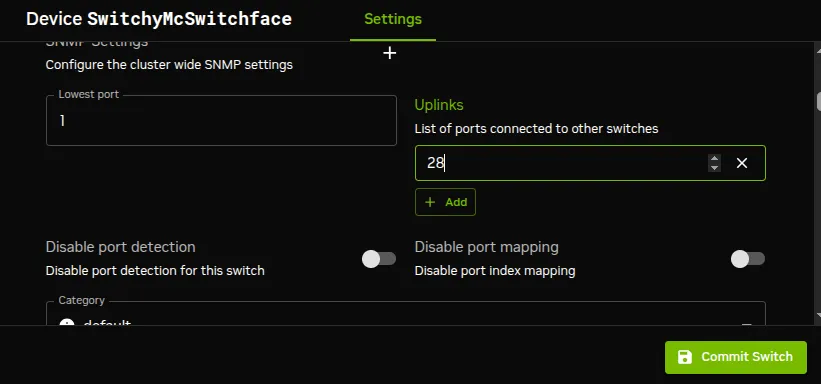
![Notifying CMDaemon about uplinks with Base View](/base-command-manager/product-manuals/_fern-img/a3bb06ad46662a0bcc14b4f6f3ecbc356b4ef2899d3ff34573c10f3b4f5ae76a.webp)

*Figure 3.11: Notifying CMDaemon about uplinks with Base View*

The state is saved with the `Commit Switch` button of figure [3.11](#fig-base-view-configuring-switches-uplinks).

* In `cmsh`, the switch is accessed from the `device` mode. The uplink port numbers can be appended one-by-one with the `append` command, or `set` in one go by using space-separated numbers.

  **Example**

  ```bash
  [root@basecm11 ~]# cmsh
  [basecm11]% device
  [basecm11->device]% set switch01 uplinks 15 16
  [basecm11->device*]% set switch02 uplinks 01
  [basecm11->device*]% commit
  successfully committed 3 Devices
  ```

### 3.9.4  The `showport` MAC Address to Port Matching Tool

The `showport` command can be used in troubleshooting network topology issues, as well as checking and setting up new nodes (section [5.4.2](/admin/provisioning#542-deciding-or-selecting-node-configuration)).

#### 3.9.4.1  Basic Use Of `showport`

In the `device` mode of `cmsh` is the `showport` command, which works out which ports on which switch are associated with a specified MAC address.

**Example**

```bash
[root@basecm11 ~]# cmsh
[basecm11]% device
[basecm11->device]% showport 00:30:48:30:73:92
switch01:12
```

When running `showport`, CMDaemon on the head node queries all switches until a match is found.

If a switch is also specified using the “`-s`” option, then the query is carried out for that switch first. Thus the preceding example can also be specified as:

```bash
[basecm11->device]% showport -s switch01 00:30:49.00:73:92
switch01:12
```

If there is no port number returned for the specified switch, then the scan continues on other switches.

#### 3.9.4.2  Mapping All Port Connections In The Cluster With `showport`

A list indicating the port connections and switches for all connected devices that are up can be generated using this script:

**Example**

```bash
#!/bin/bash
for nodename in $(cmsh -c "device; foreach * (get hostname)")
do
  macad=$(cmsh -c "device use $nodename; get mac")
  echo -n "$macad $nodename "
  cmsh -c "device showport $macad"
done
```

The script may take a while to finish its run. It gives an output like:

**Example**

```bash
00:00:00:00:00:00 switch01: No ethernet switch found connected to this mac address
00:30:49.00:73:92 basecm11: switch01:12
00:26:6C:F2:AD:54 node001: switch01:1
00:00:00:00:00:00 node002: No ethernet switch found connected to this mac address
```

Related utilities to `showport` are:

* `finddevicebyswitchport` (section [3.9.7](#397-the-finddevicebyswitchport-command)) which—as the name suggests—finds the devices for each switch port

* `setmacviaswitchport` (section [3.9.8](#398-the-setmacviaswitchport-command)), running in `--dry-run` mode, which shows the discovered MAC address for a switch

### 3.9.5  Disabling Port Detection

An administrator may wish to disable node identification based on port detection. For example, in the case of switches with buggy firmware, the administrator may feel more comfortable relying on MAC-based identification. Disabling port detection can be carried out by clearing the `switchports` setting of a node, a category, or a group. For example, in `cmsh`, for a node:

**Example**

```bash
[root@basecm11 ~]# cmsh
[basecm11]% device use node001
[basecm11->device[node001]]% clear switchports
[basecm11->device*[node001*]]% commit
[basecm11->device[node001]]%
```

Or, for example for the `default` category, with the help of the `foreach` command:

**Example**

```bash
[root@basecm11 ~]# cmsh
[basecm11]% device
[basecm11->device]]% foreach -c default (clear switchports); commit
```

### 3.9.6  The `switchoverview` Command

Also within `device` mode, the `switchoverview` command gives an overview of MAC addresses detected on the ports, and some related properties. The command works using SNMP queries. Output is similar to the following (some lines ellipsized):

```bash
[basecm11->device]% switchoverview dell-switch1
Device: dell-switch1
State : [   UP   ]
Model : 24G Ethernet Switch

Port Assignment:

Port   Status Assigned         Uplink Speed    Detected
------ ------ ---------------- ------ -------- --------------------------\
--------------------------------------------------------------------
1      UP                      false  1 Gb/s   -
2      UP                      false  1 Gb/s   -
3      UP                      false  1 Gb/s   74:86:7A:AD:3F:2F, node3
4      UP                      false  1 Gb/s   74:86:7A:AD:43:E9, node4
...
11     UP                      false  1 Gb/s   74:86:7A:AD:44:D8, node11
12     UP                      false  1 Gb/s   74:86:7A:AD:6F:55, node12
...
23     UP                      false  1 Gb/s   74:86:7A:E9:3E:85, node23
24     UP                      false  1 Gb/s   74:86:7A:AD:56:DF, node24
49     UP                      false  10 Gb/s  74:86:7A:AD:68:FD, node1
50     UP                      false  10 Gb/s  74:86:7A:AD:41:A0, node2
53     UP     node34           false  1 Gb/s   5C:F9:DD:F5:79.0D, node34
54     UP     node35           false  1 Gb/s   5C:F9:DD:F5:45:AC, node35
...
179    UP                      false  1 Gb/s   24:B6:FD:F6:20:6F,\
 24:B6:FD:FA:64:2F, 74:86:7A:DF:7E:4C, 90:B1:1C:3F:3D:A9,\
 90:B1:1C:3F:51:D1, D0:67:E5:B7:64:0F, D0:67:E5:B7:61:20
180    UP                      false  100 Mb/s QDR-switch
205    UP                      true   10 Gb/s  -
206    DOWN                    false  10 Gb/s  -
...
[basecm11 ->device]%
```

### 3.9.7  The `finddevicebyswitchport` Command

The `finddevicebyswitchport` command, in `device` mode, is the converse of the `showport` command (section [3.9.4](#394-the-showport-mac-address-to-port-matching-tool)). Instead of finding the switch port for a known MAC address, it finds which device is connected to a specified switch port. The port is specified in the form:

\<*switch name*>`:<`*port number*>

An optional breakout port can be specified with:

\<*switch name*>`:<`*port number*>s \<*breakout port number*>

and several ports can be queried in one command.

**Example**

```bash
[basecm11->device]% finddevicebyswitchport switch01:1
node001
[basecm11->device]% finddevicebyswitchport switch01:1 switch01:2
switch01:1                       node001
switch01:2                       node002
```

When only one port is queried, just the matching hostname is shown. When several ports are queried, each line is prefixed with the \<*switch name*>`:<`*port number*> that was looked up. As with `showport`, the lookup relies on the port-to-MAC mapping that CMDaemon has discovered for the switch. If no device is associated with a specified port, then no hostname is returned for that port.

### 3.9.8  The `setmacviaswitchport` Command

The `setmacviaswitchport` command, in `device` mode, sets the MAC address of a device based on the MAC address discovered on the switch port to which the device is connected. This is convenient when provisioning hardware whose MAC address is not yet known to CMDaemon, but whose switch port connection is known.

The `--dry-run` option finds the MAC addresses, but does not save the change. Device selection options such as `-t` (type), `-n` (nodes), and `-c` (category), can be used to act on a set of devices. The `-f|--force` option forces an overwrite of devices that already have a MAC set, and the `--index` option selects which MAC to use, in case the switch port has more than one MAC associated with it.

**Example**

```bash
[basecm11->device]% setmacviaswitchport --dry-run -t switch
switch01     no         no force and MAC already set
switch02     no         no force and MAC already set
switch03     yes        00:00:00:00:00:01
...
```

The second column indicates whether the MAC was (or, for a dry run, would be) saved, while the last column gives the discovered MAC address, or the reason that no change was made. Running the command without the `--dry-run` option commits the discovered MAC addresses.

### 3.9.9  The `checkfactorydefaultpassword` Command

The `checkfactorydefaultpassword` command, in `device` mode, checks whether switches still have their factory default password set, by attempting to authenticate against them. With the `--update` option, it also changes the factory password to the target password that is defined in the `accesssettings` submode of the device. Switches can be selected by name, by a range of names, or with device selection options such as `-t switch`.

**Example**

```bash
[basecm11->device]% checkfactorydefaultpassword switch01..switch04
[basecm11->device]% checkfactorydefaultpassword --update switch01..switch04
[basecm11->device]% checkfactorydefaultpassword -t switch
```

Without the `--update` option the command only reports the status, and does not modify any passwords.

## 3.10  Additional `device` Mode Node Commands And Submodes

Besides the switch-oriented commands of the preceding section, `device` mode provides several commands and submodes for inspecting and configuring devices, including nodes.

### 3.10.1  The `nodeoverview` Command

The `nodeoverview` command displays a brief summary for a node. This includes its uptime, load averages, memory and workload manager (WLM) slot usage, per-interface network throughput, and per-mount disk usage. If no node is specified, then the current node is used.

**Example**

```bash
[basecm11->device]% nodeoverview node001
Device            node001
Uptime            3w 3d
Load              0.16 / 0.18 / 0.17
Memory used       64 GiB (3.19%)
Memory unused     1.93 TiB (98.4%)
Memory total      1.96 TiB
WLM slots used    0 (0.0%)
WLM slots unused  144 (100.0%)
WLM slots total   144

enp22s22f0np0  1.69 GiB     3.3 GiB
ibp2p3s0       0 B          0 B
...

/              21.1 GiB     1.60 TiB     98.7%
```

### 3.10.2  The `additionalnodeinformation` Command

The `additionalnodeinformation` command is run on a set of nodes, and displays administrator-registered information commands for those nodes. The set of registered commands can be listed with the `--list` option. The `-a|--run-on-active-head-node` option runs the command on the active head node instead of on the node itself. Nodes are selected with the usual selection options, such as `-n`, `-c`, or `-r`.

**Example**

```bash
[basecm11->device]% additionalnodeinformation -n node001 --list
info-1
info-2
```

Here `info-1` and `info-2` are the names of administrator-registered information commands. If no commands have been registered, then `--list` returns nothing.

Setting up the commands can be done with the `cm-manipulate-advanced-config.py` command (section [C.80.0.1](/admin/cmdconf#c8001-managing-keyvalue-pairs-with-the-cm-manipulate-advanced-configpy-utility), Managing Key/Value Pairs With The cm-manipulate-advanced-config.py Utility) as follows:

**Example**

```bash
[root@basecm11 ~]# cm-manipulate-advanced-config.py -g "AdditionalNodeInfo=info-1,info-2"
[root@basecm11 ~]# cm-manipulate-advanced-config.py -g "info-1=/cm/shared/info-1.sh"
[root@basecm11 ~]# cm-manipulate-advanced-config.py -g "info-2=/cm/shared/info-2.sh"
```

and then restarting `cmd` with `systemctl restart cmd`.

An example of a script for `info-1.sh` is:

**Example**

```bash
[root@basecm11 ~]# cat /cm/shared/info-1.sh
#!/bin/bash
/cm/local/apps/cmd/bin/cmsh -c "ds"
```

That script can then be run with:

**Example**

```bash
[basecm11->device]% additionalnodeinformation -n basecm11 info-1
name: info-1
path: /cm/shared/info-1.sh
exit code: 0
--- stdout ---
node001 .................. [   UP   ]
node002 .................. [   UP   ]
node003 .................. [   UP   ]
node004 .................. [   UP   ]
node005 .................. [   UP   ]
basecm11 ................. [   UP   ]
```

### 3.10.3  The `minimalconfig` Command

The `minimalconfig` command shows the minimal set of configuration objects that apply to a node. This includes the category, configuration overlays, head nodes, monitoring data producers, and other entities that make up a node configuration. It is useful when troubleshooting why a particular setting or monitoring item for a node may not work. If no node is specified, then the current node is used.

**Example**

```bash
[basecm11->device]% minimalconfig node001
Category                                           default
Configuration overlay                              slurm-client
Configuration overlay                              slurm-server
Head node                                          head01
Head node                                          head02
MonitoringDataProducerCPU                          CPUSampler
MonitoringDataProducerGPU                          GPUSampler
MonitoringDataProducerDeviceState                  DeviceState
...
```

### 3.10.4  The `checkremotemount` Command

The `checkremotemount` command checks the status of remote mounts on a set of nodes. The mount to check is given as a path by default. The `--file` option evaluates the path as a file instead of a directory, the `-f|--force` option forces an update of the cached mounts data, and the `--clear` option clears the mount cache data. Nodes are selected with the usual selection options.

**Example**

```bash
[basecm11->device]% checkremotemount -n node001 /cm/shared
node001  1        good
```

The columns show the node, the number of matching mounts found, and the status of the mount.

### 3.10.5  The `proxysettings` Submode

The `proxysettings` submode, within `device` mode, configures the HTTP, HTTPS, and FTP proxy servers that a node uses, along with the list of hosts that should bypass the proxy.

**Example**

```bash
[basecm11->device]% proxysettings node001
[basecm11->device[node001]->proxysettings]% show
Parameter                        Value
-------------------------------- ------------------------------------------------
HTTP proxy address
HTTP proxy username
HTTP proxy password
HTTPS proxy address
HTTPS proxy username
HTTPS proxy password
FTP proxy address
FTP proxy username
FTP proxy password
Hosts without proxy
```

### 3.10.6  The `selinuxsettings` Submode

The `selinuxsettings` submode, within `device` mode, configures the SELinux behavior for a node, such as the SELinux mode and policy, whether to initialize SELinux, whether to reboot after a context restore, and the context actions to apply for the various install scenarios.

**Example**

```bash
[basecm11->device]% selinuxsettings node001
[basecm11->device[node001]->selinuxsettings]% show
Parameter                        Value
-------------------------------- ------------------------------------------------
Initialize                       yes
Reboot after context restore     no
Allow NFS home directories       yes
Context action auto install      auto
Context action full install      auto
Context action nosync install    always
Mode                             permissive
Policy                           targeted
Key value settings               <submode>
```

SELinux is typically carried out right after a clean installation ([Chapter 12 of the *Installation Manual*](/installation/selinux)).

### 3.10.7  The `remotedaemon` Command

The `remotedaemon` command, in `device` mode, installs or removes the CMDaemon package on a device that already has an operating system running, without going through a BCM software-image provisioning cycle. This is intended for devices that were brought up by something other than BCM and then registered with it. A DPU that has already been installed by DPF is the primary example. DPF installs the DPU’s operating system independently of BCM, and `remotedaemon install` then deploys CMDaemon onto the already-running DPU, so that it can be managed and monitored by BCM. This is the same idea as `cm-lite-daemon` for switches, where the device’s own operating system is left in place and only the BCM daemon is added to it.

The device must already be defined in BCM before `remotedaemon` is used. The command does not create the device object.

**Example**

```bash
[basecm11->device]% remotedaemon install dpu001
[basecm11->device]% remotedaemon remove dpu001
```

Options to `remotedaemon` include:

* `install`: Install the CMDaemon package on the specified devices. The `-f|--force` option reinstalls CMDaemon even if it is already present.

* `remove`: Remove the CMDaemon package from the specified devices. The `--purge-repo` option also removes the BCM package repository configuration from the device.

Prerequisites for `remotedaemon install` are:

* The target device is already defined in BCM as a compute node.

* The target is running Ubuntu, and is reachable over SSH from the active head node using the device access settings (username and password) configured for it.

* The target can reach the active head node over HTTPS, to fetch packages and its node certificate.

## 3.11  Configuring The NetQ Network Management System

NetQ telemetry data values are produced by NetQ. A running NetQ server can be integrated with BCM by configuring its credentials and connectivity settings in the `netqsettings` submode from within the `partition` mode of BCM:

**Example**

```bash
[basecm11->partition[base]]% netqsettings
[basecm11->partition*[base*]->netqsettings*]% show
Parameter                        Value
-------------------------------- ------------------------------------------------
Revision
Server
User name
Password                         < not set >
Port                             443
Verify SSL                       no
CA certificate
Certificate
Private key
Prometheus metric forwarders     <0 in submode>
[basecm11->partition*[base*]->netqsettings*]% set username <NetQ username>
[basecm11->partition*[base*]->netqsettings*]% set password <NetQ password>
[basecm11->partition*[base*]->netqsettings*]% set server <NetQ hostname or IP address>
[basecm11->partition*[base*]->netqsettings*]% commit
```

The corresponding Base View navigation path for this is using:

`Cluster > Settings > BMC Settings > NetQ > +`

With Kubernetes, NetQ can also be configured with the NetQ operator ([section 6.9 of the *Containerization Manual*](/containerization/kubernetesoperators#69-the-nvidia-netq-operator)).

Connecting to the NetQ server allows NetQ telemetry data values to be picked up by BCM. These values are then treated as measurables (section [10.2.1](/admin/monitoring#1021-measurables)). NetQ measurables (sections [G.1.13](/admin/metricshealthchecksactions#g113-netq-metrics) and [G.2.4](/admin/metricshealthchecksactions#g24-netq-health-checks)) can be managed and displayed with BCM just like other measurables.

## 3.12  Configuring UFM

UFM, the NVIDIA Unified Fabric Manager, is a fabric manager, that handles routing on the fabric. An optional component, UFM Host Agent, allows performance to be monitored. A running UFM server can be integrated with BCM by configuring its credentials and connectivity settings in the `ufmsettings` submode from within the `partition` mode of BCM. This is very similar to how NetQ settings (section [3.11](#311-configuring-the-netq-network-management-system)) are managed:

**Example**

```bash
[basecm11->partition[base]]% ufmsettings
[basecm11->partition*[base*]->ufmsettings*]% show
Parameter                        Value
-------------------------------- ------------------------------------------------
Revision
Server
User name
Password                         < not set >
Port                             443
Verify SSL                       no
CA certificate
Certificate
Private key
Prometheus metric forwarders     <0 in submode>
[basecm11->partition*[base*]->ufmsettings*]% set username <UFM username>
[basecm11->partition*[base*]->ufmsettings*]% set password <UFM password>
[basecm11->partition*[base*]->ufmsettings*]% set server <UFM hostname or IP address>
[basecm11->partition*[base*]->ufmsettings*]% commit
```

The corresponding Base View navigation path for this is using:

`Cluster > Settings > BMC Settings > UFM settings> +`

## 3.13  Disk Layouts: Disked, Semi-Diskless, And Diskless Node Configuration

Configuring the disk layout for head and regular nodes is done as part of the initial setup ([section 3.3.16 of the *Installation Manual*](/installation/installing#3316-disk-layout)). For regular nodes, the disk layout can also be re-configured by BCM once the cluster is running. For a head node, however, the disk layout cannot be re-configured after installation by BCM, and head node disk layout reconfiguration must then therefore be treated as a regular Linux system administration task, typically involving backups and resizing partitions.

The remaining parts of this section on disk layouts therefore concern regular nodes, not head nodes.

### 3.13.1  Disk Layouts

A disk layout is specified using an XML schema (Appendix [D.1](/admin/partitioning#d1-structure-of-partitioning-definitionthe-global-partitioning-xml-schema-definition-file)). The disk layout typically specifies the devices to be used, its partitioning scheme, and mount points. Possible disk layouts include the following:

* Default layout (Appendix [D.3](/admin/partitioning#d3-example-default-node-partitioning))

* Hardware RAID setup (Appendix [D.4](/admin/partitioning#d4-example-hardware-raid-configuration))

* Software RAID setup (Appendix [D.5](/admin/partitioning#d5-example-software-raid))

* LVM setup (Appendix [D.7](/admin/partitioning#d7-example-logical-volume-manager))

* Diskless setup (Appendix [D.9](/admin/partitioning#d9-example-diskless))

* Semi-diskless setup (Appendix [D.10](/admin/partitioning#d10-example-semi-diskless))

### 3.13.2  Disk Layout Assertions

Disk layouts can be set to *assert*

* that particular hardware be used, using XML element tags such as `vendor` or `requiredSize` (Appendix [D.11](/admin/partitioning#d11-example-preventing-accidental-data-loss))

* custom assertions using an XML `assert` element tag to run scripts placed in CDATA sections (Appendix [D.12](/admin/partitioning#d12-example-using-custom-assertions))

### 3.13.3  Changing Disk Layouts

A disk layout applied to a category of nodes is inherited by default by the nodes in that category. A disk layout that is then applied to an individual node within that category overrides the category setting. This is an example of the standard behavior for categories, as mentioned in section [2.1.3](/admin/clustermanagement#213-node-categories).

By default, the cluster is configured with a standard layout specified in section [D.3](/admin/partitioning#d3-example-default-node-partitioning). The layouts can be accessed from Base View or `cmsh`, and a template layout can be used. A diskless node template can also be used, to change a node from a disked to a diskless node, as illustrated by the example [here](#31341-changing-a-disk-layout-from-disked-to-diskless).

### 3.13.4  Changing A Disk Layout Using Base View

To change a disk layout with Base View, the current disk layout is accessed by selecting a node category or a specific node from the resource tree in the navigation panel. For a node `node001`, the navigation path is:\
<code>Devices > All Devices > node001  > Disk Setup</code>(a tabbed window)`> Devices > `![image](/base-command-manager/product-manuals/_fern-img/07608a24ea3e102edc2343bb039a8ea92ff67b1dd327afd29914bc025d0970a1.webp)\
and it brings up the window shown in figure [3.12](#fig-ChangingADiskedNodeToADisklessNodeWithbase-view):
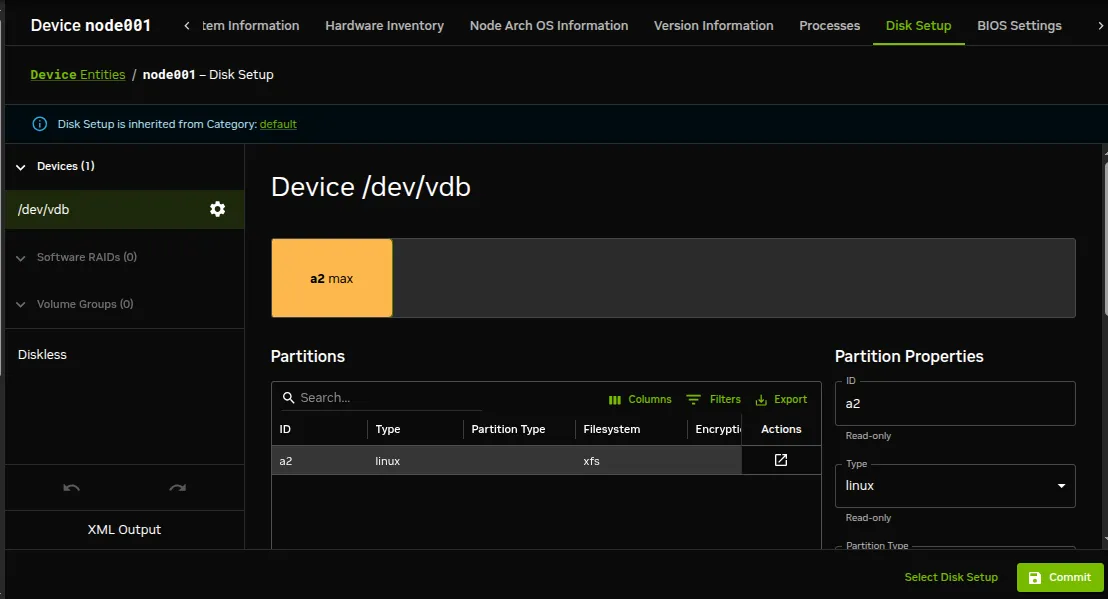
![Changing a disked node to a diskless node with Base View](/base-command-manager/product-manuals/_fern-img/3ee147b4f1bfa5141e1e0637b47d169000944f2c5fe9b699926acd00567761e8.webp)

*Figure 3.12: Changing a disked node to a diskless node with Base View*

However, in a default installation, the values for the devices in the disk layout are inherited from the category level, which can only be modified at category level. That means the default disk layout values are initially read-only values, with the values that were set up during installation ([section 3.3.16 of the *Installation Manual*](/installation/installing#3316-disk-layout)).

At node level, values can be written so that they override the inherited values. Writing values at node level can be done using the `Select Disk Setup` button in various ways:

1. The `Select Disk Setup` button brings up an option to copy from the category.

   If copying over from the category is carried out, then the XML entries in the `Devices > `![image](/base-command-manager/product-manuals/_fern-img/07608a24ea3e102edc2343bb039a8ea92ff67b1dd327afd29914bc025d0970a1.webp) screen (figure [3.13](#fig-base-view-configuring-disk-layouts-editing)) can be edited at node level (are no longer read-only):
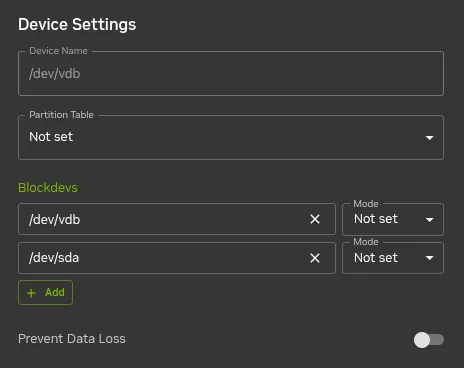
![Editing disk layouts with Base View](/base-command-manager/product-manuals/_fern-img/c113cd928683d8b8c8446cb9e048d7574015701afc01c9f8543d292640529546.webp)

*Figure 3.13: Editing disk layouts with Base View*

2. The `Select Disk Setup` button also presents a `Select from template` menu option, which shows several possible ready-made configurations that can be loaded up from the CMDaemon database. A selected copy can also be edited to suit the situation.

   The XML schema for a node configured for diskless operation is shown in Appendix [D.9](/admin/partitioning#d9-example-diskless). This can often be deployed as is, or it can be modified during deployment using Base View or `cmsh`.

   #### 3.13.4.1  Changing A Disk Layout From Disked To Diskless

   One of the templates that can be used to switch from the existing disk layout to a diskless one is `slave-diskless.xml`. This XML configuration template can be loaded using the `Select from template` button, and saved to the node or node category.

3. The `Select Disk Setup` button also presents a `Select File` menu option, which can be used to upload a custom configuration via the browser.

### 3.13.5  Changing A Disk Layout Using `cmsh`

To edit an existing disk layout from within `cmsh`, the existing XML configuration is accessed by editing the `disksetup` property in `device` mode for a particular node, or by editing the `disksetup` property in `category` mode for a particular category. Editing is done using the `set` command, which opens up a text editor:

**Example**

```bash
[root@basecm11 ~]# cmsh
[basecm11]% device use node001
[basecm11->device[node001]]% set disksetup
```

After editing and saving the XML configuration, the change is then committed to CMDaemon with the `commit` command. It should be understood that a disk layout XML configuration is not stored in a file on the filesystem, but in the CMDaemon database. The XML configurations that exist on a default cluster at\
`/cm/images/default-image/cm/local/apps/cmd/etc/htdocs/disk-setup/`\
and\
`/cm/local/apps/cmd/etc/htdocs/disk-setup/`\
are merely default configurations.

If the `disksetup` setting for a device is deleted, using the `clear` command, then the category level `disksetup` property is used by the device. This is in accordance with the usual behavior for node values that override category values (section [2.1.5](/admin/clustermanagement#215-roles)).

Instead of editing an existing disk layout, another XML configuration can also be assigned. A diskless configuration may be chosen and set as follows:

**Example**

```bash
[basecm11->device[node001]]% set disksetup /cm/local/apps/cmd/\
etc/htdocs/disk-setup/slave-diskless.xml
```

In these preceding Base View and `cmsh` examples, after committing the change and rebooting the node, the node then functions entirely from its RAM, without using its own disk.

However, RAM is usually a scarce resource, so administrators often wish to optimize diskless nodes by freeing up the RAM on them from the OS that is using the RAM. Freeing up RAM can be accomplished by providing parts of the filesystem on the diskless node via NFS from the head node. That is, mounting the regular node with filesystems exported via NFS from the head node. The details of how to do this are a part of section [3.14](#314-configuring-nfs-volume-exports-and-mounts), which covers the configuration of NFS exports and mounts in general.

## 3.14  Configuring NFS Volume Exports And Mounts

NFS allows NFS clients shared access to a filesystem on an NFS server. The accessed filesystem is called an NFS volume by remote machines. The NFS server exports the filesystem to selected hosts or networks, and the clients can then mount the exported volume locally.

An unformatted filesystem cannot be used. The drive must be partitioned beforehand with `fdisk` or similar partitioning tools, and its filesystem formatted with `mkfs` or similar before it can be exported.

In BCM, the head node is typically used to export an NFS volume to the regular nodes, and the regular nodes then mount the volume locally.

* NFS can be made to work at higher speeds with remote direct memory access (RDMA), by bypassing the CPU. If there is RDMA hardware present, and if the `rdma-core` package is installed, then the RDMA service works automatically in RHEL 8 and 9.

  The settings that determine client module loading are set in the file `/etc/rdma/modules/rdma.conf` so that the service auto-loads by default.

* An alternative to NFS over RDMA for very fast file systems is [the massively parallel and free (GPLv2) Lustre filesystem](https://whamcloud.com), running over InfiniBand.

#### 3.14.0.1  Automounting With NFS

If auto-mounting is used, then the configuration files for exporting should be set up on the NFS server, and the mount configurations set up on the software images. The service “`autofs`” or the equivalent can be set up using Base View via the “`Services`” option (section [3.15](#315-managing-and-configuring-services)) on the head and regular nodes or node categories. With `cmsh` the procedure to configure auto-mounting on the head and regular nodes could be:

**Example**

```bash
[root@basecm11 ~]# cmsh
[basecm11]% device use basecm11
[basecm11->device[basecm11]]% services
[basecm11->device[basecm11]->services]% add autofs
[basecm11->device*[basecm11*]->services*[autofs*]]% show
Parameter                        Value
------------------------------   -------------------------------------
Autostart                        no
Belongs to role                  no
Monitored                        no
Revision
Run if                           ALWAYS
Service                          autofs
Sickness check interval          60
Sickness check script
Sickness check script timeout    10
Timeout                          -1
[basecm11->device*[basecm11*]->services*[autofs*]]% set autostart yes
[basecm11->device*[basecm11*]->services*[autofs*]]% commit
[basecm11->device[basecm11]->services[autofs]]% category use default
[basecm11->category[default]]% services
[basecm11->category[default]->services]% add autofs
[basecm11->category*[default*]->services*[autofs*]]% set autostart yes
[basecm11->category*[default*]->services*[autofs*]]% commit
[basecm11->category[default]->services[autofs]]%
```

Filesystems imported to a regular node via an auto-mount operation must explicitly be excluded in `excludelistupdate` by the administrator, as explained in section [5.6.1.2](/admin/provisioning#5612-the-exclude-list-logic-for-excludelistupdate), [here](/admin/provisioning#automounterbeware).

#### 3.14.0.2  Dropping All Use Of NFS Version 3

At the time of writing, (August 2025), the default NFS protocol versions used in BCM are a mixture of version 3 and 4. This is because some aspects of NFS version 4 clients in BCM have not yet been extensively tested. Migrating the remaining version 3 parts over to version 4 is therefore still experimental. If, despite this, the cluster administrator would still like to migrate over to the use of only NFS version 4 clients, then it can be carried out as follows:

The following configuration files should be modified:

* `/etc/nfs.conf`: On all nodes, changing the default value of `vers3=y` by adding the line

  ```bash
  vers3=n
  ```

* `/etc/nfsmount.conf`: On the head node(s), changing the line `Nfsvers=3` (the BCM default) to

  ```bash
  Nfsvers=4
  ```

* `/cm/node-installer*/scripts/node-installer.conf`: On the head node(s), adding the line

  ```bash
  disableNodeInstallerNFSCertificateStore = true
  ```

* `/cm/node-installer*/scripts/initrd_linuxrc`: On the head node(s), modifying the `nolock` entries:

  ```bash
  root@basecm11:~# grep nolock /cm/node-installer/scripts/initrd_linuxrc
  # mount with nolock so we do not have to run portmapper+statd
  mount -o nolock,ro $PXE_MASTER_IP:$nodeinstallerpath /installer_root
  mount -vo nolock,ro $PXE_MASTER_IP:$nodeinstallerpath /installer_root
  ```

  so that the `vers=4` option is explicitly specified:

  ```bash
  root@basecm11:~# grep nolock /cm/node-installer/scripts/initrd_linuxrc
  # mount with nolock so we do not have to run portmapper+statd
  mount -o nolock,ro,vers=4 $PXE_MASTER_IP:$nodeinstallerpath /installer_root
  mount -vo nolock,ro,vers=4 $PXE_MASTER_IP:$nodeinstallerpath /installer_root
  ```

The changes can be deployed by rebuilding the ramdisk:

**Example**

```bash
root@basecm11:~# cmsh
[basecm11]% softwareimage foreach * (createramdisk)
```

and then rebooting the head and regular nodes.

The rest of this section describes the configuration of NFS for static mounts, using Base View or `cmsh`.

Sections [3.14.1](#3141-exporting-a-filesystem-using-base-view-and-cmsh) and [3.14.2](#3142-mounting-a-filesystem-using-base-view-and-cmsh) explain how exporting and mounting of filesystems is done in general by an administrator using Base View and `cmsh`, and considers some mounting behavior that the administrator should be aware of.

Section [3.14.3](#3143-mounting-a-filesystem-subtree-for-a-diskless-node-over-nfs) discusses how filesystems in general on a diskless node can be replaced via mounts of NFS exports.

Section [3.14.4](#3144-configuring-nfs-volume-exports-and-mounts-over-rdma-with-ofed-drivers) discusses how OFED InfiniBand or iWarp drivers can be used to provide NFS over RDMA.

### 3.14.1  Exporting A Filesystem Using Base View And `cmsh`

#### 3.14.1.1  Exporting A Filesystem Using Base View

As an example, if an NFS volume exists at “`basecm11:/modeldata`” it can be exported using Base View using the head node navigation path:\
<code>Devices > All Devices > Head Node >  > Settings > Filesystem exports > </code>

This shows the list of exports (figure [3.14](#fig-base-view-headnodes-fsexports-list)):
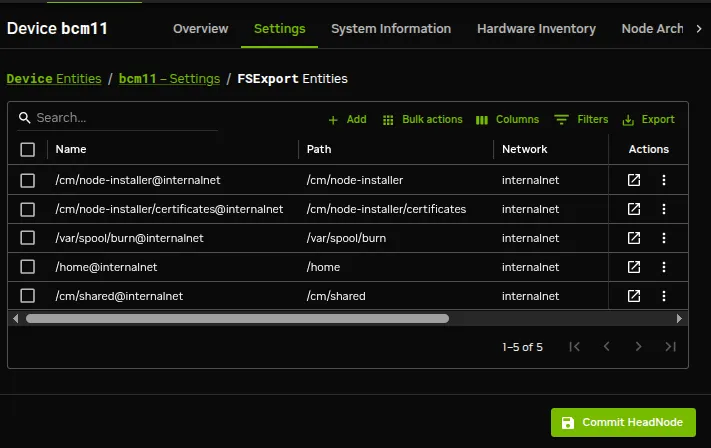
![NFS exports from a head node viewed using Base View](/base-command-manager/product-manuals/_fern-img/2e2c954e5b0c0d4f9e53ae877cc024ef6152a891c60821e9b7be49c0a9163058.webp)

*Figure 3.14: NFS exports from a head node viewed using Base View*

Using the `+ Add` button, a new entry (figure [3.15](#fig-base-view-headnodes-fsexports-add)) can be configured with values as shown:
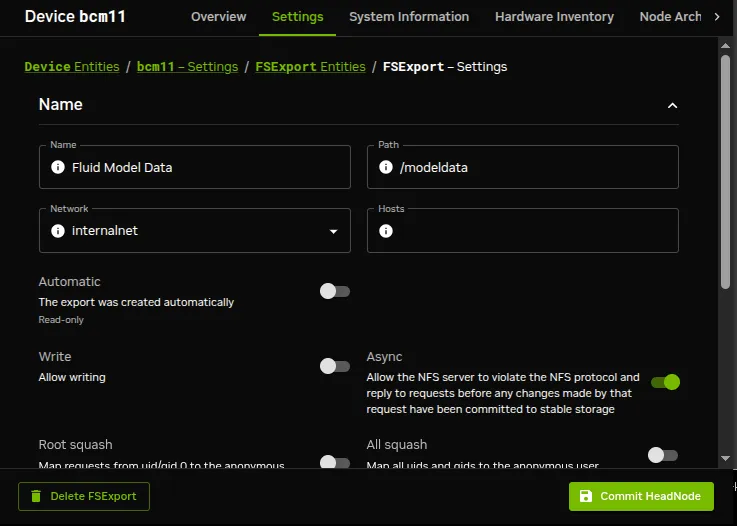
![Setting up an NFS export using Base View](/base-command-manager/product-manuals/_fern-img/b1a35a6335aeef94d3f75bef69a073de70cfd421c3ddf500276ab00c1660e85f.webp)

*Figure 3.15: Setting up an NFS export using Base View*

For this example, the value for “`Name`” is set arbitrarily to “`Fluid Model Data`”, the value for `Path` is set to `/modeldata`, and the value for `Network` is set from the selection menu to allowing access to `internalnet` (by default `10.141.0.0/16` in CIDR notation).

By having the `Write` option disabled, read-only access is kept.

Saving this preceding configuration means the NFS server now provides NFS access to this filesystem for `internalnet`.

The network can be set to other network values using CIDR notation. It can also be set to particular hosts such as just node001 and node002, by specifying a value of “`node001 node002`” instead. Other settings and options are also possible and are given in detail in the man pages for `exports(5)`.

#### 3.14.1.2  Exporting A Filesystem Using `cmsh`

The equivalent to the preceding Base View NFS export procedure can be done in `cmsh` by using the `fsexports` submode on the head node (some output elided):

**Example**

```bash
[root@basecm11 ~]# cmsh
[basecm11]% device use basecm11
[basecm11->device[basecm11]]% fsexports
[...->fsexports]% add "Fluid Model Data"
[...->fsexports*[Fluid Model Data*]]% set path /modeldata
[...[Fluid Model Data*]]% set hosts 10.141.0.0/16
[...[Fluid Model Data*]]% commit
[...->fsexports[Fluid Model Data]]% list | grep Fluid
Name (key)           Path            Hosts            Write
-------------------  -------------   ---------------  ------
Fluid Model Data     /modeldata      10.141.0.0/16    no
```

#### 3.14.1.3  General Considerations On Exporting A Filesystem

**Built-in exports:** In versions of NVIDIA Base Command Manager prior to version 9.0, all filesystem exports could be removed from the `fsexports` submode, simply by using the `remove` command with the name of the export.

From version 9.0 onward however, the following filesystem exports:

* `/var/spool/burn`

* `/home`

* `/cm/shared`

are treated as special built-ins.

**Head node role and `disableautomaticexports`:** Built-ins are exported automatically as part of the `headnode` role, also introduced in NVIDIA Base Command Manager 9.0, and cannot simply be removed.

To disable export of the built-in file systems, the `disableautomaticexports` command must be run in the `headnode` role for that node:

**Example**

```bash
[root@basecm11 ~]# cmsh
[basecm11]% device use basecm11
[basecm11->device[basecm11]]% roles
[basecm11->device[basecm11]->roles]% use headnode
[basecm11->device[basecm11]->roles[headnode]]% show
Parameter                        Value
-------------------------------- -----------------------
Name                             headnode
Revision
Type                             HeadNodeRole
Add services                     yes
Disable automatic exports        no
role use headnode
[basecm11->device[basecm11]->roles[headnode]]% set disableautomaticexports yes ; commit
```

**Disabling exports that are not built-ins:** Exports that are not built-ins can still simply be removed. However, also from NVIDIA Base Command Manager 9.0 onward they can also simply be disabled in the `fsexports` submode. For example there is an export created by the cluster administrator for `/opt`, it can be disabled as follows:

**Example**

```bash
[basecm11->device[basecm11]->fsexports]% list
Name (key)       Path                Network     Disabled
---------------- -------      ...    ----------- --------
opt              /opt                internalnet no
[basecm11->device[basecm11]->fsexports]% set opt disabled yes; commit
```

The reason for automating the export for nodes via a `headnode` role is that NVIDIA Base Command Manager 9.0 onward has multidistro and multiarch capabilities (section [9.7](/admin/softwareimagemanagement#97-creating-images-for-other-distributions-and-architectures-multidistro-and-multiarch)), which would make manual management of exports harder for such nodes. The reason for the extra hurdle of `disableautomaticexports` for built-ins is that disabling these exports can result in an unbootable system.

### 3.14.2  Mounting A Filesystem Using Base View And `cmsh`

Continuing on with the `Fluid Model Data` export example from the preceding section, the administrator decides to mount the remote filesystem over the default category of nodes. Nodes can also mount the remote filesystem individually, but that is usually not a common requirement in a cluster. The administrator also decides not to re-use the exported name from the head node. That is, the remote mount name `modeldata` is not used locally, even though NFS allows this and many administrators prefer to do this. Instead, a local mount name of `/modeldatagpu` is used, perhaps because it avoids confusion about which filesystem is local to a person who is logged in, and perhaps to emphasize the volume is being mounted by nodes with GPUs.

#### 3.14.2.1  Mounting A Filesystem Using Base View

In Base View the navigation path to manage the mount points of nodes in the category of `default` is:

<code>
  Grouping > Categories[default] > Settings > Extended settings > Filesystem mounts > 
</code>

A mount point can be added with the `+ Add` button. Values for the remote mount point (`basecm11:/modeldata`), the filesystem type (`nfs`), and the local mount point (`/modeldatagpu`) can then be set for the category, while the remaining options stay at their default values (figure [3.16](#fig-base-view-node-category-fsmounts-add)):
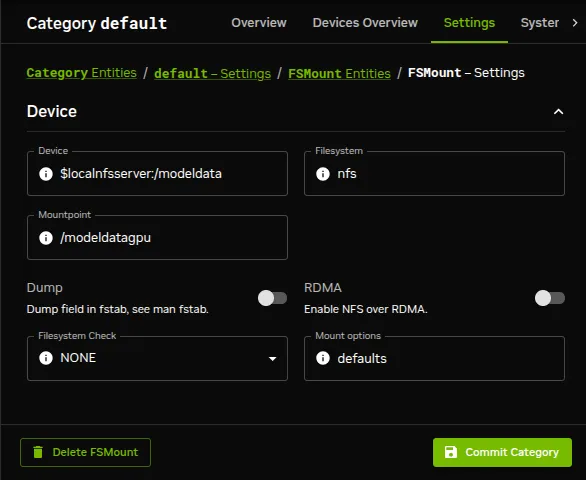
![Setting up NFS mounts on a node category using Base View](/base-command-manager/product-manuals/_fern-img/efa6c804efff79a51ee0e2c5d999551e226f004d43405f794cc0f7ef69cb4511.webp)

*Figure 3.16: Setting up NFS mounts on a node category using Base View*

Saving the configuration saves the values and creates the local mount point, so that the volume can then be accessed by nodes within that category.

#### 3.14.2.2  Mounting A Filesystem Using `cmsh`

The equivalent to the preceding Base View NFS mount procedure can be done in `cmsh` by using the `fsmounts` submode, for example on the `default` category. The `add` method under the `fsmounts` submode sets the mountpoint path, in this case `/modeldatagpu` (some output elided):

**Example**

```bash
[root@basecm11 ~]# cmsh
[basecm11]% category use default
[basecm11->category[default]]% fsmounts
[basecm11->category[default]->fsmounts]% add /modeldatagpu
[basecm11->...*[/modeldatagpu*]]% set device basecm11:/modeldata
[basecm11->...*[/modeldatagpu*]]% set filesystem nfs
[basecm11->category*[default*]->fsmounts*[/modeldatagpu*]]% commit
[basecm11->category[default]->fsmounts[/modeldatagpu]]%
Device                  Mountpoint (key)     Filesystem
---------------------   ------------------   ----------
...
basecm11:/modeldata     /modeldatagpu        nfs
[basecm11->category[default]->fsmounts[/modeldatagpu]]% show
Parameter             Value
-------------------   ---------------------
Device                basecm11:/modeldata
Dump                  no
Filesystem            nfs
Filesystem Check      NONE
Mount options         defaults
Mountpoint            /modeldatagpu
```

Values can be `set` for `Mount options` other than default. For example, the `noac` flag can be added as follows:

```bash
[basecm11->...[/modeldatagpu]]% set mountoptions defaults,noac; commit
```

Mounting a CIFS might use:

```bash
[basecm11->...[/modeldatagpu]]% set mountoptions gid,users,file_mode=0666,dir_mode=0777,\
iocharset=iso8859-15,credentials=/path/to/credential
[basecm11->...[/modeldatagpu*]]% commit
```

A `_netdev` mount option to make systemd wait until the network is up before it is mounted can be added as follows:

```bash
[basecm11->...[/modeldatagpu]]% append mountoptions ,_netdev; commit
```

#### 3.14.2.3  General Considerations On Mounting A Filesystem

There may be a requirement to segregate the access of nodes. For example, in the case of the preceding, because some nodes have no associated GPUs.

Besides the “`Allowed hosts`” options of NFS exports mentioned earlier in section [3.14.1.1](#31411-exporting-a-filesystem-using-base-view), BCM offers two more methods to fine tune node access to mount points:

* Nodes can be placed in another category that does not have the mount point.

* Nodes can have the mount point set, not by category, but per device within the `Nodes` resource. For this, the administrator must ensure that nodes that should have access have the mount point explicitly set.

Other considerations on mounting are that:

* When adding a mount point object:

  * The settings take effect right away by default on the nodes or node categories.

  * If `noauto` is set as a mount option, then the option only takes effect on explicitly mounting the filesystem.

  * If “`AutomaticMountAll=0`” is set as a CMDaemon AdvancedConfig directive (Appendix [C.104](/admin/cmdconf#c104-automaticmountall-directive), [here](/admin/cmdconf#c104-automaticmountall-directive)), then CMDaemon changes for `/etc/fstab` are written to the file, but the `mount -a` command is not run by CMDaemon. However, the administrator should be aware that since `mount -a` is run by the distribution during booting, a node reboot implements the mount change.

* While a mount point object may have been removed, umount does not take place until reboot, to prevent mount changes outside of the cluster manager. If a umount needs to be to done without a reboot, then it should be done manually, for example, using the `pdsh` or `pexec` command (section [14.1.0.1](/admin/administration#14101-what-pdsh-and-pexec-do)), to allow the administrator to take appropriate action if umounting goes wrong.

* When manipulating mount points, the administrator should be aware which mount points are inherited by category, and which are set for the individual node.

  * In Base View, for a node, [inheritance by category](/admin/clustermanagement#213-node-categories) is indicated in the navigation path `Devices` > `Nodes[`*`node name`*`]` > `Edit` > `Settings` > `Filesystem mounts`, under the `INHERITED` column, with the entry `(Category)`.

  * In `cmsh`, the category a mount belongs to is displayed in brackets. This is displayed from within the `fsmounts` submode of the `device` mode for a specified node:

    **Example**

    ```bash
    [root@basecm11 ~]# cmsh -c "device; fsmounts node001; list"

    Device                   Mountpoint (key)     Filesystem
    ------------------------ -------------------- ----------
    [default] none           /dev/pts             devpts
    [default] none           /proc                proc
    [default] none           /sys                 sysfs
    [default] none           /dev/shm             tmpfs
    [default] $localnfsserv+ /cm/shared           nfs
    [default] basecm11:/home /home                nfs
    basecm11:/cm/shared/exa+ /home/examples       nfs
    [root@basecm11 ~]#
    ```

  To remove a mount point defined at category level for a node, it must be removed from within the category, and not from the specific node.

#### 3.14.2.4  Mount Order Considerations

Care is sometimes needed in deciding the order in which mounts are carried out.

* For example, if both `/usr/share/doc` and a replacement directory subtree `/usr/share/doc/compat-gcc-34-3.4.6java` are to be used, then the stacking order should be that `/usr/share/doc` is mounted first. This order ensures that the replacement directory subtree overlays the first mount. If, instead, the replacement directory were the first mount, then it would be overlaid, inaccessible, and inactive.

* There may also be dependencies between the subtrees to consider, some of which may prevent the start up of applications and services until they are resolved. In some cases, resolution may be quite involved.

The order in which such mounts are mounted can be modified with the `up` and `down` commands within the `fsmounts` submode of `cmsh`.

### 3.14.3  Mounting A Filesystem Subtree For A Diskless Node Over NFS

#### 3.14.3.1  NFS Vs `tmpfs` For Diskless Nodes

For diskless nodes (Appendix [D.9](/admin/partitioning#d9-example-diskless)), the software image (section [2.1.2](/admin/clustermanagement#212-software-images)) is typically installed from a provisioning node by the node-installer during the provisioning stage, and held as a filesystem in RAM on the diskless node with the `tmpfs` filesystem type.

It can be worthwhile to replace subtrees under the diskless node filesystem held in RAM with subtrees provided over NFS. This can be particularly worthwhile for less frequently accessed parts of the diskless node filesystem. This is because, although providing the files over NFS is much slower than accessing it from RAM, it has the benefit of freeing up RAM for tasks and jobs that run on diskless nodes, thereby increasing the cluster capacity.

An alternative “semi-diskless” way to free up RAM is to use a local disk on the node itself for supplying the subtrees. This is outlined in Appendix [D.10](/admin/partitioning#d10-example-semi-diskless).

#### 3.14.3.2  Moving A Filesystem Subtree Out Of `tmpfs` To NFS

To carry out subtree provisioning over NFS, the subtrees are exported and mounted using the methods outlined in the previous examples in sections [3.14.1](#3141-exporting-a-filesystem-using-base-view-and-cmsh) and [3.14.2](#3142-mounting-a-filesystem-using-base-view-and-cmsh). For the diskless case, the exported filesystem subtree is thus a particular path under `/cm/images/` \<*`image`*> on the provisioning node, and the subtree is mounted accordingly under `/` on the diskless node. By default, \<*image*> is `default-image` on a newly-installed cluster.

While there are no restrictions placed on the paths that may be mounted in NVIDIA Base Command Manager 11, the administrator should be aware that mounting certain paths such as `/bin` is not possible.

When Base View or `cmsh` are used to manage the NFS export and mount of the subtree filesystem, then `tmpfs` on the diskless node is reduced in size due to the administrator explicitly excluding the subtree from `tmpfs` during provisioning.

An example might be to export `/cm/images/default-image` from the head node, and mount the directory available under it, `usr/share/doc`, at a mount point `/usr/share/doc` on the diskless node. In `cmsh`, such an export can be done by creating an FS export object corresponding to the software image object `defaultimage` with the following indicated properties (some prompt output elided):

**Example**

```bash
[root@basecm11 ~]# cmsh
[basecm11]% device use basecm11; fsexports
[basecm11->device[basecm11]->fsexports]% add defaultimage
[basecm11...defaultimage*]]% set path /cm/images/default-image
[basecm11...defaultimage*]]% set hosts 10.141.0.0/16
[basecm11...defaultimage*]]% commit
[basecm11...defaultimage]]% list | grep defaultimage
Name (key)        Path                      Hosts          Write
----------------  ------------------------  -------------  -----
defaultimage      /cm/images/default-image  10.141.0.0/16  no
```

As the output to `list` shows, the NFS export should be kept read-only, which is the default. Appropriate parts of the export can then be mounted by a node or node category. The mount is defined by setting the mount point, the `nfs` filesystem property, and the export device. For example, for a node category (some output elided):

```bash
[br...defaultimage]]% category use default
[basecm11->category[default]]% fsmounts
[basecm11->category[default]->fsmounts]% add /usr/share/doc
[basecm11->...*[/usr/share/doc*]]% set device basecm11:/cm/images/default-image/usr/share/doc
[basecm11->...*[/usr/share/doc*]]% set filesystem nfs
[basecm11->category*[default*]->fsmounts*[/usr/share/doc*]]% commit
[basecm11->category[default]->fsmounts[/usr/share/doc]]% list
Device                                          Mountpoint (key)     Filesystem
---------------------                           ------------------   ----------
...                                             ...                  ...
basecm11:/cm/images/default-image/usr/share/doc /usr/share/doc       nfs
[basecm11->category[default]->fsmounts[/usr/share/doc]]% show
Parameter          Value
----------------   -----------------------------------------------
Device             basecm11:/cm/images/default-image/usr/share/doc
Dump               no
Filesystem         nfs
Filesystem Check   0
Mount options      defaults
Mountpoint         /usr/share/doc
```

Other mount points can be also be added according to the judgment of the system administrator. Some consideration of mount order may be needed, as discussed [here](#31424-mount-order-considerations) under the subheading “Mount Order Considerations”.

#### 3.14.3.3  An Example Of Several NFS Subtree Mounts

The following mounts save about 440MB from `tmpfs` on a diskless node with Rocky Linux 8, as can be worked out from the following subtree sizes:

```bash
[root@basecm11 ~]# cd /cm/images/default-image/
[root@basecm11 default-image]# du -sh usr/share/locale usr/lib/jvm usr/share/doc usr/src
160M    usr/share/locale
118M    usr/lib/jvm
88M    usr/share/doc
77M     usr/src
```

The filesystem mounts can then be created using the techniques in this section. After doing that, the result is then something like (some lines omitted):

```bash
[root@basecm11 default-image]# cmsh
[basecm11]% category use default; fsmounts
[basecm11->category[default]->fsmounts]% list -f device:53,mountpoint:17
device                                              mountpoint (key)
--------------------------------------------------  -----------------
...                                                 ...
master:/cm/shared                                   /cm/shared
master:/home                                        /home
basecm11:/cm/images/default-image/usr/share/locale  /usr/share/locale
basecm11:/cm/images/default-image/usr/lib/jvm       /usr/lib/jvm
basecm11:/cm/images/default-image/usr/share/doc     /usr/share/doc
basecm11:/cm/images/default-image/usr/src           /usr/src
[basecm11->category[default]->fsmounts]%
```

Diskless nodes that have NFS subtree configuration carried out on them can be rebooted to start them up with the new configuration.

### 3.14.4  Configuring NFS Volume Exports And Mounts Over RDMA With OFED Drivers

If running NFS over RDMA, then at least NFS version 4.0 is recommended. NFS version 3 will also work with RDMA, but uses IPoIB encapsulation instead of native verbs. NFS version 4.1 uses the RDMA Connection Manager (`librdmacm`), instead of the InfiniBand Connection Manager (`ib_cm`) and is thereby also able to provide pNFS.

The administrator can set the version of NFS used by the cluster by setting the value of `Nfsvers` in the file `/etc/nfsmount.conf` on the head node(s).

#### 3.14.4.1  Drivers To Use For NFS Over RDMA

The DOCA Mellanox OFED drivers ([Chapter 10 of the *Installation Manual*](/installation/nvidiamlnxofed)) can support using the RDMA protocol (section [3.6](#36-configuring-infiniband-interfaces)) to provide NFS.

The distribution OFED drivers also support NFS over RDMA.

When using NFS over RDMA, `ibnet`, the IP network used for InfiniBand, should be set. Section [3.6.4](#364-infiniband-network-settings) explains how that can be done.

#### 3.14.4.2  Exporting With Base View And `cmsh` Using NFS Over RDMA

With the drivers installed, a volume export can be carried out using NFS over RDMA.

The procedure using Base View is much the same as done in section [3.14.1](#3141-exporting-a-filesystem-using-base-view-and-cmsh) (“Exporting A Filesystem Using Base View”), except for that the `ibnet` network should be selected instead of the default `internalnet`, and the “`RDMA`” option should be enabled.

The procedure using `cmsh` is much the same as done in section [3.14.1](#3141-exporting-a-filesystem-using-base-view-and-cmsh) (“Exporting A Filesystem Using `cmsh`”), except that the `ibnet` network (normally with a recommended value of 10.149.0.0/16) should be set, and the `rdma` option should be set.

**Example**

(based on the example in section [3.14.1](#3141-exporting-a-filesystem-using-base-view-and-cmsh))

```bash
...
[...->fsexports*[Fluid Model Data*]]% set path /modeldata
[...[Fluid Model Data*]]% set hosts ibnet
[...[Fluid Model Data*]]% set rdma yes
[...[Fluid Model Data*]]% commit
...
```

#### 3.14.4.3  Mounting With Base View And `cmsh` Using NFS Over RDMA

The mounting of the exported filesystems using NFS over RDMA can then be done.

The procedure using Base View is largely like that in section [3.14.2.1](#31421-mounting-a-filesystem-using-base-view), (“Mounting A Filesystem Using Base View”), except that the `Device` entry must point to `master.ib.cluster` so that it resolves to the correct NFS server address for RDMA, and the checkbox for `NFS over RDMA` must be ticked.

The procedure using `cmsh` is similar to that in section [3.14.2.2](#31422-mounting-a-filesystem-using-cmsh), (“Mounting A Filesystem Using `cmsh`”), except that device must be mounted to the `ibnet`, and the `rdma` option must be set, as shown:

**Example**

(based on the example in section [3.14.2.2](#31422-mounting-a-filesystem-using-cmsh))

```bash
...
[basecm11->category[default]->fsmounts]% add /modeldatagpu
[basecm11->...*[/modeldatagpu*]]% set device basecm11.ib.cluster:/modeldata
[basecm11->...*[/modeldatagpu*]]% set filesystem nfs
[basecm11->...*[/modeldatagpu*]]% set rdma yes
[basecm11->category*[default*]->fsmounts*[/modeldatagpu*]]% commit
...
```

## 3.15  Managing And Configuring Services

### 3.15.1  Why Use The Cluster Manager For Services?

Linux administrators should be familiar with managing services from the command line using `systemctl`:

**Example**

```bash
        systemctl start <service~name>.service
```

where \<*service name*> indicates a service such as `mysqld`, `mariabd`, `nfs`, `postfix` and so on.

Services can also be managed with BCM. That is, they can also be started and stopped with Base View and `cmsh` tools.

An additional convenience that comes with the cluster manager tools is that some CMDaemon parameters useful for managing services in a cluster are very easily configured, whether on the head node, a regular node, or for a node category. These parameters are:

* `monitored`: checks periodically if a service is running. Information is displayed and logged the first time it starts or the first time it dies

* `autostart`: restarts a failed service that is being `monitored`.

  * If `autostart` is set to `on`, and a service is stopped using BCM, then no attempts are made to restart the service. Attempted autostarts become possible again only after BCM starts the service again.

  * If `autostart` is set to `on`, and if a service is removed using BCM, then the service is stopped before removal.

  * If `autostart` is `off`, then a service that has not been stopped by CMDaemon still undergoes an attempt to restart it, if

    * CMDaemon is restarted

    * its configuration files are updated by CMDaemon, for example in other modes, as in the example [here](#3232-adding-hostnames-to-the-internal-network).

* `runif`: (only honored for nodes used as part of a high availability configuration (Chapter [15](/admin/ha))) whether the service should run with a state of:

  * `active`: run on the active node only

  * `passive`: run on the passive only

  * `always`: run both on the active and passive

  * `preferpassive`: preferentially run on the passive if it is available. Valid only for head nodes. Invalid for failover groups (section [15.5.3.3](/admin/ha#15533-setting-up-a-server-for-the-failover-group)).

  BCM can be used to keep a service working across a failover event with an appropriate `runif` setting and appropriate failover scripts such as the `Prefailover script` and the `Postfailover script` (section [15.4.6.7](/admin/ha#15467-postfailover-script)). The details of how to do this will depend on the service.

The details of a service configuration remain part of the configuration methods of the service software itself.

* Thus BCM can run actions on typical services only at the generic service level to which all the unix services conform. This means that CMDaemon can run actions such as starting and stopping the service. If the restarting action is available in the script, then CMDaemon can also run that.

* The operating system configuration of the service itself, including its persistence on reboot, remains under control of the operating system, and is not handled by CMDaemon. So, stopping a service within CMDaemon means that by default the service may start up on reboot. Running

  `systemctl disable <`*service name>*`.service`

  from the command line can be used to configure the service to no longer start up on reboot.

For convenience, BCM provides a `systemctl` command in `cmsh` to provide an overview of the status of units such as services (section [3.15.2.4](#31524-querying-service-information-with-systemctl), [here](#31524-querying-service-information-with-systemctl)).

### 3.15.2  Managing And Configuring Services—Examples

If, for example, the CUPS software is installed in an image with the help of `cm-chroot-sw-img`, and the nodes rebooted, then the CUPS service can be managed in several ways:

#### 3.15.2.1  Managing The Service From The Regular Shell, Outside Of CMDaemon

Standard unix commands from the bash prompt work, as shown by this session:

```bash
[root@basecm11 ~]# systemctl enable cups.service
...symlinks created...
[root@basecm11 ~]# systemctl start cups
```

#### 3.15.2.2  Managing The Service From `cmsh`

**Listing existing services managed by `cmsh`:**  Services that are managed by `cmsh` can be listed by the `list` command in `services` mode at `device` level. They mostly run on the head node. For example, on a standard BCM head node without workload managers or Kubernetes:

**Example**

```bash
[basecm11->device[basecm11]->services]% list
Service (key)                      Monitored  Autostart
---------------------------------- ---------- ----------
[default] cuda-dcgm                yes        yes
[default] mst                      yes        yes
[default] nslcd                    yes        yes
[default] rshim                    yes        yes
[role: boot, role: headnode] ntpd  yes        yes
[role: boot] dhcpd                 yes        yes
[role: headnode] conman            yes        yes
[role: headnode] named             yes        yes
[role: headnode] postfix           yes        yes
[role: headnode] shorewall         yes        yes
[role: headnode] shorewall6        yes        yes
[role: headnode] slapd             yes        yes
[role: storage] nfs                yes        yes
```

These services are typically provided by BCM roles (section [2.1.5](/admin/clustermanagement#215-roles)). For example, assigning the `boot` role to a node means that it runs the `dhcpd` service, which allows the netbooting of nodes from that node.

The services not managed by BCM are not listed in `services` mode, until they are configured to be managed by BCM. For example, `cron` is not listed in `services` mode unless it is added to `services` mode.

The `overview` command displays the `list` command output in a different way, along with the `runif` property.

**Example**

```bash
[basecm11->device[basecm11]->services]% overview
Name         From                        Monitored    Autostart    Run if
------------ --------------------------- ------------ ------------ --------
conman       role: headnode              yes          yes          active
cuda-dcgm    default                     yes          yes          always
dhcpd        role: boot                  yes          yes          always
...
```

**Adding and starting the service in `cmsh`:** The following session illustrates adding the CUPS service from within `device` mode and the `services` submode. The device in this case is a regular node, `node001`, but a head node can also be chosen. Monitoring and auto-starting are also set in the session:

```bash
[basecm11]% device services node001
[basecm11->device[node001]->services]% add cups
[basecm11->device*[node001*]->services*[cups*]]% show
Parameter                        Value
-------------------------------- ------------------------------------------------
Revision
Service                          cups
Run if                           always
Monitored                        no
Autostart                        no
Managed                          no
Sickness check script
Sickness check script timeout    10
Sickness check interval          60
Timeout                          -1
[basecm11->device*[node001*]->services*[cups*]]% set monitored on
[basecm11->device*[node001*]->services*[cups*]]% set autostart on
[basecm11->device*[node001*]->services*[cups*]]% commit
[basecm11->device[node001]->services[cups]]%
Tue Sep 30 14:28:26 2025 [notice] node001: Service cups was started
[basecm11->device[node001]->services[cups]]%
```

**Other service options in `cmsh`:**

Within the `services` submode of `cmsh`, the commands:

* `start`

* `stop`

* `restart`

* `update`

* `reload`

can be used to manage the service.

These commands correspond to the modern `systemctl` options, as in the syntax:\
`systemctl start|stop|restart|...` \<*service name*>

For example, continuing with the preceding session, stopping the CUPS service can be done by running the `stop` option as follows:

**Example**

```bash
[basecm11->device[node001]->services[cups]]% stop
Wed Oct  1 12:30:36 2025 [notice] node001: Service cups was stopped
Successfully stopped service cups on: node001
```

The service is then in a `STOPPED` state according to the `status` command.

```bash
[basecm11->device[node001]->services[cups]]% status
cups                [STOPPED]
```

Details on how a state is used when monitoring a service are given in the section *Monitoring A Service With `cmsh` And Base View* [here](#31526-monitoring-a-service-with-cmsh-and-base-view).

Continuing from the preceding session, the CUPS service can also be added for a node category from `category` mode:

```bash
[basecm11->device[node001]->services[cups]]% category
[basecm11->category]% services default
[basecm11->category[default]->services]% add cups
```

As before, after adding the service, the monitoring and autostart parameters can be set for the service. Also as before, the options to the `service` \<*service name*>` start|stop|restart|...` command can be used to manage the service at the `services` submode level. The settings apply to the entire node category (some lines elided):

**Example**

```bash
[basecm11->category*[default*]->services*[cups*]]% show
Parameter                        Value
-------------------------------- ------------------------------------------------
Revision
Service                          cups
Run if                           always
Monitored                        no
Autostart                        no
Managed                          no
Sickness check script
Sickness check script timeout    10
Sickness check interval          60
Timeout                          -1
[basecm11->category*[default*]->services*[cups*]]% set autostart yes
[basecm11->category*[default*]->services*[cups*]]% set monitored yes
[basecm11->category*[default*]->services*[cups*]]% commit
[basecm11->category[default]->services[cups]]%
Fri Apr 14 14:06:27 2017 [notice] node002: Service cups was started
Fri Apr 14 14:06:27 2017 [notice] node005: Service cups was started
Fri Apr 14 14:06:27 2017 [notice] node004: Service cups was started
Fri Apr 14 14:06:27 2017 [notice] node003: Service cups was started
[basecm11->category[default]->services[cups]]% list
Service (key)            Monitored  Autostart
------------------------ ---------- ----------
cups                     yes        yes
[basecm11->category[default]->services[cups]]% status
node001.................. cups            [STOPPED ]
node002.................. cups            [   UP   ]
node003.................. cups            [   UP   ]
node004.................. cups            [   UP   ]
node005.................. cups            [   UP   ]
```

Unlike at `device` level ([here](#listing-existing-services-managed-by-cmsh)), the `list` command for the `services` submode at `category` level lists only the services that have been manually-configured by `cmsh` or Base View in that mode. So, services defined by roles are not included in the category-level list.

The `status` command lists all the services managed by BCM in a category, which includes the ones defined by roles:

**Example**

```bash
[basecm11 ->category[default]->services]% list
Service (key)            Monitored  Autostart
------------------------ ---------- ----------
cups                     yes        yes
[basecm11->category[default]->services]% status
Node         Service      Status
------------ ------------ -----------
node001      cuda-dcgm    [NOT USED]
node001      cups         [   UP   ]
node001      mst          [NOT USED]
node001      nslcd        [   UP   ]
node001      rshim        [NOT USED]
node002      cuda-dcgm    [NOT USED]
node002      cups         [FAILING ]
node002      mst          [NOT USED]
...
```

#### 3.15.2.3  Removing A Service From CMDaemon Control Without Shutting It Down

Removing a service from BCM control while `autostart` is set to `on` stops the service on the nodes:

```bash
[basecm11->category[default]->services]% add cups
[basecm11->category*[default*]->services*[cups*]]% set monitored on
[basecm11->category*[default*]->services*[cups*]]% set autostart on
[basecm11->category*[default*]->services*[cups*]]% commit; exit
[basecm11->category[default]->services]% remove cups; commit
Wed May 23 12:53:58 2012 [notice] node001: Service cups was stopped
```

In the preceding `cmsh` session, `cups` starts up when the `autostart` parameter is committed, if `cups` is not already up.

The behavior of having the service stop on removal is implemented because it is usually what is wanted.

However, sometimes the administrator would like to remove the service from CMDaemon control without it shutting down. To do this, `autostart` must be set to `off` first.

```bash
[basecm11->category[default]->services]% add cups
[basecm11->category*[default*]->services*[cups*]]% set monitored on
[basecm11->category*[default*]->services*[cups*]]% set autostart off
[basecm11->category*[default*]->services*[cups*]]% commit; exit
Wed May 23 12:54:40 2012 [notice] node001: Service cups was started
[basecm11->category[default]->services]% remove cups; commit
[basecm11->category[default]->services]% !# no change: cups stays up
```

#### 3.15.2.4  Querying Service Information With `systemctl`

Services are the most common type of systemd unit. The `systemctl` command displays the status of systemd units on a device.

A service status overview can be carried out on devices using the BCM `systemctl` command in `cmsh` device mode. Running it presents information about services, mounts, slices, timers, and targets including their load state, active state, and sub-state:

**Example**

```bash
[basecm11->device[node001]]% systemctl
Node     Unit                     Load     Active   Sub        Description
-------- ------------------------ -------- -------- ---------- ----------------------------------------
node001  -.mount                  loaded   active   mounted    Root Mount
node001  -.slice                  loaded   active   active     Root Slice
node001  ModemManager.service     loaded   active   running    Modem Manager
node001  apache2.service          loaded   active   running    The Apache HTTP Server
node001  apt-daily-upgrade.timer  loaded   active   waiting    Daily apt upgrade and clean activities
node001  apt-daily.timer          loaded   active   waiting    Daily apt download activities
node001  basic.target             loaded   active   active     Basic System
node001  binfmt-support.service   loaded   active   exited     Enable support for additional executabl+
node001  blk-availability.service loaded   active   exited     Availability of block devices
node001  bmc_configure.service    loaded   active   exited     Configure BMC
node001  boot-efi.mount           loaded   active   mounted    /boot/efi
node001  boot.mount               loaded   active   mounted    /boot
node001  cm-nfs-checker.service   loaded   active   running    BCM NFS monitor and checker
node001  cmd.service              loaded   active   running    BCM daemon
...
```

The `systemctl` command has options to run it per node, category, rack, and so on. Details on the options can be seen by running the `help` command (`help systemctl`).

#### 3.15.2.5  Managing The Service From Base View

Using Base View, a service can be managed from an `OSServiceConfig list` window, accessible via the `Services` section of the `Settings` tab window. The `OSServiceConfig list` window is accessible for

* Head nodes, for example using a navigation path of <code>Devices > All Devices > Head Node  > Settings > Services </code>

* regular nodes, for example for `node001` using a navigation path of <code>Devices > All Devices > node001  > Settings > Services </code> (figure [3.17](#fig-base-view-service-node)):
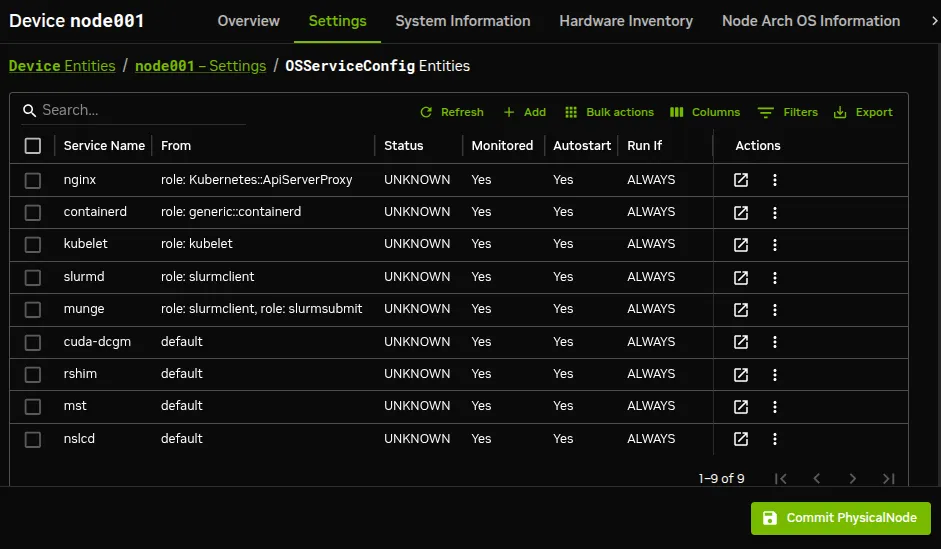
![Operating system service configuration list window for nodes in Base View](/base-command-manager/product-manuals/_fern-img/4e78d9649982917ccc6cd76b4e066a57fc14c518e8d1c6e08abd6cac5d5e43d2.webp)

*Figure 3.17: Operating system service configuration list window for nodes in Base View*

* Node categories, for example using a navigation path of <code>Grouping > Categories  > Settings > Services </code>

A service can be added with the `+Add` button, and fields of the service can then be edited.

Figure [3.18](#fig-base-view-service-cups-add) shows CUPS in the services window of Base View (figure [3.18](#fig-base-view-service-cups-add)).
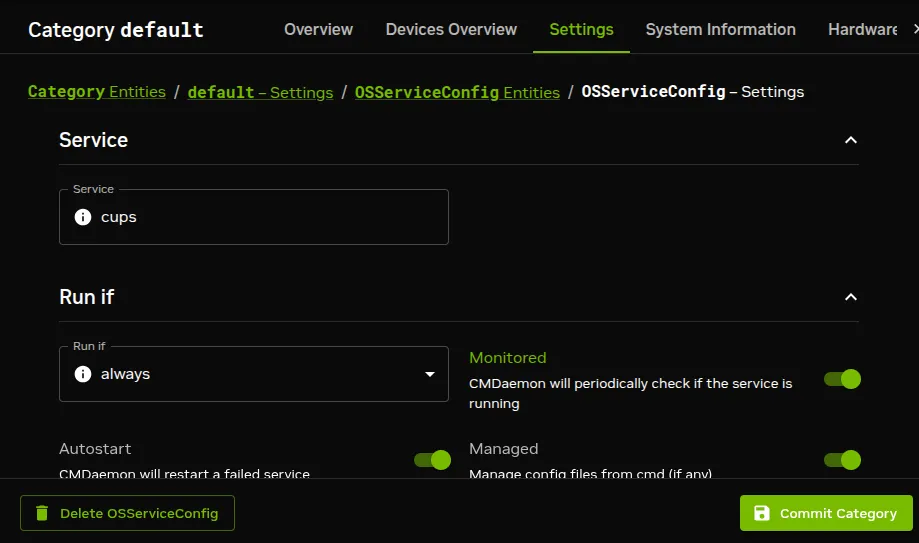
![Setting up a service using Base View](/base-command-manager/product-manuals/_fern-img/253bae82db8fc07e853b4fe2f1d009358250e3996e5960effa9fcd05eaee30c5.webp)

*Figure 3.18: Setting up a service using Base View*

The service command options `start`, `stop`, `restart`, and so on, are displayed as options when clicking on the `⋮` in the `Actions` column (figure [3.19](#fig-base-view-service-cups-node-categories-start-stop)):
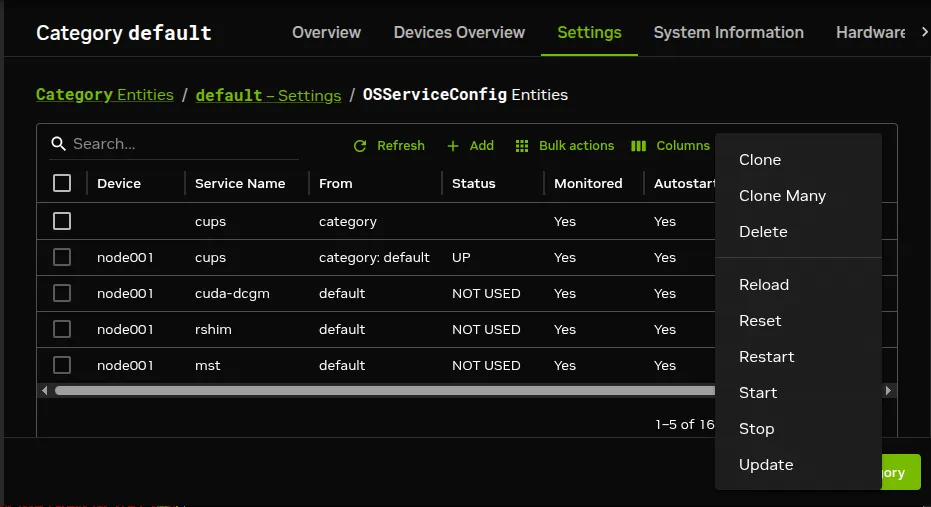
![Operating system service options, seen after clicking on ⋮ in Actions column in Base View](/base-command-manager/product-manuals/_fern-img/04a8086fa7267272ca741e7935d3821c581eb0a157815eac7a1b2a06d4d7e7c3.webp)

*Figure 3.19: Operating system service options, seen after clicking on ⋮ in Actions column in Base View*

#### 3.15.2.6  Monitoring A Service With `cmsh` And Base View

The service is

* in a `DOWN` state if it is not running, and

* in a `FAILING` state if it is unable to run after 10 auto-starts in a row

Event messages are sent during these first 10 auto-starts. After the first 10 auto-starts, no more event messages are sent, but autostart attempts continue.

In case an autostart attempt has not yet restarted the service, the `reset` option may be used to attempt an immediate restart. The `reset` option is not a service option in the regular shell, but is used by CMDaemon (within `cmsh` and Base View) to clear a `FAILING` state of a service, reset the attempted auto-starts count to zero, and attempt a restart of the service.

The monitoring system sets the `ManagedServicesOk`  health check (Appendix [G.2.1](/admin/metricshealthchecksactions#g21-regular-health-checks)) to a state of `FAIL` if any of the services it monitors is in the `FAILING` state. In `cmsh`, the statuses of the services are listed by running the `latesthealthdata` command (section [10.6.3](/admin/monitoring#1063-the-latest-data-and-counter-valuesthe-latestdata-and-latestmetriccounters-commands)) from `device` mode.

Standard init.d script behavior is that the script return a non-zero exit code if the service is down, and a zero exit code if the service is up. A non-zero exit code makes BCM decide that the service is down, and should be restarted.

However, some scripts return a non-zero exit code even if the service is up. These services therefore have BCM attempt to start them repetitively, even though they are actually running.

This behavior is normally best fixed by setting a zero exit code for when the service is up, and a non-zero exit code for when the service is down.

## 3.16  Managing And Configuring A Rack

### 3.16.1  Racks

A cluster may have local nodes grouped physically into racks. A rack is 42 units in height by default, and nodes normally take up one unit.

#### 3.16.1.1  Rack List

**Rack list in Base View:** The `Rack list` pane can be opened up in Base View via the navigation path `Datacenter Infrastructure` > `Racks` (figure [3.20](#fig-base-view-racks-overview)):
![Rack list using Base View](/base-command-manager/product-manuals/_fern-img/9d14adb21c7638bad34bf66fc4735abeb46ffcbe8eaea2574215d41296d9aeb8.webp)

*Figure 3.20: Rack list using Base View*

Racks can then be added, removed, or edited from the pane.

Within the `Rack list` pane:

* a new rack item can be added with the `+ Add` button. This opens up a rack configuration window where details of the new configuration can be entered and saved (figure [3.21](#fig-base-view-racks-configuration-settings)).

* an existing rack item can be edited with the navigation path <code> > Settings</code>. This opens up the `Settings` tab from within which rack configuration details can be managed.

**Racks overviews in `cmsh`:**

* The `list` command in `rack` mode in `cmsh` allows racks defined in the cluster manager to be listed:

  ```bash
  [basecm11->rack]% list
  Name (key)      Room           x-Coordinate   y-Coordinate   Height
  --------------  -------------  -------------  -------------  ------
  rack2           skonk works    2              0              42
  racknroll                      1              0              42
  ```

* The `rackoverview` command displays information about the types of entities in a specified rack. It also lists some more detailed information about some of the entity types:

  **Example**

  ```bash
  [basecm11->rack]% rackoverview <TAB><TAB>
  a01  a02  a03  a04  a05  a06  a07  a08  a09  a10  a11  a12  b01  b02  b03  b04...
  [basecm11->rack]% rackoverview a05
  Type              Up              Down            Closed          Total
  ----------------- --------------- --------------- --------------- ---------------
  Nodes             18              0               0               18
  DPU nodes         0               0               0               0
  Managed switches  0               0               0               0
  NVLink switches   0               9               0               9
  Power shelves     8               0               0               8
  Devices           0               0               0               0
  Cores             2,592           -               -               2,592
  GPUs              72              -               -               72

  Name                        Value
  --------------------------- -----------------
  User CPU                    0.03%
  System CPU                  0.07%
  Idle CPU                    99.9%
  Other CPU                   0.0%
  Memory used                 1.28 TiB (4.53%)
  Memory unused               27.4 TiB (96.6%)
  Memory total                28.3 TiB
  Total GPU utilization       0 W
  Total GPU power usage       10.9 KW
  Total GPU NVlink bandwidth  0 W
  Average GPU temperature     30.5588 C

  Node               GPU  Utilization  Temperature  Power usage  Memory used  Memory free  Fabric status
  ------------------ ---- ------------ ------------ ------------ ------------ ------------ -------------
  a05-p1-dgx-01-c01  gpu0 0.0%         30 C         166.551 W    0 B          185 GiB      success
  a05-p1-dgx-01-c01  gpu1 0.0%         30 C         158.166 W    1.00 MiB     185 GiB      success
  ...

  Switch          Utilization  Temperature  Power usage  Fan speed    Links active Links inactive
  --------------- ------------ ------------ ------------ ------------ ------------ --------------
  a05-p1-nvsw-01  35.7%        0 C          0 W          0 RPM        0            0
  a05-p1-nvsw-02  26.9%        0 C          0 W          0 RPM        0            0
  ...

  Power           Input    Output                Fan       Active  Total
  shelf           power    power    Temperature  speed     PSU     PSU
  --------------- -------- --------  ----------  --------- ------- ------
  a05-p1-pwr-01   0 W      0 W      0 C          0 RPM     0       6
  a05-p1-pwr-02   0 W      0 W      0 C          0 RPM     0       6
  ...
  [basecm11->rack]%
  ```

* The `display` command in `rack` mode is useful for visualizing where devices are located in the rack, if the cluster administrator has recorded the device positions

  **Example**

  ```bash
  [basecm11->rack]% display |less -R
  ...
              A05                      B05

  48                       48
  47                       47
  46                       46
  45                       45
  44                       44
  43                       43
  42   a05-p1-pwr-08       42   B05-P1-PWR-08
  41   a05-p1-pwr-07       41   B05-P1-PWR-07
  40   a05-p1-pwr-06       40   B05-P1-PWR-06
  39   a05-p1-pwr-05       39   B05-P1-PWR-05
  38                       38
  37   a05-p1-dgx-01-c18   37   b05-p1-dgx-05-c18
  36   a05-p1-dgx-01-c17   36   b05-p1-dgx-05-c17
  35   a05-p1-dgx-01-c16   35   b05-p1-dgx-05-c16
  34   a05-p1-dgx-01-c15   34   b05-p1-dgx-05-c15
  33   a05-p1-dgx-01-c14   33   b05-p1-dgx-05-c14
  32   a05-p1-dgx-01-c13   32   b05-p1-dgx-05-c13
  31   a05-p1-dgx-01-c12   31   b05-p1-dgx-05-c12
  30   a05-p1-dgx-01-c11   30   b05-p1-dgx-05-c11
  29   a05-p1-dgx-01-c10   29   b05-p1-dgx-05-c10
  28   a05-p1-dgx-01-c09   28   b05-p1-dgx-05-c09
  27   a05-p1-nvsw-09      27   B05-P1-NVSW-09
  26   a05-p1-nvsw-08      26   B05-P1-NVSW-08
  25   a05-p1-nvsw-07      25   B05-P1-NVSW-07
  24   a05-p1-nvsw-06      24   B05-P1-NVSW-06
  23   a05-p1-nvsw-05      23   B05-P1-NVSW-05
  22   a05-p1-nvsw-04      22   B05-P1-NVSW-04
  21   a05-p1-nvsw-03      21   B05-P1-NVSW-03
  20   a05-p1-nvsw-02      20   B05-P1-NVSW-02
  19   a05-p1-nvsw-01      19   B05-P1-NVSW-01
  18   a05-p1-dgx-01-c08   18   b05-p1-dgx-05-c08
  17   a05-p1-dgx-01-c07   17   b05-p1-dgx-05-c07
  16   a05-p1-dgx-01-c06   16   b05-p1-dgx-05-c06
  15   a05-p1-dgx-01-c05   15   b05-p1-dgx-05-c05
  14   a05-p1-dgx-01-c04   14   b05-p1-dgx-05-c04
  13   a05-p1-dgx-01-c03   13   b05-p1-dgx-05-c03
  12   a05-p1-dgx-01-c02   12   b05-p1-dgx-05-c02
  11   a05-p1-dgx-01-c01   11   b05-p1-dgx-05-c01
  10                       10
  09   a05-p1-pwr-04       09   B05-P1-PWR-04
  08   a05-p1-pwr-03       08   B05-P1-PWR-03
  07   a05-p1-pwr-02       07   B05-P1-PWR-02
  06   a05-p1-pwr-01       06   B05-P1-PWR-01
  05                       05
  04                       04
  03                       03
  02                       02
  01                       01
  ```

Other rack overview commands allow the electrical supply, liquid cooling, leak detection, and leak detection-related actions to be viewed at rack level ([section 3.3](/nvidia-mission-control/rackmanagement#33-introduction-to-advanced-features-in-rack-management) of the *NVIDIA Mission Control Manual*).

#### 3.16.1.2  Rack Configuration Settings

**Rack configuration settings in Base View:** A `Settings` tab for editing a rack item selected from the `Rack list` pane is shown in figure [3.21](#fig-base-view-racks-configuration-settings).

![Rack configuration settings using Base View](/base-command-manager/product-manuals/_fern-img/97e6f7454be561877b2cb39150a5bdea43aca61c60b25caa8488131a4fc22f27.webp)

*Figure 3.21: Rack configuration settings using Base View*

Among the rack configuration attributes are:

* `Name`: A unique name for the rack item. Names such as `rack001`, `rack002` are a sensible choice.

* `Room`: A unique name for the room the rack is in.

* `Position`: The *x*- and *y*-coordinates of the rack in a room.

  These coordinates are meant to be a hint for the administrator about the positioning of the racks in the room, and as such are optional, and can be arbitrary numbers. The `Notes` field can be used as a supplement or as an alternative for hints.

* `Height`: by default this is the standard rack size of 42U.

* `Inverted`: Normally, a rack uses the number 1 to mark the top and 42 to mark the bottom position for the places that a device can be positioned in a rack. However, some manufacturers invert this and use 1 to mark the bottom instead. Enabling the `Inverted` setting records the numbering layout accordingly for all racks, if the inverted rack is the first rack seen in `Rackview`.

**Rack configuration settings in `cmsh`:** Tab-completion suggestions for the `set` command in `rack` mode display the racks available for configuration. Tab-completion suggestions can also display the configuration settings available for a specified rack, for example, `rack2`:

**Example**

```bash
[basecm11->rack]% set rack
rack1  rack2  rack3
[basecm11->rack]% set rack2
angle         height        model         partnumber    row           type          y-coordinate
building      inverted      name          revision      serialnumber  width
depth         location      notes         room          twin          x-coordinate
```

The configuration settings for a particular rack match with the parameters of figure [3.21](#fig-base-view-racks-configuration-settings) and are discussed in the text that follows figure [3.21](#fig-base-view-racks-configuration-settings).

Setting the values can be done as in this example:

**Example**

```bash
[basecm11->rack]% use rack2
[basecm11->rack[rack2]]% set room "skonk works"
[basecm11->rack*[rack2*]]% set x-coordinate 2
[basecm11->rack*[rack2*]]% set y-coordinate 0
[basecm11->rack*[rack2*]]% set inverted no
[basecm11->rack*[rack2*]]% commit
[basecm11->rack[rack2]]%
```

### 3.16.2  Assigning Devices To A Rack

Devices such as nodes, switches, and chassis, can be assigned to racks.

By default, no such devices are assigned to a rack.

Devices can be assigned to a particular rack and to a particular position within the rack as follows:

#### 3.16.2.1  Assigning Devices To A Rack Using Base View

Using Base View, a device such as a node `node001` can be assigned to a rack using the navigation path (figure [3.22](#fig-base-view-node-to-rack-assign)):

<code>
  Devices > All Devices > node001 

   \> Settings > Rack +
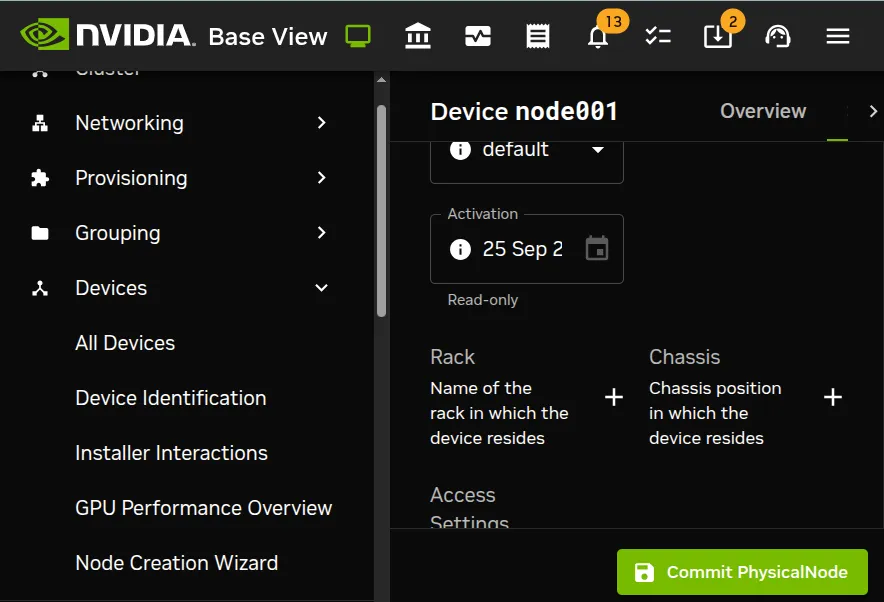
</code>

![Rack assignment using Base View](/base-command-manager/product-manuals/_fern-img/6d108e593003a26b297fcb354bfd79cdefbace620c6deb7a83e72725584696cc.webp)

*Figure 3.22: Rack assignment using Base View*

#### 3.16.2.2  Assigning Devices To A Rack Using `cmsh`

* In `device` mode, nodes can be assigned to a position in a rack. For example:

  * `node001` to position `1`

  * `node002` to position `2`

  * `node003` to position `3`

  A looping instruction to do this in an existing rack `rack2` is something similar to:

  ```bash
  root@basecm11:~# for i in {001..003} ; do cmsh -c "device use node$i; get hostname; set rack rack2; \
  get rack; rackposition; set deviceposition $i; get deviceposition; commit"; done
  ```

* The `addrackposition` command fills devices into a rack object more implicitly. By default the command fills devices into the first free slots on the rack.

  ```bash
  root@basecm11:~# cmsh-c "device; addrackposition -n node001.node010 --position 1 rack2
  ```

  The first free `deviceposition` value that it uses can be set with the `--position` option. Forcing a device into the the same position as another device is also possible, with the `--force` option.

  More options can be found using the `help` text for the command.

  ```bash
  [basecm11->device]% help addrackposition
  Name:
            addrackposition - Add a rack position information to one or more nodes

  ...
  Examples:
            addrackposition -n node001..node010 rack1
            addrackposition -n node001..node010 --height 2 --position 4 rack rack2
  ```

* The `rackposition` submode allows individual nodes to be managed directly:

  ```bash
  [basecm11->device[node002]->rackposition]% show
  Parameter                        Value
  -------------------------------- ------------------------------------------------
  Rack                             rack2
  Revision
  Device position                  2
  Device height                    1
  Tray ID
  Tray name
  ```

A similar submode to `rackposition` is `chassisposition` (section [3.16.4](#3164-the-chassisposition-submode)).

#### 3.16.2.3  The Convention Of The Top Of The Device Being Its Position

Since rack manufacturers usually number their racks from top to bottom, the position of a device in a rack (using the parameter `Position` in Base View, and the parameter `deviceposition` in `cmsh`) is always taken to be where the top of the device is located. This is the convention followed even for the less usual case where the rack numbering is from bottom to top.

A position on a rack is 1U of space. Most devices have a height that fits in that 1U, so that the top of the device is located at the same position as the bottom of the device, and no confusion is possible. The administrator should however be aware that for any device that is greater than 1U in height such as, for example, a blade enclosure chassis (section [3.16.3](#3163-assigning-devices-to-a-chassis)), the convention means that it is the position of the top of the device that is where the device is considered to be. The position of the bottom of the device is ignored.

### 3.16.3  Assigning Devices To A Chassis

#### 3.16.3.1  A Chassis As A Physical Part Of A Cluster

In a cluster, several local nodes may be grouped together physically into a chassis. This is common for clusters using blade systems. Clusters made up of blade systems use less space, less hardware, and less electrical power than non-blade clusters with the same computing power. In blade systems, the blades are the nodes, and the chassis is the blade enclosure.

A blade enclosure chassis is typically 6 to 10U in size, and the node density for server blades is typically 2 blades per unit with 2014 technology.

#### 3.16.3.2  Chassis Configuration And Node Assignment

**Chassis in Base View:** The `Chassis` pane can be added in Base View using the navigation path

`Devices > All Devices > + Add > Chassis`

This opens a `Chassis` pane where a new chassis object can be configured. Properties such as name, MAC address, rack location, can be set and saved (figure [3.23](#fig-base-view-chassis-subpane)).

An existing chassis object, for example `chassis01`, can be edited by selecting it from the navigation path <code>Devices > All Devices > chassis01 </code>

![Base View chassis configuration](/base-command-manager/product-manuals/_fern-img/9c0609311ac67cc95d1a286ea17e745f046052b289943c827cbd60a929a6a6ec.webp)

*Figure 3.23: Base View chassis configuration*

The options that can be set within the `Chassis` pane include the following:

* `Hostname`: a name that can be assigned to the chassis operating system

* `Mac`: the MAC address of the chassis

* `Model`: the hardware model name

* `Rack`: the rack in which the chassis is placed

* `Layout`: how the nodes in a chassis are laid out visually.

* `Network`: which network the chassis is attached to.

* `Access Settings`: Opens up a pane to allow a user name and password to be set to access the chassis operating system, as well as the REST API port.

* `Power control`, `Custom power script`, `Custom power script argument`: power-related items for the chassis.

* `BMC Settings`: Baseboard Management Controller settings for the chassis.

* `Userdefined1`, `Userdefined2`: administrator-defined variables that can be used by CMDaemon.

**Basic chassis configuration and node assignment with `cmsh`:**

The `chassis` type in `cmsh` allows configuration related to a particular chassis. Tab-completion suggestions for a selected chassis with the `set` command show possible parameters that may be set:

**Example**

```bash
[basecm11->device]% add chassis chassis1
[basecm11->device*[chassis1*]]% set
accesssettings              defaultgatewaymetric        partition                   serialnumber
bmcsettings                 hostname                    partnumber                  supportsgnss
chassis                     interfaces                  powercontrol                switchports
custompingscript            layout                      powerdistributionunits      userdefined1
custompingscriptargument    mac                         prometheusmetricforwarders  userdefined2
custompowerscript           managementnetwork           provisioninginterface       userdefinedresources
custompowerscriptargument   model                       rack
defaultgateway              notes                       revision
```

Whether the suggested parameters are actually supported depends on the chassis hardware. For example, if the chassis has no power control or network interface of its own, then the `powercontrol` value and `mac` address settings may be set, but they cannot function.

The positioning parameters of the chassis within an already-defined rack, `rack2`, can be set as follows with `cmsh`:

**Example**

```bash
[basecm11->device[node001]]% rackposition
[basecm11->device*[node001*]->rackposition*]% set rack rack2
[basecm11->device*[node001*]->rackposition*]% set deviceposition 1; set deviceheight 6
[basecm11->device*[node001*]->rackposition*]% commit
```

The members of the chassis can be set as follows with `cmsh`:

**Example**

```bash
[basecm11->device[chassis1]]% append members basecm11 node001..node005
[basecm11->device*[chassis1*]]% commit
```

### 3.16.4  The `chassisposition` Submode

Section [3.16.2](#3162-assigning-devices-to-a-rack) described positioning attributes available in `device` mode, within the `rackposition` submode, for a device within a rack.

This section, describes positioning attributes available in `device` mode, within the `chassisposition` submode, for a device within a chassis.

Attributes include the chassis that the device belongs to, the slot, position, and width of the device within that chassis.

**Example**

```bash
[basecm11->device]% chassisposition node001
[basecm11->device[node001]->chassisposition]% show
Parameter                        Value
-------------------------------- ------------------------------------------------
Chassis
Slot
Position                         1
Width                            1
```

### 3.16.5  Power Management Of Racks

Section [4.2](/admin/power#42-power-operations) of this manual, describes the power operations and power status responses for devices in general, while [section 4.9.4 of the *NVIDIA Mission Control Manual*](/nvidia-mission-control/powershelf#494-power-management-of-racks) goes into some more detail for particular rack operations.

## 3.17  Configuring GPU Settings

### 3.17.1  GPUs And GPU Units

GPUs (Graphics Processing Units) are processors that are heavily optimized for executing certain types of parallel processing tasks. GPUs were originally used for rendering graphics, and one GPU typically has hundreds of cores. When used for general processing, they are sometimes called General Processing GPUs, or GPGPUs. For convenience, the “GP” prefix for General Processing is not used in this manual.

A GPU is typically placed on a PCIe card. GPUs can be physically inside the node that uses them, or they can be physically external to the node that uses them. As far as the operating system on the node making use of the physically external GPUs is concerned, the GPUs are internal to the node.

If the GPUs are physically external to the node, then they are typically in a *GPU unit*. A GPU unit is a chassis that hosts only GPUs. It is typically able to provide GPU access to several nodes, usually via PCIe extender connections. This ability means that external GPUs typically require more configuration than internal GPUs. GPU units are not covered in this manual because they are not very popular due to their greater cost and slowness.

Configuring GPU settings for GPUs—that is, for devices internal to a node—is covered next.

### 3.17.2  Configuring GPU Settings

#### 3.17.2.1  The `gpusettings` Submode In `cmsh`

In `cmsh`, GPUs can be configured for a specified node via `device` mode.

Going into the `gpusettings` submode for that node then allows a type of GPU to be set, from the `amd` or `nvidia` types, and a range to be specified for the GPU slots for that particular node:

**Example**

```bash
[root@basecm11 ~]# cmsh
[basecm11]% device use node001
[basecm11->device[node001]]% gpusettings
[basecm11->device[node001]->gpusettings]% add nvidia 1-3 ; commit
```

The range can be specified as

* a single number, for a particular slot, for example: `3`

* a range, for a range of slots, for example: `0-2`

* all, for all GPU slots on that node, using:

  `   all`

  or

  `   *`

GPUs can also be configured for a specified category via `category` mode. For example, using the category `default`, then entering into the `gpusettings` submode allows a type (`nvidia` or `amd`) and a range to be set for the range of GPUs:

**Example**

```bash
[root@basecm11 ~]# cmsh
[basecm11]% category use default
[basecm11->category[default]]% gpusettings
[basecm11->category[default]->gpusettings]% list
GPU range (key)  Power limit  ECC mode     Compute mode  Clock speeds
---------------- ------------ ------------ ------------- -------------
[basecm11->category[default]->gpusettings]% add nvidia 1-3 ; commit
[basecm11->category[default]->gpusettings[nvidia:1-3]]% show
Parameter                      Value
------------------------------ ----------------------------------
Clock speeds
Clock sync boost mode
Compute mode
ECC mode
...
```

As usual, GPU settings for a node override those for a category (section [2.1.3](/admin/clustermanagement#213-node-categories)).

#### 3.17.2.2  GPU Settings With NVIDIA GPUs

The installation of the NVIDIA GPU software driver packages is covered [in section 9.1 of the *Installation Manual*](/installation/nvidiagpus#91-installing-cuda). It should be noted that the `cuda-dcgm` package must be installed to access NVIDIA GPU metrics.

The present section is about configuring NVIDIA GPUs in BCM. The driver itself does not necessarily have to be in place for the configuration to be done, although the configuration only becomes active when the driver is installed.

After a GPU type has been set, the following NVIDIA GPU settings may be specified, if supported, from within the `gpusettings` submode:

* `clockspeeds`: The pair of clock speeds (frequency in MHz) to be set for this parameter can be selected from the list of available speeds. The available speeds can be seen by running the `status` command. The values are specified in the form: \<*number for GPU processor*>,\<*number for memory*>

* `clocksyncboostmode`: GPU boosting. Exceed the maximum core and memory clock speeds if it is safe. Choices are:

  * `enabled`

  * `disabled`

* `computemode`: Contexts can be computed with the following values for this mode:

  * `Default`: Multiple contexts are allowed

  * `Exclusive thread`: Only one context is allowed per device, usable from one thread at a time

  * `Exclusive process`: Only one context is allowed per device, usable from multiple threads at a time. This mode option is valid for CUDA 4.0 and later. Earlier CUDA versions ran only in this mode.

  * `Prohibited`: No contexts are allowed per device

* `eccmode`: Sets the ECC bit error check, with:

  * `enabled`

  * `disabled`

  When ECC is enabled:

  * Single bit errors are detected, using the `EccSBitGPU` metric ([here](/admin/metricshealthchecksactions#g11-regular-metrics)), and corrected automatically.

  * Double bit errors are also detected, using the `EccDBitGPU` metric ([here](/admin/metricshealthchecksactions#g11-regular-metrics)), but cannot be corrected.

* `GPU range`: range values can be set as follows:

  * `all`: The GPU settings apply to all GPUs on the node.

  * \<*number*>: The GPU settings apply to an individual GPU, for example: `1`

  * \<*number range*>: The GPU settings apply to a range of GPUs, for example: `1,3-5`

* `powerlimit`: The administrator-defined upper power limit for the GPU. Only valid if `powermode` is `Supported`.

  * `min`: The minimum upper power limit that the hardware supports.

  * `max`: The maximum upper power limit that the hardware supports.

  * \<*number*>: An arbitrary upper power limit, specified as a number between `min` and `max`

  * `default`: Upper power limit based on the default hardware value.

If no value is specified for a GPU setting, then the hardware default is used.

#### 3.17.2.3  The `updatedevicepowerconfig` Command For Controlling Power Consumption

Above the `gpusettings` submode, within `device` mode, nodes can have their power consumption limited per specified GPU or CPU:

Without arguments, the `updatedevicepowerconfig` command shows the current status for GPUs:

**Example**

```bash
[basecm11->device[node001]]% updatedevicepowerconfig
Node         Kind         Device       Power limit
------------ ------------ ------------ ----------------
node001      GPU          GPU0         350 W
node001      GPU          GPU1         300 W
```

In the preceding example, the only node with a GPU is node001. The same result is therefore shown if the command is run as `updatedevicepowerconfig -n node001`.

The kind of processing unit that can have its power configuration examined and set can be either a GPU or CPU. A CPU status command can be specified by using the `--kind` option:

**Example**

```bash
[basecm11->device[node001]]% updatedevicepowerconfig -n node001 --kind CPU
Node         Kind         Device       Power limit
------------ ------------ ------------ ----------------
node001      CPU          CPU0         200 W
node001      CPU          CPU1         200 W
```

The first and second GPUs on `node001` can have their power limits set to the same value with a range syntax and the `--power-limit` option:

```bash
[basecm11->device]% updatedevicepowerconfig node001:0-1  --power-limit 330
Node         Kind         Device       Power limit
------------ ------------ ------------ ----------------
node001      GPU          GPU0         330 W
node001      GPU          GPU1         330 W
```

For the first GPU on `node001`, and for all CPUs on `node002` the power limit, in watts, is set to specified values:

```bash
[basecm11->device]% updatedevicepowerconfig node001:0:300 node002:CPU*:150
Node         Kind         Device       Power limit
------------ ------------ ------------ ----------------
node001      GPU          GPU0         300 W
node001      GPU          GPU1         300 W
node002      CPU          CPU0         150 W
node002      CPU          CPU1         150 W
```

A dry-run option `--dry-run` shows the effect on both the GPUs without execution.

```bash
[basecm11->device]% updatedevicepowerconfig node001:0:300 node002:CPU*:150
Node         Kind         Device       Power limit
------------ ------------ ------------ ----------------
node001      GPU          GPU0         300 W
node001      GPU          GPU1         300 W
node002      CPU          CPU0         150 W
node002      CPU          CPU1         150 W

Setting the power limit in  both gpusettings values and updatedevicepowerconfigs may cause conflict.
```

#### 3.17.2.4  GPU Settings With AMD GPUs

GPU settings for AMD Radeon GPUs are accessed via `cmsh` in the same way as NVIDIA GPU settings. The AMD GPU setting parameters do differ from the NVIDIA ones.

The AMD GPUs supported are Radeon cards. A list of cards and operating systems compatible with the Linux driver used is at [https://support.amd.com/en-us/kb-articles/Pages/Radeon-Software-for-Linux-Release-Notes.aspx](https://support.amd.com/en-us/kb-articles/Pages/Radeon-Software-for-Linux-Release-Notes.aspx)

AMD GPU driver installation is described in [section 7.4 of the *Installation Manual*](/installation/thirdparty#74-amd-gpu-driver-installation).

The Radeon Instinct MI25 shows the following settings in Ubuntu 16_06 running a Linux 4.4.0-72-generic kernel:

**Example**

```bash
[basecm11->device[node001]->gpusettings]% list
Type GPU range Info
---- --------- ------------------
AMD  0         PowerPlay: manual
[basecm11->device[node001]->gpusettings]% use amd:0
[basecm11->device[node001]->gpusettings[amd:0]]% show
Parameter                        Value
-------------------------------- -----------------------------
Activity threshold               1
Fan speed                        255
GPU clock level                  5
GPU range                        0
Hysteresis down                  0
Hysteresis up                    0
Info                             PowerPlay: manual
Memory clock level               3
Minimum GPU clock                0
Minimum memory clock             0
Overdrive percentage             1
PowerPlay mode                   manual
Revision
Type                             AMD
```

The possible values here are:

* `activitythreshold`: Percent GPU usage at a clock level that is required before clock levels change. From 0 to 100.

* `fanspeed`: Maximum fan speed. From 0 to 255

* `gpuclocklevel`: GPU clock level setting. From 0 to 7.

* `gpurange`: The slots used.

* `hysteresisdown`: Delay in milliseconds before a clock level decrease is carried out.

* `hysteresisup`: Delay in milliseconds before a clock level increase is carried out.

* `info`: A compact informative line about the GPU status.

* `memoryclocklevel`: Memory clock speed setting. From 0-3. Other cards can show other values.

* `minimumgpuclock`: Minimum clock frequency for GPU, in MHz. The kernel only allows certain values. Supported values can be seen using the `status` command.

* `minimummemoryclock`: Minimum clock frequency for the memory, in MHz. The kernel only allows certain values. Supported values can be seen using the status command.

* `overdrivepercentage`: Percent overclocking. From 0 to 20%

* `powerplaymode`: Decides how the performance level power setting should be implemented.

  * `high`: keep performance high, regardless of GPU workload

  * `low`: keep performance low, regardless of GPU workload

  * `auto`: Switch clock rates according to GPU workload

  * `manual`: Use the memory clock level and GPU clock values.

The `status` command displays supported clock frequencies (some values ellipsized):

**Example**

```bash
[basecm11->device[node001]->gpusettings[amd:0]]% status
Index Name                  Property     Value        Supported
----- --------------------- ------------ ------------ -------------------------------------
0     Radeon Instinct MI25  Clock        1399Mhz      852Mhz, 991Mhz, ..., 1440Mhz, 1515Mhz
0     Radeon Instinct MI25  Memory       945Mhz       167Mhz, 500Mhz, 800Mhz, 945Mhz
```

#### 3.17.2.5  GPU Settings In Base View

In Base View, `GPU settings` can be accessed within the settings options for a category or a device. This brings up a GPU settings list.

**GPU settings list in Base View:** A `GPU Settings list` pane can be opened up in Base View for a regular node, for example `node001`, with the navigation path:\
<code>Devices > All Devices > Nodes  > Settings > GPU Settings </code>

Similarly, a `GPU Settings list` pane can be opened up in Base View for nodes in a category, for example `gpunodes`, with the navigation path:\
<code>Grouping > Categories\[gpunodes]  > Settings > GPU Settings </code>

Within the `GPU Settings list` pane:

* a new GPU settings item can be added with the `+Add` button, and then clicking on either the `AMD` or the `NVIDIA` item in the popup. This opens an `AMDGPUSettings` pane or an `NvidiaGPUSettings` pane, where GPU configuration can be carried out and saved (figure [3.24](#fig-base-view-nodes-gpusettings)).
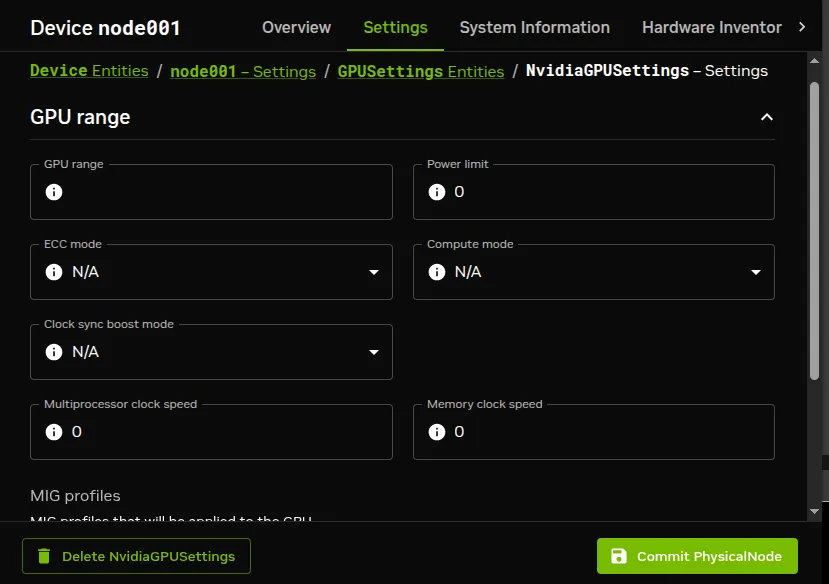
![GPU settings window for a node](/base-command-manager/product-manuals/_fern-img/7ad8469289539567307bb91385ba790cd2ac7baac6e3a025231b59e5eb519eae.webp)

*Figure 3.24: GPU settings window for a node*

* an existing GPU settings item can be edited with the ↗ option, which opens up the GPU Settings pane where GPU configuration can be managed.

#### 3.17.2.6  GPU Configuration For HPC Workload Managers

**Slurm GPU configuration via direct `slurm.conf` changes:** To configure NVIDIA GPUs for Slurm, changes are made in `slurm.conf` when `cm-wlm-setup` configures GPUs for Slurm (section [7.3](/admin/workloadmanagement#73-installation-of-workload-managers)).

Changes made are kept in the `AUTOGENERATED` section and can be worked out by checking the difference between the `slurm.conf.template` file and the actual `slurm.conf` file. Changes made include defining the GresTypes `gpu` and `mps`, and setting GPU plugins that allow Slurm generic resources to work.

The configured gres options can be seen by running `sbatch --gres=help`:

**Example**

```bash
[fred@basecm11 ~]$ sbatch --gres=help
Valid gres options are:
gpu[[:type]:count]
mps[[:type]:count]
```

This means that a GPU can be requested in a job script with the Slurm gres option:

```bash
#SBATCH --gres=gpu:1
```

Similarly, MPS resources ([https://slurm.schedmd.com/gres.html#MPS_Management](https://slurm.schedmd.com/gres.html#MPS_Management)) can be requested with:

```bash
#SBATCH --gres=mps:100
```

If adding new parameters manually, care must be taken to avoid duplication of parameters already in the file, because `slurmd` is unlikely to work properly with duplicated parameters.

The Slurm client role can be configured at configuration overlay, category, or node level. If configuring the Slurm client role for GPU gres resources manually, then each GPU can be configured within the role:

**Example**

```bash
[basecm11->configurationoverlay]% list
Name (key)           Priority   All head nodes Nodes            Categories       Roles
-------------------- ---------- -------------- ---------------- ---------------- ----------------
slurm-accounting     500        yes                                              slurmaccounting
slurm-client         500        no                              default          slurmclient
slurm-server         500        yes                                              slurmserver
slurm-submit         500        no                              default          slurmsubmit
wlm-headnode-submit  600        yes                                              slurmsubmit
[basecm11->configurationoverlay]% use slurm-client
[basecm11->configurationoverlay[slurm-client]]% roles
[basecm11->configurationoverlay[slurm-client]->roles]% use slurmclient
[basecm11->configurationoverlay[slurm-client]->roles[slurmclient]]% genericresources
[basecm11->configurationoverlay[slurm-client]->roles[slurmclient]->genericresources]%
[basecm11->...->roles[slurmclient]->genericresources]% add gpu0
[basecm11->...->roles*[slurmclient*]->genericresources*[gpu0*]]% set name gpu
[basecm11->...->roles*[slurmclient*]->genericresources*[gpu0*]]% set file /dev/nvidia0
[basecm11->...->roles*[slurmclient*]->genericresources*[gpu0*]]% commit
[basecm11->...->roles[slurmclient]->genericresources[gpu0]]%
    (Repeat similar settings for the other GPUs, gpu1...gpu7)
[basecm11->...->roles[slurmclient]->genericresources]% list
  Alias (key) Name     Type     Count    File
  ----------- -------- -------- -------- ----------------
  gpu0        gpu                        /dev/nvidia0
  gpu1        gpu                        /dev/nvidia1
  gpu2        gpu                        /dev/nvidia2
  gpu3        gpu                        /dev/nvidia3
  gpu4        gpu                        /dev/nvidia4
  gpu5        gpu                        /dev/nvidia5
  gpu6        gpu                        /dev/nvidia6
  gpu7        gpu                        /dev/nvidia7
[basecm11->configurationoverlay[slurm-client]->roles[slurmclient]->genericresources]%
```

By default, Slurm just allows a single job to be executed per node. To change this behavior, it is necessary to allow oversubscription. For example, to allow 8 jobs per node:

**Example**

```bash
[basecm11->wlm[slurm]]% jobqueue
[basecm11->wlm[slurm]->jobqueue]% use defq
[basecm11->wlm[slurm]->jobqueue[defq]]% set oversubscribe yes:8
[basecm11->wlm[slurm]->jobqueue*[defq*]]% commit
[basecm11->wlm[slurm]->jobqueue[defq]]%
```

**Slurm GPU configuration via auto-detection:** Instead of carrying out Slurm configuration by modifying `slurm.conf` by hand, it may be configured via auto-detection. More details on this are to be found starting at [here](/admin/workloadmanagement#slurmautodetection).

**LSF:** Within LSF cluster configuration, GPU devices can be autodetected by setting the `gpuautoconfig` parameter to `yes`. In `cmsh` this can be carried out with:

**Example**

```bash
[basecm11->wlm[lsf]]% set gpuautoconfig yes
[basecm11->wlm*[lsf*]]%
```

The parameter can also be set during LSF configuration via `cm-wlm-setup` (figure [3.25](#fig-cm-wlm-setup-ncurses-lsf-gpu-settings)):
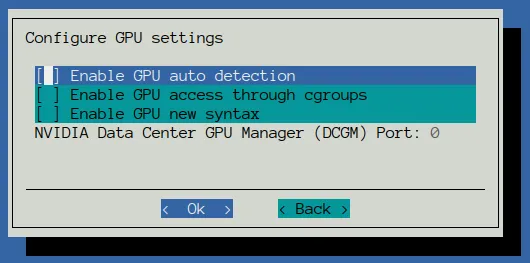
![GPU settings screen for LSF in cm-wlm-setup](/base-command-manager/product-manuals/_fern-img/02498070534a937fcbc4df3c9ccf63fb664038b0fb54df180f919c98a4472a72.webp)

*Figure 3.25: GPU settings screen for LSF in cm-wlm-setup*

GPU resource enforcement can be configured for LSF as follows:

**Example**

```bash
[basecm11->wlm[lsf]->cgroups]% append resourceenforce gpu
[basecm11->wlm*[lsf*]->cgroups*]% commit
[basecm11->wlm[lsf]->cgroups]%
```

### 3.17.3  MIG Configuration

MIG configuration can be carried out for the cluster using the BCM MIG management as described in this section.

An alternative for MIG configuration is to not use the BCM MIG management tool (`cmsh`), and to instead use other MIG management tools, such as the DGX native `nvidia-migmanager.service`, or the GPU operator-provided `nvidia-mig-manager`. If non-BCM MIG management tools are used, then BCM leaves the MIG configuration alone. Using multiple MIG management tools simultaneously to configure MIG should not be done.

#### 3.17.3.1  What Is MIG?

An Ampere NVIDIA GPU is a GPU based on the GA100 microarchitecture. It has compute capability 8.0, which means it can be configured into multiple logical GPU instances if it uses CUDA 11 and NVIDIA driver 450.80.02 or later.

This configuration of multiple logical GPU instances is called Multi-Instance GPU (MIG). The logical GPU instances are MIG devices, that are enabled by setting up the physical GPU to switch to MIG mode.

**As a sanity check to see if MIG is supported:** If the hardware and drivers are in place, then running the `nvidia-smi` command on the node with the physical GPU should display its MIG capability:

```bash
root@basecm11:~# ssh node001 "nvidia-smi" | grep MIG
|                               |                      |               MIG M. |
| MIG devices:                                                                |
| GPU  GI  CI  MIG |         Memory-Usage |        Vol|         Shared        |
```

**GPU utilization information changes on enabling MIG:** Once enabled, the full physical GPU is no longer available as a device, and GPU utilization metrics become unavailable by default.

GPU profiling metrics (section [G.1.7](/admin/metricshealthchecksactions#g17-gpu-profiling-metrics)) for the physical GPU can however still be enabled. For example, it can be carried out with `cmsh` as follows, for a GPU on `node001`:

**Example**

```bash
basecm11->device[node001]]% gpuprofiling show
Hostname    GPU      Major ID     Minor ID     Field ID     Metric                         Watched
----------- -------- ------------ ------------ ------------ ------------------------------ ----------
node001     0        0            1            1002         gpu_profiling_sm_active        no
node001     0        0            1            1003         gpu_profiling_sm_occupancy     no
...
basecm11->device[node001]]% gpuprofiling watch 1003
Hostname    GPU      Major ID     Minor ID     Field ID     Metric                         Watched
----------- -------- ------------ ------------ ------------ ------------------------------ ----------
...
node001     0        0            1            1003         gpu_profiling_sm_occupancy     yes
...

[basecm11->device[node001]]% metrics | grep gpu_profiling
Metric  gpu_profiling_sm_occupancy       gpu0                     GPU       GPUSampler
```

Enabling physical GPU profiling after MIG enablement should be done with caution, because:

* it may affect the performance

* newer drivers may support MIG profiling, which may be confusing

#### 3.17.3.2  Overview Of MIG Concepts And Terminology

The logical GPU instances are composed of *slices* of GPU resources. Slices are the smallest fraction possible of the resource that can be allocated in a logical GPU instance. Thus:

* memory slice: this is the smallest fraction of the memory of the physical GPU that can be allocated to the GPU instance. For the Ampere architecture this is 1/8(th) of the total physical GPU memory.

* SM slice: this is the smallest fraction of the streaming multiprocessors (SMs) on the GPU that can be allocated as a logical SM. An SM is composed of multiple cores (streaming processors). For the Ampere architecture an SM slice is 1/7(th) of the total physical GPU SMs.

* GPU slice: this is the smallest fraction of the physical GPU that has a single GPU memory slice and a single GPU SM slice. A maximum of 7 GPU slices can be specified from the original physical GPU.

The preceding fractional slices can be combined in various mixes to compose a logical `GPU instance`:

* GPU instance: a combination of GPU slices and GPU engines. GPU engines are hardware components that execute other work on the GPU, and can be encoders/decoders (NVENCs/NVDECs), shortcut connectors (CE (copy engine) for DMA), etc.

* compute instance: a part of a GPU instance. It consists of a subset of the parent GPU instance’s SM slices and other GPU engines (DMAs, NVENCs ...). The compute instances can share memory and GPU engines with other compute instances within their GPU instance.

Further details on the terminology and how slices can be allocated to GPU instances are given in the NVIDIA documentation at [https://docs.nvidia.com/datacenter/tesla/mig-user-guide/#concepts](https://docs.nvidia.com/datacenter/tesla/mig-user-guide/#concepts).

A use case for creating several GPU instances from a full physical GPU is when allocation of the full physical GPU is wasteful.

For example, if a full physical GPU is allocated to a job, but the job only uses a fraction of the full set of GPU cores, then the allocation is wasteful, because no other job can then be processed on the remaining idle cores. Instead, if the physical GPU is split into several instances and the job allocated to an instance with a closer match in resources, then it means that other GPU instances are still available for processing other jobs.

When configuring GPU instances for the cluster, the administrator typically allocates all available slices to all the GPU instances that are being configured. Leaving a slice unallocated means that that slice cannot be available to jobs, and it means that the physical resources of that slice are lying idle. For example, if some of the 7 SM slices from the physical GPU are not used, then they are wasted as their processors are never available to jobs, and so that slice stays idle.

Cluster management of GPU instances is described in the following sections.

#### 3.17.3.3  MIG Status Of Physical GPUs

The MIG status on a GPU can be viewed with the `mig status` command. For example, the following shows 8 physical GPUs on `node001` that have not yet become MIG enabled:

**Example**

```bash
[basecm11->device[node001]]% mig status
Node             GPU      Active                           Pending
---------------- -------- -------------------------------- --------------------------------
node001          0        no                               no
node001          1        no                               no
node001          2        no                               no
node001          3        no                               no
node001          4        no                               no
node001          5        no                               no
node001          6        no                               no
node001          7        no                               no
```

#### 3.17.3.4  MIG `enable` And `disable` Options To Set Up Pending States For The Physical GPUs

If the `enable` or `disable` options are run, then by default all the physical GPUs are set to a pending state for enabled (`yes`) and disabled (`no`) respectively:

**Example**

```bash
[basecm11->device[node001]]% mig enable
Node             GPU      Active                           Pending
---------------- -------- -------------------------------- --------------------------------
node001          0        no                               yes
node001          1        no                               yes
node001          2        no                               yes
node001          3        no                               yes
node001          4        no                               yes
node001          5        no                               yes
node001          6        no                               yes
node001          7        no                               yes
```

Individual physical GPUs can also be set to a pending state of enabled or disabled, following the node list syntax (section [2.5.5.10](/admin/clustermanagement#25510-node-list-syntax)):

```bash
[basecm11->device[node001]]% mig disable 3,5-7
Node             GPU      Active                           Pending
---------------- -------- -------------------------------- --------------------------------
node001          0        no                               yes
node001          1        no                               yes
node001          2        no                               yes
node001          3        no                               no
node001          4        no                               yes
node001          5        no                               no
node001          6        no                               no
node001          7        no                               no
```

#### 3.17.3.5  Rebooting The MIG Instances To Activate/Deactivate Instances According To Pending State Settings

The pending states only become active after the node is rebooted for A100 GPUs:

**Example**

```bash
[basecm11->device[node001]]% reboot
Reboot in progress for: node001
...
node001 [   UP   ]
[basecm11->device[node001]]% mig status

Node             GPU      Active                           Pending
---------------- -------- -------------------------------- --------------------------------
node001          0        yes                              yes
node001          1        yes                              yes
node001          2        yes                              yes
node001          3        no                               no
node001          4        yes                              yes
node001          5        no                               no
node001          6        no                               no
node001          7        no                               no
```

The effect of `enable` and `disable` persists after reboots, until the pending value changes once more.

For H100 GPUs and other more modern GPUs, the changes do not require a reboot.

#### 3.17.3.6  The MIG Profiles

**Listing MIG profiles:** The full list of the existing available MIG profiles for each physical GPU is displayed with the `mig profiles` command for the node. If there are 7 physical GPUs at the node, then the listing might look something like:

**Example**

```bash
[basecm11->device[node001]]% mig profiles
Node             GPU      ID       Name       Instances Memory
---------------- -------- -------- ---------- --------- --------
node001          0        1        1g.5gb     7         4.7GiB
node001          0        1        1g.5gb+me  1         4.7GiB
node001          0        2        2g.10gb    3         9.7GiB
node001          0        3        3g.20gb    1         19.6GiB
node001          0        4        4g.20gb    1         19.6GiB
node001          0        7        7g.40gb    1         39GiB
...
node001          7        2        2g.10gb    3         9.7GiB
node001          7        3        3g.20gb    1         19.6GiB
node001          7        4        4g.20gb    1         19.6GiB
node001          7        7        7g.40gb    1         39GiB
```

A list for physical GPU 1 can be displayed with:

**Example**

```bash
[basecm11->device[node001]]% mig profiles 1
Node             GPU      ID       Name       Instances Memory
---------------- -------- -------- ---------- --------- --------
node001          1        1        1g.5gb     7         4.7GiB
node001          1        1        1g.5gb+me  1         4.7GiB
node001          1        2        2g.10gb    3         9.7GiB
node001          1        3        3g.20gb    1         19.6GiB
node001          1        4        4g.20gb    1         19.6GiB
node001          1        7        7g.40gb    1         39GiB
```

**MIG profiles naming convention:** The naming format for the profile takes the form

\<*number of GPU slices in the physical GPU*>`g.<`*memory for slice in GB*>gb

The `+me` suffix implies media extensions being active. The number of GPU instances, the number of GPU slices used, and the memory used by the instance can thus be worked out from the name.

For example:

* `1g.5gb` implies that the size of the GPU slice used for the instances is 1. 4.7GiB of memory is used by each of the 7 GPU instances,

* `2g.10gb` implies that the size of the GPU slice used for the instances is 2. 9.7GiB of memory is used by each of the 3 GPU instances.

**Creating GPU instances, by setting the MIG profile for a GPU:** The MIG profile is an attribute that can be set within the GPU settings for its physical GPU. This can be done after having set up a CMDaemon entity for a physical GPU 0 (section [3.17.2](#3172-configuring-gpu-settings)):

**Example**

```bash
[basecm11->device[node001]]% gpusettings
[basecm11->device*[node001]->gpusettings]% list
Type   GPU range Info
------ --------- --------
Nvidia 0         default
[basecm11->device[node001]->gpusettings]% use nvidia:0
[basecm11->device[node001]->gpusettings[nvidia:0]]% show
Parameter                        Value
-------------------------------- ------------------------------------------------
...
MIG profiles
```

* **A simple existing set of profiles** with 7 GPU instances with 1 GPU slice each, and 5 GB of memory for each slice can be specified with:

  **Example**

  ```bash
  [basecm11->device[node001]->gpusettings[nvidia:0]]% set migprofiles 1g.5gb; commit
  [basecm11->device[node001]->gpusettings[nvidia:0]]% show
  Parameter                        Value
  -------------------------------- ------------------------------------------------
  ...
  MIG profiles                     1g.5gb
  ```

  Setting the profiles, and carrying out the `commit` configures the GPU instances, but does not yet apply them:

  **Example**

  ```bash
  [basecm11->device[node001]->gpusettings[nvidia:0]]% ..;..
  [basecm11->device[node001]]% mig show
  Node             GPU      MIG      Instance Name     Profile  Start    Size
  ---------------- -------- -------- -------- -------- -------- -------- --------
  ```

  Applying the profile deploys the configuration, and shows the configuration:

  **Example**

  ```bash
  [basecm11->device[node001]]% mig apply
  Node             GPU      MIG      Instance Name     Profile  Start    Size
  ---------------- -------- -------- -------- -------- -------- -------- --------
  node001          0        13       -        1g.5gb   19       6        1
  node001          0        13       0        1g.5gb   0        0        1
  ```

  In the preceding, 1 GPU instance has been deployed, with 1 compute instance slice using 5GB. The instance with the `-` represents the hosting GPU instance, while the subsequent row represents the compute instance.

* **Setting a profile with `mig apply --profile`** is an alternative to setting it within `gpusettings`. However, only a profile set within `gpusettings` is persistent. The profile set with the `--profile` option is lost if its node reboots. Multiple profiles can be set using comma-separation (instead of using space-separation). Using multiple `--profile` options is also possible.

  **Example**

  ```bash
  [basecm11->device[node001]]% mig apply --profile 1g.5gb,2g.10gb
  Node             GPU      MIG      Instance Name     Profile  Start    Size
  ---------------- -------- -------- -------- -------- -------- -------- --------
  node001           0        5        -        2g.10gb  14       4        2
  node001           0        5        0        2g.10gb  1        0        2
  node001           0        13       -        1g.5gb   19       6        1
  node001           0        13       0        1g.5gb   0        0        1
  [basecm11->device[node001]]% mig apply --profile 1g.5gb --profile 2g.10gb
  Node             GPU      MIG      Instance Name     Profile  Start    Size
  ---------------- -------- -------- -------- -------- -------- -------- --------
  node001           0        5        -        2g.10gb  14       4        2
  node001           0        5        0        2g.10gb  1        0        2
  node001           0        13       -        1g.5gb   19       6        1
  node001           0        13       0        1g.5gb   0        0        1
  ```

* **Multiple GPU instances** can be specified, if the GPU allows it, using a \<*number*>`*` prefix syntax. So, to deploy 7 GPU instances, each hosting 1 compute instance with 5gb slices, the specification can be:

  **Example**

  ```bash
  [basecm11->device[node001]]% gpusettings; use nvidia:0
  [basecm11->device[node001]->gpusettings[nvidia:0]]% set migprofiles 7*1g.5gb; commit
  [basecm11->device[node001]->gpusettings[nvidia:0]]% ..;..
  [basecm11->device[node001]]% mig apply
  Node            GPU      MIG      Instance Name     Profile  Start    Size
  --------------- -------- -------- -------- -------- -------- -------- --------
  node001         0        7        -        1g.5gb   19       0        1
  node001         0        7        0        1g.5gb   0        0        1
  node001         0        8        -        1g.5gb   19       1        1
  node001         0        8        0        1g.5gb   0        0        1
  node001         0        9        -        1g.5gb   19       2        1
  node001         0        9        0        1g.5gb   0        0        1
  node001         0        10       0        1g.5gb   19       3        1
  node001         0        10       0        1g.5gb   0        0        1
  node001         0        11       -        1g.5gb   19       4        1
  node001         0        11       0        1g.5gb   0        0        1
  node001         0        12       -        1g.5gb   19       5        1
  node001         0        12       0        1g.5gb   0        0        1
  node001         0        13       -        1g.5gb   19       6        1
  node001         0        13       0        1g.5gb   0        0        1
  ```

* **GPU slices** can be implied by default by the profile, and subsets of these slices can be specified explicitly.

  To deploy 1 GPU instance, with 7 GPU slices of compute instance resources, the specification can be:

  **Example**

  ```bash
  [basecm11->device[node001]]% gpusettings; use nvidia:0
  [basecm11->device[node001]->gpusettings[nvidia:0]]% set migprofiles 7g.40gb; commit
  [basecm11->device[node001]->gpusettings[nvidia:0]]% ..;..
  [basecm11->device[node001]]% mig apply
  Node             GPU      MIG      Instance Name     Profile  Start    Size
  ---------------- -------- -------- -------- -------- -------- -------- --------
  node001          0        0        -        7g.40gb  0        0        8
  node001          0        0        0        7g.40gb  4        0        7
  ```

  If a profile with a more than 1 GPU slice is chosen, then GPU slice subsets can be set up via the following syntax:

  **Example**

  ```bash
  [basecm11->device[node001]]% gpusettings; use nvidia:0
  [basecm11->device[node001]->gpusettings[nvidia:0]]% set migprofiles 2g.10gb; commit
  [basecm11->device[node001]->gpusettings[nvidia:0]]% ..;..
  [basecm11->device[node001]]% mig apply
  Node             GPU      MIG      Instance Name     Profile  Start    Size
  ---------------- -------- -------- -------- -------- -------- -------- --------
  node001          0        5        -        2g.10gb  14       4        2
  node001          0        5        0        2g.10gb  1        0        2
  ```

* **GPU slices use a colon syntax** to explicitly specify subsets of GPU slices.

  The configuration specification `2g.10gb` can also be specified as `2g.10gb:1`, where that `:1` indicates the number of GPU slices for the compute instance, counting from zero. That means the compute instance has 2 GPU slices. The resulting configuration is exactly the same as `2g.10g`.

  If the specification `2g.10gb:0` is used instead, then the compute instance ends up looking like:

  **Example**

  ```bash
  [basecm11->device[node001]]% gpusettings; use nvidia:0
  [basecm11->device[node001]->gpusettings[nvidia:0]]% set migprofiles 2g.10gb:0; commit
  [basecm11->device[node001]->gpusettings[nvidia:0]]% ..;..
  [basecm11->device[node001]]% mig apply
  Node             GPU      MIG      Instance Name        Profile  Start    Size
  ---------------- -------- -------- -------- ----------- -------- -------- --------
  node001          0        5        -        2g.10gb     14       4        2
  node001          0        5        0        1c.2g.10gb  0        0        1
  ```

  Here the `1c` indicates 1 GPU slice (here it is counting from 1).

  Adding another slice to a separate compute instance within the same GPU instance can be specified with:

  **Example**

  ```bash
  [basecm11->device[node001]]% gpusettings; use nvidia:0
  [basecm11->device[node001]->gpusettings[nvidia:0]]% set migprofiles 2g.10gb:0:0; commit
  [basecm11->device[node001]->gpusettings[nvidia:0]]% ..;..
  [basecm11->device[node001]]% mig apply
  Node             GPU      MIG      Instance Name        Profile  Start    Size
  ---------------- -------- -------- -------- ----------- -------- -------- --------
  node001          0        5        -        2g.10gb     14       4        2
  node001          0        5        0        1c.2g.10gb  0        0        1
  node001          0        5        1        1c.2g.10gb  0        1        1
  ```

  In the preceding `set migprofiles` command, the specification

  `2g.10gb:0:0`

  can alternatively be expanded out and written in the form:

  `2g.10gb:1c.2g.10gb:1c.2g.10gb`

  for more clarity, at the expense of more typing.

  For a general profile that allows N GPU slices for an instance (with N ≤ 7), the mapping for the colon syntax takes the form:

  | **compact colon form** | **expanded form**                  |
  | :--------------------- | :--------------------------------- |
  | `:0`                   | `1c.` \<*profile*>                 |
  | `:1`                   | `2c.` \<*profile*>                 |
  | ...                    | ...                                |
  | `:N-1`                 | `Nc.` \<*profile*> or \<*profile*> |

  In practice, there are hardware-based restrictions for what is permitted to be allocated. So for example on the NVIDIA A100-PCIE-40GB:

  `7g.40gb:3` is allowed but

  `7g.40gb:4` is not.

  Details on supported profiles for hardware can be found in the NVIDIA MIG user guide documentation at [https://docs.nvidia.com/datacenter/tesla/mig-user-guide/supported-mig-profiles.html](https://docs.nvidia.com/datacenter/tesla/mig-user-guide/supported-mig-profiles.html), which covers, for example, the [A30](https://docs.nvidia.com/datacenter/tesla/mig-user-guide/supported-mig-profiles.html#a30-mig-profiles), [A100](https://docs.nvidia.com/datacenter/tesla/mig-user-guide/supported-mig-profiles.html#a100-mig-profiles), [H100](https://docs.nvidia.com/datacenter/tesla/mig-user-guide/supported-mig-profiles.html#h100-mig-profiles), and [B200](https://docs.nvidia.com/datacenter/tesla/mig-user-guide/supported-mig-profiles.html#B200-mig-profiles) profiles.

  Increasing the number of GPU instances can also still be done using the earlier \<*number*>`*` prefix syntax together with the colon syntax, if the GPU allows it:

  **Example**

  ```bash
  [basecm11->device[node001]]% gpusettings; use nvidia:0
  [basecm11->device[node001]->gpusettings[nvidia:0]]% set migprofiles 3*2g.10gb:0:0; commit
  [basecm11->device[node001]->gpusettings[nvidia:0]]% ..;..
  [basecm11->device[node001]]% mig apply
  Node             GPU      MIG      Instance Name        Profile  Start    Size
  ---------------- -------- -------- -------- ----------- -------- -------- --------
  node001          0        3        -        2g.10gb     14       0        2
  node001          0        3        0        1c.2g.10gb  0        0        1
  node001          0        3        1        1c.2g.10gb  0        1        1
  node001          0        4        -        2g.10gb     14       2        2
  node001          0        4        0        1c.2g.10gb  0        0        1
  node001          0        4        1        1c.2g.10gb  0        1        1
  node001          0        5        -        2g.10gb     14       4        2
  node001          0        5        0        1c.2g.10gb  0        0        1
  node001          0        5        1        1c.2g.10gb  0        1        1
  ```

* **A heterogeneous set of existing profiles** for GPU instances can also be defined for the GPU with MIG profiles.

  For example, 2 instances with the MIG profile `1g.5gb`, and 1 instance with the MIG profile `2g.10gb` can be specified with:

  ```bash
  [basecm11->device[node001]]% gpusettings; use nvidia:0
  [basecm11->device[node001]->gpusettings[nvidia:0]]% set migprofiles 2*1g.5gb 2g.10gb; commit
  [basecm11->device[node001]->gpusettings[nvidia:0]]% show
  Parameter                        Value
  -------------------------------- ------------------------------------------------
  ...
  MIG profiles                     2*1g.5gb,2g.10gb
  [basecm11->device[node001]->gpusettings[nvidia:0]]% ..;..
  [basecm11->device*[node001*]]% mig apply
  Node             GPU      MIG      Instance Name     Profile  Start    Size
  ---------------- -------- -------- -------- -------- -------- -------- --------
  node001         0        3        -        2g.10gb  14       0        2
  node001         0        3        0        2g.10gb  1        0        2
  node001         0        11       -        1g.5gb   19       4        1
  node001         0        11       0        1g.5gb   0        0        1
  node001         0        13       -        1g.5gb   19       6        1
  node001         0        13       0        1g.5gb   0        0        1
  ```

* **heterogeneous sets are useful when trying to use up all the slices available**, to make the maximum resources available. So, while an administrator can carry out the preceding specification:

  `2*1g.5gb 2g.10gb`

  this is not a good allocation of resources since it only makes 4/7 of the GPU slices available, and 4/8 of the memory slices available. An administrator would more sensibly specify something like, for example:

  `5*1g.5gb,2g.10gb`

  which uses up the full 7 GPU slices and 35GB (6/8 slices) of memory available from the physical GPU. This makes full use of the SM resources derived from the physical GPU, so that these SM resources are fully available to workloads.

* **Overallocating slices for MIG configuration is not possible**. If there is an attempt to overallocate, then the slices that are allocated too late are simply not allocated. This can lead to unexpected results for the unwary cluster administrator. For example:

  * `5*1g.5gb,2g.10gb` allocates the 5 slices of the 1g instance and the 2 slices of the 2g instance.

    But

  * `6*1g.5gb,2g.10gb` allocates the 6 slices of the 1g instance and none of the 2g instance.

  * `7*1g.5gb,2g.10gb` allocates the 7 slices of the 1g instance and none of the 2g instance.

  * `70*1g.5gb,2g.10gb` allocates 7 slices of the 1g instance and none of the 2g instance.

## 3.18  Configuring Sampling From A Prometheus Exporter

CMDaemon can be configured to sample a Prometheus exporter, for example from the NVIDIA Unified Fabric Manager (UFM) platform. A CMDaemon front end such as `cmsh` can have a data producer, for example `UFM`, configured within the `monitoring setup` mode (section [10.5.4](/admin/monitoring#1054-the-setup-submode)) to allow sampling of the Prometheus exporter:

**Example**

```bash
[root@basecm11]# cmsh
[basecm11]% monitoring setup
[basecm11->monitoring->setup]% add prometheus UFM        #create a data producer of type Prometheus
[basecm11->monitoring->setup*[UFM*]]% set urls http://10.180.217.170:9001/metrics     #end point
[basecm11->monitoring->setup*[UFM*]]% set -e NoPostAllowed yes   #HTTP GET only, use for older exporters
[basecm11->monitoring->setup*[UFM*]]% nodeexecutionfilters
[basecm11->monitoring->setup*[UFM*]->nodeexecutionfilters]% active   #run on active head node only
Added active resource filter
[basecm11->monitoring->setup*[UFM*]->nodeexecutionfilters]% commit
```

In the example, the URL needs to be set to the Prometheus export server endpoint. The value of `NoPostAllowed` only needs to be set to `yes` for some older Prometheus versions that do not work with HTTP POST. The data producer is set to run on only the active head node with the `nodeexecutionfilter` setting ([here](/admin/monitoring#10545-the-setup-submode-deeper-submodes)).

The preceding example configures CMDaemon to sample from a Prometheus exporter. The other way around, that is to have CMDaemon be the exporter of Prometheus data, can be achieved via the `EnablePrometheusExporterService` directive ([here](/admin/cmdconf#c43-enableprometheusexporterservice-directive)).

## 3.19  Configuring Custom Scripts

Some scripts are used for custom purposes. These are used as replacements for certain default scripts, for example, in the case of non-standard hardware where the default script does not do what is expected. The custom scripts that can be set, along with their associated arguments are:

* `custompowerscript` and `custompowerscriptargument` (section [4.1.4](/admin/power#414-custom-power-control))

* `custompingscript` and `custompingscriptargument` (section [3.19.2](#3192-custompingscript))

* `customremoteconsolescript` and `customremoteconsolescriptargument` (section [3.19.3](#3193-customremoteconsolescript))

In addition to the preceding `custom*` scripts, system information scripts can be set that provide extra information to the `sysinfo` command in BCM (section [3.19.4](#3194-sysinfo-custom-scripts)).

The environment variables of CMDaemon ([section 3.3.1 of the *Developer Manual*](/developer/monitoring-actions#331-standard-environment-variables-available-in-action-scripts)) can be used in the scripts. Successful scripts, as is the norm, return 0 on exit.

### 3.19.1  `custompowerscript`

The use of custom power scripts is described in section [4.1.4](/admin/power#414-custom-power-control).

### 3.19.2  `custompingscript`

The following example script:

**Example**

```bash
#!/bin/bash
/bin/ping -c1 $CMD_IP
```

can be defined and set for the cases where the default built-in ping script, cannot be used.

By default, the node device states are detected by the built-in ping script (section [5.5](/admin/provisioning#55-node-states)) using ICMP ping. This results in the statuses that can be seen on running the list command of `cmsh` in device mode. An example output, formatted for convenience, is:

**Example**

```bash
[root@basecm11]# cmsh -c "device; format hostname:15, status:15; list"
hostname (key)  status
--------------- --------------
basecm11        [   UP   ]
node001         [   UP   ]
node002         [   UP   ]
```

If some device is added to the cluster that blocks such pings, then the built-in ping can be replaced by the custom ping of the example, which relies on standard ICMP ping.

However, the replacement custom ping script need not actually use a variety of ping at all. It could be a script running web commands to query a chassis controller, asking if all its devices are up. The script simply has to provide an exit status compatible with expected ping behavior. Thus an exit status of 0 means all the devices are indeed up.

### 3.19.3  `customremoteconsolescript`

A custom remote console script can be used to run in the built-in remote console utility. This might be used, for example, to allow the administrator remote console access through a proprietary KVM switch client.

For example, a user may want to run a KVM console access script that is on the head node and with an absolute path on the head node of `/root/kvmaccesshack`. The script is to run on the console, and intended to be used for node `node001`, and takes the argument `1`. This can then be set in `cmsh` as follows:

**Example**

```bash
[root@basecm11]# cmsh
[basecm11]% device use node001
[basecm11->device[node001]]% get customremoteconsolescript; get customremoteconsolescriptargument

[basecm11->device[node001]]% set customremoteconsolescript /root/kvmaccesshack
[basecm11->device[node001]]% set customremoteconsolescriptargument 1
[basecm11->device[node001]]% rconsole
        KVM console access session using the 1 argument option is displayed
```

In Base View, the corresponding navigation paths to access these script settings are:\
`Devices` > `Nodes` > `Edit` > `Settings` > `Custom remote console script`\
and\
`Devices` > `Nodes` > `Edit` > `Settings` > `Custom remote console script argument`\
while the remote console can be launched via the navigation path:\
`Devices` > `Nodes` > `Edit` > `Connect` > `Remote console`

### 3.19.4  `sysinfo` Custom Scripts

#### 3.19.4.1  Standard `sysinfo`

The `sysinfo` command in BCM is run from `device` mode in `cmsh` for a node. By default, `sysinfo` returns some basic hardware information for the node, from the OS, from a cache. Direct hardware queries can be carried out with other commands (section [14.11](/admin/administration#1411-querying-hardware-information)).

#### 3.19.4.2  Overview Of Running Custom Scripts In `sysinfo`

A cluster administrator may however wish to extract some additional hardware-related information from the cluster. To do this, custom scripts associated with the `sysinfo` command can be created by the cluster administrator. These `sysinfo` custom scripts run when the `sysinfo` command is executed via `cmsh`, and they pick up the additional information.

**Custom script types:** The scripts can be of three types, with corresponding directory locations. as indicated by the following table:

<table>
  <colgroup>
    <col />

    <col />
  </colgroup>

  <thead>
    <tr>
      <th>
        **Type of script**
      </th>

      <th>
        **Script directory path on node**
      </th>
    </tr>
  </thead>

  <tbody>
    <tr>
      <td>
        local
      </td>

      <td>
        `/cm/local/apps/cmd/scripts/sysinfo/local/`
      </td>
    </tr>

    <tr>
      <td>
        director
      </td>

      <td>
        `/cm/local/apps/cmd/scripts/sysinfo/director/`
      </td>
    </tr>

    <tr>
      <td>
        head
      </td>

      <td>
        `/cm/local/apps/cmd/scripts/sysinfo/head/`
      </td>
    </tr>
  </tbody>
</table>

**Custom script process:** When `sysinfo` runs for a particular node, the scripts that are called have the following characteristics, and are run as follows:

* Any scripts of the local type are run on the node that `sysinfo` is executed on. The scripts must be placed by the cluster administrator on the node itself. The node could be a head node, director node, a regular node, or a cloud node. The output from the local scripts is picked up.

* Any scripts of the director type are run on the director node. The scripts must be placed by the cluster administrator on the director node itself. The output from the scripts is picked up.

* Any scripts of the head type are run on the head node. The scripts themselves must be placed by the cluster administrator on the head node. The output from the scripts is picked up.

**Custom script output format:** The script outputs are JSON format key value pairs (JSON object literals).

The simplest standard JSON output form supported for `sysinfo` is:

```bash
{
 "key":"value"
}
```

The format if getting output for N key-value pairs is:

```bash
{
 "key1":"value1",
 "key2":"value2",
      ...
 "keyN":"valueN"
}
```

**Nested sysinfo output:** The key-value pairs can also be grouped, with the output presented in the following format for a group:

```bash
{
 "group":{
          "key1":"value1",
          "key2":"value2",
               ...
          "keyN":"valueN"
          }
}
```

The key-value pairs can also be structured with multiple groups. In the following example there are two groups:

**Example**

```bash
{
 "group1":{
          "key1.1":"value1.1",
          "key1.2":"value1.2"
          },
 "group2":{
          "key2.1":"value2.1",
          "key2.2":"value2.2",
          "key2.3":"value2.3"
          }
}
```

The nested multilayer output format can be useful for grouped values. For example, `dmidecode` can output key-value pairs that specify starting and ending ranges, which can be grouped according to the various DMI types that are also available in the output.

**Simple `sysinfo` custom script construction:** For example, the following `bash` script can be run on the head node:

**Example**

```bash
[root@basecm11 ~]# cat /cm/local/apps/cmd/scripts/sysinfo/head/outputscript.sh
#!/bin/bash
myhostname=$(hostname)
#next line extracts just the UUID value from the dmidecode output for the system for this particular hardware
myuuid=$(dmidecode | grep -A6 "^System Information" | grep UUID | sed -e 's/^\W*UUID: //')
echo '{'
echo '"script path is":"'$0'",'
echo '"CMDaemon running on":"'$CMD_HOSTNAME'",'
echo '"script running on":"'$myhostname'"',
echo '"'$myhostname' UUID":"'$myuuid'"'
echo '}'
```

If run directly, outside of CMDaemon, then this would display a JSON key-value output similar to the following:

**Example**

```bash
[root@basecm11 ~]# /cm/local/apps/cmd/scripts/sysinfo/head/outputscript.sh
{
    "script path is":"/cm/local/apps/cmd/scripts/sysinfo/head/outputscript.sh",
    "CMDaemon running on":"",
    "script running on":"basecm11",
    "basecm11 UUID":"6733d33a-2933-41ea-aa3c-b218e784c8b9"
}
```

**Custom script placement—overview for placing on a regular node:** Placing this head script on a regular node can be done by copying the script into a local directory on the node image, and rebooting the regular node so that it picks up the image with the new local type script. After CMDaemon is updated with the new `sysinfo` information, then, whenever `sysinfo` is run, the script is automatically run by CMDaemon.

#### 3.19.4.3  Examples Of Running Custom Scripts In `sysinfo`

The following example session makes the preceding concepts more explicit: the script is copied over from the head node to the default image of a regular node. It goes into the directory location for custom `sysinfo` scripts of the local type. Rebooting a node then installs the new script on the node:

**Example**

```bash
[root@basecm11 ~]# cp -r /cm/local/apps/cmd/scripts/sysinfo/head/outputscript.sh \
 /cm/images/default-image/cm/local/apps/cmd/scripts/sysinfo/local/
[root@basecm11 ~]# cmsh
[basecm11]% device
[basecm11->device]% reboot node001
         [the reboot of the node has to complete]
```

To update `cmdaemon` with the values from the new scripts for the node, the `--update` option to the `sysinfo` command can be run for the node. Running `sysinfo` for the node then displays the output of the scripts for the node. The `sysinfo` output value for `Age` shows how long it has been since CMDaemon was updated by the scripts for the node:

**Example**

```bash
[basecm11->device]% sysinfo node001 --update
[basecm11->device]% sysinfo node001
...

Age                          11s
CMDaemon running on          node001
script running on            node001                                                    local script
node001 UUID                 3b1c7973-07ef-419f-9324-4edf999690d5
script path is               /cm/local/apps/cmd/scripts/sysinfo/local/outputscript.sh
CMDaemon running on          node001
script running on            basecm11                                                   head script
basecm11 UUID                6733d33a-2933-41ea-aa3c-b218e784c8b9
script path is               /cm/local/apps/cmd/scripts/sysinfo/head/outputscript.sh
```

In the preceding example, the grouping braces are not part of the actual output. They are just part of this explanation, and show that the first four lines after the `Age` line are from the local type script running on node001. The four lines after that are from the head type script running on head, even though its corresponding CMDaemon is running on `node001`.

#### 3.19.4.4  Considerations Before Running Custom Scripts With `sysinfo`

Although BCM gives the administrator the freedom to construct all kinds of custom `sysinfo` scripts, some caution is urged before implementing the scripts. The following issues should at least be considered:

* The scripts should be speedy. The scripts run asynchronously, but a script is expected to take less than 15 seconds to run.

* The data output should be small. JSON objects allow, for example, that megabyte-sized text could be output by the sysinfo scripts. However, this is often unwise, given the nature of clusters. A cluster with a 1000 nodes and 1MB blobs would mean that 1GB of memory is being moved around.

## 3.20  Cluster Configuration Without Execution By CMDaemon

### 3.20.1  Cluster Configuration: The Bigger Picture

The configurations carried out in this chapter so far are based almost entirely on configuring nodes, via a CMDaemon front end (`cmsh` or Base View), using CMDaemon to execute the change. Indeed, much of this manual is about this too because it is the preferred technique. It is preferred:

* because it is intended by design to be the easiest way to do common cluster tasks,

* and also generally keeps administration overhead minimal in the long run since it is CMDaemon rather than the system administrator that then takes care of tracking the cluster state.

There are however other cluster configuration techniques besides execution by CMDaemon. To get some perspective on these, it should be noted that cluster configuration techniques are always fundamentally about modifying a cluster so that it functions in a different way. The techniques can then for convenience be separated out into modification techniques that rely on CMDaemon execution and techniques that do not, as follows:

1. **Configuring nodes with execution by CMDaemon:** As explained, this is the preferred technique. The remaining techniques listed here should therefore usually only be considered if the task cannot be done with Base View or `cmsh`.

2. **Replacing the node image:** The image on a node can be replaced by an entirely different one, so that the node can function in another way. This is covered in section [3.20.2](#3202-making-nodes-function-differently-by-image). It can be claimed that since it is CMDaemon that selects the image, this technique should perhaps be classed as under item 1. However, since the execution of the change is really carried out by the changed image without CMDaemon running on the image, and because changing the entire image to implement a change of functionality is rather extreme, this technique can be given a special mention outside of CMDaemon execution.

3. **Using a `FrozenFile` directive:** Applied to a configuration file, this directive prevents CMDaemon from executing changes on that file for nodes. During updates, the frozen configuration may therefore need to be changed manually. The prevention of CMDaemon acting on that file prevents the standard cluster functionality that would run based on a fully CMDaemon-controlled cluster configuration. The `FrozenFile` directive is introduced in section [2.6.5](/admin/clustermanagement#265-configuration-file-modification-and-the-frozenfile-directive), and covered in the configuration context in section [3.20.3](#3203-making-all-nodes-function-differently-from-normal-cluster-behavior-with-frozenfile).

4. **Using an `initialize` or `finalize` script:** This type of script is run during the initrd stage, much before CMDaemon on the regular node starts up. It is run if the functionality provided by the script is needed before CMDaemon starts up, or if the functionality that is needed cannot be made available later on when CMDaemon is started on the regular nodes. CMDaemon does not execute the functionality of the script itself, but the script is accessed and set on the initrd via a CMDaemon front end (Appendix [E.2](/admin/finalize#e2-accessing-from-base-view-and-cmsh)), and executed during the initrd stage. It is often convenient to carry out minor changes to configuration files inside a specific image in this way, as shown by the example in Appendix [E.5](/admin/finalize#e5-storing-a-configuration-to-a-filesystem). The `initialize` and `finalize` scripts are introduced in section [3.20.4](#3204-adding-functionality-to-nodes-via-an-initialize-or-finalize-script).

5. **A shared directory:** Nodes can be configured to access and execute a particular software stored on a shared directory of the cluster. CMDaemon does not execute the functionality of the software itself, but is able to mount and share directories, as covered in section [3.14](#314-configuring-nfs-volume-exports-and-mounts).

Finally, outside the stricter scope of cluster configuration adjustment, but nonetheless a broader way to modify how a cluster functions, and therefore mentioned here for more completeness, is:

1. **Software management:** the installation, maintenance, and removal of software packages. Standard post-installation software management based on repositories is covered in sections [9.2](/admin/softwareimagemanagement#92-managing-packages-on-the-head-node)–[9.6](/admin/softwareimagemanagement#96-creating-a-custom-software-image). Third-party software management from outside the repositories, for software that is part of BCM is covered in [Chapter 7 of the *Installation Manual*](/installation/thirdparty).

   Third-party software that is not part of BCM can be managed on the head node as on any other Linux system, and is often placed under `/opt` or other recommended locations. If required by the other nodes, then the software should typically be set up by the administrator so that it can be accessed via a shared filesystem.

### 3.20.2  Making Nodes Function Differently By Image

#### 3.20.2.1  Making All Nodes Function Differently By Image

To change the name of the image used for an entire cluster, for example after cloning the image and modifying it (section [3.20.2.2](#32022-making-some-nodes-function-differently-by-image)), the following methods can be used:

* in Base View, via `Cluster` > `Settings` > `Default software image`

* or in `cmsh` from within the `base` object of `partition` mode

A system administrator more commonly sets the software image on a per-category or per-node basis (section [3.20.2.2](#32022-making-some-nodes-function-differently-by-image)).

#### 3.20.2.2  Making Some Nodes Function Differently By Image

For minor changes, adjustments can often be made to node settings via initialize and finalize scripts so that nodes or node categories function differently (section [3.20.4](#3204-adding-functionality-to-nodes-via-an-initialize-or-finalize-script)).

For major changes on a category of nodes, it is usually more appropriate to have nodes function differently from each other by simply carrying out image changes per node category with CMDaemon. Carrying out image changes per node is also possible. As usual, node settings override category settings.

**Modifying images via cloning primitives for a node or category:** Setting a changed image for a category can be done as follows with `cmsh`:

1. The image on which the new one will be based is cloned. The cloning operation not only copies all the settings of the original (apart from the name), but also the data of the image:

   **Example**

   ```bash
   [root@basecm11 ~]# cmsh
   [basecm11]% softwareimage
   [basecm11->softwareimage]% clone default-image imagetwo
   [basecm11->softwareimage*[imagetwo*]]% commit
   ... [notice] basecm11: Started to copy: /cm/images/default-image -> /cm/images/imagetwo
   [basecm11->softwareimage*[imagetwo*]]%
   ... [notice] basecm11: Copied: /cm/images/default-image -> /cm/images/imagetwo
   [basecm11->softwareimage[imagetwo]]%
   ```

2. After cloning, the settings can be modified in the new object. For example, if the kernel needs to be changed to suit nodes with different hardware, kernel modules settings are changed (section [5.3.2](/admin/provisioning#532-selecting-kernel-driver-modules-to-load-onto-nodes)) and committed. This creates a new image with a new ramdisk.

   Other ways of modifying and committing the image for the nodes are also possible, as discussed in sections [9.2](/admin/softwareimagemanagement#92-managing-packages-on-the-head-node)–[9.6](/admin/softwareimagemanagement#96-creating-a-custom-software-image).

3. The modified image that is to be used by the differently functioning nodes is placed in a new category in order to have the nodes be able to choose the image. To create a new category easily, it can simply be cloned. The image that the category uses is then set:

   ```bash
   [basecm11->softwareimage[imagetwo]]% category
   [basecm11->category]% clone default categorytwo
   [basecm11->category*[categorytwo*]]% set softwareimage imagetwo
   [basecm11->category*[categorytwo*]]% commit
   [basecm11->category[categorytwo]]%
   ```

4. * For just one node, or a few nodes, the node can be set from `device` mode to the new category (which has the new image):

     ```bash
     [basecm11->category[categorytwo]]% device
     [basecm11->device]% use node099
     [basecm11->device[node099]]% set category categorytwo
     [basecm11->device*[node099*]]% commit; exit
     ```

   * If there are many nodes, for example node100 sequentially up to node200, they can be set to that category using a `foreach` loop like this:

     **Example**

     ```bash
     [basecm11->device]% foreach -n node100..node200 (set category categorytwo)
     [basecm11->device*]% commit
     ```

5. Rebooting restarts the nodes that are assigned to the new category with the new image.

**Modifying images by adding files in the `cm/conf` directory, for a category, node, or MAC address:** The preceding 5-step method is understandable. For just a few file changes it is perhaps overkill and not very elegant. BCM has a more structured and efficient way to make some nodes function differently by image if only a few file additions are to be carried out. The specification adds the files in the image via a target path that is specified in special configuration locations in the image. It can be configured per node, but also per category and MAC address.

* For a category, the specification takes the form:

  `/cm/images/` \<*image*>`/cm/conf/category/<`*category*>/ \<*target*>

  Thus, if some file on the node is to be placed so that on a running node it is at `/path/to/some.file`, and this needs to be configured for an image `default-image`, and a category `default`, then it would be placed at this location on the head node:

  **Example**

  ```bash
     /cm/images/default-image/cm/conf/category/default/path/to/some.file
  ```

  The file on the target node would be placed in the absolute directory `/path/to/some.file`

  Multiple categories can be configured per image. Thus, for example, beside the `default` category, an additional `gpu` category can exist:

  **Example**

  ```bash
     /cm/images/default-image/cm/conf/category/gpu/path/to/some.file
  ```

  Also, multiple files can be specified per category per image. Thus, beside the file `some.file`, an additional file `some.other.file` could be placed:

  **Example**

  ```bash
     /cm/images/default-image/cm/conf/category/gpu/path/to/some.file
     /cm/images/default-image/cm/conf/category/gpu/path/to/some.other.file
  ```

* For a node, the configuration form is:

  `/cm/images/` \<*image*>`/cm/conf/node/<`*node name*>/ \<*target*>

  An example for a node called `node001` could then be:

  **Example**

  ```bash
     /cm/images/default-image/cm/conf/node/node001/path/to/some.file
  ```

* For a MAC address, the configuration form is:

  `/cm/images/` \<*image*>`/cm/conf/node/<`*MAC address*>/ \<*target*>

  An example for a node with MAC address `00:aa:bb:cc:dd:ee` could then be:

  **Example**

  ```bash
     /cm/images/default-image/cm/conf/node/00-aa-bb-cc-dd-ee/path/to/some.file
  ```

The copying of the specified files to the image is done just before the finalize stage of the node-installer (section [5.4.11](/admin/provisioning#5411-running-finalize-scripts)) during node provisioning.

A common theme in BCM is that node-level configuration overrides category-level configuration. In keeping with this behavior, a file configuration at category level could be applied to the many nodes in a category. And, a file configuration copy at node level (for a node that is in the category) overrides the category level value for just that particular node.

### 3.20.3  Making All Nodes Function Differently From Normal Cluster Behavior With `FrozenFile`

Configuration changes carried out by Base View or `cmsh` often generate, restore, or modify configuration files (Appendix [A](/admin/generatedfiles)).

However, sometimes an administrator may need to make a direct change (without using Base View or `cmsh`) to a configuration file to set up a special configuration that cannot otherwise be done.

The `FrozenFile` directive to CMDaemon (Appendix [C.69](/admin/cmdconf#c69-frozenfile-directive), [here](/admin/cmdconf#c69-frozenfile-directive)) applied to such a configuration file stops CMDaemon from altering the file. The frozen configuration file is generally applicable to all nodes and is therefore a possible way of making all nodes function differently from their standard behavior.

Freezing files is however best avoided, if possible, in favor of a CMDaemon-based method of configuring nodes, for the sake of administrative maintainability.

### 3.20.4  Adding Functionality To Nodes Via An `initialize` Or `finalize` Script

CMDaemon can normally be used to allocate different images per node or node category as explained in section [3.20.2.2](#32022-making-some-nodes-function-differently-by-image). However, some configuration files do not survive a reboot (Appendix [A](/admin/generatedfiles)), sometimes hardware issues can prevent a consistent end configuration, and sometimes drivers need to be initialized before provisioning of an image can happen. In such cases, an `initialize` or `finalize` script (sections [5.4.5](/admin/provisioning#545-running-initialize-scripts), [5.4.11](/admin/provisioning#5411-running-finalize-scripts), and Appendix [E.5](/admin/finalize#e5-storing-a-configuration-to-a-filesystem)) can be used to initialize or configure nodes or node categories.

These scripts are also useful because they can be used to implement minor changes across nodes:

**Example**

Supposing that some nodes with a particular network interface have a problem auto-negotiating their network speed, and default to 100Mbps instead of the maximum speed of 1000Mbps. Such nodes can be set to ignore auto-negotiation and be forced to use the 1000Mbps speed by using the `ETHTOOL_OPTS` configuration parameter in their network interface configuration file: `/etc/sysconfig/network-scripts/ifcfg-eth0` (or `/etc/sysconfig/network/ifcfg-eth0` in SUSE).

The `ETHTOOL_OPTS` parameter takes the options to the “`ethtool -s` \<*`device`*>” command as options. The value of \<*device*> (for example `eth0`) is specified by the filename that is used by the configuration file itself (for example `/etc/sysconfig/network-scripts/ifcfg-eth0`). The `ethtool` package is installed by default with BCM. Running the command:

```bash
ethtool -s autoneg off speed 1000 duplex full
```

turns out after some testing to be enough to reliably get the network card up and running at 1000Mbps on the problem hardware.

However, since the network configuration file is overwritten by node-installer settings during reboot, a way to bring persistence to the file setting is needed. One way to ensure persistence is to append the configuration setting to the file with a `finalize` script, so that it gets tagged onto the end of the configuration setting that the node-installer places for the file, just before the network interfaces are taken down again in preparation for `init`.

The script may thus look something like this for a Red Hat system:

```bash
#!/bin/bash

## node010..node014 get forced to 1000 duplex
if [[ $CMD_HOSTNAME = node01[0-4] ]]
then
echo 'ETHTOOL_OPTS="speed 1000 duplex full"'>>/localdisk/etc/sysconfig/network-scripts/ifcfg-eth0
fi
```

The method of enforcing an interface space just outlined is actually just for educational illustration, and is not a recommended method.

In practice, the recommended way to enforce an interface speed is to simply set it in the CMDaemon database. For example, for the boot interface of `node001` it could be via the Base View navigation path:

`Devices` > `Nodes[node001]` > `Edit` > `Settings` > `Interfaces[BOOTIF]` > `Edit` > `Speed`

### 3.20.5  Examples Of Configuring Nodes With Or Without CMDaemon

A node or node category can often have its software configured in CMDaemon via Base View or `cmsh`:

**Example**

**Configuring a software for nodes using Base View or `cmsh`:** If the software under consideration is CUPS, then a node or node category can manage it from Base View or `cmsh` as outlined in section [3.15.2](#3152-managing-and-configuring-servicesexamples).

A counterexample to this is:

**Example**

**Configuring a software for nodes without using Base View or `cmsh`, using an image:** Software images can be created with and without CUPS configured, without using Base View or `cmsh` except to link nodes to their appropriate image via the associated category. Setting up nodes to load one of these two images via a node category is an alternative way of letting nodes run CUPS.

Whether node configuration for a particular functionality is done with CMDaemon, or directly with the software, depends on what an administrator prefers. In the preceding two examples, the first example, that is the one with Base View or `cmsh` setting the CUPS service, is likely to be preferred over the second example, where an entire separate image must be maintained. A new category must also be created in the second case.

Generally, sometimes configuring the node via BCM, and not having to manage images is better, sometimes configuring the software and making various images to be managed out of it is better, and sometimes only one of these techniques is possible anyway.

#### 3.20.5.1  Configuring Nodes Using Base View Or `cmsh`: Category Settings

When configuring nodes using Base View or `cmsh`, configuring particular nodes from a node category to overrule the state of the rest of its category (as explained in section [2.1.3](/admin/clustermanagement#213-node-categories)) is sensible for a small number of nodes. For larger numbers it may not be organizationally practical to do this, and another category can instead be created to handle nodes with the changes conveniently.

The CUPS service in the next two examples is carried out by implementing the changes via Base View or `cmsh` acting on CMDaemon.

**Example**

**Setting a few nodes in a category:** If only a few nodes in a category are to run CUPS, then it can be done by enabling CUPs just for those few nodes, thereby overriding (section [2.1.3](/admin/clustermanagement#213-node-categories)) the category settings.

**Example**

**Setting many nodes to a category:** If there are many nodes that are to be set to run CUPS, then a separate, new category can be created (cloning it from the existing one is easiest) and those many nodes are moved into that category, while the image is kept unchanged. The CUPS service setting is then set at category level to the appropriate value for the new category.

In contrast to these two examples, the software image method used in section [3.20.2.2](#32022-making-some-nodes-function-differently-by-image) to implement a functionality such as CUPS would load up CUPS as configured in an image, and would not handle it via CMDaemon (except to link nodes to their appropriate image via the associated category). So, in section [3.20.2.2](#32022-making-some-nodes-function-differently-by-image), software images prepared by the administrator are set for a node category. Since, by design, images are only selected for a category, a node cannot override the image used by the category other than by creating a new category, and using it with the new image. The administrative overhead of this can be inconvenient.

Administrators would therefore normally prefer letting CMDaemon track software functionality across nodes as in the last two examples, rather than having to deal with tracking software images manually. Indeed, the `roles` assignment option (section [2.1.5](/admin/clustermanagement#215-roles)) is just a special pre-configured functionality toggle that allows CMDaemon to set categories or regular nodes to provide certain functions, typically by enabling services.

## 3.21  Saving A Backup Of Configuration Files With `versionconfigfiles`

If `versionconfigfiles` is set to the value `yes` for a node or a category, then if configuration files changed for that node or category due to CMDaemon, then the old configuration files are saved.

**Example**

```bash
[root@basecm11 ~]# cmsh
[basecm11]% device use node001
[basecm11->device[node001]]% set versionconfigfiles yes; commit
```

This is useful, for example, if an administrator would like to know what the configuration was just before it was changed.

If a configuration change takes place, then the old configuration files are automatically sent from the node where they changed, to the active head node. The configuration files:

* are saved on the active head node under the directory `/var/spool/cmd/config_file_versions`, under their node name.

* have a modification time that indicates the time of the change.

* are given a suffix in the form of the local unix epoch time.

**Example**

```bash
[root@basecm11 ~]# cd /var/spool/cmd/
[root@basecm11 cmd]# tree -a --charset=C config_file_versions/
config_file_versions/
|-- node001
|   |-- cm
|   |   `-- local
|   |       `-- modulefiles
|   |           `-- slurm
|   |               |-- .modulerc.lua.1970-01-01_01:00:00
|   |               `-- slurm
|   |                   `-- 21.08.8.1970-01-01_01:00:00
...

[root@basecm11 cmd]# cd config_file_versions/node001/cm/local/modulefiles/slurm/
[root@basecm11 slurm]# ls -al .modulerc.lua.1970-01-01_01:00:00
-rw-r--r-- 1 root root 43 Mar 14 17:22 .modulerc.lua.1970-01-01_01:00:00
[root@basecm11 slurm]#
```