> This page is for version 11 (default).
> For other versions, use one of these documentation indexes:
> - 11 (default): https://docs.nvidia.com/base-command-manager/product-manuals/11/llms.txt
> - 10: https://docs.nvidia.com/base-command-manager/product-manuals/10/llms.txt

> For clean Markdown of any page, append .md to the page URL.
> For a complete documentation index, see https://docs.nvidia.com/base-command-manager/product-manuals/llms.txt.
> For AI client integration (Claude Code, Cursor, etc.), connect to the MCP server at https://docs.nvidia.com/base-command-manager/product-manuals/_mcp/server.

# Monitoring: Monitoring Cluster Devices

BCM monitoring allows a cluster administrator to monitor anything that can be monitored in the cluster. Much of the monitoring consists of pre-defined sampling configurations. If there is anything that is not configured, but the data on which it is based can be sampled, then monitoring can be configured for it too, by the administrator.

The monitoring data can be viewed historically, as well as on demand. The historical monitoring data can be stored raw, and optionally also as consolidated data—a way of summarizing data.

The data can be handled raw and processed externally, or it can be visualized within Base View in the form of customizable charts. Visualization helps the administrator spot trends and abnormal behavior, and is helpful in providing summary reports for managers.

Monitoring can be configured to set off alerts based on triggers, and pre-defined or custom actions can be carried out automatically, depending on triggers. The triggers can be customized according to user-defined conditional expressions.

Carrying out such actions automatically after having set up triggers for them means that the monitoring system can free the administrator from having to carry out these chores.

In this chapter, the monitoring system is explained with the following approach:

1. A basic example is first presented in which processes are run on a node. These processes are monitored, and trigger an action when a threshold is exceeded.

2. With this easy-to-understand example as a basic model, the various features and associated functionality of the BCM monitoring system are then described and discussed in further depth. These include visualization of data, concepts, configuration, monitoring customization and `cmsh` use.

## 10.1  A Basic Monitoring Example And Action

### 10.1.1  Synopsis Of Basic Monitoring Example

In section [10.1](#101-a-basic-monitoring-example-and-action), after an overview (section [10.1.1](#1011-synopsis-of-basic-monitoring-example)), a minimal basic example of monitoring a process is set up (section [10.1.2](#1012-before-using-the-basic-monitoring-examplesetting-up-the-pieces)) and used (section [10.1.3](#1013-using-the-basic-monitoring-example)). The example is contrived, with the aim being to present a basic example that covers a part of what the monitoring system is capable of handling. The basic example gives the reader a structure to keep in mind, around which further details are fitted and filled in during the coverage in the rest of this chapter.

In the basic example, a user runs a large number of pointless CPU-intensive processes on a head node which is normally very lightly loaded. An administrator who is monitoring user mode CPU load usage throughout the cluster, notices this usage spike. After getting the user to stop wasting CPU cycles, the administrator may decide that putting a stop to such processes automatically is a good idea. The administrator can set that up with an action that is triggered when a high load is detected. The action that is taken after triggering, is to stop the processes (figure [10.1](#fig-bright-view-monitoring-basic-example-cpu-load-start-stop)).

![Monitoring Basic Example: CPU-intensive Processes Started, Detected And Stopped](/base-command-manager/product-manuals/_fern-img/4867525dfdf5d523b8af16a5b6b5a377d649e43c795258a587381be24611dee7.webp)

*Figure 10.1: Monitoring Basic Example: CPU-intensive Processes Started, Detected And Stopped*

The basic example thus illustrates how BCM monitoring can be used to detect something on the cluster and how an action can be set up and triggered based on that detection.

### 10.1.2  Before Using The Basic Monitoring Example—Setting Up The Pieces

#### 10.1.2.1  Running A Large Number Of Pointless CPU-Intensive Processes

One way to simulate a user running pointless CPU-intensive processes is to run several instances of the standard unix utility, `yes`. The `yes` command sends out an endless number of lines of “`y`” texts. It is typically used in scripts to answer dialog prompts for confirmation.

The administrator can run 8 subshell processes in the background from the command line on the head node, with `yes` output sent to `/dev/null`, as follows:

```bash
for i in {1..8}; do ( yes > /dev/null &); done
```

Running “`mpstat 2`” shows usage statistics for each processor, updating every 2 seconds. It shows that `%usr`, which is user mode CPU usage percentage, is close to 90% on an 8-core or less head node when the 8 subshell processes are running.

#### 10.1.2.2  Setting Up The Kill Action

To stop the pointless CPU-intensive `yes` processes, the command `killall yes` can be used. The administrator can make it a part of a script `killallyes`:

```bash
 #!/bin/bash
 killall yes
```

and make the script executable with a `chmod 700 killallyes`. For convenience, it may be placed in the `/cm/local/apps/cmd/scripts/actions` directory where some other action scripts also reside.

### 10.1.3  Using The Basic Monitoring Example

Now that the pieces are in place, the administrator can use Base View to add the `killallyesaction` action to its action list, and then set up a trigger for the action:

#### 10.1.3.1  Adding The Action To The Actions List

In Base View:

* The navigation path

  `Monitoring > Actions > Monitoring Actions > killprocess⋮ > Clone`

  is used to clone the object structure of an existing action. The `killprocess` action is a convenient choice of existing action to clone because it is expected to function in a similar way to `killallyes`, which means that the values in the cloned object should not have to be modified much. However, any action could be cloned and the clone modified in appropriate places.

* The name of the cloned action is changed. That is, the administrator sets `Name` to `killallyesaction`. This is just a sensible label—the name can be arbitrary.

* `Script` is set to the path `/cm/local/apps/cmd/scripts/actions/killallyes`, which is where the script was placed earlier ([here](#10122-setting-up-the-kill-action)).

After saving, the `killallyesaction` action becomes part of the list of monitoring actions (figure [10.2](#fig-base-view-monitoringconfiguration-actions-adding-killallyes)):

![Base View Monitoring Configuration: Adding An Action](/base-command-manager/product-manuals/_fern-img/f5ec6ad9c08e57495f2c57fbd58142764eba2376a2c478208d98c2866dfa993c.webp)

*Figure 10.2: Base View Monitoring Configuration: Adding An Action*

#### 10.1.3.2  Setting Up A Trigger Using CPUUser On The Head Node(s)

The navigation path

`Monitoring` > `Triggers` > `Failing health checks` > `Clone`

can be used to configure a monitoring trigger, by cloning an existing trigger. A trigger is a condition that is set on the state of sample, which runs an action when that condition is met. In this case, the sample state condition may be that the metric (section [10.2.3](#1023-metrics)) `CPUUser` must not exceed 50. If it does, then an action (`killallyesaction`) is run, which should kill the `yes` processes.

* `CPUUser` is a measure of the time spent in user mode CPU usage per second, and is measured in jiffy intervals per second.

* A jiffy interval is a somewhat arbitrary time interval that is predefined for kernel developers per platform. It is the minimum amount of time that a process has access to the CPU before the kernel can switch to another task.

  The jiffy interval per second of `CPUUser` is a quantity rather than a percentage. It should not be confused with the closely related measurable `CPUUsage`, which is a percentage. `CPUUsage` is used for `%user` monitoring, where `%user` is the user time as defined and measured for the `top` command.

To configure triggering for `CPUUser`, the trigger attributes can be modified as follows (figure [10.3](#fig-base-view-monitoringconfiguration-metricconfiguration-CPUUser-Threshold)):

![Base View Monitoring Configuration: Setting A Trigger](/base-command-manager/product-manuals/_fern-img/eb5aa573a761b5a21b8b982a8d919f8cd0c8f6303bc0a7ac532d876f9fe7db94.webp)

*Figure 10.3: Base View Monitoring Configuration: Setting A Trigger*

* A name is set for the trigger. The name can be arbitrary, and `killallyestrigger` is used in this example.

* The trigger is enabled (that is: the `Disabled` toggle is not enabled).

* The `Enter actions` field is filled with the `killallyesaction`, which is the action defined earlier.

* The trigger is saved by clicking on the `Commit MonitoringTrigger` button.

* the trigger can be set to run an action script if the sample state crosses over into a state that meets the trigger condition. That is, `Enter actions` is configured for a particular condition.

  The condition under which the `Enter actions` action script is run in the example, can simply be when `CPUUser` on the head node is above 50. Such a condition can be set by setting an expression in a subwindow. The subwindow to do this is opened with the `Expression` box ↗ icon seen at the bottom of the screen in figure [10.3](#fig-base-view-monitoringconfiguration-metricconfiguration-CPUUser-Threshold).

  Clicking on the icon brings up the `MonitoringCompareExpression` subwindow (figure [10.4](#fig-base-view-monitoringconfiguration-metricconfiguration-CPUUser-Threshold2)):

![Base View Monitoring Configuration: Setting An Expression](/base-command-manager/product-manuals/_fern-img/6dc9549a411590ab85e85fb64b5b4cdf6eeacc7ab6c643901ffc347027b62c2a.webp)

*Figure 10.4: Base View Monitoring Configuration: Setting An Expression*

Within the subwindow:

* A name is set for the expression. The name can be arbitrary, and `killallyesexp` is used for `Name` in this example.

* An entity is set. In this case, the entity being monitored is the head node. If the head node is called `basecm11` in this example, then `basecm11` is the value set for `Entities`. An entity is often simply a device, but it can be any object that CMDaemon stores.

* A measurable is set. In this case, `Measurables` is set to `CPUUser`.

* An operator and threshold value are set. In this case `>`, which is the greater than operator, and `50` which is a significant amount of CPUUser time in jiffies/s, are set for `Operator` and `Value`.

After saving the configuration, the `killallyesexp` expression evaluates the data being sampled for the `killallyestrigger` trigger. If the expression is `TRUE`, then the trigger launches the `killallyesaction` action.

#### 10.1.3.3  The Result

In the preceding section, an action was added, and a trigger was set up with a monitoring expression.

With a default installation on a newly installed cluster, the measurement of CPUUser is done every 120s (the period can be modified in the Data Producer window of Base View, as seen in figure [10.11](#fig-bright-view-monitoring-configuration-data-producer-procstat-parameters)). The basic example configured with the defaults thus monitors if `CPUUser` on the head node has crossed the bound of 50 jiffies/s every 120s.

If `CPUUser` is found to have entered—that is: crossed over from below the value and gone into the zone beyond 50 jiffies/s—then the `killallyesexp` expression notices that. Then, the trigger it is configured for, `killallyestrigger` trigger, runs the `killallyesaction` action, which runs the `killallyes` script. The `killallyes` script kills all the running `yes` processes. Assuming the system is trivially loaded apart from these `yes` processes, the `CPUUser` metric value then drops to below 50 jiffies/s.

To clarify what “found to have entered” means in the previous paragraph:

After an `Enter` trigger condition has been met for a sample, the first sample immediately after that does not ever meet the `Enter` trigger condition, because an `Enter` threshold crossing condition requires the previous sample to be below the threshold.

The second sample can only launch an action if the `Enter` trigger condition is met and if the preceding sample is below the threshold.

Other non-`yes` CPU-intensive processes running on the head node can also trigger the `killallyes` script. Since the script only kills `yes` processes, leaving any non-`yes` processes alone, it would in such a case run unnecessarily. This is a deficiency due to the contrived and simple nature of the basic example which is being illustrated here. In a production case the action script is expected to have a more sophisticated design.

At this point, having gone through section [10.1](#101-a-basic-monitoring-example-and-action), the reader is expected to have a rough idea of how monitoring, triggers, trigger conditional expressions, and actions work. The following sections in this chapter cover the concepts and features for BCM monitoring in greater detail.

## 10.2  Monitoring Concepts And Definitions

A discussion of the concepts of monitoring, along with definitions of terms used, is appropriate at this point. The features of the monitoring system in BCM covered later on in this chapter will then be understood more clearly.

### 10.2.1  Measurables

Measurables are measurements (sample values) that are obtained via data producers (section [10.2.10](#10210-data-producer)) in CMDaemon’s monitoring system. The measurements can be made for nodes, head nodes, other devices, or other *entities*.

#### 10.2.1.1  Types Of Measurables

Measurables can be:

* *enummetrics*: measurements with a small number of states. The states can be pre-defined, or user-defined. Further details on enummetrics are given in section [10.2.2](#1022-enummetrics).

* *metrics*: measurements with number values, and `no data`, as possible values. For example, values such as: `-13113143234.5`, `24`, `9234131299`. Further details on metrics are given in section [10.2.3](#1023-metrics).

* *health checks*: measurements with the states `PASS`, `FAIL`, and `UNKNOWN` as possible states, and `no data` as another possible state, when none of the other states are set. Further details on health checks are given in section [10.2.4](#1024-health-check).

#### 10.2.1.2  `no data` And Measurables

If no measurements are carried out, but a sample value needs to be saved, then the sample value is set to `no data` for a measurable. This is a defined value, not a null data value. `metrics` and `enummetrics` can therefore also take the `no data` value.

#### 10.2.1.3  Entities And Measurables

An entity is a concept introduced in BCM version 8.0.

Normally, a device, or a category or some similar grouping is a convenient idea to keep in mind as an entity, for concreteness.

The default entities in a new installation of BCM are the following:

`device` `category` `partition[base]` `softwareimages`

However, more generally, an entity can be an object from the following modes of `cmsh`:

`category` `cloud` `configurationoverlay` `device` `edgesite` `etcd` `fspart` `group` `jobqueue` `jobs` `kubernetes` `network` `nodegroup` `partition` `profile` `rack` `softwareimage` `user`

For example, a software image object that is to be provisioned to a node is an entity, with some of the possible attributes of the entity being the `name`, `kernelversion`, `creationtime`, or `locked` attributes of the image:

```bash
[root@basecm11 ~]# cmsh -c "softwareimage use default-image; show"
Parameter                        Value
-------------------------------- -----------------------------------------------
Creation time                    Thu, 08 Jun 2017 18:15:13 CEST
Enable SOL                       no
Kernel modules                   <44 in submode>
Kernel parameters
Kernel version                   3.10.0-327.3.1.el7.x86_64
Locked                           no
Name                             default-image
...
```

Because measurements can be carried out on such a variety of entities, it means that the monitoring and conditional actions that can be carried out on a BCM cluster can be very diverse. This makes entities a powerful and versatile concept in BCM’s monitoring system for managing clusters.

#### 10.2.1.4  Listing Measurables Used By An Entity

In `cmsh`, for an entity, such as a device within `device` mode, a list of the measurables used by that device can be viewed with the `measurables` command.

**Example**

```bash
[basecm11->device]% measurables node001
Type         Name                Parameter  Class     Producer
------------ ------------------- ---------- --------- ---------------
Enum         DeviceStatus                   Internal  DeviceState
HealthCheck  ManagedServicesOk              Internal  CMDaemonState
HealthCheck  defaultgateway                 Network   defaultgateway
HealthCheck  diskspace                      Disk      diskspace
HealthCheck  dmesg                          OS        dmesg
...
...
```

The subsets of these measurables—enummetrics, metrics, and health checks—can be listed with the `enummetrics` (section [10.2.2](#1022-enummetrics)), `metrics` (section [10.2.3](#1023-metrics)), or `healthchecks` (section [10.2.4](#1024-health-check)) command.

In Base View, all the entities that are using health checks can be viewed via the navigation path:

`Monitoring` > `All Health Checks`                (figure [10.25](#fig-base-view-monitoring-configuration-all-health-checks) section [10.4.7](#1047-monitoring-configuration-all-health-checks))

#### 10.2.1.5  Listing Entities That Use A Measurable

The entities using a specific measurable can be listed with the `usage` command:

**Example**

```bash
[basecm11->monitoring->measurable]% usage nfs_v3_server_total
Measurable           Count  Entities
-------------------- ------ --------------
nfs_v3_server_total  1      basecm11
```

If the number of measurables is too large to view on the screen:

**Example**

```bash
[basecm11->monitoring->measurable]% usage devicestatus
Measurable    Count  Entities
------------- ------ --------------------------------------------------------------------------------
DeviceStatus  21     node001,node002,node003,node004,node005,node006,node007,node008,node009,node010+
```

then the `-v` option can be used to list the entities over multiple lines:

**Example**

```bash
basecm11->monitoring->measurable]% usage -v devicestatus
Measurable    Count  Entities
------------- ------ --------------------------------------------------------------------------------
DeviceStatus  21     node001,node002,node003,node004,node005,node006,node007,node008,node009,node010,
                     node011,node012,node013,node014,node015,node016,node017,node018,node019,node020,
                     basecm11
```

#### 10.2.1.6  Listing Measurables From `monitoring` Mode

Similarly, under `monitoring` mode, within the `measurable` submode, the list of measurable objects that can be used can be viewed with a `list` command:

**Example**

```bash
[basecm11->monitoring]% measurable list
Type         Name (key)          Parameter  Class                        Producer
------------ ------------------- ---------- ---------------------------- ------------------
Enum         DeviceStatus                   Internal                     DeviceState
HealthCheck  ManagedServicesOk              Internal                     CMDaemonState
HealthCheck  Mon::Storage                   Internal/Monitoring/Storage  MonitoringSystem
HealthCheck  chrootprocess                  OS                           chrootprocess
HealthCheck  cmsh                           Internal                     cmsh
...
...
```

The subsets of these measurables—enummetrics, metrics, and health checks—can be listed with: `list enum` (section [10.2.2](#1022-enummetrics)), `list metric` (section [10.2.3](#1023-metrics)), or `list healthcheck` (section [10.2.4](#1024-health-check)).

In Base View, the equivalent to listing the measurables can be carried out via the navigation path:

`Monitoring` > `Measurables`               (figure [10.12](#fig-base-view-monitoring-configuration-measurables), section [10.4.2](#1042-monitoring-configuration-measurables))

#### 10.2.1.7  Viewing Parameters For A Particular Measurable From `monitoring` Mode

Within the `measurable` submode, parameters for a particular measurable can be viewed with the `show` command for that particular measurable:

**Example**

```bash
[basecm11->monitoring->measurable]% use devicestatus
[basecm11->monitoring->measurable[DeviceStatus]]% show
Parameter                        Value
-------------------------------- ----------------------
Class                            Internal
Consolidator                     none
Description                      The device status
Disabled                         no (DeviceState)
Maximal age                      0s (DeviceState)
Maximal samples                  4,096 (DeviceState)
Name                             DeviceStatus
Parameter
Producer                         DeviceState
Revision
Type                             Enum
```

### 10.2.2  Enummetrics

An *enummetric* is a measurable for an entity that can only take a limited set of values. At the time of writing of this section (February 2026), the enummetrics, and their possible values, are:

The values possible for the enummetrics are as follows:

* `DeviceStatus`:

  `up`, `down`, `closed`, `installing`, `installer_failed`, `installer_rebooting`, `installer_calling_init`, `installer_unreachable`, `installer_burning`, `burning`, `unknown`, `opening`, `going_down`, `pending`, and `no data`

* `wlm_slurm_state`:

  `allocated`, `completing`, `down`, `drain`, `draining`, `fail`, `failing`, `idle`, `maint`, and `mixed`

* `sys_class_net_name_assign_type`:

  `unpredictable`, `predictable`, `userspace`, and `renamed`

The list of possible values for an enummetric can be seen with the `enumvalues` command, used within the enummetric object:

**Example**

```bash
root@basecm11:~# cmsh -c "monitoring measurable; enumvalues devicestatus"
Index    Value
-------- -----------------------
0        up
1        down
...
```

The enummetrics available for use can be listed from within the `measurable` submode of the `monitoring` mode:

**Example**

```bash
[basecm11->monitoring->measurable]% list enum
Type   Name (key)               Parameter           Class     Producer
------ ------------------------ ------------------- --------- --------------------
Enum   DeviceStatus                                 Internal  DeviceState
Enum   wlm_slurm_state                              Workload  slurm-state-count
[basecm11->monitoring->measurable]%
```

The list of enummetrics that is configured to be used by an entity, such as a device, can be viewed with the `enummetrics` command for that entity:

**Example**

```bash
[basecm11->device]% enummetrics node001
Type   Name                     Parameter           Class     Producer
------ ------------------------ ------------------- --------- -------------------
Enum   DeviceStatus                                 Internal  DeviceState
[basecm11->device]%
```

The states that the entity has been through can be viewed with a `dumpmonitoringdata` command (section [10.6.4](#1064-data-values-over-a-periodthe-dumpmonitoringdata-command)):

**Example**

```bash
[basecm11->device]% dumpmonitoringdata -99d now devicestatus node001
Timestamp                  Value       Info
-------------------------- ----------- ----------
2017/07/03 16:07:00.001    down
2017/07/03 16:09:00.001    installing
2017/07/03 16:09:29.655    no data
2017/07/03 16:11:00        up
2017/07/12 16:05:00        up
```

The parameters of an enummetric such as `devicestatus` can be viewed and set from `monitoring` mode, from within the `measurable` submode ([here](#10217-viewing-parameters-for-a-particular-measurable-from-monitoring-mode)).

### 10.2.3  Metrics

A *metric* for an entity is typically a numeric value for an entity. The value can have units associated with it.

In the basic example of section [10.1](#101-a-basic-monitoring-example-and-action), the metric value considered was `CPUUser`, measured at the default regular time intervals of 120s.

The value can also be defined as `no data`. `no data` is substituted for a null value when there is no response for a sample. `no data` is not a null value once it has been set. This means that there are no null values stored for monitored data.

Other examples for metrics are:

* `LoadOne` (value is a number, for example: 1.23)

* `WriteTime` (value in ms/s, for example: 5 ms/s)

* `MemoryFree` (value in readable units, for example: 930 MiB, or 10.0 GiB)

A metric can be a built-in, which means it comes with BCM as integrated code within CMDaemon. This is based on `c++` and is therefore much faster than the alternative. The alternative is that a metric can be a standalone script, which means that it typically can be modified more easily by an administrator with scripting skills.

The word metric is often used to mean the script or object associated with a metric as well as a metric value. The context makes it clear which is meant.

A list of metrics in use can be viewed in `cmsh` using the `list` command from `monitoring` mode:

**Example**

```bash
[basecm11->monitoring]% measurable list metric
Type    Name (key)               Parameter      Class              Producer
------- ------------------------ -------------- ------------------ -------------
Metric  AlertLevel               count          Internal           AlertLevel
Metric  AlertLevel               maximum        Internal           AlertLevel
...
```

In Base View, the metrics can be viewed with the navigation path:

`Monitoring` > `Measurables`               (figure [10.12](#fig-base-view-monitoring-configuration-measurables), section [10.4.2](#1042-monitoring-configuration-measurables))

A list of metrics in use by an entity can be viewed in `cmsh` using the `metrics` command for that entity. For example, for the entity `node001` in mode `devices`:

**Example**

```bash
[basecm11->devices]% metrics node001
Type    Name                     Parameter      Class     Producer
------- ------------------------ -------------- --------- --------------
Metric  AlertLevel               count          Internal  AlertLevel
Metric  AlertLevel               maximum        Internal  AlertLevel
...
```

The parameters of a metric such as `AlertLevel:count` can be viewed and set from `monitoring` mode, from within the `measurable` submode, just as for the other measurables:

**Example**

```bash
[basecm11->monitoring->measurable]% use alertlevel:count
[basecm11->monitoring->measurable[AlertLevel:count]]% show
Parameter                        Value
-------------------------------- ----------------------
Class                            Internal
Consolidator                     default
Cumulative                       no
Description                      Number of active triggers
Disabled                         no
Maximal age                      0s
Maximal samples                  0
Maximum                          0
Minimum                          0
Name                             AlertLevel
Parameter                        count
Producer                         AlertLevel
Revision
Type                             Metric
```

The equivalent Base View navigation path to edit the parameters is:

`Monitoring` > `Measurables` >`Edit`

### 10.2.4  Health Check

A *health check* value is a response to a check carried out on an entity. The response indicates the health of the entity for the check that is being carried out.

For example, the `ssh2node` health check, which runs on the head node to check if the SSH port 22 passwordless access to regular nodes is reachable.

A health check is run at a regular time interval, and can have the following possible values:

* `PASS`: The health check succeeded. For example, if `ssh2node` is successful, which suggests that an `ssh` connection to the node is fine.

* `FAIL`: The health check failed. For example, if `ssh2node` was rejected. This suggests that the `ssh` connection to the node is failing.

* `UNKNOWN`: The health check did not succeed, did not fail, but had an unknown response. For example, if `ssh2node` has a timeout, for example due to routing or other issues. It means that it is unknown whether the connection is fine or failing, because the response that came in is unknown. Typically the administrator should investigate this further.

* `no data`: The health check did not run, so no data was obtained. For example, if `ssh2node` is disabled for some time, then no data values were obtained during this time. Since the health check is disabled, it means that `no data` cannot be recorded during this time by `ssh2node`. However, because having a `no data` value in the monitoring data for this situation is a good idea—explicitly knowing about having no data is helpful for various reasons—then `no data` values can be set, by CMDaemon, for samples that have no data.

Other examples of health checks are:

* `diskspace`: check if the hard drive still has enough space left on it

* `mounts`: check mounts are accessible

* `mysql`: check status and configuration of MySQL is correct

* `hpraid`: check RAID and health status for certain HP RAID hardware

These and others can be seen in the directory: `/cm/local/apps/cmd/scripts/healthchecks`.

#### 10.2.4.1  Health Checks

In Base View, the health checks that can be configured for all entities can be seen with the navigation path:

`Monitoring` > `Measurables`               (figure [10.12](#fig-base-view-monitoring-configuration-measurables), section [10.4.2](#1042-monitoring-configuration-measurables))

Options can be set for each health check by clicking through via the `Edit` button.

#### 10.2.4.2  All Configured Health Checks

In Base View, health checks that have been configured for all entities can be seen with the navigation path:

`Monitoring` > `All Health Checks`           (section [10.4.7](#1047-monitoring-configuration-all-health-checks))

The view can be filtered per column.

#### 10.2.4.3  Configured Health Checks For An Entity

An overview can be seen for a particular entity \<*entity*> via the navigation path:

`Monitoring` > `Health status`>\<*entity*>>`Show`

#### 10.2.4.4  Severity Levels For Health Checks, And Overriding Them

A health check has a settable severity (section [10.2.7](#1027-severity)) associated with its response defined in the trigger options.

For standalone healthchecks, the severity level defined by the script overrides the value in the trigger. For example, `FAIL 40` or `UNKNOWN 10`, as is set in the `hpraid` health check (`/cm/local/apps/cmd/scripts/healthchecks/hpraid`).

Severity values are processed for the `AlertLevel` metric (section [10.2.8](#1028-alertlevel)) when the health check runs.

#### 10.2.4.5  Default Templates For Health Checks And Triggers

A health check can also launch an action based on any of the response values.

Monitoring triggers have the following default templates:

* `Failing health checks`: With a default severity of `15`

* `Passing health checks`: With a default severity of `0`

* `Unknown health checks`: With a default severity of `10`

The severity level is one of the default parameters for the corresponding health checks. These defaults can also be modified to allow an action to be launched when the trigger runs, for example, sending an e-mail notification whenever any health check fails.

With the default templates, the actions are by default set for all health checks. However, specific actions that are launched for a particular measurable instead of for all health checks can be configured. To do this , one of the templates can be cloned, the trigger can be renamed, and an action can be set to launch from a trigger. The reader should be able to recognize that in the basic example of section [10.1](#101-a-basic-monitoring-example-and-action) this is how, when the metric measurable `CPUUser` crosses 50 jiffies/s, the `killallyestrigger` is activated, and the `killallyes` action script is run.

### 10.2.5  Trigger

A *trigger* is a threshold condition set for a sampled measurable. When a sample crosses the threshold condition, it enters or leaves a zone that is demarcated by the threshold.

A trigger zone also has a settable severity (section [10.2.7](#1027-severity)) associated with it. This value is processed for the `AlertLevel` metric (section [10.2.8](#1028-alertlevel)) when an action is triggered by a threshold event.

Triggers are discussed further in section [10.4.5](#1045-monitoring-configuration-triggers).

### 10.2.6  Action

In the basic example of section [10.1](#101-a-basic-monitoring-example-and-action), the action script is the script added to the monitoring system to kill all `yes` processes. The script runs when the condition is met that `CPUUser` crosses 50 jiffies/s.

An *action* is a standalone script or a built-in command that is executed when a condition is met, and has exit code 0 on success. The condition that is met can be:

* A `FAIL`, `PASS`, `UNKNOWN`, or `no data` from a health check

* A trigger condition. This can be a `FAIL` or `PASS` for conditional expressions.

* State flapping (section [10.2.9](#1029-flapping)).

The actions that can be run are listed from within the `action` submode of the `monitoring` mode.

**Example**

```bash
[basecm11->monitoring->action]% list
Type        Name (key)       Run on   Action
----------- ---------------- ----------------------------------------------------------
Drain       Drain            Active   Drain node from all WLM
Email       Send e-mail      Active   Send e-mail
Event       Event            Active   Send an event to users with connected client
ImageUpdate ImageUpdate      Active   Update the image on the node
PowerOff    PowerOff         Active   Power off a device
PowerOn     PowerOn          Active   Power on a device
PowerReset  PowerReset       Active   Power reset a device
Reboot      Reboot           Node     Reboot a node
Script      killallyesaction Node     /cm/local/apps/cmd/scripts/actions/killallyes
Script      killprocess      Node     /cm/local/apps/cmd/scripts/actions/killprocess.pl
Script      remount          Node     /cm/local/apps/cmd/scripts/actions/remount
Script      testaction       Node     /cm/local/apps/cmd/scripts/actions/testaction
Shutdown    Shutdown         Node     Shutdown a node
Undrain     Undrain          Active   Undrain node from all WLM
```

The Base View equivalent is accessible via the navigation path:

`Monitoring` > `Actions`                (figure [10.19](#fig-base-view-monitoring-configuration-actions), section [10.4.4](#1044-monitoring-configuration-actions))

Configuration of monitoring actions is discussed further in section [10.4.4](#1044-monitoring-configuration-actions).

### 10.2.7  Severity

*Severity* is a positive integer value that the administrator assigns for a trigger. It takes one of these 6 suggested values:

<table>
  <colgroup>
    <col />

    <col />

    <col />

    <col />
  </colgroup>

  <thead>
    <tr>
      <th>
        **Value**
      </th>

      <th>
        **Name in `cmsh`**
      </th>

      <th>
        **Base View Icon**
      </th>

      <th>
        **Description**
      </th>
    </tr>
  </thead>

  <tbody>
    <tr>
      <td>
        `0`
      </td>

      <td>
        `debug`
      </td>

      <td>
        ![image](/base-command-manager/product-manuals/_fern-img/11d282ffe0b9eca0e311067975864220a6d508541bf48191c5bd522bd05685c8.webp)
      </td>

      <td>
        debug message
      </td>
    </tr>

    <tr>
      <td>
        `0`
      </td>

      <td>
        `info`
      </td>

      <td>
        ![image](/base-command-manager/product-manuals/_fern-img/11d282ffe0b9eca0e311067975864220a6d508541bf48191c5bd522bd05685c8.webp)
      </td>

      <td>
        informational message
      </td>
    </tr>

    <tr>
      <td>
        `10`
      </td>

      <td>
        `notice`
      </td>

      <td>
        ![image](/base-command-manager/product-manuals/_fern-img/11d282ffe0b9eca0e311067975864220a6d508541bf48191c5bd522bd05685c8.webp)
      </td>

      <td>
        normal, but significant, condition
      </td>
    </tr>

    <tr>
      <td>
        `20`
      </td>

      <td>
        `warning`
      </td>

      <td>
        ![image](/base-command-manager/product-manuals/_fern-img/86bdc03032f5949749acb1082bc60a045f672cd7130ac7bd9f03e8c25095ace6.webp)
      </td>

      <td>
        warning conditions
      </td>
    </tr>

    <tr>
      <td>
        `30`
      </td>

      <td>
        `error`
      </td>

      <td>
        ![image](/base-command-manager/product-manuals/_fern-img/250ca0bc59bda6924a1f2087ee94a777742482ba72c30df642c53ed144c043c9.webp)
      </td>

      <td>
        error conditions
      </td>
    </tr>

    <tr>
      <td>
        `40`
      </td>

      <td>
        `alert`
      </td>

      <td>
        ![image](/base-command-manager/product-manuals/_fern-img/250ca0bc59bda6924a1f2087ee94a777742482ba72c30df642c53ed144c043c9.webp)
      </td>

      <td>
        action must be taken immediately
      </td>
    </tr>
  </tbody>
</table>

Severity levels are used in the `AlertLevel` metric (section [10.2.8](#1028-alertlevel)). They can also be set by the administrator in the return values of health check scripts (section [10.2.4](#1024-health-check)).

By default the severity value is `15` for a health check `FAIL` response, `10` for a health check `UNKNOWN` response, and `0` for a health check `PASS` response (section [10.2.4.4](#10244-severity-levels-for-health-checks-and-overriding-them)).

### 10.2.8  AlertLevel

*AlertLevel* is a special metric. It is sampled and re-calculated when an event with an associated `Severity` (section [10.2.7](#1027-severity)) occurs. There are three types of `AlertLevel` metrics:

1. `AlertLevel (count)`: the *number* of events that are at `notice` level and `higher` . The aim of this metric is to alert the administrator to the *number* of issues.

2. `AlertLevel (max)`: simply the maximum severity of the latest value of all the events. The aim of this metric is to alert the administrator to the severity of the *most important* issue.

3. `AlertLevel (sum)`: the *sum* of the latest severity values of all the events. The aim of this metric is to alert the administrator to the *overall severity* of issues.

### 10.2.9  Flapping

*Flapping*, or *State Flapping*, is when a measurable trigger is detecting changes (section [10.4.5.1](#10451-change-detection-for-triggers)) that are too frequent. That is, the measurable goes in and out of the zone too many times over a number of samples. In the basic example of section [10.1](#101-a-basic-monitoring-example-and-action), if the `CPUUser` metric crossed the threshold zone 5 times within 5 minutes (the default values for flap detection), then it would by default be detected as flapping. A flapping alert would then be recorded in the event viewer, and a flapping action could also be launched if configured to do so.

### 10.2.10  Data Producer

A data producer produces measurables. Sometimes it can be a group of measurables, as in the measurables provided by a data producer that is being used:

**Example**

```bash
[basecm11->monitoring->measurable]% list -f name:25,producer:15 | grep ProcStat
BlockedProcesses          ProcStat
CPUGuest                  ProcStat
CPUIdle                   ProcStat
CPUIrq                    ProcStat
CPUNice                   ProcStat
CPUSoftIrq                ProcStat
CPUSteal                  ProcStat
CPUSystem                 ProcStat
CPUUser                   ProcStat
CPUWait                   ProcStat
CtxtSwitches              ProcStat
Forks                     ProcStat
Interrupts                ProcStat
RunningProcesses          ProcStat
```

Sometimes it may just be one measurable, as provided by a used data producer:

**Example**

```bash
[basecm11->monitoring->measurable]% list -f name:25,producer:15 | grep ssh2node
ssh2node                  ssh2node
```

It can even have no measurables, and just be an empty container for measurables that are not in use yet.

In `cmsh` all possible data producers (used and unused) can be listed as follows:

**Example**

```bash
[basecm11->monitoring->setup]% list
```

The equivalent in Base View is via the navigation path:

`Monitoring` > `Data Producers`

The data producers configured for an entity, such as a head node `basecm11`, can be listed with the `monitoringproducers` command:

**Example**

```bash
[basecm11->device[basecm11]]% monitoringproducers
                                                                                               Node execution
Type           Name (key)                         ... Measurables                              filters
-------------- -----------------------------------... ---------------------------------------- --------------
AlertLevel     AlertLevel                         ... 3: AlertLevel:count, AlertLevel:maximum+ <1 in submode>
CMDaemonState  CMDaemonState                      ... 1: ManagedServicesOk                     <0 in submode>
CPU            CPUSampler                         ... 0:                                       <0 in submode>
Collection     NFS                                ... 44: nfs_server_file_anon, nfs_server_fi+ <1 in submode>
Collection     sample_sys_class_net               ... 51: sys_class_net_addr_assign_type:ens3+ <0 in submode>
Collection     smart                              ... 0:                                       <0 in submode>
DeviceState    DeviceState                        ... 1: DeviceStatus                          <1 in submode>
HealthCheck    chrootprocess                      ... 1: chrootprocess                         <1 in submode>
HealthCheck    cm-chroot-sw-img                   ... 1: cm-chroot-sw-img                      <1 in submode>
HealthCheck    cmsh                               ... 1: cmsh                                  <1 in submode>
HealthCheck    cuda-dcgm                          ... 1: cuda-dcgm                             <0 in submode>
HealthCheck    defaultgateway                     ... 1: defaultgateway                        <1 in submode>
HealthCheck    diskspace                          ... 1: diskspace                             <0 in submode>
HealthCheck    dmesg                              ... 1: dmesg                                 <0 in submode>
HealthCheck    exports                            ... 1: exports                               <1 in submode>
HealthCheck    interfaces                         ... 1: interfaces                            <0 in submode>
HealthCheck    ldap                               ... 1: ldap                                  <0 in submode>
HealthCheck    lustre                             ... 1: lustre                                <0 in submode>
HealthCheck    mounts                             ... 1: mounts                                <0 in submode>
HealthCheck    mysql                              ... 1: mysql                                 <1 in submode>
HealthCheck    ntp                                ... 1: ntp                                   <0 in submode>
HealthCheck    oomkiller                          ... 1: oomkiller                             <0 in submode>
HealthCheck    ssh2node                           ... 1: ssh2node                              <1 in submode>
JobMetadata    JobMetadataSampler                 ... 4: job_metadata_allocated_cpu_cores, jo+ <1 in submode>
Metric         node_network_carrier_changes_total ... 1: node_network_carrier_changes_total    <0 in submode>
ProcMemInfo    ProcMemInfo                        ... 13: BufferMemory, CacheMemory, Hardware+ <0 in submode>
ProcMount      ProcMounts                         ... 10: FreeFiles:/, FreeFiles:/boot/efi, F+ <0 in submode>
ProcNetDev     ProcNetDev                         ... 27: BytesRecv:ens3, BytesRecv:eth0, Byt+ <0 in submode>
ProcNetSnmp    ProcNetSnmp                        ... 21: IpForwDatagrams, IpFragCreates, IpF+ <0 in submode>
ProcPidStat    ProcPidStat                        ... 7: MemoryUsed:cmd, RunTime:cmd, SystemT+ <0 in submode>
ProcStat       ProcStat                           ... 15: BlockedProcesses, CPUGuest, CPUIdle+ <0 in submode>
ProcVMStat     ProcVMStat                         ... 7: MajorPageFaults, OOM kill, PageFault+ <0 in submode>
SysBlockStat   SysBlockStat                       ... 20: IOInProgress:vda, IOInProgress:vdb,+ <0 in submode>
SysInfo        SysInfo                            ... 6: Cores, LoadFifteen, LoadFive, LoadOn+ <0 in submode>
UserCount      UserCount                          ... 3: TotalUser, TotalUserLogin, UniqueUse+ <1 in submode>
WlmSlot        WlmSlotSampler                     ... 0:                                       <1 in submode>
```

The displayed data producers are the ones configured for the entity, even if there are no measurables used by the entity.

Data producer configuration in Base View is discussed further in section [10.4.1](#1041-monitoring-configuration-data-producers).

#### 10.2.10.1  Access Control For Monitoring Data

**Access control to data producers:** An access control setting for a data producer determines who can plot (via the measurables monitoring interface used by Base View and the User Portal), or view data (using the text-based interface of `cmsh` or `pythoncm`) from the measurables generated by a data producer. Thus, for example, the charts in the user portal (section [10.8](#108-the-user-portal)) can be restricted according to the data producer that generates them.

There are three possible settings for access control for data producers. If the data producer is set to:

1. `Public`: then it means any user can, by default, plot/view data derived from that data producer. This is because by default a user has the token `PLOT_TOKEN` in their profile.

2. `Private`: then it means that a non-root user cannot, by default, plot/view data derived from that data producer. This is because, by default, non-root users do not have the token `PRIVATE_MONITORING_TOKEN` in their profile. If that token is in the profile, then the user has an elevated privilege, and can plot/view data, just like root.

3. `Individual`: then it means that a non-root user, by default, can plot/view the data only if the job associated with that data was run by that same non-root user. More verbosely, with the default user settings: the user who ran a job for which job measurables are produced by a data producer, must be the same as the user who wants to plot/view the data, or else the data cannot be plotted/viewed. The exception to this is, as already suggested, if the user that wants to plot/view the data is root, or has a user profile with the token `PRIVATE_MONITORING_TOKEN`. In that case the data can be plotted/viewed.

   **NOTE:** In more detail, individual access control is meant for job-based measurables, and works like this:

   All monitoring data is stored per (entity, measurable) pair.

   If the measurable has an access control value of `individual`, then a user check is performed. If the login name is the same as the user that owns the entity, then data can be plotted/viewed. If the user check does not match, then no data is returned.

   Jobs—which are entities—are owned by the user that ran the job. Similarly Prometheus (entities) can have a `user="Alice"` label set, to define ownership. No other entity managed by BCM is owned by a user.

   For all unowned entities, individual access is equivalent to private access.

On a regular BCM cluster, only a few low level data producers are set to `private`. An administrator can decide to set a data producer access control value to one of the three possible values, by using the `setup` submode of `monitoring` mode:

**Example**

```bash
[root@basecm11 ~]# cmsh
[basecm11]% monitoring setup
[basecm11->monitoring->setup]% use mounts
[basecm11->...[mounts]]% set access private
[basecm11->...*[mounts*]]% commit
```

If a data producer is newly added, then by default its access control value is set to `public`. Changing this to `private` at a later time means that access to past and future data values from that data producer are affected by the `private` setting. If access is changed once more back to `public`, then it means that access to past and future data values are once again viewable and plottable by all users.

The current settings for access control for the data producers can be seen with:

**Example**

```bash
[root@basecm11 ~]# cmsh -c "monitoring setup; list -f name:40,access"
name (key)                               access
---------------------------------------- --------------------
AggregateNode                            Public
AlertLevel                               Public
BigDataTools                             Public
CMDaemonState                            Public
Cassandra                                Public
ClusterTotal                             Public
...
```

**Access control to measurables:** Measurables can also have access controls.

Access control for measurables is by default inherited from the data producer that generates it. It can be overwritten:

**Example**

```bash
[root@basecm11 ~]# cmsh
[basecm11]% monitoring measurable
[basecm11->monitoring->measurable]% use loadone
[basecm11->...[LoadOne]]% get access
Public (SysInfo)
[basecm11->...[LoadOne]]% set access private
[basecm11->...*[LoadOne*]]% commit
```

A measurable can thus take an access control value of `Public`, `Private`, or `Individual`. It can also explicitly be set to a value of `inherit`, which sets it to the value of its data producer. The inheritance is indicated in `cmsh` by enclosing the parent data producer in parentheses, as shown in the preceding example.

The current settings for access control for the measurables can be seen with:

**Example**

```bash
[root@basecm11 ~]# cmsh -c "monitoring measurable; list -f name:40,access"
name (key)                               access
---------------------------------------- --------------------
AlertLevel                               Public
AvgJobDuration                           Public
BlockedProcesses                         Public
...
```

### 10.2.11  Conceptual Overview: The Main Monitoring Interfaces Of Base View

Base View, besides having the default settings mode, has some other display modes and logging view modes that can be selected via the 8 icons in the top right corner of the Base View standard display (figure [10.5](#fig-base-view-top-right-icons)):

![Base View: Top Right Corner Icons](/base-command-manager/product-manuals/_fern-img/f13baba48f435348ac48f047591c28a22b738fc131891c71e218d167d0e8a0ac.webp)

*Figure 10.5: Base View: Top Right Corner Icons*

The 8 icons are described from left to right next:

1. `Cluster Overview` icon has the browser display the main cluster overview page (figure [2.3](/admin/clustermanagement#2412-nvidia-base-command-manager-base-view-default-display-on-connection)).

2. The `Accounting` icon brings up a window that allows visualization of job resources used by users, although it can be used to visualize job resources used by other entities that are used as a classifier. Job accounting (Chapter [12](/admin/monitoringaccounting)) is helpful in tracking resources consumed by users.

3. The `Monitoring` mode allows visualization of the data values collected according to the specifications of the Base View `Monitoring` resource. The visualization allows graphs to be configured, and is discussed further in section [10.3](#103-monitoring-visualization-with-base-view).

4. The `Chargeback` mode allows the monitoring of resources requested over a period for jobs run by selected groups (Chapter [13](/admin/monitoringchargeback)).

5. The `Events` icon allows logs of events (section [10.10](#1010-event-viewer)) to be viewed.

6. The `Background tasks` icon allows background tasks to be viewed.

7. The `Package Updates` icon lists packages that can be updated. This is the Base View equivalent of the `packages --outdated` command in `cmsh` (section [9.1.1](/admin/softwareimagemanagement#911-the-packages-command)).

8. The ≡ icon (hamburger icon, collapsed menu icon) expands to show, among other options, a dark mode toggle, and a logout option (figure [10.6](#base-view-top-right-icons2)):

![Base View Top Right Hand Corner Menu items](/base-command-manager/product-manuals/_fern-img/42c2a06a69419647bb07e202003dbb4c1c94c3c61e068690e39f64c019e70117.webp)

*Figure 10.6: Base View Top Right Hand Corner Menu items*

The monitoring aspects of the second and third icons of figure [10.5](#fig-base-view-top-right-icons) are discussed in greater detail in the sections indicated.

## 10.3  Monitoring Visualization With Base View

The `Monitoring` icon in the menu bar of Base View (item 3 in figure [10.5](#fig-base-view-top-right-icons)) launches an intuitive visualization tool that is the main GUI tool for getting a feel of the system’s behavior over periods of time. With this tool the measurements and states of the system can be viewed as resizable and overlayable graphs. The graphs can be zoomed in and out on over a particular time period, the graphs can be laid out on top of each other or the graphs can be laid out as a giant grid. The graph scale settings can also be adjusted, stored and recalled for use the next time a session is started.

An alternative to Base View’s visualization tool is the command-line `cmsh`. This has the same functionality in the sense that data values can be selected and studied according to configurable parameters with it (section [10.6](#106-obtaining-monitoring-data-values)). The data values can even be plotted and displayed on graphs with `cmsh` with the help of unix pipes and graphing utilities. However, the strengths of monitoring with `cmsh` lie elsewhere: `cmsh` is more useful for scripting or for examining pre-decided metrics and health checks rather than a quick visual check over the system. This is because `cmsh` needs more familiarity with options, and is designed for text output instead of interactive graphs. Monitoring with `cmsh` is discussed in sections [10.5](#105-the-monitoring-mode-of-cmsh) and [10.6](#106-obtaining-monitoring-data-values).

Visualization of monitoring graphs with Base View is now described.

### 10.3.1  The Monitoring Window

If the `Monitoring` icon is clicked on from the menu bar of Base View (figure [10.5](#fig-base-view-top-right-icons)), then a monitoring window for visualizing data opens up. By default, this displays a dashboard called `Critical Services` which has two plot panels. The plot panels have graph axes with a time scale going back some time on the x-axis, and with a y-axis that allows measurable data values plotted against time (figure [10.7](#fig-base-view-monitoring-window-default-plot-panel)).

By default, the data values that are plotted are for the `ManagedServicesOK` health check. The first panel displays the plots for the head node, the second panel displays the plots for all the regular nodes in the `default` category.

![Base View Monitoring Window: Default Plot Panels](/base-command-manager/product-manuals/_fern-img/89ddb79b766ed736a3fab6aec1d2f956bdd57f0a78d5c922a11b7d070c2a58f1.webp)

*Figure 10.7: Base View Monitoring Window: Default Plot Panels*

#### 10.3.1.1  Finding And Selecting The Measurable To Be Plotted

To plot measurables, the entity which it belongs to should be selected from the navigation menu on the left-hand side. Once that has been selected, a class for that measurable can be chosen, and then the measurable itself can be selected. For example, to plot the measurable `CPUUser` for a head node `basecm11`, it can be selected from the navigation path:

*Monitoring icon* > `Device > `*`head node`*` > CPU > CPUUser`

Sometimes, finding a measurable is easier if the `Expand all` widget is used, together with the filter box. Typing in `CPUUser` in the filter box then shows all the measurables with that text (figure [10.8](#fig-base-view-monitoring-window-searchbox-cpuuser)). The search is case-insensitive.

![Base View Monitoring Window: Search Box In Navigation](/base-command-manager/product-manuals/_fern-img/469fa59d841f81c75f9673e449f552849eb29183620d3671b919855d937e6dc9.webp)

*Figure 10.8: Base View Monitoring Window: Search Box In Navigation*

The search box can handle some simple regexes too, with `.*` and `|` taking their usual meaning:

**Example**

* `node001.*cpuuser`: select a measurable with a data path that starts with `node001` and ends with `cpuuser`, with 0 or more characters of any kind in between.

* `(node001|node002).*cpuuser`: as for preceding example, but including `node002` as an alternative to `node001`.

The `/` (forward slash) allows filtering according to the data path. It corresponds to the navigation depth in the tree hierarchy:

**Example**

* `node001/cpu/cpuuser`: search for a measurable with a data path that matches `node001/cpu/cpuuser`

#### 10.3.1.2  Plotting The Measurable

Once the measurable is selected, it can be drag-and-dropped into a plot panel. This causes the data values to be plotted.

When a measurable is plotted into a panel, two graph plots are displayed. The smaller, bottom plot, represents the polled value as a bar chart. The larger, upper plot, represents an interpolated line graph. Different kinds of interpolations can be set. To get a quick idea of the effect of different kinds of interpolations, [https://bl.ocks.org/mbostock/4342190](https://bl.ocks.org/mbostock/4342190) is an interactive overview that shows how they work on a small set of values.

The time axes can be expanded or shrunk using the mouse wheel in the graphing area of the plot panel. The resizing is carried out centered around the position of the mouse pointer.

## 10.4  Monitoring Configuration With Base View

This section is about the configuration of monitoring for measurables, and about setting up trigger actions.

If Base View is running in the standard `Cluster Overview` mode selecting `Monitoring` from the navigation menu resources makes the following menu items available for managing or viewing:

* `Data Producers` (section [10.4.1](#1041-monitoring-configuration-data-producers))

* `Measurables` (section [10.4.2](#1042-monitoring-configuration-measurables))

* `Consolidators` (section [10.4.3](#1043-monitoring-configuration-consolidators))

* `Actions` (section [10.4.4](#1044-monitoring-configuration-actions))

* `Triggers` (section [10.4.5](#1045-monitoring-configuration-triggers))

* `Health status` (section [10.4.6](#1046-monitoring-configuration-health-status))

* `All Health checks` (section [10.4.7](#1047-monitoring-configuration-all-health-checks))

* `Standalone Monitored Entities` (section [10.4.8](#1048-monitoring-configuration-standalone-monitored-entities))

* `Queries` (section [10.4.9](#1049-monitoring-configuration-promql-queries))

![Base View Monitoring Configuration Settings](/base-command-manager/product-manuals/_fern-img/0045b992f7cb41a8ac188e8bd362aec36794b21d0aa92718de031b72265a62f4.webp)

*Figure 10.9: Base View Monitoring Configuration Settings*

These settings (figure [10.9](#fig-bright-view-monitoring-configuration)) are now discussed in detail.

### 10.4.1  Monitoring Configuration: Data Producers

The navigation path:\
`Monitoring` > `Dataproducers`\
opens up the `Monitoring Data Producer list` screen, which lists all the data producers (figure [10.10](#fig-bright-view-monitoring-configuration-data-producer)).

![Base View Monitoring Configuration Data Producers](/base-command-manager/product-manuals/_fern-img/9741a866277ecf8507dc6095107b3c0dbe0bef32b4e6868005da5c6c8d70ceb4.webp)

*Figure 10.10: Base View Monitoring Configuration Data Producers*

Data producers are introduced in section [10.2.10](#10210-data-producer).

Each data producer can have its settings edited within a subwindow. For example, the `ProcStat` data producer, which produces data for several measurables, including `CPUUser`, has the settings shown in figure [10.11](#fig-bright-view-monitoring-configuration-data-producer-procstat-parameters):

![Base View Monitoring Configuration Data Producer: ProcStat](/base-command-manager/product-manuals/_fern-img/b0259d1c0c8b4818835101dd3f924643f76d7741178401b078563c49c58394b3.webp)

*Figure 10.11: Base View Monitoring Configuration Data Producer: ProcStat*

When the data producer takes samples to produce data, run length encoding (RLE) is used to compress the number of samples that are stored as data. Consolidation is carried out on the RLE samples. Consolidation in BCM means gathering several data values, and making one value from them over time periods. Consolidation is done as data values are gathered. The point at which data values are discarded, if ever, is thus not dependent on consolidation.

The data producer settings that are seen in the subwindow of figure [10.11](#fig-bright-view-monitoring-configuration-data-producer-procstat-parameters) include the following:

* `Maximal samples`: the maximum number of RLE samples that are kept. If set to `0`, then the number of samples is not considered.

* `Maximal Age`: the maximum age of RLE samples that are kept. If `Maximal Age` is set to `0` then the sample age is not considered.

  With `Maximal samples` and `Maximal Age`, the first of the rules that is reached is the one that causes the exceeding RLE samples to be dropped.

  Samples are kept forever if `Maximal samples` and `Maximal Age` are both set to `0`. This is discouraged due to the risk of exceeding the available data storage space.

  If the number of samples is reduced, then previously consolidated data values are automatically discarded after about 30 minutes. Changing parameters should therefore be done with some care.

* `Interval`: the interval between sampling, in seconds.

* `Offset`: A time offset from start of sampling. Some sampling depends on other sampling to be carried out first. This is used, for example, by data producers that rely on sampling from other data producers. For example, the `AggregateNode` data producer, which has measurables such as `TotalCPUIdle` and `TotalMemoryFree`. The samples for `AggregateNode` depend upon the `ProcStat` data producer, which produces the `CPUIdle` measurable; and the `ProcMemInfo` data producer, which produces the `MemoryFree` measurable.

* `Fuzzy offset`: a multiplier in the range from 0 to 1. It is multiplied against the sampling time interval to fix a maximum value for the time offset for when the sampling takes place. The actual offset used per node is spread out reasonably evenly within the range up to that maximum time offset.

  For example, for a sampling time interval of 120s:

  If the offset is `0`, then there is no offset, and the sampling is attempted for all nodes at time instant when the interval restarts. This can lead to an overload at the time of sampling.

  If, on the other hand, the offset is `0.25`, then the sampling is done within a range offset from the time of sampling by a maximum of 0.25 × 120s = 30s. So, each node is sampled at a time that is offset by up to 30s from when the 120s interval restarts. From the time the change in value of the fuzzy offset starts working, the offset is set for each node. The instant at which sampling is carried out on a node then differs from the other nodes, even though each node still has an interval of 120s between sampling. An algorithm is used that tends to even out the spread of the instants at which sampling is carried out within the 30s range. The spreading of sampling has the effect of reducing the chance of overload at the time of sampling.

* `Consolidator`: By default, set to the `default` group. The `default` group consolidates (summarizes) the RLE samples over periods of an hour. Consolidators are explained further in section [10.4.3](#1043-monitoring-configuration-consolidators).

* `Node execution filters` ([here](#node-execution-filterscmsh)): A way to filter execution (restrict execution) of the data producer. It tells BCM where the data producer runs. If not set, then the data producer runs on all nodes managed by CMDaemon.

* `Execution multiplexer` ([here](#execution-multiplexercmsh)): A way to multiplex execution (have execution work elsewhere) for a data producer. The object tells BCM about the entities that the data producer is executing sampling at. Thus a data producer gathers data at the nodes defined by the node execution filter, and the data producer executes sampling at other entities, which are defined into groups called execution multiplexers.

* `When`: This has four possible values:

  1. `Timed`: Data producer is run at a periodic `Interval`. This is the default.

  2. `On demand`: Data producer is only run on demand, and not at a periodic `Interval`.

  3. `Out of band`: Data producer is only run on out of band connections.

  4. `On start`: Data producer is only run on start and not at a periodic `Interval`.

* `Only when idle`: By default a data producer runs regardless of how busy the nodes are. However, if the `Only when idle` setting is enabled, then the data producer runs only when the node is idle. Idle is a condition that is defined by the metric condition `LoadOne>1` ([here](/admin/metricshealthchecksactions#g11-regular-metrics)).

### 10.4.2  Monitoring Configuration: Measurables

The Base View navigation path `Monitoring > Measurables` lists the available measurables (figure [10.12](#fig-base-view-monitoring-configuration-measurables)):

![Base View Monitoring Configuration Measurables](/base-command-manager/product-manuals/_fern-img/2971c70303280eaedb2c7d9860a30b367874be888189dedd001e591404b80908.webp)

*Figure 10.12: Base View Monitoring Configuration Measurables*

There are many measurables, so using the search box can be handy.

The ↗ icon opens a window for settings to a particular measurable. In figure [10.13](#fig-base-view-monitoring-configuration-measurables-options-subwindow) metric settings are seen for the `AlertLevel` metric:

![Base View Monitoring Configuration Measurables Settings Window](/base-command-manager/product-manuals/_fern-img/b5a998784af2a848bad8112705df1cb1d91827f80f97c6348db0d0a42a2d41a2.webp)

*Figure 10.13: Base View Monitoring Configuration Measurables Settings Window*

The sampling options include: `Maximal age`, `Maximal samples`, and `Consolidator`. The sampling options work as described for data producers (section [10.4.1](#1041-monitoring-configuration-data-producers)).

Other options for a metric are setting the `Maximum` and `Minimum` values, the `Unit` used, and whether the metric is `Cumulative`.

If a metric is cumulative, then it is monotonic. Monotonic means that the metric only increments (is cumulative), as time passes. In other words, if the metric is plotted as a graph against time, with time on the x-axis, then the metric never descends. Normally the increments are from the time of boot onward, and the metric resets at boot. For example, the number of bytes received at an interface is cumulative, and resets at boot time.

Usually the cluster administrator is only interested in the differential value of the metric per sample interval. That is, the change in the value of the current sample, from its value in the preceding sample. For example, bytes/second, rather than total number of bytes up to that time from boot.

### 10.4.3  Monitoring Configuration: Consolidators

#### 10.4.3.1  Introduction To Consolidators

The concept of consolidators is explained using simple ascii graphics in Appendix [K](/admin/consolidatorascii), while the `cmsh` interface to the `consolidators` submode is discussed in section [10.5.2](#1052-the-consolidator-submode).

In this current section, the Base View interface to consolidators is discussed.

In Base View, the navigation path `Monitoring > Consolidator` lists all consolidator groups (figure [10.14](#fig-base-view-monitoring-configuration-consolidator-groups)). There are two pre-existing consolidator groups: `default` and `none`.

![Base View Monitoring Consolidator list](/base-command-manager/product-manuals/_fern-img/5160f9f42763868e2340f008164406afe004ebb791f7885d13bb25f60251fcc3.webp)

*Figure 10.14: Base View Monitoring Consolidator list*

Subwindows allow the consolidator components (consolidator items) to be created or modified (figure [10.15](#fig-base-view-monitoring-configuration-consolidator-groups-components)).

![Base View Monitoring Configuration Consolidator Items](/base-command-manager/product-manuals/_fern-img/992da702559fe7e96337a373d06c392ded003ac152898eeefd9a83f8bbc8a029.webp)

*Figure 10.15: Base View Monitoring Configuration Consolidator Items*

#### 10.4.3.2  The `none` Consolidator Group

The `none` consolidator group has no consolidators. Using a consolidator group of `none` for a measurable or data producer means that samples are not consolidated. This can be dangerous if the cluster is more likely to run out of space due to unrestrained sampling. Unrestrained sampling can occur, for example, if `Maximal Age` and `Maximal samples` (section [10.4.1](#1041-monitoring-configuration-data-producers)) for data producers are both set to `0`.

#### 10.4.3.3  The `default` Consolidator Group

In BCM 11, the `default` consolidator group consists of the consolidator `hour` only. If the cluster was upgraded to BCM 11 from BCM 10, then legacy `day` and `week` consolidators are also present. The consolidators are, unsurprisingly, defined to consolidate the samples in intervals of an hour, day, or week.

A consolidated value is generated on-the-fly. So, for example, during the hour that samples of a measurable come in, the `hour` consolidator uses the samples to readjust the consolidated value for that hour. When the hour is over, the consolidated value is stored for that hour as the data value for that hour, and a new consolidation for the next hour begins.

Consolidator values are kept, as for sample values, until the `Maximal Age` and `Maximal sample` settings prevent data values being kept.

In BCM 11 and later, the maximal samples for hours is set by default to 2\[16] hours, which is about 7.5 years.

#### 10.4.3.4  Other Consolidator Group Possibilities

Other sets of custom intervals can also be defined. For example, instead of the `default` consolidator group, which could consist of consolidators of an `hour`, a `day`, and a `week`; a similar group called the `decimalminutes` consolidator group can be added (figure [10.16](#fig-base-view-monitoring-configuration-consolidators-decimalminutes-settings)), consisting of consolidators of `1min`, `10min`, `100min`, `1000min`, `10000min`:

![Base View Monitoring Configuration Consolidators: decimalminutes Consolidator Group](/base-command-manager/product-manuals/_fern-img/fca91355655fcadb33a82f349a3d4d46b497dcf62a17447b24eff326241a92e6.webp)

*Figure 10.16: Base View Monitoring Configuration Consolidators: decimalminutes Consolidator Group*

Each consolidator can be created and given appropriate definitions for the intervals and other properties (figure [10.17](#fig-base-view-monitoring-configuration-consolidators-decimalminutes-entities)):

![Base View Monitoring Configuration Consolidators: decimalminutes Consolidator Definitions](/base-command-manager/product-manuals/_fern-img/31bc27d2ec1bd42e37c2af271ca51875a95eff576ac7216854428b0610850c32.webp)

*Figure 10.17: Base View Monitoring Configuration Consolidators: decimalminutes Consolidator Definitions*

For the record, values for the `decimalminutes` consolidators that make sense could be as follows:

<table>
  <colgroup>
    <col />

    <col />

    <col />

    <col />
  </colgroup>

  <thead>
    <tr>
      <th>
        **Name**
      </th>

      <th>
        **Maximal Age/minutes**
      </th>

      <th>
        **Maximal Samples**
      </th>

      <th>
        **Interval/minutes**
      </th>
    </tr>
  </thead>

  <tbody>
    <tr>
      <td>
        1min
      </td>

      <td>
        10
      </td>

      <td>
        65536
      </td>

      <td>
        1
      </td>
    </tr>

    <tr>
      <td>
        10min
      </td>

      <td>
        100
      </td>

      <td>
        65536
      </td>

      <td>
        10
      </td>
    </tr>

    <tr>
      <td>
        100min
      </td>

      <td>
        1000
      </td>

      <td>
        65536
      </td>

      <td>
        100
      </td>
    </tr>

    <tr>
      <td>
        1000min
      </td>

      <td>
        10000
      </td>

      <td>
        65536
      </td>

      <td>
        1000
      </td>
    </tr>

    <tr>
      <td>
        10000min
      </td>

      <td>
        0
      </td>

      <td>
        65536
      </td>

      <td>
        10000
      </td>
    </tr>
  </tbody>
</table>

The values in the table are examples of settings of consolidator items. The settings of consolidator items are discussed next.

#### 10.4.3.5  Consolidator Item Settings

Consolidator items (consolidator components) are the component members of the consolidator groups. The items have settings as properties, which can be managed (figure [10.18](#fig-bright-view-monitoring-configuration-consolidators-consolidator-item-settings)).

![Base View Monitoring Configuration Consolidators: Consolidator Item Settings](/base-command-manager/product-manuals/_fern-img/cf474cfc0c42889d5617f66446fa9528175d33bae192a6afdd234657c38bda59.webp)

*Figure 10.18: Base View Monitoring Configuration Consolidators: Consolidator Item Settings*

The consolidator item `hour`, which is within the `default` consolidators group, can have its properties edited using the navigation path:

<code>
  Monitoring > Consolidators[default]

   \> Consolidators

   \> hour
</code>

The properties that can be set for a consolidator item are:

* `Name`: The name of the consolidator item. By default, for the consolidator group `default`, the consolidator item `hour` is already set up, with an interval of 1 hour, and no limit on the maximum number of samples.

* `Maximal samples`: The maximum number of samples that are stored for that consolidator item. This should not be confused with the `Maximal samples` of the measurable being consolidated.

* `Interval`: The time period (in seconds) covered by the consolidator sample. For example, the consolidator with the name `hour` has a value of 1 hour (3600s). The property should not be confused with the time period between samples of the measurable being consolidated.

* `Offset`: The time offset from the default consolidation time, explained in more detail shortly.

* `Kind`: The kind of consolidation that is done on the raw data samples. The value of `kind` is set to `average` by default. The output result for a processed set of raw data—the consolidated data point—is an average, a maximum or a minimum of the input raw data values. `Kind` can thus have the value `average`, `maximum`, or `minimum`. The value of `kind` is set to `average` by default.

  For a given consolidator, when one `Kind` is changed to another, the historically processed data values become inconsistent with the newer data values being consolidated. Previous consolidated data values for that consolidator are therefore discarded during such a change.

To understand what `Offset` means, the `Maximal samples` of the measurable being consolidated can be considered. This is the maximum number of raw data points that the measurable stores. When this maximum is reached, the oldest data point is removed from the measurable data when a new data point is added. Each removed data point is gathered and used for data consolidation purposes.

For a measurable that adds a new data point every `Interval` seconds, the time `t_rawgone`, which is how many seconds into the past the raw data point is removed, is given by:

`t_rawgone=(Maximalsamples)_measurable× (Interval)_measurable`

This value is also the default consolidation time, because the consolidated data values are normally presented from `t_rawgone` seconds ago, to further into the past. The default consolidation time occurs when the `Offset` has its default, zero value.

If however the `Offset` period is non-zero, then the consolidation time is offset, because the time into the past from which consolidation is presented to the user, `t_consolidation`, is then given by:

`t_consolidation=t_rawgone + Offset`

The monitoring visualization graphs then show consolidated data from `t_consolidation` seconds into the past, to further into the past.

**NOTE:** For completeness: the time `t_consolidationgone`, which is how many seconds into the past the consolidated data goes and is viewable, is given by an analogous equation to that of the equation defining `t_rawgone`:

`t_consolidationgone=(Maximal samples)_consolidation× (Interval)_consolidation`

### 10.4.4  Monitoring Configuration: Actions

Actions are introduced in section [10.2.6](#1026-action), and are available in Base View with the navigation path `Monitoring > Actions`. The `Actions` window (figure [10.19](#fig-base-view-monitoring-configuration-actions)) displays actions that BCM provides by default, and also displays any custom actions that have been created:
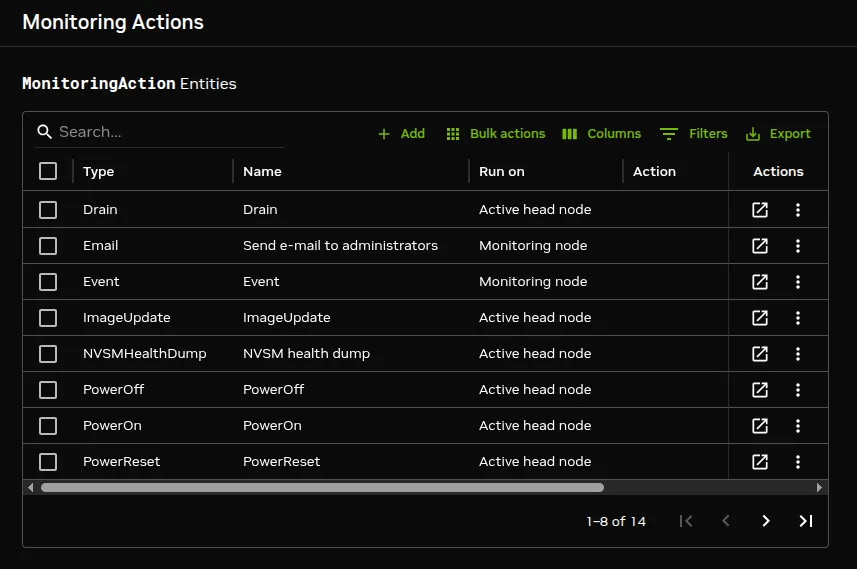
![Base View Monitoring Configuration: Actions](/base-command-manager/product-manuals/_fern-img/858852702dac069c2ff577c7421f5906dc3c90b398d69cb870f8d9f6cdc94262.webp)

*Figure 10.19: Base View Monitoring Configuration: Actions*

The custom `killallyes` script from the basic example of section [10.1](#101-a-basic-monitoring-example-and-action) would show up here if it has been implemented.

Actions are triggered, by triggers (section [10.4.5](#1045-monitoring-configuration-triggers)).

By default, the following actions exist:

* `PowerOn`: Powers on the node

* `PowerOff`: Powers off the node

* `PowerReset`: Hard resets the node

* `Drain`: Drains the node (does not allow new jobs on that node)

* `Undrain`: Undrains the node (allows new jobs on that node)

* `Reboot`: Reboots node via the operating system

* `Shutdown`: Shuts the node down via the operating system

* `ImageUpdate`: Updates the node from the software image

* `NVSMHealthDump`: NVSM (section [10.13](#1013-monitoring-with-nvsm)) health dump (for DGX hardware only)

* `Event`: Sends an event to users connected with `cmsh` or Base View

* `killprocess`: A script to kill a process

* `remount`: A script to remount all devices

* `testaction`: A test script

* `Send e-mail to administrators`: Sends an e-mail out

The preceding actions show their options when the associated ↗ icon is clicked. A new window with the options opens up. The following options are among those then displayed:

* `Run on`: What nodes the action should run on. Choices are:

  * `Active head node`: the action runs on the active node only

  * `Node`: the action runs on the triggering node

  * `Monitoring node`: the action runs on the monitoring node

* `Allowed time`: The time interval in the 24 hour clock cycle that the action is allowed to start running. The interval can be restricted further to run within certain days of the week, months of the year, or dates of the month. Days and months must be specified in lower case.

  The Base View interface for setting the time can be used to set the allowed times.

  The allowed times have a format that is also used in `cmsh`. Rather than defining a formal syntax, some `cmsh` examples are given of possible formats, with explanations:

  * `november-march`: November to March. The months April to October are forbidden.

  * `november-march{monday-saturday}`: As in the preceding, but all Sundays are also forbidden.

  * `november-march{monday-saturday{13:00-17:00}}`: Restricted to the period defined in the preceding example, and with the additional restriction that the action can start running only during the time 13:00-17:00.

  * `09:00-17:00`: All year long, but during 09:00-17:00 only.

  * `monday-friday{9:00-17:00}`: All year long, but during 9:00-17:00 only, and not on Saturdays or Sundays.

  * `november-march{monday-saturday{13:00-17:00}}`: Not in April to October. In the other months, only on Mondays to Saturdays, from 13:00-17:00.

  * `may-september{monday-friday{09:00-18:00};saturday-sunday{13:00-17:00}}`: May to September, with: Monday to Friday 09:00-18:00, and Saturday to Sunday 13:00-17:00.

  * `may{1-31}`: All of May.

  * `may,september{1-15}`: All of May, and only September 1-15.

  * `may,september{1-15{monday-friday}}`: All of May. And only September 1-15 Monday to Friday.

  An EBNF grammar for allowed times is given in [section 3.2.1 of the *Developer Manual*](/developer/monitoring-actions#321-time-restriction-syntax-in-ebnf-notation).

The following action scripts have some additional options:

* `Send e-mail to administrators`: Additional options here are:

  * `Info`: body of text inserted into the default e-mail message text. This is the text that replaces the `{infomessage}` placeholders in the email template formats seen in the file `/cm/local/apps/cmd/scripts/actions/sendemail.py`

  * `Recipients`: a list of recipients

  * `All administrators`: uses the list of users in the `Administrator e-mail` setting in `partition[base]` mode

* `killprocess`, and `testaction`: Additional options for these are:

  * `Arguments`: text that can be used by the script.

  * `Script`: The location of the script on the file system.

### 10.4.5  Monitoring Configuration: Triggers

Triggers are introduced in section [10.2.5](#1025-trigger). The `Triggers` window (figure [10.20](#fig-base-view-monitoring-configuration-triggers)) allows actions (section [10.2.6](#1026-action)) to be triggered based on conditions defined by the cluster administrator.
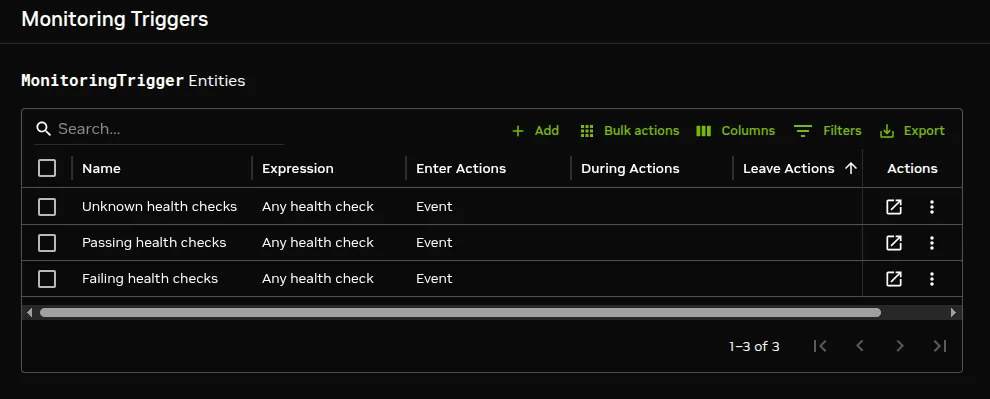
![Base View Monitoring Configuration: Triggers](/base-command-manager/product-manuals/_fern-img/69bcd9d5d7bc38f358337256a954c7d2ff1be5703c80dc5f4236b6b5f2c713b9.webp)

*Figure 10.20: Base View Monitoring Configuration: Triggers*

#### 10.4.5.1  Change Detection For Triggers

Triggers launch actions by detecting changes in the data of configured measurables. The detection of these changes can happen:

* When a threshold is crossed. That is:

  * either the preceding sample value was not in the zone, and the sample value now has entered the zone,

  * or the preceding sample value was in the zone, and the sample value now has left the zone

* When the zone remains crossed. That is: the sample value now as well as the preceding sample value are both within the zone of a crossed threshold.

* When state flapping is detected. This is when the threshold is crossed repeatedly (5 times by default) within a certain time period (5 minutes by default).

The monitoring configuration dialog triggers have four possible action launch configuration options to cover these cases:

1. `Enter actions`: if the sample has entered into the zone and the previous sample was not in the zone. This is a threshold-crossing change.

2. `Leave actions`: if the sample has left the zone and the previous sample was in the zone. This is also a threshold-crossing change.

3. `During actions`: if the sample is in the zone, and the previous sample was also in the zone.

4. `State flapping actions`: if the sample is entering and leaving the zone within a particular period (`State flapping period`, 5 minutes by default) a set number of times (`State flapping count`, 5 by default).

#### 10.4.5.2  Pre-defined Triggers: Passing, Failing, And Unknown Health Checks

By default, the only triggers that are pre-defined are the following three health check triggers, which use the `Enter actions` launch configuration option, and which have the following default behavior:

* `Failing health checks`: If a health check fails, then on entering the state of the health check failing, an event is triggered as the action, and a severity of `15` is set for that health check.

* `Passing health checks`: If a health check passes, then on entering the state of the health check passing, an event is triggered as the action, and a severity of `0` is set for that health check.

* `Unknown health checks`: If a health check has an unknown response, then on entering the state of the health check returning an unknown response, an event is triggered as the action, and a severity of `10` is set for that health check.

**Example: carry out a triggered action:**

`cmsh` or Base View can be used for the configuration of carrying out an e-mail alert action (that is: sending out an e-mail) that is triggered by failing health checks.

* A `cmsh` way to configure it is:

  The e-mail action (`send e-mail to administrators`) is first configured so that the right recipients get a useful e-mail.

  ```bash
  [root@basecm11 ~]# cmsh
  [basecm11]% monitoring action
  [basecm11->monitoring->action]% `use send e-mail to administrators`
  [basecm11->...[send e-mail to administrators]]% append recipients user1@example.com
  [basecm11->...*[send e-mail to administrators*]]% commit
  ```

  Here, email alerts would go to `user1@example.com`, as well as to anyone already configured in `administratore-mail`. Additional text can be set in the body of the e-mail by setting a value for `info`.

  The trigger can be configured to run the action when the health check enters a state where its value is `true`:

  ```bash
  [basecm11->monitoring->action[use send e-mail to administrators]]% monitoring trigger
  [basecm11->monitoring->trigger]% use `failing health checks`
  [basecm11->monitoring->trigger[Failing health checks]]% append enteractions `send e-mail to administrators`
  [basecm11->monitoring->trigger*[Failing health checks*]]% commit
  ```

  The settings can be viewed with the `show` command. TAB-completion prompting can be used to suggest possible values for the settings.

* A Base View way to carry out the configuration is using the navigation path:

  <code>
    Monitoring > Actions > Send e-mail to administrators 
  </code>

  This can be used to set the recipients and other items, and the configuration can then be saved.

  The email action can then be configured in Base View using the navigation path:

  `Monitoring > Triggers > Failing Health Checks > ↗ > Enter Actions > Send E-mail to Administrators`

  The `Send E-mail to Administrators` action should be added to the items in the `Enter actions` box (figure [10.21](#fig-base-view-monitoring-configuration-triggers-failinghealthchecks)):
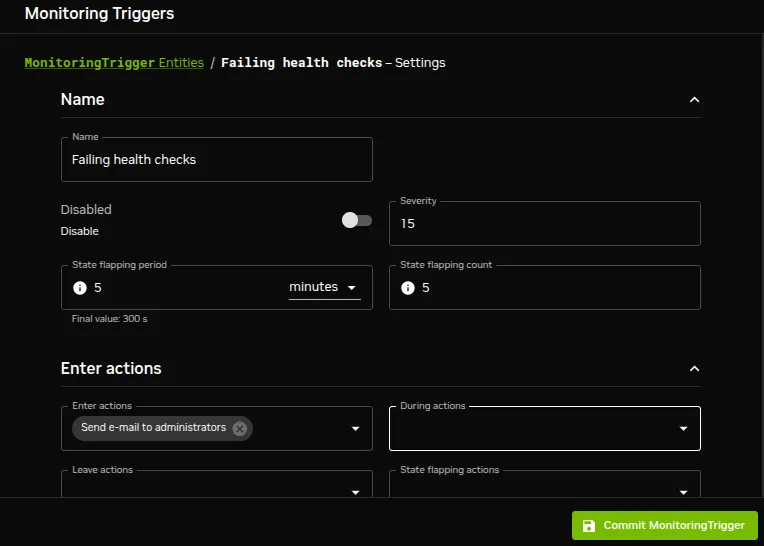
![Base View Monitoring Configuration: Triggers](/base-command-manager/product-manuals/_fern-img/21584b46b5d9c792f892cf1f9b75f511bc7a34028d99ba53e56833f6c97c1a5d.webp)

*Figure 10.21: Base View Monitoring Configuration: Triggers*

and this monitoring trigger configuration should then be committed.

#### 10.4.5.3  Carrying Out Post-Drain Actions

A special, and hidden, setting for a triggered drain is `post-drain-actions`. This allows one or more actions to be triggered after a node has reached a fully-drained state after a `drain` action.

**Example**

```bash
[basecm11->monitoring]% trigger
[basecm11->monitoring->trigger]% add mydrain
[basecm11->...->trigger*[mydrain*]]% set enteractions drain
[basecm11->...->trigger*[mydrain*]]% set -e -v post-drain-actions `send e-mail to administrators  poweroff`
[basecm11->...->trigger*[mydrain*]]% commit
```

In the preceding example, nodes that enter a drained state, after they are fully-drained, send an e-mail to the administrator and are powered off ([here](#1044-monitoring-configuration-actions) and section [G.4.1](/admin/metricshealthchecksactions#g41-actions)).

The syntax of the post-drain action is:\
`     set -e -v post-drain-actions` \<*action name*>` [<`*action name*> ...]

#### 10.4.5.4  Adding Custom Triggers: Any Measurable, Any Action

More triggers can be added. The `killallyestrigger` example from the basic example of section [10.1](#101-a-basic-monitoring-example-and-action), seen in figures [10.3](#fig-base-view-monitoringconfiguration-metricconfiguration-CPUUser-Threshold) and [10.4](#fig-base-view-monitoringconfiguration-metricconfiguration-CPUUser-Threshold2), is one such example.

The idea is that actions are launched from triggers, and the action for the trigger can be set to a predefined action, or to a custom action.

#### 10.4.5.5  The Expression Subwindow For A Trigger

When editing a trigger as in figure [10.21](#fig-base-view-monitoring-configuration-triggers-failinghealthchecks) an `Expression` subwindow can be opened. For example, for the `Failing health checks trigger`, the Base View navigation path is:

```bash
        Monitoring > Triggers > Failing health checks ↗ > Expression ↗
```

The `Expression` subwindow allows parameters such as entity, measurable, parameters, (comparison) operator, and measurable value be set for a trigger (figure [10.22](#fig-base-view-monitoring-configuration-triggers-regex)):
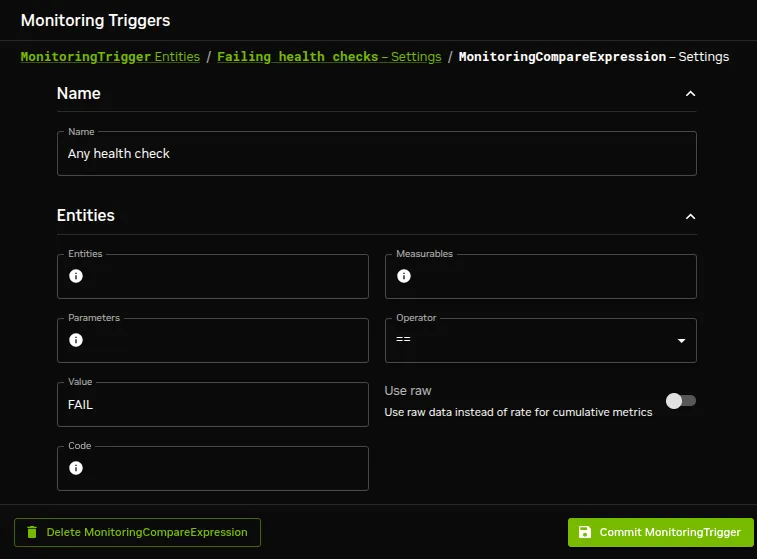
![Base View Monitoring Configuration: Triggers Expression](/base-command-manager/product-manuals/_fern-img/7338314d30739587da02747bb239f511ee42db009d9df2cd73f54f8d10652aad.webp)

*Figure 10.22: Base View Monitoring Configuration: Triggers Expression*

The trigger launch is carried out when, during sampling, CMDaemon evaluates the expression as being true.

An example `cmsh` session to set up an expression for a custom trigger might be as follows, where the administrator is setting up the configuration so that an e-mail is sent by the monitoring system when a node is detected as having gone down:

**Example**

```bash
[root@basecm11 ~]# cmsh
[basecm11]% monitoring trigger add nodedown
[basecm11->monitoring->trigger*[nodedown*]]% expression
[basecm11->monitoring->trigger*[nodedown*]->expression[compare]]% show
Parameter                        Value
-------------------------------- ------------------------------------------------
Name                             compare
Revision
Type                             MonitoringCompareExpression
Entities
Measurables
Parameters
Operator                         ==
Value                            FAIL
Use raw                          no
Code                             <0B>
[basecm11->monitoring->trigger*[nodedown*]->expression*[compare*]]% set value down
[basecm11->monitoring->trigger*[nodedown*]->expression*[compare*]]% set operator eq
[basecm11->monitoring->trigger*[nodedown*]->expression*[compare*]]% set measurables devicestate
```

To add a touch of realism, a deliberate mistake is set here—the use of `devicestate` (the data producer) instead of `devicestatus` (the measurable). The `validate` command ([here](/admin/clustermanagement#2539-working-with-objects-validate)) gives a helpful warning here, so that the cluster administrator can fix the setting:

```bash
[basecm11->monitoring->trigger*[nodedown*]->expression*[compare*]]% validate
Field            Message
---------------- ------------------------------------------------------------------------------
actions          Warning: No actions were set
measurables/     Warning: No known measurable matches the specified regexes ('devicestate', '')
parameters
[basecm11->monitoring->trigger*[nodedown*]->expression*[compare*]]% set measurables devicestatus
[basecm11->monitoring->trigger*[nodedown*]->expression*[compare*]]% ..;..
[basecm11->monitoring->trigger*[nodedown*]]% set enteractions send e-mail to administrators
[basecm11->monitoring->trigger*[nodedown*]]% commit
```

### 10.4.6  Monitoring Configuration: Health status

The `Health status` window (figure [10.23](#fig-base-view-monitoring-configuration-health-status)) displays all the nodes, and summarizes the results of all the health checks that have been run against them over time, by presenting a table of the associated severity levels (section [10.2.7](#1027-severity)):
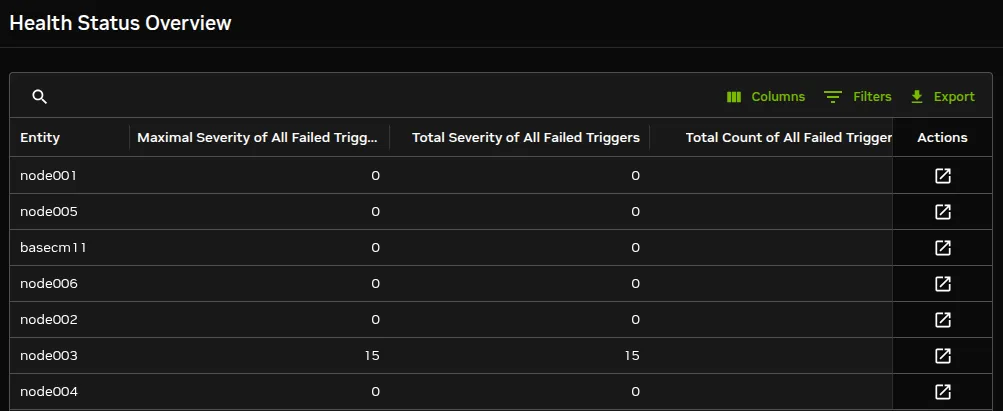
![Base View Monitoring Configuration: Health Status](/base-command-manager/product-manuals/_fern-img/57bfe79529b5bca3c0dd10e178b119047657c2fb7578c4b03b921754947798ad.webp)

*Figure 10.23: Base View Monitoring Configuration: Health Status*

In the example shown in figure [10.23](#fig-base-view-monitoring-configuration-health-status) the entity `node003` shows a severity issue, while the other devices are fine. Details of the individual health checks per entity can be viewed by clicking on its associated ↗ icon, which opens up a subwindow (figure [10.24](#fig-base-view-monitoring-configuration-health-status-entity)). For this example the issue turns out to be due to a `Fail` status in the `ldap` measurable.
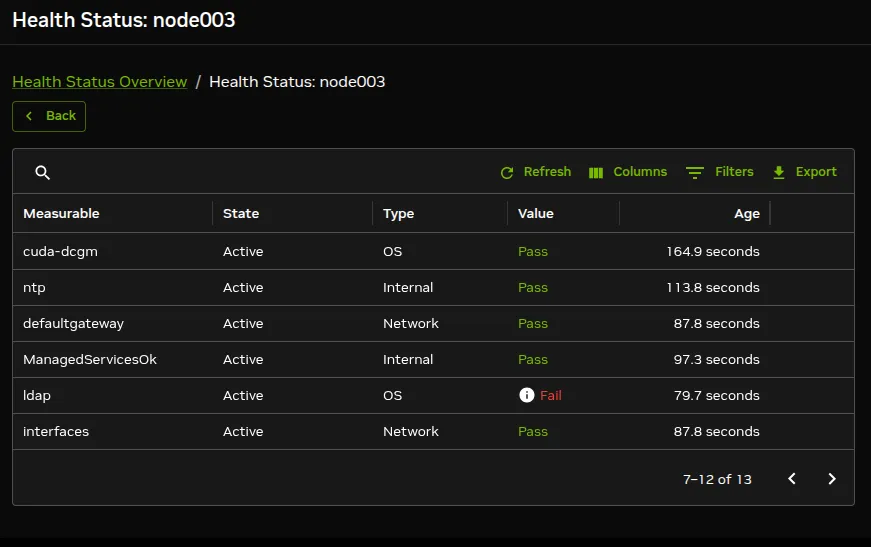
![Base View Monitoring Configuration: Health Status For An Entity](/base-command-manager/product-manuals/_fern-img/369b1899db0ac8ca042f3b51449dba83562249e9c7265b110d6522c28bae1e4e.webp)

*Figure 10.24: Base View Monitoring Configuration: Health Status For An Entity*

### 10.4.7  Monitoring Configuration: All Health Checks

The `All Health checks` window (figure [10.25](#fig-base-view-monitoring-configuration-all-health-checks)) shows all the running health checks for all entities.
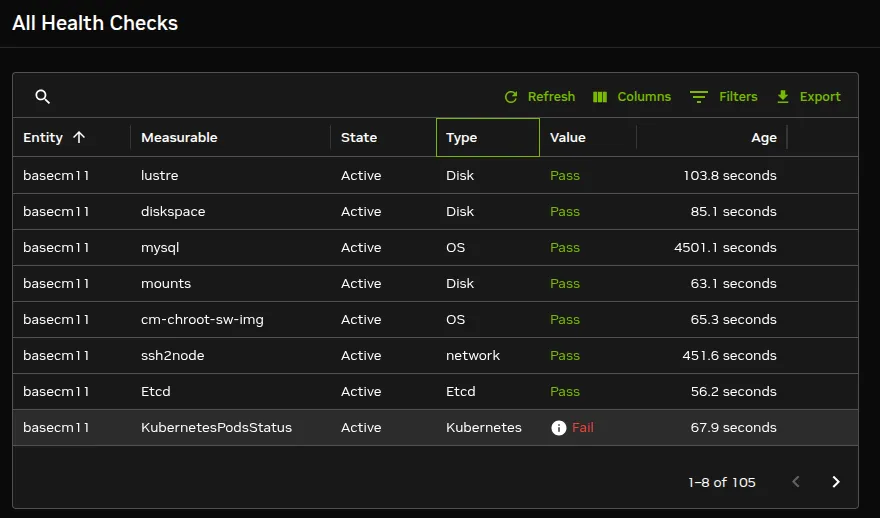
![Base View Monitoring Configuration: All Health Checks For All Entities](/base-command-manager/product-manuals/_fern-img/bde3c20b728c3c89d4778e5773b09c743e0f2169cf53f2baa788ecc7c6d33227.webp)

*Figure 10.25: Base View Monitoring Configuration: All Health Checks For All Entities*

The `Filters` option at the top of the table can be used to show the results per entity, measurable, state, or type only. If the entity filter is set to `node003`, which is as set in section [10.4.6](#1046-monitoring-configuration-health-status), figure [10.24](#fig-base-view-monitoring-configuration-health-status-entity), then the results table looks similar to the table there.

### 10.4.8  Monitoring Configuration: Standalone Monitored Entities

The `Standalone Monitored Entities` window allows the cluster administrator to define a standalone entity. A standalone entity is one that is not managed by BCM—which means that no CMDaemon is running on it to gather data and for managing it—but the entity can still be monitored. For example, a workstation that is running the Base View browser could be the standalone entity. This could have its connectivity monitored by pinging it from the head node with a custom script.

### 10.4.9  Monitoring Configuration: PromQL Queries

The `Prometheus Query list` window displays the list of PromQL job-related queries, and allows query properties to be edited.
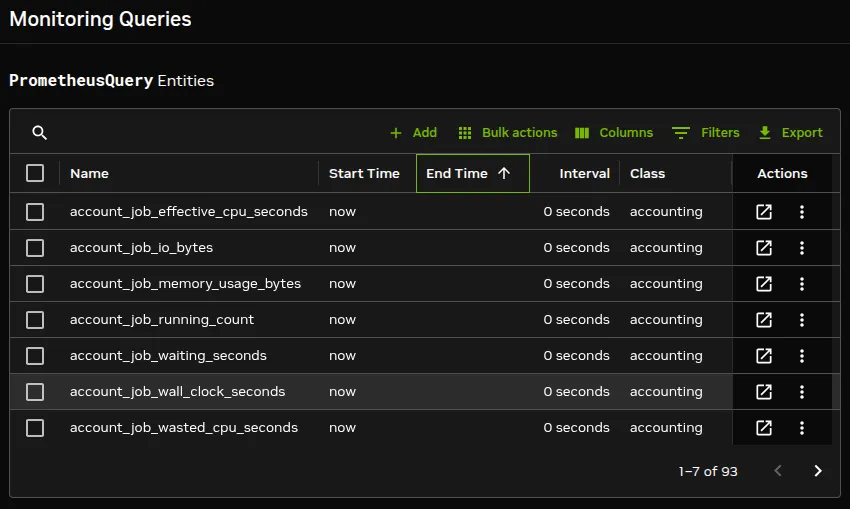
![Base View Monitoring Configuration: PromQL Queries](/base-command-manager/product-manuals/_fern-img/dfc4febdc1f2f3431130855aa61372221eb48f7a28bb7388f16b5f5f703667c2.webp)

*Figure 10.26: Base View Monitoring Configuration: PromQL Queries*

Drilldowns can also be viewed using the Base View navigation path:

`Monitoring > Queries > `*specific Prometheus query* <code> > Manage the drilldown queries</code>

PromQL job queries are discussed further in section [12.3](/admin/monitoringaccounting#123-promql-queries).

## 10.5  The `monitoring` Mode Of `cmsh`

This section covers how to use `cmsh` to configure monitoring. The `monitoring` mode in `cmsh` corresponds generally to the `Monitoring` resource of Base View in section [10.4](#104-monitoring-configuration-with-base-view). Similarly to how monitoring subwindows are accessed in Base View, the `monitoring` mode of `cmsh` is itself is not used directly, except as a way to access the monitoring configuration submodes of `cmsh`.

For this section some familiarity is assumed with handling of objects as described in the introduction to working with objects (section [2.5.3](/admin/clustermanagement#253-working-with-objects)). When using `cmsh`’s monitoring mode, the properties of objects in the submodes are how monitoring settings are carried out.

The `monitoring` mode of `cmsh` gives access to 9 modes under it:

**Example**

```bash
[root@myheadnode ~]# cmsh
[myheadnode]% monitoring help | tail -11
============================== Monitoring ===============================
action ........................ Enter action mode
consolidator .................. Enter consolidator mode
labeledentity ................. Enter labeled entity mode
measurable .................... Enter measurable mode
query.......................... Enter monitoring query mode
report......................... Enter report mode
setup ......................... Enter monitoring configuration setup mode
standalone .................... Enter standalone entity mode
trigger ....................... Enter trigger mode
```

For convenience, a tree of modes for `monitoring` submodes is shown in figure [10.27](#fig-cmsh-monitoring-modes-tree).

`monitoring`\
`     ├── action` (section [10.5.1](#1051-the-action-submode))\
`     ├── consolidator` (section [10.5.2](#1052-the-consolidator-submode))\
`     │   └── consolidators` ([here](#1052-the-consolidator-submode))\
`     ├── labeledentity` (section [12.2](/admin/monitoringaccounting#122-labeled-entities))\
`     ├── measurable` (section [10.5.3](#1053-the-measurable-submode))\
`     ├── query` (section [12.3](/admin/monitoringaccounting#123-promql-queries))\
`     │   └── drilldown`\
`     ├── report`\
`     ├── setup` (section [10.5.4](#1054-the-setup-submode))\
`     │   ├── executionmultiplexers` ([here](#execution-multiplexercmsh))\
`     │   ├── jobmetricsettings` ([here](#job-metrics-settingscmsh))\
`     │   ├── nodeexecutionfilters` ([here](#node-execution-filterscmsh))\
`     │   └── dpusettings`\
`     ├── standalone` (section [10.5.5](#1055-the-standalone-submode))\
`     └── trigger` (section [10.5.6](#1056-the-trigger-submode))\
`         └── expression` ([here](#10561-the-trigger-submode-setting-an-expression))

*Figure 10.27: Submodes Under monitoring Mode*

Sections [10.5.1](#1051-the-action-submode)–[10.5.6](#1056-the-trigger-submode) give examples of how objects are handled under these monitoring modes. To avoid repeating similar descriptions, section  [10.5.1](#1051-the-action-submode) is relatively detailed, and is often referred to by the other sections.

### 10.5.1  The `action` Submode

The `action` submode under the `monitoring` mode of `cmsh` allows monitoring actions to be configured. This mode in `cmsh` corresponds to the Base View navigation path:

`Monitoring > Actions`

described earlier in section [10.4.4](#1044-monitoring-configuration-actions):

The `action` mode handles action objects in the way described in the introduction to working with objects (section [2.5.3](/admin/clustermanagement#253-working-with-objects)). A typical reason to handle action objects—the properties associated with an action script or action built-in—might be to view the actions available, or to add a custom action for use by, for example, a metric or health check.

Some examples of how the `action` mode is used are now given.

#### 10.5.1.1  The `action` Submode: `list`, `show`, And `get`

The `list` command by default lists the names and properties of actions available from `action` mode in a table:

**Example**

```bash
[myheadnode]% monitoring action
[myheadnode->monitoring->action]% list
Type             Name (key)        Run on            Action
---------------- ----------------  ----------------- --------------------------------------------------
Drain            Drain             Active head node  Drain node (node refuses new WLM jobs)
E-Mail           Send e-mail to    Monitoring node   Send e-mail
                  administrators
Event            Event             Monitoring node   Send an event to users with connected client
ImageUpdate      ImageUpdate       Active head node  Update the image on the node
NVSMHealthDump   NVSM health dump  Active head node  NVSM health dump
PowerOff         PowerOff          Active head node  Power off a device
PowerOn          PowerOn           Active head node  Power on a device
PowerReset       PowerReset        Active head node  Power reset a device
Reboot           Reboot            Node              Reboot a node
Script           killprocess       Node              /cm/local/apps/cmd/scripts/actions/killprocess.pl
Script           remount           Node              /cm/local/apps/cmd/scripts/actions/remount
Script           testaction        Node              /cm/local/apps/cmd/scripts/actions/testaction
Shutdown         Shutdown          Node              Shutdown a node
Undrain          Undrain           Active head node  Undrain node (node accepts new WLM jobs)
```

The preceding shows the actions available on a newly-installed system.

Instead of using `list`, a convenient way to view the possible actions is to use the `show` command with tab-completion suggestions:

**Example**

```bash
[myheadnode->monitoring->action]% show{<TAB><TAB>}
drain         killprocess    powerreset   send e-mail to administrators      undrain
event         poweroff       reboot       shutdown
imageupdate   poweron        remount      testaction
```

The `show` command of `cmsh` when used with a specific action displays the individual parameters and values of that action:

**Example**

```bash
[myheadnode->monitoring->action]% show poweroff
Parameter                        Value
-------------------------------- --------------------------------
Action                           Power off a device
Revision
Type                             PowerOff
Name                             PowerOff
Run on                           Active head node
Allowed time
Disable                          no
Suppressed by going down         no
```

The `get` command returns the value of an individual parameter of the action object:

**Example**

```bash
[myheadnode->monitoring->action]% get poweroff runon
Active head node
```

#### 10.5.1.2  The `action` Submode: `add`, `use`, `remove`, `commit`, `refresh`, `modified`, `set`, `clear`, And `validate`

In the basic example of section [10.1](#101-a-basic-monitoring-example-and-action), in section [10.1.2](#1012-before-using-the-basic-monitoring-examplesetting-up-the-pieces), the `killallyes` action was cloned from a similar script using a `clone` option in Base View.

The equivalent can be done with a `clone` command in `cmsh`. However, using the `add` command instead, while it requires more steps, makes it clearer what is going on. This section therefore covers adding the `killallyes` script of section [10.1.2](#1012-before-using-the-basic-monitoring-examplesetting-up-the-pieces) using the `add` command.

When `add` is used: an object is added, the object is made the current object, and the name of the object is set, all at the same time. After that, `set` can be used to set values for the parameters within the object, such as a path for the value of the parameter `command`.

Adding an action requires that the type of action be defined. Just as tab-completion with `show` comes up with action suggestions, in the same way, using tab-completion with `add` comes up with type suggestions.

Running the command `help add` in the `action` mode also lists the possible types. These types are `drain`, `e-mail`, `event`, `imageupdate`, `nvsmhealthdump`, `poweroff`, `poweron`, `powerreset`, `reboot`, `script`, `servicerestart`, `servicestart`, `servicestop`, `shutdown`, `undrain`.

The syntax for the `add` command takes the form:

`add` \<*type*> \<*action*>

If there is no `killallyes` action already, then the name is added in the `action` mode with the `add` command, and the `script` type, as follows:

**Example**

```bash
[myheadnode->monitoring->action]% add script killallyes
[myheadnode->monitoring->action*[killallyes*]]%
```

Using the `add` command drops the administrator into the `killallyes` object level, where its properties can be set. A successful commit means that the action is stored in CMDaemon.

The converse to the `add` command is the `remove` command, which removes an action that has had the `commit` command successfully run on it.

The `refresh` command can be run from outside the object level, and it removes the action if it has not yet been committed.

The `use` command is the usual way of "using" an object, where "using" means that the object being used is referred to by default by any command run. So if the `killallyes` object already exists, then `use killallyes` drops into the context of an already existing object (i.e. it “uses” the object).

The `set` command sets the value of each individual parameter displayed by a `show` command for that action. The individual parameter `script` can thus be set to the path of the `killallyes` script:

**Example**

```bash
[...oring->action*[killallyes*]]% set script /cm/local/apps/cmd/scripts/actions/killallyes
```

The `clear` command can be used to clear the value that has been set for `script`.

The `validate` command checks if the object has all required values set to sensible values. So, for example, `commit` only succeeds if the `killallyes` object passes validation.

Validation does not check if the script itself exists. It only does a sanity check on the values of the parameters of the object, which is another matter. If the `killallyes` script does not yet exist in the location given by the parameter, it can be created as suggested in the basic example of section [10.1](#101-a-basic-monitoring-example-and-action), in section [10.1.2](#1012-before-using-the-basic-monitoring-examplesetting-up-the-pieces). In the basic example used in this chapter, the script is run only on the head node. If it were to run on regular nodes, then the script should be copied into the disk image.

The `modified` command lists changes that have not yet been committed.

### 10.5.2  The `consolidator` Submode

Consolidators are introduced in section [10.4.3](#1043-monitoring-configuration-consolidators). Consolidators can be managed in `cmsh` via the `consolidator` mode, which is the equivalent of the consolidators window (section [10.4.3](#1043-monitoring-configuration-consolidators)) in Base View.

The `consolidator` mode deals with groups of `consolidators`. One such pre-defined group is `default`, while the other is `none`, as discussed earlier in section [10.4.3](#1043-monitoring-configuration-consolidators):

```bash
[basecm11->monitoring->consolidator]% list
Name (key)               Consolidators
------------------------ ------------------------
default                  hour
none                     <0 in submode>
```

Each `consolidators` entry can have its parameters accessed and adjusted.

For example, the parameters can be viewed with:

**Example**

```bash
[basecm11->monitoring->consolidator]% use default
[basecm11->monitoring->consolidator[default]]% show
Parameter                        Value
-------------------------------- ------------------------------------------------
Name                             default
Revision
Consolidators                    hour
[basecm11->monitoring->consolidator[default]]% consolidators
[basecm11->monitoring->consolidator[default]->consolidators]% list
Name (key)               Interval     Period
------------------------ ------------ ------------
hour                     1h           7y 26w
[basecm11->monitoring->consolidator[default]->consolidators]% use hour
[basecm11->monitoring->consolidator[default]->consolidators[hour]]% show
Parameter                        Value
-------------------------------- ------------------------------------------------
Name                             hour
Revision
Maximal age                      0s
Maximal samples                  65536
Interval                         1h
Offset                           0s
Kind                             average
Period                           7y 26w
[basecm11->monitoring->consolidator[default]->consolidators[hour]]%
```

For the `hour` consolidator shown in the preceding example, the number of samples saved per hour can be doubled with:

**Example**

```bash
[basecm11->monitoring->consolidator[default]->consolidators[hour]]% set maximalsamples 131072
[basecm11->monitoring->consolidator*[default*]->consolidators*[hour*]]% commit
```

The value of `Period` is the time for which the samples are kept. Samples older than this are dropped. The rules that are applied to decide how samples are kept are described starting [here](#1041-monitoring-configuration-data-producers).

Previously consolidated data is discarded with this type of change, if the number of samples is reduced. Changing parameters should therefore be done with some care.

A new `consolidators` group can be created if needed.

A Base View way, where a `decimalminutes` group is created, is discussed in the example in section [10.4.3](#1043-monitoring-configuration-consolidators), [here](#10434-other-consolidator-group-possibilities).

A `cmsh` way, where a `max-per-day` group is created, is discussed in the following section:

#### 10.5.2.1  Creation Of A Consolidator In `cmsh`

A new consolidator group, `max-per-day`, can be added to the default consolidator groups of `default` and `none`, with:

**Example**

```bash
[basecm11]% monitoring consolidator
[basecm11->monitoring->consolidator]% add max-per-day
[...[max-per-day*]]%
```

Within this new group, a new consolidator item, `max-per-day` can also be defined. The item can be defined so that it only calculates the maximum value per day. The maximum value option is set using the `kind` setting, and the per day option is set using the `interval` setting, since that is the interval with which the old data is consolidated:

**Example**

```bash
[...[max-per-day*]]% consolidators
[...[max-per-day*]->consolidators]% add max-per-day
[...[max-per-day*]]% set interval 1d
[...[max-per-day*]]% set kind maximum
[...[max-per-day*]]% show
Parameter                        Value
-------------------------------- -----------------------------------
Name                             max-per-day
Revision
Maximal age                      0s
Maximal samples                  65536
Interval                         1d
Offset                           0s
Kind                             maximum
Period                           180y 2w
[...[max-per-day*]]% commit
```

The `max-per-day` consolidator data values are kept for about 180 years.

### 10.5.3  The `measurable` Submode

The `measurable` submode under the `monitoring` mode of `cmsh` handles measurable objects, that is: metrics, health checks, and enummetrics. This mode corresponds to the Base View navigation path:

`Monitoring > Measurables`

covered earlier in section [10.4.2](#1042-monitoring-configuration-measurables).

Measurable objects represent the configuration of scripts or built-ins. The properties of the objects are handled in `cmsh` in the way described in the introduction to working with objects (section [2.5.3](/admin/clustermanagement#253-working-with-objects)).

A typical reason to handle measurable objects might be to view the measurables already available, or to remove a measurable that is in use by an entity.

Measurables cannot be added from this mode. To add a measurable, its associated data producer must be added from `monitoring setup` mode (section [10.5.4](#1054-the-setup-submode)).

This section goes through a `cmsh` session giving some examples of how this mode is used.

#### 10.5.3.1  The `measurable` Submode: `list`, `show`, And `get`

In `measurable` mode, the `list` command by default lists the names of all measurable objects along with parameters, their class, and data producer.

**Example**

```bash
[basecm11->monitoring->measurable]% list
Type         Name (key)                            Parameter   Class           Producer
------------ ------------------------------------- ----------- --------------- ----------------------
Enum         DeviceStatus                                      Internal        DeviceState
Enum         sys_class_net_addr_assign_type        ens3        System/Network  sample_sys_class_net
...
Enum         sys_class_net_name_assign_type        eth0        System/Network  sample_sys_class_net
Enum         sys_class_net_name_assign_type        eth1        System/Network  sample_sys_class_net
HealthCheck  ManagedServicesOk                                 Internal        CMDaemonState
HealthCheck  TotalPowerShelfCriticalPSU                        Total           AggregatePowerShelf
...
HealthCheck  oomkiller                                         OS              oomkiller
HealthCheck  ssh2node                                          network         ssh2node
Metric       AlertLevel                            count       Internal        AlertLevel
Metric       AlertLevel                            maximum     Internal        AlertLevel
Metric       AlertLevel                            sum         Internal        AlertLevel
Metric       AverageCDULiquidDifferentialPressure              Total           AggregateCDU
Metric       AverageCDULiquidFlow                              Total           AggregateCDU
Metric       AverageCDULiquidReturnTemperature                 Total           AggregateCDU
Metric       AverageCDULiquidSupplyTemperature                 Total           AggregateCDU
Metric       AverageCDULiquidSystemPressure                    Total           AggregateCDU
Metric       AveragePowerShelfTemperature                      Total           AggregatePowerShelf
Metric       BlockedProcesses                                  OS              ProcStat
Metric       BufferMemory                                      Memory          ProcMemInfo
Metric       BytesRecv                             ens3        Network         ProcNetDev
Metric       BytesRecv                             eth0        Network         ProcNetDev
...
```

The preceding example shows excerpts from a list of the measurables that can be set for sampling on a newly-installed system. A full list typically contains over 300 items.

The `list` command in `measurable` submode can be run as:

* `list metric`: to display only metrics

* `list healthcheck`: to display only health checks

* `list enum`: to display only enummetrics

The `show` command of the `measurable` submode of `monitoring` mode displays the parameters and values of a specified measurable, such as, for example `CPUUser`, `DeviceStatus`, or `diskspace`:

**Example**

```bash

**Example**

[myheadnode->monitoring->measurable]% show CPUUser
Parameter                        Value
-------------------------------- ------------------------------------------------
Revision
Type                             Metric
Name                             CPUUser
Disabled                         no (ProcStat)
Disable triggers                 no (ProcStat)
Maximal samples                  4,096 (ProcStat)
Maximal age                      0s (ProcStat)
Producer                         ProcStat
Consolidator                     default (ProcStat)
Parameter
Description                      CPU time spent in user mode
Class                            CPU
Source                           BCM
Introduce NaN                    yes (ProcStat)
Suppressed by going down         no (ProcStat)
Gap                              0 (ProcStat)
Minimum                          0.000000
Maximum                          0.000000
Cumulative                       yes
Integer                          no
Unit                             Jiffies/s
Access                           Public (ProcStat)
Associated user
```

```bash
[myheadnode->monitoring->measurable]% show DeviceStatus
Parameter                        Value
-------------------------------- ------------------------------------------------
Revision
Type                             Enum
Name                             DeviceStatus
Disabled                         no (DeviceState)
Disable triggers                 no (DeviceState)
Maximal samples                  4,096 (DeviceState)
Maximal age                      0s (DeviceState)
Producer                         DeviceState
Consolidator                     default (DeviceState)
Parameter
Description                      The device status
Class                            Internal
Source                           BCM
Introduce NaN                    no (DeviceState)
Suppressed by going down         no (DeviceState)
Gap                              0 (DeviceState)
Access                           Public (DeviceState)
Associated user
```

```bash
Parameter                        Value
-------------------------------- ------------------------------------------------
Revision
Type                             HealthCheck
Name                             diskspace
Disabled                         no (diskspace)
Disable triggers                 no (diskspace)
Maximal samples                  4,096 (diskspace)
Maximal age                      0s (diskspace)
Producer                         diskspace
Consolidator                     default (diskspace)
Parameter
Description                      checks free disk space
Class                            Disk
Source                           BCM
Introduce NaN                    yes (diskspace)
Suppressed by going down         no (diskspace)
Gap                              0 (diskspace)
Access                           Public (diskspace)
Associated user

```

The `Gap` setting here is a number. It sets how many samples are allowed to be missed before a value of `NaN` is set for the value of the metric.

As detailed in section [10.5.1](#1051-the-action-submode), tab-completion suggestions for the `show` command suggest the names of objects that can be used, with the `use` command in this mode. For `show` in `measurable` mode, tab-completion suggests over 300 possible objects:

**Example**

```bash
[basecm11->monitoring->measurable]% show
Display all 316 possibilities? (y or n)
AlertLevel:count                              MemoryUsed:cmd                 UdpInDatagrams
AlertLevel:maximum                            MemoryUtilization              UdpInErrors
AlertLevel:sum                                MergedReads:vda                UdpNoPorts
AverageCDULiquidDifferentialPressure          MergedReads:vdb                UniqueUserLogin
AverageCDULiquidFlow                          MergedWrites:vda               Uptime
AverageCDULiquidReturnTemperature             MergedWrites:vdb               UsedFiles:/
AverageCDULiquidSupplyTemperature             NVLinkSwitchesClosed           UsedFiles:/boot/efi
AverageCDULiquidSystemPressure                NVLinkSwitchesDown             UsedSpace:/
AveragePowerShelfTemperature                  NVLinkSwitchesTotal            UsedSpace:/boot/efi
BlockedProcesses                              NVLinkSwitchesUp               UserTime:cmd
BufferMemory                                  NodesClosed                    Utilization:cmd
BytesRecv:eth0                                NodesDown                      VirtualMemoryUsed:cmd
BytesRecv:eth1                                NodesTotal                     WriteTime:vda
BytesSent:eth0                                NodesUp                        WriteTime:vdb
BytesSent:eth1                                OOM kill                      Writes:vda
CPUGuest                                      OccupationRate                 Writes:vdb
...
```

The single colon (“`:`”) indicates an extra parameter for that measurable.

**Grepping a metrics list:** is sometimes handy because there are a large number of metrics. When listing and grepping, it is usually a good idea to allow for case, and be aware of the existence of the parameter column. For example, the AlertLevel metric is displayed as `AlertLevel` in the tab-completion suggestions of the `show` command of the previous example, and in the output of the `list` command. The `has` command (explained shortly) tab-completion suggests `alertlevel` in lowercase. There are also several parameters associated with the AlertLevel command. So using the case-insensitive `-i` option of grep, and using the `head` command to display the headers is handy:

**Example**

```bash
[basecm11->monitoring->measurable]% list | head -2 ; list metric | grep -i alertlevel
type          name (key)           parameter  class               producer
------------- -------------------- ---------- ------------------- ---------------
Metric        AlertLevel           count      Internal            AlertLevel
Metric        AlertLevel           maximum    Internal            AlertLevel
Metric        AlertLevel           sum        Internal            AlertLevel
```

The `get` command returns the value of an individual parameter of a particular health check object:

**Example**

```bash
[myheadnode->monitoring->measurable]% get oomkiller description
Checks whether oomkiller has come into action (then this check returns FAIL)
[myheadnode->monitoring->measurable]%
```

#### 10.5.3.2  The `measurable` Submode: The `has` Command

The `has` command is used with a measurable to list the entities that use the measurable. Typically these are nodes, but it can also be other entities, such as the `base` partition, or a rack.

**Example**

```bash
[basecm11->monitoring->measurable]% has alertlevel:sum
basecm11
node001
node002
[basecm11->monitoring->measurable]% use devicesup
[basecm11->monitoring->measurable[DevicesUp]]% has
rack1
base
```

The remaining commands in `measurable` mode, such as `use`, `remove`, `commit`, `refresh`, `modified`, `set`, `clear`, and `validate`; all work as outlined in the introduction to working with objects (section [2.5.3](/admin/clustermanagement#253-working-with-objects)). More detailed usage examples of these commands within a `monitoring` mode are given in the earlier section covering the `action` submode (section [10.5.1](#1051-the-action-submode)).

#### 10.5.3.3  The `measurable` Submode: An Example Session On Viewing And Configuring A Measurable

A typical reason to look at metrics and health check objects—the properties associated with the script or built-in—might be, for example, to view the operating sampling configuration for an entity.

This section goes through a `cmsh` example session under `monitoring` mode, where the `setup` submode ([here](#1054-the-setup-submode)) is used to set up a health check. The healthcheck can then be viewed from the `measurable` submode.

In the basic example of section [10.1](#101-a-basic-monitoring-example-and-action), a trigger was set up from Base View to check if the CPUUser metric was above 50 jiffies/s, and if so, to launch an action.

A functionally equivalent task can be set up by creating and configuring a health check, because metrics and health checks are so similar in concept. This is done here to illustrate how `cmsh` can be used to do something similar to what was done with Base View in the basic example. A start is made on the task by creating a health check data producer, and configuring its measurable properties. using the `setup` mode under the `monitoring` mode of `cmsh`. The task is completed in the section on the `setup` mode in section [10.5.4](#1054-the-setup-submode).

To start the task, `cmsh`’s `add` command is used, and the type is specified, to create the new object:

**Example**

```bash
[root@myheadnode ~]# cmsh
[myheadnode]% monitoring setup
[myheadnode->monitoring->setup]% add healthcheck cpucheck
[myheadnode->monitoring->setup*[cpucheck*]]%
```

The `show` command shows the parameters.

The values for `description`, `runinbash`, `script`, and `class` should be set:

**Example**

```bash
[...->setup*[cpucheck*]]% set script /cm/local/apps/cmd/scripts/healthchecks/cpucheck
[...->setup*[cpucheck*]]% set description "CPUuser under 50%?"
[...->setup*[cpucheck*]]% set runinbash yes
[...->setup*[cpucheck*]]% set class OS
[...->setup*[cpucheck*]]% commit
[myheadnode->monitoring->setup[cpucheck]]%
```

On running `commit`, the data producer `cpucheck` is created:

**Example**

```bash
[myheadnode->monitoring->setup[cpucheck]]% exit; exit
[myheadnode->monitoring]% setup list | head -2; setup list | grep -i cpucheck
Type           Name (key)   Arguments    Measurables      Node execution filters
-------------- ------------ ------------ ---------------------------------------
HealthCheck    cpucheck     1 / 222      <0 in submode>
```

The measurable `cpucheck`, is also created:

**Example**

```bash
[myheadnode->monitoring]% measurable list | head -2 ; measurable list | grep -i cpuchec
Type           Name (key)   Parameter  Class    Producer
-------------- ------------ ---------- -------- ---------------
HealthCheck    cpucheck                OS       cpucheck
```

Since the `cpucheck` script does not yet exist in the location given by the parameter `script`, it needs to be created. One ugly bash script that can do a health check is:

```bash
#!/bin/bash

## echo PASS if CPUUser < 50
## cpu is a %, ie: between 0 and 100

cpu=`mpstat 1 1 | tail -1 | awk '{print $3}'`
comparisonstring="$cpu"" < 50"

if (( $(bc <<< "$comparisonstring") )); then
  echo PASS
else
  echo FAIL
fi
```

The script should be placed in the location suggested by the object, `/cm/local/apps/cmd/scripts/healthchecks/cpucheck`, and made executable with a `chmod 700`.

The `cpucheck` object is handled further within the `cmsh` `monitoring setup` mode in section [10.5.4](#1054-the-setup-submode) to produce a fully-configured health check.

### 10.5.4  The `setup` Submode

#### 10.5.4.1  The `setup` Submode: Introduction

The `setup` submode under the `monitoring` mode of `cmsh` allows access to all the data producers. This mode in `cmsh` corresponds to the Base View navigation path:

`Monitoring` > `Data Producers`

covered earlier in section [10.4.1](#1041-monitoring-configuration-data-producers).

#### 10.5.4.2  The `setup` Submode: Data Producers And Their Associated Measurables

The list of data producers in `setup` mode should not be confused with the list of measurables in `measurable` mode. Data producers are not the same as measurables. Data producers produce measurables, although it is true that the measurables are often named the same as, or similar to, their data producer.

In `cmsh`, data producers are in the `Name (key)` column when the `list` command is run from the `setup` submode:

**Example**

```bash
[basecm11->monitoring->setup]% list
Type                   Name (key)           ... Measurables                               Node execution filters
---------------------- ---------------------... ----------------------------------------- ----------------------
AggregateCDU           AggregateCDU         ... 7: AverageCDULiquidDifferentialPressure,+ <1 in submode>
AggregateNode          AggregateNode        ... 25: ManagedServicesOk:fail, ManagedServi+ <1 in submode>
AggregatePDU           AggregatePDU         ... 2: PhaseLoad, TotalInletActive            <1 in submode>
AggregatePowerCircuit  AggregatePowerCircuit... 6: TotalCircuitCurrent, TotalCircuitCurr+ <1 in submode>
AggregatePowerShelf    AggregatePowerShelf  ... 11: AveragePowerShelfTemperature, TotalP+ <1 in submode>
AggregateSwitch        AggregateSwitch      ... 6: TotalBytesRecv, TotalBytesSent, Total+ <1 in submode>
AlertLevel             AlertLevel           ... 3: AlertLevel:count, AlertLevel:maximum,  <1 in submode>
CMDaemonState          CMDaemonState        ... 1: ManagedServicesOk                      <0 in submode>
CPU                    CPUSampler           ... 0:                                        <0 in submode>
...
```

In the preceding example, the `AlertLevel` data producer has `3` showing at the start of the measurables column. This means that this `AlertLevel` data producer provides 3 measurables.

If the data producer is disabled, then the measurables are disabled and no sampling is carried out for those measurables.

Measurables must exist in the data producer object—that is, the value in the the `Measurables` column must be more than 0—and the measurable must also be enabled to allow data sampling and collection to take place. If a measurable exists, then rules—set by node execution filters ([here](#node-execution-filterscmsh)) and execution multiplexers ([here](#execution-multiplexercmsh))—determine where the data sampling is carried out and where collection happens.

To clarify this point: if the `list` command is run from `setup` mode to list data producers, then the producers that have configured measurables are the ones that have 1 or more as a value in the `Measurables` column. Conversely, the data producers with 0 in the `Measurables` column have no configured measurables, whether enabled or disabled, which means that the measurables are effectively just placeholders until the software for the measurables data producers is installed.

The list of measurables can be viewed in `setup` mode and `measurable` mode. For example, the three `AlertLevel` measurables produced by the `AlertLevel` producer can be seen in the modes with:

**Example**

```bash
[basecm11->monitoring->setup]% list alertlevel
Type         Name (key)  ... Measurables                                              Node execution filters
------------ ----------- ... -------------------------------------------------------- ----------------------
AlertLevel   AlertLevel  ... 3: AlertLevel:count, AlertLevel:maximum, AlertLevel:sum  <1 in submode>
[basecm11->monitoring->setup]% get alertlevel measurables
AlertLevel:count
AlertLevel:maximum
AlertLevel:sum
[basecm11->monitoring->setup]% measurable
[basecm11->monitoring->measurable]% list | head -2; list | grep -i alertlevel
Type         Name (key)                  Parameter        Class           Producer
------------ --------------------------- ---------------- --------------- ----------------
Metric       AlertLevel                  count            Internal        AlertLevel
Metric       AlertLevel                  maximum          Internal        AlertLevel
Metric       AlertLevel                  sum              Internal        AlertLevel
[basecm11->monitoring->measurable]%
```

Similarly, the non-existence of the `CPUSampler` measurable can be viewed in `setup` mode and `measurable` modes with:

**Example**

```bash
[basecm11->monitoring->setup]% list cpu
Type         Name (key)  ... Measurables  Node execution filters
------------ ----------- ... ------------ ----------------------
CPU          CPUSampler  ... 0:           <0 in submode>
[basecm11->monitoring->setup]% get cpusampler measurables

[basecm11->monitoring->setup]% measurable
[basecm11->monitoring->measurable]% list | head -2; list | grep -i cpusampler
Type         Name (key)                  Parameter        Class           Producer
------------ --------------------------- ---------------- --------------- ----------------

```

#### 10.5.4.3  The `setup` Submode: Listing Nodes That Use A Data Producer

The `nodes` command can be used to list the nodes on which a data producer \<*data producer*> runs. It is run in the `setup` submode level of the `monitoring` mode as:

`nodes` \<*`data producer`*>

**Example**

```bash
[basecm11->monitoring->setup]% list | head -2; list | grep mount
Type          Name (key)  Arguments    Measurables  Node execution filters
------------- ----------- ------------ ------------ ----------------------
HealthCheck   mounts                      1: mounts    <0 in submode>
[basecm11->monitoring->setup]% nodes mounts
node001..node003,basecm11
```

#### 10.5.4.4  The `setup` Submode: Data Producers Properties

Any data producer from the full list in `setup` mode can, if suitable, be used to provide a measurable for any entity.

An example is the data producer `AlertLevel`. Its properties can be seen using the `show` command:

**Example**

```bash
[basecm11->monitoring->setup]% show alertlevel
Parameter                        Value
-------------------------------- --------------------------------------------------------
Measurables                      3: AlertLevel:count, AlertLevel:maximum, AlertLevel:sum
Revision
Type                             AlertLevel
Name                             AlertLevel
Maximal age                      0s
Maximal samples                  4096
Startup delay                    0s
Consolidator                     default
Disabled                         no
Disable triggers                 no
Only when idle                   no
Maximal measurables              512
When                             Timed
Pre job                          no
Post job                         no
Interval                         2m
Offset                           1m
Gap                              0
Fuzzy offset                     0
Automatic reinitialize           yes
Introduce NaN                    yes
Suppressed by going down         no
Description                      Alert level as function of all trigger severities
Notes                            <0B>
Access                           Public
Associated user
Node execution filters           <1 in submode>
Execution multiplexer            <1 in submode>
[basecm11->monitoring->setup]%
```

These properties are described in section [10.4.1](#1041-monitoring-configuration-data-producers). Most of these properties are inherited by the measurables associated with the data producer, which in the `AlertLevel` data producer case are `alertlevel:count`, `alertlevel:maximum`, and `alertlevel:sum`.

#### 10.5.4.5  The `setup` Submode: Deeper Submodes

One level under the `setup` submode of `monitoring` mode are 4 further submodes (modes deeper than submodes are normally also just called submodes for convenience, rather than sub-submodes):

* `nodeexecutionfilters`

* `executionmultiplexers`

* `jobmetricsettings`

* `dpusettings`

**Node execution filters:**  A way to filter execution (restrict execution) of the data producer.

If no node execution filter is set for that data producer, then the data producer runs on all nodes of the cluster. Filters can be of the type:

* `category`

* `lua`

* `node`

* `overlay`

* `resource`

* `type`

The type is set when the filter is created.

* **The `nodes` command for listing the execution nodes**

  Running the `nodes` command for a data producer lists which nodes the execution of the data producer is run on.

  **Example**

  ```bash
  [myhost->monitoring->setup]% nodes procmeminfo
  mon001..mon003,myhost,osd001,osd002,node001,node002
  [myhost->monitoring->setup]% nodes ssh2node
  myhost
  [myhost->monitoring->setup]% nodes devicestate
  myhost
  [myhost->monitoring->setup]% foreach * ( get name; nodes) | paste - - | sort
  AggregateCDU    myhost
  AggregateNode   myhost
  AggregatePDU    myhost
         ...[so far the data producers run only on the head node, but eventually see other nodes]...
  CMDaemonState   node001..node006,myhost
  CPUSampler      node001..node006,myhost
  DeviceState     myhost
          ...[in the next entry, the nodes command shows that the measurable is not used:]...
  Docker          Not used
  ...
  ```

  Most of the default data producers that are used by the cluster run on an active head node, and often on the regular nodes.

* **`nodexecutionfilters` to restrict data producer execution**

  The `rogueprocess` ([here](/admin/metricshealthchecksactions#g21-regular-health-checks)) data producer is one of the few that by default runs on a regular node. Restricting a data producer to run on a particular list of nodes can be carried out as follows on a cluster that is originally in its default state:

  **Example**

  ```bash
  [basecm11->monitoring->setup[rogueprocess]]% nodeexecutionfilters
  [basecm11->monitoring->setup[rogueprocess]->nodeexecutionfilters]% add{<TAB><TAB>}
  category  lua       node      overlay   resource  type
  [...tup[rogueprocess]->nodeexecutionfilters]% add node justthese
  [...tup*[rogueprocess*]->nodeexecutionfilters*[justthese*]]% show
  Parameter                        Value
  -------------------------------- ------------------------------------------------
  Name                             justhese
  Revision
  Type                             Node
  Filter operation                 Include
  Nodes
  [...tup*[rogueprocess*]->nodeexecutionfilters*[justthese*]]% set nodes node001,node002
  [...tup*[rogueprocess*]->nodeexecutionfilters*[justthese*]]% show
  Parameter                        Value
  -------------------------------- ------------------------------------------------
  Name                             justhese
  Revision
  Type                             Node
  Filter operation                 Include
  Nodes                            node001,node002
  [...tup*[rogueprocess*]->nodeexecutionfilters*[justthese*]]% commit
  ```

  This way, the `rogueprocess` health check runs on just those nodes (`node001`, `node002`), and none of the others.

* **Restricting a data producer execution to the head node—monitoring a process on the head node**

  Another example of data producer restriction is as follows: an administrator may wish to monitor the `slapd` process on the head nodes. In `cmsh`, this can be achieved by creating a new data producer, `slapd` of type `procpidstat`.

  and other properties as parameters to the measurables of the `procpidstat` data producer, as in the following session:

  **Example**

  ```bash
  [basecm11->monitoring->setup]% add procpidstat slapd
  [basecm11->monitoring->setup*[slapd*]]% set process slapd
  [basecm11->monitoring->setup*[slapd*]]% set consolidator none; commit
  [basecm11->monitoring->setup[slapd]]%
  ```

  Defining `slapd` as the process name for the data producer means that the following `procpidstat` measurables become defined:

  **Example**

  ```bash
  [basecm11->monitoring->setup[slapd]]% get measurables
  MemoryUsed:slapd
  RunTime:slapd
  SystemTime:slapd
  ThreadsUsed:slapd
  UserTime:slapd
  Utilization:slapd
  VirtualMemoryUsed:slapd
  [basecm11->monitoring->setup[slapd]]% get measurables
  ```

  The `nodeexecutionfilters` settings can be set for the `slapd` data producer as follows:

  * One way to set it might be:

    **Example**

    ```bash
    [basecm11->monitoring->setup[slapd]]% nodeexecutionfilters
    [basecm11->monitoring->setup[slapd]->nodeexecutionfilters]% add type myheadnode
    [basecm11->monitoring->setup*[slapd*]->nodeexecutionfilters*[myheadnode*]]% show
    Parameter                        Value
    -------------------------------- ------------------------------------------------
    Name                             myheadnode
    Revision
    Type                             Type
    Filter operation                 Include
    Head node                        no
    Physical node                    no
    Cloud node                       no
    Lite node                        no
    DPU node                         no
    [basecm11->monitoring->setup*[slapd*]->nodeexecutionfilters*[myheadnode*]]% set headnode yes
    [basecm11->monitoring->setup*[slapd*]->nodeexecutionfilters*[myheadnode*]]% commit; exit
    ```

  * Alternatively, in `nodeexecutionfilters` mode, the type that can be added is one of the names reserved for a node type (`Head node`, `Cloud node` `Lite node`, `DPU node`) which automatically sets the `type` parameter to the value of `type`, and sets node type to the reserved name.

    :

    **Example**

    ```bash
    [basecm11->monitoring->setup[slapd]]% nodeexecutionfilters
    [basecm11->monitoring->setup[slapd]->nodeexecutionfilters]% add type headnode
    [basecm11->monitoring->setup*[slapd*]->nodeexecutionfilters*[headnode*]]% get headnode
    yes
    [basecm11->monitoring->setup*[slapd*]->nodeexecutionfilters*[headnode*]]% commit; exit
    ```

  The filter now works on all head nodes. To have it work on only the active head node, the `active` command can be used instead, at `nodeexecutionfilter` mode level:

  **Example**

  ```bash
  [basecm11->monitoring->setup[slapd]->nodeexecutionfilters]% active
  Added active resource filter
  ```

  The newly-defined `slapd` parameter metrics can now have its output displayed or plotted just like any other metric:

  **Example**

  ```bash
  [basecm11->device[basecm11]]% latestmetricdata | head -2; latestmetricdata | grep slapd
  Measurable           Parameter    Type            Value       Age        State      Info
  -------------------- ------------ --------------- ----------- ---------- ---------- --------
  MemoryUsed           slapd        Process         47 MiB      54.8s
  RunTime              slapd        Process         10h 40m     54.8s
  SystemTime           slapd        Process         1.49s       54.8s
  ThreadsUsed          slapd        Process         7           54.8s
  UserTime             slapd        Process         4.31s       54.8s
  Utilization          slapd        Process         13.04 s/d   54.8s
  VirtualMemoryUsed    slapd        Process         900 MiB     54.8s
  ```

* **Filtering a data producer by resource**

  A data producer can also be set up so that it is run on a particular list of nodes filtered by resource. The resources that are available to a node can be viewed using the command `monitoringresources` for that device:

  **Example**

  ```bash
  [basecm11->device[basecm11]]% monitoringresources
  Active
  ActiveWLMServer
  Ethernet
  OpenStack Foundation
  OpenStack Nova
  UBUNTU24_04
  backup
  boot
  firewall
  headnode
  monitoring
  overlay:slurm-accounting
  overlay:slurm-server
  overlay:wlm-headnode-submit
  provisioning
  slurmaccounting
  slurmserver
  slurmsubmit
  storage
  [basecm11->device[basecm11]]%
  ```

  An example of where running a node execution filter by resource is useful, is for data producers that are intended to run on the active head node. Most data producers that are used by the cluster run on an active head node (besides often running on the regular nodes too).

  Thus, for example, the `cpucheck` health check from [here](#10533-the-measurable-submode-an-example-session-on-viewing-and-configuring-a-measurable) can be set to run on the active head node, by creating an arbitrary resource called `myactive`:

  **Example**

  ```bash
  [basecm11->monitoring->setup[cpucheck]]% nodeexecutionfilters
  [...tup[cpucheck]->nodeexecutionfilters]% add resource "myactive"
  [...tup*[cpucheck*]->nodeexecutionfilters*[myactive*]]% show
  Parameter                        Value
  -------------------------------- ------------------------------------------------
  Name                             myactive
  Revision
  Type                             Resource
  Filter operation                 Include
  Resources
  Operator                         OR
  ```

  and then setting the `Resources` parameter to `Active`:

  ```bash
  [...tup*[cpucheck*]->nodeexecutionfilters*[myactive*]]% set resources Active
  [...tup*[cpucheck*]->nodeexecutionfilters*[myactive*]]% show
  Parameter                        Value
  -------------------------------- ------------------------------------------------
  Name                             myactive
  Revision
  Type                             Resource
  Filter operation                 Include
  Resources                        Active
  Operator                         OR
  [...tup*[cpucheck*]->nodeexecutionfilters*[myactive*]]% commit
  ```

  The `cpucheck` health check then runs on the active head node, whichever head node it is.

When node execution filtering is carried out, the filtered data is not dropped by default. Filtered data can be dropped for a measurable or an entity with the `monitoringdrop` command (section [10.6.8](#1068-dropping-monitoring-data-with-the-monitoringdrop-command)).

**Execution multiplexer:**  A way to multiplex execution (have execution work elsewhere) for a data producer. The object tells BCM about the entities that the data producer is executing sampling at. Thus:

* For a node execution filter, as explained earlier [here](#node-execution-filterscmsh), a data producer runs and gathers data at the entity which is defined by the node execution filter. The entity can be of type:

  * `category`

  * `lua`

  * `node`

  * `overlay`

  * `resource`

  * `type`

* For an execution multiplexer, a data producer gathers samples from other entities. The entities are defined into groups called execution multiplexers, and can be of type:

  * `category`

  * `dynamic` (an extra type not in `nodeexecutionfilters`)

  * `lua`

  * `node`

  * `overlay`

  * `resource`

  * `type`

  Execution multiplexers can thus be `category` multiplexers, `dynamic` multiplexers, and so on.

The `executionmultiplexers` mode can be entered for a data producer `dmesg` with:

**Example**

```bash
[root@basecm11 ~]# cmsh
[basecm11]% monitoring setup executionmultiplexers dmesg
```

Running the commands: `help add`, or `help set`, can be used to show the valid syntax in this submode.

Most data producers run on a head node, but sample from the regular nodes. So, for example, the `dmesg` health check from Appendix [G.2.1](/admin/metricshealthchecksactions#g21-regular-health-checks) can be set to sample from the regular nodes by setting it to carry out execution multiplexing to specified node entities using a `node` multiplexer with the arbitrary name of `nodes` as follows:

**Example**

```bash
[basecm11->monitoring->setup[dmesg]->executionmultiplexers]% add{<TAB><TAB>}
category  dynamic      lua       node      overlay   resource  type
[basecm11->monitoring->setup[dmesg]->executionmultiplexers]% add node nodes
[basecm11->...*[dmesg*]->executionmultiplexers*[nodes*]]% show
Parameter                        Value
-------------------------------- ------------------------------------------------
Name                             nodes
Revision
Type                             Node
Filter operation                 Include
Nodes

[basecm11->...*[dmesg*]->executionmultiplexers*[nodes*]]% set nodes node001,node002
[basecm11->...*[dmesg*]->executionmultiplexers*[nodes*]]% show
Parameter                        Value
-------------------------------- ------------------------------------------------
Name                             nodes
Revision
Type                             Node
Filter operation                 Include
Nodes                            node001,node002
```

If the `type` is not set to a particular type, then the `type` parameter is set to `type` and a `types` field becomes available. In that case, if the name is then also set to a value that is a type from the reserved list of monitoring types, then the `types` parameter is automatically populated by that value.

**Example**

```bash
[basecm11->monitoring->setup[dmesg]->executionmultiplexers]% add type sometype
[basecm11->...*[dmesg*]->executionmultiplexers*[sometype*]]% show
Parameter                        Value
-------------------------------- ------------------------------------------------
Name                             sometype
Revision
Type                             Type
Filter operation                 Include
Types

[basecm11->...*[dmesg*]->executionmultiplexers*[sometype*]]% exit
[basecm11->...*[dmesg*]->executionmultiplexers*]% refresh
[basecm11->...[dmesg]->executionmultiplexers]% add type node
[basecm11->...*[dmesg*]->executionmultiplexers*[node*]]% show
Parameter                        Value
-------------------------------- ------------------------------------------------
Name                             node
Revision
Type                             Type
Filter operation                 Include
Types                            node
```

The reserved list of monitoring types that can be used in the `name` field to automatically populate the `types` can be found by running the `device monitoringtypes -a` command:

**Example**

```bash
[basecm11->...*[dmesg*]->executionmultiplexers*[node*]]% device monitoringtypes -a
Category
CloudNode
ComputeNode
Device
Entity
HeadNode
LiteNode
Network
Node
Partition
PhysicalNode
Rack
SoftwareImage
Switch
```

or by viewing the error message when setting a value for `types` incorrectly:

**Example**

```bash
[basecm11->...*[dmesg*]->executionmultiplexers*[node*]]% set types incorrectvalue
'incorrectvalue' is invalid: options are: 'Category' 'CloudNode', 'ComputeNode' 'Device' 'Entity' 'HeadNode'
        'LiteNode' 'Network' 'Node' 'Partition' 'PhysicalNode' 'Rack' 'SoftwareImage' 'Switch'
```

The concepts and expected behavior of node execution filters and execution multiplexers are covered in more explicit detail in Appendix [L](/admin/filtermultiplex).

**Job metrics settings:**  Job metrics settings are a submode for setting job metric collection options for the `JobSampler` data producer (section [11.4](/admin/monitoringjob#114-job-metrics-sampling-configuration)).

### 10.5.5  The `standalone` Submode

The `standalone` submode under the `monitoring` mode of `cmsh` allows entities that are not managed by BCM to be configured for monitoring. This mode in `cmsh` corresponds to the Base View navigation path:

`Monitoring` > `Standalone Monitored Entities`

covered earlier in section [10.4.8](#1048-monitoring-configuration-standalone-monitored-entities).

The monitoring for such entities has to avoid relying on a CMDaemon that is running on the entity. An example might be a chassis that is monitored via a ping script running on the BCM head node.

### 10.5.6  The `trigger` Submode

The `trigger` submode under the `monitoring` mode of `cmsh` allows actions to be configured according to the result of a measurable.

This mode in `cmsh` corresponds to the Base View navigation path:

`Monitoring` > `Triggers`

covered earlier in section [10.4.5](#1045-monitoring-configuration-triggers).

By default, there are 3 triggers:

**Example**

```bash
[basecm11->monitoring->trigger]% list
Name (key)               Expression               Enter actions During actions Leave actions
------------------------ ------------------------ ------------- -------------- -------------
Failing health checks    (*, *, *) == FAIL        Event
Passing health checks    (*, *, *) == PASS        Event
Unknown health checks    (*, *, *) == UNKNOWN     Event
```

Thus, for a passing, failing, or unknown health check, an event action takes place if entering a state change. The default severity level of a passing health check does not affect the AlertLevel value. However, if the failing or unknown health checks are triggered on entering a state change, then these will affect the AlertLevel value.

#### 10.5.6.1  The `trigger` Submode: Setting An Expression

In the basic example of section [10.1](#101-a-basic-monitoring-example-and-action), a trigger to run the `killallyes` script was configured using Base View.

The expression that was set for the `killallyes` script in the basic example using Base View can also be set in `cmsh`. For example:

**Example**

```bash
[basecm11->monitoring->trigger]% add killallyestrigger
[basecm11->monitoring->trigger*[killallyestrigger*]]% show
Parameter                        Value
-------------------------------- ------------------------------------------------
Revision
Name                             killallyestrigger
Disabled                         no
Severity                         10
State flapping period            5m
State flapping count             5
Enter actions
During actions
Leave actions
State flapping actions
Mark entity as failed            yes
Mark entity as unknown           no
Expression                       (*, *, *) == FAIL
[basecm11->monitoring->trigger*[killallyestrigger*]]% expression
[basecm11->monitoring->trigger*[killallyestrigger*]->expression[compare]]% show
Parameter                        Value
-------------------------------- ------------------------------------------------
Revision
Type                             MonitoringCompareExpression
Name                             compare
Entities
Measurables
Parameters
Operator                         ==
Value                            FAIL
Use raw                          no
Code                             <0B>
[basecm11->monitoring->trigger*[killallyestrigger*]->expression[]]% set entities basecm11
[basecm11->monitoring->trigger*[killallyestrigger*]->expression*[*]]% set measurables CPUUser
[basecm11->monitoring->trigger*[killallyestrigger*]->expression*[*]]% set operator GT
[basecm11->monitoring->trigger*[killallyestrigger*]->expression*[*]]% set value 50
[basecm11->monitoring->trigger*[killallyestrigger*]->expression*[*]]% commit
[basecm11->monitoring->trigger*[killallyestrigger*]->expression*[*]]% set name killallyesexp
Field                    Message
------------------------ -------------------------------------------------------
actions                  Warning: No actions were set
============================== killallyestrigger ===============================
[basecm11->monitoring->trigger[killallyestrigger]->expression[killallyesexp]]% exit
[basecm11->monitoring->trigger[killallyestrigger]->expression]% exit
[basecm11->monitoring->trigger[killallyestrigger]]% set enteractions killallyesaction
[basecm11->monitoring->trigger*[killallyestrigger*]]% commit
[basecm11->monitoring->trigger[killallyestrigger]]%
```

The expression format is shown in `cmsh` as:

(\<*entity*>, \<*measurable*>, \<*parameter*>)   \<*comparison operator*>   \<*value*>

Here:

* an entity, as described in section [10.2.1.3](#10213-entities-and-measurables), can be, for example, a node, category, device, or software image. To include more than one entity for the comparison, the alternation (pipe, |) symbol can be used, with double quotes to enclose the expression.

  **Example**

  ```bash
  ...[killallyestrigger*]->expression[]]% set entities "basecm11|node001|compute|gpuimage"
  ```

  In the preceding example, the entity `compute` could be a category, and the entity `gpuimage` could be a software image.

* a measurable (section [10.2.1](#1021-measurables)) can be a health check, a metric, or an enummetric. For example: `CPUUsage`. Alternation works for \<*measurable*> in a similar way to that for \<*entity*>.

* a parameter is a further option to a measurable. For example, the `FreeSpace` metric can take a mount point as a parameter. Alternation works for \<*parameter*> in a similar way to that for \<*entity*>.

* the comparison operator can be:

  * `EQ`: equivalent to, displayed as `==`

  * `NE`: not equivalent to, displayed as `!=`

  * `GT`: greater than, displayed as `>`

  * `LT`: less than, displayed as `<`

  If the user uses an arithmetic symbol such as `>` in `cmsh` as an unescaped entry, then the entry may unintentionally be interpreted by the shell. That is why the two-letter entries are recommended instead for entry, even though when displayed they display as the arithmetic symbols for easier recognition.

* the value can be a string, or a number.

The regex evaluates to `TRUE` or `FALSE`. The trigger runs its associated action in the case of `TRUE`.

The wildcard `*` implies any entity, measurable, or parameter when used with the appropriate position according to the syntax of the expression format.

Using `.*` is also possible to match zero or more of any characters.

Some further expression matching examples:

**Example**

True for any failing health check:

```bash
(*, *, *) == FAIL
```

**Example**

True for any nearly full local disk (less than 10MB left):

```bash
(*, FreeSpace, sd[a-z]) < 10MB
```

**Example**

True for any cloud node that is too expensive (price more than more than 10\$):

```bash
(.*cnode.*, Price, *) > 10$
```

**Example**

Excluding node `agw001`:

```bash
(^(?!.*agw001).*$, *, *) == FAIL
```

**Example**

True for any node in the `data`, `gpu`, or `hpc` categories, that has a nearly full local disk (less than 10MB left):

```bash
(!resource=category:data|category:gpu|category:hpc, FreeSpace, sd[a-z]) < 10MB
```

The unusual syntax in the preceding example is liable to change in future versions.

At the end of section [10.5.3](#1053-the-measurable-submode) a script called `cpucheck` was built. This script was part of a task to use health checks instead of metrics to set up the functional equivalent of the behavior of the basic example of section [10.1](#101-a-basic-monitoring-example-and-action). In this section the task is continued and completed as follows:

```bash
[basecm11->monitoring->trigger]% expression killallyestrigger
[...trigger[killallyestrigger]->expression[killallyesexp]]% get measurables
CPUUser
[...trigger[killallyestrigger]->expression[killallyesexp]]% set measurables cpucheck
[...trigger*[killallyestrigger*]->expression*[killallyesexp*]]% commit
```

## 10.6  Obtaining Monitoring Data Values

The monitoring data values that are logged by devices can be used to generate graphs using the methods in section [10.3](#103-monitoring-visualization-with-base-view). However, sometimes an administrator would like to have the data values that generate the graphs instead, perhaps to import them into a spreadsheet for further direct manipulation, or to pipe them into a utility such as `gnuplot`.

### 10.6.1  Getting The List Of Measurables For An Entity: The `measurables`, `metrics`, `healthchecks` And `enummetrics` Commands

The measurables for a specified entity can be seen with the `measurables` command, and the measurable subtypes can be seen with the corresponding measurable subset commands: `metrics`, `healthchecks` and `enummetrics`. The results look quite similar to the results of the `measurable` submode of the `monitoring` mode (section [10.5.3](#1053-the-measurable-submode)). However, for entities, the measurables are a sublist of the full number of measurables listed in the `measurable` submode, which in turn are only the list of measurables for the data producers that have been enabled.

For example, within `device` mode where the entities are typically the head node and regular nodes, running `metrics` with a specified entity shows only the metrics that are configured for that entity. Thus if the entity is a head node, then only head node metrics are shown; and if the entity is a regular node, only regular node metrics are shown:

**Example**

```bash
[basecm11->device]% enummetrics node001
Type  Name                            Parameter  Class           Producer
----- ------------------------------  ---------- --------------- --------------------
Enum  DeviceStatus                               Internal        DeviceState
Enum  sys_class_net_addr_assign_type  ens3       System/Network  sample_sys_class_net
Enum  sys_class_net_name_assign_type  ens3       System/Network  sample_sys_class_net

[basecm11->device]% use basecm11
[basecm11->device[basecm11]]% measurables
Type         Name                           Parameter   Class           Producer
------------ ------------------------------ ---------- --------------- --------------------
Enum         DeviceStatus                   Internal    DeviceState
Enum         sys_class_net_addr_assign_type eth0        System/Network  sample_sys_class_net
Enum         sys_class_net_addr_assign_type eth1        System/Network  sample_sys_class_net
Enum         sys_class_net_name_assign_type eth0        System/Network  sample_sys_class_net
Enum         sys_class_net_name_assign_type eth1        System/Network  sample_sys_class_net
HealthCheck  ManagedServicesOk                          Internal        CMDaemonState
HealthCheck  chrootprocess                              OS              chrootprocess
...
[basecm11->device[basecm11]]% exit
[basecm11->device]% metrics node001
Type         Name               Parameter  Class                        Producer
------------ ------------------ ---------- ---------------------------- ----------------
Metric       AlertLevel         count      Internal                     AlertLevel
Metric       AlertLevel         maximum    Internal                     AlertLevel
Metric       AlertLevel         sum        Internal                     AlertLevel
Metric       BlockedProcesses              OS                           ProcStat
...
```

Typically the number of metrics listed on the head node will differ from those listed on a regular node. Whatever each number is, it cannot be more than the number of metrics seen in the number of metrics listed in the `measurable` submode of section [10.5.3](#1053-the-measurable-submode).

The preceding example shows the measurables listing commands being carried out on head nodes and regular nodes. These commands can be used on other entities too. For example, the `base` partition in `partition` mode, where the measurables can be listed with:

**Example**

```bash
[basecm11->device]% partition use base
[basecm11->partition[base]]% measurables
Type         Name (key)                            Parameter    Class    Producer
------------ ------------------------------------- ------------ -------- ------------------------
HealthCheck  TotalPowerShelfCriticalPSU                         Total    AggregatePowerShelf
HealthCheck  TotalPowerShelfDegradedPSU                         Total    AggregatePowerShelf
HealthCheck  TotalPowerShelfHealthyPSU                          Total    AggregatePowerShelf
Metric       AverageCDULiquidDifferentialPressure               Total    AggregateCDU
Metric       AverageCDULiquidFlow                               Total    AggregateCDU
Metric       AverageCDULiquidReturnTemperature                  Total    AggregateCDU
Metric       AverageCDULiquidSupplyTemperature                  Total    AggregateCDU
Metric       AverageCDULiquidSystemPressure                     Total    AggregateCDU
Metric       AveragePowerShelfTemperature                       Total    AggregatePowerShelf
Metric       CoresDown                                          Total    ClusterTotal
Metric       CoresTotal                                         Total    ClusterTotal
Metric       CoresUp                                            Total    ClusterTotal
Metric       DPUNodesClosed                                     Total    ClusterTotal
Metric       DPUNodesDown                                       Total    ClusterTotal
Metric       DPUNodesTotal                                      Total    ClusterTotal
Metric       DPUNodesUp                                         Total    ClusterTotal
Metric       DevicesClosed                                      Total    ClusterTotal
Metric       DevicesDown                                        Total    ClusterTotal
...
```

The values for metric samples and health checks can be obtained from within device mode in various ways, and are explained next.

### 10.6.2  On-demand Metric Sampling And Health Checks

#### 10.6.2.1  The `samplenow` Command For On-Demand Measurable Samples

An administrator can do live sampling, or sampling on-demand, for specified entities by using the `samplenow` command. The command has the following syntax:

```bash
samplenow [OPTIONS] [<entity>] [<measurable> ...]
```

The command can be run without options when an entity object, such as a node is used (output truncated):

**Example**

```bash
[basecm11->device]% use basecm11
[basecm11->device[basecm11]]% samplenow
Measurable         Parameter  Type      Value          Age     State  Info
------------------ ---------- --------- -------------- ------- ------ ------
AlertLevel         count      Internal  0              1.19s
AlertLevel         maximum    Internal  0              1.19s
AlertLevel         sum        Internal  0              1.19s
BlockedProcesses              OS        0 processes    1.19s
BufferMemory                  Memory    3.7 MiB        1.2s
BytesRecv          eth0       Network   152.221 B/s    1.2s
...
```

The entity used can also be in other modes that have measurables, such as the base partition (output truncated):

**Example**

```bash
[basecm11->device]% partition use base
[basecm11->partition[base]]% samplenow
Measurable         Parameter  Type      Value          Age     State  Info
------------------ ---------- --------- -------------- ------- ------ ------
CoresDown                     Total     0              0.298s
CoresTotal                    Total     4              0.298s
CoresUp                       Total     4              0.298s
DPUNodesClosed                Total     0              0.298s
DPUNodesDown                  Total     0              0.298s
DPUNodesTotal                 Total     0              0.298s
DPUNodesUp                    Total     0              0.298s
DevicesClosed                 Total     0              0.298s
DevicesDown                   Total     0              0.298s
DevicesTotal                  Total     0              0.298s
...
```

#### 10.6.2.2  The `-n|--nodes` Option

The `-n` option in `device` mode allows specified nodes or node ranges:

**Example**

```bash
[basecm11->partition[base]]% device
[basecm11->device]% samplenow -n node001..node002 loadone
Entity       Measurable         Parameter Type      Value   Age     Info
------------ ------------------ --------- --------- ------- ------- -----
node001      LoadOne                      OS        0.04    0.08s
node002      LoadOne                      OS        0       0.077s
```

#### 10.6.2.3  The `--metrics` And `--checks` Option

For a particular entity:

* All metrics can be sampled on demand with the `--metrics` option

* All health checks can be sampled on demand with the `--checks` option

**Example**

```bash
[basecm11->device]% samplenow --metrics loadone loadfifteen --n node001,node002
Entity       Measurable         Parameter Type      Value  Age     State  Info
------------ ------------------ --------- --------- ------ ------- ------ -----
node001      LoadFifteen                  OS        0      0.01s
node001      LoadOne                      OS        0.14   0.01s
node002      LoadFifteen                  OS        0      0.011s
node002      LoadOne                      OS        0      0.011s

[basecm11->device]% samplenow --checks -n node001..node002
Entity       Measurable         Parameter Type      Value  Age     State  Info
------------ ------------------ --------- --------- ------ ------- ------ -----
node001      ManagedServicesOk            Internal  PASS   0.54s
node001      cuda-dcgm                    OS        PASS   0.54s
node001      defaultgateway               Network   PASS   0.54s
node001      diskspace                    Disk      PASS   0.54s
node001      dmesg                        OS        PASS   0.54s
node001      interfaces                   Network   PASS   0.54s

[basecm11->device]% samplenow --checks diskspace -n node001..node002
Entity       Measurable         Parameter Type      Value  Age     State  Info
------------ ------------------ --------- --------- ------ ------- ------ -----
node001      diskspace                    Disk      PASS   0.54s
node002      diskspace                    Disk      PASS   0.025s
```

#### 10.6.2.4  The `--debug` Option

The `--debug` option passes `CMD_DEBUG=1` to the script environment. This can be used to provide extra information on what is happening during sampling.

**Example**

```bash
[basecm11->device[node001]]% samplenow ntp
Measurable   Parameter Type      Value  Age     State  Info
------------ --------- --------- ------ ------- ------ -----
ntp                    Internal  PASS   0.136s

[basecm11->device[node001]]% samplenow --debug ntp
Measurable   Parameter Type      Value  Age     State  Info
------------ --------- --------- ------ ------- ------ -------------------------------------------
ntp                    Internal  PASS   0.107s         command: "ps -e"+

[basecm11->device[node001]]% samplenow --debug -v ntp
Measurable   Parameter Type      Value  Age     State  Info
------------ --------- --------- ------ ------- ------ -------------------------------------------
ntp                    Internal  PASS   0.11s          command: "ps -e"
                                                       ntpd process found, pid: 2648
                                                       command: "/bin/ntpq -pn"
                                                       found time syspeer: 10.141.255.254
                                                       send time request to 10.141.255.254
                                                       received a reply from 10.141.255.254
                                                       time from 10.141.255.254 :  1768502974.194
                                                       time on node             :  1768502974.194
                                                       time difference          :           0.000
                                                       execution time 0.02

[basecm11->device[node001]]% !ssh node001 "systemctl stop ntp"
[basecm11->device[node001]]% samplenow --debug -v ntp
Measurable   Parameter Type      Value  Age     State  Info
------------ --------- --------- ------ ------- ------ -------------------------------------------
ntp                    Internal  FAIL   0.107s         command: "ps -e"
                                                       ntpd or chronyd process is not running
                                                       execution time 0.01

[warning] node001: The trigger 'Failing health checks' is active because the measurable 'ntp' is FAIL (1)
[notice] basecm11: node001 [   UP   ], health check failed
```

Many scripts under `/cm/local/apps/cmd/scripts/` can have their debug output inspected with `samplenow --debug`.

A recursive grep on the head node, similar to the following, should show which scripts have a settable debug environment:

```bash
grep -r CMD_DEBUG /cm/local/apps/cmd/scripts/
```

#### 10.6.2.5  The `-s|--status` Option

Nodes in `device` mode which have a status of `UP`, as seen by the status command, can be sampled with the `-s|--status` option:

**Example**

```bash
[basecm11->device]% samplenow -s UP
Entity    Measurable          Parameter  Type       Value             Age        State      Info
--------- ------------------- ---------- ---------- ----------------- ---------- ---------- ------
node001   AlertLevel          count      Internal   1                 1.59s                 ntp
node001   AlertLevel          maximum    Internal   15                1.59s                 ntp
node001   AlertLevel          sum        Internal   15                1.59s                 ntp
node001   BlockedProcesses               OS         0 processes       1.6s
node001   BufferMemory                   Memory     2.81 MiB          1.59s
node001   BytesRecv           ens3       Network    720.325 B/s       1.59s
node001   BytesSent           ens3       Network    934.768 B/s       1.59s
node001   CPUGuest                       CPU        0.00 Jiffies/s    1.6s
...
node002   AlertLevel          count     Internal    1                 1.04s                 ntp
node002   AlertLevel          maximum   Internal    15                1.04s                 ntp
node002   AlertLevel          sum       Internal    15                1.04s                 ntp
node002   BlockedProcesses              OS          0 processes       1.01s
node002   BufferMemory                  Memory      2.81 MiB          1.01s
node002   BytesRecv           ens3      Network     1.84 KiB/s        1.01s
node002   BytesSent           ens3      Network     2.05 KiB/s        1.01s
....
```

The preceding example is truncated because it is quite lengthy. However, on the screen, for the `device` mode, it shows all the sample values for the measurables for all the entities—head node and regular nodes—that are up.

To restrict the results to `node001` only, it can be run as:

**Example**

```bash
[basecm11->device]% samplenow -s UP -n node001
Entity    Measurable          Parameter  Type       Value             Age        State      Info
--------- ------------------- ---------- ---------- ----------------- ---------- ---------- ------
node001   AlertLevel          count      Internal   1                 1.59s                 ntp
node001   AlertLevel          maximum    Internal   15                1.59s                 ntp
node001   AlertLevel          sum        Internal   15                1.59s                 ntp
...
```

Sampling according to a device status value other than `UP` is also possible.

The help text for the `samplenow` command gives further details on its possible options.

The `latestmetricdata` and `latesthealthdata` commands (section [10.6.3.1](#10631-using-the-latestdata-commands)) display the results from the latest metric and health samples that have been gathered by the cluster, rather than sampling on demand.

The `dumpmonitoringdata` command (section [10.6.4](#1064-data-values-over-a-periodthe-dumpmonitoringdata-command)) displays monitoring data gathered over a period of time in a variety of formats.

### 10.6.3  The Latest Data And Counter Values—The `latest*data` And `latestmetriccounters` Commands

Within `device` mode, the values obtained by the latest measurable sampling run can be displayed for a specified entity with the `latestmonitoringdata`, `latestmetricdata` and `latesthealthdata` commands:

* `latestmetricdata`: The `latestmetricdata` command for a specified entity displays the most recent metric value that has been obtained by the monitoring system for each metric used by the entity. For displaying metrics on-demand in `cmsh`, the `samplenow --metrics` command ([here](#10623-the-metrics-and-checks-option)) can be used for a specified entity.

* `latesthealthdata`: The `latesthealthdata` command for a specified entity displays the most recent value that has been obtained by the monitoring system for each health check used by the entity. For displaying health check responses on demand in `cmsh`, the `samplenow --checks` command ([here](#10623-the-metrics-and-checks-option)) can be used for a specified entity.

* `latestmonitoringdata`: The `latestmonitoringdata` command for a specified entity combines the output of the `latesthealthdata` and `latestmetricdata` commands, i.e. it displays the latest samples of the measurables for that entity. For displaying measurables on-demand in `cmsh`, the `samplenow` command ([here](#10621-the-samplenow-command-for-on-demand-measurable-samples)) can be run without options, for a specified entity.

The `latestmetriccounters` command, on the other hand, displays the latest cumulative counter values of the cumulative metrics in use by the entity.

#### 10.6.3.1  Using The `latest`\*`data` Commands

When using the `latest`\*`data` commands, the entity must be specified (some output elided):

**Example**

```bash
[basecm11->device]% use node001
[basecm11->device[node001]]% latestmetricdata
Measurable        Parameter  Type         Value             Age        State      Info
----------------- ---------- ------------ ----------------- ---------- ---------- ----------
AlertLevel        count      Internal     0                 1m 55s
AlertLevel        maximum    Internal     0                 1m 55s
AlertLevel        sum        Internal     0                 1m 55s
BlockedProcesses             OS           0 processes       2m 53s
BufferMemory                 Memory       1.96 MiB          3m 6s
BytesRecv         ens3       Network      137.199 B/s       2m 19s
BytesSent         ens3       Network      189.773 B/s       2m 19s
CPUGuest                     CPU          0.00 Jiffies/s    2m 53s
...
```

Valid entity grouping options and other options can be seen in the help text for the `latestmetricdata` and `latesthealthdata` commands.

**Example**

```bash
[basecm11->device]% help latestmetricdata
Name: Latestmetricdata - Display the latest metric data

Usage: latestmetricdata [OPTIONS] [<entity>]

Options:
    -v, --verbose
        Be more verbose

    -d, --delimiter <delimiter>
         Table delimiter

    -w, --width <size, [size, ...]>
         Overwrite table column width

    -m, --measurables <measurable,[measurable,...]>
         Comma separated list of measurables

    --class <class, [class, ...]>
         Show only the metrics of the specified classes

    -u, --unix-epoch
         Display unix epoch timestamps
...
```

The commands are mode-sensitive. That means, for example for a nodegroup consisting of, for example, `node001` and `node002`, that there is a difference in the entities that are displayed from `device` mode:

**Example**

```bash
[basecm11->device]% latestmetricdata -g mynodegroup
Entity       Measurable        Parameter  Type        Value            Age        State   Info
------------ ----------------- ---------- ----------- ---------------- ---------- ------- ------
node001      AlertLevel        count      Internal    0                52.5s
node001      AlertLevel        maximum    Internal    0                52.5s
node001      AlertLevel        sum        Internal    0                52.5s
node001      BlockedProcesses             OS          0 processes      1m 56s
node001      BufferMemory                 Memory      2.81 MiB         54.1s
node001      BytesRecv         ens3       Network     716.958 B/s      1m 14s
node001      BytesSent         ens3       Network     1.04 KiB/s       1m 14s
...
node002      AlertLevel        count      Internal    0                1m 37s
node002      AlertLevel        maximum    Internal    0                1m 37s
node002      AlertLevel        sum        Internal    0                1m 37s
node002      BlockedProcesses             OS          0 processes      2m 5s
node002      BufferMemory                 Memory      2.81 MiB         1m 3s
node002      BytesRecv         ens3       Network     2.26 KiB/s       1m 23s
node002      BytesSent         ens3       Network     2.80 KiB/s       1m 23s
...
```

and the entities that are displayed, for example, in `nodegroup` mode:

**Example**

```bash
[basecm11->nodegroup]% latestmetricdata mynodegroup
Measurable        Parameter    Type         Value      Age        State  Info
----------------- ------------ ------------ ---------- ---------- ------ -------
CoresDown                      Total        0          1m 18s
CoresTotal                     Total        4          1m 18s
CoresUp                        Total        4          1m 18s
DPUNodesClosed                 Total        0          1m 18s
DPUNodesDown                   Total        0          1m 18s
DPUNodesTotal                  Total        0          1m 18s
DPUNodesUp                     Total        0          1m 18s
DevicesWithLeaks               Total        0          1m 18s
FPGAsDown                      Total        0          1m 18s
FPGAsTotal                     Total        0          1m 18s
FPGAsUp                        Total        0          1m 18s
GPUsDown                       Total        0          1m 18s
GPUsTotal                      Total        0          1m 18s
GPUsUp                         Total        0          1m 18s
NodesClosed                    Total        0          1m 18s
NodesDown                      Total        0          1m 18s
NodesTotal                     Total        2          1m 18s
NodesUp                        Total        2          1m 18s
```

The metrics displayed in `device` mode are individual device metrics, while the metrics displayed in `nodegroup` mode are totalling metrics.

By default the data values are shown with human-friendly units. The `--raw` option displays the data values as raw units.

#### 10.6.3.2  Using The `latestmetriccounter` Command

The `latestmetriccounter` is quite similar to the `latestmetricdata` command, except that it displays only cumulative metrics, and displays their accumulated counts since boot. The `latestmonitoringcounter` command is an alias for this command.

**Example**

```bash
[basecm11->device]% latestmonitoringcounters node001
Measurable         Parameter    Type         Value         Age        State  Info
------------------ ------------ ------------ ------------- ---------- ------ -------
BytesRecv          ens3         Network      558 MiB       2m 34s
BytesSent          ens3         Network      57 MiB        2m 34s
CPUGuest                        CPU          0 Jiffies     3m 15s
CPUIdle                         CPU          22.3 MJiffies 3m 15s
CPUIrq                          CPU          0 Jiffies     3m 15s
CPUNice                         CPU          148 Jiffies   3m 15s
...
```

The reader can compare the preceding example output against the example output of the `latestmetricdata` command ([here](#10631-using-the-latestdata-commands)) to become familiar with the meaning of cumulative output.

### 10.6.4  Data Values Over A Period—The `dumpmonitoringdata` Command

The `dumpmonitoringdata` command displays monitoring data values over a specified period. This is for an entity, such as:

* a node in `device` mode

* the `base` partition in `partition` mode

* an image in `softwareimage` mode

* a job in the `jobs` submode. The `jobs` submode is under the path `cmsh`>`wlm[` \<*workload manager*>`]`>`jobs`, and using `dumpmonitoringdata` with it is covered [here](/admin/monitoringjob#11504-the-dumpmonitoringdata-command).

#### 10.6.4.1  Using The `dumpmonitoringdata` Command

A concise overview of the `dumpmonitoringdata` command can be displayed by typing in “`help dumpmonitoringdata`” in a `cmsh` mode that has entities.

The usage of the `dumpmonitoringdata` command consists of the following options and mandatory arguments:\
`dumpmonitoringdata [`*OPTIONS*`]` \<*start-time*>` <`*end-time*> \<*measurable*>` [`*entity*`]`

**The mandatory arguments:** The mandatory arguments for the times, the measurables being dumped, and the entities being sampled, have values that are specified as follows:

* The measurable \<*measurable*> for which the data values are being gathered must always be given. Measurables currently in use can conveniently be listed by running the `measurables` command (section [10.6.1](#1061-getting-the-list-of-measurables-for-an-entity-the-measurables-metrics-healthchecks-and-enummetrics-commands)).

* If `[`*entity*`]` is not specified when running the `dumpmonitoringdata` command, then it must be set by specifying the entity object from its parent mode of `cmsh` (for example, with `use node001` in `device` mode). If the mode is `device` mode, then the entity can also be specified via the options as a list, a group, an overlay, or a category of nodes.

*

The time pair \<*start-time*> or \<*end-time*> can be specified as follows:

* *Fixed time format*: The format for the times that make up the time pair can be:

  * \[YY/MM/DD] HH:MM\[:SS]\
    (If YY/MM/DD is used, then each time must be enclosed in double quotes)

  * The unix epoch time (seconds since 00:00:00 1 January 1970)

* `now`: For the \<*end-time*>, a value of `now` can be set. The time at which the `dumpmonitoringdata` command is run is then used.

* *Relative time format*: One item in the time pair can be set to a fixed time format. The other item in the time pair can then have its time set relative to the fixed time item. The format for the non-fixed time item (the relative time item) can then be specified as follows:

  * For the \<*start-time*>, a number prefixed with “-” is used. It indicates a time that much earlier than the fixed end time.

  * For the \<*end-time*>, a number prefixed with “+” is used. It indicates a time that much later than the fixed start time.

  * The number values also have suffix values indicating the units of time, as seconds (`s`), minutes (`m`), hours (`h`), or days (`d`).

  The relative time format is summarized in the following table:

  | **Unit** | \<*start-time*>    | \<*end-time*>      |
  | :------- | :----------------- | :----------------- |
  | seconds: | `-` \<*number*>`s` | `+` \<*number*>`s` |
  | minutes: | `-` \<*number*>`m` | `+` \<*number*>`m` |
  | hours:   | `-` \<*number*>`h` | `+` \<*number*>`h` |
  | days:    | `-` \<*number*>`d` | `+` \<*number*>`d` |

* Both \<*start-time*> and \<*end-time*> can have their values prefixed with a “-”. In this case, the range over which the monitored values are seen is in the past, relative to the current time. If the end time for the range is specified as further in the past than the starting time, then the time values are swapped over so that the end time becomes more recent than the starting time.

**The options:** The options applied to the samples are specified as follows:

<table>
  <colgroup>
    <col />

    <col />

    <col />
  </colgroup>

  <thead>
    <tr>
      <th>
        **Option**
      </th>

      <th>
        **Argument(s)**
      </th>

      <th>
        **Description**
      </th>
    </tr>
  </thead>

  <tbody>
    <tr>
      <td>
        `-v`

        , 

        `--verbose`
      </td>

      <td />

      <td>
        show the rest of the line on a new line instead of cutting it off
      </td>
    </tr>

    <tr>
      <td>
        `-d`

        , 

        `--delimiter`
      </td>

      <td>
        "<

        *string*

        \>"
      </td>

      <td>
        set the delimiter to a character
      </td>
    </tr>

    <tr>
      <td>
        `-i`

        , 

        `--intervals`
      </td>

      <td>
        \<

        *number*

        \>
      </td>

      <td>
        number of samples to show
      </td>
    </tr>

    <tr>
      <td>
        `      -i|--intervals`

         \<

        *number*

        \> is mandatory if using one of the following four options:
      </td>

      <td />

      <td />
    </tr>

    <tr>
      <td>
        `    `


        `--sum`
      </td>

      <td />

      <td>
        sum over specified entities
      </td>
    </tr>

    <tr>
      <td>
        `    `


        `--max`
      </td>

      <td />

      <td>
        maximum over specified entities
      </td>
    </tr>

    <tr>
      <td>
        `    `


        `--min`
      </td>

      <td />

      <td>
        minimum over specified entities
      </td>
    </tr>

    <tr>
      <td>
        `    `


        `--avg`
      </td>

      <td />

      <td>
        average over specified entities
      </td>
    </tr>

    <tr>
      <td>
        `-u`

        , 

        `--unix-epoch`
      </td>

      <td />

      <td>
        use a unix timestamp instead of using the default date format
      </td>
    </tr>

    <tr>
      <td>
        `  `


        `--raw`
      </td>

      <td />

      <td>
        show the raw value, without units
      </td>
    </tr>

    <tr>
      <td>
        `  `


        `--human`
      </td>

      <td />

      <td>
        show the human-friendly value, with appropriate units (default)
      </td>
    </tr>

    <tr>
      <td>
        `  `


        `--consolidationinterval`
      </td>

      <td />

      <td>
        only retrieve data from the consolidator associated with the specified consolidation interval. With default BCM values the consolidation interval used must be specified as 1 hour, which means it picks up the hourly consolidated data. A setting of zero means that the raw data values are presented.
      </td>
    </tr>

    <tr>
      <td>
        `  `


        `--consolidationoffset`
      </td>

      <td />

      <td>
        only retrieve data from the consolidator associated with that specified offset. The specified offset is the offset that is, for example, on the 

        `cmsh`

         navigation path:
      </td>
    </tr>

    <tr>
      <td>
        `cmsh > monitoring > consolidator[default] > consolidators[hour] > set offset`

         or on the Base View navigation path: 

        <code>Monitoring > Consolidators > default > Consolidators > hour > Offset</code>

         When specifying 

        `--consolidationoffset`

        , the associated 

        `--consolidationinterval`

         must also be specified.
      </td>

      <td />

      <td />
    </tr>

    <tr>
      <td>
        `  `


        `--timeaverage`
      </td>

      <td />

      <td>
        calculate the average for the entire interval for specified devices
      </td>
    </tr>

    <tr>
      <td>
        `  `


        `--timesum`
      </td>

      <td />

      <td>
        calculate the sum for the entire interval for specified devices
      </td>
    </tr>

    <tr>
      <td>
        `  `


        `--timecount`
      </td>

      <td />

      <td>
        calculate the number of data points for the entire interval for specified devices
      </td>
    </tr>

    <tr>
      <td>
        `  `


        `--timemaximum`
      </td>

      <td />

      <td>
        calculate the maximum for the entire interval for specified devices
      </td>
    </tr>

    <tr>
      <td>
        `  `


        `--timeminimum`
      </td>

      <td />

      <td>
        calculate the minimum for the entire interval for specified devices
      </td>
    </tr>

    <tr>
      <td>
        `  `


        `--timegroup`
      </td>

      <td />

      <td>
        group data points for the entire interval for specified devices, intended for health checks and enummetrics
      </td>
    </tr>

    <tr>
      <td>
        `  `


        `--delta`
      </td>

      <td />

      <td>
        display change relative to previous value
      </td>
    </tr>

    <tr>
      <td>
        `  `


        `--clip`
      </td>

      <td />

      <td>
        clip data samples to the requested interval
      </td>
    </tr>

    <tr>
      <td>
        `  `


        `--uncompress`
      </td>

      <td />

      <td>
        uncompress data samples to the current sampling interval (shows intermediate values that are the same as the preceding value (“un-RLE” operation))
      </td>
    </tr>

    <tr>
      <td colspan="3">**The following options are valid only for `device` mode:**</td>
    </tr>

    <tr>
      <td>
        `-n`

        , 

        `--nodes`
      </td>

      <td>
        \<

        *list*

        \>
      </td>

      <td>
        for list of nodes
      </td>
    </tr>

    <tr>
      <td>
        `-g`

        , 

        `--groups`
      </td>

      <td>
        \<

        *list*

        \>
      </td>

      <td>
        for list of groups
      </td>
    </tr>

    <tr>
      <td>
        `-c`

        , 

        `--categories`
      </td>

      <td>
        \<

        *list*

        \>
      </td>

      <td>
        for list of categories
      </td>
    </tr>

    <tr>
      <td>
        `-r`

        , 

        `--racks`
      </td>

      <td>
        \<

        *list*

        \>
      </td>

      <td>
        for list of racks
      </td>
    </tr>

    <tr>
      <td>
        `-h`

        , 

        `--chassis`
      </td>

      <td>
        \<

        *list*

        \>
      </td>

      <td>
        for list of chassis
      </td>
    </tr>

    <tr>
      <td>
        `-e`

        , 

        `--overlay`
      </td>

      <td>
        \<

        *list*

        \>
      </td>

      <td>
        Include all nodes in list of overlays
      </td>
    </tr>

    <tr>
      <td>
        `  `


        `--union`
      </td>

      <td />

      <td>
        calculate the union of specified devices
      </td>
    </tr>

    <tr>
      <td>
        `  `


        `--intersection`
      </td>

      <td />

      <td>
        calculate the intersection of the specified devices
      </td>
    </tr>

    <tr>
      <td>
        `-l`

        , 

        `--role`
      </td>

      <td>
        \<

        *role*

        \>
      </td>

      <td>
        Filter all nodes in role
      </td>
    </tr>

    <tr>
      <td>
        `-s`

        , 

        `--status`
      </td>

      <td>
        \<

        *state*

        \>
      </td>

      <td>
        for nodes in state UP, OPENING, DOWN, and so on
      </td>
    </tr>
  </tbody>
</table>

#### 10.6.4.2  Notes And Examples Of `dumpmonitoringdata` Command Use

Notes and examples of how the `dumpmonitoringdata` command can be used now follow:

**Fixed time formats:**

Time pairs can be specified for fixed times:

**Example**

```bash
[basecm11->device[node001]]% dumpmonitoringdata 23:34:00 23:38:00 loadone
# Start        - Sun Jan 18 23:34:00 2026 (1768808040)
# End          - Sun Jan 18 23:38:00 2026 (1768808280)
# LoadOne      - Load average on 1 minute
Timestamp                  Value      Info
-------------------------- ---------- ----------
2026/01/18 23:20:52.627    0
2026/01/18 23:36:52.627    0
2026/01/18 23:38:52.627    0.02
2026/01/18 23:40:52.628    0.02
```

Double quotes are needed for times with a YY/MM/DD specification:

**Example**

```bash
[basecm11->device[node001]]% dumpmonitoringdata "26/01/18 23:34" "26/01/18 23:38" loadone
# Start        - Sun Jan 18 23:34:00 2026 (1768808040)
# End          - Sun Jan 18 23:38:00 2026 (1768808280)
# LoadOne      - Load average on 1 minute
Timestamp                  Value      Info
-------------------------- ---------- ----------
2026/01/18 23:20:52.627    0
2026/01/18 23:36:52.627    0
2026/01/18 23:38:52.627    0.02
2026/01/18 23:40:52.628    0.02
```

Unix epoch time can also be set:

**Example**

```bash
[basecm11->device[node001]]% !date -d "Jan 18 23:34:00 2026" +%s
1768808040
[basecm11->device[node001]]% dumpmonitoringdata 1768808040 1768808280 loadone
# Start        - Sun Jan 18 23:34:00 2026 (1768808040)
# End          - Sun Jan 18 23:38:00 2026 (1768808280)
# LoadOne      - Load average on 1 minute
Timestamp                  Value      Info
-------------------------- ---------- ----------
2026/01/18 23:20:52.627    0
2026/01/18 23:36:52.627    0
2026/01/18 23:38:52.627    0.02
2026/01/18 23:40:52.628    0.02
```

If the start time is accidentally swapped with the end time, the time is intelligently swapped around by CMDaemon, with a warning. **Intervals and interpolation:**

The `-i|--intervals` option interpolates the data values that are to be displayed. The option needs \<*number*> samples to be specified. This then becomes the number of interpolated samples across the given time range. Using “`-i 0`” outputs only the non-interpolated stored samples—the raw data—and is the default.

**Example**

```bash
[basecm11->device]% dumpmonitoringdata -i 0 -10m now loadone node001
# Start        - Sun Jan 18 23:43:41 2026 (1768808621)
# End          - Sun Jan 18 23:53:41 2026 (1768809221)
# LoadOne      - Load average on 1 minute
Timestamp                  Value      Info
-------------------------- ---------- ----------
2026/01/18 23:42:52.628    0
2026/01/18 23:44:52.627    0
2026/01/18 23:46:52.627    0.06
2026/01/18 23:48:52.628    0
2026/01/18 23:50:52.627    0.06
2026/01/18 23:52:52.627    0
```

If the number of intervals is set to a non-zero value, then the last value is always `no data`, since it cannot be interpolated.

**Example**

```bash
[basecm11->device]% dumpmonitoringdata -i 3 -10m now loadone node001
# Start        - Sun Jan 18 23:44:46 2026 (1768808686)
# End          - Sun Jan 18 23:54:46 2026 (1768809286)
# LoadOne      - Load average on 1 minute
Timestamp                  Value      Info
-------------------------- ---------- ----------
2026/01/18 23:44:46        0
2026/01/18 23:49:46        0.0266862
2026/01/18 23:54:46        no data
```

A set of nodes can be specified for the dump:

```bash
[basecm11->device]% dumpmonitoringdata -n node001..node002 -5m now cpuidle
# Start        - Sun Jan 18 23:50:33 2026 (1768809033)
# End          - Sun Jan 18 23:55:33 2026 (1768809333)
# CPUIdle      - CPU time spent in idle mode
Entity       Timestamp                  Value            Info
------------ -------------------------- ---------------- ----------
node001      2026/01/18 23:49:26.422    99.24 Jiffies/s
node001      2026/01/18 23:51:26.421    99.40 Jiffies/s
node001      2026/01/18 23:53:26.422    99.51 Jiffies/s
node002      2026/01/18 23:50:02.349    99.52 Jiffies/s
node002      2026/01/18 23:52:02.349    99.47 Jiffies/s
node002      2026/01/18 23:54:02.349    99.52 Jiffies/s
[basecm11->device]%
```

**Summing values:** The `--sum` option sums a specified metric for specified devices, for a set of specified times. For 2 nodes, over a period from 2 hours ago until now, with values interpolated over 3 time intervals, the option can be used as follows:

**Example**

```bash
[basecm11->device]% dumpmonitoringdata -2h now -i 3 loadone -n node00[1-2] --sum
# Start        - Sun Jan 18 21:58:48 2026 (1768802328)
# End          - Sun Jan 18 23:58:48 2026 (1768809528)
# LoadOne      - Load average on 1 minute
Timestamp                  Value      Info
-------------------------- ---------- ----------
2026/01/18 21:58:48        0.004537
2026/01/18 22:58:48        0.001543
2026/01/18 23:58:48        nan
```

Each entry in the value column in the preceding table is the sum of `loadone` displayed by `node001`, and by `node002`, at that time, as can be seen from the following corresponding table:

**Example**

```bash
[basecm11->device]% dumpmonitoringdata -2h now -i 3 loadone -n node00[1-2]
# Start        - Sun Jan 18 21:58:48 2026 (1768802328)
# End          - Sun Jan 18 23:58:48 2026 (1768809528)
# LoadOne      - Load average on 1 minute
Entity       Timestamp                  Value       Info
------------ -------------------------- ----------- ----------
node001      2026/01/18 21:58:48        0.001157
node001      2026/01/18 22:58:48        0.00154265
node001      2026/01/18 23:58:48        no data
node002      2026/01/18 21:58:48        0.00337953
node002      2026/01/18 22:58:48        0
node002      2026/01/18 23:58:48        no data
```

Each `loadone` value shown by a node at a time shown in the preceding table, is in turn an average interpolated value, based on actual data values sampled for that node around that time.

**Maximum and minimum values:** The `--max` option takes the maximum of a specified metric for specified devices, for a set of specified times. For 2 nodes, over a period from 2 hours ago until now, with values interpolated over 3 time intervals, the option can be run as follows:

**Example**

```bash
[basecm11->device]% dumpmonitoringdata -2h now -i 3 loadone -n node00[1-2] --max
# Start   - Tue Nov  3 09:56:05 2020 (1604393765)
# End     - Tue Nov  3 11:56:05 2020 (1604400965)
# LoadOne - Load average on 1 minute
Timestamp                  Value      Info
-------------------------- ---------- ----------
2020/11/03 09:56:05        0.010954
2020/11/03 10:56:05        0.000000
2020/11/03 11:56:05        nan
```

Each entry in the values column in the preceding table is the maximum of `loadone` displayed by `node001`, and by `node002`, at that time, as can be seen from the following corresponding table:

**Example**

```bash
[basecm11->device]% dumpmonitoringdata -2h now -i 3 loadone -n node00[1-2]
# Start   - Tue Nov  3 09:56:05 2020 (1604393765)
# End     - Tue Nov  3 11:56:05 2020 (1604400965)
# LoadOne - Load average on 1 minute
Entity       Timestamp                  Value      Info
------------ -------------------------- ---------- ----------
node001      2020/11/03 09:56:05        0.0109537
node001      2020/11/03 10:56:05        0
node001      2020/11/03 11:56:05        no data
node002      2020/11/03 09:56:05        0
node002      2020/11/03 10:56:05        0
node002      2020/11/03 11:56:05        no data
```

Similarly, for the preceding table, if the `--min` option is used instead, then the result would be:

**Example**

```bash
[basecm11->device]% dumpmonitoringdata -2h now -i 3 loadone -n node00[1-2] --min
# Start   - Tue Nov  3 09:56:05 2020 (1604393765)
# End     - Tue Nov  3 11:56:05 2020 (1604400965)
# LoadOne - Load average on 1 minute
Timestamp                  Value      Info
-------------------------- ---------- ----------
2020/11/03 09:56:05        0.000000
2020/11/03 10:56:05        0.000000
2020/11/03 11:56:05        nan
```

**Displaying values during a specified time period, with `--clip`:**

The `--clip` option is used with a specified time period. If there are raw values within the period, these are displayed.

A value is displayed for the start of the period, either by selection of a raw value if it exists at the exact starting time, or via interpolation if there is no raw value at the exact starting time. Similarly, at the end of the period a raw value is shown if it exists, or an interpolated value is shown if it does not.

**Example**

```bash
dumpmonitoringdata -7m now BytesSent:ens3 --clip
# Start          - Mon Jan 19 00:13:20 2026 (1768810400)
# End            - Mon Jan 19 00:20:20 2026 (1768810820)
# BytesSent:ens3 - Sent bytes
Timestamp                  Value        Info
-------------------------- ------------ ----------
2026/01/19 00:13:20        195.054 B/s
2026/01/19 00:14:07        179.917 B/s
2026/01/19 00:16:07        285.856 B/s
2026/01/19 00:18:07        223.727 B/s
```

In the preceding example, the first sample is an interpolated value, interpolated over the raw samples at `00:12:07` and `00:14:07`. The remaining 3 are raw samples. The epoch times for this period, and corresponding human-readable values, are shown before the heading to the output table.

**Displaying according to status:** The `-s|--status` option selects only for nodes with the specified state. A state is one of the values output by the `cmsh` command `ds` or `device status`. It is also one of the values returned by the enummetric `DeviceStatus` (section [10.2.2](#1022-enummetrics)).

**Example**

```bash
[basecm11->device]% dumpmonitoringdata  -2m now loadone -s up
# Start        - Mon Jan 19 00:25:28 2026 (1768811128)
# End          - Mon Jan 19 00:27:28 2026 (1768811248)
# LoadOne      - Load average on 1 minute
Entity     Timestamp                  Value      Info
---------- -------------------------- ---------- ----------
node001    2026/01/19 00:16:52.627    0
node001    2026/01/19 00:24:52.627    0
node001    2026/01/19 00:26:52.627    0.03
node002    2026/01/19 00:23:28.554    0.07
node002    2026/01/19 00:25:28.555    0
basecm11   2026/01/19 00:24:36.739    0.1
basecm11   2026/01/19 00:26:36.739    0.01
[basecm11->device]%
```

The argument to `-s|--status` can be specified with simple regexes, which are case insensitive. For example, `inst.*` covers the states `installing`, `installer_failed`, `installer_rebooting` `installer_calling_init`, `installer_unreachable`, `installer_burning`.

**Displaying deltas:** The `--delta` option lists the difference between successive monitoring data values. It subtracts the previous data value from the current data value, and divides the result by the time interval between the two values.

**Example**

```bash
[basecm11->device[node001]]% dumpmonitoringdata --delta -6m now pageout
# Start        - Mon Jan 19 00:23:54 2026 (1768811034)
# End          - Mon Jan 19 00:29:54 2026 (1768811394)
# PageOut      - Number of bytes the system has paged out to disk
Timestamp                  Value      Delta         Info
-------------------------- ---------- ------------- ----------
2026/01/19 00:22:32.863    7.1 KiB/s  nan
2026/01/19 00:24:32.864    8.7 KiB/s  13.8659 B/s/s
2026/01/19 00:26:32.863    5.1 KiB/s  -31.4304 B/s/s
2026/01/19 00:28:32.863    7.9 KiB/s  23.893 B/s/s
```

Deltas are useful for seeing patterns in rates of change. For example, to check an experimental version of CMDaemon for a memory leak, an administrator may run:

**Example**

```bash
[basecm11->device[basecm11]]% dumpmonitoringdata -8h now memoryused:cmd -n node001 --delta
# Start          - Sun Jan 18 16:59:27 2026 (1768784367)
# End            - Mon Jan 19 00:59:27 2026 (1768813167)
# MemoryUsed:cmd -
Timestamp                  Value      Delta        Info
-------------------------- ---------- ------------ ----------
2026/01/18 12:55:46.121    134 MiB    nan
2026/01/18 17:13:46.121    134 MiB    0 B/s
2026/01/18 17:15:46.121    136 MiB    21.3 KiB/s
2026/01/18 17:17:46.122    136 MiB    0 B/s
2026/01/18 17:19:46.122    135 MiB    -21.0 B/s
2026/01/19 00:57:46.121    134 MiB    0 B/s
```

The roughly 0B/s increase over 8 hours in the preceding output is a good sign.

**Displaying union and intersection sets:** The `--union` option displays the union of a set of specified devices. The devices can be specified by the device grouping options (the options that are used to group \<*lists*>, such as `-c`, `-r` and so on).

For example:

if the overlay `galeranodes` has the node `mon001`

and

the overlay `openstackhypervisors` has the nodes `node001`, and `node002`

then an example of a union of the set of these two overlays is:

**Example**

```bash
[basecm11->device]% dumpmonitoringdata --union -3m now pageout -e galeranodes,openstackhypervisors
Entity       Timestamp                  Value       Info
------------ -------------------------- ----------- ----------
mon001       2018/09/11 11:31:56.198    192 KiB/s
mon001       2018/09/11 11:33:56.198    17.8 KiB/s
node001      2018/09/11 11:31:28.996    1.37 KiB/s
node001      2018/09/11 11:33:28.996    1.22 KiB/s
node002      2018/09/11 11:32:04.509    1.54 KiB/s
node002      2018/09/11 11:34:04.509    1.30 KiB/s
[basecm11->device]%
```

A union of sets in the same grouping option can be carried out using comma-separation for the list of sets. In the preceding example, the same grouping option is `-e|--overlay`.

For a union of different grouping options however, the syntax is different. For example, for a union of the `galeranodes` overlay, and a `node001` node, a similar example is:

**Example**

```bash
[basecm11->device]% dumpmonitoringdata --union -3m now pageout -u -e galeranodes -n node001
Entity       Timestamp                  Value        Info
------------ -------------------------- ------------ ----------
mon001       1536659036.198             17.3 KiB/s
mon001       1536659156.198             116 KiB/s
node001      1536659008.997             1023.99 B/s
node001      1536659128.996             1.26 KiB/s
[basecm11->device]%
```

For an intersection of sets, the only syntax allowed is one that uses different grouping options:

**Example**

```bash
[basecm11->device]% dumpmonitoringdata --intersection -3m now pageout -e galeranodes  -n node001
No remaining entities
```

For intersection, comma-separation within one grouping option is pointless, and is not supported.

**Displaying percentages of a particular value across a time interval (the `--timegroup` option):** The `--timegroup` option for a measurable displays the percentage of appearances of each sampled value of the measurable during the interval. The percentage is displayed in the row alongside the start time of the interval. The end time of the interval is displayed in the row that follows:

An example with `devicestatus` showing the percentages of times in the various provisioning states (section [5.5.3](/admin/provisioning#553-node-states-indicating-regular-start-up)):

**Example**

```bash
[basecm11->device[node001]]% dumpmonitoringdata -8h now devicestatus --timegroup
# Start        - Mon May 13 07:43:13 2024 (1715578993)
# End          - Mon May 13 15:43:13 2024 (1715607793)
# DeviceStatus - The device status
Timestamp                  Value                   Info
-------------------------- ----------------------- ----------
2024/05/13 07:43:13        up                      72.8%
2024/05/13 15:43:13        up
2024/05/13 07:43:13        down                    24.1%
2024/05/13 15:43:13        down
2024/05/13 07:43:13        installing              1.46%
2024/05/13 15:43:13        installing
2024/05/13 07:43:13        installer_calling_init  0.31%
2024/05/13 15:43:13        installer_calling_init
2024/05/13 07:43:13        going_down              0.57%
2024/05/13 15:43:13        going_down
2024/05/13 07:43:13        booting                 0.73%
2024/05/13 15:43:13        booting
```

Another example is with `wlm_slurm_state`, an enum that shows the state of nodes that can be allocated to the Slurm workload manager:

```bash
[basecm11->device[node001]]% dumpmonitoringdata -8h now wlm_slurm_state --timegroup
# Start           - Mon May 13 07:42:34 2024 (1715578954)
# End             - Mon May 13 15:42:34 2024 (1715607754)
# wlm_slurm_state - The state of the nodes
Timestamp                  Value      Info
-------------------------- ---------- ----------
2024/05/13 07:42:34        allocated  4.27%
2024/05/13 15:42:34        allocated
2024/05/13 07:42:34        drain      0.50%
2024/05/13 15:42:34        drain
2024/05/13 07:42:34        idle       90.9%
2024/05/13 15:42:34        idle
2024/05/13 07:42:34        maint      1.76%
2024/05/13 15:42:34        maint
2024/05/13 07:42:34        mixed      2.55%
2024/05/13 15:42:34        mixed
```

The percentage total is 100% in the output. The `--timegroup` option tends to be useful and meaningful for health checks and enummetrics, rather than for metrics.

**Some non-interpolating RLE quirks:** When a sample measurement is carried out, if the sample has the same value as the two preceding it in the records, then the “middle” sample is discarded from storage.

Thus, when viewing the sequence of output of non-interpolated samples, identical values do not exceed two entries one after the other. This is a common compression technique known as Run Length Encoding (RLE). It can have some implications in the output of the `dumpmonitoringdata` command.

**Example**

```bash
[basecm11->device[node001]]% dumpmonitoringdata -10m  now threadsused:cmd
# Start           - Mon Jan 19 01:15:01 2026 (1768814101)
# End             - Mon Jan 19 01:25:01 2026 (1768814701)
# ThreadsUsed:cmd -
Timestamp                  Value      Info
-------------------------- ---------- ----------
2026/01/19 01:13:30.233    42
2026/01/19 01:17:30.233    42
2026/01/19 01:19:30.234    44
2026/01/19 01:21:30.233    42
2026/01/19 01:23:30.233    44
```

In the preceding example, data values for the number of threads used by CMDaemon are dumped for the last 10 minutes.

Because of RLE, the value entry around `01:15:30` in the preceding example is skipped. It also means that at most only 2 of the same values are seen sequentially in the `Value` column. This means that 42 is not the answer to everything.

For a non-interpolated value, the nearest value in the past, relative to the time of sampling, is used as the sample value for the time of sampling. This means that for non-interpolated values, some care may need to be taken due to another aspect of the RLE behavior: The time over which the samples are presented may not be what a naive administrator may expect when specifying the time range. For example, if the administrator specifies a 10 minute time range as follows:

**Example**

```bash
[basecm11->softwareimage]% dumpmonitoringdata  -10m now nodesup default-image
# Start        - Mon Jan 19 01:21:25 2026 (1768814485)
# End          - Mon Jan 19 01:31:25 2026 (1768815085)
# NodesUp      - Number of nodes marked as UP
Timestamp                  Value      Info
-------------------------- ---------- ----------
2026/01/16 09:05:45.652    3
2026/01/19 01:29:45.651    3
```

then here, because the dump is for non-interpolated values, it means that the nearest value in the past, relative to the time of sampling, is used as the sample value. For values that are unlikely to change much, it means that rather than 10 minutes as the time period within which the samples are taken, the time period can be much longer. Here it turns out to be almost 3 days because the nodes happened to be booted then.

### 10.6.5  Monitoring Data Health Overview—The `healthoverview` Command

In figure [10.24](#fig-base-view-monitoring-configuration-health-status-entity), section [10.4.6](#1046-monitoring-configuration-health-status), the Base View navigation path

`Monitoring` > `Health Status`

showed an overview of the health status of all nodes.

The `cmsh` equivalent is the `healthoverview` command, which is run from within `device` mode. If run without using a device, then it provides a summary of the alert levels for all nodes.

The help text in `cmsh` explains the options for the `healthoverview` command. The command can be run with options to restrict the display to specified nodes, and also to display according to the sort order of the alert level values.

**Example**

```bash
[basecm11->device]% healthoverview -n node00[1-3]
Device       Sum          Maximum      Count        Age          Info
------------ ------------ ------------ ------------ ------------ -------------
node001      30           15           2            50.7s        hot, fan high
node002      30           15           2            50.7s        hot, fan high
node003      15           15           1            50.7s        hot
```

### 10.6.6  Monitoring Data About The Monitoring Action History—The `monitoringactionhistory` Command

The `monitoringactionhistory` command displays a history of monitoring actions that have been triggered on an entity. This lets the cluster administrator examine which triggers fired on a node, and what actions were taken in response.

**Example**

```bash
[basecm11->device[node001]]% monitoringactionhistory
Entity      Measurable   Trigger                Action    Monitoring node    Timestamp
----------- ------------ ---------------------- --------- ------------------ -------------------
node001     ntp          Failing health checks  Event     basecm11           2026/02/27 12:16:21
node001     ntp          Passing health checks  Event     basecm11           2026/02/27 12:17:19
```

Each row shows the entity (the node here) that was triggered and executed the action, the measurable that was evaluated, the trigger that fired, the action that was executed, the monitoring node that processed it, and the timestamp.

The command is available in any entity mode (for example: `device`, `partition`, `wlm`), and can be used with the standard node selection options to filter by specific entities.

The recording of action history can be disabled by setting the `AdvancedConfig` directive `MonitoringEntityActionHistoryDisabled=1` ([here](/admin/cmdconf#c86-monitoringentityactionhistorydisabled-directive)). A restart of CMDaemon is required for this change to take effect.

### 10.6.7  Monitoring Data About The Monitoring System—The `monitoringinfo` Command

The `monitoringinfo` command provides information for specified head nodes or regular nodes about the monitoring subsystem. The help text shows the options for the command. Besides options to specify the nodes, there are options to specify what monitoring information aspect is shown, such as storage, cache, or services.

**Example**

```bash
[basecm11->device]% monitoringinfo -n node001
Service                       Queued     Handled    Cache miss Stopped    Suspended  Last operation
----------------------------- ---------- ---------- ---------- ---------- ---------- -------------------------
Mon::CacheGather              0          0          0          yes        no         -
Mon::DataConverter            0          0          0          yes        no         -
Mon::DataProcessorEngine      0          0          0          yes        no         -
Mon::DataProcessorKeepLatest  0          0          0          yes        no         -
Mon::DataProcessorKeepRecent  0          0          0          yes        no         -
Mon::DataProcessorMQTT        0          0          0          yes        no         -
Mon::DataProcessorPipe        0          0          0          yes        no         -
Mon::DataTranslator           0          267,192    20         no         no         Mon Jan 19 01:35:33 2026
Mon::EarlyWarning             0          0          20         no         no         Mon Jan 19 01:35:33 2026
Mon::EntityMeasurableCache    0          138        449        no         no         Fri Jan 16 08:55:22 2026
Mon::MeasurableBroker         0          46         56         no         no         Fri Jan 16 08:55:14 2026
Mon::OOB::TaskService         0          0          0          no         no         -
Mon::Offload::Balancer        0          0          0          yes        no         -
Mon::PerpetualTaskManager     0          0          0          no         no         -
Mon::RepositoryTrim           0          0          0          yes        no         -
Mon::TaskInitializer          0          28         0          no         no         Fri Jan 16 08:55:21 2026
Mon::TaskSampler              24         46,574     0          no         no         Mon Jan 19 01:35:33 2026
Mon::Trigger::Actuator        0          0          0          yes        no         -
Mon::Trigger::Dispatcher      0          0          0          yes        no         -
Mon::Trigger::Forward         0          0          0          yes        no         -
Prometheus::DataTranslator    0          0          0          yes        no         -

Cache                   Size         Updates      Requests     Lookup
----------------------- ------------ ------------ ------------ ------------
ConsolidatorCache       0            0            0            0
EntityCache             29           10           310,144      29
GlobalLastRawDataCache  0            10           0            0
LastRawDataCache        66           10           128,097      0
MeasurableCache         334          10           312,016      343

Cache                      Size         Added        Removed      Changes
-------------------------- ------------ ------------ ------------ ------------
LabeledEntityCache         0            0            0            0
VirtualLabeledEntityCache  0            0            0            0

Cache               Size         Skipped      Delayed      Nothing      Enriched
------------------- ------------ ------------ ------------ ------------ ------------
JobEnrichService    0            0            0            0            0
JobExtraLabelCache  0            0            0            0            0

Cache             Up           Down         Closed       Muted
----------------- ------------ ------------ ------------ ------------
DeviceStateCache  4            0            0            0

Cache            Queued       Delivered    Handled      Pickup
---------------- ------------ ------------ ------------ ------------
Cache            41           138          267,172      1,941
PrometheusCache  0            0            0            1,941

Plotter            First      Last       Count    Samples  Sources  Requests
------------------ ---------- ---------- -------- -------- -------- --------
RequestDispatcher  -          -          0        0        0        -
RequestHandler     -          -          0        0        0        -

Storage                     Elements   Disk size    Usage    Free disk
--------------------------- ---------- ------------ -------- ------------
Mon::Storage::Engine        0          0 B          0.0%     -
Mon::Storage::Message       0          0 B          0.0%     -
Mon::Storage::RepositoryId  0          0 B          0.0%     -
[basecm11->device]%
```

### 10.6.8  Dropping Monitoring Data With The `monitoringdrop` Command

Monitoring data gathering can be restricted to certain nodes using node execution filtering and execution multiplexers. Entire data producers can also be disabled with the `disable` option in `monitoring` mode. However, restricting or disabling leaves historical samples in storage—the existing monitoring data values do not automatically get removed. So, in `cmsh` and Base View the latest known monitoring data values then still show up, with a forever-increasing age.

If a data producer is removed, then the associated data values for its measurable or measurables are removed.

Alternatively, if adding execution filters to a monitoring data producer is intended to be a permanent change, then all previously collected data can be dropped for filtered nodes.

For example, if the ssh connectivity to only cloud nodes is to be checked:

**Example**

```bash
[root@basecm11 ~]# cmsh
[basecm11]% monitoring setup use ssh2node
[...->monitoring->setup[ssh2node]]% executionmultiplexers
[...->executionmultiplexers]% show all nodes
Name                             All nodes
Revision
Type                             Type
Filter operation                 Include
Types                            Node
[...->executionmultiplexers]% use all nodes
[...->executionmultiplexers[All nodes]]% set types CloudNode
[...->executionmultiplexers*[All nodes*]]% commit
```

After this is set, the monitoring data values for a non-cloud node can be checked. The `ssh2node` health check data values are then seen to be getting older, without any more updates being added. These health check data values can then be dropped using the `monitoringdrop` command from within the `device` mode of `cmsh` command.

It is wise to run a dry-run operation first, in order to make sure that no data values are unintentionally removed:

**Example**

```bash
[root@basecm11 ~]# cmsh
[basecm11]% device use node001
[...->device[node001]]% latestmonitoringdata | grep ssh2node
ssh2node   Network      PASS       43m 38s     filtered
[...->device[node001]]% monitoringdrop --dry-run --filtered
Entity       Measurable
------------ ------------
node001      ssh2node
[...->device[node001]]% monitoringdrop --filtered
Removed 1 entity, measurable pairs
[...->device[node001]]% latestmonitoringdata | grep ssh2node
[...->device[node001]]%
```

The `--force` option can be used to remove non-filtered old data, such as data from a disabled measurable. This is also useful when correcting a bad metric script. After fixing the script, the old (incorrect) data can be dropped.

**Example**

```bash
[root@basecm11 ~]# cmsh
[basecm11]% device
[...->device]% monitoringdrop --category default my-metric --force
Removed 32 entity, measurable pairs
```

A reboot or `CMDaemon` restart is required for the node to start collecting data again on a non-filtered metric which has been dropped with the `--force` option.

### 10.6.9  Monitoring Suspension And Resumption—The `monitoringsuspend` And `monitoringresume` Commands

The `monitoringsuspend` command suspends monitoring. The `monitoringresume` command resumes monitoring.

When suspension is applied to a head node, the regular nodes simply continue sampling data up to a maximum of 1 million samples per node. The available backlog is fetched upon resumption.

Suspension can be used during benchmarking to measure the results of benchmarking runs without having monitoring get in the way.

Suspension can also be used as a quick sanity check during regular cluster operation, as a way for an administrator to see if it is monitoring that is consuming excessive resources, in comparison with the other processes on the system. For example, running it on a head node (some output omitted or elided):

**Example**

```bash
[root@head1 ~]# sar -b 1
Linux 3.10.0-957.1.3.el7.x86_64 (head1)  10/14/2019 _x86_64_ (28 CPU)

04:41:00 PM tps rtps wtps bread/s bwrtn/s
04:41:02 PM 1481.82 0.00 1481.82 0.00 24355.56
04:41:03 PM 849.49 0.00 849.49 0.00 10367.68
04:41:04 PM 509.00 0.00 509.00 0.00 4440.00
04:41:05 PM 709.90 0.00 709.90 0.00 5853.47
04:41:06 PM 1209.00 0.00 1209.00 0.00 18168.00
^C
[root@head1 ~]# cmsh
[head1]% device use master
[head1->device[head1]]% monitoringsuspend
suspend 14 on head1
[head1->device[head1]]% monitoringinfo
Service                     Queued     Handled    Cache miss Stopped    Suspended
--------------------------- ---------- ---------- ---------- ---------- ----------
Mon::CacheGather            425        39,857     0          no         yes
Mon::DataConverter          0          0          0          no         yes
Mon::DataProcessor          0          6,609,369  0          no         yes
Mon::DataTranslator         0          311,658    0          no         yes
Mon::EntityMeasurableCache  0          0          0          no         yes
Mon::MeasurableBroker       0          0          0          no         yes
Mon::PerpetualTaskManager   0          0          0          no         yes
Mon::Replicate::Collector   0          0          0          yes        yes
Mon::Replicate::Combiner    0          0          0          yes        yes
...
[head1->device[head1]]% quit
[root@head1 ~]# sar -b 1
Linux 3.10.0-957.1.3.el7.x86_64 (head1)  10/14/2019 _x86_64_ (28 CPU)

04:41:58 PM tps rtps wtps bread/s bwrtn/s
04:41:59 PM 4.04 0.00 4.04 0.00 96.97
04:42:00 PM 3.00 0.00 3.00 0.00 96.00
04:42:01 PM 4.04 0.00 4.04 0.00 96.97
04:42:02 PM 0.00 0.00 0.00 0.00 0.00
04:42:03 PM 0.00 0.00 0.00 0.00 0.00
04:42:04 PM 43.00 0.00 43.00 0.00 528.00
04:42:05 PM 0.00 0.00 0.00 0.00 0.00
04:42:06 PM 3.06 0.00 3.06 0.00 130.61
04:42:07 PM 0.00 0.00 0.00 0.00 0.00
```

In the preceding example monitoring is seen to be consuming significant resources.

After running `monitoringsuspend`, resuming monitoring should not be forgotten, and it should be done soon enough after suspension. If that is not done, then backlogged samples that exceed the limit of 1 million samples per node on the regular nodes would be lost. Resumption is carried out with:

**Example**

```bash
[root@head1 ~]# cmsh
[head1]% device use master
[head1->device[head1]]% monitoringresume
resume 14 on head1
```

#### 10.6.9.1  CMDaemon Directive Settings To Reduce Monitoring Resource Consumption

The following CMDaemon directive changes may reduce the resource consumption due to monitoring:

**Increasing the job account collection interval:**

by increasing the value of the `JobsSamplingMetricsInterval` directive ([here](/admin/cmdconf#c96-jobssamplingmetricsinterval-directive)).

**Disabling job information collection completely:**

by setting the value of the `JobInformationDisabled` directive to `1` ([here](/admin/cmdconf#c109-jobinformationdisabled-directive)).

**Reducing the duration for which job data is stored:**

by reducing the value of the `JobInformationKeepDuration` ([here](/admin/cmdconf#c110-jobinformationkeepduration-directive)).

### 10.6.10  Monitoring Pickup Intervals

All nodes cache their monitoring data. This cached data gets picked up by the active head node at a regular pickup interval.

It is possible to alter the pickup interval using the `monitoringpickup` command covered in this section. The command is run from `device` mode.

The current pickup intervals can be listed with:

**Example**

```bash
[basecm11]% device
[basecm11->device]% monitoringpickup
Hostname      Interval   Times    Priority
------------- ---------- -------- ----------
basecm11      2m         -        0
node001       2m         -        0
node002       2m         -        0
```

An interval can be set for one or more nodes. For example, a 1-minute pickup interval can be set as follows:

**Example**

```bash
[basecm11]% device use node001
[basecm11->device[node001]]% monitoringpickup --interval 1m
Changed 1 pickup intervals
[basecm11->device[node001]]% monitoringpickup
Hostname      Interval    Times    Priority
------------- ----------- -------- ---------
node001       1m          1        100
```

The pickup interval is carried out only once by default, unless otherwise specified.

The `--times` option allows the number of times to be specified:

**Example**

```bash
[basecm11]% device use node001
[basecm11->device[node001]]% monitoringpickup --interval 1m --times 10
Changed 1 pickup intervals
[basecm11->device[node001]]% monitoringpickup
Hostname      Interval    Times    Priority
------------- ----------- -------- ---------
node001       1m          10       100
```

The `--forever` option lets the pickup be carried out forever.

**Example**

```bash
[basecm11->device[node001]]% monitoringpickup --interval 30s --forever
Changed 1 pickup intervals
[basecm11->device[node001]]% monitoringpickup
Hostname      Interval    Times    Priority
------------- ----------- -------- ---------
node001       30s         -        100
```

The `--priority` option applies the priority to equal or lower priority settings:

**Example**

```bash
[basecm11]% device
[basecm11->device]% monitoringpickup -n node00[1-2]
Hostname      Interval    Times    Priority
------------- ----------- -------- ---------
node001       1m          12       80
node002       1m          17       20
[basecm11->device]% monitoringpickup -n node00[1-2] --interval 5s --priority 50
Changed 1 pickup intervals
[basecm11->device]% monitoringpickup -n node00[1-2]
Hostname      Interval    Times    Priority
------------- ----------- -------- ---------
node001       1m          12       80
node002       5s          1        50
```

In the preceding example, parameters for `node002` only were changed, as the priority setting for `node001` was higher than the applied priority option that was requested. Thus, the `Interval` value became `5s`, as specified, the `Times` value defaulted to 1, and the specified `Priority` value of `50` was applied to `node002` only.

The further behavior of the pickup from `node002` is as follows:

After picking up data once from `node002`, five seconds from the change, the interval becomes the default of 2 minutes once again:

```bash
[basecm11->device]% monitoringpickup -n node00[1-2]
Hostname      Interval    Times    Priority
------------- ----------- -------- ---------
node001       1m          12       80
node002       2m          0        0
```

The yet further behavior of the pickup, during the next pickup event, is then as follows:

The `Times` value of `0` becomes unset. The unset value is represented by `-`, and is equivalent to `--forever`.

In other words, if a monitoring interval is changed, and the change is not specified as “forever”, then after the `Times` value has decremented to zero, the monitoring interval reverts to the default value of 2 minutes. The `Times` value then becomes a value of `-`, which implies forever, when the next pickup occurs.

The job metric sampler can also automatically modify the pickup interval for nodes. Every time a new job is started, all the nodes that are used by the job are assigned a modified pickup interval. The new values for the pickup can be managed in the `jobmetricsettings` mode of `cmsh`.

```bash
[basecm11->...->jobmetricsettings]% show
Parameter            Value
-------------------- ------
...
Pickup interval      5s
Pickup priority      50
Pickup times         12
```

## 10.7  Offloaded Monitoring

Traditional BCM monitoring uses a single (active) head node to manage monitoring. That is, to carry out sampling and to store results for measurables. Traditional monitoring can be used for clusters of thousands of nodes, assuming the default number of measurables are running.

*Offloaded monitoring* in BCM is designed to share the more resource-intensive parts of monitoring across nodes so that the head node is not overloaded by monitoring. In practice, offloaded monitoring needs only to be considered for a clusters that are greater than about 1000 nodes in size, assuming the clusters have the default number of measurables running.

There are some mandatory requirements, and some recommended settings, which are discussed later on in section [10.7.3](#1073-background-details).

### 10.7.1  Why Offloaded Monitoring?

Traditional monitoring is highly optimized, and with some care is typically able to deal with clusters of around 10,000 nodes with the default metrics. While it has the virtue of simplicity, it also has the following possible issues:

* there is a single point of failure, since monitoring runs on the active head node

* the head node performance as the number of nodes increases may not be sufficient. To get around this, monitoring may rely on increasingly expensive hardware, or on reducing the sampling that is carried out. With the default monitoring in place, with typical server hardware available at the time of writing of this section (2020), a limit is reached at around 20000 nodes.

These issues may not be acceptable, in which case it makes sense to consider offloaded monitoring.

The advantages of offloaded monitoring are:

* no single point of failure

* the ability to scale with the size of the cluster

A disadvantage is that offloaded monitoring is more complicated than single head monitoring. However, BCM simply implements it as a role that is assigned to nodes. The BCM backend then manages the details of offloaded monitoring.

### 10.7.2  Implementing Offloaded Monitoring

In `cmsh` offloaded monitoring is implemented via role assignment. The assignment can be carried out at the level of device, category, or configuration overlay:

**Example**

```bash
[basecm11->device]% use node001
[basecm11->device[node001]]% roles
[basecm11->device[node001]->roles]% assign monitoring
[basecm11->device*[node001*]->roles*[monitoring*]]% show
Parameter                        Value
-------------------------------- ------------------------------------------------
Name                             monitoring
Revision
Type                             MonitoringRole
Add services                     yes
Number of backups                2
Backup ring                      automatic
Maximum number of nodes          16384
Delay after up                   1m
Delay after down                 10m
Backup on shutdown               no
Backup on reboot                 no
Backup on power off              no
Backup on power reset            no
Backup on terminate              no
Node filters                     <0 in submode>
[basecm11->device*[node001*]->roles*[monitoring*]]%
```

If offloaded monitoring is to run in a highly-available way, so that a failure of one monitoring node does not halt the monitoring system, then offloaded monitoring must be assigned to two or more nodes.

### 10.7.3  Background Details

A description of how offloaded monitoring works in the backend follows, because it should help the cluster administrator in understanding how and when to implement it.

Offloaded monitoring uses nodes that are assigned a monitoring role.

If there are N regular (non-head) nodes in a cluster that are being monitored, and if there are M monitoring nodes, then the idea of offloading is that each monitoring node covers N/M of the total monitoring storage, and N/M of the sampling scripts.

In other words, the cluster manager aims to evenly spread the total storage and sampling needed for all the regular nodes, over the nodes with a monitoring role.

BCM in the default state with no high availability does not run offloaded monitoring.

#### 10.7.3.1  High Availability And Offloaded Monitoring With Just The Head Nodes Running As Monitoring Nodes

The simplest offloaded monitoring configuration is when high availability is configured. That is, when BCM is configured with two head nodes as described in Chapter [15](/admin/ha). By default, a monitoring role is then assigned to both the head nodes.

This has the effect of doubling the monitoring capacity of the head node pair in NVIDIA Base Command Manager 9.1, in comparison with a head node pair in NVIDIA Base Command Manager version 9.0 and earlier.

The head nodes then carry out storage and sampling for the regular nodes as well as for themselves.

#### 10.7.3.2  Offloaded Monitoring With Regular Compute Nodes Running As Monitoring Nodes

It is possible to run a compute node with a monitoring role assigned to them. This means that the compute node carries out storage and sampling as part of its monitoring role.

During a SYNC install—the default node provisioning for a healthy node—monitoring data persists.

Monitoring data would be wiped out during a FULL install (section [5.4.4](/admin/provisioning#544-determining-install-mode-type-and-execution-mode)). To provide a check on this, the node can be set up with the `datanode` setting ([here](/admin/provisioning#5444-full-install-confirmation-using-datanode-setting)), which requires a confirmation from the cluster administrator before carrying out a FULL install. However, if the monitoring data values are that important, then the cluster administrator should consider backup solutions for it anyway.

#### 10.7.3.3  Offloaded Monitoring With Dedicated Nodes Running As Monitoring Nodes

For large clusters of around 10,000 or more nodes, a recommended practice is to have dedicated monitoring nodes. These are then regular nodes that are typically set up with the `datanode` setting, and are not used for other purposes such as HPC use. The dedicated monitoring nodes then carry out monitoring sampling and monitoring data storage for the regular nodes. Each of the M dedicated monitoring nodes takes on N/M of the regular nodes for itself, and records monitoring data from those N/M nodes.

This is illustrated by the following schematic, with arrows indicating the monitoring sampling flow for the head nodes (H1, H2), dedicated monitoring nodes (M1 to M3), and regular nodes (N1 to N6):

![Monitoring Sampling Flow For Offloaded Monitoring With Dedicated Monitoring Nodes](/base-command-manager/product-manuals/_fern-img/1e5b932d075876f679d1ca6d0c78437f21d260b081cab82e98fb1ed1286a7330.webp)

*Figure 10.28: Monitoring Sampling Flow For Offloaded Monitoring With Dedicated Monitoring Nodes*

A monitoring node in this configuration also copies backups of its monitoring data to other monitoring nodes. `Number of backups` for the monitoring role (section [10.7.2](#1072-implementing-offloaded-monitoring)) is used to configure the number of backups. In the following schematic, two neighboring monitoring nodes are used as backup:

![A Simple Backup Flow For Offloaded Monitoring With Dedicated Monitoring Nodes](/base-command-manager/product-manuals/_fern-img/b3b9910f7f1b9e618b5895f56c9d98911c75bfe75d329c223f0ca722f7178d79.webp)

*Figure 10.29: A Simple Backup Flow For Offloaded Monitoring With Dedicated Monitoring Nodes*

The backups need not be on the same local network. For example, edge directors can be backed up to the head node.

If a monitoring node fails, then its monitoring data can be extracted from its backup nodes, and a new distribution of nodes to be monitored is allocated to the remaining monitoring nodes.

A backup is carried out using what the BCM developers call a *provisioning grab*. This is similar to grabimage (section [5.6](/admin/provisioning#56-updating-running-nodes)), but this time designed for grabbing monitoring data. Like grabimage, provisioning grab also works on the basis of an rsync. This means that the first copy can take a while, but that subsequent copies are much faster.

Provisioning grabs are staggered to reduce bandwidth consumption and to reduce the likely amount of monitoring data that goes out of date during an outage.

Dedicated monitoring nodes can cope with short outages of monitoring nodes, such as are caused by a CMDaemon restart on that monitoring node, or by a reboot of that monitoring node. These outages are not expected to take longer than a few minutes, and the monitoring nodes just continue on as normal, with some missing data samples. However, if an outage is greater than about 15 minutes, such as may happen if a monitoring node crashes, then a fully automated rebalancing of the loads on the monitoring nodes can only take place with the aid of backups.

The head nodes in this configuration are configured as HA, and without the monitoring role, and thus do not carry out monitoring data storage for the regular nodes. They do however still sample and store data for themselves, and carry out backups to each other.

**Backup nodes:** In addition, for larger clusters, another recommended practice is to have backup nodes (B1, B2 in the following schematic) for the dedicated monitoring nodes:

![A More Sophisticated Backup Flow For Offloaded Monitoring With Dedicated Monitoring Nodes And Dedicated Backup Nodes](/base-command-manager/product-manuals/_fern-img/d2b70d2020f45e7b1907a161ed37ce5f192229ea057a17c3c833bae1930cc353.webp)

*Figure 10.30: A More Sophisticated Backup Flow For Offloaded Monitoring With Dedicated Monitoring Nodes And Dedicated Backup Nodes*

Backup nodes for the monitoring nodes take away the monitoring data backup task from the monitoring nodes. This frees up the monitoring nodes so that they can take on even more monitoring.

**Provisioning role on monitoring nodes:** If there is enough capacity on the dedicated monitoring nodes, and the cluster spends most of its time in a relatively steady state where its nodes do not reboot frequently, then adding a provisioning role to the monitoring nodes can be an efficient use of resources. In this case the monitoring nodes are obviously not so dedicated, but the advantage is that rebooting the entire cluster is then faster, at the cost of perhaps some extra load on the monitoring nodes during such a reboot.

#### 10.7.3.4  Offloaded Monitoring Sampling And Backup Flows For Edge Computing

For a cluster with edge configured, the edge director flows in the edge network are analogous to head node flows in the local network. Thus, monitoring is carried out by the directors on the edge nodes, and the directors also sample themselves.

Thus, edge directors, not in a high-availability configuration, have the monitoring sampling data flow shown by the following schematic (figure [10.31](#fig-offloadedmonintoring-edge-single-dirs-sampling-crop)):

![Sampling Flow For Offloaded Monitoring With Non-HA Edge Director Nodes](/base-command-manager/product-manuals/_fern-img/4c2b6beb1f8fe95af7dc2f20ef01ccb2674c5d98c75ef653d16bfa66ae1e2e74.webp)

*Figure 10.31: Sampling Flow For Offloaded Monitoring With Non-HA Edge Director Nodes*

For edge directors that have been set up in an HA configuration ([section 2.1.1.1 of the *Edge Manual*](/edge/edge#2111-running-cm-edge-setup-in-interactive-mode)) the monitoring sampling data flow in the edge network is split up between directors, so that each director takes half of the edge nodes. This is analogous to how head nodes in an HA configuration take half of the regular nodes each (figure [10.32](#fig-offloadedmonintoring-edge-ha-dirs-sampling)):

![Sampling Flow For Offloaded Monitoring With HA Edge Director Nodes](/base-command-manager/product-manuals/_fern-img/8c8967021cb220d1ffa3fcea3ab715355b9dfb3b73dce9127e9cd28f631db5c9.webp)

*Figure 10.32: Sampling Flow For Offloaded Monitoring With HA Edge Director Nodes*

The backup data flow for a non-HA configuration would then be as follows for an edge director (figure [10.33](#fig-offloadedmonintoring-edge-single-dirs-backup-crop)):

![Backup Flow For Offloaded Monitoring With Non-HA Edge Director Nodes](/base-command-manager/product-manuals/_fern-img/3afd8f56e1cc9f4b78f1e99a1fd043ea30bd3d263554f811bde729d3a0e78c0b.webp)

*Figure 10.33: Backup Flow For Offloaded Monitoring With Non-HA Edge Director Nodes*

Backing up to the head node is possible for an edge director. But it is usually unwise because one of the usual reasons to have a segregation of local and edge networks is to reduce data flow between the local and edge network.

With edge directors in an HA configuration, a big advantage is that backing up to the other edge director is possible and configured by default, rather than backing up to the head node (figure [10.34](#fig-offloadedmonintoring-edge-ha-dirs-backup-crop)):

![Backup Flow For Offloaded Monitoring With HA Edge Director Nodes](/base-command-manager/product-manuals/_fern-img/b257a16e601a2fff505e68c4ea4fd85acd24d3a1ad30d81536f1576caad9fd35.webp)

*Figure 10.34: Backup Flow For Offloaded Monitoring With HA Edge Director Nodes*

#### 10.7.3.5  Default Backups Configurations

The default backup configurations for monitoring data are:

* Head node HA : head nodes back up each other

* Edge node HA : directors back up each other

* edge directors: directors back up to (both) head nodes

* cloud directors: directors back up to (both) head nodes

### 10.7.4  Examining Offloaded Monitoring With `monitoringoffloadinformation`

The `monitoringoffloadinformation` displays the monitoring relations between nodes. In a small HA cluster with a default configuration, with only two HA head nodes `basecm11-ha-a` and `basecm11-ha-b` in a monitoring role, the output of the command for `node001` is:

```bash
[basecm11-ha-a->device[node001]]% monitoringoffloadinformation
Node     Selected Monitoring node   Viable Monitoring nodes
-------- -------------------------- ----------------------------
node001  basecm11-ha-b              basecm11-ha-a,basecm11-ha-b
```

Here, `node001` is seen as having its monitoring data going to one selected head node.

Viable in this context means a node that is capable of being used for monitoring, even if it may not be available now, for example due to a temporary outage such as a reboot. Both head nodes are thus capable of doing monitoring.

For one of the head nodes in the cluster, the output is:

```bash
[basecm11-ha-a->device[basecm11-ha-a]]% monitoringoffloadinformation
Node          Selected Monitoring node   Viable Monitoring nodes
------------- -------------------------- --------------------------
basecm11-ha-a basecm11-ha-a              basecm11-ha-a
```

## 10.8  The User Portal

The user portal is a restricted version of Base View that allows non-root users to view some cluster manager data.

With a browser:

* If the head node landing page (figure [2.1](/admin/clustermanagement#241-installing-the-cluster-management-gui-service)) shows a greytoned user portal block with a ⊕ within it, then it means that the user portal is not installed.

* If the head node landing page shows a colored user portal block with a chain link icon within it, then the user portal can be accessed via the icon.

The user portal can be added or removed from the cluster manager by adding or removing the `cm-webportal` package.

**Example**

```bash
[root@basecm11 ~]# yum install cm-webportal
...
Is this ok [y/N]: y
Downloading Packages:
...
Complete!
```

### 10.8.1  Accessing The User Portal

The user portal is compatible with most browsers using reasonable settings, and is supported for the same browsers that Base View supports (section [2.4](/admin/clustermanagement#24-base-view-gui)).

The user portal is located by default on the head node, and can then be accessed in two ways:

* From the chain link icon within the colored user portal block of the head node landing page, mentioned earlier.

* More directly using a URL of the form:

  `https://` \<*`host name or IP address`*>`:8081/userportal`

Both of these access routes lead to a user login page. The state of the cluster can then be viewed by the users via an interactive interface.

The first time a browser is used to log in to the portal, a prominent warning about the site certificate being untrusted appears.

This is because certificate is a self-signed certificate (the X509v3 certificate of [Chapter 4 of the *Installation Manual*)](/installation/licensing), generated and signed by BCM, and the attributes of the cluster owner are part of the certificate. However, the CA for BCM (`NVIDIA Bright CA`) is not a recognized Certificate Authority (CA) like the CAs that are recognized by a browser, which is why the warning appears.

For a portal that is not accessible from the outside world, such as the internet, the warning about Bright Computing not being a recognized Certificate Authority is not an issue, and the user can simply accept the “untrusted” certificate, and the browser used then no longer displays such a prominent warning about the issue.

For a portal that is accessible via the internet, some administrators may regard it as more secure to ask users to trust the self-signed certificate rather than external certificate authorities. Alternatively the administrator can replace the self-signed certificate with one obtained by a trusted recognized CA, for example the one at [https://letsencrypt.org](https://letsencrypt.org), if that is preferred.

The user portal certificate discussed here is a webserver certificate, similar to that of the landing page, but served by CMDaemon rather than Apache.

### 10.8.2  Setting A Common Username/Password For The User Portal

By default, each user has their own username/password login to the portal. Removing the login is not possible, because the portal is provided by CMDaemon, and users must connect to CMDaemon.

A shared (common) username/password for all users can be set in the configuration file, `common-credentials.json`. The default username/password settings are blank, which means that common access is not enabled:

**Example**

```bash
[root@basecm11 ~]# cat /cm/local/apps/cmd/etc/htdocs/userportal/assets/config/common-credentials.json
{
  "username": "",
  "password": ""
}
```

To enable common access:

* the common username and password must be added via `cmsh` or Base View

  **Example**

  ```bash
  [root@basecm11 ~]# cmsh
  [basecm11]% user
  [basecm11->user]% add forrestgump
  [basecm11->user[forrestgump]]% set password
  enter new password:
  retype new password:
  [basecm11->user*[forrestgump*]]% commit
  [basecm11->user[forrestgump]]% quit
  ```

* the common username and password should be set in the appropriate place in the configuration file, `common-credentials.json`:

  **Example**

  ```bash
  [root@basecm11 ~]# cat /cm/local/apps/cmd/etc/htdocs/userportal/assets/config/common-credentials.json
  {
    "username": "forrestgump",
    "password": "1forrest1"
  }
  ```

A minor stumbling block for the unwary administrator is:

If using Base View, then if the password for the username has already been saved in the browser’s password manager before changing it in the configuration file, then the password saved in the browser’s password manager may need to be changed to the new one explicitly.

### 10.8.3  User Portal Access

By default, the user profile (section [6.5](/admin/usermanagement#65-tokens-and-profiles)) is set to `readonly`, which allows viewing of the information presented in the user portal, without allowing it to be altered.

### 10.8.4  User Portal Home Page

#### 10.8.4.1  User Portal Overview Page

The [default user portal home page](/cm/local/apps/cmd/etc/htdocs/userportal/index.html) is the `Overview` page. This allows a quick glance to convey the most important cluster-related information for users (figure [10.35](#fig-UserPortalDefaultHomePage)):

![User Portal: Overview Page](/base-command-manager/product-manuals/_fern-img/bdf849b6516f013023d66120b8ba9c8bddff225f66b0aef96ca70dc9532ef716.webp)

*Figure 10.35: User Portal: Overview Page*

The following items are displayed on the overview page:

* a Message Of The Day. This can be edited in `/cm/local/apps/cmd/etc/htdocs/userportal/assets/config/message-of-the-day.html`

* links to the documentation for the cluster

* an overview of the cluster state, displaying some cluster parameters. By default, it is refreshed every 10s.

The user portal is designed to serve files only, and will not run executables such as PHP or similar CGI scripts.

#### 10.8.4.2  User Portal Job Accounting Page

Job accounting charts can be viewed on clicking upon the associated icon, ![image](/base-command-manager/product-manuals/_fern-img/83e828225aba06dc36ab4a9bab4bad7b575a71351c6b8f78d590e03dc0fb0c17.webp), at the top right corner of the user portal page. The user portal’s `Accounting and reporting` page for Base View is then displayed.

The accounting and reporting page allows job accounting to be viewed in an accounting panel in a very similar manner to how it is done in section [12.5](/admin/monitoringaccounting#125-job-accounting-in-base-view).

## 10.9  Cloud Job Tagging

*Cloud job tagging* is about the ability for cloud job instances to have their associated cloud resources *tagged*. This is only possible for AWS at the time of writing (February 2020). Enabling cloud job tagging via NVIDIA Base Command Manager was introduced in version 9.0.

Tags are key=value pairs for AWS resources, and can be *applied* to resources. Typically, tags that are applied are set by the user via the Tag Editor of the Amazon Management Console, and up to 50 tags can be applied per resource.

Cloud job tagging should not be confused with the tagging of job metrics for job accounting (section [12.2](/admin/monitoringaccounting#122-labeled-entities)). AWS cloud resource tagging is only active and handled within AWS.

Cloud job tags allow the time span between tag creation and removal to be associated with a particular workload on the node.

In `cmsh`, for a cloud node, cloud job tagging can be enabled within `cloud` mode by setting the `cloudjobtagging` parameter for the EC2Provider entity to `yes`

**Example**

```bash
cmsh -c 'cloud; use amazon; set cloudjobtagging yes; commit'
```

If it is set to `yes`, then every job running on a cloud node using that specific provider is tagged according to the applied tags.

A subset of the tags for cloud jobs are *cost allocation tags*. Cloud job cost allocation tags allow AWS costs to be tracked for jobs. A cost allocation tag can be:

* an AWS generated tag: defined, created, and applied by AWS

* a user-defined tag: defined, created, and applied by the user

By default, BCM provides the following tag names when the cloud job tagging feature is enabled:

* `BCM_JOB_ID`

* `BCM_JOB_ACCOUNT`

* `BCM_JOB_USER`

* `BCM_JOB_NAME`

When CMDaemon sees that a job has started, the resources of that job are then tagged with the job ID, the job account, the job user, and the job name. When CMDaemon detects that the job has stopped, it removes the tags.

The AWS Cost Explorer can be used to view the AWS costs for a billing period according to tags.

Further information on tagging can be found at:\
[https://docs.aws.amazon.com/AWSEC2/latest/UserGuide/Using_Tags.html](https://docs.aws.amazon.com/AWSEC2/latest/UserGuide/Using_Tags.html).

Further information on using the Cost Explorer with cost allocation tags can be found at:\
[https://docs.aws.amazon.com/awsaccountbilling/latest/aboutv2/cost-alloc-tags.html](https://docs.aws.amazon.com/awsaccountbilling/latest/aboutv2/cost-alloc-tags.html)

## 10.10  Event Viewer

Monitoring in BCM is normally taken by developers to mean how sampling with data producers is handled. However, cluster administrators using this manual typically consider watching and handling events in BCM to also be a part of a more general concept of monitoring. This manual is aimed at cluster administrators, and therefore this section on event viewing and handling is also placed in the current monitoring chapter.

BCM events can be handled and viewed in several ways. Event logging is enabled by default by the `EventLogger` directive ([here](/admin/cmdconf#c49-eventlogger-directive)).

### 10.10.1  Viewing Events In Base View

In Base View, events can be viewed by clicking on the `Events` icon of figure [10.5](#fig-base-view-top-right-icons). This opens up a window with a sortable set of columns listing the events in the events log, and by default with the most recent events showing up first.

### 10.10.2  Viewing Events In `cmsh`

The `events` command is a global `cmsh` command. It allows events to be viewed at several severity levels (section [10.2.7](#1027-severity)), and allows old events to be displayed. The usage and synopsis of the `events` command is:

```bash
Usage:    events
          events on [broadcast|private]
          events off [broadcast|private]
          events show-acknowledged <yes/no>
          events show-detailed <yes/no>
          events level <level>
          events clear
          events details <id> [<id>]
          events acknowledge <id> [<id>]
          events unacknowledge <id> [<id>]
          events <number> [level]
          events follow

Arguments:
          level     info, notice, warning, error, alert
```

Running the command without any option shows event settings:

**Example**

```bash
[basecm11->device]% events
Private events:      off
Broadcast events:    on
Acknowledged events: off
Details:             off
Level:               notice
```

Running the command with options allows the viewing and setting of events as follows:

* `on [broadcast|private]`: event messages are displayed as they happen in a session, with `cmsh` prompts showing in between messages:

  * If only `on` is set, then all event messages are displayed as they happen:

    * either to all open `cmsh` sessions, and also in Base View event viewer panes, if the event or its trigger has the “broadcast” property.

    * or only in the `cmsh` session that is running the command, if the event or its trigger has the “private” property.

  * If the further option `broadcast` is set, then the event message is displayed as it happens in all open `cmsh` sessions, and also in all Base View event viewer panes, if the event or its trigger has the “broadcast” property.

  * If the further option `private` is set, then the event message is displayed as it happens only in the `cmsh` session that ran the command, if the event or its trigger has the “private” property.

* `off [broadcast|private]`: disallows viewing of event messages as they happen in a session. Event messages that have not been displayed due to being forbidden with these options, are displayed when the `events` command is run without any options in the same session.

  * If only `off` is set, then no event message is displayed as it happens in the session. This is regardless of the “broadcast” or “private” property of the event or its trigger.

  * If the further option `broadcast` is set, then the event message is not displayed as it happens, if the event or its trigger has the “broadcast” property.

  * If the further option `private` is set, then the event message is not displayed as it happens, if the event or its trigger has the “private” property.

* `show-acknowledged`: if set to `yes`, then `events` shows the events that have been acknowledged

* `show-detailed`: if set to `yes`, then `events` shows the events in greater detail, if possible

* `level <info|notice|warning|error|alert>`: sets a level. Messages are then displayed for this and higher levels.

* `clear`: clears the local `cmsh` event message cache. The cache indexes some of the events.

* `details` \<*id*>: shows details for the event with the index value of \<*id*>, which is a number that refers to an event.

* `acknowledge` \<*id*>: acknowledges the event with the index value of \<*id*>

* `unacknowledge` \<*id*>: unacknowledges the event

* \<*number*>` [info|notice|warning|error|alert]`: shows a specified \<*number*> of past lines of events. If an optional level (`info`, `notice`,...) is also specified, then only that level and higher (more urgent) levels are displayed.

* `follow`: follows event messages in a `cmsh` session, similar to `tail -f /var/log/messages`. This is useful, for example, in tracking a series of events in a session without having the `cmsh` prompt showing. The output can also be filtered with the standard unix text utilities, for example: `events follow | grep node001`

A common example of events that send private messages as they happen are events triggered by the `updateprovisioners` command, which has the “private” property. The following example illustrates how setting the event viewing option to `private` controls what is sent to the `cmsh` session. Some of the output has been elided or truncated for clarity:

**Example**

```bash
[basecm11->softwareimage]% events on private
Private events:   on
[basecm11->softwareimage]% updateprovisioners
Provisioning nodes will be updated in the background.
[basecm11->softwareimage]%
Tue Apr 29 01:19:12 2014 [notice] basecm11: Provisioning started: sendi...
[basecm11->softwareimage]%
Tue Apr 29 01:19:52 2014 [notice] basecm11: Provisioning completed: sen...
updateprovisioners [ COMPLETED ]
[basecm11->softwareimage]% !#events were indeed seen in cmsh session
[basecm11->softwareimage]% !#now block the events and rerun update:
[basecm11->softwareimage]% events off private
Private events:   off
[basecm11->softwareimage]% updateprovisioners
Provisioning nodes will be updated in the background.
[basecm11->softwareimage]% !#let this 2nd update run for a while
[basecm11->softwareimage]% !#(time passes)
[basecm11->softwareimage]% !#nothing seen in cmsh session.
[basecm11->softwareimage]% !#show a 2nd update did happen:
[basecm11->softwareimage]% events 4 | grep -i provisioning
Tue Apr 29 01:19:12 2014 [notice] basecm11: Provisioning started: sendi...
Tue Apr 29 01:19:52 2014 [notice] basecm11: Provisioning completed: sen...
Tue Apr 29 01:25:37 2014 [notice] basecm11: Provisioning started: sendi...
Tue Apr 29 01:26:01 2014 [notice] basecm11: Provisioning completed: sen...
```

### 10.10.3  Using The Event Bucket From The Shell For Events And For Tagging Device States

#### 10.10.3.1  Event Bucket Default Behavior

The BCM *event bucket* accepts input piped to it, somewhat like the traditional unix “bit bucket”, `/dev/null`. However, while the bit bucket simply accepts any input and discards it, the event bucket accepts a line of text and makes an event of it. Since the event bucket is essentially an event processing tool, the volumes that are processed by it are obviously less than that which `/dev/null` can handle.

By default, the location of the event bucket is at `/var/spool/cmd/eventbucket`. Directing a message to the event bucket makes an event, which can be viewed in `cmsh` or Base View.

**Example**

```bash
[root@basecm11 ~]# echo "Some text" > /var/spool/cmd/eventbucket
```

This adds an event with, by default, the `info` severity level. It can be seen within `cmsh` with the `events` command:

**Example**

```bash
[basecm11]% events 3
Thu Jan 22 10:02:59 2026 [notice] basecm11: Slurm topology updated (13)
Thu Jan 22 10:02:59 2026 [notice] basecm11: Service slurmctld was restarted
Thu Jan 22 13:17:22 2026 [notice] basecm11: Some text (11)
```

or it can be viewed in the Base View event pane that is accessible with the event icon in the top right corner of the Base View standard display (figure [10.5](#fig-base-view-top-right-icons)).

### 10.10.4  InfoMessages

InfoMessages are optional messages that inform the administrator of the reason for the status change of a measurable, or an event in the cluster.

Measurable scripts can use file descriptor 3 within their scripts to write an InfoMessage:

**Example**

```bash
echo "Drive speed unknown: Reverse polarity" >&3
```

#### 10.10.4.1  Event Bucket Severity Levels

To write events at specific severity levels (section [10.2.7](#1027-severity)), and not just at the `info` level, the appropriate text can be prepended from the following to the text that is to be displayed:

```bash
EVENT_SEVERITY_DEBUG:
EVENT_SEVERITY_INFO:
EVENT_SEVERITY_NOTICE:
EVENT_SEVERITY_WARNING:
EVENT_SEVERITY_ERROR:
EVENT_SEVERITY_ALERT:
```

**Example**

```bash
echo "EVENT_SEVERITY_ERROR:An error line" > /var/spool/cmd/eventbucket
```

The preceding example displays an output notification in the Base View event viewer as shown in figure [10.36](#fig-base-view-monitoring-event-viewer-event-bucket):

![Base View Monitoring: Event Bucket Message Example](/base-command-manager/product-manuals/_fern-img/bbab999cd433615de3e152fb61bbd7e4f603f9b9ee36ece48fb524132d740e4b.webp)

*Figure 10.36: Base View Monitoring: Event Bucket Message Example*

#### 10.10.4.2  Event Bucket Filter

Regex expressions can be used to conveniently filter out the user-defined messages that are about to go into the event bucket from the shell. The filters used are placed in the event bucket filter, located by default at `/cm/local/apps/cmd/etc/eventbucket.filter`.

#### 10.10.4.3  Event Bucket CMDaemon Directives

The name and location of the event bucket file and the event bucket filter file can be set using the `EventBucket` and `EventBucketFilter` directives from the CMDaemon configuration file directives (Appendix [C.22](/admin/cmdconf#c22-eventbucket-directive)).

#### 10.10.4.4  Adding A User-Defined Message To A Device State With The Event Bucket

While the event bucket is normally used to send a message to the event viewer, it can instead be used to add a message to the state of a device. The line passed to the `echo` command then has the message and device specified in the following format:

`STATE.USERMESSAGE[.`*`device`*`]:[`*`message`*`]`.

The device can be anything with a status property, such as, for example, a node, a switch, or a chassis.

**Example**

```bash
echo "STATE.USERMESSAGE.node001:just right" > /var/spool/cmd/eventbucket
```

The state then shows as:

```bash
cmsh -c "device ; status node001"
node001 .................. (just right) [   UP   ]
```

If the device is not specified, then the current host of the shell that is executing the `echo` command is used. For example, running these commands from the head node, `basecm11`, as follows:

**Example**

```bash
echo "STATE.USERMESSAGE:too hot" > /var/spool/cmd/eventbucket
ssh node001 'echo "STATE.USERMESSAGE:too cold" > /var/spool/cmd/eventbucket'
```

yields these states:

```bash
cmsh -c "device ; status basecm11"
basecm11 .................. (too hot) [   UP   ]
cmsh -c "device ; status node001"
node001 .................. (too cold) [   UP   ]
```

The added text can be cleared with echoing a blank message to that device. For example, for `node001` that could be:

```bash
echo "STATE.USERMESSAGE.node001:" > /var/spool/cmd/eventbucket
```

#### 10.10.4.5  Reloading CMDaemon Logging Configuration With Event Bucket

CMDemon logging configuration is reloaded when `CMDaemon` is restarted (`systemctl restart cmd`). The logging configuration can also be reloaded without restarting CMDaemon by triggering the event bucket:

**Example**

```bash
[root@basecm11 etc]# echo LOGGING.RELOAD.CONFIG > /var/spool/cmd/eventbucket
```

#### 10.10.4.6  Using An Event Bucket During The Node-installer Stage

The node-installer runs before systemd is up on the node that is being provisioned. This means that CMDaemon is also not yet running on that node, so that the regular event bucket features are not available during that time. However, a simplified event bucket—the node-installer event bucket—is available during this stage.

The node-installer event bucket can be particularly useful if debugging larger initialize and finalize scripts (Appendix [E](/admin/finalize)).

To use it, text is echoed to `/tmp/eventbucket` within the node or category scripts. The text will show up (if permitted) within the sessions of `cmsh`, and within the events viewer of Base View.

There are two different modes for the node-installer event bucket:

1. Device status `info-message` updater mode:

   **Example**

   ```bash
   echo "info-message: this text will be shown in the device status" > /tmp/eventbucket
   ```

2. Warning event mode:

   **Example**

   ```bash
   echo "Some text that will become an event" > /tmp/eventbucket
   ```

#### 10.10.4.7  An Alternative To InfoMessages With The REST API

A cleaner alternative to InfoMessages for status messages is the `Status` REST API call ([section 4.2.1.2 of the *Developer Manual*](/developer/restapi#4212-generating-a-status-message-using-v1status)).

## 10.11  Monitoring Location With GNSS

GNSS (Global Navigation Satellite System) is the term given to GPS and similar systems. GNSS can be used to allow devices with the appropriate GNSS hardware to work out their location. The hardware is commonly implemented as a PCI-X card. A use case for this is to allow an engineer to walk to a node with a mobile phone, or to determine a sensible provisioning host.

The hardware requires the ability to receive satellite signals via an antenna. From the signals, the time of receipt and location can be worked out. BCM makes the results available in the `locations` submode of the `base` partition of `cmsh`:

**Example**

```bash
[basecm11->partition[base]]% locations
Type             Entity                  Age      Latitude    Longitude   Height   Message
---------------- ----------------------- -------- ----------- ----------- -------- ----------------
EdgeSite         Amsterdam West          2d 17h   52.1904     4.939       0        Amsterdam-South
EdgeSite         Vault-tec               6d 7h    40.5538     -105.0849   0        Fort-Collins
HeadNode         Weyland-Yutani          57m 3s   35.6586     139.7454    0        Tokyo
PhysicalNode     beta-gate-director      2d 16h   71.9022     -101.3641   0        Atlantis
PhysicalNode     omni-consumer-node001   2d 17h   41.8789     -87.6359    0        Chicago
PhysicalNode     Vault-tec-director      6d 7h    40.5538     -105.0849   0        Fort-Collins
[basecm11->partition[base]]%
```

In practice, due to environmental interference, a minimum resolution of 5m is common for longitude and lattitude. The height determination is typically 1.5x more inaccurate. Vendor specifications should be referred to for details on obtaining greater accuracy, since there are technology enhancements that can improve the accuracy.

The location is determined at start up and on demand.

## 10.12  Monitoring Report Queries

### 10.12.1  Monitoring Report Queries In `cmsh`

There are usually several hundred sources of data in BCM, and they are often of different types. An administrator would sometimes like to see the output of the data sources grouped by particular nodes. The variety of types means that examining the data output according to grouping choices would normally be awkward.

The data output can be viewed in BCM with the help of a simple query language from within the `monitoring report` submode. The query language can be used to filter by grouping choices and data values.

#### 10.12.1.1  Data Sources For Monitoring Reports

The sources of data can be listed in `report` mode with the `fields` command:

**Example**

```bash
[basecm11->monitoring->report]% fields
Name                                  Type         Values
------------------------------------- ------------ --------------------------
Accelerators                          UNDEFINED
AlertLevel                            METRIC
AverageCDULiquidDifferentialPressure  METRIC
AverageCDULiquidFlow                  METRIC
AverageCDULiquidReturnTemperature     METRIC
AverageCDULiquidSupplyTemperature     METRIC
AverageCDULiquidSystemPressure        METRIC
AveragePowerShelfTemperature          METRIC
AvgJobDuration                        METRIC
AvgJobStartDelay                      METRIC
BIOS Date                             SYSINFO      04/01/2014
BIOS Vendor                           SYSINFO      SeaBIOS
BIOS Version                          SYSINFO      SeaBIOS
BlockedProcesses                      METRIC
BufferMemory                          METRIC
BytesRecv                             COUNTER
BytesSent                             COUNTER
CPUGuest                              COUNTER
...
```

#### 10.12.1.2  Filtering And Grouping For Monitoring Reports

A field filtered by a grouping can be executed using the `execute` command on a specified field, and applying a filter grouping to it using an operator.

For example, the field `ssh2node` can have the filter grouping `category` applied to it using the operator `==` for all nodes that are up. This can then be executed.

If the `ssh2node` field output is a `PASS` for nodes that are in a category `gpu`, and the `ssh2node` output is also a `PASS` for `node001` and `node002`, but a `FAIL` for `node003` and `node004`, then a report from a query executed for this, showing the non-empty groupings of hostnames could be run with:

**Example**

```bash
[basecm11->monitoring->report]% execute filter status == up group_by ssh2node category
ssh2node category Hostnames
-------- -------- -----------------------
PASS     default  node001,node002
FAIL     default  node003,node004
PASS     gpu      gpu01..gpu20
[basecm11->monitoring->report]%
```

Alternatively, the query can be saved and run as follows:

**Example**

```bash
[basecm11->monitoring->report]% add ssh2node-category
[basecm11->monitoring->report*[ssh2node-category*]% set query

        the editor opens up and the line
       execute filter status == up group_by ssh2node category
        is entered

[basecm11->monitoring->report*[ssh2node-category*]% commit
[basecm11->monitoring->report[ssh2node-category]% execute
ssh2node category Hostnames
-------- -------- -----------------------
PASS     default  node001,node002
FAIL     default  node003,node004
PASS     gpu      gpu01..gpu20
```

A previously saved query can be run from outside the object with the `-q|--query` option.

```bash
[basecm11->monitoring->report[ssh2node-category]% exit
[basecm11->monitoring->report% execute -q ssh2node-category !#to run from outside object
```

The `help execute` text has some more detail on using the `execute` command.

**Saving the list of nodes that the filter is applied to:** The `--save` option takes a file base name as its argument, and saves the list of nodes that the filter applies to. Suffixes appended to the file base name are taken from the filter that is used and from the grouping values.

**Example**

```bash
[basecm11->monitoring->report]% execute filter status == up group_by ssh2node category --save /tmp/test
[basecm11->monitoring->report]% !cat /tmp/test-default-up.lst
node001
node002
```

The file name thus takes the form: \<*basename*>-\<*grouping value*>-\<*filter value*>`.lst`

The file can be read within `cmsh` by using the operator ^

**Example**

```bash
[basecm11->monitoring->report]% device power status -n ^/tmp/PASS-default.lst
custom ................... [   ON    ] node001
custom ................... [   ON    ] node002
```

## 10.13  Monitoring With `nvsm`

The `nvsm` command in the `device` mode of `cmsh` is a BCM wrapper for the NVIDIA System Management (NVSM) software stack.

* The NVSM stack provides a CLI and API for the end user to monitor NVIDIA DGX hardware. These are documented in detail at [https://docs.nvidia.com/datacenter/nvsm/latest/pdf/nvsm-user-guide.pdf](https://docs.nvidia.com/datacenter/nvsm/latest/pdf/nvsm-user-guide.pdf).

* The `nvsm` wrapper command of `cmsh` is a front-end to some parts of the NVSM stack.

The `nvsm` CLI can be run directly on a node with an NVSM software stack. That CLI should not be confused with the `nvsm` wrapper command that is run from within the `device` mode of `cmsh`, and which is what is described in the rest of this section (section [10.13](#1013-monitoring-with-nvsm)).

Running `nvsm` without any arguments displays the `nvsm` help text:

```bash
[basecm11->device]% nvsm
Name:
   nvsm - NVSM management

Usage:
   nvsm [OPTIONS] versions
   nvsm [OPTIONS] list

Options:
   -n, --nodes <node>
        List of nodes, e.g. node001..node015,node020..node028,node030 or ^/some/file/containing/hostnames

...many options skipped...

Examples:
   nvsm versions                       Show versions reported by NVSM for this or all nodes
   nvsm versions -c dgx-h100           Show versions reported by NVSM for the specified category of nodes
   nvsm info                           List the most recent health dumps information
   nvsm alerts                         List the alerts for this or all nodes
   nvsm health -n dgx-[001-002]        Run the NVSM dump on the specified nodes
   nvsm status -n dgx-[001-002]        Get the NVSM dump status on the specified nodes
   nvsm stop -n dgx-001                Stop the NVSM dump status on the specified nodes
```

Tab-completion prompts to `nvsm` suggest `nvsm`-specific options:

**Example**

```bash
[basecm11->device[node001]]% nvsm{<TAB><TAB>}
alerts    health    info      status    stop      versions
```

The `nvsm`-specific parts for this command are indicated by the following `cmsh` tree:

```bash
nvsm
├── alerts
│   ├── --start <start>
│   └── --limit <limit>
├── health
│   ├── --quick
│   └── --tags <tags>
├── info
│   └── --history
├── status
├── stop
└── versions
    └── --details
```

The preceding tree is discussed further next:

* `alerts`: Presents a list of the alerts that NVSM detects.

  **Example**

  ```bash
  [basecm11->device[node001]]% nvsm alerts
  Node     component_id description            event_time  message                 message_details     ...
  -------- ------------ ---------------------- ----------- ---------------------- ---------------------...
  node001  0            NVLink-C2C is reporti+ 1737722655  System entered degrad+ Unexpected Link Count...
  node001  1            NVLink-C2C is reporti+ 1737722655  System entered degrad+ Unexpected Link Count...
  node001  GPU0         GPU is reporting an e+ 1737722589  GPU0 is reporting  NV  GPU 0's NvLink link 0...
  node001  GPU1         GPU is reporting an e+ 1737722589  GPU1 is reporting  NV  GPU 1's NvLink link 0...
  node001  NVME0        PCI sub-system is rep+ 1737722589  System entered degrad  Device is missing on ...
  node001  StorageSub+  Storage Drive configu+ 1737722595  Unsupported drive con+ Drive(s) missing or D...
  ```

  It has the options:

  * `--start <start>`: Sets the first index of the alert to list.

    **Example**

    ```bash
                                [basecm11->device[node001]]% nvsm alerts --start 5
    ```

    This skips the first 4 alerts received, and displays the rest. The alerts are not necessarily received in same order as displayed by the `nvsm alerts` command.

  * `--limit <limit>`: Sets a limit of `<limit>` alerts to be displayed.

* `health`: carries out a dump to a `.tar.xz` file for the specified node. The dump for a node named `node001` is stored in `/cm/shared/nvsm/node001` by default. It can take about 15 minutes to complete.

  * `--quick`: does a quick dump. This completes faster, but uses more memory and CPU.

  * `--tags <tags>`: a comma-separated list of tags for the dump.

* `info`: Lists the most recent health dump information.

  **Example**

  ```bash
  [basecm11->device[node001]]% nvsm info
  Node     Filename                                            Size
  -------- --------------------------------------------------- --------
  node001  /cm/shared/nvsm/node001_2025-01-24-04-51-31.tar.xz  417MiB
  ```

  The file name for a node named `node001` takes a timestamped format of:

  `node001`\_YYYY-MM-DD-HH-MM-SS`.tar.xz`

  * `--history`: Lists historical dumps.

    **Example**

    ```bash
    [basecm11->device]% nvsm info --history
    Node      Filename                                           Size
    -------- --------------------------------------------------- --------
    node001  /cm/shared/nvsm/node001_2025-01-24-04-51-31.tar.xz  417MiB
    node001  /cm/shared/nvsm/node001_2025-02-14-00-25-24.tar.xz  5.9MiB
    ```

* `status`: Shows the dump status of the node.

  **Example**

  ```bash
  [basecm11->device[node001]]% nvsm status
  Node     duration  log                                                 status   success   Result   Error
  -------  --------- --------------------------------------------------- -------- --------- ------- ------
  node001  748       Jan 25 02:53:16 node001 systemd[1]: Stopping cm-nv+ active   yes       good
  ```

* `stop`: Aborts the dump creation for the specified nodes. With `stop`, the dump that has been created until then remains available as a directory rather than a `.tar.xz` file

* `versions`: Lists the versions of various components used by NVSM.

  * `--details`: May provide some more details on the component.

  **Example**

  ```bash
  [basecm11->device[node001]]% nvsm versions
  Component                             Version                          Nodes
  ------------------------------------- -------------------------------- -----------
  FW_BMC_0                              Version Unavailable              node001
  FW_CPLD_0                             Version Unavailable              node001

                           ...many entries skipped...

  cuda-driver                           12.8                             node001
  datacenter-gpu-manager                1:4.0.0~10338                    node001
  datacenter-gpu-manager-fabricmanager  570.59-1                         node001
  dgx-release                           7.0.0                            node001
  kernel                                6.8.0-31-generic-64k             node001
  nvidia-driver                         570.59                           node001
  nvsm                                  24.09.05                         node001
  os-release                            Ubuntu 24.04 LTS (Noble Numbat)  node001
  platform                              PG548                            node001
  sbios                                 02.03.13                         node001
  vBIOS 0                               97.00.6c.00.03                   node001
  vBIOS 1                               97.00.6c.00.03                   node001
  vBIOS 2                               97.00.6c.00.03                   node001
  vBIOS 3                               97.00.6c.00.03                   node001
  ```

The `nvsm alert` command can inform the cluster administrator about hardware issues more conveniently than diving into the NVSM CLI. Viewing the output of the alert may be enough to get on with solving the issue.

If that is not enough, then examining the dump file produced by `nvsm health` allows for further troubleshooting by experienced administrators and developers.

The dump file can be extracted with:

**Example**

```bash
root@basecm11:/cm/shared/nvsm # tar xvJf node001_2025-01-24-04-51-31.tar.xz
```

The extracted directories and files have the following layout if viewed at a two-level depth with `tree -L2`:

```bash
├── boot
│   ├── System.map-6.8.0-31-generic-64k
│   └── System.map-6.8.0-51-generic-64k
├── etc
│   ├── apt
│   ├── cm-release
│   ├── debian_version
│   ├── dgx-release
│   ├── environment
│   ├── issue
│   ├── lsb-release
│   ├── network
│   ├── nvsm
│   └── os-release
├── nvsmhealth_commands
│   ├── bash_-c_ulimit_-a_
│   ├── bash_--version
│   ├── cat_sys_devices_virtual_dmi_id_bios_version
│   ├── cat_sys_devices_virtual_dmi_id_product_name

       ... hundreds of health commands skipped ...

│   ├── top_-b_-n_5
│   ├── uname_-a
│   ├── uptime_-p
│   ├── _usr_bin_nv-disk-encrypt_info
│   ├── virsh_list_--all
│   ├── xl_info
│   ├── xrandr_--verbose
│   └── xset_-q
├── nvsm_resources.json
├── nvsm_show_health.json
├── proc
│   ├── cmdline
│   ├── cpuinfo
│   ├── driver
│   ├── fs
│   ├── interrupts
│   ├── iomem
│   ├── loadavg
│   ├── mdstat
│   ├── meminfo
│   ├── modules
│   └── version
├── result.json
├── usr
│   └── share
└── var
    ├── crash
    └── log
```

## 10.14  Monitoring With `nvdebug`

The NVDebug package, `nvdebug`, can be installed with the package manager.

The `nvdebug` command in the `device` mode of `cmsh` is a BCM wrapper for the NVIDIA NVDebug log collection tool. NVDebug collects diagnostic logs from NVIDIA hardware, including host logs, BMC/Redfish data, IPMI data, and health checks.

The collected logs are stored on shared storage under `/cm/shared/nvdebug/` \<*`hostname`*>.

Running `nvdebug` without any arguments displays the `nvdebug` help text:

```bash
[basecm11->device]% nvdebug
Name:
          nvdebug - NVDebug log collection

Usage:
          nvdebug [OPTIONS] start
          nvdebug [OPTIONS] stop
          nvdebug [OPTIONS] status
          nvdebug [OPTIONS] history
          nvdebug [OPTIONS] version
          nvdebug [OPTIONS] list

Options:
          -n, --nodes <node>
               List of nodes, e.g. node001..node015,node020..node028,node030

          -t, --platform <type>
               Platform type: DGX, arm64, x86_64, NVSwitch, HGX-HMC

...many options skipped...
```

The `nvdebug` subcommands are:

* `start`: Starts NVDebug log collection on the specified nodes. The logs are collected using a systemd service and stored in `/cm/shared/nvdebug/` \<*`hostname`*>.

  **Example**

  ```bash
  [basecm11->device]% nvdebug start -n node001
  Device      directory                   service                     success   Result   Error
  ----------- --------------------------- --------------------------- --------- -------- -------
  node001     /cm/shared/nvdebug/node001  cm-nvdebug@node001.service  yes       good
  ```

  The `start` subcommand has the options:

  * `-t, --platform <type>`: Platform override. Values: `DGX`, `arm64`, `x86_64`, `NVSwitch`, `HGX-HMC`. If not specified, the platform is derived from the node’s baseboard type.

  * `-j, --vendor_file <path>`: Vendor JSON file for specific log collection.

  * `-S, --cids <id> [id ...]`: Run specific collector IDs. Mutually exclusive with `-g`.

  * `-g, --loggroup <group>`: Run collectors in a group: `HealthCheck`, `Host`, `IPMI`, `Redfish`, `SSH`.

  * `--debug`: Run `nvdebug` in verbose mode.

* `stop`: Stops `nvdebug` log collection on the specified nodes. The output includes the path to the (possibly incomplete) log file.

  **Example**

  ```bash
  [basecm11->device]% nvdebug stop -n node001
  Device   directory                   incomplete_log                     success    Result   Error
  -------- --------------------------- ---------------------------------- ---------- -------- -------
  node001  /cm/shared/nvdebug/node001                                     yes        good
  node001  /cm/shared/nvdebug/node001  /cm/shared/nvdebu..._12_49_22.zip  yes        good
  ```

* `status`: Shows the status of `nvdebug` instances. When run without `-n`, it lists all instances. While a collection is running, `status` shows additional details such as CPU usage, memory, duration, and PID.

  **Example**

  ```bash
  [basecm11->device]% nvdebug status
  Device      directory                      status     success   Result   Error
  ----------- ------------------------------ ---------- --------- -------- ------
  basecm11    /cm/shared/nvdebug/basecm11    inactive   yes       good
  node001     /cm/shared/nvdebug/node001     inactive   yes       good
  ...
  ```

  The `--json` option shows the raw JSON output. While active, additional fields are included:

  **Example**

  ```bash
  [basecm11->device]% nvdebug status -n node001 --json
  {
    "cpu": 0.076,
    "directory": "/cm/shared/nvdebug/node001",
    "duration": 16,
    "memory": 8261632,
    "pid": 205704,
    "status": "active",
    "success": true,
    "tasks": 1
  }
  ```

* `history`: Lists collected `nvdebug` log files. When run without `-n`, it lists logs for all nodes. When a node is specified, it lists logs for that node only. For each collection run, only the archive file (`.zip`, `.tar`, and so on) is shown.

  **Example**

  ```bash
  [basecm11->device]% nvdebug history -v
  Device   directory                   files                             success    Result  Error
  -------- --------------------------- --------------------------------- ---------- ------- ------
  node001  /cm/shared/nvdebug/node001  nvdebug_logs_28..._12_49_22.zip,  yes  good
                                       nvdebug_logs_28..._12_43_00.zip,
                                       nvdebug_logs_28..._10_13_50.zip,
                                       nvdebug_logs_27..._12_28_27.zip
  node002  /cm/shared/nvdebug/node002  nvdebug_logs_28..._12_48_51.zip,  yes  good
                                       nvdebug_logs_28..._12_42_37.zip
  node003  /cm/shared/nvdebug/node003  nvdebug_logs_28..._12_49_59.zip,  yes  good
                                       nvdebug_logs_28..._12_42_08.zip
  ```

  The `--json` option shows the raw JSON output:

  **Example**

  ```bash
  [basecm11->device]% nvdebug history -n node001 --json
  {
    "directory": "/cm/shared/nvdebug/node001",
    "files": [
      "nvdebug_logs_28_02_2026_12_49_22.zip",
      "nvdebug_logs_28_02_2026_12_43_00.zip",
      "nvdebug_logs_28_02_2026_10_13_50.zip",
      "nvdebug_logs_27_02_2026_12_28_27.zip"
    ],
    "success": true
  }
  ```

* `version`: Shows the installed `nvdebug` version.

  **Example**

  ```bash
  [basecm11->device]% nvdebug version
  NVDebug Tool Version 1.8.0
  Build date: Fri Aug 8 01:15:02 PST 2025
  ```

* `list`: Lists available collectors for a given platform. Requires the option: `-t|--platform`.

  **Example**

  ```bash
  [basecm11->device]% nvdebug list -t arm64
  ```

  It has the options:

  * `-t, --platform <type>`: Required. Platform type: `DGX`, `arm64`, `x86_64`, `NVSwitch`, `HGX-HMC`.

  * `-g, --loggroup <group>`: Filter by log group: `HealthCheck`, `Host`, `IPMI`, `Redfish`, `SSH`.