> This page is for version 11 (default).
> For other versions, use one of these documentation indexes:
> - 11 (default): https://docs.nvidia.com/base-command-manager/product-manuals/11/llms.txt
> - 10: https://docs.nvidia.com/base-command-manager/product-manuals/10/llms.txt
> For clean Markdown of any page, append .md to the page URL.
> For a complete documentation index, see https://docs.nvidia.com/base-command-manager/product-manuals/llms.txt.
> For AI client integration (Claude Code, Cursor, etc.), connect to the MCP server at https://docs.nvidia.com/base-command-manager/product-manuals/_mcp/server.
# Power Management
Aspects of power management in NVIDIA Base Command Manager include:
* managing the main power supply to nodes through the use of power distribution units, baseboard management controllers, or CMDaemon
* monitoring power consumption over time
* setting power-saving options in workload managers
* ensuring the passive head node can safely take over from the active head during failover (Chapter [15](/admin/ha))
* allowing cluster burn tests to be carried out ([Chapter 11 of the *Installation Manual*](/installation/burn))
The ability to control power inside a cluster is therefore important for cluster administration, and also creates opportunities for power savings. This chapter describes BCM power management features.
In section [4.1](#41-configuring-power-parameters) the configuration of the methods used for power operations is described.
Section [4.2](#42-power-operations) then describes the way the power operations commands themselves are used to allow the administrator turn power on or off, reset the power, and retrieve the power status. It explains how these operations can be applied to devices in various ways.
Section [4.3](#43-power-infrastructure-overview) describes power infrastructure overview commands. This is typically managed at rack level and at data center level, and is covered in more detail in [chapters 3](/nvidia-mission-control/rackmanagement) and [4](/nvidia-mission-control/powershelf) of the *NVIDIA Mission Control Manual*.
Section [4.4](#44-monitoring-power) briefly covers monitoring power.
Section [4.5](#45-switch-configuration-to-survive-other-device-power-downs) is a note about switch configuration to gracefully handle power downs of devices on the network.
The integration of power saving with workload management systems is covered in the chapter on Workload Management (section [7.9](/admin/workloadmanagement#79-power-saving-with-cm-scale)).
## 4.1 Configuring Power Parameters
Several methods exist to control power to devices:
* Power Distribution Unit (PDU) based power control
* IPMI-based power control (for node devices only)
* Custom power control
* HP iLO-based power control (for node devices only)
* Dell DRAC-based power control (for node devices only)
* Cisco UCS CIMC-based power control (for node devices only)
* Redfish-based power control (for node devices only)
### 4.1.1 PDU-based Power Control
#### 4.1.1.1 Introduction To PDU-based Power Control
For PDU-based power control, the power supply of a device is plugged into a port on a PDU. The device can be a node, but also anything else with a power supply, such as a switch or a blade chassis. One PDU can even supply power to another PDU, although that typically implies a suboptimal power supply layout if the supplies are comparable in size.
A device that is supplied by a PDU can then be turned on or off by changing the state of the PDU port.
#### 4.1.1.2 Configuring The PDU Itself
To use PDU-based power control, the PDU itself must be added and configured as a device in the cluster, and must be reachable over the network. PDU configuration was introduced in section [3.8](/admin/configuring#38-configuring-switches-and-pdus).
* The PDU can be added using `cmsh` using `device` mode, and set as an object with a `type` of `PowerDeviceUnit`, with a name of `mypdu`. using:
**Example**
```bash
root@basecm11:~# cmsh
[basecm11]% device add powerdistributionunit mypdu
[basecm11->device*[mypdu*]]% commit
```
Values can be viewed with the `show` command, and set with the `set` command.
* The PDU can be added using Base View with the navigation path:
`Devices > All Devices > + Add > PowerDistributionUnit`
Values can be set for its properties in the pane that opens up.
#### 4.1.1.3 Configuring The Devices To Use The PDU
After the PDU itself is configured, then the devices that use it can be configured to use the PDU and its ports.
A node `node001` that is to be powered by the PDU `mypdu` using its power outlet port 1, can be configured as follows:
* Using `cmsh` with:
```bash
[basecm11->device[node001]]% set powerdistributionunits mypdu:1
[basecm11->device*[node001*]]% commit
[basecm11->device[node001]]%
```
* Using Base View with the navigation path:
    Devices > All Devices > node001

     \> Settings > Power distribution units

     \> + ADD
which allows the PDU and its port (the `PDUPort` components) to be selected (figure [4.1](#fig-base-view-node-settings-power-section)):
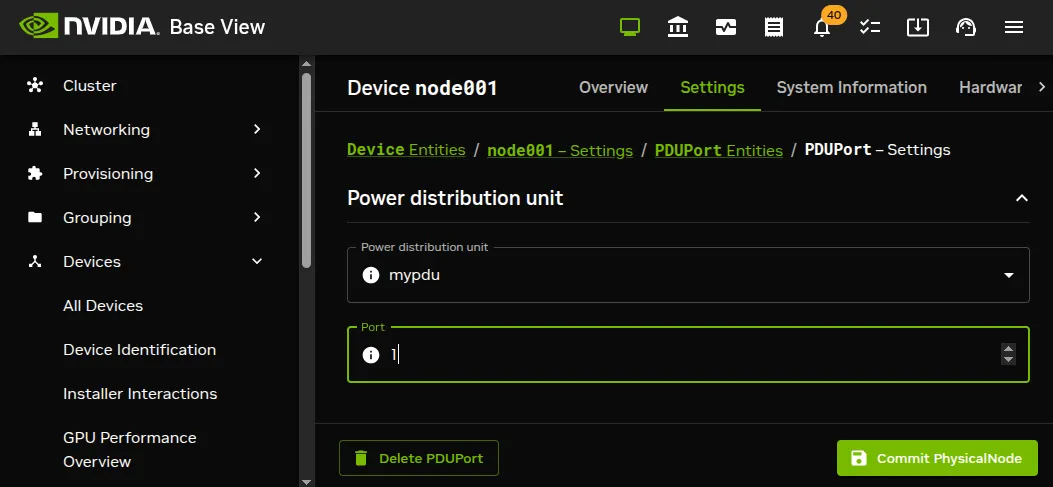
*Figure 4.1: PDU configuration settings for a node*
**For the APC brand of PDUs:** the `Power control` property ([here](/admin/configuring#3812-apc-pdus)) should be set to `apc`, or the list of PDU ports is ignored by default. Overriding the default is described in section [4.1.3](#413-combining-pdu--and-ipmi-based-power-control).
#### 4.1.1.4 Power Ports: One-to-many And Many-to-one
Nodes may have multiple power feeds for redundancy reasons. Thus, there may be multiple PDU ports and multiple PDUs defined for a single device. The cluster management takes care of operating all ports of a device in the correct order when a power operation is done on the device.
For example, if a PDU `mypdu` has its ports 2 and 4 connected to a blade chassis `mychassis`, then the configuration can be specified using `cmsh` with:
**Example**
```bash
[basecm11->device*[mychassis]]% set powerdistributionunits mypdu:2 mypdu:4; commit
```
It is also possible for multiple devices to share the same PDU port. This is the case for example when *twin nodes* are used (i.e. two nodes sharing a single power supply). In this case, all power operations on one device apply to all nodes sharing the same PDU port.
#### 4.1.1.5 Non-manageable PDUs
If the PDUs defined for a node are not manageable, then the node’s baseboard management controllers (that is, IPMI/iLO and similar) are assumed to be inoperative and are therefore assigned an unknown state. This means that dumb PDUs, which cannot be managed remotely, are best not assigned to nodes in BCM. It is suggested that administrators record that a dumb PDU is assigned to a node as follows:
* in Base View the `Notes` field or the `Userdefined1`/`Userdefined2` fields can be used with the navigation paths:
`Devices > All Devices[`*node*`] > Settings > Partition > Notes`\
or\
`Devices > All Devices[`*node*`] > Settings > User Defined > Userdefined1/Userdefined1`
* in `cmsh` the equivalent is accessible on using the device from `device` mode, and running:
* `set notes`
* `set userdefined1` or
* `set userdefined2`
#### 4.1.1.6 Manageable PDUs And Node Power Status
For PDUs that are manageable:
* In `cmsh`, power-related options can be accessed from `device` mode, after selecting a device:
**Example**
```bash
[basecm11]% device use node001
[basecm11->device[node001]]% show | grep -i power
Custom power script argument
Ipmi/iLO power reset delay 0
Power control apc
PowerDistributionUnits apc01:6 apc01:7
```
The power status of a node can be accessed with:
**Example**
```bash
[basecm11->device[node001]]% power status
```
**NOTE:** The output of `power status` is delivered as a **private** event (section [10.10](/admin/monitoring#1010-event-viewer)), unlike `device status`/`status`, which is not event-based. If private events have been turned off with `events off` (or `events off private`), then `power status` produces no output at all. This is because power queries can be slow, involving a round trip through PDUs or BMCs, while `device status` is fast and does not need the event indirection. Running `events off broadcast` instead, leaving private events on, still allows `power status` output to be seen.
If the node is up and has one or more PDUs assigned to it, then the power status is one of `ON`, `OFF`, `RESET`, `FAILED`, or `UNKNOWN`:
| **Node Power Status** | **Description** |
| :-------------------- | :------------------------------------------------ |
| `ON` | Power is on |
| `OFF` | Power is off |
| `RESET` | Shows during the short time the power is off |
| | during a power reset. The reset is a hard power |
| | off for PDUs, but can be a soft or hard reset for |
| | other power control devices. |
| `FAILED` | Power status script communication failure. |
| `UNKNOWN` | Power status script timeout |
**Rack power status:** For a rack in a DGX system, the `power status` command can show some other values:
| **Rack Power Status** | **Description** |
| :-------------------- | :------------------------------------------- |
| `DONE` | Power on completed |
| `GOOD` | Check before power status is checked is fine |
| `BUSY` | Waiting for power status response |
| `FAIL` | Power status check failure |
| `PENDING` | Waiting to run power status |
| `CANCELLED` | Power on cancelled |
### 4.1.2 IPMI-Based Power Control
IPMI-based power control relies on the baseboard management controller (BMC) inside a node. It is therefore only available for node devices. Blades inside a blade chassis typically use IPMI for power management. Section [3.7](/admin/configuring#37-configuring-bmc-ipmiilodraccimcredfish-interfaces) describes setting up networking and authentication for IPMI/iLO/DRAC/CIMC/Redfish interfaces.
To carry out IPMI-based power control operations, the `Power control` property ([here](/admin/configuring#3812-apc-pdus)) must be set to the IPMI interface through which power operations should be relayed. Normally this IPMI interface is configured to be `ipmi0`. Any list of configured APC PDU ports displayed in the GUI is ignored by default when the `Power control` property is not `apc`.
**Example**
Configuring power parameters settings for all the nodes using `cmsh`, with IPMI interfaces that are called `ipmi0`:
```bash
[mycluster]% device
[...device]% foreach -t physicalnode (set powercontrol ipmi0; commit)
```
**Example**
Configuring power parameters settings for a node using `cmsh` with APC:
```bash
[mycluster]% device use node001
[...device[node001]]% set powerdistributionunits apc01:6 apc01:7 apc01:8
[...device*[node001*]]% get powerdistributionunits
apc01:6 apc01:7 apc01:8
[...device*[node001*]]% removefrom powerdistributionunits apc01:7
[...device*[node001*]]% get powerdistributionunits
apc01:6 apc01:8
[...device*[node001*]]% set powercontrol apc
[...device*[node001*]]% get powercontrol
apc
[...device*[node001*]]% commit
```
### 4.1.3 Combining PDU- and IPMI-Based Power Control
By default when nodes are configured for IPMI Based Power Control, any configured PDU ports are ignored. However, it is sometimes useful to change this behavior.
For example, in the CMDaemon configuration file directives in `/cm/local/apps/cmd/etc/cmd.conf` (introduced in section [2.6.2](/admin/clustermanagement#262-configuring-the-cluster-management-daemon) and listed in Appendix [C](/admin/cmdconf)), the default value of `PowerOffPDUOutlet` is `false`. It can be set to `true` on the head node, and CMDaemon restarted to activate it.
With `PowerOffPDUOutlet` set to `true` it means that CMDaemon, after receiving an IPMI-based power off instruction for a node, and after powering off that node, also subsequently powers off the PDU port. Powering off the PDU port shuts down the BMC, which saves some additional power—typically a few watts per node. When multiple nodes share the same PDU port, the PDU port only powers off when all nodes served by that particular PDU port are powered off.
When a node has to be started up again the power is restored to the node. It is important that the node BIOS is configured to automatically power on the node when power is restored.
### 4.1.4 Custom Power Control
For a device which cannot be controlled through any of the standard existing power control options, it is possible to set a custom power management script. This is then invoked by the cluster management daemon on the head node whenever a power operation for the device is done.
Power operations are described further in section [4.2](#42-power-operations).
#### 4.1.4.1 Using `custompowerscript`
To set a custom power management script for a device, the `powercontrol` attribute is set by the administrator to `custom` using either Base View or `cmsh`, and the value of `custompowerscript` is specified by the administrator. The value for `custompowerscript` is the full path to an executable custom power management script on the head node(s) of a cluster.\
A custom power script is invoked with the following mandatory arguments:
```bash
myscript
```
where `` is the name of the device on which the power operation is done, and `` is one of the following:
```bash
ON
OFF
RESET
STATUS
```
On success a custom power script exits with exit code 0. On failure, the script exits with a non-zero exit-code.
#### 4.1.4.2 Using `custompowerscriptargument`
The mandatory argument values for `` and `` are passed to a custom script for processing. For example, in `bash` the positional variables `$1` and `$2` are typically used for a custom power script. A custom power script can also be passed a further argument value by setting the value of `custompowerscriptargument` for the node via `cmsh` or Base View. This further argument value would then be passed to the positional variable `$3` in `bash`.
An example custom power script is located at `/cm/local/examples/cmd/custompower`. In it, setting `$3` to a positive integer delays the script via a `sleep` command by `$3` seconds.
An example that is conceivably more useful than a “`sleep $3`” command is to have a “`wakeonlan $3`” command instead. If the `custompowerscriptargument` value is set to the MAC address of the node, that means the MAC value is passed on to `$3`. Using this technique, the power operation ON can then carry out a Wake On LAN operation on the node from the head node.
Setting the `custompowerscriptargument` can be done like this for all nodes:
```bash
#!/bin/bash
for nodename in $(cmsh -c "device; foreach * (get hostname)")
do
macad=`cmsh -c "device use $nodename; get mac"`
cmsh -c "device use $nodename; set customscriptargument $macad; commit"
done
```
The preceding material usefully illustrates how `custompowerscriptargument` can be used to pass on arbitrary parameters for execution to a custom script.
However, the goal of the task can be achieved in a simpler and quicker way using the environment variables available in the cluster management daemon environment ([section 3.3.1 of the *Developer Manual*](/developer/monitoring-actions#331-standard-environment-variables-available-in-action-scripts)). This is explained next.
#### 4.1.4.3 Using Environment Variables With `custompowerscript`
Simplification of the steps needed for custom scripts in CMDaemon is often possible because there are values in the CMDaemon environment already available to the script. A line such as:
```bash
env > /tmp/env
```
added to the start of a custom script dumps the names and values of the environment variables to `/tmp/env` for viewing.
One of the names is `$CMD_MAC`, and it holds the MAC address string of the node being considered.
So, it is not necessary to retrieve a MAC value for `custompowerscriptargument` with a bash script as shown in the previous section, and then pass the argument via `$3` such as done in the command “`wakeonlan $3`”. Instead, `custompowerscript` can simply call “`wakeonlan $CMD_MAC`” directly in the script when run as a power operation command from within CMDaemon.
### 4.1.5 Hewlett Packard iLO-Based Power Control
#### 4.1.5.1 iLO Configuration During Installation
If “`Hewlett Packard`” is chosen as the node manufacturer during installation ([section 3.3.11 of the *Installation Manual*](/installation/installing#3311-compute-nodes-settings)), and the nodes have an iLO management interface, then Hewlett-Packard’s iLO management package, `hponcfg`, is installed by default on the nodes and head nodes.
#### 4.1.5.2 iLO Configuration After Installation
If “`Hewlett Packard`” has not been specified as the node manufacturer during installation then it can be configured after installation as follows:
The `hponcfg` rpm package is normally obtained and upgraded for specific HP hardware from the HP website. Using an example of `hponcfg-3.1.1-0.noarch.rpm` as the package downloaded from the HP website, and to be installed, the installation can then be done on the head node, the software image, and in the node-installer as follows:
```bash
rpm -iv hponcfg-3.1.1-0.noarch.rpm
rpm --root /cm/images/default-image -iv hponcfg-3.1.1-0.noarch.rpm
rpm --root /cm/node-installer -iv hponcfg-3.1.1-0.noarch.rpm
```
To use iLO on a node, the iLO interface of the node is set up just like the IPMI interfaces as outlined in section [4.1.2](#412-ipmi-based-power-control). That is, using “`set powercontrol ilo0`” instead of “`set powercontrol ipmi0`”. BCM treats HP iLO interfaces just like regular IPMI interfaces, except that the interface names are `ilo0`, `ilo1`... instead of `ipmi0`, `ipmi1`...
For example, nodes in the `default` category can be brought under iLO power control as follows:
**Example**
```bash
[mycluster]% device foreach -c default (set powercontrol ilo0)
[mycluster]% device commit
```
### 4.1.6 Dell `drac`-based Power Control
Dell `drac` configuration is covered [here](/admin/configuring#3743-dell-openmanage-and-racadm-installation).
### 4.1.7 Redfish-Based and CIMC-Based Power Control
Section [3.7](/admin/configuring#37-configuring-bmc-ipmiilodraccimcredfish-interfaces) describes setting up networking and authentication for Redfish/CIMC, as well as for IPMI/iLO/DRAC interfaces.
## 4.2 Power Operations
### 4.2.1 Power Operations Overview
#### 4.2.1.1 Main Power Operations
Power operations may be carried out on devices from either Base View or `cmsh`. There are four main power operations:
* `power on`
* `power off`
* `power reset`: power off a device and power it on again after a brief delay (is not implemented for racks)
* `power status`: check the power status and display a response
#### 4.2.1.2 Scheduling-related Power Operations
There are also *scheduling-related* power operations, which are currently (December 2018) only accessible via `cmsh`. Scheduling-related power operations are power operations associated with managing and viewing explicitly-scheduled execution.
Scheduled execution of power operations can be carried out explicitly via the `--at`, `--after`, `-d`, and `--parallel-delay` options. The scheduling-related power operations to manage and view such scheduled power operations are:
* `power wait`: Identifies the devices that have power operations that are in the `waiting` state, i.e. waiting to be carried out, and also outputs the number of operations that are waiting to be carried out.
* `power cancel`: Cancels an operation in the `waiting` state (or `busy` state for racks). The devices on which they should be cancelled can be specified.
* `power list`: Lists the power operations on the device and the states of the operations. Possible states for the operations are:
* `waiting`: waiting to be executed
* `busy`: are being executed
* `cancelled`: have been cancelled
* `done`: have been executed
It is possible that power operations without an explicitly-scheduled execution time setting show up very briefly in the output of `power list` and `power wait`. However, the output displayed is almost always about the explicitly-scheduled power operations.
### 4.2.2 Power Operations With Base View
In Base View, executing the main power operations can be carried out as follows:
* using the vertical dots option within the `Actions` column for a device. This can be accessed for a device—for example the head node—using the navigation path:
`Devices > All Devices > Head Node > ⋮`
Clicking on the vertical dots then makes power operation menu items available (figure [4.2](#fig-base-view-headnode-settings-power-section-power-actions)):
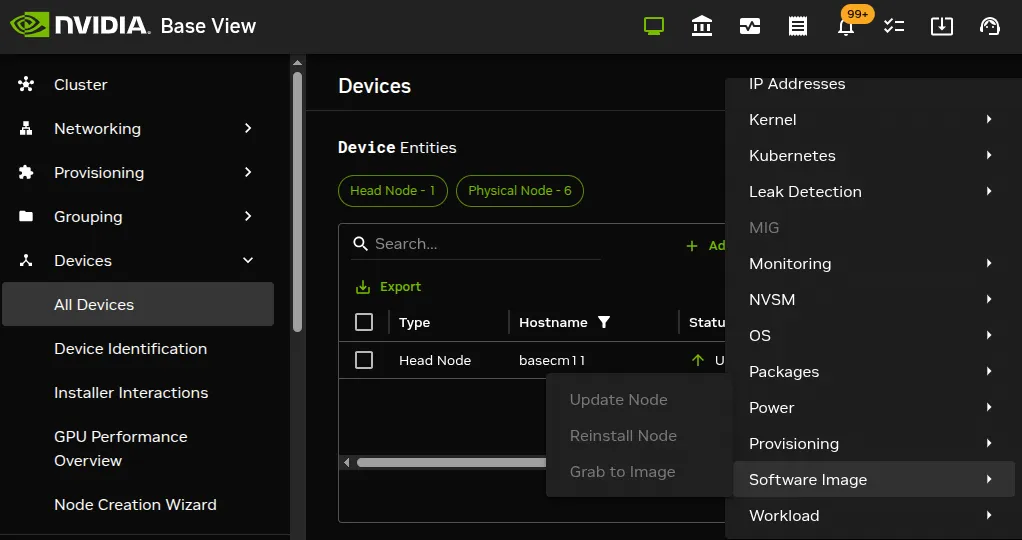
*Figure 4.2: Actions button, accessing the power operations*
* using the vertical dots option within the `Actions` column for categories or nodegroups. This can be accessed for a category—for example the `default` category—using the navigation path:
`Grouping > Categories > default`` > ⋮`
### 4.2.3 Power Operations Through `cmsh`
Power operations on nodes can be carried out from within the `device` mode of `cmsh`, via the `power` command options.
#### 4.2.3.1 Powering On
Powering on can be carried out on a list of nodes ([here](/admin/clustermanagement#25510-node-list-syntax)). Powering on `node001`, and nodes from `node018` to `node033` (output truncated):
**Example**
```bash
[mycluster]% device power -n node001,node018..node033 on
apc01:1 ............. [ ON ] node001
apc02:8 ............. [ ON ] node018
apc02:9 ............. [ ON ] node019
...
```
When a power operation is carried out on multiple devices, CMDaemon ensures that a 1 second delay occurs by default between successive devices. This helps avoid power surges on the infrastructure.
#### 4.2.3.2 Delay Period Between Nodes
The delay period can be modified from within the `device` mode of `cmsh`, by using the `-d|--delay` option of the `power` command. For example, the preceding power command can be run with a shorter, 10ms delay with:
```bash
[mycluster]% device power -n node001,node018..node033 -d 0.01 on
```
A 0-second delay (`-d 0`) should not be set for larger number of nodes, unless the power surge that this would cause has been taken into consideration.
#### 4.2.3.3 Powering Up In Batches
Groups of nodes can be powered up “in batches”, according to power surge considerations. For example, to power up 3 racks at a time (“in batches of 3”), the `-p|--parallel` option is used:
**Example**
```bash
[mycluster]% device power on -p 3 rack[01-12]
```
By default, there is a delay of 20s between batch commands. So, in the preceding example, there is a 20s pause before the each batch of the next three racks is powered up. For batch operation a delay of `-d 0` is assumed, i.e. the nodes within in the rack are powered up without a built-in delay between the nodes of the rack.
#### 4.2.3.4 Thread Use During Powering Up
The default number of threads that are started up to handle powering up of all the nodes is 32. If the hardware can cope with it, then it is possible to decrease startup time by increasing the default number of threads used to handle powerup, by editing [the `PowerThreadPoolSize` advanced configuration directive in CMDaemon.](/admin/cmdconf#c65-powerthreadpoolsize-directive)
#### 4.2.3.5 Powering Off Nodes
An example of powering off nodes is the following, where all nodes in the `default` category are powered off, with a 100ms delay between nodes (some output elided):
**Example**
```bash
[mycluster]% device power off -c default -d 0.1
apc01:1 ............. [ OFF ] node001
apc01:2 ............. [ OFF ] node002
...
apc23:8 ............. [ OFF ] node953
```
#### 4.2.3.6 Getting The Power Status
The `power status` command lists the status for devices:
**Example**
```bash
[mycluster]% device power status -g mygroup
apc01:3 ............. [ ON ] node003
apc01:4 ............. [ OFF ] node004
```
#### 4.2.3.7 Getting The Power History
The `power history` command lists the last few power operations on nodes. By default it lists up to the last 8.
**Example**
```bash
[mycluster]% device power history
Device Time Operation Success
-------- ------------------------ ------------ ------------
node001 Sat Sep 14 03:35:03 2019 shutdown yes
node001 Fri Sep 20 14:28:38 2019 on yes
node002 Sat Sep 14 03:35:03 2019 shutdown yes
node002 Fri Sep 20 14:28:38 2019 on yes
node003 Sat Sep 14 03:35:03 2019 shutdown yes
node003 Fri Sep 20 14:28:38 2019 on yes
node004 Sat Sep 14 03:35:03 2019 shutdown yes
```
#### 4.2.3.8 The `power` Command Help Text
The help text for the `power` command in `device` mode is:
```bash
[basecm11->device]% help power
Name:
power - Manipulate or retrieve power state of devices
Usage:
power [OPTIONS] status
power [OPTIONS] on
power [OPTIONS] off
power [OPTIONS] reset
power [OPTIONS] list
power [OPTIONS] history
power [OPTIONS] cancel
power [OPTIONS] wait
Options:
-n, --nodes
List of nodes, e.g. node001..node015,node020..node028,node030 or
^/some/file/containing/hostnames
-g, --group
Include all nodes that belong to the node group, e.g. testnodes or test01,test03
-c, --category
Include all nodes that belong to the category, e.g. default or default,gpu
-r, --rack
Include all nodes that are located in the given rack, e.g rack01 or
rack01..rack04
-h, --chassis
Include all nodes that are located in the given chassis, e.g chassis01 or
chassis03..chassis05
-e, --overlay
Include all nodes that are part of the given overlay, e.g overlay1 or
overlayA,overlayC
-m, --image
Include all nodes that have the given image, e.g default-image or
default-image,gpu-image
-t, --type
Type of devices, e.g node or virtualnode,cloudnode
-i, --intersection
Calculate the intersection of the above selections
-u, --union
Calculate the union of the above selections
-l, --role role
Filter all nodes that have the given role
-s, --status
Only run command on nodes with specified status, e.g. UP, "CLOSED|DOWN",
"INST.*"
-b, --background
Run in background, output will come as events
-d, --delay
Wait between executing two sequential power commands. This option is
ignored for the status command
-f, --force
Force power command on devices which have been closed
-w, --overview
Group all power operation results into an overview
-p, --parallel
Number of parallel option-items to be used per batch, default 0 (disabled)
--at