> This page is for version 11 (default).
> For other versions, use one of these documentation indexes:
> - 11 (default): https://docs.nvidia.com/base-command-manager/product-manuals/11/llms.txt
> - 10: https://docs.nvidia.com/base-command-manager/product-manuals/10/llms.txt
> For clean Markdown of any page, append .md to the page URL.
> For a complete documentation index, see https://docs.nvidia.com/base-command-manager/product-manuals/llms.txt.
> For AI client integration (Claude Code, Cursor, etc.), connect to the MCP server at https://docs.nvidia.com/base-command-manager/product-manuals/_mcp/server.
# Installing NVIDIA Base Command Manager
This chapter describes in detail the installation of NVIDIA Base Command Manager onto the head node of a cluster. Sections [3.1](#31-minimal-hardware-requirements) and [3.2](#32-supported-hardware) list hardware requirements and supported hardware. Section [3.3](#33-head-node-installation-bare-metal-method) gives step-by-step instructions on installing BCM from a DVD or USB drive onto a head node that has no operating system running on it initially, while section [3.4](#34-head-node-installation-ansible-add-on-method) gives instructions on installing onto a head node that already has an operating system running on it.
Once the head node is installed, the other, regular, nodes can (network) boot off the head node and provision themselves from it with a default image, without requiring a Linux distribution DVD or USB drive themselves. Regular nodes normally have any existing data wiped during the process of provisioning from the head node, which means that a faulty drive can normally simply be replaced by taking the regular node offline, replacing its drive, and then bringing the node back online, without special reconfiguration. The details of the network boot and provisioning process for the regular nodes are described in [Chapter 5 of the *Administrator Manual*](/admin/provisioning).
The installation of software on an already-configured cluster running BCM is described in [Chapter 9 of the *Administrator Manual*](/admin/softwareimagemanagement).
## 3.1 Minimal Hardware Requirements
The following are minimal hardware requirements, suitable for a cluster of one head node and two regular compute nodes:
### 3.1.1 Head Node
* x86-64, or ARMv8 CPU
* For running the application software:
* 4GB RAM for the x86 architecture. However, standard bare-metal installation (section [3.3](#33-head-node-installation-bare-metal-method)) runs best with at least 8GB RAM.
* 16GB RAM for the ARMv8 architecture,
* 80GB diskspace
* 2 Gigabit Ethernet NICs (for the most common Type 1 topology (section [3.3.9](#339-network-topology)))
* DVD drive or USB drive
### 3.1.2 Compute Nodes
* x86-64, ARMv8 CPU
* 1GB RAM (at least 4GB is recommended for diskless nodes)
* 1 Gigabit Ethernet NIC
Recommended hardware requirements for larger clusters are discussed in detail in Appendix [B](/installation/hardwarerecommendations).
## 3.2 Supported Hardware
An NVIDIA-certified for AI enterprise system is a system with NVIDIA GPUs and networking that has passed a set of certification tests to validate its performance, reliability, and scale for data centers. Many system builders that have partnered with NVIDIA can provide such certified hardware. These system builders are listed in [https://www.nvidia.com/en-us/data-center/data-center-gpus/qualified-system-catalog](https://www.nvidia.com/en-us/data-center/data-center-gpus/qualified-system-catalog).
The following hardware is also supported, even if it may not be NVIDIA-certified for AI Enterprise:
### 3.2.1 Compute Nodes
* ASUS
* Atos
* Cisco
* Dell EMC
* Fujitsu
* HPE (Hewlett Packard Enterprise)
* IBM
* Lenovo
* NVIDIA DGX
* Oracle
* Supermicro
Other brands are also expected to work, even if not explicitly supported.
### 3.2.2 Ethernet Switches
* Cisco
* Dell
* HP Networking Switches
* Netgear
* Supermicro
Other brands are also expected to work, although not explicitly supported.
### 3.2.3 Power Distribution Units
* APC (American Power Conversion) Switched Rack PDU
Other brands with the same SNMP MIB mappings are also expected to work, although not explicitly supported.
### 3.2.4 Management Controllers
* HP iLO
* iDRAC
* IPMI 1.5/2.0
* CIMC
* Redfish v1
### 3.2.5 InfiniBand And Similar
* NVIDIA (formerly Mellanox) HCAs, and most other InfiniBand HCAs
* NVIDIA (formerly Mellanox), and most other InfiniBand switches
### 3.2.6 GPUs
* NVIDIA GPUs later than Volta, with latest recommended drivers
* NVIDIA DGX OS 7
* NVIDIA DGX OS 8, x86_64 systems only (`B300`, `B200`, `H200`, `H100`, `H800`). As of DGX OS 8.0, ARM64 systems, including `GB200` and `GB300`, are not supported
* AMD Radeon GPUs, as listed at [https://support.amd.com/en-us/kb-articles/Pages/Radeon-Software-for-Linux-Release-Notes.aspx](https://support.amd.com/en-us/kb-articles/Pages/Radeon-Software-for-Linux-Release-Notes.aspx)
The GPUs that are NVIDIA-certified for AI Enterprise are listed in the support matrix at [https://docs.nvidia.com/ai-enterprise/latest/product-support-matrix/index.html#support-matrix](https://docs.nvidia.com/ai-enterprise/latest/product-support-matrix/index.html#support-matrix).
### 3.2.7 RAID
Software or hardware RAID are supported. Fake RAID is not regarded as a serious production option and is supported accordingly.
## 3.3 Head Node Installation: Bare Metal Method
A *bare metal* installation, that is, installing the head node onto a machine with no operating system on it already, is the recommended option. This is because it cannot run into issues from an existing configuration. An operating system from one of the ones listed in section [2.1](/installation/introduction#21-what-is-nvidia-base-command-manager) is installed during a bare metal installation. The alternative to a bare metal installation is the *add-on* installation of section [3.4](#34-head-node-installation-ansible-add-on-method).
Just to be clear, a bare metal installation can be a physical machine with nothing running on it, but it can also be a virtual machine–such as a VMware, VirtualBox, or KVM instance–with nothing running on it. Virtual instances may need some additional adjustment to ensure virtualization-related settings are dealt with correctly. Details on installing BCM onto virtual instances can be found in the Knowledge Articles of the NVIDIA Enterprise Support Portal at [https://enterprise-support.nvidia.com/](https://enterprise-support.nvidia.com/).
To start a physical bare metal installation, the time in the BIOS of the head node is set to local time. The head node is then made to boot from DVD or USB, which can typically be done by appropriate keystrokes when the head node boots, or via a BIOS configuration.
**Special steps for installation from a bootable USB device:** If a bootable USB device is to be used, then the instructions within the BCM ISO, in the file `README.BRIGHTUSB` should be followed to copy the ISO image over to the USB device. After copying the ISO image, the MD5 checksum should be validated to verify that the copied ISO is not corrupt. This is important, because corruption is possible in subtle ways that may affect operations later on, and in ways that are difficult to uncover.
### 3.3.1 ISO Boot Menu
If booting from a DVD or USB drive, then a pre-installer menu called the *ISO boot menu* first loads up (figure [3.1](#fig-isobootmenubasecommand)).

*Figure 3.1: Installation: ISO Boot Menu*
The ISO Boot menu offers a default option of booting from the hard drive, with a countdown to starting the hard drive boot. To install BCM, the countdown should be interrupted by selecting the option of “`Start Base Command Manager Graphical Installer`” instead.
Selecting the option allows kernel parameter options to be provided to the installer.
Default kernel parameter options are provided so that the administrator can simply press the enter key to go straight on to start the installer, and bring up the welcome screen (section [3.3.2](#332-welcome-screen)).
#### 3.3.1.1 Optional: The `netconf` Custom Kernel Parameter
A non-default kernel parameter option is `netconf`. Setting configuration values for this option configures login and network settings for the cluster manager, and also means that SSH and VNC servers are launched as the welcome screen (section [3.3.2](#332-welcome-screen)) of the BCM installer starts up. This then allows the cluster administrator to carry out a remote installation, instead of having to remain at the console.
The `netconf` option can be set for both the GUI and text installer installation.
The `netconf` custom kernel parameter requires 3 settings:
1. a setting for the external network interface that is to be used. For example: `eth0` or `eth1`.
2. a setting for the network configuration of the external network, to be explained soon. The network configuration option can be built either using static IP addressing or with DHCP.
* For static IP addressing, the network configuration format is comma-separated:
`static:` \<*IP address*>`,<`*gateway address*>, \<*netmask*>
* For DHCP addressing, the format is simply specified using the string `dhcp`.
3. a setting for the password, for example `secretpass`, for the login to the cluster manager that is about to be installed.
**Example**
With static IP addressing:
```bash
netconf=eth0:static:10.141.161.253,10.141.255.254,255.255.0.0:secretpass
```
**Example**
With DHCP addressing:
```bash
netconf=eth0:dhcp:secretpass
```
A remote installation can alternatively be carried out later on without setting `netconf`, by using the text mode installer to set up networking (section [3.5](#35-enabling-remote-browser-based-installation-via-the-text-mode-installer)), or by using GUI mode installer `Continue remotely` option (figure [3.3](#fig-license_bcm)).
### 3.3.2 Welcome Screen
The welcome screen is shown in figure [3.2](#fig-welcomedvd).
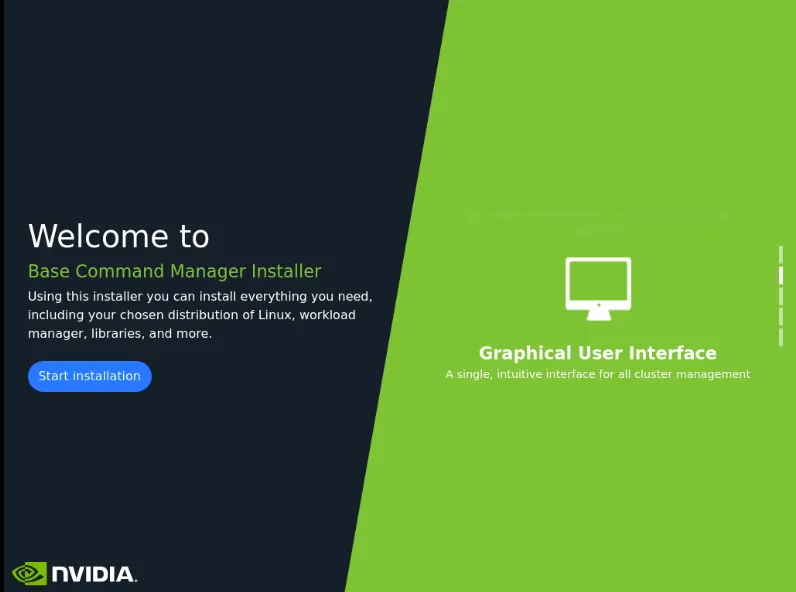
*Figure 3.2: Installation welcome screen for BCM*
An administrator who would like to simply start installation can click on the `Start installation` button at the left side of the screen.
### 3.3.3 Software Licenses
The next screen that is displayed asks the user to read and agree to the NVIDIA Software Licence Agreement (figure [3.3](#fig-license_bcm)):
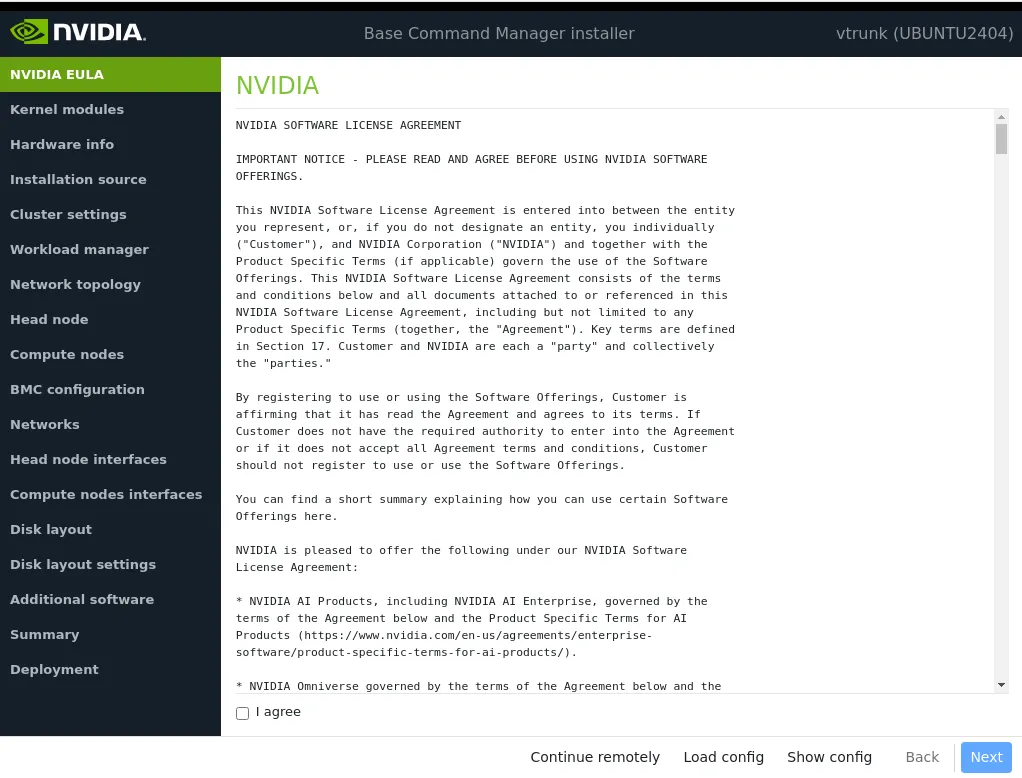
*Figure 3.3: NVIDIA Base Command Manager Software License Agreement*
The agreement is carried out by ticking the checkbox and clicking on the `Next` button.
Another license agreement screen after that asks the user to agree to the Base Distribution license. This is the end user license agreement for the distribution (RHEL, Rocky, Ubuntu and so on) that is to be used as the base upon which BCM is to run.
#### 3.3.3.1 Options In GUI During The Installation Screens
As is seen in figure [3.3](#fig-license_bcm), the main screens during installation have the following clickable options along the bottom of the screen:
* `Load config`: allows an existing configuration file to be loaded and used by the installation. This option is available only during the first few screens.
* `Show config`: allows any already loaded configuration file to be displayed. There is a default configuration loaded by default, with values that may suit the cluster already. However, the defaults are not expected to be optimal, and may not even work for the actual physical configuration.
* `Continue remotely`: allows the administrator to leave the console and access the cluster from a remote location. This can be useful for administrators who, for example, prefer to avoid working inside a noisy cold data center. If `Continue remotely` is selected, then addresses are displayed on the console screen, for use with a web browser or SSH, and the console installation screen is locked.
* `Back`: if not grayed out, the `Back` option allows the administrator to go back a step in the installation.
* `Next`: allows the administrator to proceed to the next screen.
#### 3.3.3.2 Console And Log Access During Installation
The cluster administrator can get a root console and view logging by going through the virtual terminals.
For Ubuntu and Rocky the terminals should be allocated as follows:
* Ctrl+Alt+F1: Root shell
* Ctrl+Alt+F2: Installer (GUI/TUI)
* Ctrl+Alt+F3: Logging (at least on Rocky/RHEL)
* Ctrl+Alt+F5+: Additional shells
The allocation may change.
### 3.3.4 Kernel Modules Configuration
The `Kernel Modules` screen (figure [3.4](#fig-kernelmods)) shows the kernel modules recommended for loading based on a hardware probe:
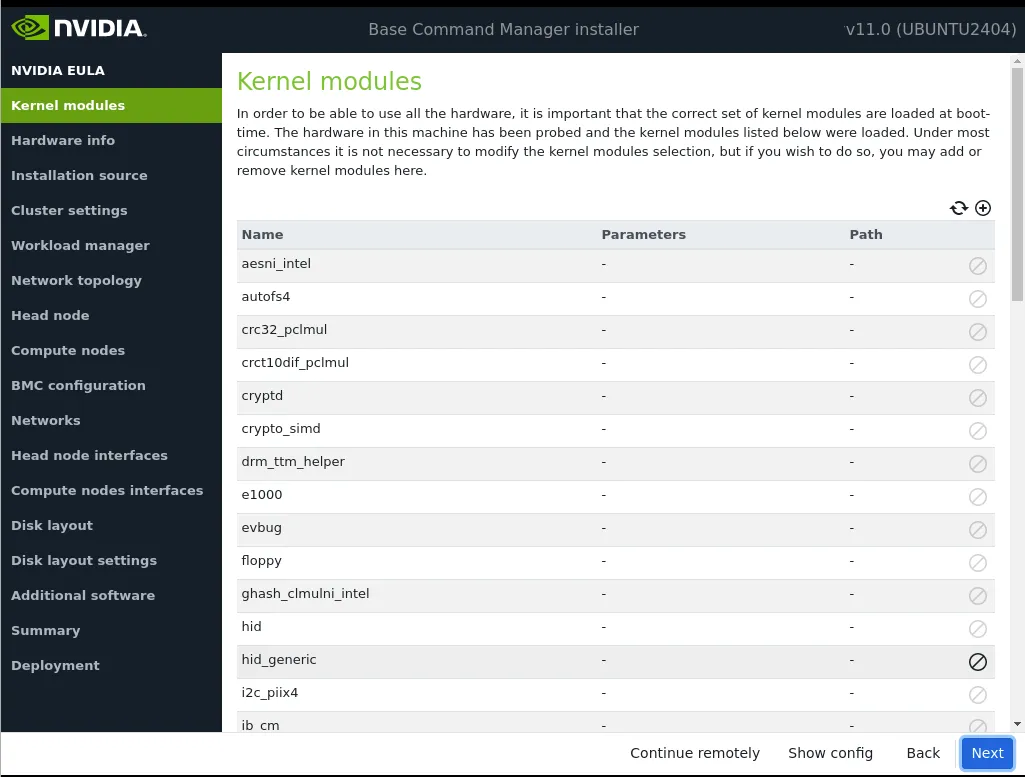
*Figure 3.4: Kernel Modules Recommended For Loading After Probing*
Changes to the modules to be loaded can be entered by reordering the loading order of modules, by removing modules, and adding new modules. Clicking the ⊕ button opens an input box for adding a module name and optional module parameters (figure [3.5](#fig-kernelmodsadd)). The module can be selected from a built-in; it can be automatically extracted from a .deb or .rpm package; or it can simply be selected by selecting an available .ko kernel module file from the filesystem.
A module can also be blacklisted, which means it is prevented from being used, by clicking on the ⊘ button. This can be useful when replacing one module with another.
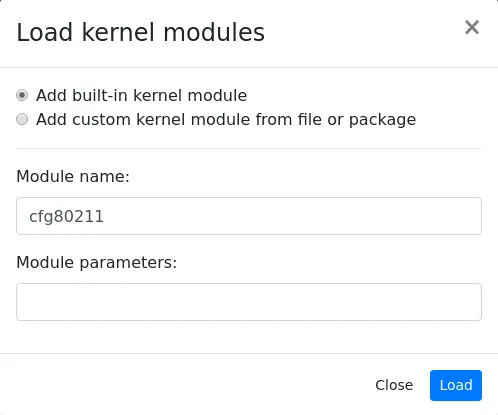
*Figure 3.5: Adding Kernel Modules*
Clicking `Next` then leads to the “`Hardware info`” overview screen, described next.
### 3.3.5 Hardware Info
The `Hardware Info` screen (figure [3.6](#fig-hwinfo)) provides an overview of detected hardware based on the hardware probe used to load kernel modules. If any hardware is not detected at this stage, then the `Back` button can be used to go back to the `Kernel Modules` screen (figure [3.4](#fig-kernelmods)) to add the appropriate modules, and then the `Hardware Information` screen can be returned to, to see if the hardware has been detected.
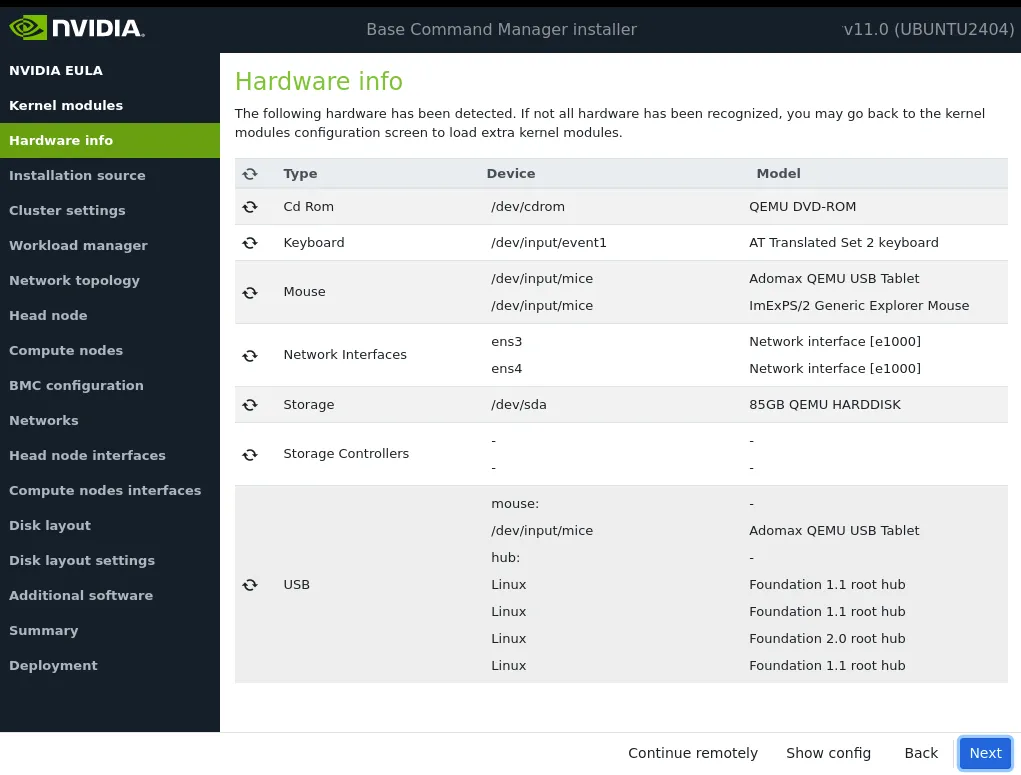
*Figure 3.6: Hardware Overview Based On Hardware Detection Used For Loading Kernel Modules*
Clicking `Next` in the `Hardware Info` screen leads to the `Installation source` configuration screen, described next.
### 3.3.6 Installation Source
The installation source screen (figure [3.7](#fig-dvdselection)) detects the available DVD-ROM devices.
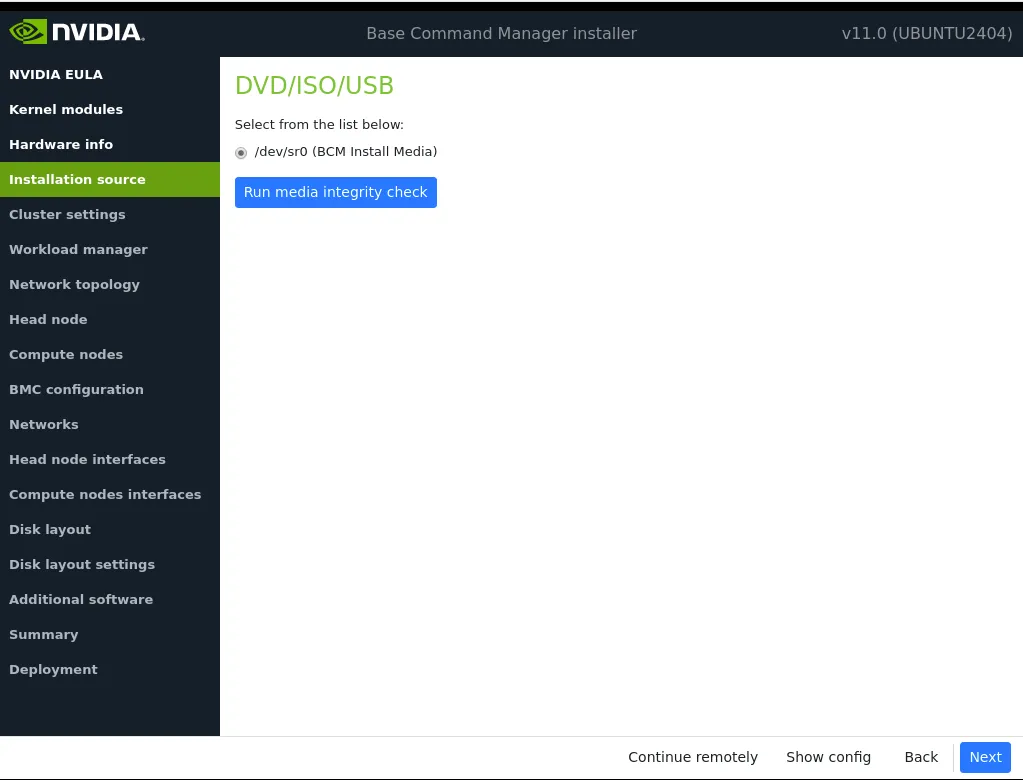
*Figure 3.7: DVD Selection*
The administrator must select the correct device to continue the installation.
Optionally, a media integrity check can be set.
Clicking on the `Next` button starts the media integrity check, if it was set. The media integrity check can take about a minute to run. If all is well, then the “`Cluster settings`” setup screen is displayed, as described next.
### 3.3.7 Cluster Settings
The `General cluster settings` screen (figure [3.8](#fig-clustersettings)) provides an overview of some mandatory and optional settings.
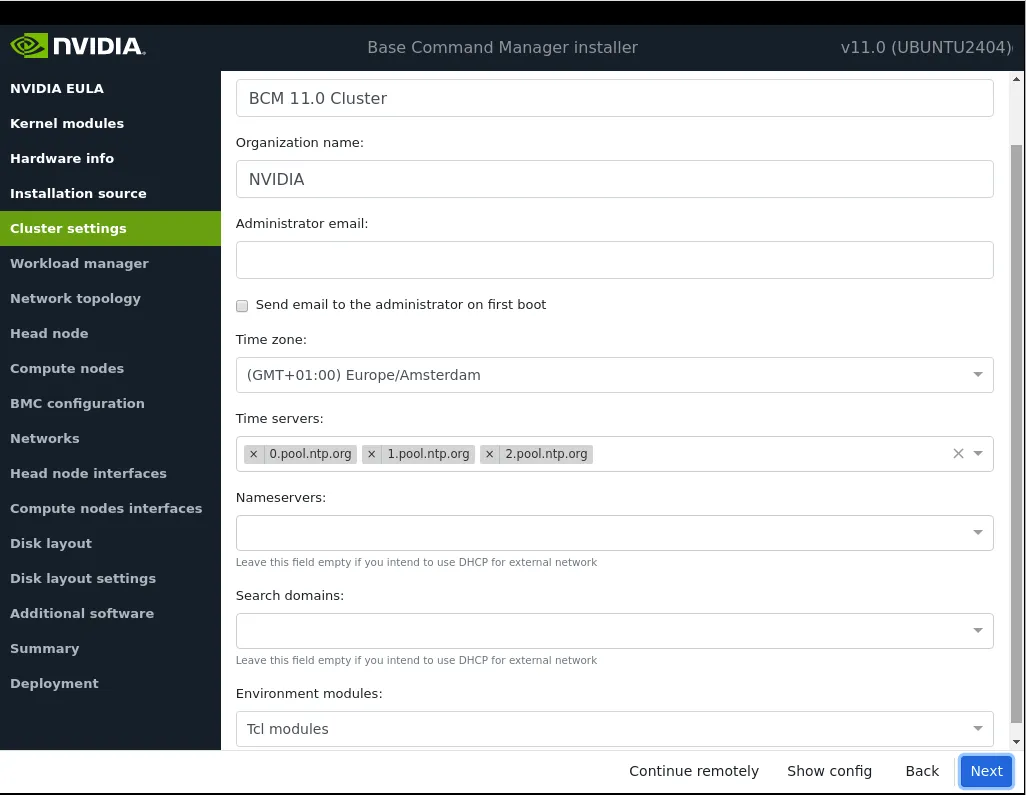
*Figure 3.8: General cluster settings*
Settings that can be provided in this screen are:
* `Cluster name`
* `Administrator email`: Where mail to the administrator goes. This need not be local.
* `Time zone`
* `Time servers`: The defaults are `pool.ntp.org` servers. A time server is recommended to avoid problems due to time discrepancies between nodes.
* `Nameservers`: One or more DNS servers can be set.
* `Search domains`: One or more domains can be set.
* `Environment modules`: Traditional Tcl modules are set by default. Lmod is an alternative.
### 3.3.8 Workload Management Configuration
The “`Workload manager`” configuration screen (figure [3.9](#fig-workload)) allows a supported workload manager to be selected. A workload management system is highly recommended to run multiple compute jobs on a cluster.
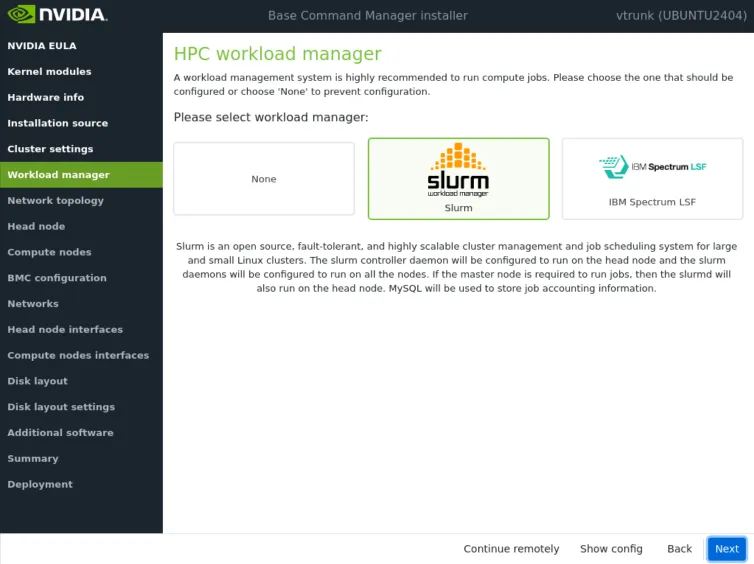
*Figure 3.9: Workload Management Setup*
If no workload manager is selected here, then it can be installed later on, after the cluster installation without the workload manager has been done. Details on installing a workload manager later on are given in [Chapter 7 on workload management of the *Administrator Manual*](/admin/workloadmanagement).
The default client slot number that is set depends on the workload manager chosen.
* For all workload management systems, the number of client slots is determined automatically.
The head node can also be selected for running jobs, thereby acting as an additional compute node. This can be a sensible choice on small clusters if the head node can spare such resources.
Clicking `Next` on this screen leads to the `Network topology` screen.
### 3.3.9 Network Topology
Regular nodes are always located on an internal network, by default called `Internalnet`.
The `Network Topology` screen allows selection of one of three different network topologies (figures [3.10](#fig-mi-networktopology), [3.11](#fig-mi-networktopology2), [3.12](#fig-mi-networktopology3)):
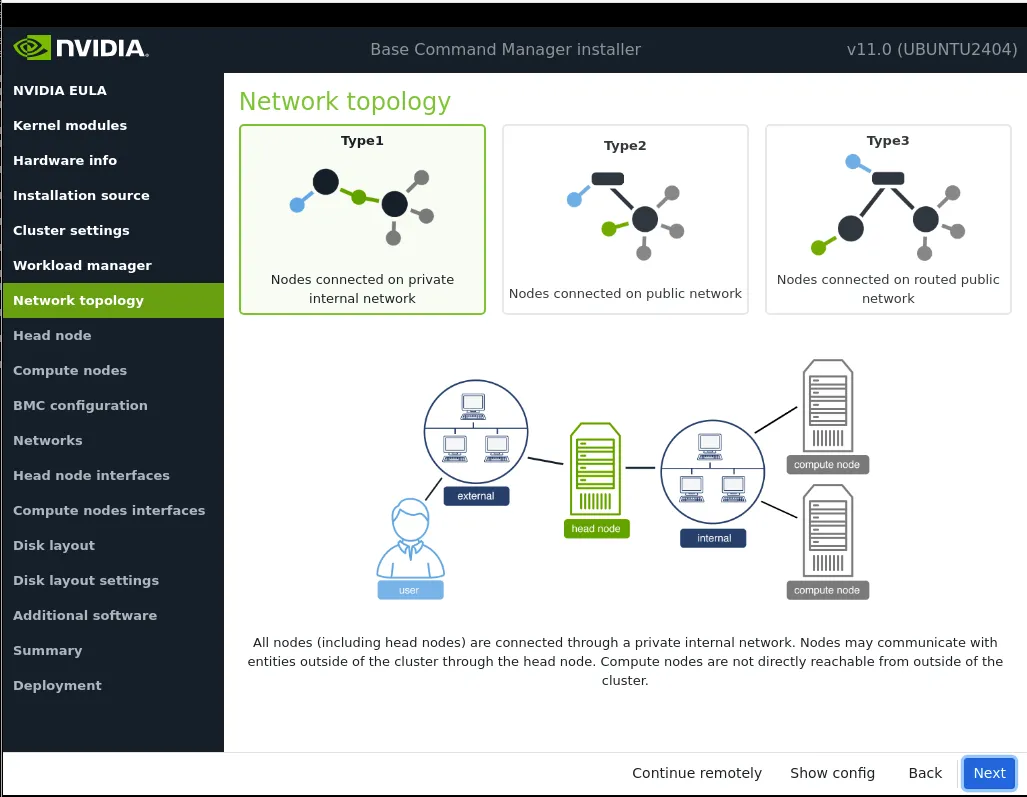
*Figure 3.10: Networks Topology: Type 1 network selection*
A *type 1* network: has its nodes connected on a private internal network. This is the default network setup. In this topology, a network packet from a head or regular node destined for any external network that the cluster is attached to, by default called `Externalnet`, can only reach the external network by being routed and forwarded at the head node itself. The packet routing for `Externalnet` is configured at the head node.
A type 1 network is the most common and simple way to run the cluster. It means that the head node provides DHCP and PXE services (during pre-init stage node booting only) to a secondary, isolated network for the worker nodes, segregating the cluster traffic. The external (typically a corporate) network is then only used to provide access to the head node(s) for management.
One limitation is that broader network access must be provided through routing or via a proxy, should anyone outside of the cluster network need to access a node.
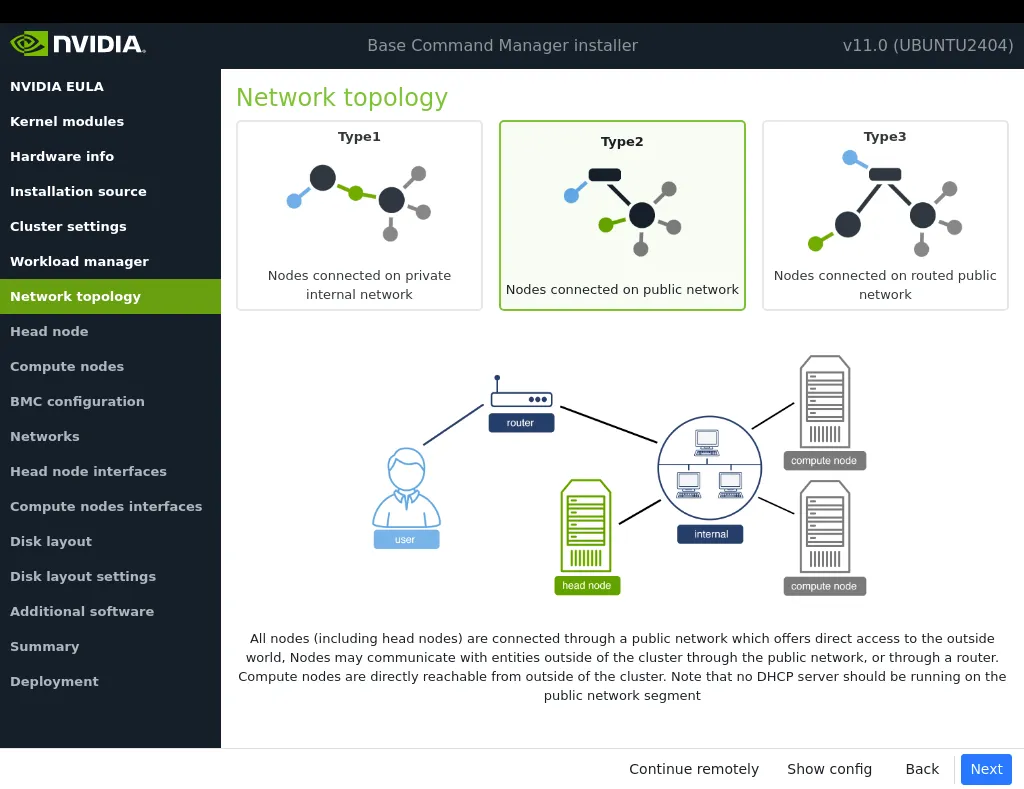
*Figure 3.11: Networks Topology: Type 2 network selection*
A *type 2* network: has its nodes connected via a router to a public network. In this topology, a network packet from a regular node destined for outside the cluster does not go via the head node, but uses the router to reach a public network.
Packets between the regular nodes and the head node however still normally go directly to each other, including the DHCP/PXE-related packets during pre-init stage node booting, since in a normal configuration the regular nodes and head node are on the same network.
Any routing for beyond the router is configured on the router, and not on the cluster or its parts. Care should be taken to avoid conflicts between the DHCP server on the head node and any existing DHCP server on the internal network, if the cluster is being placed within an existing corporate network that is also part of `Internalnet` (there is no `Externalnet` in this topology). Typically, in the case where the cluster becomes part of an existing network, there is another router configured and placed between the regular corporate machines and the cluster nodes to shield them from effects on each other.
A type 2 network does not isolate the worker nodes from the network above it. Instead, each node remains reachable through the main data plane. This is useful for clusters hosting services, such as a web portal, avoiding the use of proxies.
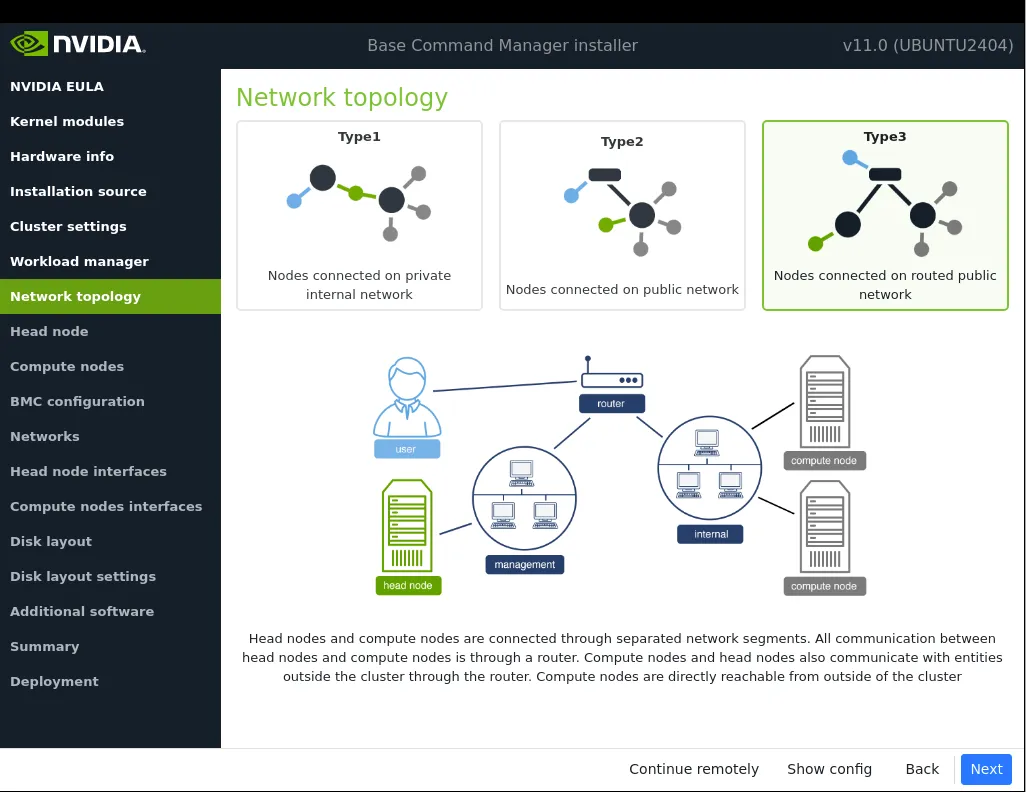
*Figure 3.12: Networks Topology: Type 3 network selection*
A *type 3* network: has its nodes connected on a routed public network. In this topology, a network packet from a regular node, destined for another network, uses a router to get to it. The head node, being on another network, can only be reached via a router too. The network the regular nodes are on is called `Internalnet` by default, and the network the head node is on is called `Managementnet` by default. Any routing configuration for beyond the routers that are attached to the `Internalnet` and `Managementnet` networks is configured on the routers, and not on the clusters or its parts.
A consequence of using a router in the type 3 configuration is that the communication between the head node and the regular nodes is via OSI layer 3. So, OSI layer 2 used by DHCP is not directly supported. However, DHCP/PXE packets still need to be exchanged between the head and regular nodes during pre-init node boot. The usual way to relay the packets is using a *DHCP relay agent*. Configuration of a DHCP relay agent is outside the scope of BCM configuration, and is typically done by the network administrator or the router vendor.
For a type 2 network, a DHCP relay agent may also be needed if the regular nodes are spread across several subnets.
Selecting the network topology helps decide the predefined networks on the `Networks` settings screen later (figure [3.16](#fig-networksconfigscreen)). Clicking `Next` here leads to the `Head node settings` screen, described next.
### 3.3.10 Head Node Settings
The head node settings screen (figure [3.13](#fig-mi-headnodesettings)) can be used to set, for the head node:
* the hostname
* the password
* the hardware manufacturer
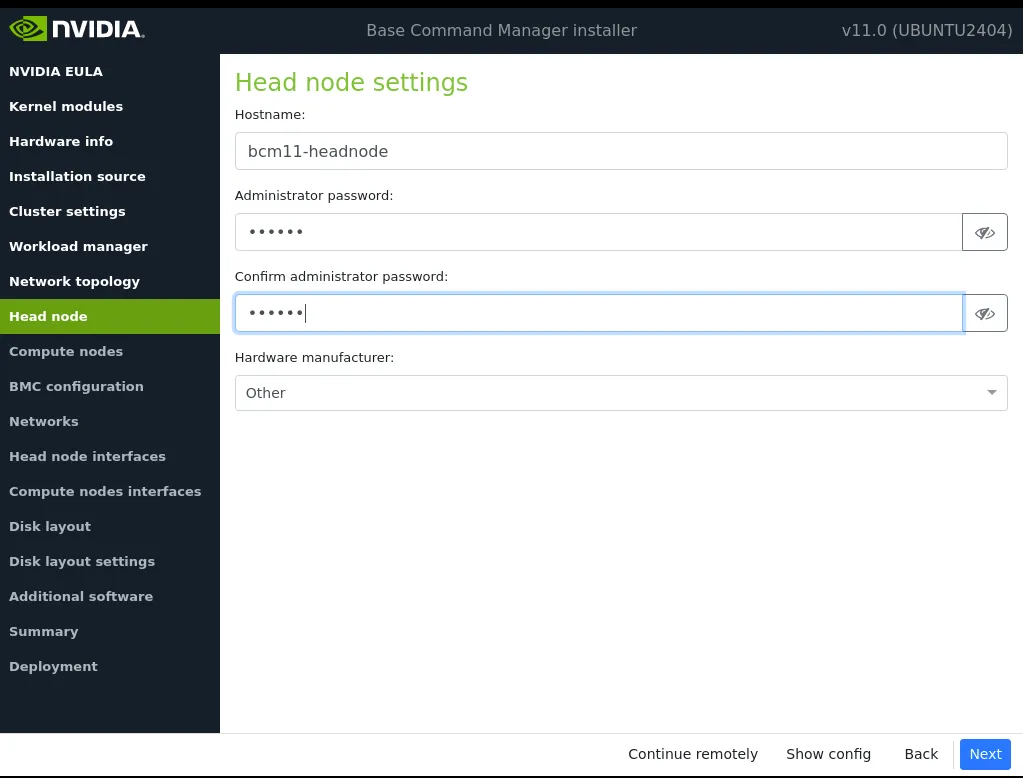
*Figure 3.13: Head node settings*
Clicking `Next` leads to the `Compute node settings` screen, described next.
### 3.3.11 Compute Nodes Settings
The compute nodes settings screen (figure [3.14](#fig-mi-computenodessettings)) can be used to set, for the compute nodes:
* the number of racks used to host the nodes
* the number of nodes
* the naming format for the nodes. This consists of:
* the node base name (default: `node`)
* the node start number (default: `1`)
* the node digits (default: `3`)
By default therefore, the first compute node takes the name `node001`, the second compute node takes the name `node002`, and so on.
* the hardware manufacturer
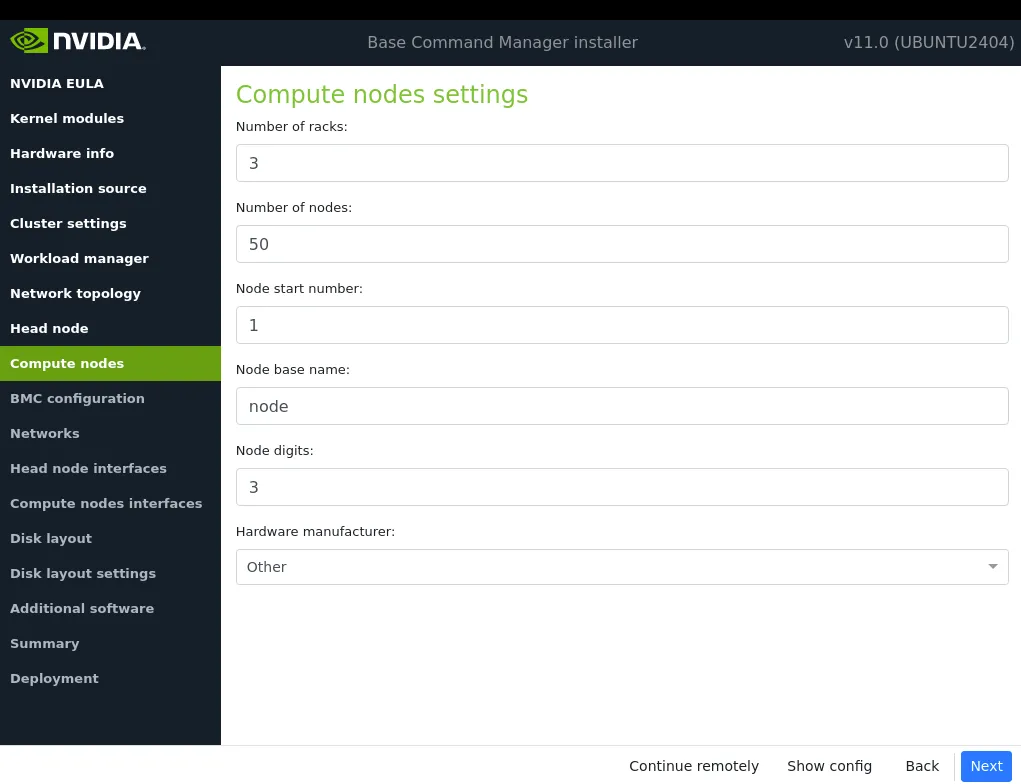
*Figure 3.14: Compute node settings*
Clicking `Next` leads to the `BMC configuration` screen, described next.
### 3.3.12 BMC Configuration
The BMC (Baseboard Management Controller) screen (figure [3.15](#fig-mi-bmcconfiguration)) configures BMCs compatible with IPMI, iDRAC, iLO, or CIMC.
The BMCs can be configured for the head or compute nodes.
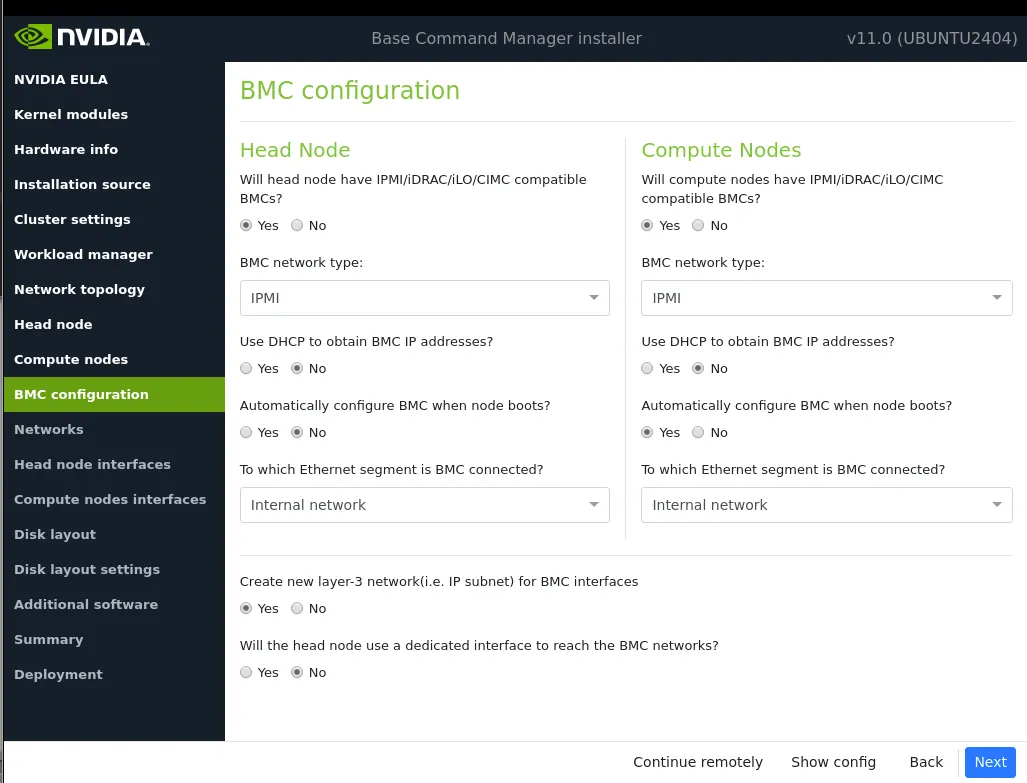
*Figure 3.15: BMC configuration*
If the administrator confirms that the nodes are to use BMCs (Baseboard Management Controllers) that are compatible with IPMI, iLO, CIMC, iDRAC, or Redfish, then the BMC network options appear.
By default, for the compute nodes, the BMC is automatically configured.
For a Type 1 network, the head node BMC is often connected to an ethernet segment that has the external network running on it, while the BMCs on the compute nodes are normally connected to an ethernet segment that has the internal network on it.
Once a network associated with the ethernet segment is chosen, it means that further BMC-related networking values can be set for the BMCs.
A new Layer 3 IP subnet can be created for BMC interfaces.
The BMC interface can be configured as a shared physical interface with an already existing network interface. However this can in some cases cause problems during early system BIOS checks. A dedicated physical BMC interface is therefore recommended.
If a BMC is configured, then the BMC password is set to a random value. Retrieving and changing a BMC password is covered in [section 3.7.2 of the *Administrator Manual*](/admin/configuring#372-bmc-authentication). BMC configuration is discussed further in [section 3.7 of the *Administrator Manual*](/admin/configuring#37-configuring-bmc-ipmiilodraccimcredfish-interfaces).
Clicking `Next` leads to the `Networks` screen, described next.
### 3.3.13 Networks
The `Networks` configuration screen (figure [3.16](#fig-networksconfigscreen)) displays the predefined list of networks, based on the selection of network topology and BMC networks made in the earlier screens.
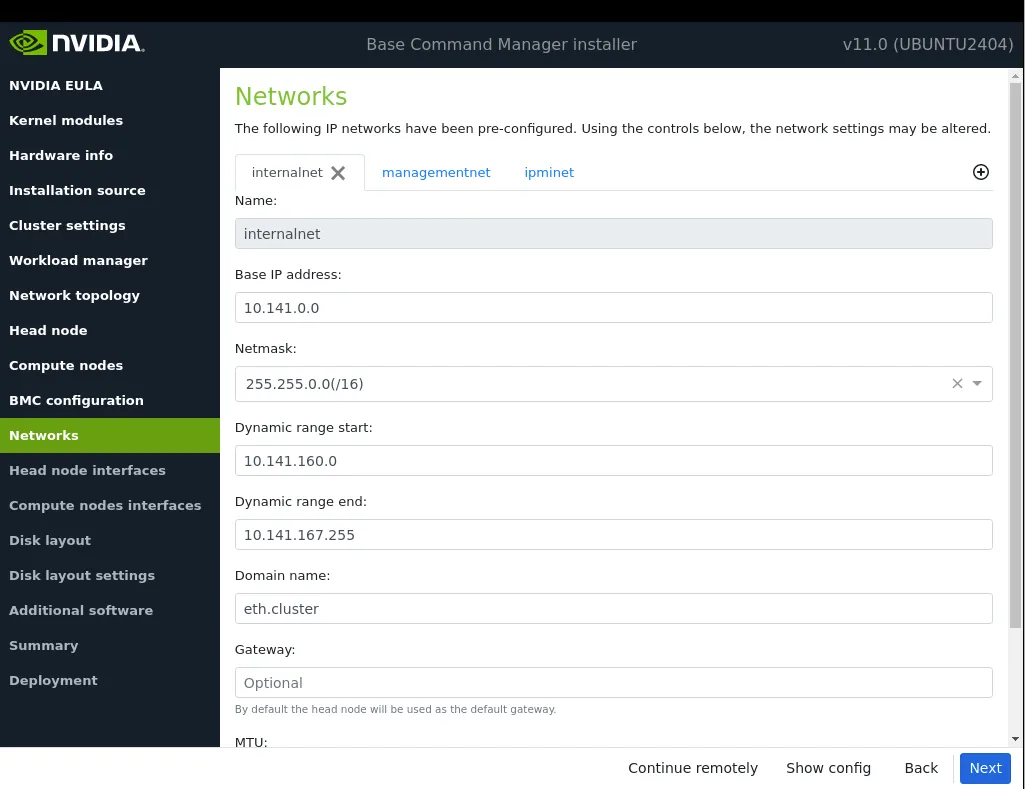
*Figure 3.16: Networks configuration, internalnet tab*
The `Networks` configuration screen allows the parameters of the network interfaces to be configured via tabs for each network. In addition to any BMC networks:
For a *type 1* setup, an external network and an internal network are always defined.
For a *type 2* setup, an internal network is defined but no external network is defined.
For a *type 3* setup, an internal network and a management network are defined.
Thus, for a type 1 network, for example, the networking details:
* for `externalnet` correspond to the details of the head node external network interface.
* for `internalnet` correspond to the details of how the compute nodes are configured.
* for a BMC network correspond to the details of how the BMC is connected
Additional custom networks can be added in the `Networks` configuration screen by clicking on the ⊕ button.
Clicking `Next` in this screen validates all network settings. Invalid settings for any of the defined networks cause an alert to be displayed, explaining the error. A correction is then needed to proceed further. Settings may of course be valid, but incorrect—the validation is merely a sanity check. It may be wise for the cluster administrator to check with the network specialist that the networks that have been configured are set up as really intended.
If all settings are valid, then the `Next` button brings the installation on to the `Head node interfaces` screen, described next.
### 3.3.14 Head node interfaces
The `Head node interfaces` screen (figure [3.17](#fig-networkinterface_type1)) allows a review of the head node network interfaces and their proposed settings.
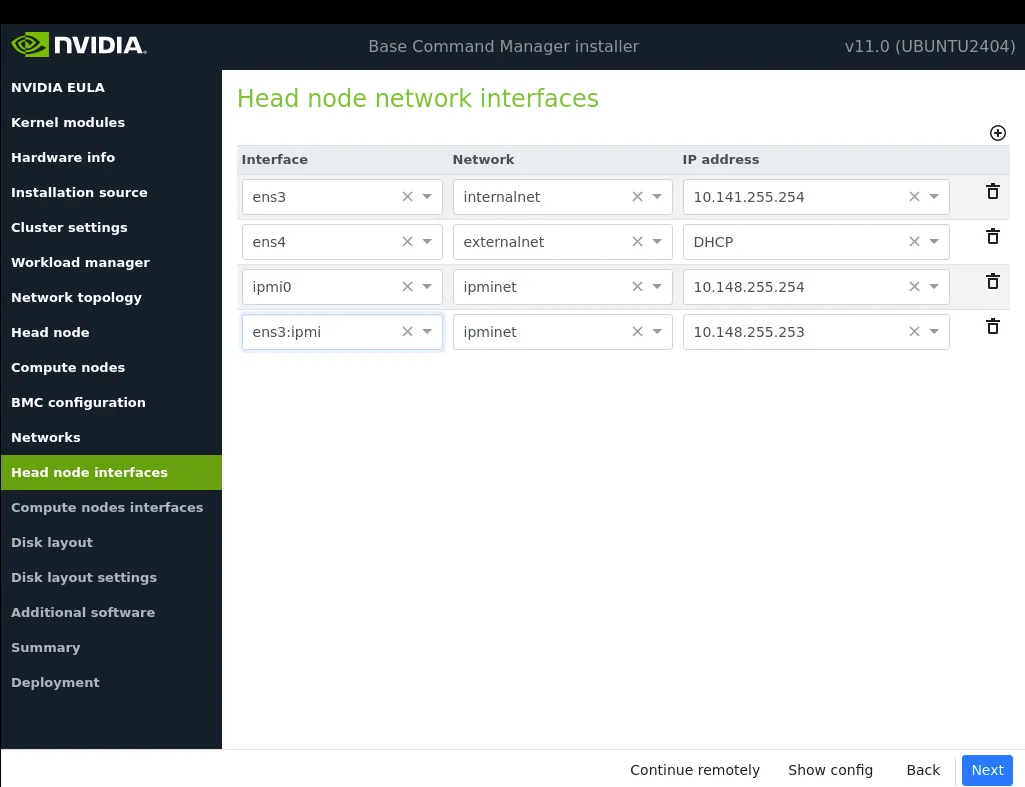
*Figure 3.17: Head node interfaces configuration*
If a BMC network is to be shared with a regular network, then an alias interface is shown too. In figure [3.17](#fig-networkinterface_type1) an alias interface, `ens3:ipmi`, is shown.
Interfaces can be created or removed.
Dropdown selection allows the proposed values to be changed. It is possible to swap network interfaces with dropdown selection.
Clicking the `Next` button brings the installation on to the `Compute node interfaces` screen, described next.
### 3.3.15 Compute node interfaces
The `Compute node interfaces` screen (figure [3.18](#fig-mi-computenodesinterfaces)) allows a review of the compute node network interfaces and their proposed settings.
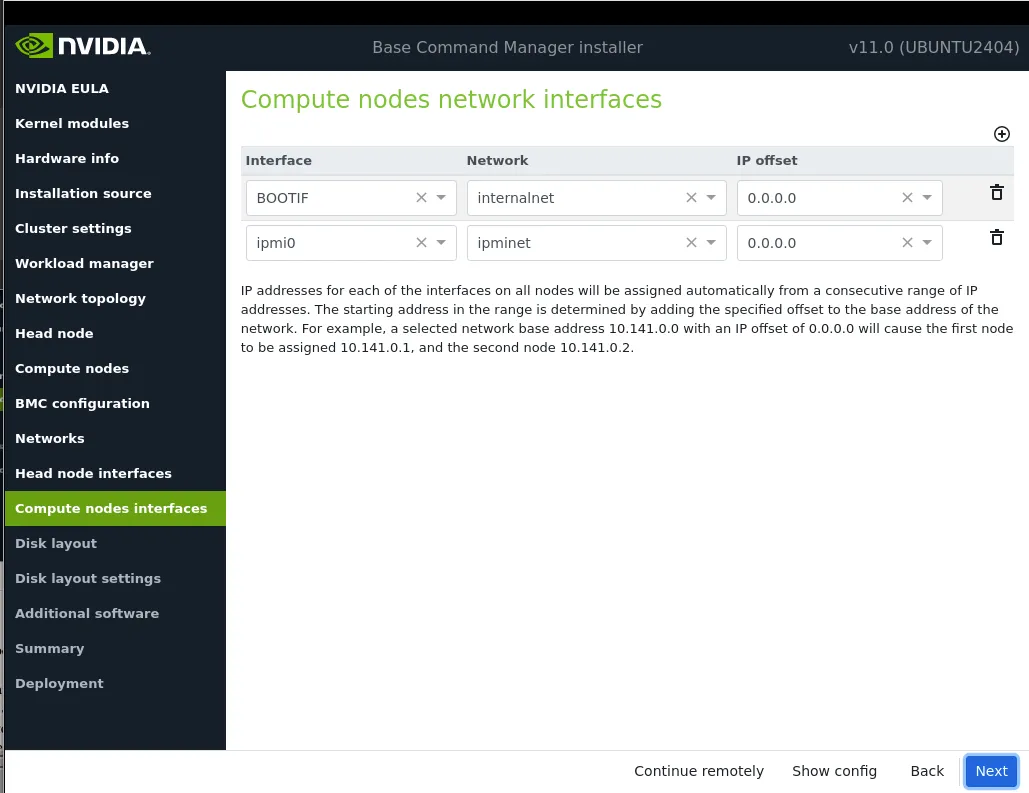
*Figure 3.18: Compute node interfaces configuration*
The boot interface `BOOTIF` is used to pick up the image for the node via node provisioning.
The IP offset is used to calculate the IP address assigned to a regular node interface. The nodes are conveniently numbered in a sequence, so their interfaces are typically also given a network IP address that is in a sequence on a selected network. In BCM, interfaces by default have their IP addresses assigned to them sequentially, in steps of 1, starting after the network base address.
The default IP offset is 0.0.0.0, which means that the node interfaces by default start their range at the usual default values in their network.
With a modified IP offset, the point at which addressing starts is altered. For example, a different offset might be desirable when no IPMI network has been defined, but the nodes of the cluster do have IPMI interfaces in addition to the regular network interfaces. If a modified IP offset is not set for one of the interfaces, then the `BOOTIF` and `ipmi0` interfaces get IP addresses assigned on the same network by default, which could be confusing.
However, if an offset is entered for the `ipmi0` interface, then the assigned IPMI IP addresses start from the IP address specified by the offset. That is, each modified IPMI address takes the value:
*address that would be assigned by default + IP offset*
**Example**
Taking the case where BOOTIF and IPMI interfaces would have IP addresses on the same network with the default IP offset:
Then, on a cluster of 10 nodes, a modified IPMI IP offset of 0.0.0.20 means:
* the BOOTIF interfaces stay on 10.141.0.1,...,10.141.0.10 while
* the IPMI interfaces range from 10.141.0.21,...,10.141.0.30
Clicking the `Next` button brings the installation on to the `Disk layout` screen, described next.
### 3.3.16 Disk Layout
In the `Disk layout` configuration screen (figure [3.19](#fig-disklayout)) the administrator must select the drive on the head node where the BCM software is to be installed.
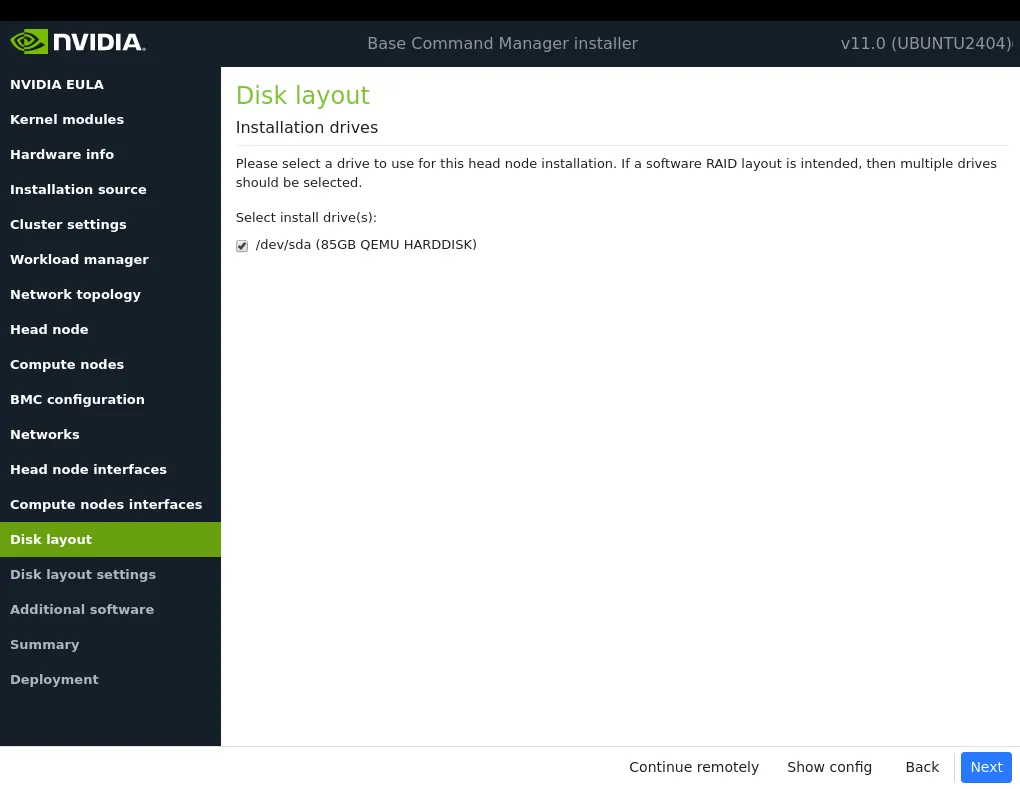
*Figure 3.19: Disk layout screen*
### 3.3.17 Disk Layout Settings
The next screen is the `Disk layout settings` configuration screen (figure [3.20](#fig-disklayoutsettings)).
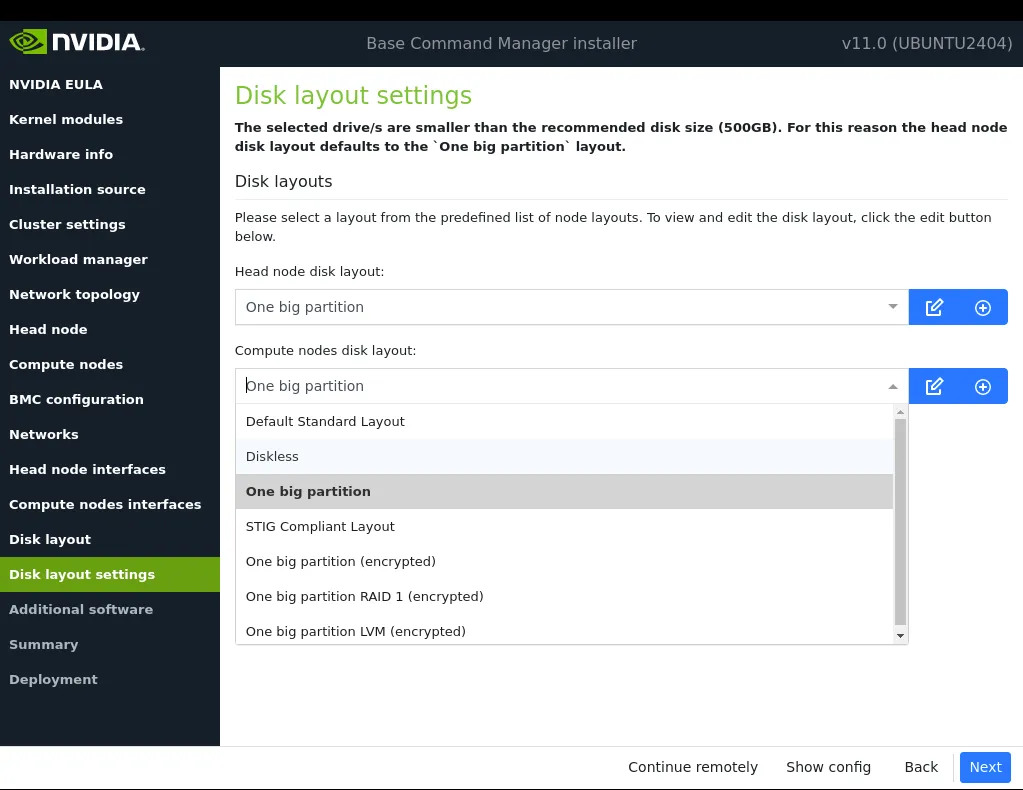
*Figure 3.20: Disk layout settings screen*
It is used to set the partitioning layouts. The partitioning layout XML schema is described in detail in [Appendix D of the *Administrator Manual*](/admin/partitioning).
The administrator must set the disk partitioning layout for the head node and regular nodes with the two options: `Head node disk layout` and `Compute nodes disk layout`.
* * The head node by default uses
* one big partition if it has a drive size smaller than about 500GB
* several partitions if it has a drive size greater than or equal to about 500GB.
* The compute node by default uses several partitions, using the `Default Standard Layout`.
A partitioning layout other than the default can be selected for installation from the drop-down options for the head node and regular nodes. Possible partitioning options include RAID, failover, [STIG-compliant](https://www.stigviewer.com/), and LUKS schemes.
* The  icon can be clicked to allow a custom partitioning layout specification to be added:
* as a file
* from the default template, for use as a starting point for a specification
* Partitioning layouts can be edited with the  icon. This brings up a screen (figure [3.21](#fig-disklayout_master)) that allows the administrator to view and change layout values within the layout’s configuration XML file:
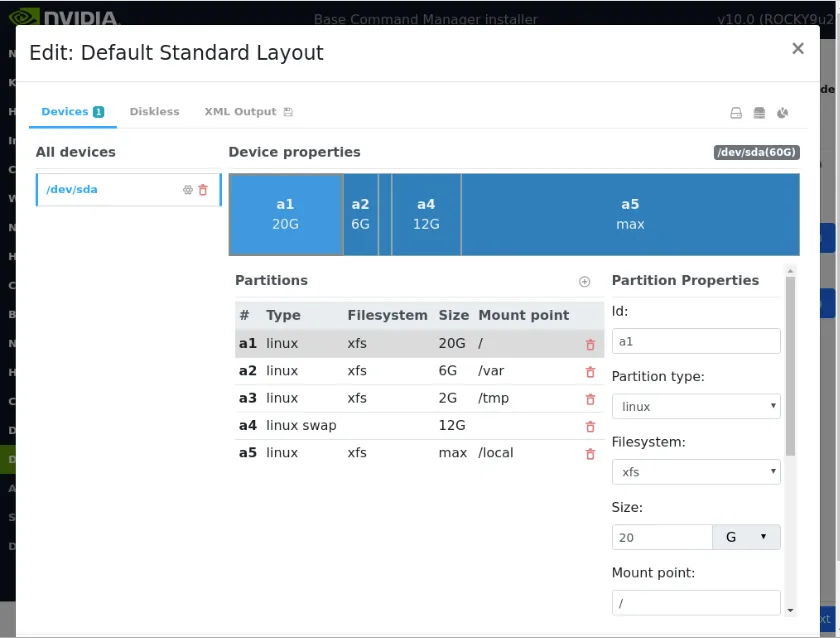
*Figure 3.21: Edit Disk Partitioning*
The XML schema is described in [Appendix D.1 of the *Administrator Manual*](/admin/partitioning#d1-structure-of-partitioning-definitionthe-global-partitioning-xml-schema-definition-file).
* The head node partitioning layout is the only installation setting that cannot easily be changed after the completion (section [3.3.20](#3320-deployment)) of installation. It should therefore be decided upon with care.
* By default, BCM mounts filesystems on the head node with ACLs set and extended attributes set.
* The XML schema allows the definition of a great variety of layouts in the layout’s configuration XML file:
**Example**
1. for a large cluster or for a cluster that is generating a lot of monitoring or burn data, the default partition layout partition size for `/var` may fill up with log messages because log messages are usually stored under `/var/log/`. If `/var` is in a partition of its own, as in the default head node partitioning layout presented when the hard drive is about 500GB or more, then providing a larger size of partition than the default for `/var` allows more logging to take place before `/var` is full. Modifying the value found within the `` tags associated with that partition in the XML file modifies the size of the partition that is to be installed. This can be conveniently done from the front end shown in figure [3.21](#fig-disklayout_master).
2. the administrator could specify the layout for multiple non-RAID drives on the head node using one `` tag pair within an enclosing `` tag pair for each drive.
3. For non-boot partitions, it is possible to set up LUKS encrypted disk partitions on head and regular nodes. Scrolling through the `Partition Properties` column of figure [3.21](#fig-disklayout_master), and ticking the `Enable encryption` checkbox, makes the LUKS configuration parameters available (figure [3.22](#fig-disklayout_luksdiskencryption)):
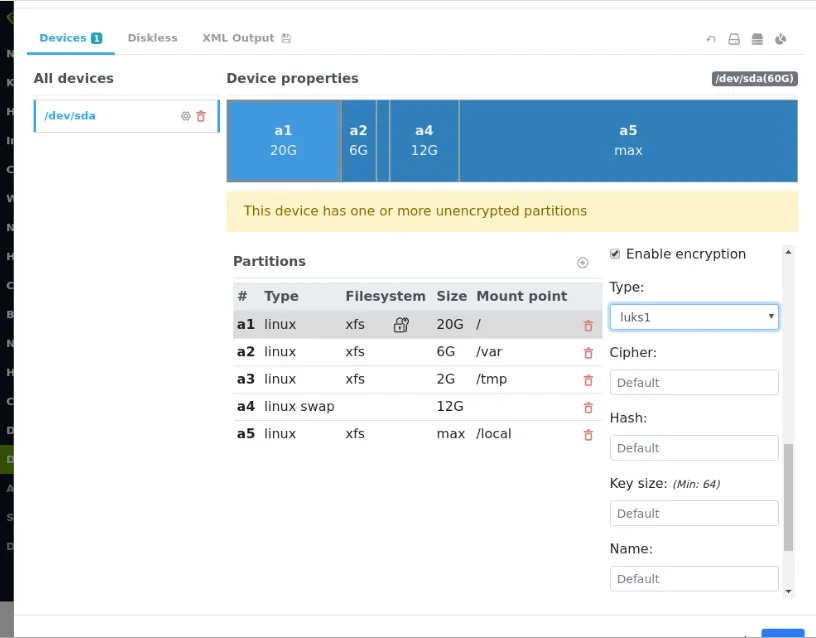
*Figure 3.22: Disk Encryption Configuration*
The parameters can be left at their default values to set up an encrypted partition.
If setting parameters, then there are some existing fields to set the more common parameters. Settings for less-common parameters that have no existing fields can be specified and appended to the field with the `Additional Parameters:` setting.
The settings are automatically stored in the XML specification for the disk layout and can be viewed there by selecting the `XML Output` tab.
How a cluster administrator applies this configured disk encryption to a node that is booting up is covered in [Appendix D.17 of the *Administrator Manual*](/admin/partitioning#d17-example-luks-disk-encryption-with-standard-partitioning).
Clicking `Next` on the `Disk layout` screen leads to the `Additional software` screen, described next.
### 3.3.18 Additional Software
The `Additional software` screen (figure [3.23](#fig-mi-additionalsoftware)) displays software that can be added to the cluster if it was provided with the installer. The software is only provided to the installer if selected when generating the installer ISO. CUDA is a possible additional software.
If NVIDIA AI Enterprise is to be used, then these options must not be selected.
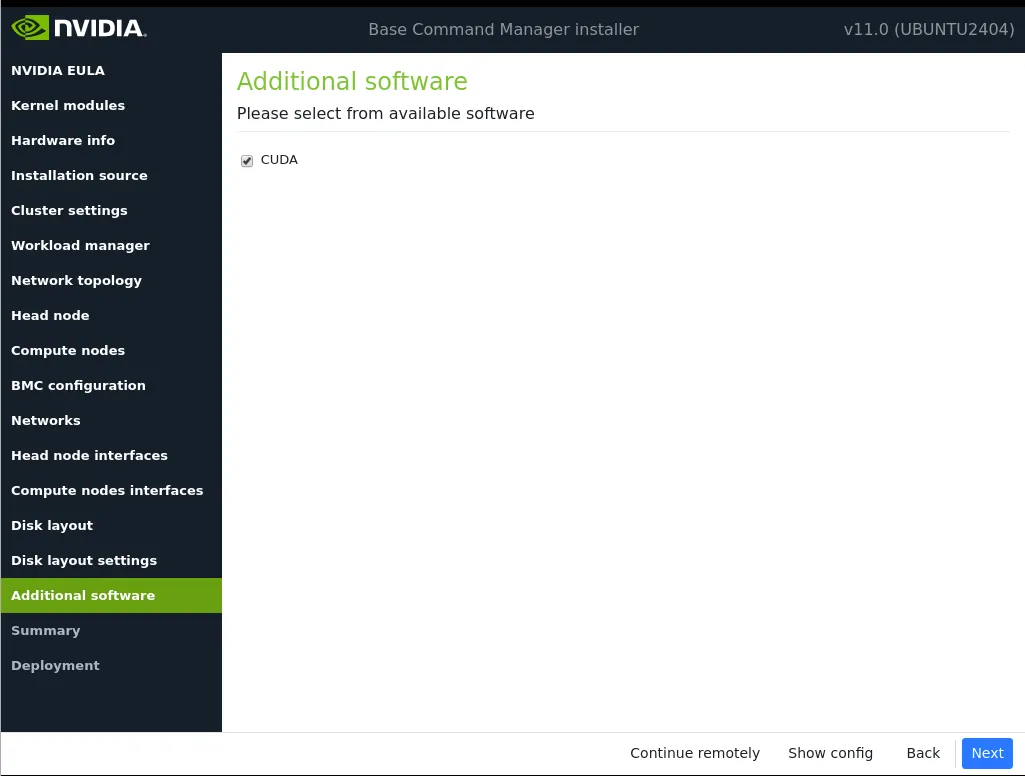
*Figure 3.23: Additional software screen*
Clicking `Next` on the `Additional software` screen leads to the `Summary` screen, described next.
### 3.3.19 Summary
The `Summary` screen (figure [3.24](#fig-summary)), summarizes some of the installation settings and parameters configured during the previous stages.
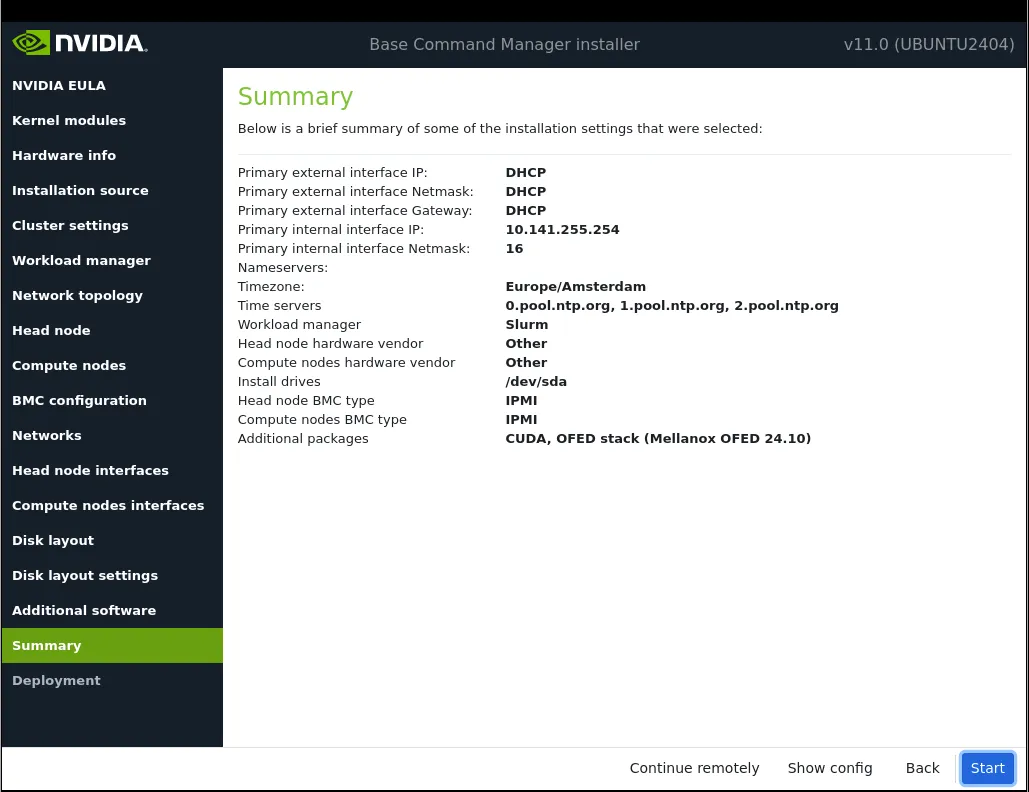
*Figure 3.24: Summary of Installation Settings*
Going back to correct values is still possible at this stage.
Clicking on the `Next` button leads to the “`Deployment`” screen, described next.
### 3.3.20 Deployment
The `Deployment` screen (figure [3.25](#fig-installcomplete)) shows the progress of the deployment. It is not possible to navigate back to previous screens once the installation has begun. The installation log can be viewed in detail by clicking on `Install log`.
The `Reboot` button restarts the machine. Alternatively, the head node can be set to automatically reboot when deployment is complete.
During the reboot, the BIOS boot order may need changing, or the DVD may need to be removed, in order to boot from the hard drive on which BCM has been installed.
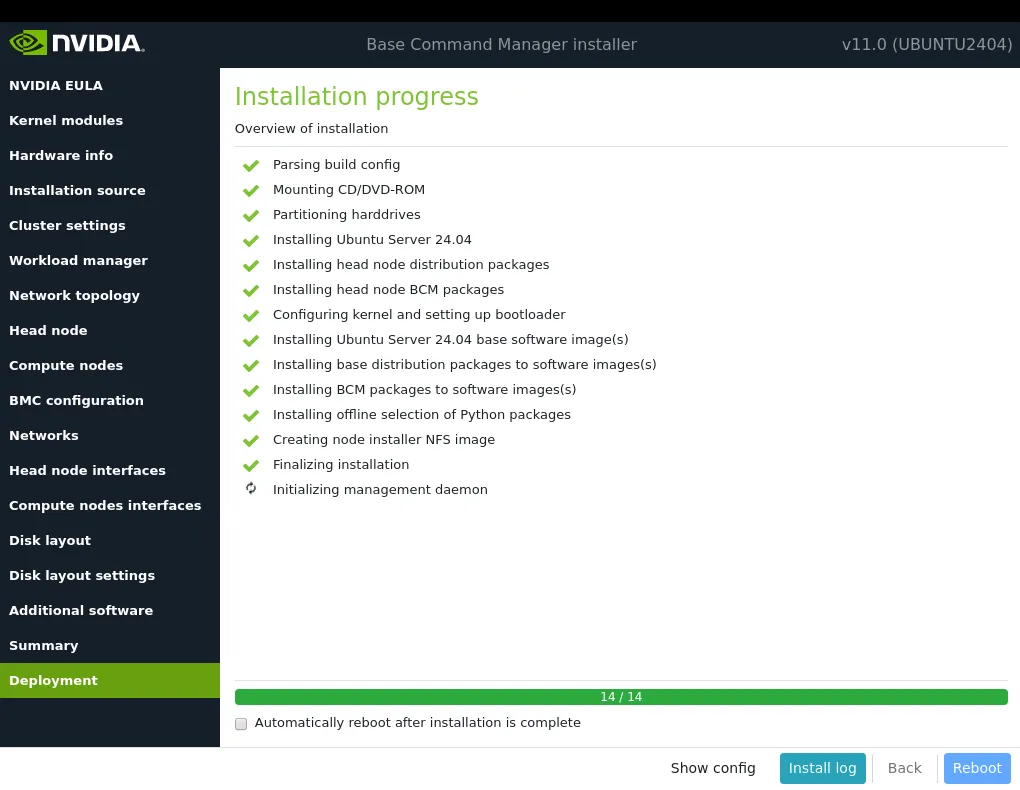
*Figure 3.25: Deployment completed*
After rebooting, the system starts and presents a login prompt. The cluster administrator can log in as `root` using the password that was set during the installation procedure.
The cluster should then be updated with the latest packages ([Chapter 9 of the *Administrator Manual*](/admin/softwareimagemanagement)).
After the latest updates have been installed, the system is ready to be configured.
### 3.3.21 Licensing And Further Configuration
The administrator with no interest in the add-on method of installation can skip on to installing the license (Chapter [4](/installation/licensing)). After that, the administrator can look through the [*Administrator Manual*](/admin/introduction), where tools and concepts used with BCM are introduced, so that further cluster configuration can be carried out.
## 3.4 Head Node Installation: Ansible Add-On Method
An *add-on* installation, in contrast to the bare metal installation (section [3.3](#33-head-node-installation-bare-metal-method)), is an installation that is done onto a machine that is already running one of the supported distributions of section [2.1](/installation/introduction#21-what-is-nvidia-base-command-manager). The installation of the distribution can therefore be skipped for this case. The add-on is not recommended for inexperienced cluster administrators. This is because of the following reasons:
* The installation configuration may conflict with what has already been installed. The problems that arise can always be resolved, but an administrator that is not familiar with BCM should be prepared for troubleshooting.
* Additional repositories typically need to be added
* Dependency and deprecated issues may need workarounds.
* Resolving an issue due to a custom configuration in the OS distribution image is outside the scope of standard support.
Using the head node installer Ansible collection is the recommended method for carrying out add-on installations.
**Aside:** Ansible can also be used with BCM once NVIDIA Base Command Manager is installed. This integration is described in [section 14.10 of the *Administrator Manual*](/admin/administration#1410-ansible-and-nvidia-base-command-manager).
### 3.4.1 An Overview Of Ansible
Ansible is a popular automated configuration management software.
The BCM administrator is expected to have some experience already with Ansible. The basic concepts are covered in the official Ansible documentation at [https://docs.ansible.com/ansible/latest/user_guide/basic_concepts.html](https://docs.ansible.com/ansible/latest/user_guide/basic_concepts.html), and further details are accessible from that site too.
As a reminder:
* Ansible is designed to administer groups of machines from an [*inventory*](https://docs.ansible.com/ansible/latest/user_guide/basic_concepts.html#inventory) of machines.
* An [Ansible *module*](https://docs.ansible.com/ansible/latest/user_guide/basic_concepts.html#modules) is code, usually in Python, that is executed by Ansible to carry out [Ansible *tasks*](https://docs.ansible.com/ansible/latest/user_guide/basic_concepts.html#tasks), usually on a remote node. The module returns values.
* An [Ansible *playbook*](https://docs.ansible.com/ansible/latest/user_guide/playbooks.html) is a YAML file. The file declares a configuration that is to be executed (“the playbook is followed”) on selected machines. The execution is usually carried out over SSH, by placing modules on the remote machine.
* Traditionally, official Ansible content was obtained as a part of milestone releases of Ansible Engine, (the Red Hat version of Ansible for the enterprise).
* Since Ansible version 2.10, the official way to distribute content is via Ansible content [*collections*](https://docs.ansible.com/ansible/latest/user_guide/basic_concepts.html#collections). Collections are composed of Ansible playbooks, modules, module utilities and plugins. The collection is a formatted set of tools used to achieve automation with Ansible.
* The official Ansible list of collections is at [https://docs.ansible.com/ansible/latest/collections/index.html#list-of-collections](https://docs.ansible.com/ansible/latest/collections/index.html#list-of-collections). At the time of writing of this section (March 2022) there were 100 collections.
* Community-supported collections are also available, at `galaxy.ansible.com`.
### 3.4.2 The Head Node Add-on Installer And Ansible
The head node installer is shipped as an Ansible collection. If the correct parameters are defined in the user’s playbooks and roles, then the collection defines `brightcomputing.installer.head_node`. The `brightcomputing.installer.head_node` deploys the BCM head node onto the supported distribution,
The head node installation also includes deployment of the default software image and node-installer image components, which is required for provisioning compute nodes. Using the head node installer collection requires practical knowledge of Ansible and BCM. Add-on deployment is supported on both bare-metal and public cloud (AWS and Azure).
#### 3.4.2.1 Locations For The Head Node Add-on Installer
* [https://galaxy.ansible.com/ui/repo/published/brightcomputing/installer110/](https://galaxy.ansible.com/ui/repo/published/brightcomputing/installer110/) is the official Ansible Galaxy location for detailed documentation about the head node installer collection and its usage.
* [https://github.com/Bright-Computing/bright-installer-ansible/tree/main/playbooks](https://github.com/Bright-Computing/bright-installer-ansible/tree/main/playbooks) contains additional documentation and example playbooks.
### 3.4.3 Deploying A RHEL Head Node From A Rocky BCM ISO
NVIDIA Base Command Manager ships a BCM ISO for each supported distribution, including Rocky, RHEL, AlmaLinux, Ubuntu, and SLES. The RHEL ISO cannot be redistributed to customers under Red Hat’s licensing terms, so a head node that must run RHEL is instead deployed from the NVIDIA Base Command Manager Rocky ISO. Rocky is binary-compatible with RHEL and freely redistributable, which makes it a suitable BCM package source for a RHEL host.
A complication is that a BCM ISO contains two distinct sets of packages:
* BCM’s own packages, which install on any EL-family distribution, including RHEL.
* A bundled copy of the OS packages the ISO was built against—on the Rocky ISO, these are Rocky’s, not RHEL’s.
Serving that second set to a RHEL host causes version conflicts (for example, a Rocky `glibc` against the host’s RHEL `glibc`). The deployment therefore uses the ISO only for BCM’s packages, disables the ISO’s OS repositories, and obtains the RHEL distribution packages from a separate RHEL source, such as an internal mirror or the host’s own subscription.
In practice this is four steps:
1. The head node installer Ansible role is pointed at the Rocky BCM ISO (`install_medium: dvd`).
2. The ISO’s OS repositories are disabled so Rocky RPMs are not layered onto RHEL.
3. The head node’s RHEL packages are provided from a separate source—an internal mirror or the host’s subscription.
4. The base distribution for the compute-node software image is chosen—the Rocky image from the ISO (the default), or a custom RHEL image built from a separate tarball.
Compute nodes boot from a software image, so a normal cluster deployment builds one; the decision here is which distribution that image is based on. The two recipes that follow cover both options, and the per-setting notes after them explain each line.
#### 3.4.3.1 Recipe 1—The Rocky Software Image Is Kept (Simplest)
The head node runs RHEL; compute nodes get the Rocky image that ships on the ISO.
**Example**
```bash
# host_vars/hn-rhel9u6
install_medium: dvd
install_medium_dvd_path: /root/bcm-11-rocky9.6.iso
# Don't let the Rocky ISO enable its OS repos on top of RHEL:
bright_iso_enable_dist_repos: false
bright_iso_enable_installer_repos: false
# Give the head node its RHEL packages from a separate mirror:
pre_install_repo_files:
- repos/RedHat_9.6-dist.repo
# post_install_default_image_archive left UNSET -> the role uses the
# Rocky archive shipped on the ISO for the compute-node image.
```
#### 3.4.3.2 Recipe 2—A Custom RHEL Software Image Is Built
Same as Recipe 1, but with a pre-built RHEL root-filesystem tarball supplied, and `cm-create-image` told to build against the RHEL repository.
**Example**
```bash
# host_vars/hn-rhel9u6
install_medium: dvd
install_medium_dvd_path: /root/bcm-11-rocky9.6.iso
bright_iso_enable_dist_repos: false
bright_iso_enable_installer_repos: false
pre_install_repo_files:
- repos/RedHat_9.6-dist.repo
# 1) fetch a pre-built RHEL rootfs tarball onto the head node...
pre_install_files:
- url: https://mirror.internal/images/RHEL9u6.tar.gz
dest: /root/RHEL9u6.tar.gz
# 2) ...and use it as the default-image / node-installer source:
post_install_default_image_archive: /root/RHEL9u6.tar.gz
# 3) build the image against the RHEL repo, and skip the Rocky DVD repos:
cm_create_image_extra_args: >-
--basedistrepo /etc/yum.repos.d/RedHat_9.6-dist.repo
--disable-dvd-repos bright-dvd-distextra,bright-dvd-repo-cuda,bright-dvd-repo-bcm-extra
exclude_software_images_distro_packages:
- redhat-indexhtml
- hponcfg
```
#### 3.4.3.3 What Each Setting Does
**`bright_iso_enable_dist_repos` and `bright_iso_enable_installer_repos`:** the ISO writes repository files for its own (Rocky) packages. These flags keep them disabled so `dnf` does not pull Rocky RPMs onto the RHEL host. Defaults are `true` and `false` respectively. On a RHEL host, both should be set to `false`.
**`pre_install_repo_files`:** a convenience for putting a RHEL package source in place using `.repo` files copied from the Ansible controller. The files go into the head node’s `/etc/yum.repos.d/` before BCM repositories are set up. The head node needs RHEL packages reachable by that point. How they get there is up to the administrator—a subscription already registered on the host, repositories configured by other means, or this setting. When used, the entries are paths to `.repo` files, resolved from the playbook’s `files/` directory.
**`pre_install_files`:** files staged on the head node before installation. `url:` is used to download a file on the target, or `src:` to upload one from the controller. In Recipe 2 this fetches the RHEL image tarball.
**`post_install_default_image_archive`:** the root filesystem tarball used to build the compute-node default image and the node-installer image. If it is left unset, the Rocky archive from the ISO is used. If it is set to a RHEL tarball, a RHEL compute-node image is built instead.
**`cm_create_image_extra_args`:** extra flags appended to `cm-create-image`. `--basedistrepo` points it at the RHEL repository. `--disable-dvd-repos` drops the Rocky DVD repositories from the image build.
#### 3.4.3.4 Airgapped Versus Online—The Only Difference
Deploying airgapped only changes where the RHEL packages come from:
* **Airgapped**—an internal-mirror `.repo` file is copied in via `pre_install_repo_files`, and `--basedistrepo` points at it.
* **Online (subscribed host)**—`pre_install_repo_files` is omitted, and `--basedistrepo` points at the host’s own subscription repository (`/etc/yum.repos.d/redhat.repo`) instead.
#### 3.4.3.5 Known Limitations
* The ISO’s distribution repositories should be kept disabled on a RHEL host. The ISO serves Rocky RPMs. Enabling them alongside RHEL causes hard package conflicts (for example, a Rocky 9.6 `glibc` against a RHEL 9.8 `glibc`). `bright_iso_enable_dist_repos: false` should be set, and RHEL packages provided from a RHEL mirror or subscription instead.
* The Rocky ISO carries a Rocky software-image archive, so a RHEL software image requires a separately supplied, pre-built RHEL tarball.
* The EL minor version of the Rocky ISO should be matched to the RHEL host—for example, a RHEL 9.6 host needs a `rocky9.6` BCM ISO.
* The `--disable-dvd-repos` argument to `cm-create-image` requires a patched `cm-create-image` that has not yet been released. Until that change ships, it should be omitted from `cm_create_image_extra_args`, relying on `bright_iso_enable_dist_repos: false` alone.
## 3.5 Enabling Remote Browser-Based Installation Via The Text Mode Installer
When carrying out an installation as in section [3.3](#33-head-node-installation-bare-metal-method), the installer is normally run on the machine that is to be the head node of the cluster. A text mode installer is presented as an alternative to the GUI installer (figure [3.1](#fig-isobootmenubasecommand)).
The text mode installer is a very minimal installer compared with the GUI installer. The GUI installation is therefore usually preferred.
However, in some cases the GUI installation can fail to start. For example, if X is not working correctly for some reason on the head node.
A way to still run a GUI installation is then to first run the text mode installer, and use it to run the `Remote Install` option from its main menu (figure [3.26](#fig-ncurses-remoteinstallation-mainmenu.png)):

*Figure 3.26: ncurses Remote Installation Option*
This then sets up network connectivity, and provides the cluster administrator with a remote URL (figure [3.27](#fig-ncurses-remoteinstallation-remoteurl.png)):
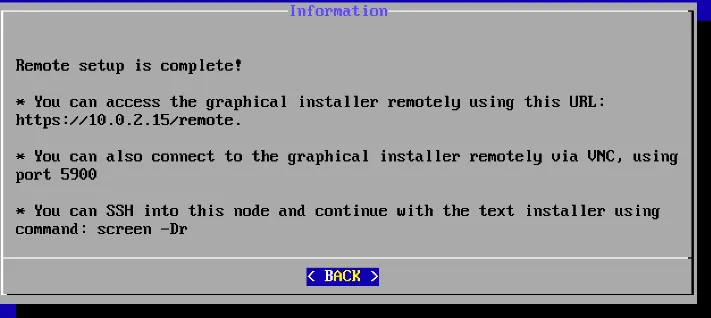
*Figure 3.27: ncurses Remote Installation Remote URL Displayed*
A browser that is on a machine with connectivity to the head node can then use the provided remote URL. This then brings up the GUI installer within the browser.
An alternative to running the text mode installer to obtain the remote URL is to use the `netconf` kernel parameter instead. Details on configuring this are given in section [3.3.1.1](#3311-optional-the-netconf-custom-kernel-parameter).