> This page is for version 11 (default).
> For other versions, use one of these documentation indexes:
> - 11 (default): https://docs.nvidia.com/base-command-manager/product-manuals/11/llms.txt
> - 10: https://docs.nvidia.com/base-command-manager/product-manuals/10/llms.txt
> For clean Markdown of any page, append .md to the page URL.
> For a complete documentation index, see https://docs.nvidia.com/base-command-manager/product-manuals/llms.txt.
> For AI client integration (Claude Code, Cursor, etc.), connect to the MCP server at https://docs.nvidia.com/base-command-manager/product-manuals/_mcp/server.
# NVIDIA Autonomous Hardware Recovery
## 6.1 Introduction
NVIDIA Mission Control can provide autonomous hardware recovery. This capability can be installed on a cluster managed by BCM.
It is designed to allow a user to carry out:
* automated baseline tests to validate hardware
* automated health checks to detect hardware failures at the tray, rack, node, and system levels
* automated break/fix workflows (guided recovery on failure)
Autonomous hardware recovery can be integrated with an NVIDIA Base Command Manager (BCM) that is running a Kubernetes instance. The integration is carried out with the BCM script `cm-mission-control-setup` (section [6.3](#63-installation-of-nvidia-autonomous-hardware-recovery-using-cm-mission-control-setup)).
The script deploys the autonomous hardware recovery *agents* on all nodes. These agents communicate with the autonomous hardware recovery *backends* that are deployed within Kubernetes worker nodes.
BCM integration allows API access to the agents and provides a GUI to carry out *runbooks*.
More details on autonomous hardware recovery can be found in its dedicated documentation.
The scope of this chapter of the manual is to give guidance on autonomous hardware recovery deployment, and how to access its API and GUI.
## 6.2 Prerequisites To Install Autonomous Hardware Recovery
Before running the `cm-mission-control-setup` script to install autonomous hardware recovery, the following prerequisites must be met:
* A Kubernetes instance that is integrated with BCM ([section 4.2 of the *Containerization Manual*](/containerization/kubernetes#42-kubernetes-setup)) must be running.
* The Kubernetes instance must have the Kubernetes Ingress NGINX controller add-on for route-based access control installed.
* A user must be added if an extra administrator account is wanted for autonomous hardware recovery. For example:
**Example**
```bash
root@basecm11:~# cmsh
[basecm11]% user add extraadmin
[basecm11->user*[extraadmin*]]% set password
enter new password:
retype new password:
[basecm11->user*[extraadmin*]]% commit
```
This extra administrator can then be specified when installing with `cm-mission-control-setup` later on (section [6.3](#63-installation-of-nvidia-autonomous-hardware-recovery-using-cm-mission-control-setup)).
* When the Kubernetes instance is set up with the BCM Kubernetes setup wizard (`cm-kubernetes-setup`), the question `Do you want to install Kyverno Policy Engine?` must be answered no. The default answer is yes. If Kyverno is present when autonomous hardware recovery is installed, then the installation fails. Kyverno and the NVIDIA Mission Control Kubernetes security policies should be installed afterwards, once autonomous hardware recovery and autonomous job recovery have been installed. How to install and configure them is described in the Kubernetes Security Hardening section of the NVIDIA Mission Control Software Installation Guide:\
[https://docs.nvidia.com/mission-control/docs/nmc-software-installation-guide/2.3.1/nmc-kube-security-guide.html](https://docs.nvidia.com/mission-control/docs/nmc-software-installation-guide/2.3.1/nmc-kube-security-guide.html)
As a rough guide to the physical hardware requirements for autonomous hardware recovery, it is expected that a cluster with hundreds of nodes should use a backend node with at least 16 CPU cores per node, at least 32 GB RAM per node, and at least 2 local (non-NFS) hard drives. The hard drives should be at least:
* one unpartitioned drive of 1.5 TB
* one drive with filesystems
* one filesystem with at least 500 GB available for the autonomous hardware recovery backend
* one filesystem with at least 20 GB available under `/var` for storing container images
More precise physical hardware requirements are best determined with the help of NVIDIA engineers.
## 6.3 Installation Of NVIDIA Autonomous Hardware Recovery Using `cm-mission-control-setup`
Running `cm-mission-control-setup` as the root user starts up the TUI installation (figure [6.1](#fig-cm-mission-control-setup-install-ngg)):

*Figure 6.1: Selection from cm-mission-control-setup of autonomous hardware recovery*
Selecting `NVIDIA Mission Control autonomous hardware recovery` brings up a user selection screen. The extra administrator account(s) set up earlier for administration of autonomous hardware recovery can then be specified.
After the extra administrator accounts have been specified, the Helm registry credentials screen (figure [6.2](#fig-cm-mission-control-setup-install-ngg-helm-credentials)) comes up:
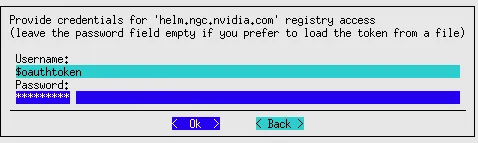
*Figure 6.2: Setting Helm credentials for autonomous hardware recovery*
If the Helm registry password is accepted, then the NVCR registry credentials screen (figure [6.3](#fig-cm-mission-control-setup-install-ngg-nvcr-credentials)) comes up:
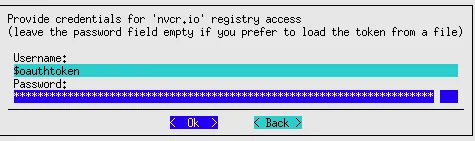
*Figure 6.3: Setting NVCR credentials for autonomous hardware recovery*
If the NVCR registry password is accepted, then the API registry credentials screen (figure [6.4](#fig-cm-mission-control-setup-install-ngg-api-credentials)) comes up:
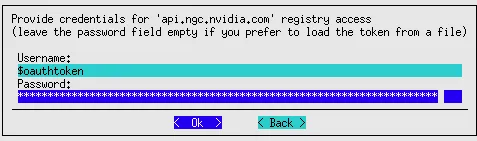
*Figure 6.4: Setting API credentials for autonomous hardware recovery*
If the password for API registry access is accepted, then a TLS certificates screen (figure [6.5](#fig-cm-mission-control-setup-install-ngg-tls-key-cert)) comes up:

*Figure 6.5: Setting TLS certificate files for autonomous hardware recovery*
After the path to the TLS certificates are entered, a backend node selection screen (figure [6.6](#fig-cm-mission-control-setup-install-ngg-backend-node-selection)) comes up:

*Figure 6.6: Setting a backend node for autonomous hardware recovery*
After a backend node is selected, a failover node selection screen (figure [6.7](#fig-cm-mission-control-setup-install-ngg-failover-node-selection)) comes up. Selection is optional:

*Figure 6.7: Setting an optional failover node for autonomous hardware recovery*
After that an agent category selection screen (figure [6.8](#fig-cm-mission-control-setup-install-ngg-agent-category-selection)) comes up:

*Figure 6.8: Setting an agent category for autonomous hardware recovery*
After that a backend customizations screen (figure [6.9](#fig-cm-mission-control-setup-install-ngg-backend-customizations)) comes up:

*Figure 6.9: Setting backend customizations for autonomous hardware recovery*
The endpoints set in the backend should resolve either to the active head node, or to the backend pod node.
A warnings screen appears if the domains cannot be resolved (figure [6.10](#fig-cm-mission-control-setup-install-ngg-configuration-warnings)):

*Figure 6.10: Configuration warnings for autonomous hardware recovery*
After that a storage customizations screen for the backend appears (figure [6.11](#fig-cm-mission-control-setup-install-ngg-storage-customizations-backend)) with suggested default values:

*Figure 6.11: Storage customizations for the backend for autonomous hardware recovery*
The TUI then asks if monitoring should be set up.
If monitoring is to be configured, then values for the Prometheus and Grafana Tempo endpoints, and for the Prometheus and Grafana Tempo API keys must be entered. The HTTP user ID and password for Loki logging must also be entered (figure [6.12](#fig-cm-mission-control-setup-install-ngg-monitoring-values)):

*Figure 6.12: Monitoring values configuration for autonomous hardware recovery*
The agent version should be set (figure [6.13](#fig-cm-mission-control-setup-install-ngg-agent-version)):

*Figure 6.13: Agent version setting for autonomous hardware recovery*
The configuration from the wizard can be saved and the configuration can be deployed (figure [6.14](#fig-cm-mission-control-setup-install-ngg-save-and-deploy)):

*Figure 6.14: Saving the configuration and deploying it for autonomous hardware recovery*
## 6.4 Verifying Autonomous Hardware Recovery Is Up And Ready
### 6.4.1 Checking The Pods
The pods that run autonomous hardware recovery should be visible in their namespace after the deployment. Their status should be `Running`, or `Completed`:
**Example**
```bash
root@basecm11:~# kubectl get pods -n autonomous-hardware-recovery
NAME READY STATUS RESTARTS AGE
shoreline-backup-29208910-dwrpv 0/1 Completed 0 14m
shoreline-backup-29208915-6fghc 0/1 Completed 0 9m19s
shoreline-backup-29208920-l7h25 0/1 Completed 0 4m19s
shoreline-disk-checker-8tsl4 0/1 Completed 0 47m
shorelinebackend-0 7/7 Running 0 46m
shorelinebackend-failover-0 7/7 Running 0 46m
root@basecm11:~#
```
### 6.4.2 Testing The Web Interface
The API is described in [https://ssapi.shorelinesoftware.net/](https://ssapi.shorelinesoftware.net/).
Access to the UI website can be tested by running a curl command against the `home` endpoint page of its domain. The domain was earlier picked up from its certificates, and in the following example is `app.api.onpremdev.shoreline-test20.io`
**Example**
```bash
root@basecm11:~# curl https://app.api.onpremdev.shoreline-test20.io/home/
```
This should get output similar to:
**Example**
```bash
```
The web UI can be accessed if the API domain and the application domain point to the external IP address of the head node.
If for some reason DNS resolution is not yet set up for the domain, then, for example, if the head node is at the IP address 10.3.195.201, the following entries can be added to `/etc/hosts` on the head node for the `api` and `app` subdomains:
```bash
10.3.195.201 api.api.onpremdev.shoreline-test20.io
10.3.195.201 app.api.onpremdev.shoreline-test20.io
```
A web browser that accesses `https://app.api.onpremdev.shoreline-test20.io/` from the head node then displays the autonomous hardware recovery interface landing page (figure [6.15](#figures/cm-mission-control-setup-install-ahr-gui-landing.png)):
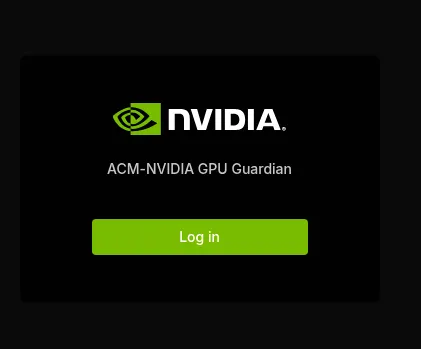
*Figure 6.15: Web GUI for autonomous hardware recovery: landing page*
A login can be carried out on the GUI with a username/password authentication (figure [6.16](#figures/cm-mission-control-setup-install-ahr-gui-login.png)):
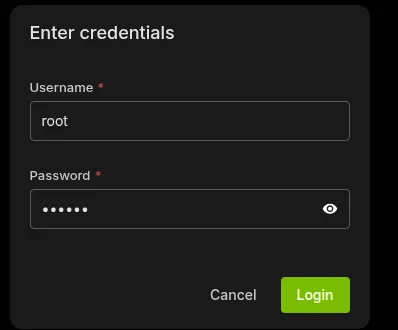
*Figure 6.16: Web GUI for autonomous hardware recovery: login page*
This opens up the autonomous hardware recovery dashboard.
A `hello world` runbook can be executed after login as follows:
* The runbook window is opened using the navigation panel item `Runbooks`
* A new runbook is created by clicking on the `New Runbook` button, and then on the `op statement` option (figure [6.17](#figures/cm-mission-control-setup-install-ahr-gui-new-runbook.png)):
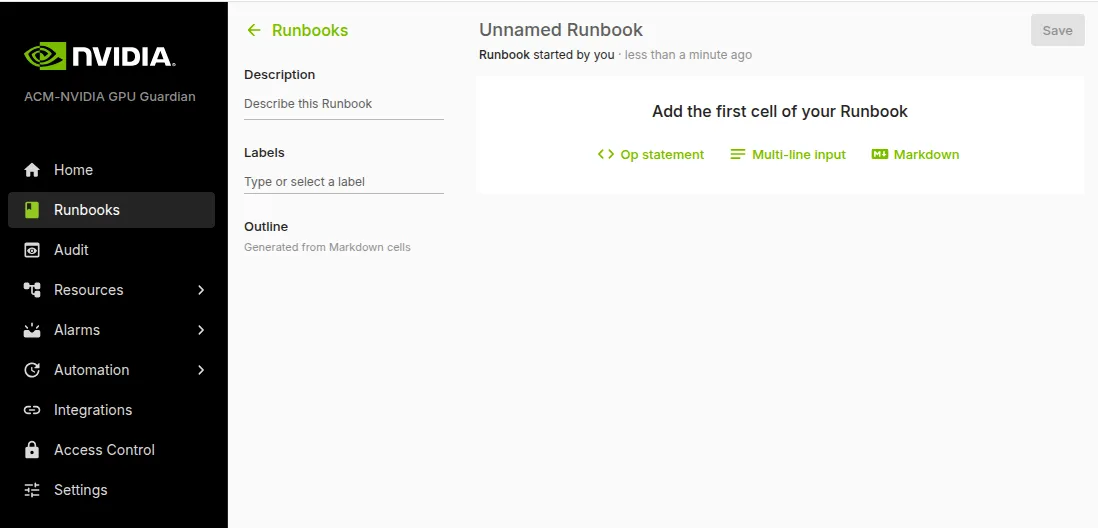
*Figure 6.17: Web GUI for autonomous hardware recovery: creating a new runbook*
* A cell opens up and prompts the user to enter a statement.
The following statement can be added:
host | `echo Hello, World!`
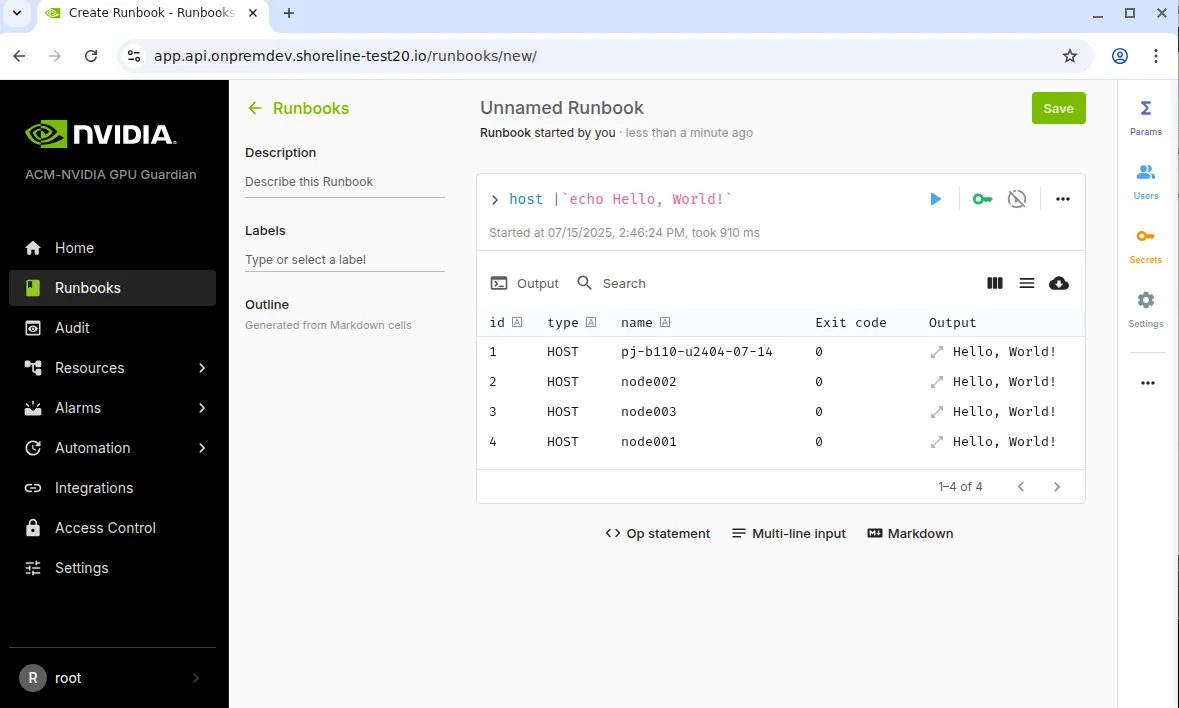
*Figure 6.18: Web GUI for autonomous hardware recovery: adding a “hello world” runbook*
* The runbook can be executed with the `enter` key or by clicking on the `Execute` button next to the cell. There is hovertext to explain the meanings of the widgets.
Outputs of `Hello, World!` should show up in the GUI (figure [6.18](#figures/cm-mission-control-setup-install-ahr-gui-runbook-hello-world.png)):
* The runbook can be saved for posterity with the `Save` button.
If the preceding runbook session works, then it indicates that autonomous hardware recovery has been deployed properly.