


Creating a Dataset#
The first step for curating a dataset is providing the dataset as an S3 bucket or uploading the dataset directly as a ZIP file.
Once you’ve provided your dataset, Cosmos Curator will process the dataset and optimize it for AI applications–this process is often referred to as curation.
Dataset Guidelines#
Videos in your dataset should be formatted as follows:
Format: MP4
Color Space: RGB
Resolution: 1280x720 – The curator will resize videos to this resolution.
Frame Rate: 24 FPS – The curator will resample videos to this frame rate.
Adding a Dataset#
Follow these steps to add a dataset to your Cosmos Managed Service account:
Click the Datasets option from the left navbar.
Add your dataset by either uploading a video or linking to an AWS S3 bucket.
Upload a Video
To upload the dataset as a video, drag and drop one or more MP4 files or a single ZIP file to the Input Files box. You can also click the Upload button to use a local file explorer to find your MP4 files or your ZIP file.
Note
The maximum total file size for upload is 20GB.
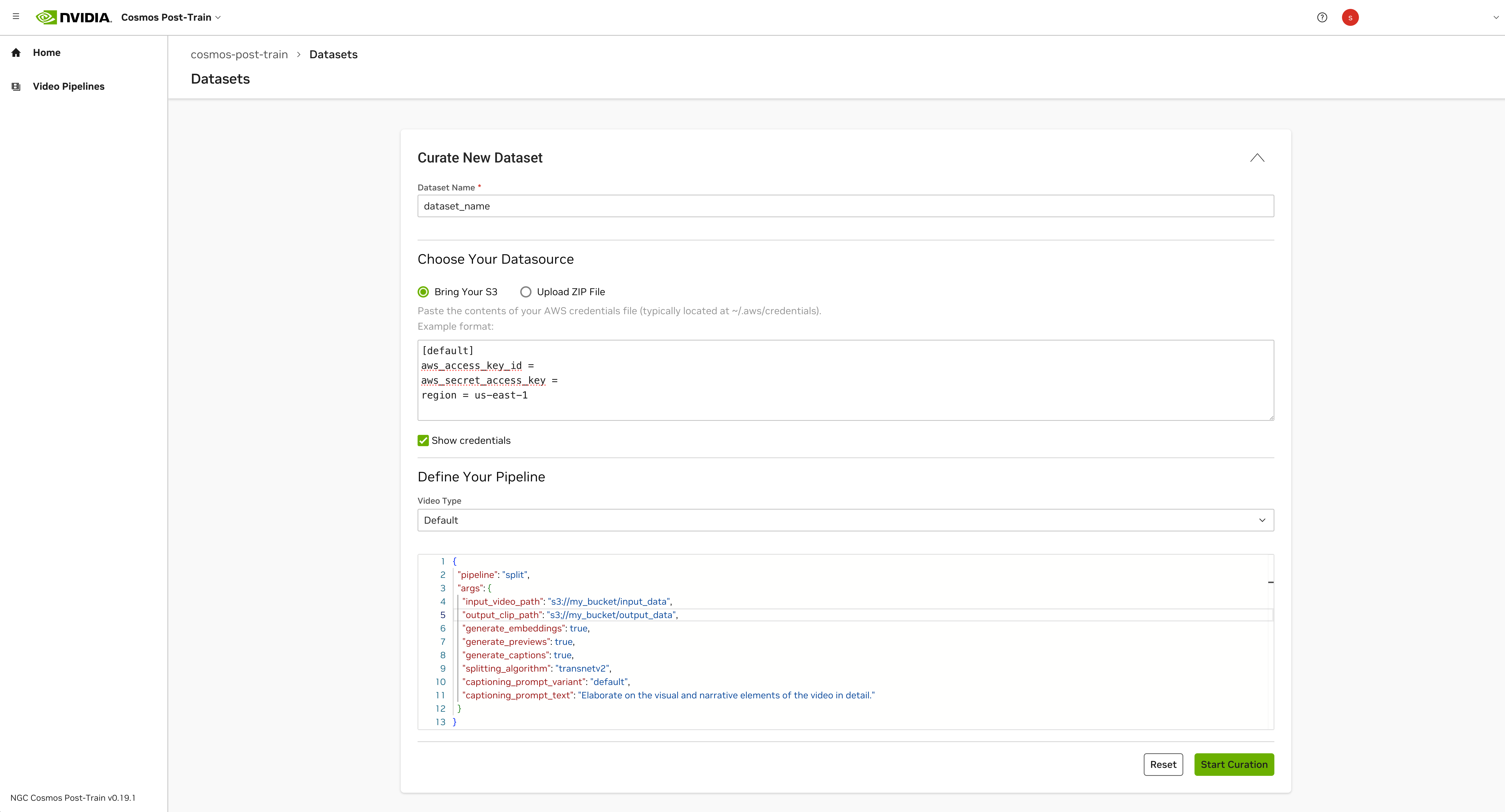
Connect an S3 Bucket: Follow these steps to link the dataset to an S3 bucket:
Paste the credentials from your AWS credentials file to the field. Optionally, you can click the Show Credentials box to ensure the credentials are valid.
Add
input_video_pathto the pipeline definition args with a value containing the s3 uri where source data is stored.Add
output_clip_pathto the pipeline definition args with a value containing the s3 uri where processed data will be written.Important
When using an AWS Access Key, ensure you provide only the minimum S3 permissions required for Cosmos Curator operations. The curator service should have read-only permissions for the input data bucket and read/write permissions for the output data bucket. The AWS Access Key should not provide read/write permissions to any buckets except those associated with dataset input/output operations.
Click the Next Step button and fill out the pipeline configuration for your dataset on the next page:
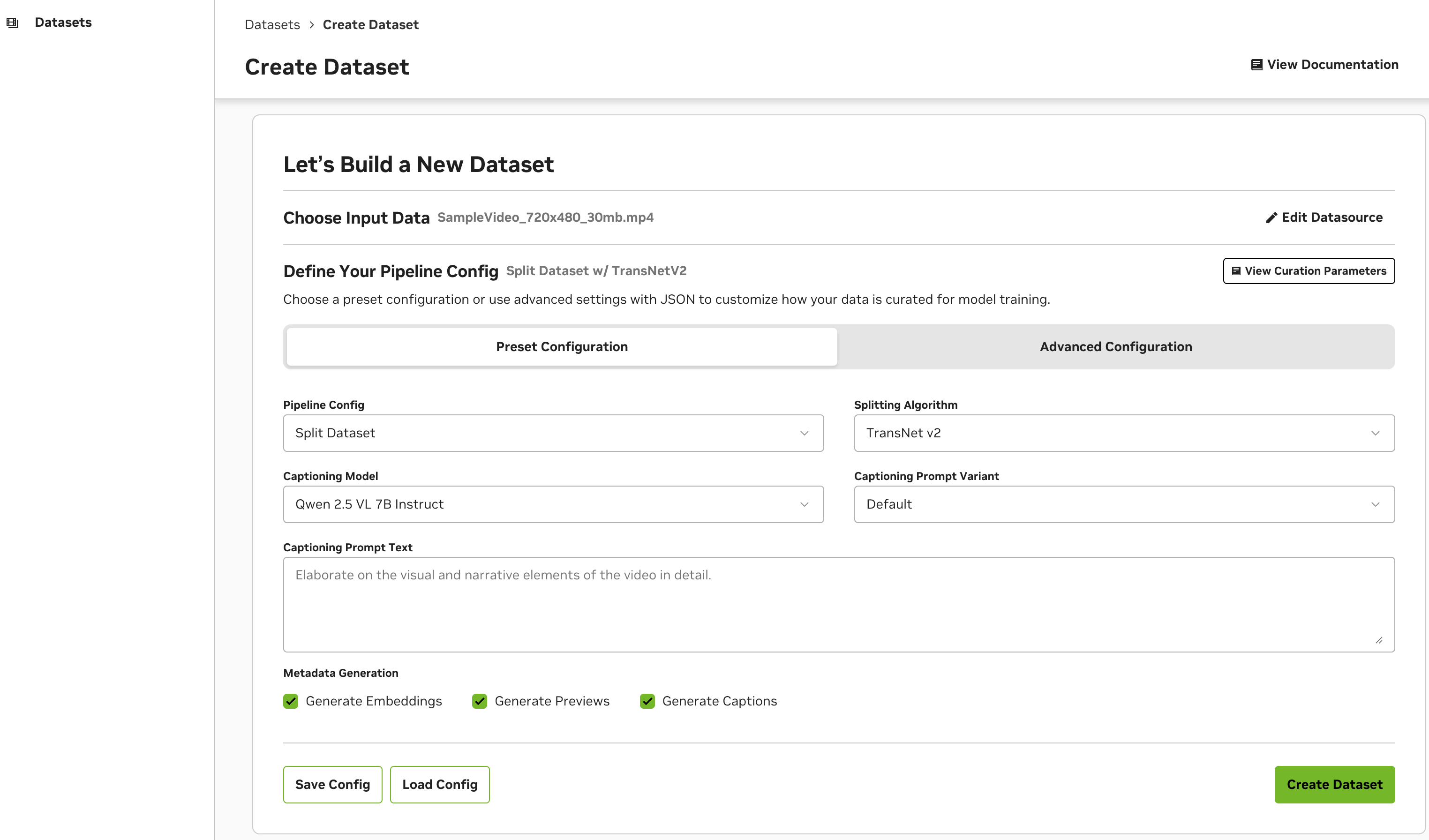
Preset Configuration
A sensible set of defaults is prepopulated in the preset configuration to get you started on curating your dataset. The captioning prompt variants in the preset are explained below:
Default: A general text prompt is used, and the curator service generates captions for each video using the prompt. The transnetv2 algorithm is used to determine how to segment videos with cuts/transitions.
AV: A text prompt specific to recordings from an autonomous vehicle camera is provided. The curator service will generate captions for each video using the prompt. A fixed-stride splitting algorithm is used to segment videos into segments with uniform length.
AV Surveillance: A text prompt specific to recordings from a fixed camera (e.g. a surveillance camera) is provided. The curator will generate captions for each video using the prompt. A fixed-stride splitting algorithm is used to segment videos into segments with uniform length.
Advanced Configuration
You can further customize the curation parameters for your use case in the JSON editor under the Advanced Configuration tab. Refer to the Curation Parameters page for a description of all available curation pipeline parameters.
Click the Create Dataset button and name your dataset to begin processing it.
Managing Datasets#
Once you’ve started processing a dataset, you can view it on the Datasets page.
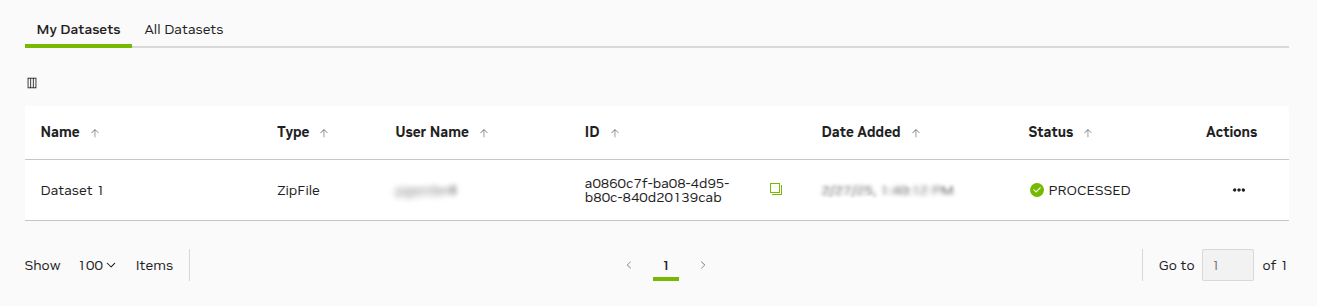
Click the My Datasets tab to view datasets creating by your user account, or click the All Datasets tab to view datasets created by all users in your organization.
Dataset Name: The name of the dataset
Pipeline Config: A short description of the curation pipeline configuration for your dataset
Status: The processing status of the dataset. Once the status reads as “PROCESSSED”, you can continue with other actions like viewing the generated captions.
Type: The storage modality of the dataset–either “S3” or “ZipFile”
Modified: The date and time the dataset was last modified
Dataset ID: A unique identifier for the dataset
Actions: Click the … modal to perform actions with the dataset.
Show Captions: View the captions generated for each video, along with a video preview.
Download Original Dataset: Download the dataset in its original form–without augmentation from the curator service.
Download Clips and Captions: Download the curated dataset, which contains segmented videos and generated captions. Refer to the Curated Dataset Structure page for more details.
Delete Dataset: Delete the dataset from your Cosmos Managed Service account.