


Optimus Laptops and Multi-GPU Desktop Systems#
This section is specifically for desktop systems with multiple GPUs and is applicable to the following type of systems:
Optimus laptops (for example integrated Intel GPU + discrete NVIDIA GPU).
Desktop workstation with GPUs from different vendors (for example integrated AMD GPU + discrete NVIDIA GPU).
Desktop workstation with multiple NVIDIA GPUs.
There is not much to configure and for a few years, for most common cases, everything just works out of the box, even when the NVIDIA driver is not in use.
Warning
On Optimus laptops, the usage of any external software that is written with the idea of forcing the NVIDIA GPU to be always on is strongly discouraged. This includes bbswitch, Bumblebee, SUSEPrime, envycontrol and nvidia-prime. Most of these projects are actually abandoned and usually create more issues than benefits.
The exception to this is switcheroo-control, which is well integrated with the system. Most of the time it carries a package name of switcherooctl and is usually preinstalled by default with the desktop on most distributions.
Let’s take into consideration a very common case, a laptop with Intel + NVIDIA GPU (Dell Precision 5680, NVIDIA Optimus). The GPUs appear as follows:
$ lspci | grep -i vga
00:02.0 VGA compatible controller: Intel Corporation Raptor Lake-P [Iris Xe Graphics] (rev 04)
01:00.0 VGA compatible controller: NVIDIA Corporation AD104GLM [RTX 3500 Ada Generation Laptop GPU] (rev a1)
We’ll be using the output of the lspci command to get the <bus#>:<device#>.<function#> of each GPU. This will be used throughout this section to differentiate between the Intel GPU (00:02.0) and the NVIDIA GPU (01:00.0).
Identifying an Optimus Laptop#
On an Optimus laptop, the internal panel is connected to the integrated GPU. The NVIDIA GPU renders the applications that run on it and the integrated GPU displays the result. Some laptops also have a MUX that can connect the internal panel directly to the NVIDIA GPU, for example with Advanced Optimus or with a discrete GPU only mode in the firmware setup.
To check which GPU drives the internal panel, look for the eDP connector (LVDS on older laptops) of the DRM devices and get the PCI address of the GPU it belongs to:
$ ls -d /sys/class/drm/card*-eDP-*
/sys/class/drm/card1-eDP-1
$ readlink -f /sys/class/drm/card1/device
/sys/devices/pci0000:00/0000:00:02.0
If the internal panel is connected to the integrated GPU (00:02.0 in the example), the system is running as an Optimus laptop. If it is connected to the NVIDIA GPU, the MUX is switched to the discrete GPU, which drives the display and is always on.
The PCI class of the NVIDIA GPU shows if the GPU has any display output:
$ lspci -d ::0302
01:00.0 3D controller: NVIDIA Corporation GA107M [GeForce RTX 3050 Mobile] (rev a1)
A 3D controller has no display outputs, so the system is always an Optimus laptop. In this case the NVIDIA GPU does not appear in the output of lspci | grep -i vga. A VGA compatible controller, like in the example above, has some outputs connected to it, for example an external HDMI or DisplayPort connector, or the internal panel through a MUX. Check the connector of the internal panel to know how the system is running.
Power Management#
The system boots with the graphical output driven by the integrated Intel GPU and the NVIDIA GPU is off:
$ cat /sys/bus/pci/devices/0000:{00:02.0,01:00.0}/power/runtime_status
active
suspended
A simple command that touches the PCI card like lspci or nvidia-settings is enough to wake up the NVIDIA GPU for probing:
$ lspci > /dev/null
$ cat /sys/bus/pci/devices/0000:{00:02.0,01:00.0}/power/runtime_status
active
active
A few seconds after, the GPU is again in suspended:
$ cat /sys/bus/pci/devices/0000:{00:02.0,01:00.0}/power/runtime_status
active
suspended
The transition is always fast if no program is using the GPU; it usually takes just 4 or 5 seconds for the GPU to turn off. For example, after exiting a game, you can immediately hear the fan shutting down when the GPU goes off.
This is the simplest way to check the power state of the GPU when using the open source DRM drivers or the NVIDIA driver.
Selecting the GPU to Use when Running a Program from the Desktop#
If running on Gnome or KDE, any application can be selected to run on the discrete GPU directly from the desktop by right clicking on the application icon:
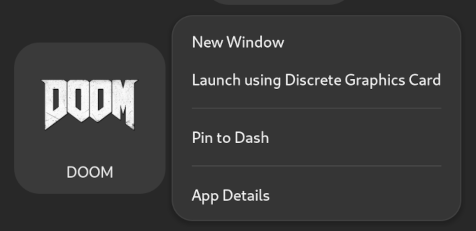
This is supported both with multiple DRI/DRM devices and with NVIDIA drivers. There is no visible difference between the two.
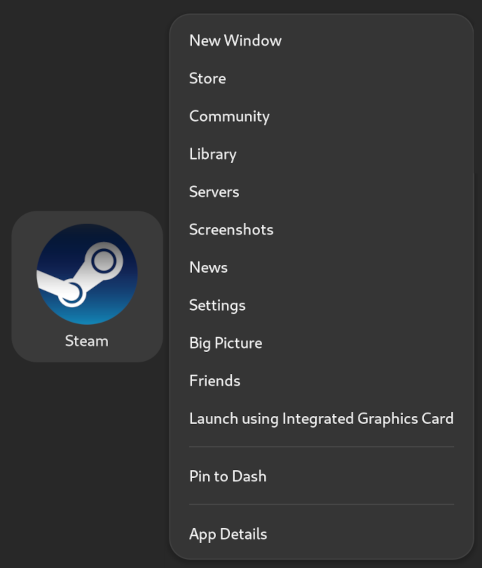
Both Gnome and KDE feature an extra setting that can be added to desktop menus to prefer the integrated GPU. For example Steam provides this by default:
$ cat /usr/share/applications/steam.desktop | grep -i GPU
PrefersNonDefaultGPU=true
X-KDE-RunOnDiscreteGpu=true
Applications bearing those entries receive the opposite treatment, they run on the discrete GPU by default. You can right click on the Steam application icon and select the internal GPU:
Selecting the GPU to Use with switcherooctl#
The system comes with a userspace utility to manipulate the GPUs and that also prints the variables you can use to address a specific GPU. switcherooctl gets the list of GPUs from the switcheroo-control daemon, which detects them through udev, and is not related to the kernel vga_switcheroo framework. This is the case with the open source drivers on both GPUs (DRI PRIME):
$ switcherooctl list
Device: 0
  Name:        Intel Corporation Raptor Lake-P [Iris Xe Graphics]
  Default:     yes
  Environment: DRI_PRIME=pci-0000_00_02_0

Device: 1
  Name:        NVIDIA Corporation AD104GLM [RTX 3500 Ada Generation Laptop GPU]
  Default:     no
  Environment: DRI_PRIME=pci-0000_01_00_0
Note
The DRI_PRIME variable is never set by default and it’s assumed to be at 0 (so main integrated GPU in most cases) if nothing else sets it.
In the case of NVIDIA drivers, the tool is smart enough to set the appropriate NVIDIA variables to achieve the same result:
Device: 0
  Name:        Intel Corporation Raptor Lake-P [Iris Xe Graphics]
  Default:     yes
  Discrete:    no
  Environment: DRI_PRIME=pci-0000_00_02_0 VK_LOADER_DRIVERS_SELECT=*intel*

Device: 1
  Name:        NVIDIA Corporation AD104GLM [RTX 3500 Ada Generation Laptop GPU]
  Default:     no
  Discrete:    yes
  Environment: __GLX_VENDOR_LIBRARY_NAME=nvidia __NV_PRIME_RENDER_OFFLOAD=1 __VK_LAYER_NV_optimus=NVIDIA_only VK_LOADER_DRIVERS_SELECT=*nvidia*
Think of switcherooctl as a replacement for setting up variables. For example, if your system has 4 GPUs (0-3) and you want to target the 4th GPU, these commands are equivalent:
$ switcherooctl launch -g 3 <command>
$ DRI_PRIME=3 <command>
$ DRI_PRIME=pci-0000_03_00_0 <command>
Selecting the GPU to Use with Environment Variables#
OpenGL Context#
OpenGL came in before this multiple GPU / multiple GPU vendor topic existed. By default, with GLVND that offers multiple GPU support for OpenGL, the first GPU is the one used to run OpenGL applications in the main display and the second GPU is left powered off:
$ glxinfo -B | grep string
OpenGL vendor string: Intel
OpenGL renderer string: Mesa Intel(R) Graphics (RPL-P)
OpenGL core profile version string: 4.6 (Core Profile) Mesa 24.0.8
OpenGL core profile shading language version string: 4.60
OpenGL version string: 4.6 (Compatibility Profile) Mesa 24.0.8
OpenGL shading language version string: 4.60
OpenGL ES profile version string: OpenGL ES 3.2 Mesa 24.0.8
OpenGL ES profile shading language version string: OpenGL ES GLSL ES 3.20
$ cat /sys/bus/pci/devices/0000:{00:02.0,01:00.0}/power/runtime_status
active
suspended
In the case of the Intel + NVIDIA drivers, we can use the NVIDIA variables consumed by the driver to select the GPU and let the system power on the extra GPU:
$ __NV_PRIME_RENDER_OFFLOAD=1 __GLX_VENDOR_LIBRARY_NAME=nvidia glxinfo -B | grep string
OpenGL vendor string: NVIDIA Corporation
OpenGL renderer string: NVIDIA RTX 3500 Ada Generation Laptop GPU/PCIe/SSE2
OpenGL core profile version string: 4.6.0 NVIDIA 555.42.02
OpenGL core profile shading language version string: 4.60 NVIDIA
OpenGL version string: 4.6.0 NVIDIA 555.42.02
OpenGL shading language version string: 4.60 NVIDIA
OpenGL ES profile version string: OpenGL ES 3.2 NVIDIA 555.42.02
OpenGL ES profile shading language version string: OpenGL ES GLSL ES 3.20
$ cat /sys/bus/pci/devices/0000:{00:02.0,01:00.0}/power/runtime_status
active
active
If we are using open source drivers for both GPUs, we can use the Mesa DRI variables to select the GPU:
$ DRI_PRIME=1 glxinfo -B | grep string
OpenGL vendor string: Mesa
OpenGL renderer string: NV194
OpenGL core profile version string: 4.3 (Core Profile) Mesa 24.0.8
OpenGL core profile shading language version string: 4.30
OpenGL version string: 4.3 (Compatibility Profile) Mesa 24.0.8
OpenGL shading language version string: 4.30
OpenGL ES profile version string: OpenGL ES 3.2 Mesa 24.0.8
OpenGL ES profile shading language version string: OpenGL ES GLSL ES 3.20
We can use the PCI devices to check the power state of the GPUs:
$ cat /sys/bus/pci/devices/0000:{00:02.0,01:00.0}/power/runtime_status
active
active
VA-API (Video Acceleration API) Context#
The Video Acceleration API can also be used to display GPU information by using the vainfo command:
$ vainfo | grep version
libva info: VA-API version 1.21.0
libva info: Trying to open /usr/lib64/dri/iHD_drv_video.so
libva info: Found init function __vaDriverInit_1_21
libva info: va_openDriver() returns 0
vainfo: VA-API version: 1.21 (libva 2.21.0)
vainfo: Driver version: Intel iHD driver for Intel(R) Gen Graphics - 24.2.3 (Full Feature Build)
$ cat /sys/bus/pci/devices/0000:{00:02.0,01:00.0}/power/runtime_status
active
suspended
VA-API has its own set of variables for selecting which driver to use in the case of Intel + NVIDIA drivers:
$ LIBVA_DRIVER_NAME=nvidia vainfo | grep version
libva info: VA-API version 1.21.0
libva info: User environment variable requested driver 'nvidia'
libva info: Trying to open /usr/lib64/dri/nvidia_drv_video.so
libva info: Found init function __vaDriverInit_1_0
libva info: va_openDriver() returns 0
vainfo: VA-API version: 1.21 (libva 2.21.0)
vainfo: Driver version: VA-API NVDEC driver [direct backend]
$ cat /sys/bus/pci/devices/0000:{00:02.0,01:00.0}/power/runtime_status
active
active
Again, with the open source stack, also setting the DRI variable or switcherooctl are required to run the command on the correct GPU:
$ DRI_PRIME=1 LIBVA_DRIVER_NAME=nouveau vainfo | grep version
libva info: VA-API version 1.21.0
libva info: User environment variable requested driver 'nouveau'
libva info: Trying to open /usr/lib64/dri/nouveau_drv_video.so
libva info: Found init function __vaDriverInit_1_21
libva info: va_openDriver() returns 0
vainfo: VA-API version: 1.21 (libva 2.21.0)
vainfo: Driver version: Mesa Gallium driver 24.0.8 for NV194
$ cat /sys/bus/pci/devices/0000:{00:02.0,01:00.0}/power/runtime_status
active
active
VDPAU Context#
There is no support for Optimus/Prime laptops in VDPAU and no support for Wayland.
Vulkan or EGL Context#
Vulkan and EGL were thought with this use case in mind and the selection of the GPU to use ties into the extensions, so usually the correct one is already considered by the program using the appropriate API. The program can query a particular extension to get an ordered list of GPUs or with some other mechanism. This is usually performed by the program itself, so there is not really a way to “force” one specific GPU.
For example, vkcube allows us to select the GPU:
$ vkcube --gpu_number 0 --c 20
Selected GPU 0: Intel(R) Graphics (RPL-P), type: IntegratedGpu
$ vkcube --gpu_number 1 --c 20
Selected GPU 1: NVIDIA RTX 3500 Ada Generation Laptop GPU, type: DiscreteGpu
Contrary to the OpenGL context, you can use with the following commands to display a list of GPUs to use, not just for a single GPU:
$ eglinfo -B
$ __NV_PRIME_RENDER_OFFLOAD=1 eglinfo -B
$ vulkaninfo --summary
There are some variables or programs that can be used to influence the extensions used for querying the GPUs, but it’s not really a supported path. The application decides based on the information provided by the drivers and some predefined criteria.
Forcing the Usage of X on a Specific GPU in a Wayland Context#
Everything described so far is applied as well to Wayland. On top of that, Xwayland is started whenever an application that does not support Wayland yet is started in a Wayland desktop.
If you want to force the use of Xwayland for a program that supports both Wayland and X, then you just need to set an additional variable. For example, depending on the context (DRI, NVIDIA, etc), these are all equivalent:
$ XDG_SESSION_TYPE=X11 __NV_PRIME_RENDER_OFFLOAD=1 __GLX_VENDOR_LIBRARY_NAME=nvidia glxgears
$ XDG_SESSION_TYPE=X11 DRI_PRIME=1 glxgears
$ XDG_SESSION_TYPE=X11 switcherooctl launch -g 1 glxgears
VGA Switcheroo (DRM Drivers Only)#
vga_switcheroo is a kernel framework that predates the runtime power management of the GPUs. It is used to switch the display output between the GPUs and to manually power on and off the unused GPU. Today it is relevant only for:
Older laptops with a MUX that switches the display output between the GPUs:
Laptops with NVIDIA switchable graphics, which predate Optimus and expose the NVIDIA MUX ACPI
_DSMmethod.Laptops with AMD PowerXpress, which expose the AMD ATPX ACPI methods.
MacBook Pro models with two GPUs, which use the Apple
gmuxcontroller.
Systems where the runtime power management of the GPUs is disabled, for example by booting with
nouveau.runpm=0,amdgpu.runpm=0orradeon.runpm=0.
On all other systems, including all Optimus laptops, the drivers power down the unused GPU through runtime power management, as described in Power Management. In this case vga_switcheroo only reports the power state of the GPUs, and the ON and OFF commands have no effect.
The NVIDIA driver does not use vga_switcheroo at all and always relies on runtime power management (runtime D3). This requires a Turing or newer GPU and the ACPI _PR3 power resources on the PCI port the GPU is connected to. It is enabled by default on laptops with an Ampere or newer GPU; on Turing GPUs it must be enabled with the NVreg_DynamicPowerManagement=0x02 module parameter. The current state is reported by the driver:
$ grep 'Runtime D3' /proc/driver/nvidia/gpus/0000:01:00.0/power
Runtime D3 status:          Enabled (fine-grained)
If you are using the open source drivers, the VGA Switcheroo files appear in debugfs as soon as exactly two GPU drivers and one handler have registered with vga_switcheroo:
The GPU drivers that register with
vga_switcherooarei915,amdgpu,radeonandnouveau. The NVIDIA driver and thexedriver do not register, so the files are never present when one of the two GPUs is driven by them.The handlers are provided by:
nouveau, if the firmware exposes the NVIDIA Optimus or the NVIDIA MUX ACPI_DSMmethods.amdgpuandradeon, if the firmware exposes the AMD ATPX ACPI methods.apple-gmux, on MacBook Pro models with two GPUs.
Systems without these firmware interfaces, like desktops, never enable
vga_switcheroo.
When vga_switcheroo gets enabled, the kernel logs it:
# dmesg | grep -i switcheroo
[    5.123456] vga_switcheroo: enabled
The files are accessible only by the root user. The GPU currently driving the display is marked with a + symbol, and Dyn marks the GPUs whose power is controlled by the runtime power management of the driver:
# cat /sys/kernel/debug/vgaswitcheroo/switch
0:IGD:+:Pwr:0000:00:02.0
1:DIS-Audio: :DynOff:0000:01:00.1
2:DIS: :DynOff:0000:01:00.0
Note
On systems with Secure Boot enabled, the kernel usually runs in integrity lockdown mode (cat /sys/kernel/security/lockdown). In this mode, debugfs files that can be written are not accessible, so any access to the switch file fails with Operation not permitted, even if vga_switcheroo is enabled.
After firing up the GPU for a workload, the state is reflected into the virtual file:
# cat /sys/kernel/debug/vgaswitcheroo/switch
0:IGD:+:Pwr:0000:00:02.0
1:DIS-Audio: :DynOff:0000:01:00.1
2:DIS: :DynPwr:0000:01:00.0
The DIS-Audio device (Discrete Audio) is the HDA sound card on the GPU that is used to send audio to an external output (for example, to a TV connected to an HDMI port). The audio device does not count towards the two GPU drivers that must be registered. The kernel keeps the GPU powered on as long as its audio device is in use.
When the runtime power management is disabled, the unused GPU can be powered off and on manually:
# echo OFF > /sys/kernel/debug/vgaswitcheroo/switch
# echo ON > /sys/kernel/debug/vgaswitcheroo/switch
On a laptop with a MUX, this is an example command to switch the display output to the discrete GPU:
# echo MDIS > /sys/kernel/debug/vgaswitcheroo/switch
The MDIS and MIGD commands only switch the MUX, so they have no effect on Optimus laptops, where the display is always driven by the integrated GPU.