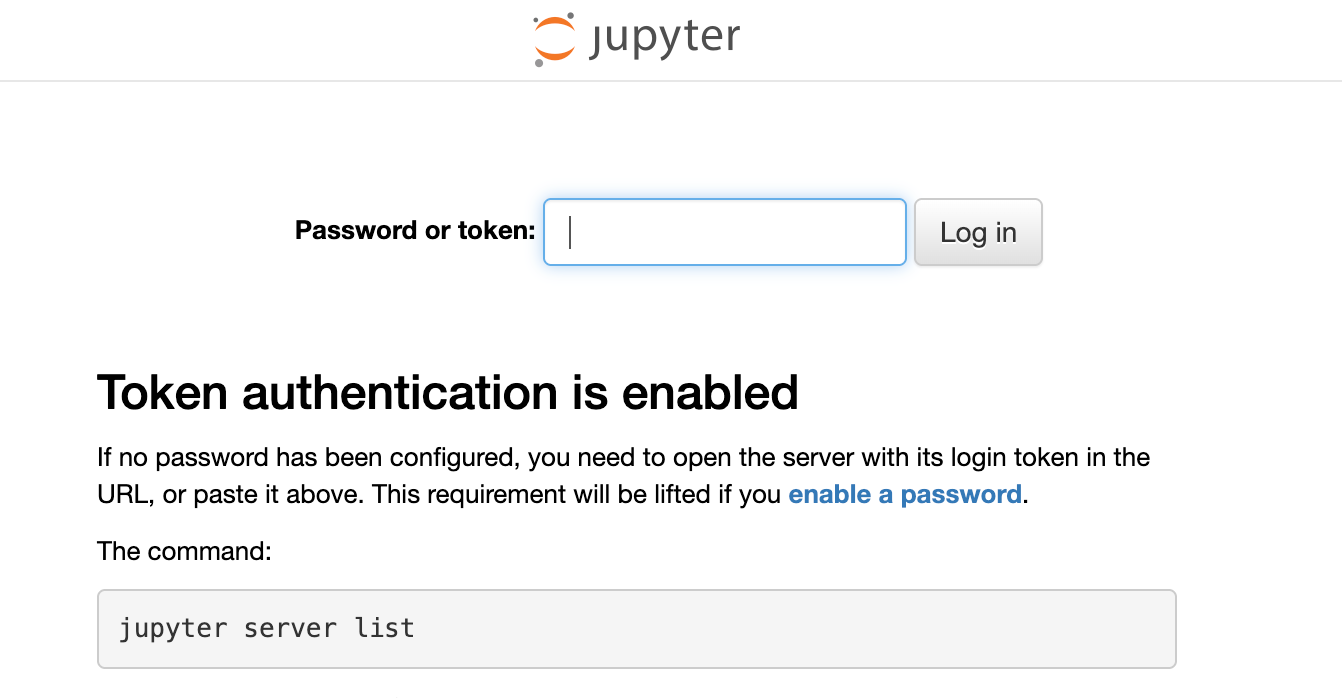
Access JupyterLab on Dev Pod via ngrok
Learn how to access JupyterLab on your Dev Pod via ngrok.
If you do not wish to expose JupyterLab via the Proxy or Host Network options, an example is provided below which installs and uses ngrok in the Dev Pod to access JupyterLab.
Step 1: Enable JupyterLab When Creating
DGX Cloud Lepton provides an easy way to automatically install and launch JupyterLab in your Dev Pod container. This requires the following two options:
- Use a Built-in image provided by DGX Cloud Lepton.
- Use the Dev pod entrypoint as the Entrypoint.
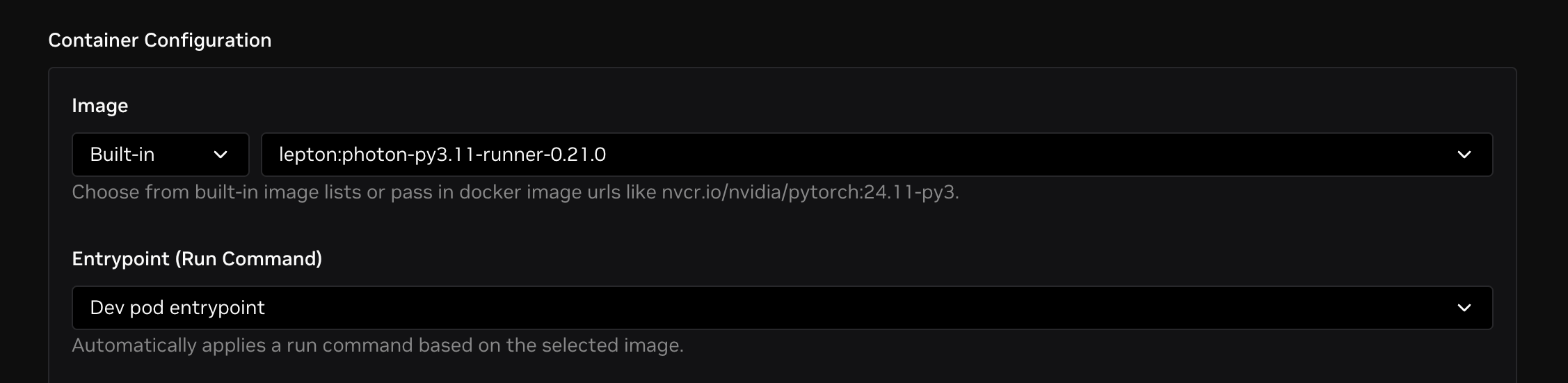
Then, toggle the Enable JupyterLab checkbox to turn on that feature and click the Create button to create the Dev Pod.
Step 2: Set JupyterLab Token
After creation and when the Dev Pod is ready, go to the details page and open the Terminal tab. Run the following command to set a new token for JupyterLab:
This command will help set a new token and restart the JupyterLab instance.
Step 3: Create ngrok Account
Create an ngrok account for port forwarding. Go to the ngrok signup page and follow the instructions to create an ngrok account.
Step 4: Get ngrok Authtoken
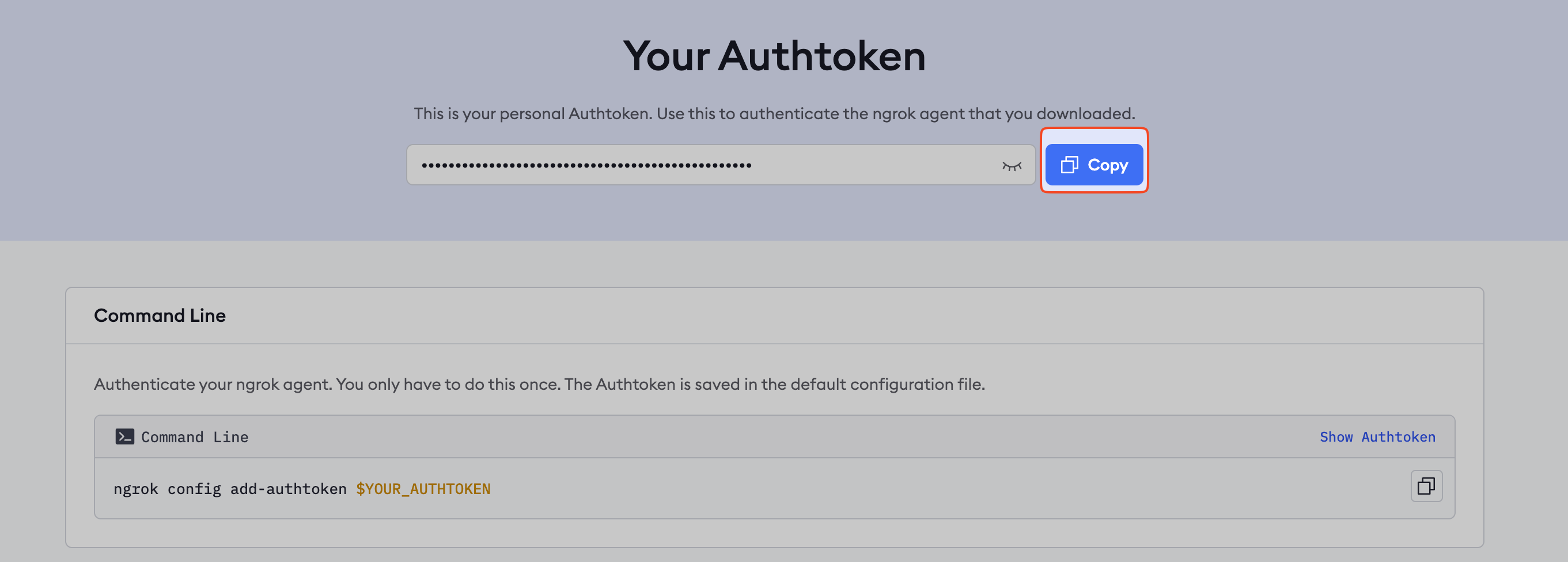
Go to the ngrok authtoken page. Click on the Copy button to copy the authtoken and save it for later use.
Step 5: Install and Set Up ngrok
Go back to the Dev Pod Terminal tab. In the web terminal, run the following command to install ngrok:
Then, run the following command to set up ngrok. Replace $NGROK_AUTHTOKEN with the authtoken you copied in step 4.
Step 6: Start ngrok
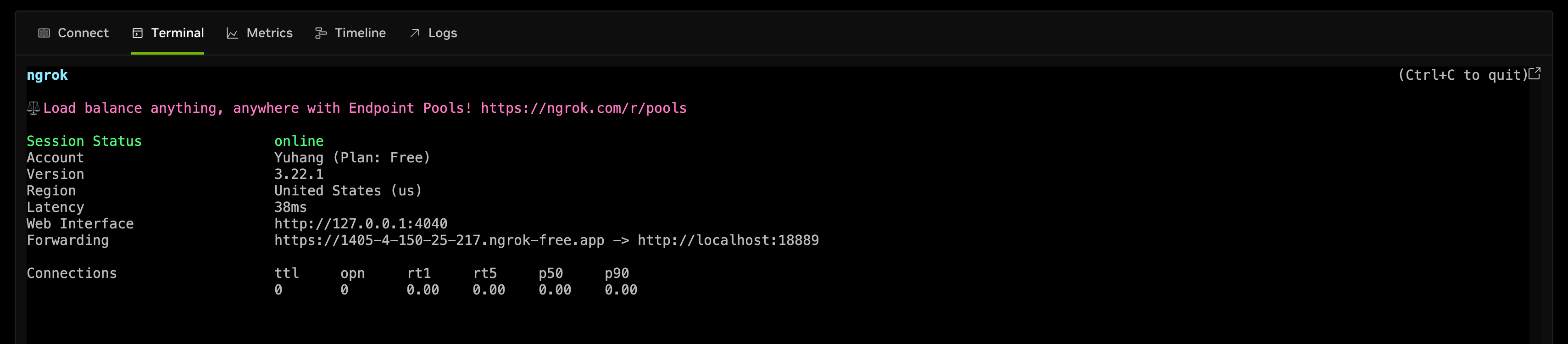
After the authtoken is saved in the ngrok config, start ngrok on port 18889 using the following command:
You will see the ngrok tunnel start, and the public URL will be displayed in the terminal.
If you want to run ngrok continuously in the background, follow these steps:
- Run
apt install tmuxto install tmux. - Run
tmuxto attach to the tmux session. - Run
ngrok http 18889in the tmux session. - Now you can detach from the tmux session by pressing
Ctrl+band thend. - You can reattach to the tmux session by running
tmux a.
Step 7: Access JupyterLab
Now you can access JupyterLab via the public URL from ngrok and the token you set in step 2.