Fine-Tuning an LLM for Math Reasoning
Use the fine-tuning tool to add math reasoning capabilities to an LLM
This guide outlines how to use the Fine-tuning tool on DGX Cloud Lepton to add math reasoning capabilities to the Qwen2.5-Math-1.5B model to improve its accuracy in solving mathematical problems.
Introduction
Large Language Models (LLMs) have continued to demonstrate strong capabilities in a wide range of domains from math to science to creative writing and everything in between. LLMs are typically trained on a very large corpus of diverse text and gain general understanding on a broad list of topics. While these LLMs are valuable out-of-the-box for many use-cases, they usually require focused training on specific domains where accuracy is key. This is where fine-tuning comes in.
Fine-tuning is the process of taking a base model and adapting it to learn more about a domain or respond in a specific manner to prompts. A common example is to take an open source model and fine-tune it to improve its accuracy in math benchmarks which is what this guide showcases.
This document recreates the OpenMathReasoning model process as proposed by NVIDIA research to add math reasoning capabilities to an open source LLM (Moshkov et al., 2025). The specific example uses the open source Qwen2.5-Math-1.5B model as a base and fine-tunes it using NVIDIA's OpenMathReasoning dataset. This dataset includes millions of samples of math problems taken from the community with reasoning traces generated by DeepSeek-R1 and Qwen2.5-72B-Math-Instruct. The research team at NVIDIA found that running Supervised Fine-Tuning (SFT) with this dataset against top open-source models yielded state-of-the-art performance in various math benchmarks.
This step-by-step guide shows how to use the Fine-tuning tool on DGX Cloud Lepton to add reasoning capabilities to Qwen2.5-Math-1.5B.
Requirements
- A DGX Cloud Lepton workspace with a shared storage volume
- Eight (8) GPUs with 80+ GB of GPU memory
Steps
Model Preparation
As stated in the paper, Qwen2.5-Math-1.5B only has a context length of 4,096 tokens which is insufficient for reasoning models which typically generate several thousands of output tokens. To support the longer reasoning traces, we need to manually update the base model to increase its output sequence length.
The paper follows the advice from this thread which found that increasing the output token count and the RoPE scaling did not have a significant impact on the model's performance in tasks. To replicate this, we must download the base model from Hugging Face and modify the config so it can handle longer sequences. We will use a Batch Job for this process.
To create a modified base model, open the Batch Jobs page and click the green Create Job button in the top right of the page.
In the creation form that opens up, enter the following details:
- Job Name: Enter a name for the job, such as
qwen-modification. - Node Group: Select the node group to run the job in. This must be the same as the node group you will use for fine-tuning as it must share storage.
- Resource Shape: This process is mainly network-bound and does not require much CPU resources and does not require a GPU. A
cpu.mediumresource should be sufficient, or a single-GPU resource if CPU-only resource shapes are not available in your node group. - Worker: Enter
1for a single worker. - Container Image: The default base container should be sufficient. In this example,
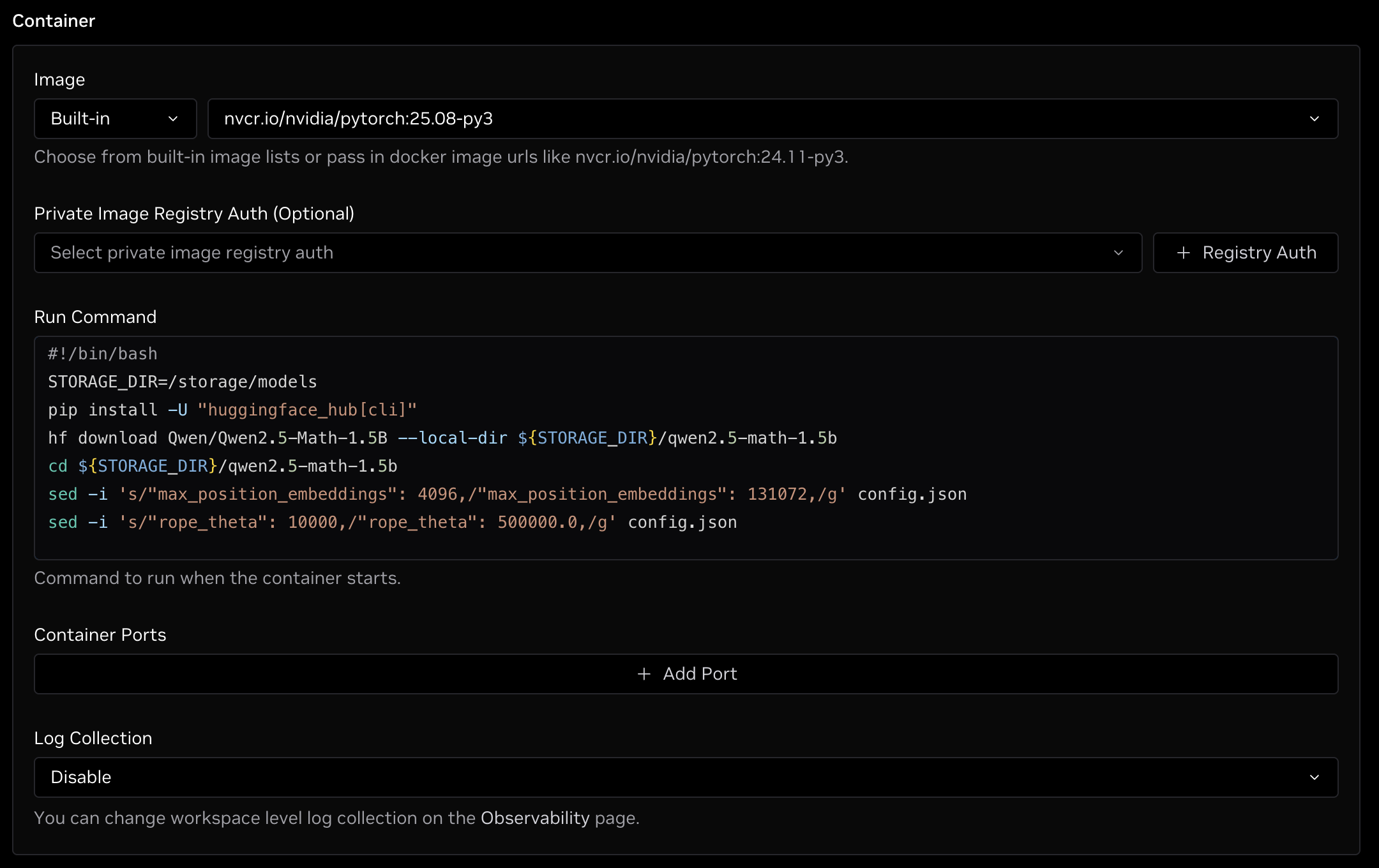
nvcr.io/nvidia/pytorch:25.08-py3is used. - Run Command: Enter the following for the command. Note that your
STORAGE_DIRmight change depending on where you mount storage (see Storage item below): - Storage: Mount shared storage in the jobs to save the checkpoint after the job finishes. Select the shared storage in your node group and set your mount path to something like
/storage. YourSTORAGE_DIRin the Run Command above must start with the mount path listed here.
An example of the container configuration section is shown in the image below.
Once the form is complete, click the green Create button at the bottom of the page to queue the job once resources are available.
When the job gets scheduled, it will pull the selected container with storage mounted at the designated location. The script will then download the Qwen2.5-Math-1.5B model to the mounted storage and modify the max_position_embeddings and rope_theta values in the downloaded model's config file as well as max_new_tokens in the generation config to support 128K context length. This modified model will be available in the fine-tuning jobs when loading from storage.
Configuring a Fine-Tuning Job
With the modified model saved to local storage, it is time to launch the fine-tuning job. The fine-tuning tool can be accessed from the explore page in your DGX Cloud Lepton workspace. Click the Fine-tuning box or navigate directly to the fine-tuning page.
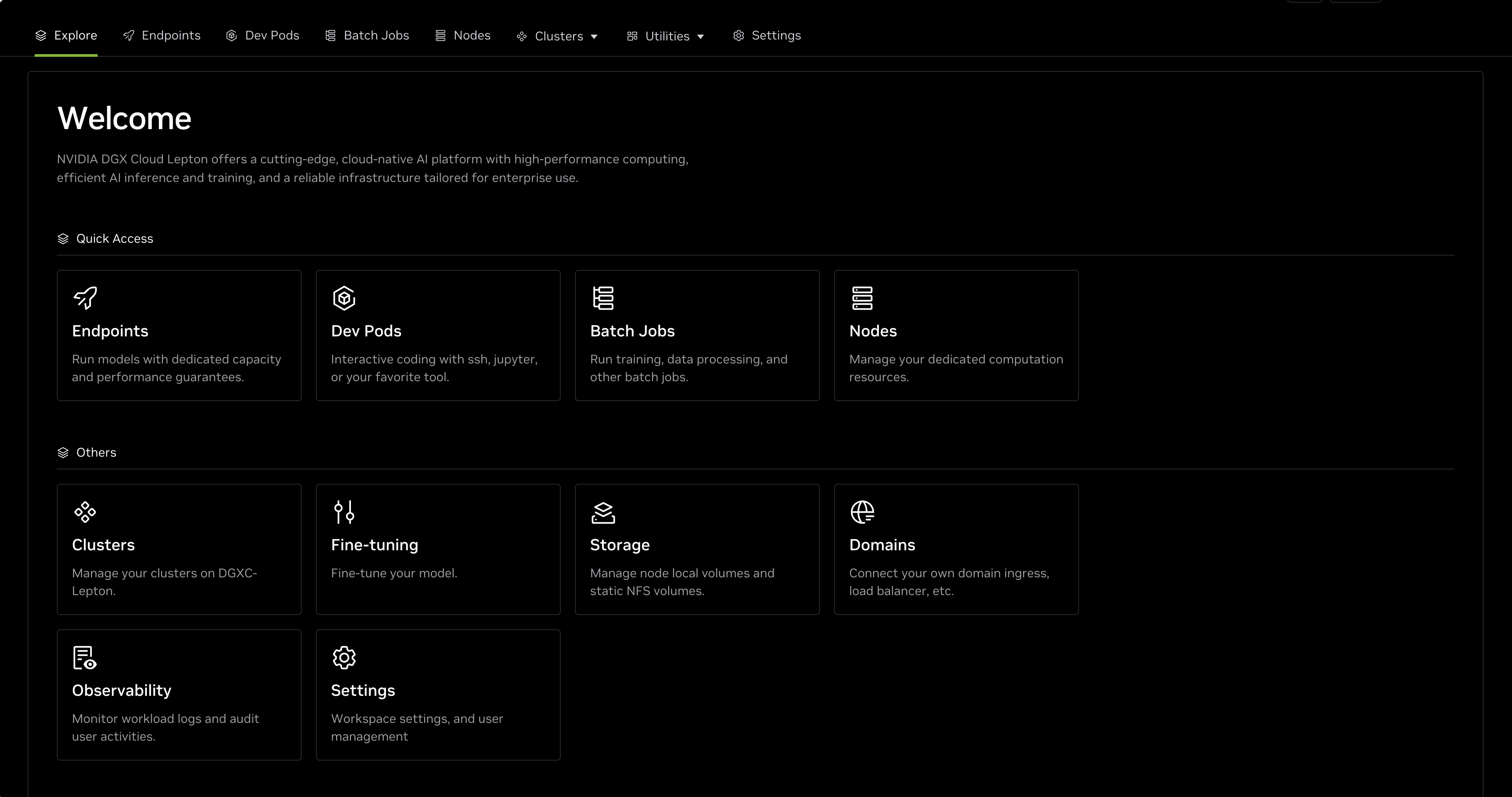
Create a new fine-tuning job by selecting the green Create Fine-tune button in the Fine-tuning job page.

This will open a new form to specify all of the settings for the fine-tuning job. The first prompts the user to select their fine-tuning method, either Supervised Fine-Tuning (SFT) or LoRA, a Parameter-Efficient Fine-Tuning (PEFT) technique. SFT updates the full model weights based on an instruction-following dataset while PEFT adds additional weights to the bottom of the model while freezing the base model weights. For this example, we will select SFT as we want to train the model to specifically respond with math reasoning traces for all prompts.
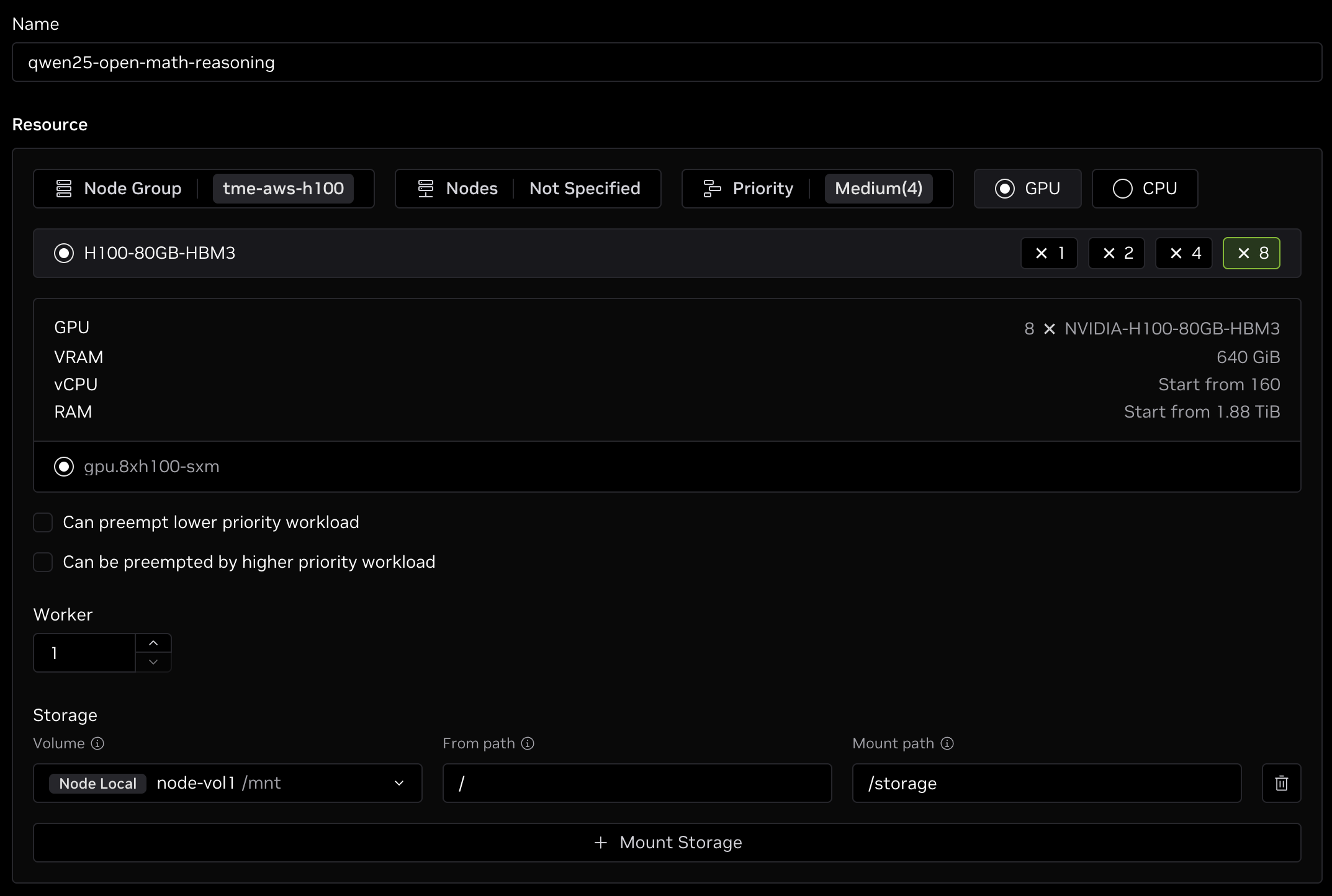
Add responses to the Name and Resources sections at the top of the form:
- Name: Give the fine-tuning job a name, such as
qwen25-open-math-reasoning. - Node Group: Select the same node group that was used for the model preparation in the previous section.
- Resource Shape: At least eight GPUs with 80+ GB of GPU memory is suggested for running SFT due to the longer sequence lengths of the reasoning dataset. Adding additional workers for multi-node fine-tuning will increase training throughput but one worker is sufficient for this example.
- Storage: Select the same storage volume that was used for the model preparation in the previous section. While you can specify a different path to mount the storage under in the container, it is easiest to use the same mount path as earlier, such as
/storage.
This section should look similar to the following image once complete:
For the Model field, select Load from storage and enter the path to where the modified model was saved during the preparation step earlier. For example, if your model was saved to /storage/models per the STORAGE_DIR variable above, enter /storage/models/qwen2.5-math-1.5b as that is the absolute path to where the model is saved. This must start with the storage mount path (ie. /storage) and end with the downloaded model path name (ie. qwen2.5-math-1.5b) as in the image below.

Next we need to specify the Training Dataset which is where we input the OpenMathReasoning dataset listed in the paper.
While inspecting the dataset on Hugging Face, there are a few splits which contain subsets of the dataset for specific tasks, such as cot for chain-of-thought, tir for tool-integrated reasoning, genselect for selecting promising responses, and additional_problems for a list of more problems. For this guide, we will just select the cot split which should yield noticeable improvements in downstream accuracy. As stated in the paper, each of these stages can be stacked on top of each other. You are welcome to follow these steps again to fine-tune with additional splits.
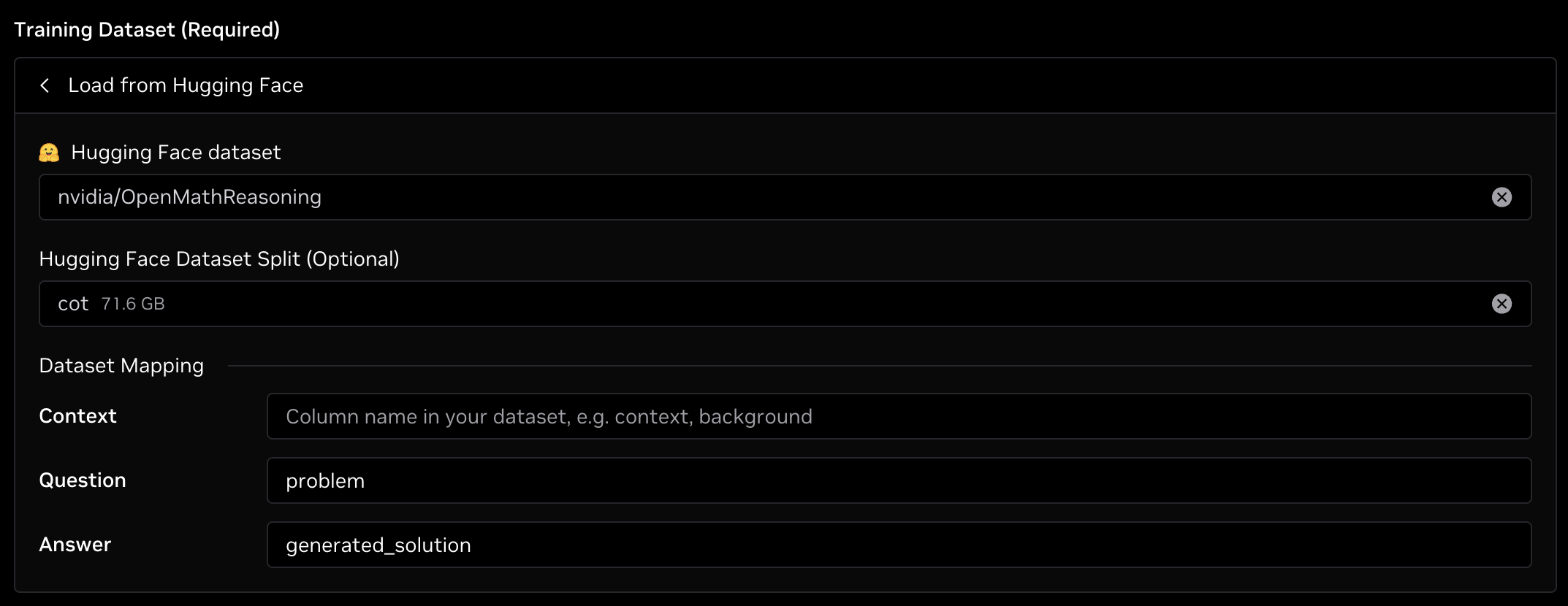
Additionally, the dataset doesn't have columns named Question and Answer like the fine-tuning tool expects, so we will use the Dataset Mapping concept to rename the columns in the datasets to something that the fine-tuning code understands. In particular, we will take the problem field as the question or input prompt, and the generated_solution field as the answer that we want the model to learn to generate for the prompt.
Enter this information under Training Dataset, and select Load from Hugging Face. Next, enter nvidia/OpenMathReasoning for the dataset, cot for the dataset split, problem for the Question field, and generated_solution for the Answer field as shown in the image below.
For the validation dataset, we could use a subset of the OpenMathReasoning dataset, but given this has millions of samples, even a small percentage of the dataset will result in a lot of validation data to process, significantly increasing the total training time. Instead, we will use a math benchmark which is significantly smaller but also more indicative of how the model is learning compared to real-world benchmarks. Specifically, we will use the AIME24 dataset which contains 30 math problems with reasoning traces and answers as output.
Under Validation Dataset, select Load from Hugging Face and enter Maxwell-Jia/AIME_2024 for the dataset, train for the split, Problem for the Question field, and Solution for the Answer field as shown in the image below. Note that the dataset mapping is case-sensitive.
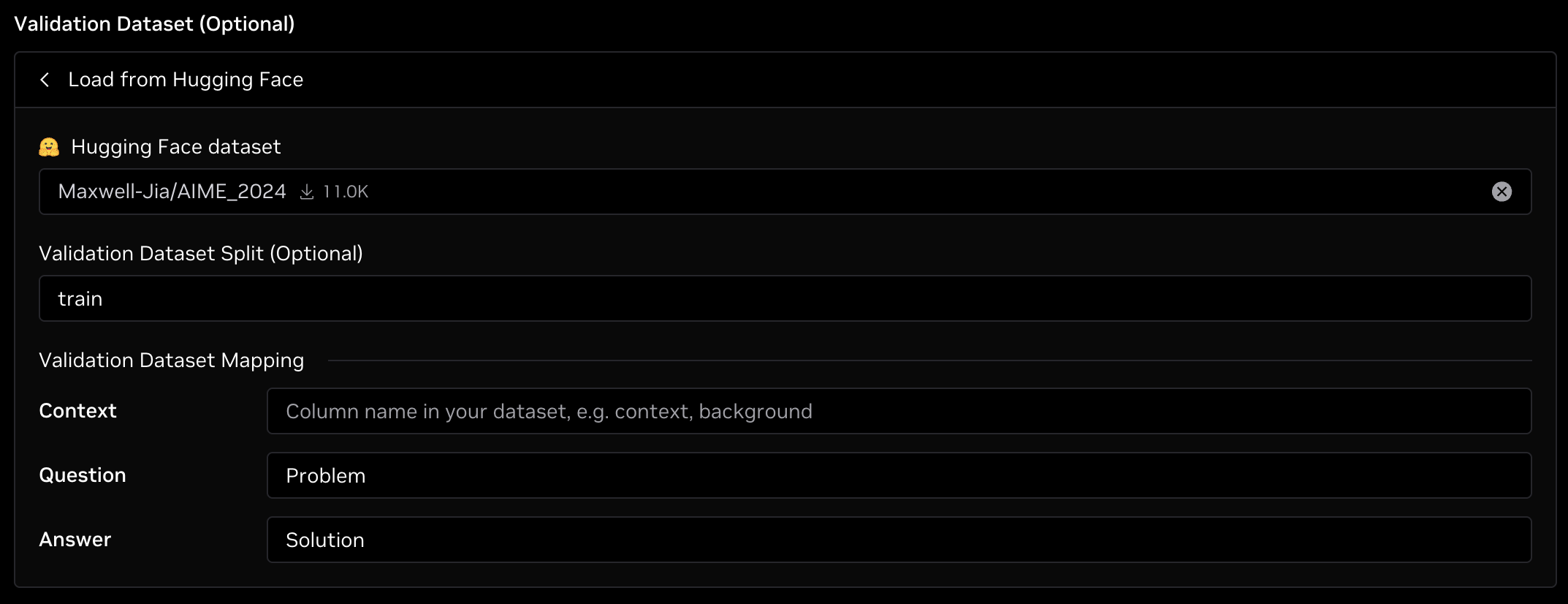
Neither the datasets nor the model are gated on Hugging Face, but if any of them were, you would need to add your Hugging Face Token in the indicated field and accept any licenses on the model or dataset's page on Hugging Face.
Next, enter the location for the Checkpoint Output Path. This is where the checkpoints will be saved. This must start with the storage mount path, such as /storage. Enter a location such as /storage/my-checkpoints/qwen2.5-math-1.5b.

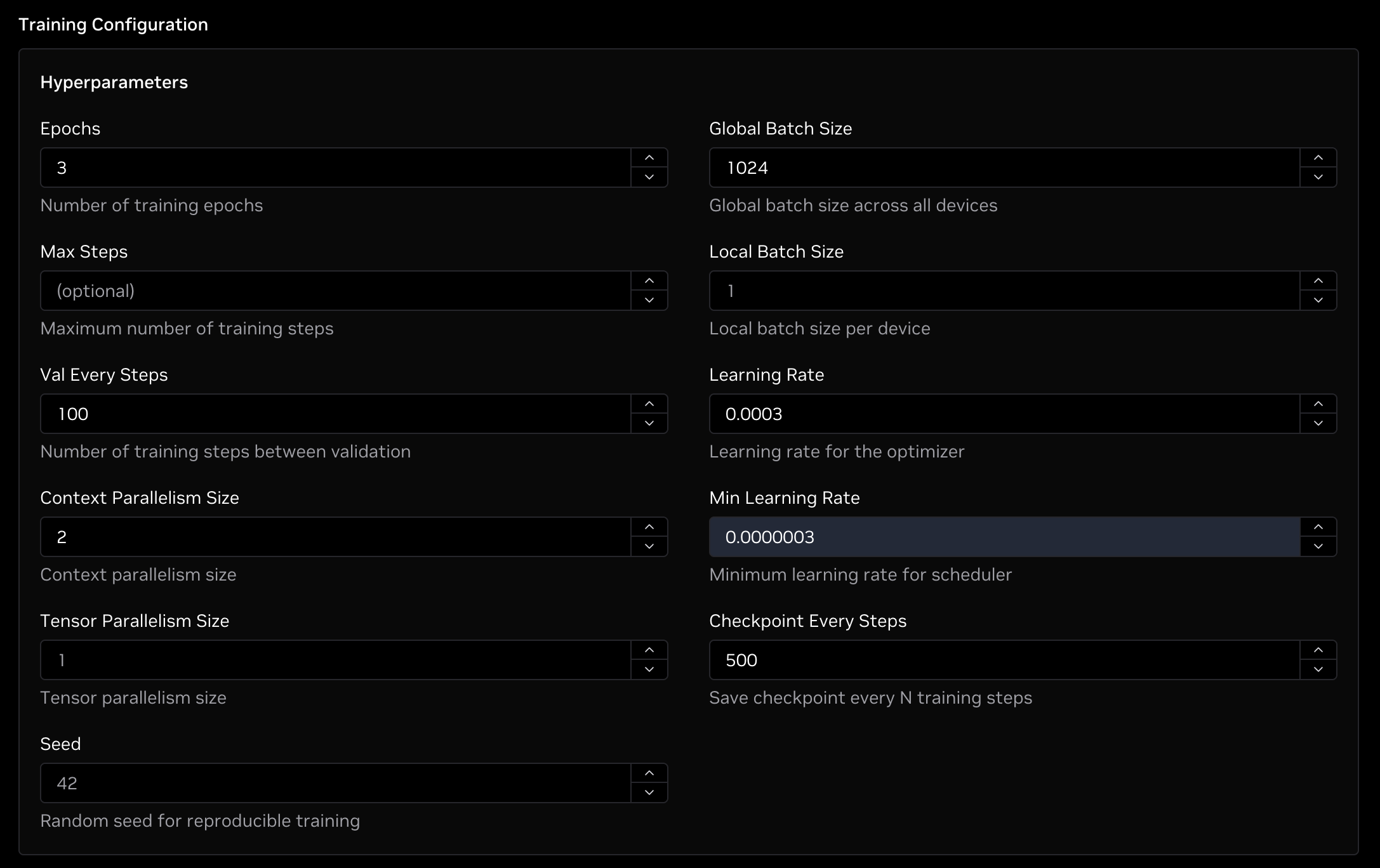
Lastly, we need to enter the hyperparameters for the job. Following the guidance of the paper, we can set the following parameters while keeping the other ones default.
- Epochs: Enter
3for doing three full passes of the training dataset. While the paper calls for six epochs, that included the other two dataset splits which we did not include in this example. Three epochs will be enough to yield the same chain-of-thought results as the paper. - Val Every Steps: Enter
100to run a validation pass every 100 steps. On eight H100 GPUs, this will run validation approximately every 45 minutes. - Context Parallelism Size: Enter
2to split the input sequences across two GPUs, each to reduce the GPU memory requirement for processing longer sequence lengths. - Global Batch Size: Enter
1024to process 1,024 sequences per training pass across the cluster. The paper used a batch size of256but also packed their sequences by a factor of 4x, effectively yielding a batch size of1024. - Learning Rate: Enter
0.0003which is the max learning rate used in the paper. - Min Learning Rate: Enter
0.0000003which is the minimum learning rate used in the paper that the optimizer will decay to. - Checkpoint Every Steps: Enter
500to save a checkpoint every 500 steps. This will save a checkpoint of the current model weights to the checkpoint directory specified earlier. On eight H100 GPUs, this will save a checkpoint approximately once every 6 hours.
The completed form should resemble the following image:
Lastly, the fine-tuning feature supports Weights and Biases (W&B) for tracking training metrics. If you would like to track your fine-tuning job with W&B, open the Advanced Configuration tab and enter your W&B project and job name that you would like the fine-tuning to be tracked as, and enter your W&B API token in the WandB API Key field.
Once the form is fully completed, click the green Create button at the bottom of the page to schedule the fine-tuning job.
Monitoring Fine-Tuning
After creating your fine-tuning job, you will be taken back to the fine-tuning jobs list where your job will be shown at the top.

When resources are available, the job will get scheduled and the image will be pulled from the container registry and launch the fine-tuning job once ready.
Clicking the job will open the job details page which includes more information about the job including listing the settings that were specified during creation.
You can monitor the job's progress by clicking the Logs tab in the job detail page. Given the large size of the dataset, it can take 15 minutes or more for the dataset to fully load and process. During this time you might not see log output for a while so don't be alarmed if your logs appear to be stuck after this state:
Once the dataset has been prepared, training will begin. You will know it has started when you see lines similar to the following:
In order, this prints out:
- The number of forward passes or steps that have occurred.
- The current epoch in the dataset (zero-based).
- The latest training loss.
- The gradient normalization value.
- The learning rate used during the indicated step.
- The amount of GPU memory used per GPU during the indicated step.
- The number of tokens processed per second.
- The total number of tokens that were processed in that step.
As the model is training, you should find that your training loss value decays over time. In our testing, the loss was 0.33 after 100 steps, 0.31 after 200 steps, 0.30 after 300 steps, and so on.
Every 500 steps, a checkpoint will be generated and saved in the specified directory. To deploy the checkpoint for inference, look for the model/consolidated sub-directory inside the checkpoint directory as this can be deployed directly as an Endpoint on DGX Cloud Lepton.
The training process should take approximately five days to complete on eight H100 GPUs.
Final Thoughts
If you made it this far, congratulations! You have now fine-tuned an open source model to add math reasoning capabilities which make it more accurate in math-related benchmarks. From here, you can deploy the model as an Endpoint on DGX Cloud Lepton to test it out and send requests, or you could further fine-tune it with additional dataset splits and upload the final result to Hugging Face.
Citations
Moshkov, I., Hanley, D., Sorokin, I., Toshniwal, S., Henkel, C., Schifferer, B., Du, W., Gitman, I. (2025). AIMO-2 Winning Solution: Building State-of-the-Art Mathematical Reasoning Models with OpenMathReasoning dataset [Preprint]. arXiv. https://doi.org/10.48550/arXiv.2504.16891