Container Ports
Configure container ports for your Dev Pod
Container ports allow you to expose services running inside your Dev Pod to the outside world. By default, applications running in a container are isolated and cannot be accessed externally. Configuring container ports creates a bridge between your containerized applications and external networks.
This document guides you through configuring and accessing container ports in your Dev Pod.
DGX Cloud Lepton does not expose any ports by default for security reasons.
If you choose to expose container ports, ensure proper authentication and security measures are in place. You are responsible for the security of your exposed services.
What are Container Ports?
Before diving into how to configure container ports, let's understand what they are.
- Container Port: The port your application listens on inside the container (for example, your web server runs on port 8080).
- Host Port: The port on the host machine that maps to your container port (for example, external users connect to port 45123 on the host, which forwards to port 8080 in the container).
In DGX Cloud Lepton, you must configure container ports to expose them as host ports externally.
Configure Container Ports
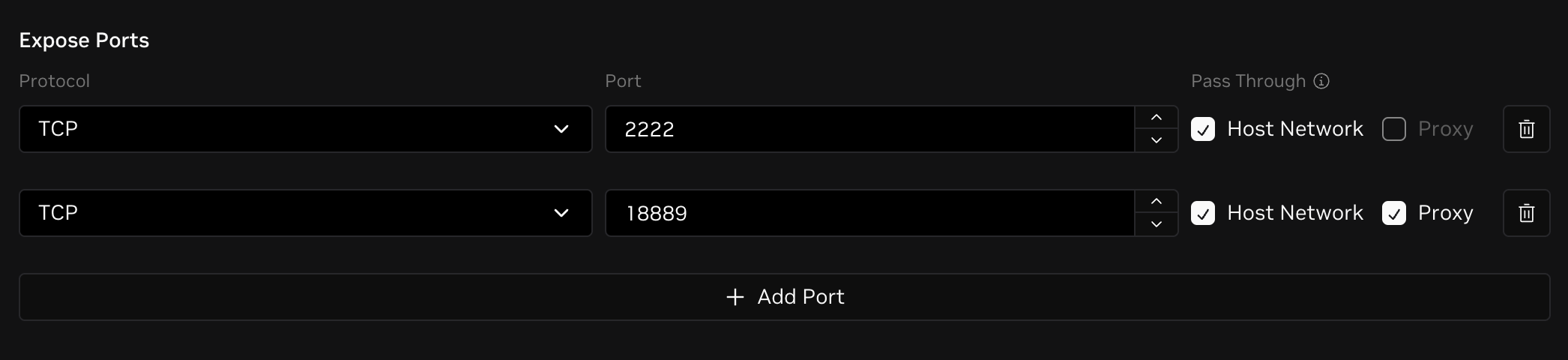
When creating a Dev Pod, configure container ports to expose in the Container Configuration > Expose Ports section.
Protocol
For each port, specify the protocol type: TCP, UDP, or SCTP.
Port
For each port, specify the port number to expose. The port number must be between 1 and 65535.
If you are using built-in images and Dev Pod Entrypoint, port 2222 in the container will be used for SSH.
Additionally, if you also select Enable JupyterLab, port 18889 in the container will be used for JupyterLab.
Pass Through
Choose how to expose the port:
- Host Network: A random port between 40000 and 65535 is added to the Dev Pod and mapped to the specified container port. This Host Network port is accessible on the host node IP.
- Proxy: A public URL is generated for the port, accessible on the public network. Only one port can be exposed through Proxy at a time.
For example, you can configure port 2222 with protocol TCP and expose it through Host Network, and port 18889 with protocol TCP and expose it through Proxy.
You need to select at least one Pass Through method for each port you configure.
Access Container Ports
After the Dev Pod is created, view container port information on the Pod details page under the Connect tab.

As shown in the image, since we configured Proxy for port 18889, an endpoint URL was generated for it.
Access with IP Address
For ports exposed through Host Port, access them using the IP address of the host node.
Access with Proxy URL
If you configured a port to be exposed through Proxy, access it with the generated public URL.