Enable JupyterLab
Learn how to enable and access JupyterLab on your Dev Pod.
JupyterLab is a web-based interactive development environment for Jupyter notebooks, code, and data. This guide helps you set up and access JupyterLab in your Dev Pod on DGX Cloud Lepton.
Enabling JupyterLab for Default Built-in Images
Step 1: Enable JupyterLab
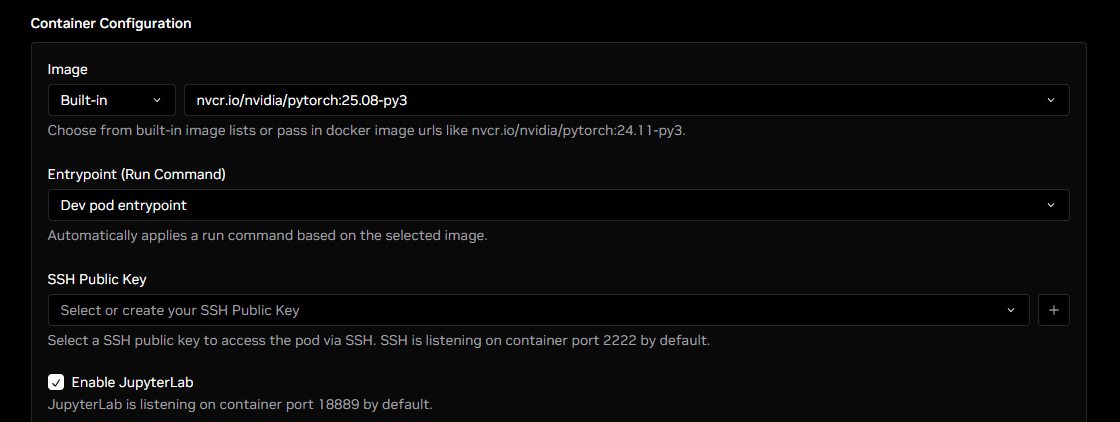
DGX Cloud Lepton provides a simplified process for enabling JupyterLab for default container images. This requires the following two options:
- Use a Built-in image provided by DGX Cloud Lepton.
- Use the Dev pod entrypoint as the Entrypoint.
Then, toggle the Enable JupyterLab checkbox to turn on that feature.
Step 2: Expose JupyterLab Port
DGX Cloud Lepton does not expose any ports by default for security reasons.
If you choose to expose container ports, ensure proper authentication and security measures are in place. You are responsible for the security of your exposed services.
For built-in images configured in Step 1, select the Enable JupyterLab Proxy checkbox and the form will automatically fill in the port and protocol for you.
If exposing through host network, follow the screenshot to configure the container ports, but select Host Network instead of Proxy.

Step 3: Configure JupyterLab Workspace Root Directory (Optional)
If you are mounting persistent storage to the Dev Pod and using the default built-in images, you can specify the storage directory to be mounted as the workspace root directory for Jupyter. For more information on storage, refer to this guide.
First, under Storage, specify a volume to attach to the Dev Pod, then specify the mount path for the volume. Select Mark as JupyterLab Root to use this mount path as the root workspace directory in JupyterLab.

Step 4: Create the Dev Pod
After these configurations, create the Dev Pod by clicking the Create Pod button.
Step 5: Set New Token for JupyterLab
Once the Dev Pod is created and ready, go to the details page and find connection information on the JupyterLab tab.
Before accessing your JupyterLab instance, use the following command to set a new token for JupyterLab in the Terminal tab:
This command sets a new token and restarts the JupyterLab instance.
Step 6: Access JupyterLab
You can now access JupyterLab by clicking the generated proxy URL shown in the JupyterLab tab. Alternatively, visit the host node IP address with port 18889 if you chose to expose the port through Host Network.
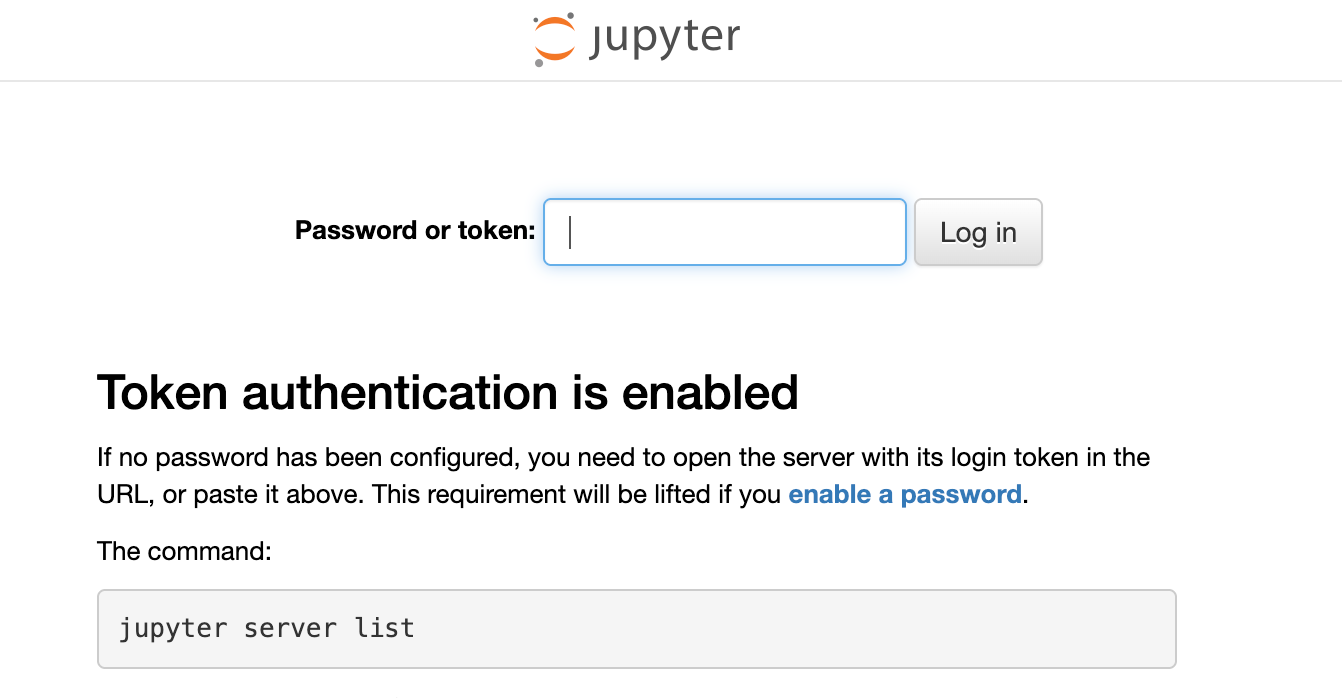
Enter the token you set in the previous step to log in. You can then start using JupyterLab.
Enabling JupyterLab for Custom Images
Step 1: Enable JupyterLab
If you select a Custom image type, the Enable JupyterLab checkbox is not available. Custom images may not have JupyterLab installed, or the built-in run command may not work with the image.
In this case, you must first specify the image URL, and then select one of the following Entrypoints:
- Image default entrypoint - Select this option if the container image starts JupyterLab automatically by default. In this case, ensure that the default JupyterLab run command has authentication and security features enabled.
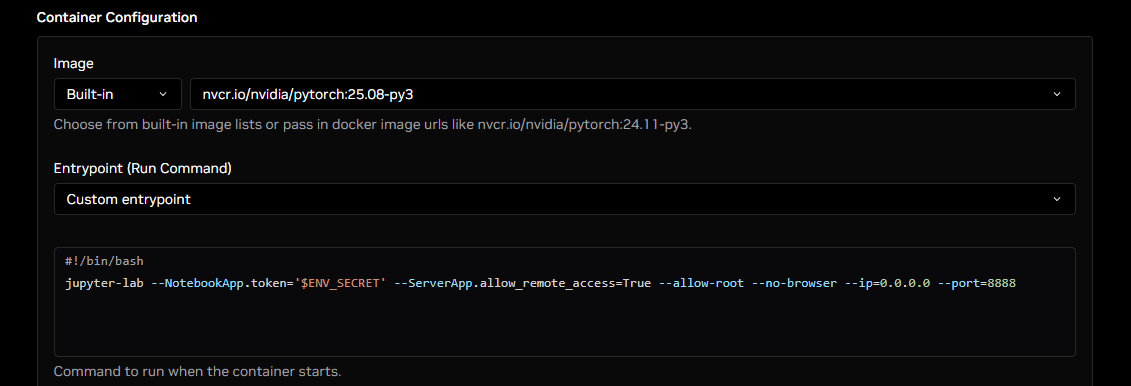
- Custom entrypoint - Select this option if you want to specify the JupyterLab install or run command. For an example custom entrypoint, refer to the screenshot and code example below.
Example Custom Entrypoint (Run Command):
In this example, the command assumes JupyterLab is already installed in the container image. It starts jupyter-lab and passes configuration parameters so the notebook token is set as the $ENV_SECRET environment variable, which is configured to be injected via DGX Cloud Lepton. The port is set to 8888, and the JupyterLab instance is set up to run as root and be accessed remotely.
Step 2: Expose JupyterLab Port
DGX Cloud Lepton does not expose any ports by default for security reasons.
If you choose to expose container ports, ensure proper authentication and security measures are in place. You are responsible for the security of your exposed services.
If you enabled JupyterLab for a Dev Pod in Step 1, DGX Cloud Lepton starts the JupyterLab instance on a container port. The linked example uses port 18889; default JupyterLab commands typically use port 8888.
You will need to manually expose the port if you want to access JupyterLab from outside the container.
For more information on how to expose container ports, refer to this guide.
In the Container Ports section, add a new port with the following configurations:
- Protocol: TCP
- Port: 18889 (or 8888)
- Expose Through: Select Host Network or Proxy. Learn more about the differences here. We will use Proxy in this example.

Step 3: Create the Dev Pod
After these configurations, create the Dev Pod by clicking the Create Pod button.
Step 4: Access JupyterLab
You can now access JupyterLab by clicking the generated proxy URL shown in the JupyterLab tab. Alternatively, visit the host node IP address with port 18889 (or 8888) if you chose to expose the port through Host Network.