SSH Access
Learn how to configure SSH to access your Dev Pod
This guide shows how to configure SSH to access your Dev Pod.
Prerequisites
For SSH to work on DGX Cloud Lepton, the user and machine accessing the Dev Pod via SSH must be able to reach either the public or private IP of the node(s) on which the Dev Pods are running.
For more information on configuring nodes, refer to the node requirements guide.
If you want to use Dev Pods on DGX Cloud Lepton, you need to open ports from 40000 to 65535 on your network. These ports are used to pass through the SSH port on the Dev Pod. For more information, refer to this guide.
SSH with Default Images
Default images provided by DGX Cloud Lepton come with SSH service pre-configured. You only need to add your SSH public key during the creation process.
Step 1: Start the Dev Pod with Built-in Image
Navigate to the Dev Pod creation page. In the Container Configuration section, select one of the default Built-in images.
Leave the Entrypoint (Run Command) set as the default Dev Pod entrypoint.
Step 2: Choose or Create an SSH Public Key
In the SSH Public Key field, specify or create a new SSH public key if you want to access the Dev Pod via SSH.
All public keys are saved securely as a Secret in your workspace.
If you have already added an SSH public key as a Secret, you can select it from the SSH Public Key dropdown list.
To create an SSH public key, first generate an SSH key pair in your local terminal:
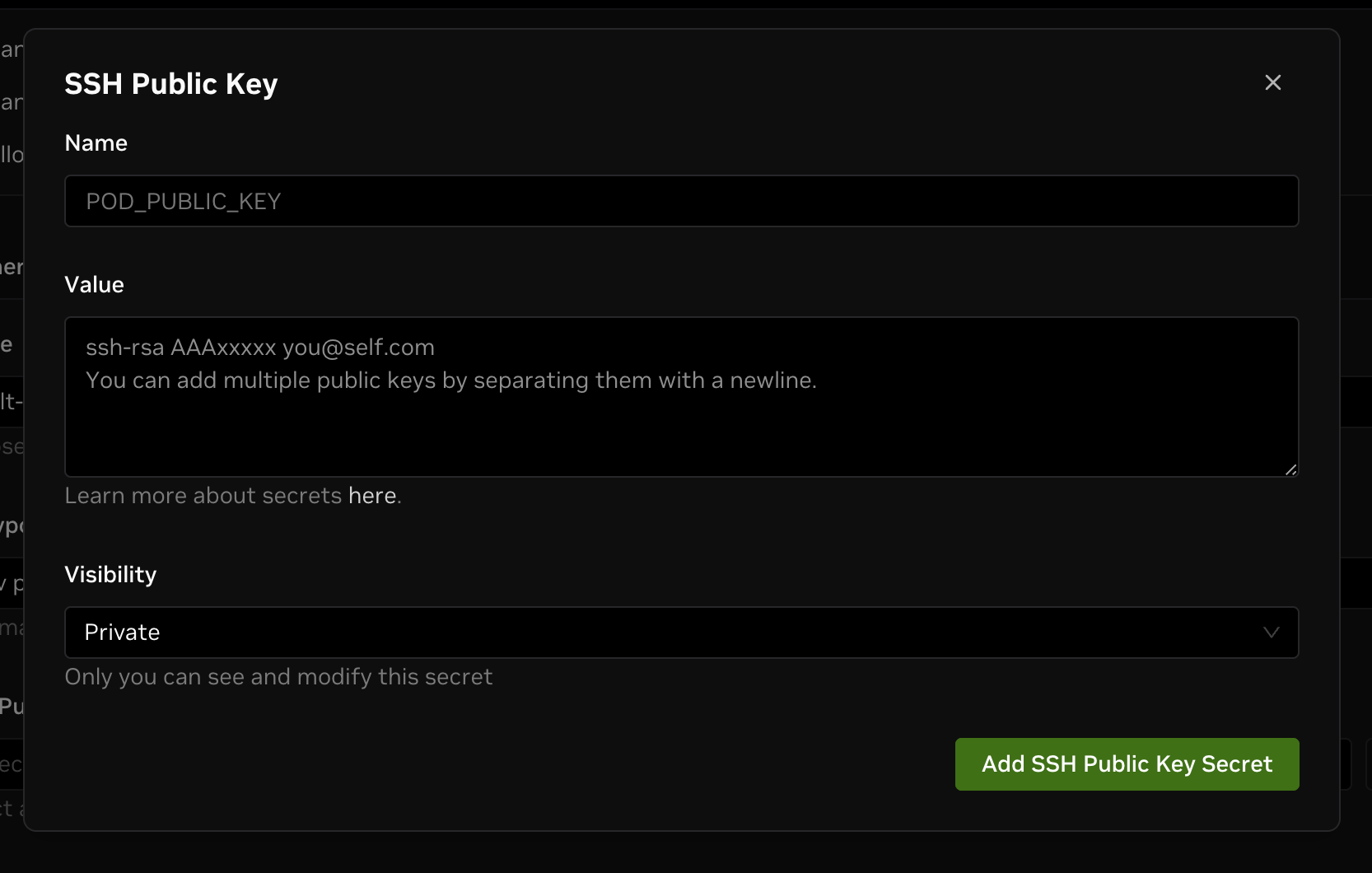
After you generate a public and private key pair, click the + button, enter a name, paste the public key, and click Add SSH Public Key Secret. The key is automatically filled in after creation.
Step 3: Configure SSH Ports
Select Enable SSH Host Network to pre-populate the container port configuration with the default SSH port 2222 and the Host Network option selected.
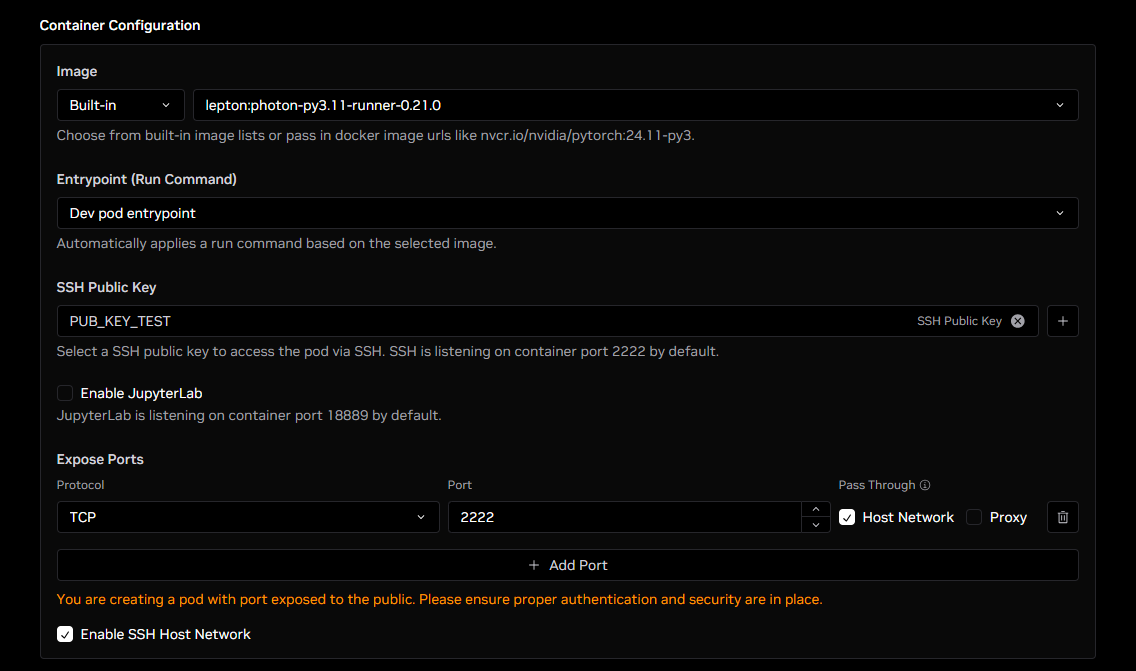
The Proxy option for exposing container ports does not currently support SSH. For more information, refer to this guide.
Fill in the rest of the configurations as applicable and create the Dev Pod. You will then see SSH connection information in the Connection tab.
Copy the SSH connection command and run it in your local terminal to access the Dev Pod via SSH. The private SSH key corresponding to the configured public key must be available and referenced in the SSH command via the ssh -i parameter.
The machine accessing the Dev Pod must be able to reach and communicate with either the public or private IP of the node(s) on which the Dev Pods are running.
For more information on configuring nodes, refer to the node requirements guide.
SSH with Custom Images
If you are using a custom image, the SSH Public Key field is not present because DGX Cloud Lepton cannot determine whether SSH is pre-configured.
You can still use SSH to access your Dev Pod by manually setting up SSH in the container. Install and run the SSH server after starting the Dev Pod (see the example below), or install the SSH server as part of the run command (see the Install and Configure SSH and Jupyter for Custom Images example).
Step 1: Start the Dev Pod with Custom Image
Navigate to the Dev Pod creation page. In the Container Configuration section, select Custom image, then enter the URL for your container image.
Under Entrypoint, select one of the following options:
- Image default entrypoint - Select this option to use the default entrypoint for the image.
- Custom entrypoint - Select this option if you want to manually specify the run command for the Dev Pod (to run a custom start-up script, for example).
Under Expose Ports, click the Add Port button.
If following the example below, specify 2222 as the port, or choose a different port if you are modifying or using your own script.
Select the Host Network checkbox.
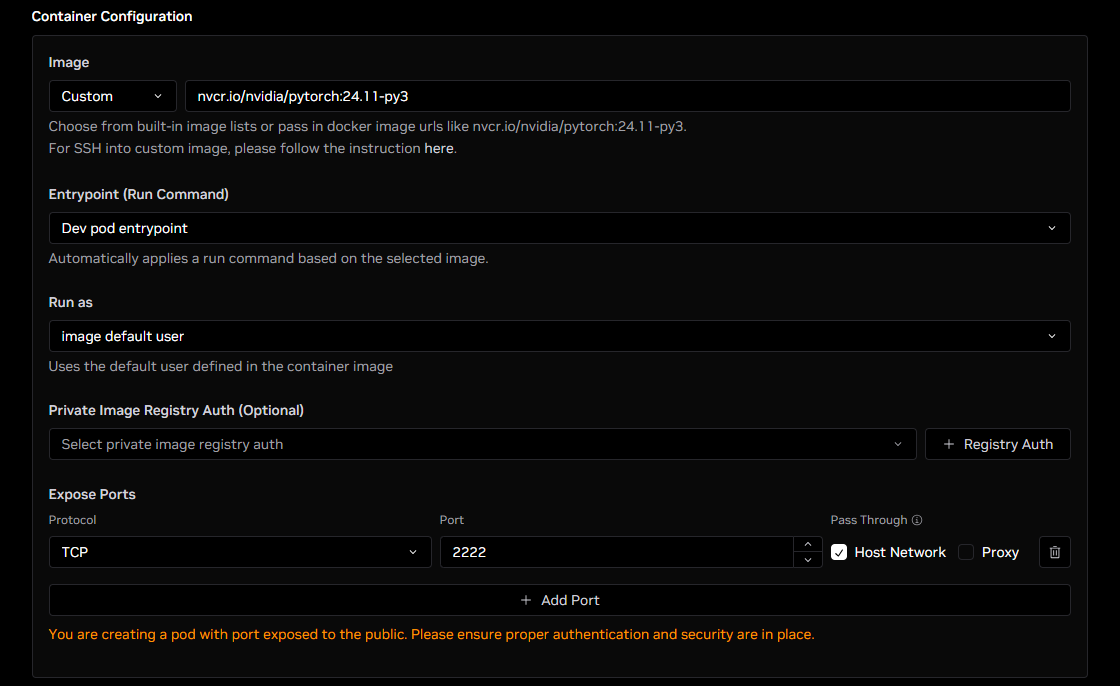
The Proxy option for exposing container ports does not currently support SSH. For more information, refer to this guide.
Fill in the rest of the configurations as applicable and create the Dev Pod.
Step 2: Prepare the Setup Script
Prepare your SSH public key and fill it into the script below.
Step 3: Execute the Script via Web Terminal
Navigate to the pod details page and switch to the Terminal tab to open the web terminal for the pod.
Copy and paste the script into the terminal, then press Enter to execute it.
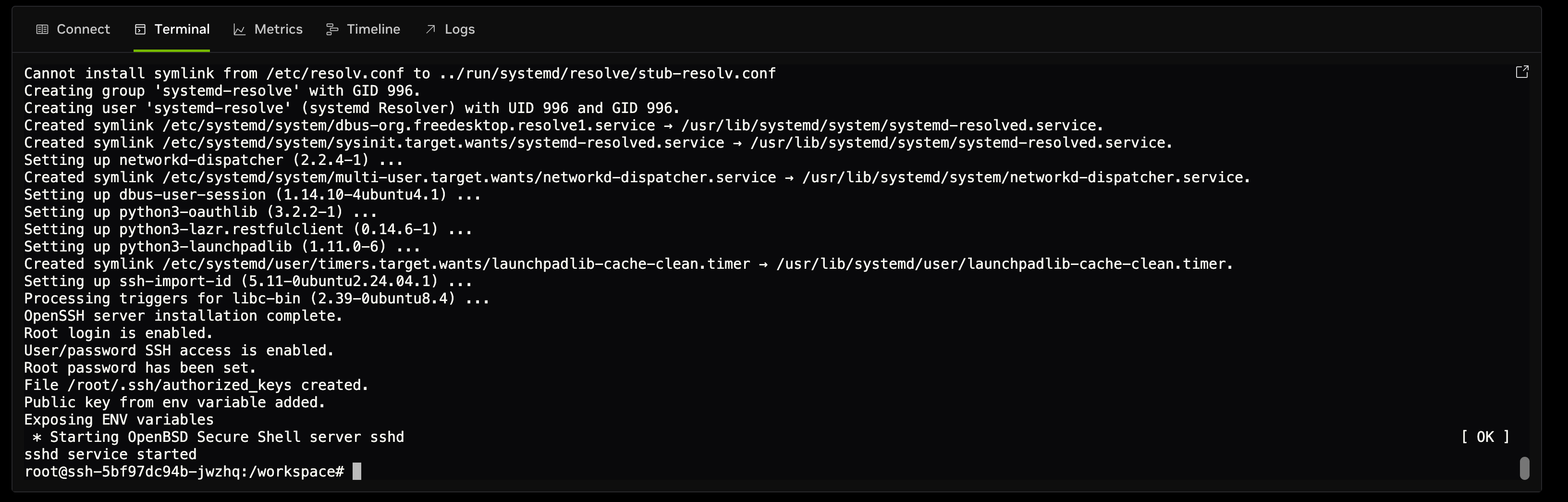
Step 4: Connect to the Dev Pod via SSH
After the script finishes, connect to the Dev Pod via SSH from your local terminal using the command shown in the Connection tab.
The machine accessing the Dev Pod must be able to reach and communicate with either the public or private IP of the node(s) on which the Dev Pods are running.
For more information on configuring nodes, refer to the node requirements guide.
Next Steps
- Learn how to customize your container to meet your needs.