Create Endpoints with Dynamo
Learn how to create endpoints using Dynamo disaggregated serving for optimized LLM inference.
In this guide, we'll show you how to create a dedicated endpoint using Dynamo, NVIDIA's high-performance inference framework that separates prefill and decode phases for optimized GPU usage.
What is Dynamo?
Dynamo is a high-performance inference framework that uses disaggregated serving architecture to optimize LLM inference. It separates the compute-heavy prefill phase and memory-heavy decode phase into specialized workers running on dedicated hardware, enabling better GPU utilization and performance.
Key Concepts
- Prefill Workers: Handle the compute-intensive initial processing of prompts
- Decode Workers: Handle the memory-intensive token generation phase
- Aggregated Serving: Both prefill and decode workers will co-exist on each node, optimizing resource usage.
- Disaggregated Serving: Different worker types run on separate nodes with high-speed interconnects (InfiniBand or NVLink), optimizing performance.
Create Dynamo Endpoint
- Go to Endpoints tab and click on Create Endpoint
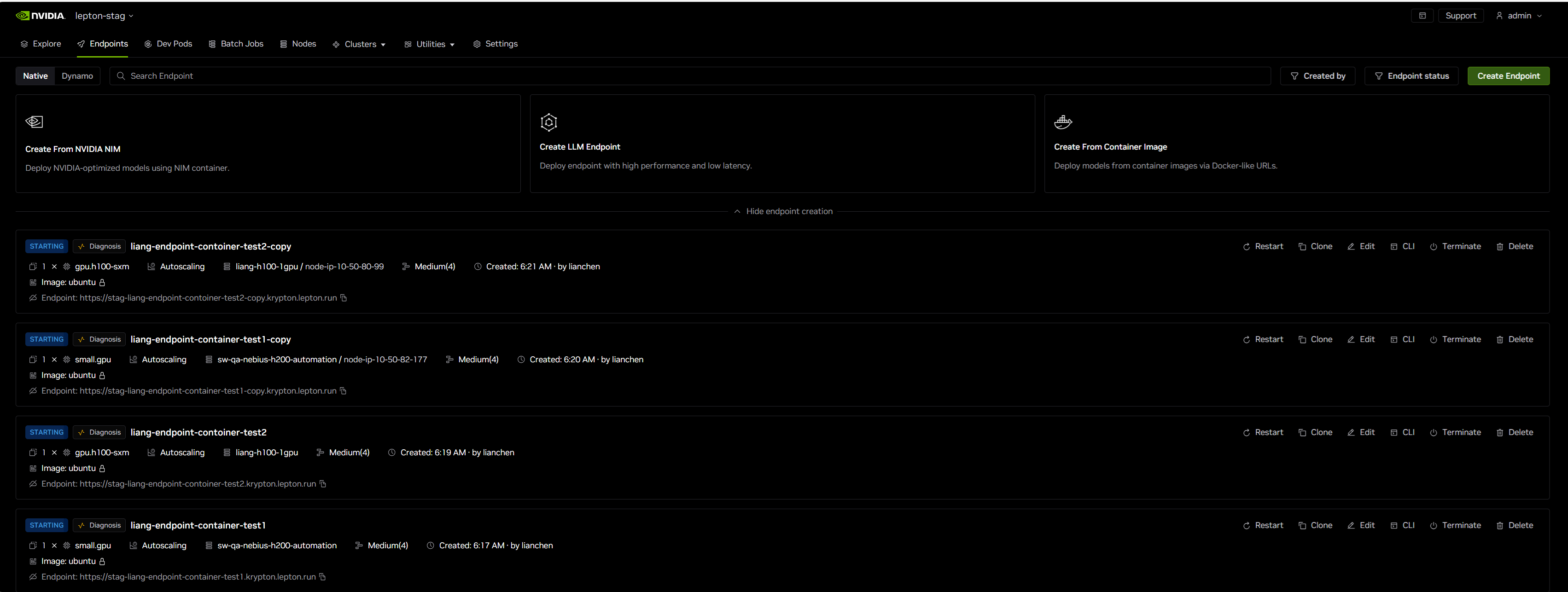
- Select Create LLM Endpoint
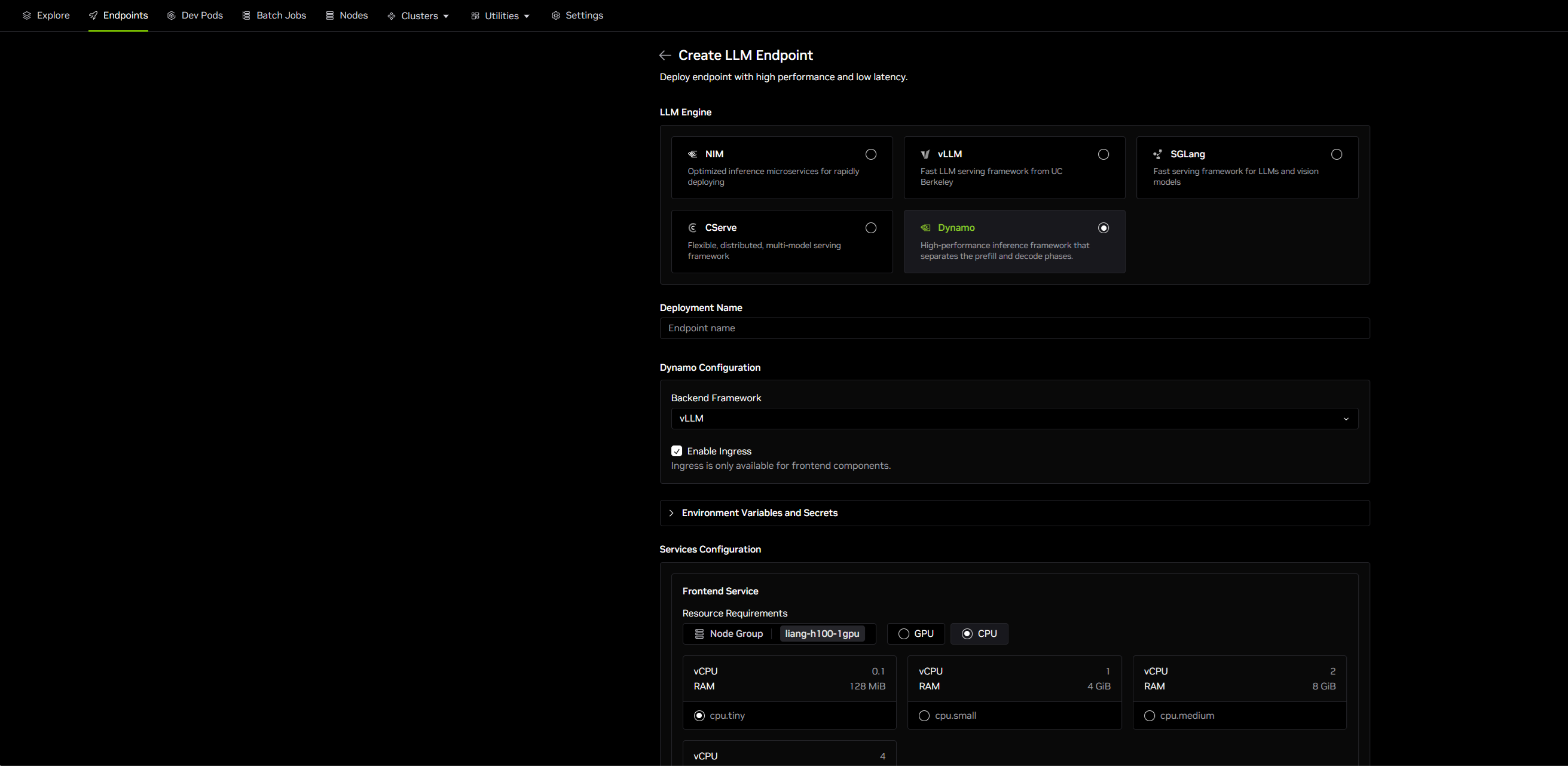
- Select Dynamo as the LLM Engine
-
For Deployment Name, enter a name for your endpoint (for example,
dynamo-endpoint) -
In the Dynamo Configuration section:
- Backend Framework: Choose the inference framework (for example, vLLM, TensorRT-LLM)
- Serving Mode: Select Aggregated for prefill and decode workers to run on the same node, or Disaggregated for workers to run on different nodes
- Enable Ingress: Check this option if you want ingress enabled for frontend components
If you change the backend framework after deployment (for example, from vLLM to TensorRT-LLM), you must restart the frontend component for the change to take effect.
-
Expand Environment Variables and Secrets to configure:
- Hugging Face Token (optional but recommended): Add your Hugging Face token if you're using gated models. Most models shown in Dynamo examples require a Hugging Face token for access. You can create a token in your Hugging Face account and save it as a secret in your workspace.
- Add any other required environment variables or secrets for your deployment
-
In the Services Configuration section, configure the Frontend Service (required):
- Node Group: Select the appropriate Node Group for your deployment
- Resource Requirements: Choose between GPU or CPU resources (both are supported for frontend)
- Resource Shape: Select the appropriate resource shape based on your needs
- Replicas: Specify the number of replicas for the frontend service to run on
-
Configure Decode Workers (only if using Disaggregated serving mode - scroll down to find this section):
- Worker Replicas: Set the number of decode worker replicas
- Resource Shape: Choose a GPU resource shape for decode workers (GPU required, typically memory-optimized)
-
Configure Prefill Workers (only if using Disaggregated serving mode):
- Worker Replicas: Set the number of prefill worker replicas
- Resource Shape: Choose a GPU resource shape for prefill workers (GPU required, typically compute-optimized)
-
Configure Workers (only if using Aggregated serving mode):
- Worker Replicas: Set the number of prefill worker replicas
- Resource Shape: Choose a GPU resource shape for prefill workers (GPU required, typically compute-optimized)
- Node Configuration: Select Single Node for the workers to run on a single node and Multi Node to run the workers on multiple nodes
- Configure additional settings:
- Workspace Dir: The working directory for the deployment (default value is provided)
- Run Command: The command to execute when starting the deployment
- For disaggregated serving: Use the default value provided
- For aggregated serving: Override with decode-only command arguments
In this release, Dynamo endpoints support only the configurations shown in the UI. Advanced features like autoscaling and access tokens are not yet available for Dynamo endpoints.
Once all configurations are complete, click on the Create Endpoint button to create the endpoint.
Endpoint Components
After creation, your Dynamo endpoint will display the following components on the endpoint card:
General Information
- Display Name
- Dynamo Namespace
- Dynamo Version
- Supported Inference Framework
Service Configuration
- Frontend Service Replicas
- Frontend Resource Shape
Worker Configuration
- Decode Worker Replicas and Resource Shape
- Prefill Worker Replicas and Resource Shape
Viewing Logs
Dynamo deployments provide per-replica logs for all components to support debugging and operational transparency:
- Navigate to your endpoint detail page
- Click on the Replicas tab
- Each component (frontend, decode workers, prefill workers) will show its replicas
- Click on the logs button for any replica to view its logs
The Replicas tab shows resources split by Dynamo component, with a column denoting whether a node is being used as a prefill or decode node.
Testing Your Endpoint
Once the endpoint is created and running, you can find the endpoint URL displayed directly on the endpoint card at the bottom.
Test your endpoint with a curl command:
Replace your-endpoint-url with the complete endpoint URL shown on your endpoint card.
API tab, Playground, and Metrics tabs are not yet supported for Dynamo endpoints in this release.
Backend Support Matrix
The following table is a support matrix for running the backends in various modes.
| Mode | TensorRT | vLLM | SGLang |
|---|---|---|---|
| Aggregated Single-node | ✅ | ✅ | ✅ |
| Aggregated Multi-node | ✅ | ✅ | ✅ |
| Disaggregated Single-node | ✅ | ✅ | ✅ |
| Disaggregated Multi-node | ℹ️ | ❌ | ℹ️ |
Note 1: An NFS mount is required for TensorRT in disaggregated multi-node configurations. Set the HF_HOME variable on all workers to the mounted directory.
Note 2: SGLang in disaggregated multi-node configurations requires tensor parallelism greater than 1.
Distinguishing Dynamo from Native Endpoints
Dynamo endpoints are clearly distinguished from native (standard) endpoints in the Endpoints list view:
- The default view shows "Native" endpoints
- Use the endpoint type filter to view Dynamo endpoints
- Dynamo endpoints display additional component information (prefill/decode workers) in their cards