Node Group Configuration
Learn how to configure the node group on DGX Cloud Lepton.
DGX Cloud Lepton allows you to configure the node group, including the following settings:
Storage
You can configure the storage for the node group, including Node Local Volume and Static NFS Volume.
Refer to the Storage guide for details.
Scheduling Policy
Click Scheduling Policy under the config menu to open a modal where you can configure scheduling.
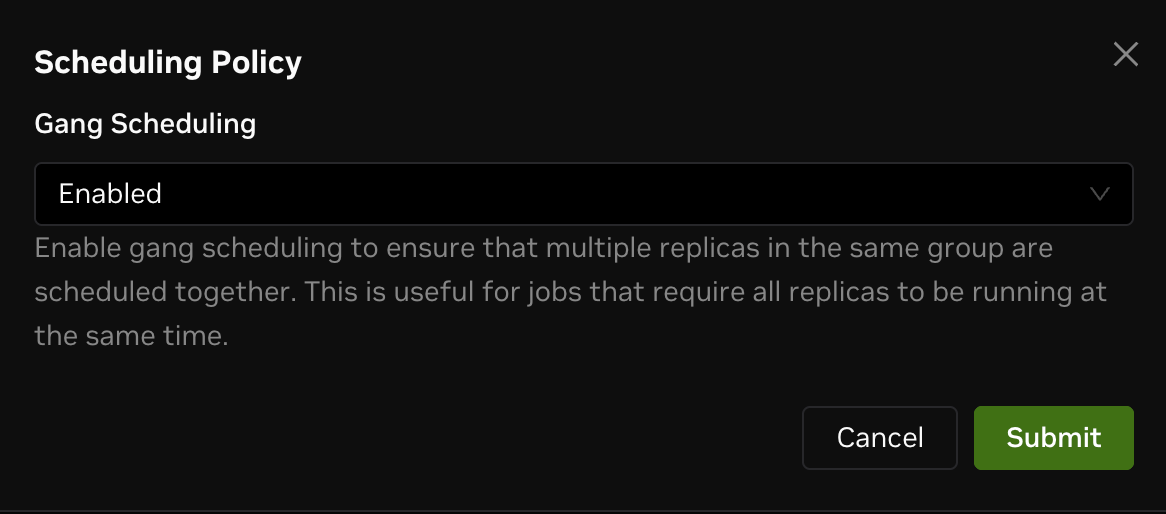
You can configure Gang Scheduling, which determines whether multiple replicas in the same group are scheduled together. By default, this option is enabled.
Recovery Policy
Click Recovery Policy under the config menu to open a modal for configuration.
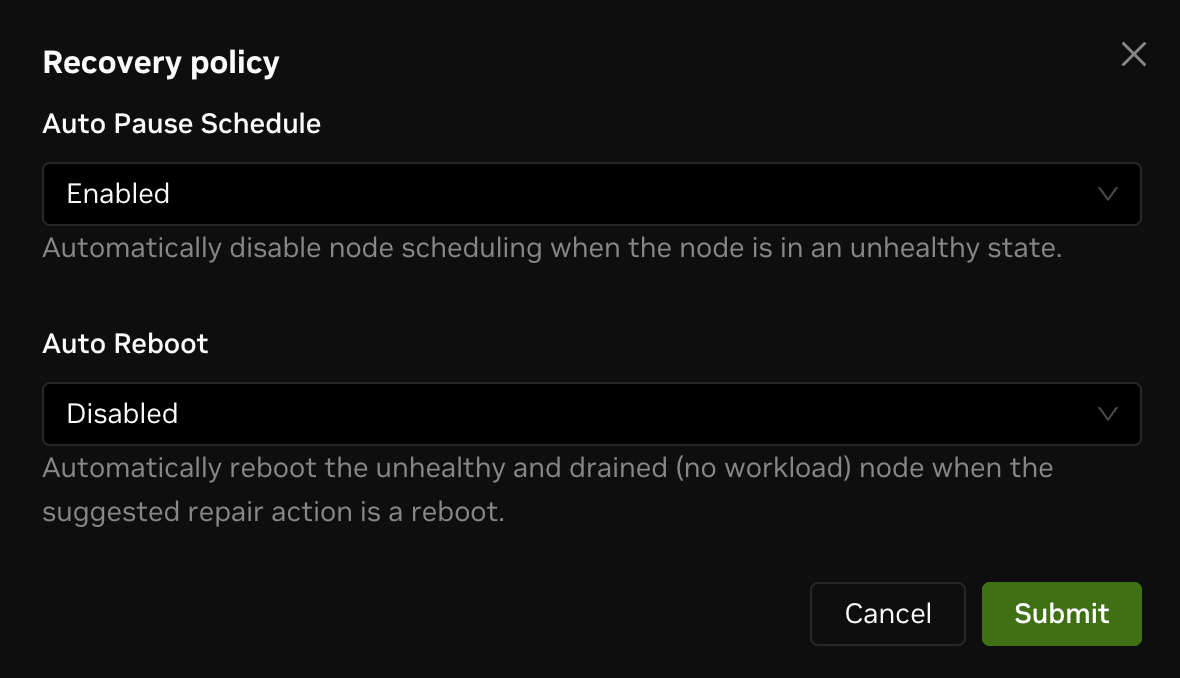
Recovery policy controls the following options:
Auto Pause Schedule
Whether to automatically pause scheduling for unhealthy nodes.
This prevents new workloads from being scheduled to unhealthy nodes and helps avoid prolonged unhealthy states.
Auto Reboot
Hardware issues can cause nodes to become unhealthy. When Auto Reboot is enabled, an unhealthy and drained node (no workloads) will be rebooted automatically to attempt recovery.
You can enable Auto Reboot only when Auto Pause Schedule is enabled.
Quota
Click Quota under the config menu to open the Node Group Quota page.
The page has two sections:
- Workspace Quota
- User Quota
Workspace Quota
If a node group is shared by multiple workspaces, you may want to limit total resource usage for the current workspace.
For example, if you are in a workspace named "test-workspace", you'll see a quota card named "test-workspace" in the workspace quota section. By default, the quota isn't configured, which means the total resource usage in the node group isn't limited. The priority policy is set to "Best Effort".
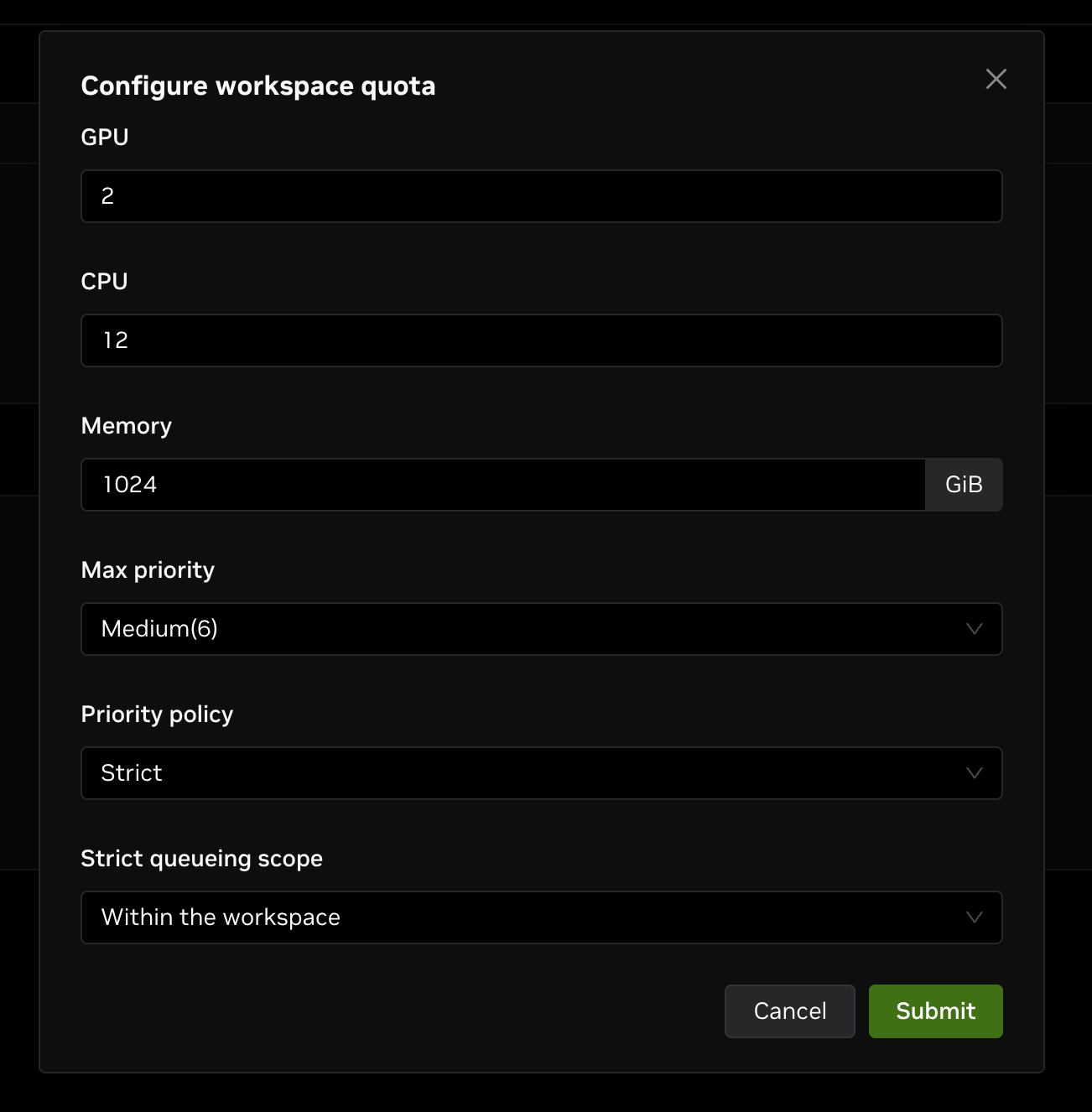
Click the edit button in the top-right corner of the card to configure:
- GPU: Total GPU quota for the workspace (default: unlimited).
- CPU: Total CPU quota for the workspace (default: unlimited).
- Memory: Total memory quota for the workspace in GB (default: unlimited).
- Max Priority: Maximum priority for the workspace.
- Priority Policy: Priority policy for the workspace.
- Best Effort: Allocate resources according to workload priority as much as possible.
- Strict: Allocate resources strictly according to workload priority. If you select "Strict", configure the "Strict Queueing Scope" as either "within the workspace" or "across workspaces".
User Quota
You can also configure the user quota for the node group to allocate resource quota to users to run workloads.
- User: The user to allocate the quota to.
- GPU: Total GPU quota for the user (default: unlimited).
- CPU: Total CPU quota for the user (default: unlimited).
- Memory: Total memory quota for the user in GB (default: unlimited).
- Max Priority: Maximum priority for the user.
Shapes
Shapes manage the resource configurations available in the node group. Refer to this documentation for details.
Container Image Acceleration
You can enable container image acceleration for the node group. With this feature, a node executing pods can pull container image data from other nodes in the group if the image is already cached there.
Click Image Acceleration under the config menu to open a configuration modal.
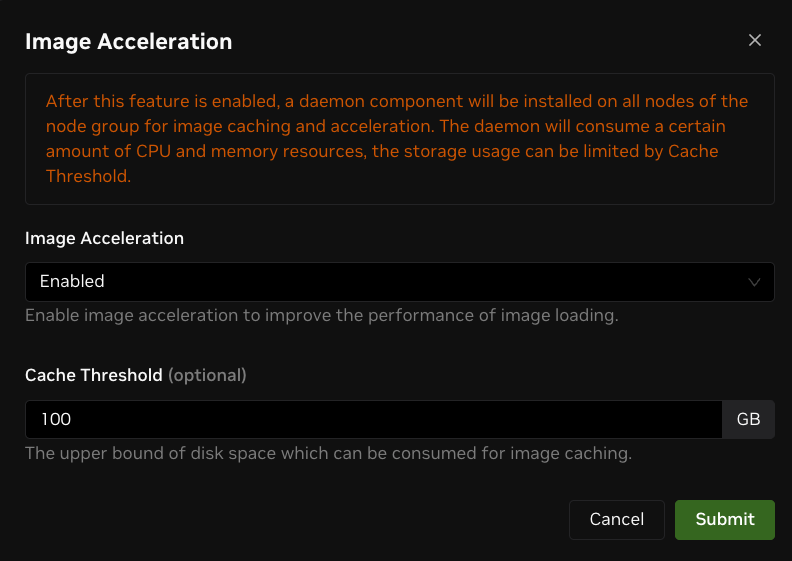
Select "Enabled" to turn on image acceleration for the node group. Select "Disabled" to turn it off.
After enabling, an image‑acceleration daemon is deployed on each node in the group. You can view it on the node detail page. The daemon uses one CPU core and one GB of memory by default, and up to two CPU cores and 16 GB of memory.
Configure the "Cache Threshold" in GB. This is the upper bound of root disk space available for image caching. If not specified, up to 80% of root disk space may be used.
Currently, this feature is not available if nodes have the Docker subsystem installed. We recommend not installing Docker (Lepton installs Containerd). This limitation will be removed in a future release.