Resource Shape
Learn about the resource shapes on DGX Cloud Lepton.
A resource shape specifies the combination of resources (such as GPU, CPU, memory, and storage) reserved for a workload.
For example, the shape 8xH100 GPUs, 128 CPUs, 1 TB Memory reserves 8 H100 GPUs, 128 CPU cores, and 1 TB of memory.
DGX Cloud Lepton supports two types of resource shapes:
- Default GPU shapes provided by Lepton.
- Custom shapes defined by the node group administrator.
Default GPU Shapes
DGX Cloud Lepton provides a set of default GPU shapes, designed for general-purpose workloads and focused on GPU allocation.
For default GPU shapes, the upper bound for other resource dimensions (such as vCPU and memory) equals total available resources divided by the number of GPUs. For example, on a node with 8 GPUs and 128 vCPUs, the default 1‑GPU shape is limited to 16 vCPUs (128 vCPUs divided by 8 GPUs).
While this is the upper bound, the GPU shape initially requests a much smaller CPU/memory footprint to leave room for CPU-only/memory shapes to be co-located on the same node. If required, the GPU shape can then burst up to its maximum allocation as explained above. To reiterate, a 1-GPU shape on an 8-GPU machine can burst up to one-eighth of the node's total CPU and memory.
However, bursting introduces a risk of out‑of‑memory (OOM) events or GPU resource contention if a CPU‑only/memory shape is co‑located with a GPU workload, as both contend for the same limited resources.
If your workload is sensitive to these issues, we recommend defining custom GPU shapes with CPU/memory limits that ensure the combined allocation between CPU‑only and GPU shapes does not exceed total system resources.
Custom Shapes
Navigate to your node group details page, click the Config dropdown, and select Shapes. You'll be taken to a new page to define custom shapes.
Click Add Shape in the top right to open a modal where you can define the shape's name, description, GPU, CPU, and memory.
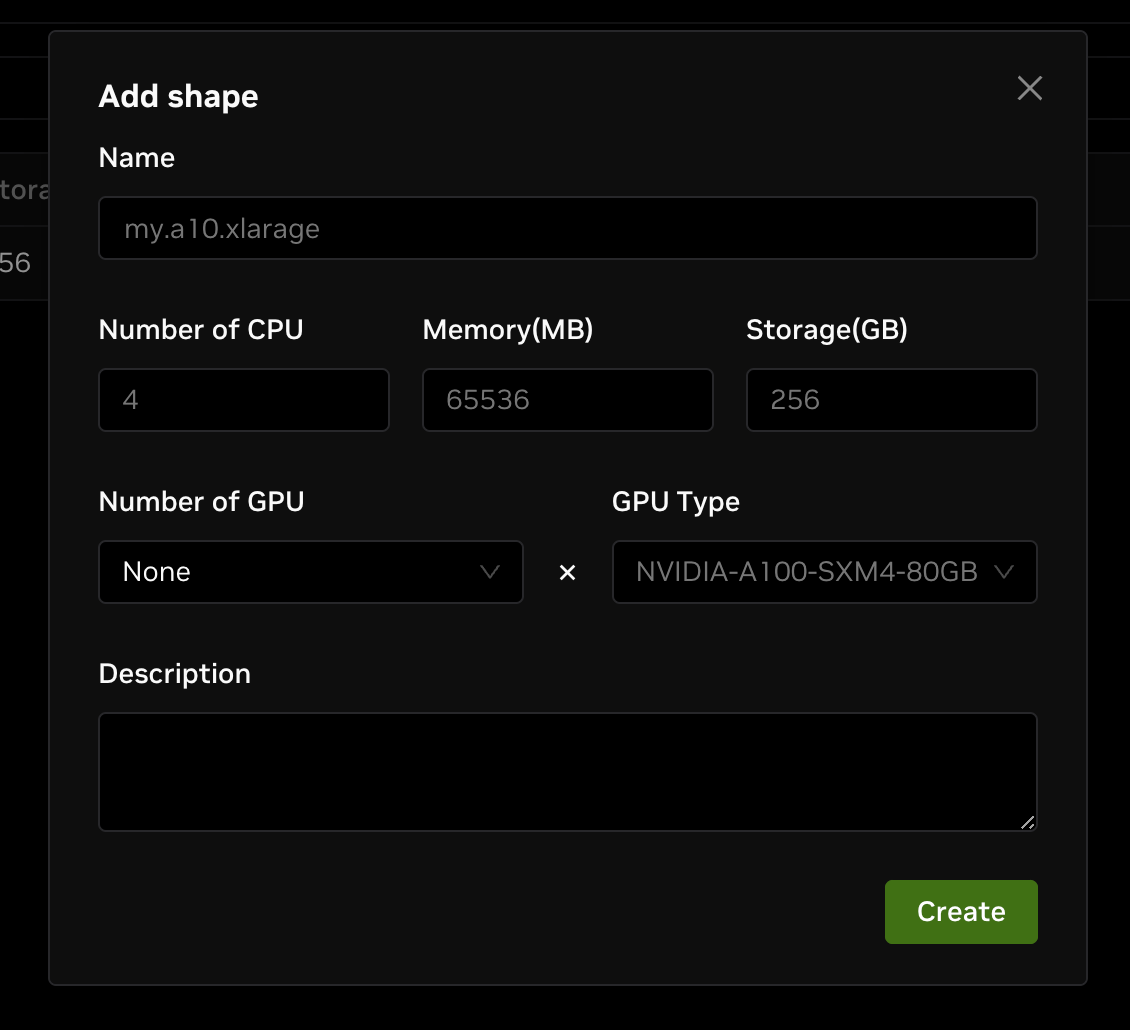
- Name: The identifier for the shape, used to distinguish it when selecting or configuring resources.
- Number of CPU: The total number of CPU cores allocated to the shape.
- Memory: The amount of memory reserved for the shape, measured in MB.
- Storage: The amount of storage reserved for the shape, measured in GB.
- Number of GPU: The number of GPUs allocated to the shape. Set to "None" to create a CPU‑only shape.
- GPU Type: The specific type of GPU assigned to the shape. Available types are determined by the node group.
- Description (Optional): An optional field to provide additional details or context about the shape.
After filling out the form, click Create to create the custom shape.
Unlike default GPU shapes, custom shapes reserve only the specified resources and won't burst beyond those limits.
List Shapes from CLI
To view available resource shapes using the CLI, first ensure the latest version of the DGX Cloud Lepton CLI is installed. Run the following command in a terminal with Python 3.10+:
CLI version 0.26.4 or newer is required.
Once installed, run:
This prompts you to authenticate with your DGX Cloud Lepton workspace. In a GUI‑supported environment such as a desktop, a browser opens to the credentials page in your workspace. Otherwise, a URL is displayed for you to open in a browser.
On the credentials page, create an authentication token by following the prompts. The page will display a secret token which is used for authentication. Copy the workspace ID and token shown in the second field and paste it back in your terminal. The format should look like xxxxxx:**************************. You should now be authenticated with DGX Cloud Lepton. You only need to authenticate once locally as long as your credentials remain valid.
To view your resource shapes, run:
This command returns a table showing resource shapes available in each node group. Values in the Shapes column indicate resource names you can use when submitting jobs via the CLI or SDK.
Disable or Enable Default Shapes
By default, DGX Cloud Lepton generates and enables default shapes for each node group, based on the accelerator type selected when creating the node group. If these default shapes aren't suitable for your workload, and you want to use only custom shapes, you can disable default shapes.
Navigate to your node group details page, click the Config dropdown, and select Shapes. You'll be taken to a page where you can disable or enable default shapes.
In the Default Shapes section, view default shapes for the node group and disable or enable them by clicking Disable or Enable for each row.
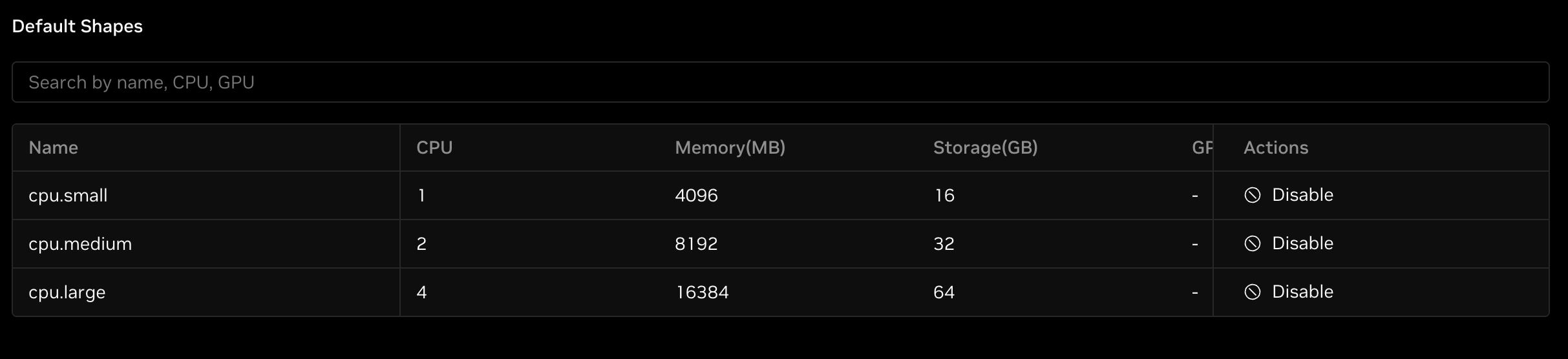
After disabling a default shape, it appears as disabled in the Custom Shapes section. Users cannot select this shape when creating workloads unless you re‑enable it.