Logs
Monitor and troubleshoot your DGX Cloud Lepton applications with real-time logs and advanced logs.
DGX Cloud Lepton provides a comprehensive observability platform to help you monitor and troubleshoot your applications, including real-time logs and advanced logs.
What are logs?
Logs are generated by the replicas in jobs and pods, including all standard output and error output (print or echo).
With real-time logs:
- Logs are real-time and can be viewed as soon as the replicas in deployments, jobs, and pods are running. Real-time logs are no longer available once the workloads are deleted or terminated.
- Real-time logs display only the last 10,000 rows.
With advanced logs:
- Support search and filtering.
- View log context.
- Query at the deployment, job, pod, and workspace levels.
- By default, if Advanced logs are enabled, generated logs are stored for 7 days. If a longer log retention period is required, contact NVIDIA support.
Real-time Logs
To view real-time logs:
- From the dashboard, navigate to the deployment, job, or pod detail page.
- Select the replicas tab.
- Click the Logs button to view the real-time logs.
You can also click the Live button in the top-right corner to switch to live mode.
Advanced Logs
Advanced logs allow you to access and query logs across multiple replicas and historical data simultaneously.
By default, the advanced logs feature is disabled in your workspace. You need to enable it manually in the settings page.
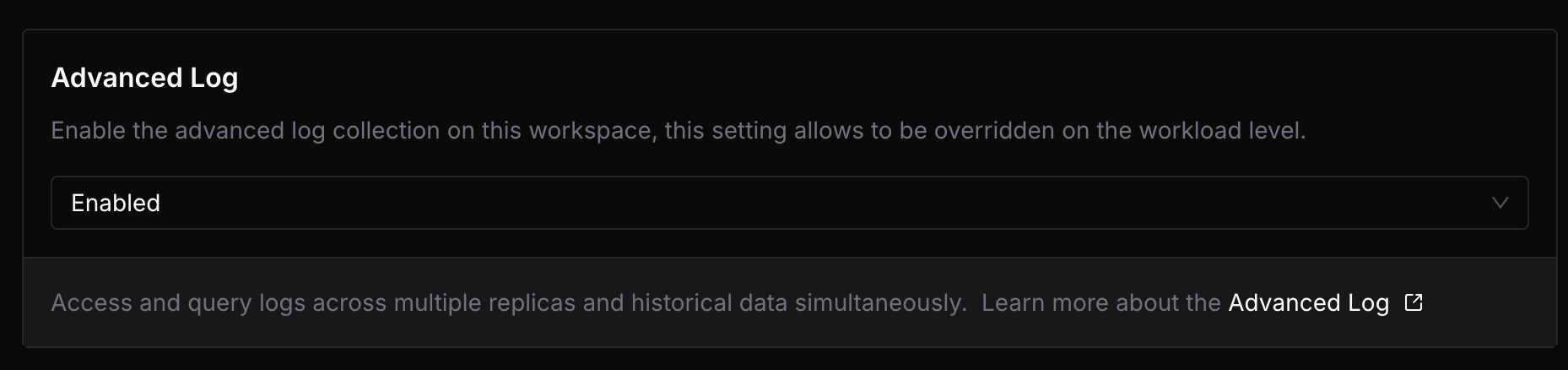
All the workloads created after enabling that feature will start collecting and storing advanced logs automatically. Logs are stored for a default of 7 days. If a longer log retention period is required, contact NVIDIA support.
You can also enable advanced logs for a specific deployment, job, or pod by selecting the option in the Advanced Configuration section during creation.
To view advanced logs:
- From the dashboard, select the Observability tab and select Logs.
- Or, select the Logs tab from the deployment, job, or pod detail page.
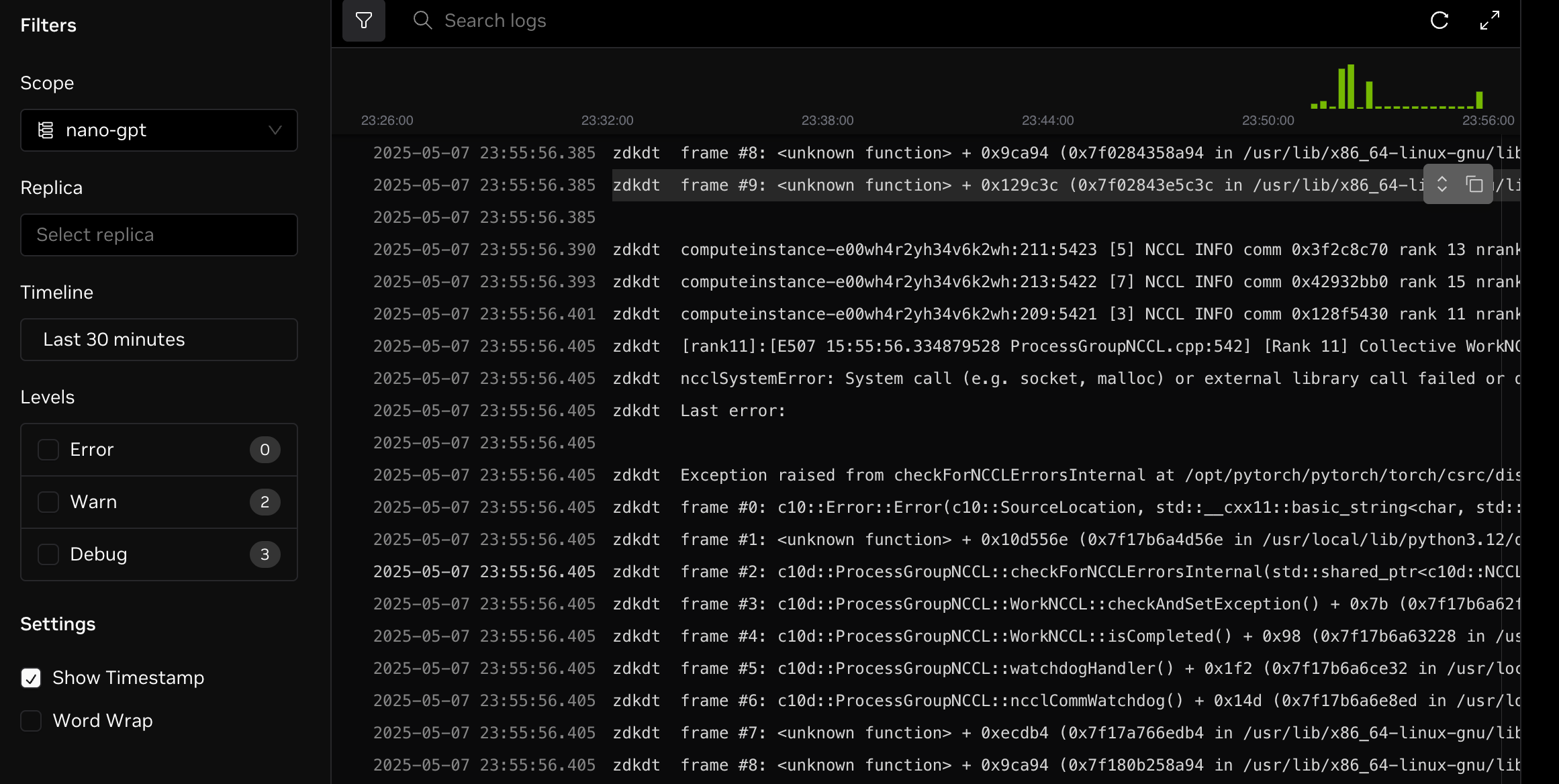
Filters
You can use the following filters from the left sidebar to get a refined search experience.
| Filter | Description |
|---|---|
| Timeline | Query logs by specific time, including the maximum (7 days) or a custom time range, default is most recent 24 hours. |
| Scope | Select or enter a deployment, job, or pod name to query the logs of all replicas within that scope. |
| Replica | Select or enter a specific replica name to query the logs of that replica. |
Log Context
Viewing log context is helpful when filters match multiple time periods or scopes.
Hover over the line whose context you want to view, then click the show context button to view the log context. In the log context dialog, the current line will be highlighted along with its surrounding context.