Storage
Learn how to use storage on DGX Cloud Lepton.
DGX Cloud Lepton provides a storage solution that allows you to store and access your data in a secure and scalable way.
There are two types of storage available on DGX Cloud Lepton:
Node Local Volume
Node Local Volume persists data across workload lifecycles on the same node. It stores data directly on the node where your workload runs.
- Node Local Volume data is not replicated across different nodes.
- You are responsible for managing and cleaning up the data.
Static NFS Volume
Static NFS Volume enables workloads on multiple nodes to share a common filesystem. The data resides on an NFS server that any workload can mount and use.
- All nodes with connectivity to the NFS server can read and write this data.
- Performance is governed by network bandwidth, latency, and the capacity of the NFS server.
- Data durability relies on the backup and reliability features provided by the underlying NFS server.
Add Storage for Node Group
You can add those two types of storage for your node group.
Navigate to the storage page on the DGX Cloud Lepton dashboard. You can view the storage list grouped by node groups.
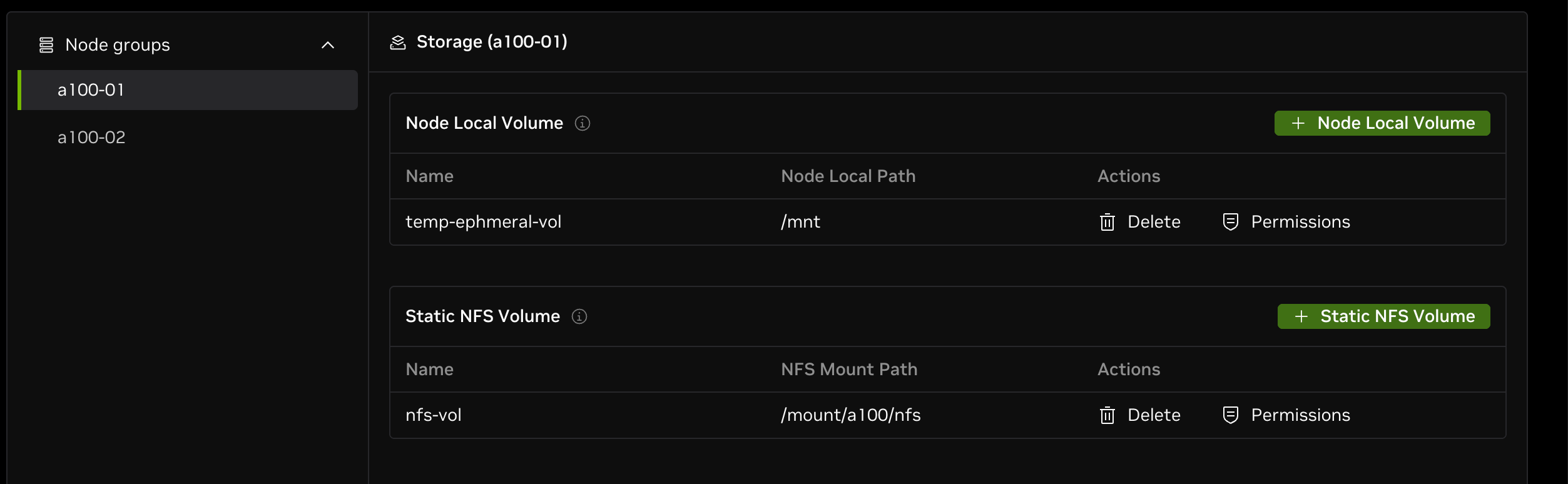
Each node group has its own Node Local Volume list and Static NFS Volume list. Add storage for each node group separately by clicking the button in the top right corner of the section.
For both types of storage, specify the volume name and the mount path (on the node) when adding storage.
Before adding static NFS volume, please make sure NFS is already mounted on all nodes in the node group with the same mount path.
Permission management
Permissions allow administrators to configure volume sub-path access for users. The permission system verifies that users requesting jobs with storage are authorized to mount the specified path before job execution. Once a job starts, the mount remains unaffected by permission changes.
The permission system allows access to all users when no rules are configured. However, once any rule is configured, all access must be explicitly allowed. Only allow rules exist, and permission on a parent directory grants access to all sub-paths.
Manage the permission for paths within a volume by clicking on the Permission button in the volume row.

Path
In the Path field, specify the path prefix you want to grant access to. This Path is relative to the volume itself. The permission will only apply to the specified path prefix.
For example, if you specify /data/test as the path prefix, then the permission will only apply to the path /data/test and all subfolders under /data/test.
Policy
There are two kinds of permission policies:
- Permitting selected members to specific path: This will only grant access to the selected members for the path you specified in the Path field.
- Access to subfolders if email username matches: This automatically grants users access to all subfolders whose name matches their email username (the part before the @ symbol).
Members
If you select the Permitting selected members to specific path policy, you can select the workspace members you want to grant access to.
Permission Example
Based on the volume directory layout shown below, we will use an example to demonstrate rule precedence.
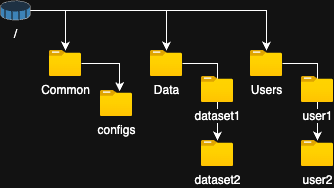
Rules:
- Permitting selected members to specific path -> Allow all-users to /Common
- Permitting selected members to specific path -> Allow user1 to /Data/dataset1
- Permitting selected members to specific path -> Allow user1 and user2 to /Data/dataset2
- Access to subfolders if email username matches -> Allow users /user/<username>
- Permitting selected members to specific path -> Allow admin1 and admin2 to /
Results in the following permissions:
- The 2 Admin users (admin1 and admin2) have access to everything within the volume.
- User1 has access to /Common, /Data/dataset1, /Data/dataset2 and /User/user1
- User2 has access to /Common, /Dataset/dataset2 and /user/user2
Use Storage for Workloads
After adding volumes, you can use them in your workloads.
For example, when you are creating a Dev Pod, you can specify the node group as the one you've added the storage to.
In the Storage section, click the Mount storage button to select the volume you want to mount.
- Volume: Select the specific volume you want to mount by name. An indicator shows the volume type.
- From path: Specifies the directory path within the volume. For example, to mount the root of the volume, set the "From path" to
/. - Mount path: Specifies the path where the directory will be mounted in the container. For example, to mount the volume's root directory to
/mntin the container, set the "Mount path" to/mnt.
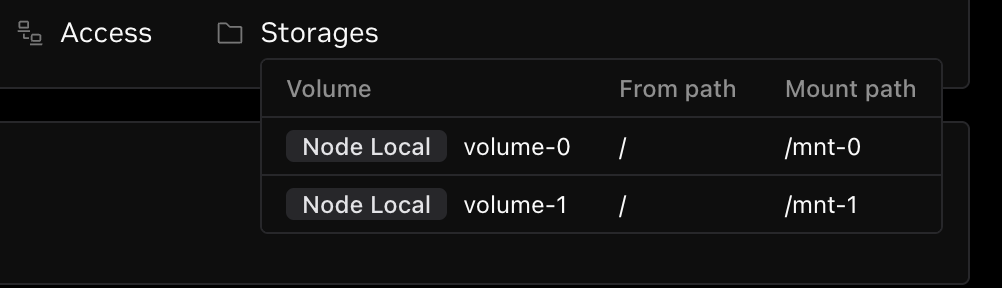
You can mount multiple storage volumes simultaneously. After the pod is created, you can view the mounted storage volumes in the details page.