Break Glass Access for Support
Learn how NVIDIA support team can request temporary access to your workspace for troubleshooting, and how workspace administrators can manage these access requests.
This section details the process for granting DGX Cloud Lepton support temporary, essential access to customer workspaces for debugging and support.
Request for Access
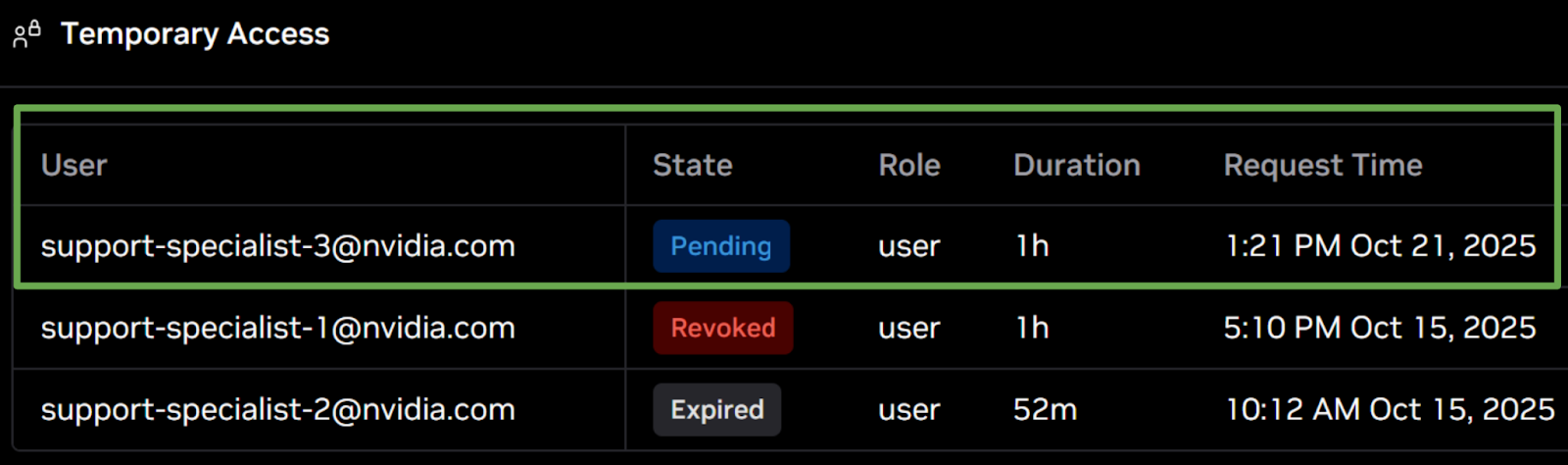
Your Technical Account Manager will notify you of pending requests. Administrators can find these requests in the Temporary Access tab within your workspace's Settings, where they will have a Pending status.
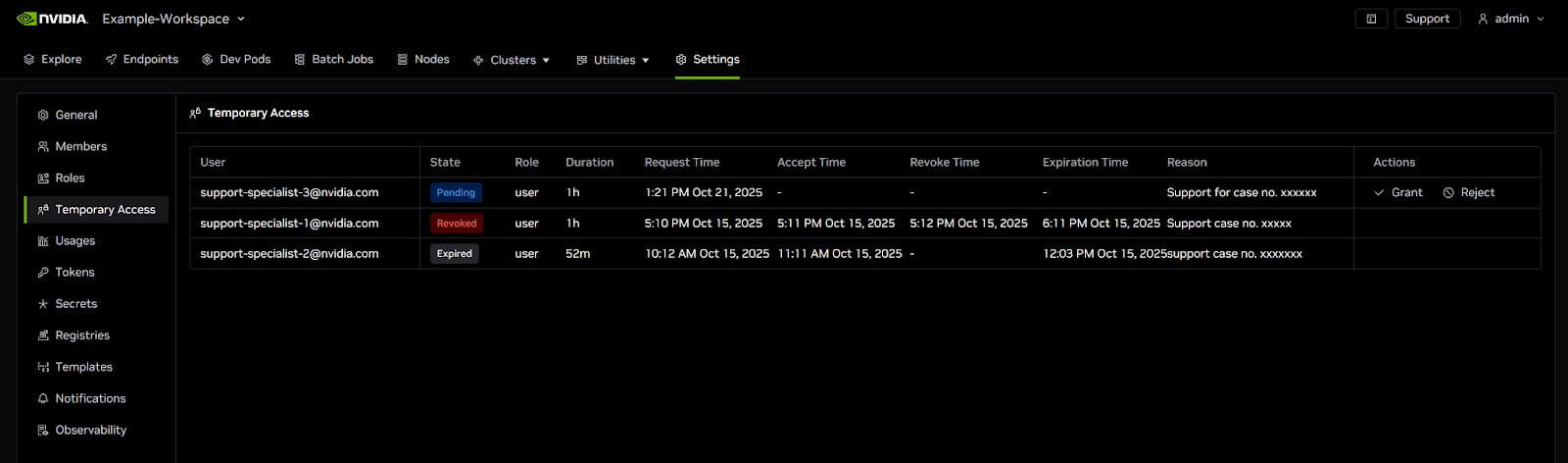
When requesting access to your workspace, the support specialists will specify the permission level and duration of access.
Permission Levels:
- Viewer: Allows the specialist to view information within the workspace.
- User: Grants the specialist permissions equivalent to a standard user in your organization.
Managing Access Requests
Administrators can approve the request, reject it, or revoke access to a workspace.
Request States
Each access request can be in one of the following states:
- Pending: The request has been submitted and is awaiting admin approval
- Approved: The request has been granted and access is currently active
- Expired: The granted access has passed its expiration time
- Revoked: The admin manually revoked the access before expiration
- Rejected: The admin rejected the request without granting access
Viewing Requests
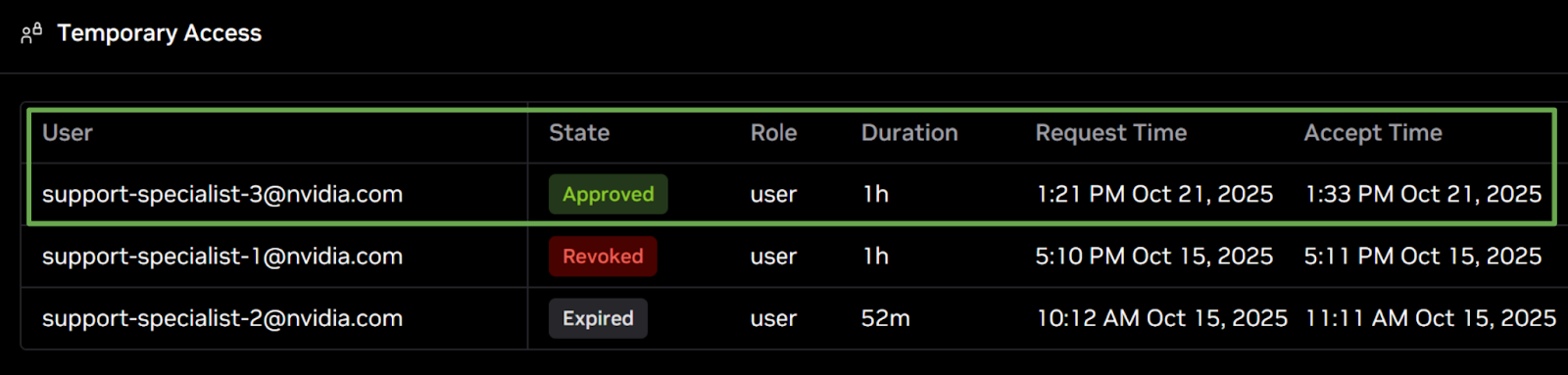
The access request list displays the following information for each request:
- User: Email address of the support team member
- State: Current status of the request
- Role: The access level requested (Viewer or User)
- Duration: How long the access will be active once granted
- Request Time: When the request was submitted
- Accept Time: When the request was approved
- Expiration Time: When the access will automatically expire
- Revoke Time: When the access was revoked
- Reason: The explanation provided by the support team member
Approve or Reject a Request
To approve or reject a request:
- Navigate to the Temporary Access tab within Settings.
- Before proceeding, verify that the requested role and duration are appropriate.
- To approve a request, click Grant. The status will update to Approved.
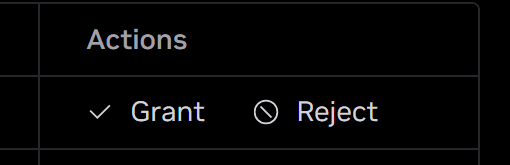

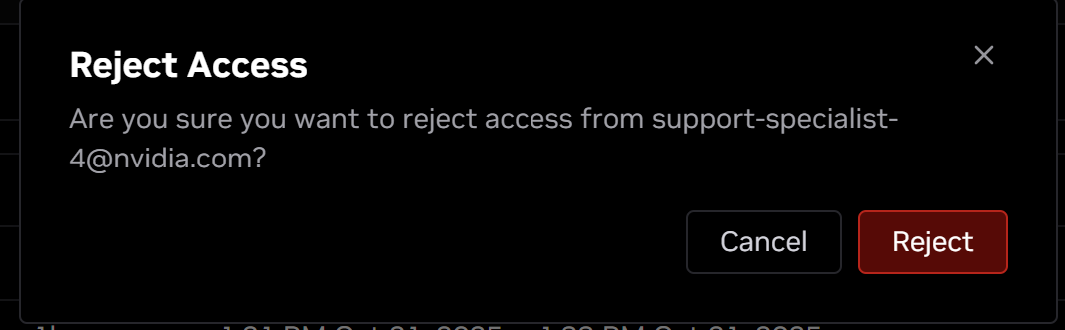
- To reject the request, click Reject.

Key Details Regarding Approved Access:
- Automatic Time Limit: Access is automatically limited to the duration specified in the request.
- Permissions: Approved access confers either viewer or user permissions as requested.
- Workspace Restriction: Access is restricted solely to the specified Workspace. Other Workspaces remain inaccessible.
- No Addition to Lepton Workspace or NCA: The support specialist will only be able to access the Workspace; they will not be added to your Lepton Workspace or NCA.
Revoke Access
To revoke access before it expires:
- Navigate to the Temporary Access tab within Settings.
- Identify the request you want to revoke access for and click Revoke.

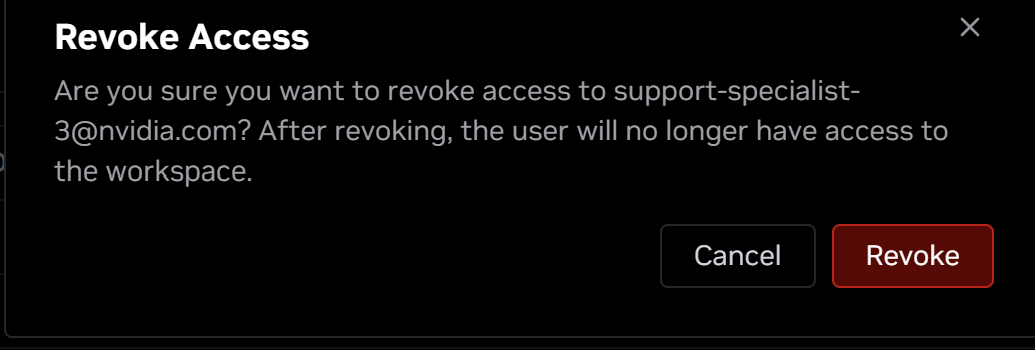
- The status will update to Revoked, and the requestor will no longer be able to access the workspace.

Security and Auditing
The system thoroughly audits all temporary access, including the addition of support users to a workspace.
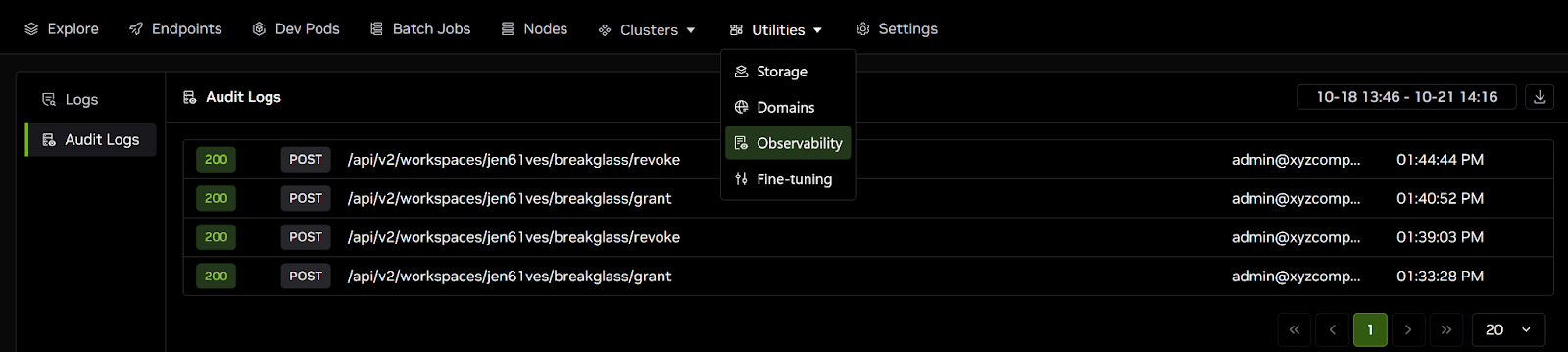
- View Access Granting Logs: Access logs for granting temporary access under Utilities → Observability → Audit logs.
- Monitor Support Personnel Activity: All actions performed by support personnel within a workspace are also audited.