GCP Workload Identity Federation
Learn how to federate your DGX Cloud Lepton environment with Google Cloud.
Workload Identity Federation eliminates the maintenance and security burden associated with service account keys. With Workload Identity Federation, you can use Identity and Access Management (IAM) to grant external identities IAM roles, and direct access on Google Cloud resources. You can also grant access through service account impersonation (not covered here).
GCP - Workload Identity Federation via Cloud Console
To set up workload identity federation, navigate to your organization's Google Cloud Console, then go to IAM & Admin -> Workload Identity Federation. Click the CREATE POOL button to proceed.
In the subsequent workflow wizard, provide a name for the pool and an optional description, and select OpenID Connect (OIDC) as the provider.


After selecting the provider type, enter dgx-cloud as the provider name and
paste the Issuer URL from the DGX Cloud Lepton console into the Issuer (URL)
field. Under Audiences, select Allowed audiences and enter
https://kubernetes.default.svc as the allowed audience.

Lastly, add a mapping google.subject to assertion.sub in the
Configure provider attributes step.

Once complete, the Workload Identity Pool will confirm that it can communicate
with the dgx-cloud Kubernetes cluster. You should see a green checkmark in
the upper left corner near the provider you created, as shown below.

Next, click CONNECTED SERVICE ACCOUNTS in the upper right corner and then
select the DOWNLOAD CONFIG button. When the Configure your application
dialog comes up, select the provider you created and then paste the path
/var/run/secrets/kubernetes.io/serviceaccount/token into the OIDC ID token path
field, leaving the format as "text" and then click DOWNLOAD CONFIG to download the
required configuration file.
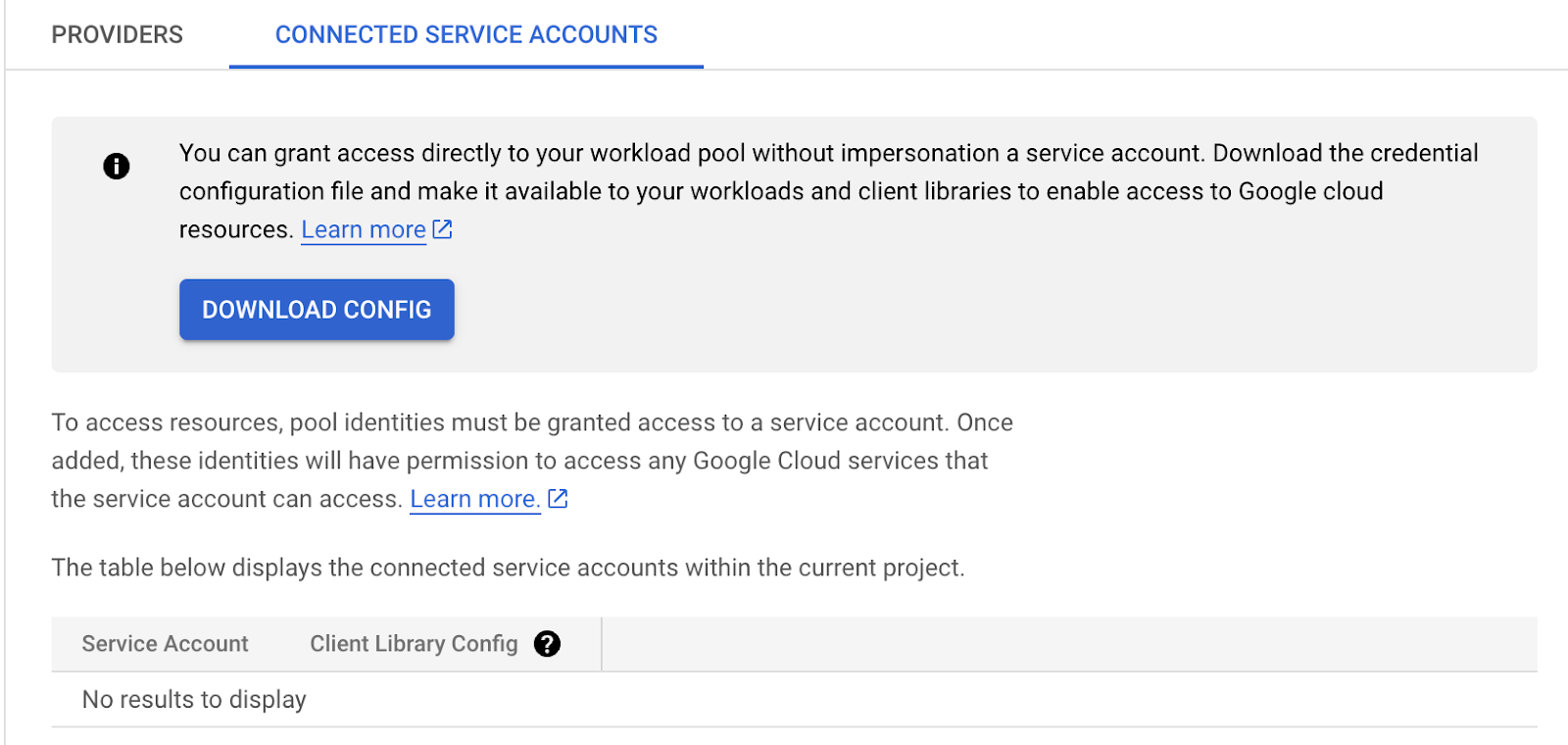

After saving the client configuration JSON file, click DISMISS. On the main Identity Federation Pool page, locate and copy the value in the IAM Principal field. It will look similar to:
principal://iam.googleapis.com/projects/1091797687346/locations/global/workloadIdentityPools/nvidia-dgx-cloud-env/subject/SUBJECT_ATTRIBUTE_VALUE
where SUBJECT_ATTRIBUTE_VALUE represents the Kubernetes identifier
(sub field in the token).
Since the service account is always default in DGX Cloud Lepton and the namespace is
ws-workspaceID, substitute
system:serviceaccount:ws-workspaceID:default as the
SUBJECT_ATTRIBUTE_VALUE. The overall IAM Principal will therefore be:
principal://iam.googleapis.com/projects/1068792787346/locations/global/workloadIdentityPools/nvidia-dgx-cloud-env/subject/system:serviceaccount:ws-workspaceID:default
This is the IAM Principal to use (within GCP IAM) to grant access to workloads in the DGX Cloud Lepton workspace, as shown below:

Configure Your Workload
Copy the JSON client configuration clientLibraryConfig.json file you downloaded to your
workload container (perhaps building the file into your container image). Set the environment
variable GOOGLE_APPLICATION_CREDENTIALS to point to it, log in with the credential, and set
the default GCP project. At this point, the GCP resources authorized through IAM will
be accessible using either gcloud or gsutil commands.
For example, add the following to your container startup:
Use a command like the following to copy all objects from the bucket to a local /data
directory:
Workload Identity Federation via the gcloud CLI
Once your GCS bucket is created, set up Bash environment variables for the specifics of the GCP-related variables
required. Specify a different $BUCKET_NAME if you used a custom name in the console.
Workspaces within DGX Cloud Lepton become Kubernetes namespaces prefixed by ws-. Therefore,
workspaceID will become the Kubernetes namespace ws-workspaceID.
Next, define some variables for the Kubernetes-related resources that will be used later:
Use the gcloud CLI to authenticate, then set your project for the subsequent instructions:
Next, create a workload identity pool and an OIDC provider for that pool using the OIDC URL provided in the DGX Cloud Lepton console under NodeGroup:
Now download the clientLibraryConfig.json file, which you use within your workload to configure
the Google Cloud tools and libraries (as shown above):
Lastly, bind the Kubernetes service account to the bucket to allow access to the objects: