

Connecting to DGX B300#
Connecting to the Console#
Connect to the DGX B300 console using either a direct connection or a remote connection through the Baseboard Management Controller (BMC).
Important
Connect directly to the DGX B300 console if the NVIDIA DGX™ B300 system is connected to a 172.17.xx.xx subnet.
DGX OS Server software installs Docker Engine, which uses the 172.17.xx.xx subnet by default for Docker containers. If the DGX B300 system is on the same subnet, you cannot establish a network connection to the DGX B300 system.
For instructions on changing the default Docker network settings, refer to Configuring Docker IP Addresses in the NVIDIA DGX OS 7 User Guide.
Direct Connection#
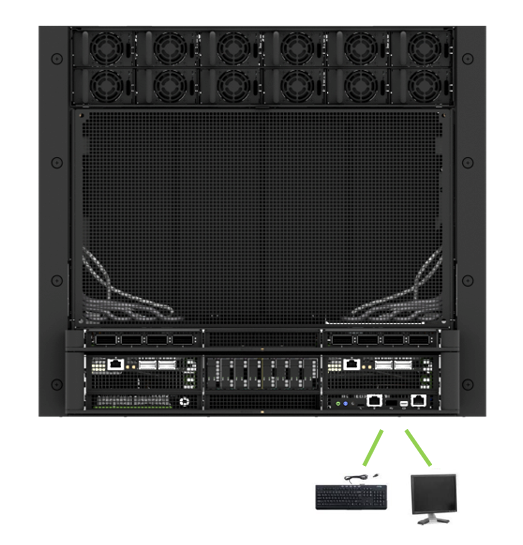
At the front of the system, you can connect a display to the Mini DisplayPort (Mini DP) and a keyboard to the USB port.
Note
The display resolution must be 1920 x1080 pixels or lower.
Remote Connection Through the BMC#
This section outlines the process for remotely connecting to DGX B300 through the BMC.
Note
By default, the BMC searches for a DHCP IP address on the network. To configure a static IP address instead, follow the instructions in Configuring a Static IP Address for the BMC.
You should adhere to best security practices for BMC management, particularly for the IPMI port. These practices include, but are not limited to:
Restricting the DGX B300 IPMI port to an isolated, dedicated management network.
Utilizing a separate, firewalled subnet for enhanced security.
Configuring a separate VLAN for BMC traffic if a dedicated network is not available.
To successfully establish a remote connection using this method, you must possess the BMC login credentials. The specifics of these credentials are contingent upon the following conditions:
Before the First Boot Setup
Caution
Perform the first boot setup to change the default credentials before you connect the BMC to an unsecured network.
The default credentials are:
Username: admin
Password: admin
Caution
When you create a BMC admin user, we strongly recommend changing the default password for this user - DO NOT use the default password.
After the First Boot Setup
During the first boot procedure, you were prompted to configure an administrator username and password and a password for the BMC. The BMC username is the same as the administrator username:
Username: <administrator-username>
Password: <bmc-password>
Ensure you have connected the BMC port on the DGX B300 system to your LAN.
Open a browser within your LAN and go to
https://<bmc-ip-address>/Ensure popups are allowed for the BMC address.
Log in.
From the navigation menu, click Remote Control.
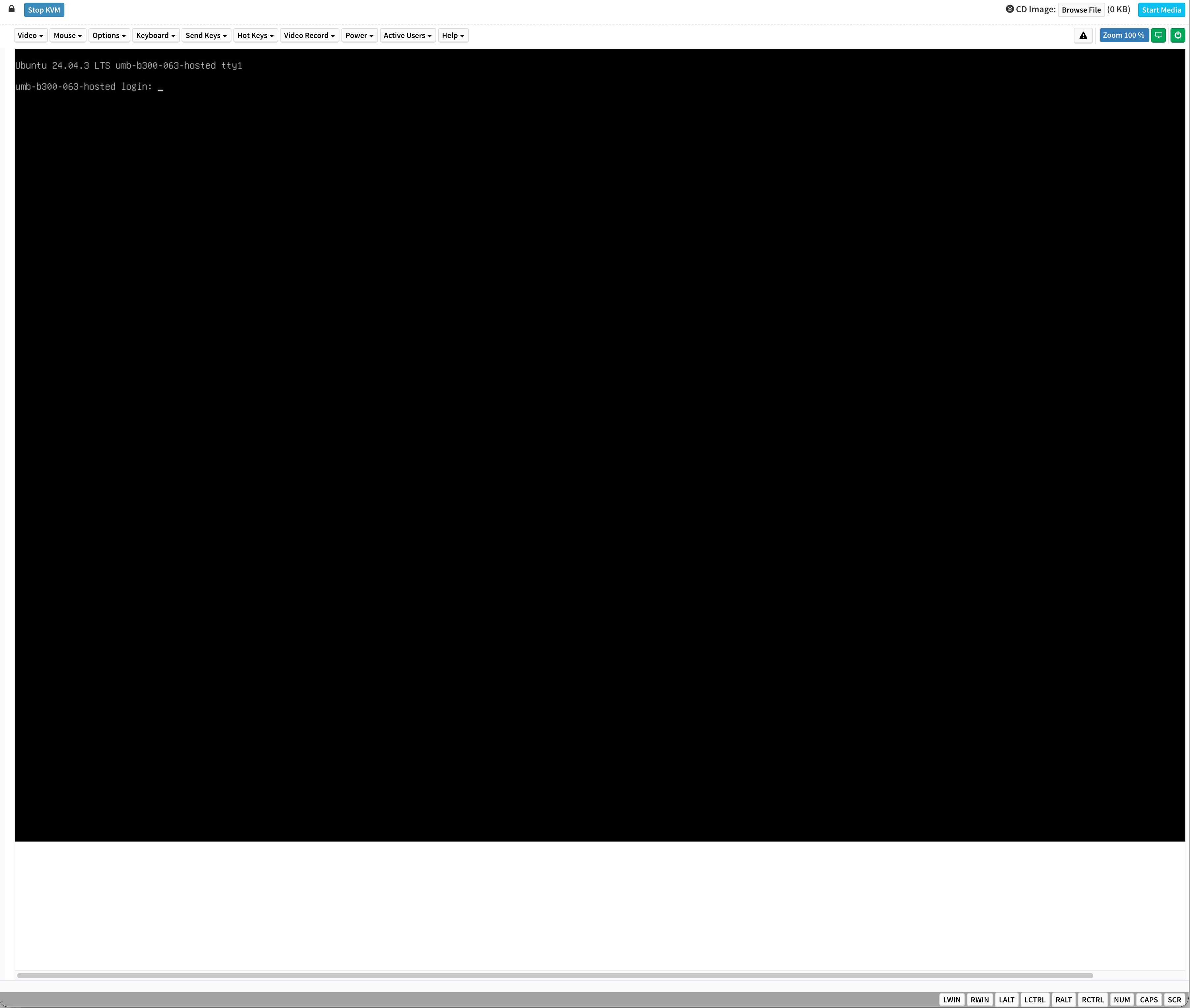
The Remote Control page lets you open a virtual Keyboard/Video/Mouse (KVM) on the DGX B300 system just like you are using a physical monitor and keyboard connected to the front of the system.
Click Launch KVM.
The DGX B300 console appears in your browser.
SSH Connection to the OS#
After configuring the system, you can establish an SSH connection to the DGX B300 OS through the network port. Refer to DGX B300 Port Description to identify the port to use.