 |
DriveWorks SDK Reference| 0.6.67 Release |
|
|
DriveWorks SDK Reference| 0.6.67 Release |
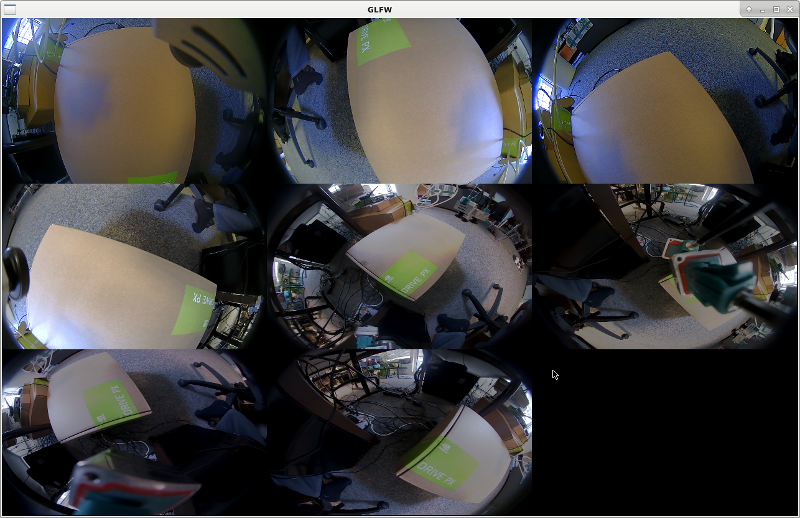
The Multiple GMSL Camera Capture sample uses the GMSL camera interface, if available, on NVIDIA DRIVE™ PX 2 platforms. The sample opens an X window showing the input from all selected cameras on the specified CSI ports.
The sample is capable of capturing the input from up to 12 cameras simultaneously.
For information about the physical location of the ports on NVIDIA DRIVE PX 2 platforms, see "Camera Setup under Configuration and Setup" in NVIDIA DRIVE 5 Linux PDK Development Guide.
One or multiple cameras must be connected to the NVIDIA DRIVE PX 2 CSI ports. The sample requires a specific type of camera to be connected to the specific port. For more information, see sample_sensor_info for supported camera types.
Specify the camera types by using:
--type-ab (for AB port)
--type-cd (for CD port)
--type-ef (for EF port)
For example,
./sample_camera_multiple_gmsl --type-ab=ar0231 --type-cd=c-ov10640-b1
The argument --selector-mask enables you to select specific cameras on any port to used for capturing. The format of the mask is a string with 0s and 1s indicating disabling and enabling of the camera, respectively. The mask is parsed from left to right and applied on the CSI ports in the increasing order ab, cd, ef (i.e., counting camera connectors from left to right on NVIDIA DRIVE PX 2). Cameras within a group are represented from right to left.
For example, to select the 2nd camera from ab port and 3rd and 4th from cd port, use:
--selector-mask=00101100
Screenshots from all cameras can be captured by pressing s while the sample is running.
ar0231-rccb-ssc will fail because it only supports RAW output). Please see sample_camera_gmsl_raw for rendering RAW output from a camera.c-ov10640-b1 and is kept for backward compatibility. The two other modes ov10640-svc210 and ov10640-svc212 will activate lense specific configurations for an improved image quality.It is possible to activate this feature by specifying
--cross-csi-sync=1
Cameras supporting synchronization accross CSI ports will be triggered synchronously. More precisely, when this feature is disabled (by default it is 0), difference in time points of captured frames from cameras at different csi-ports might be large, on average > 60ms. When this mode is active the frames are synchronized over the span of all csi-ports and a latency of 1ms on average (worst case observed was 5 ms) can be observed.
The sample has been written in such way so that cameras within one csi-group run on a single thread and share some resources. The main thread will initialize one dwContext, one WindowGLFW and one dwRenderer and then spawn one thread per active csi-port. Each thread is capturing from camera, converting to rgba and then waiting 15 ms (artificial time that simulates computation). If the delay is increased to more than ~33ms then it is expected to see frame drops (ICP drops warning) because it is a longer delay than what is expected by the camera framerate. This is what happens when computationally complex code is run between frame captures. Since OpenGL has limitations in multithread, extra care needs to be made in order to assure the correctness of streaming and rendering. First of all the WindowGLFW cannot be used at the same time in two different threads so in order to be able to access its context, one needs to remove it from the current thread via the call to WindowGLFW.resetCurrent() and push it into the new thread using WindowGLFW.makeCurrent(). In order to prevent threads from running into a race condition a mutex is used to assure that every operation that needs the active window is completed before another thread can make the GL context current. Note that only commands affected by OpenGL such as dwImageStreamer_postGL(), dwImageStreamer_receiveGL() or dwImageStreamer_returnGL() need this extra care. In this sample application the rendering is all being done by the main thread in an asynchronous way, so no GL context needs to be transferred between threads.
Before running camera applications only on Tegra B, you must disable FRSYNC and the forward/reverse control channel of Tegra A aggregator. For related information, see Camera Setup (P2379) in NVIDIA DRIVE 5.0 Linux PDK Development Guide. This guide will show show you how to:
After you have addressed the prerequisites (above) and rebooted Tegra B, you can run camera applications on Tegra B. Be aware that running camera applications on Tegra A re-enables the forward/reverse control channel and FRSYNC from MAX9286 and the procecedure of activating camera for Tegra B need to be repeated.
Cameras can be captured on Tegra B in slave mode, i.e. when they are already captured by an application on Tegra A. In such case, it is possible to specify the "slave" flag, which can be 0 or 1. If slave is 1, then Tegra B will not be able to run cameras autonomously, but it requires the camera to be run at the same time from Tegra A. If slave is false, then Tegra B can control any camera that is not currently being used by Tegra A.