2 * Copyright (c) 2019-2020, NVIDIA CORPORATION. All rights reserved.
4 * NVIDIA Corporation and its licensors retain all intellectual property
5 * and proprietary rights in and to this software, related documentation
6 * and any modifications thereto. Any use, reproduction, disclosure or
7 * distribution of this software and related documentation without an express
8 * license agreement from NVIDIA Corporation is strictly prohibited.
11 @page dwx_recorder_textui_tool TextUI Recording Tool
13 @note This tool is available in both **NVIDIA DriveWorks** and **NVIDIA DRIVE Software** releases.
15 This tool is available on the x86 Host System and NVIDIA DRIVE<sup>™</sup> OS Linux.
17 This is a front-end for the @ref dwx_recorder_tool, and provides the following additional
20 1. @ref tui_auto_storage_selection
21 2. @ref tui_manual_storage_selection
22 3. @ref tui_sensor_statistics
23 4. @ref tui_multissd_recording
24 5. @ref tui_distributed_recording
25 6. @ref black_box_recorder
27 @section tui_starting Starting the Recording Application
29 Run this tool by executing:
31 cd /usr/local/driveworks/tools/capture
32 ./recorder-tui <rig file> OR <rig_directory> [--bbr]
34 `bbr` starts the recorder in black box recording (bbr) mode.
36 After initialization, the tool supports the following commands:
39 | -------------------- | --------------------------|
40 | `s <Enter>` | toggle recording |
41 | `q <Enter>` | quit |
42 | `start <Enter>` | start recording |
43 | `stop <Enter>` | stop recording |
44 | `bbr <Enter>` | bbr recording mode |
45 | `continuous <Enter>` | continuous recording mode |
46 | `h264 <Enter>` | record camera in h264 |
47 | `lraw <Enter>` | record camera in lraw |
49 `bbr`, `continuous`, `h264` and `lraw` switch is supported only when the recorder is in stopped state.
51 @section tui_user_interface User Interface
53 The textual interface of the tool is illustrated in the screenshot below:
55 1. @ref tui_sensor_statistics
56 2. Last error/output message
58 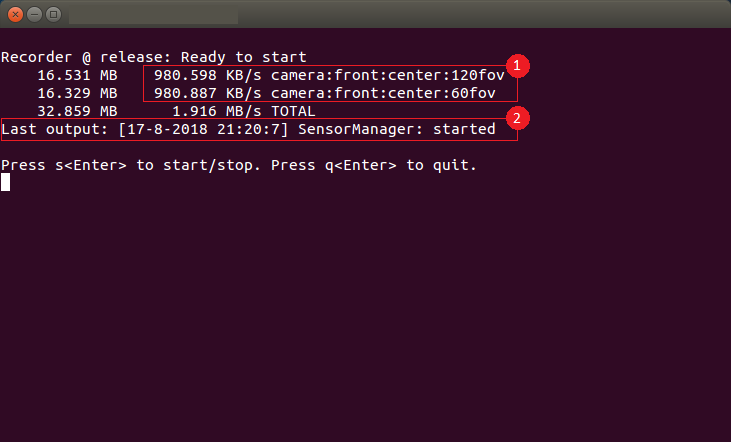
60 @section tui_auto_storage_selection Automatic Storage Selection
62 This tool can discover SSD/eSATA disks that are mounted on the target and
63 meet the following criteria:
65 1. `ext4` filesystem format
66 2. `> 5GB` free space available
67 3. visible in `/proc/mounts`
68 4. Mountpoint does not contain any spaces or non-standard characters
70 This tool automatically selects the first available disk for recording.
71 Once a disk becomes full (free space < 5GB), output files will be put into the
72 next available disk automatically.
74 @section tui_manual_storage_selection Manual Storage Selection
76 If automatic disk selection is not convenient, one can manually specify
77 the recording directory in the rig configuration file using the "recorder_storage_paths":
81 "recorder_storage_map": {
82 "<sensor_name_1>": "1",
83 "<sensor_name_2>": "0",
84 "<sensor_name_3>": "0",
88 "recorder_storage_paths": [
89 "<your_storage_path_1>",
90 "<your_storage_path_2>",
98 "recorder_storage_map" is used to map the sensor to the index of "recorder_storage_paths" list. Example: "sensor_name_1"
99 is mapped to index "1" which is "your_storage_path_2". If the sensor map is not provided, then the default value of
100 the storage index "0" will be selected.
102 @note The manually specified mountpoint must still be on an `ext4` filesystem
103 and have `> 5GB` in free space.
105 @section tui_sensor_statistics Sensor Throughput Statistics
107 This tool measures sensor statistics (at disk sink).
108 1. Data throughput per sensor
109 2. Data written per sensor
110 3. Data written for current recording on current sink
112 @section tui_multissd_recording Multi-SSD Recording
114 The @ref tui_manual_storage_selection feature can be used to perform multi-SSD
115 recording on a single Xavier device.
117 To achieve this, a user must create multiple rig files, each with
118 their specified storage path and subset of sensors, and place them
119 inside a `<rig_directory>`.
121 The tool can then be launched as below:
123 ./recorder-tui <rig_directory> --bbr
125 @section black_box_recorder Black Box Recorder (BBR)
127 Black Box Recorder (BBR) records sensor data clips around a vehicle disengagement trigger event.
128 BBR automatically deletes the recording folders of current recording session expect the last three.
129 If a lateral or longitudinal disengagement occurs, BBR preserves the 30 seconds before and after the
130 point of disengagement. The disengagement folder will have two or three recording folders depending
131 on the exact time of the disengagement. BBR internally uses recorder-tui, so the recording data format
132 and directory structure will be identical to the normal recording case.
134 @note BBR relies on Dataspeed CAN messages to find the disengagement triggers.
136 @section tui_distributed_recording Distributed Recording
138 See @ref dwx_devguide_rec_distrec
140 @section tui_configuring Configuring the Recorder
142 See @ref dwx_config_ref
144 @section Session Recording Tags
146 When using recorder-tui to record a session, it can be useful to be able to tag these sessions.
147 With recorder-tui you can pass in `--tag <tag-name>` to set a tag for the recorded session which
148 will appear in the aux_info file. The valid values for this tag will need to be specified under the
149 `tags.txt` file which should appear under your configuration directory that you pass to recorder-tui.