2 * Copyright (c) 2018, NVIDIA CORPORATION. All rights reserved.
4 * NVIDIA Corporation and its licensors retain all intellectual property
5 * and proprietary rights in and to this software, related documentation
6 * and any modifications thereto. Any use, reproduction, disclosure or
7 * distribution of this software and related documentation without an express
8 * license agreement from NVIDIA Corporation is strictly prohibited.
12 @page pfc_using Using Pre-Flight Checker
15 The Pre-Flight Checker (PFC) tool ensures proper operation of all connected
16 sensors and checks prerequisites required for the car to be safely driven in
17 autonomous mode. It is a shell script that consumes JSON files that define the
18 sensors it should check.
20 During installation, PFC is initialized for the current configuration.
22 @section pfc_prereq Prerequisites
23 PFC runs on these hardware platforms:
24 - NVIDIA DRIVE<sup>™</sup> AGX Platform:
25 Bench setup with all sensors connected.
26 - NVIDIA DRIVE AGX Platform: In-Car
28 For the following information, see the _NVIDIA DRIVE AV Release Notes_:
29 - Specifications on the supported NVIDIA DRIVE AGX Platform
30 - Software versions that PFC and NVIDIA DRIVE AV use
32 PFC must be installed with NVIDIA DRIVE<sup>™</sup> AV.
34 @subsection pfc_prereq_bench_validation Bench Validation
35 Below are the prerequisites to ensure correct PFC results during bench mode
36 validation. In bench mode, sensor data usually comes from recordings, but it
37 can also come from sensors.
39 @note Currently, PFC bench validation supports only data from sensors.
40 It does not support recorded data.
42 - GPS sensor must have clear sky.
43 If PFC is executed in a garage or closed environment, GPS data-validity may
45 - All camera and Radar sensors must be exposed to a valid environment.
46 Specifically, cameras must:
47 - Have a valid, unobstructed view.
48 Cameras must not face a static view, such as a wall.
49 Cameras must not be obstructed by barriers, such as trees, cloth, or mud.
50 - Be exposed to appropriate lights.
52 Radar sensor must be separated from objects by at least 1-meter; otherwise,
53 Radar data-validity fails.
55 @subsection pfc_prereq_ic_validation In-Car Validation
56 Below are the prerequisite to ensure correct PFC results during in-car validation.
58 - Prerequisites specified for @ref pfc_prereq_bench_validation.
59 - CAR engine must be ON, the transmission must be in Park, and the steering
60 must be unlocked; otherwise, CAN sanity fails.
62 @section pfc_running_autonomous Running in Autonomous Driving Mode
64 1. On the platform, navigate to:
66 /usr/local/driveworks/tools/preFlightChecker/config
70 $ sudo ./pfc_run.sh --rig <rig_file_path> --car agx-rel [--no-gui]
72 - `<rig_file_path>` is the path of the rig.json file that specifies each
73 sensors to validate, based on the setup configuration.
74 - `<car_no>` identifies the car. For the NVIDIA AGX Platform, set this
75 parameter to `agx-rel`.
76 \n By default: `bench`.
77 - `--no-gui` (optional) disables the PFC GUI and instead displays the result only on the console.
81 $ sudo ./pfc_run.sh --rig hyperion-7-1-release.json --car agx-rel --no-gui
83 For NVIDIA Hyperion 7.1, the config rig file is available at:
85 /usr/local/driveworks/tools/preFlightChecker/config/hyperion7-1-release.json
87 3. PFC updates the log output as specified in `hyperion7-1-release.json`.
88 It also displays the current sensor status in a sequence of four images:
89 - Summary: The first window shows a summary of sensor status (screen shot follows).
90 - Detail: Use the RIGHT-ARROW key to navigate to the detail windows, which
91 includes multiple pages. Use the RIGHT- and LEFT-ARROW keys to navigate
93 \n An example of the detailed information follows.
97 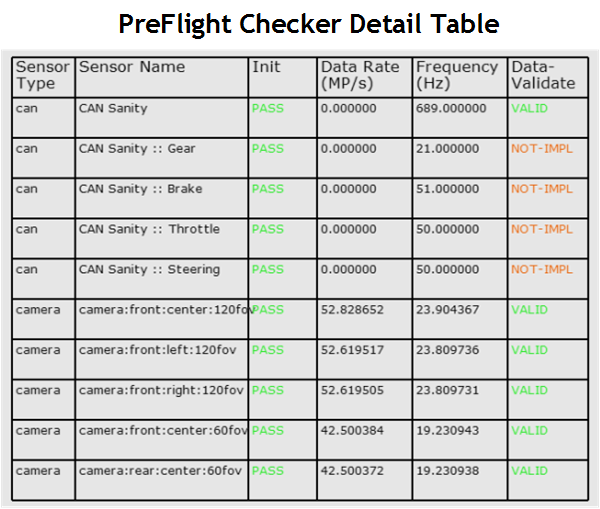
99 @section pfc_running_bench Running in Bench Mode
101 When you use PFC in bench mode, it performs the same checks as in autonomous
102 mode. However, in bench mode, CAN devices are unavailable. Those devices include
103 brake, throttle, gear & steering. As a result, validation of those devices
106 1. On the platform, navigate to:
108 /usr/local/driveworks/tools/preFlightChecker/config
112 $ sudo ./pfc_run.sh --rig <rig_file_path>
114 - `<rig_file_path>` is the path of the rig.json file that specifies each
115 sensors to validate, based on the setup configuration.
119 $ sudo ./pfc_run.sh --rig hyperion7-1-release.json
121 For NVIDIA Hyperion 7.1, the config rig file is available at:
123 /usr/local/driveworks/tools/preFlightChecker/config/hyperion7-1-release.json
126 @section pfc_log Generating a Data Log
128 By default, PFC generates a log.
130 @note If debug logs are enabled, there is a possibility of CAN Sanity and IMU/GPS
131 data-validity failure. This failure is from the logging latency.
133 The following is an example of the log output.
137 The log provides the following information:
138 - SENSOR NAME: Sensor name and type, as specified in rig file. For example,
139 camera, Lidar, or Radar. When available, this field also shows the
141 - INIT: Status of sensor initialization.
142 - DATA-RATE (mega-pixels/second): Rate at which the sensor feeds the data to PFC.
143 Applies to cameras only.
144 - FREQUENCY (Hertz): Number of frames available per second.
145 - DATA-VALIDATE: Status of the data validity check performed on sensors.
146 Supported values are:
147 - VALID: Sensor is providing valid data.
148 - NOT_IMPL: Support for the specified sensor is not yet implemented.
149 - -NA-: Indicates the attribute, such as DATA-RATE, does not apply to the sensor.
151 For information on how PFC determines data validity, see @ref pfc_features.
153 @section pfc_trouble Interpreting the Log
155 This section explains how to interpret information in the log.
157 @subsection pfc_trouble_freq Sensor Frequency Is Zero
158 The `FREQUENCY` field for a sensor show a value of zero when data is not available.
159 This can happen even though the sensor is connected properly. These symptoms
161 - For GPS, the signal strength is weak.
162 - For Lidar or Radar, the sensor is blocked.
164 @subsection pfc_trouble_invalid Sensor Has INVALID Status
166 The `DATA-VALIDATE` field for a camera shows `INVALID` when there are issues with
169 #### To fix in bench mode
170 - Re-align camera sensor
172 #### To fix in autonomous vehicle mode
173 - Move the car to a different location.