1 # Copyright (c) 2019-2020 NVIDIA CORPORATION. All rights reserved.
3 @page dwx_struct_from_motion_sample Structure from Motion (SFM) Sample
6 @note SW Release Applicability: This sample is available in both **NVIDIA DriveWorks** and **NVIDIA DRIVE Software** releases.
8 @section dwx_struct_from_motion_description Description
10 The Structure from Motion (SFM) sample demonstrates the triangulation functionality of
11 the SFM module; a car pose is estimated entirely from CAN data using the NVIDIA<sup>®</sup>
12 DriveWorks egomotion module. The car has a 4-fisheye camera rig that is pre-calibrated.
13 Features are detected and tracked using the features module. Points are
14 triangulated for each frame by using the estimated pose and tracked features.
16 @section dwx_struct_from_motion_running Running the Sample
18 The structure from motion sample, sample_sfm, accepts the following optional parameters. If none are specified, it will process four supplied pre-recorded video.
20 ./sample_sfm --baseDir=[path/to/rig/dir]
23 --dbcSpeed=[signal_name]
24 --dbcSteering=[signal_name]
25 --maxFeatureCount=[integer]
28 --displacementThreshold=[fp_number]
29 --enableAdaptiveWindowSize=[0|1]
33 --baseDir=[path/to/rig/dir]
34 Path to the folder containint the rig.json file.
35 Default value: path/to/data/samples/sfm/triangulation
38 A `rig.json` file as serialized by the DriveWorks rig module, or as produced by the DriveWorks calibration tool.
39 The rig must include the 4 camera sensors and one CAN sensor.
40 The rig sensors must contain valid protocol and parameter properties to open the virtual sensors.
41 The video files must be a H.264 stream.
42 Video containers as MP4, AVI, MKV, etc. are not supported.
43 The rig file also points to a video timestamps text file where each row contains the frame index
44 (starting at 1) and the timestamp for all cameras. It is read by the camera virtual sensor.
45 Default value: rig.json
48 The CAN bus file that is required by the canbus virtual sensor.
49 Default value: canbus.dbc
51 --dbcSpeed=[signal_name]
52 Name of the signal corresponding to the car speed in the given dbc file.
53 Default value: M_SPEED.CAN_CAR_SPEED
55 --dbcSteering=[signal_name]
56 Name of the signal corresponding to the steering angle in the given dbc file.
57 Default value: M_STEERING.CAN_CAR_STEERING
59 --maxFeatureCount=[integer]
60 The manixum amount of features stored for tracking.
64 Defines feature tracking mode.
65 0: translation-only KLT tracker or Sparse LK PVA tracker
66 1: translation-scale fast KLT tracker
70 Defines whether to use fp16 for tracking.
71 --useHalf=0 uses fp32 for tracking.
72 --useHalf=1 uses fp16 for tracking.
73 This parameter only takes effect when --trackMode=1.
76 --displacementThreshold=[fp_number]
77 Defines the early stop threshold during translation-only tracking.
78 This parameter only takes effect when --trackMode=1.
81 --enableAdaptiveWindowSize=[0|1]
82 Defines whether to use full window size at the lowest and the highest levels,
83 and smaller window size at the rest of levels during tracking.
84 This parameter only takes effect when --trackMode=1.
87 If a mouse is available, the left button rotates the 3D view, the right button
88 translate, and the mouse wheel zooms.
90 While the sample is running the following commands are available:
91 - Press V to enable / disable pose estimation.
92 - Press F to enable / disable feature position prediction.
93 - Press Space to pause / resume execution.
94 - Press Q to switch between different camera views.
95 - Press R to restart playback.
97 @section dwx_struct_from_motion_output Output
99 The left side of the screen shows the 4 input images; tracked features are shown
100 in green. Triangulated points are reprojected back onto the camera and shown in
101 red. The right side shows a 3D view of the triangulated point cloud.
103 In 3D, the colors are:
105 - Red points = points from frontal camera
106 - Green points = points from rear camera
107 - Blue points = points from left camera
108 - Yellow points = points from right camera
109 - Green/red line = path of the car
111 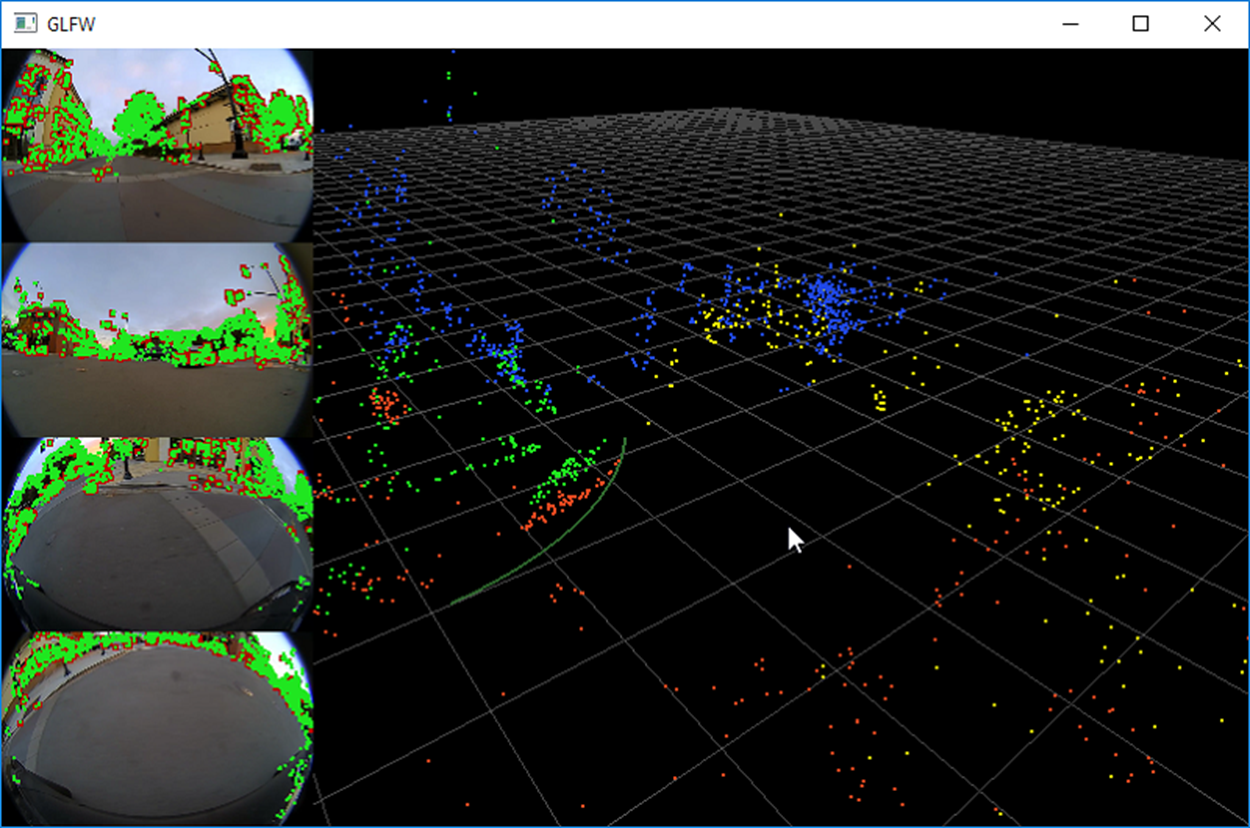
113 @section dwx_struct_from_motion_more Additional Information
115 For more details see @ref sfm_mainsection .