1 # Copyright (c) 2019-2020, NVIDIA CORPORATION. All rights reserved.
3 @page dwx_maptool_inspection DriveWorks Maps Inspection Tool
6 @section dwx_maptool_inspection_description Description
8 The NVIDIA<sup>®</sup> DriveWorks Maps Inspection tool enables the user to review the data within an NVIDIA<sup>®</sup> DriveWorks Maps file.
10 @note SW Release Applicability: This tool is available in <b>NVIDIA DRIVE Software</b> releases.
12 @section dwx_maptool_inspection_prerequisites Prerequisites
14 This tool is available on the x86 Host System.
16 @section dwx_maptool_inspection_usage Running the Tool
18 Run the tool by executing:
20 ./maptool_inspection --map=[path to DriveWorks Map file]
22 @subsection dwx_maptool_inspection_parameters Parameters
24 --map=[path to DriveWorks Map file]
25 Description: The file path to an NVIDIA DriveWorks Maps file.
26 If there is no file present, the tool will not launch.
27 Default value: /hdmaps/map_tomtom_280_92_101_85.xml
29 @section dwx_maptool_inspection_output Output
31 The tool displays a window and renders an HD Map with lines of different colors.
32 - Blue lines: lane dividers that cannot be crossed.
33 - Dark green lines: lane dividers that can be crossed.
34 - Grey lines: invisible lane dividers.
36 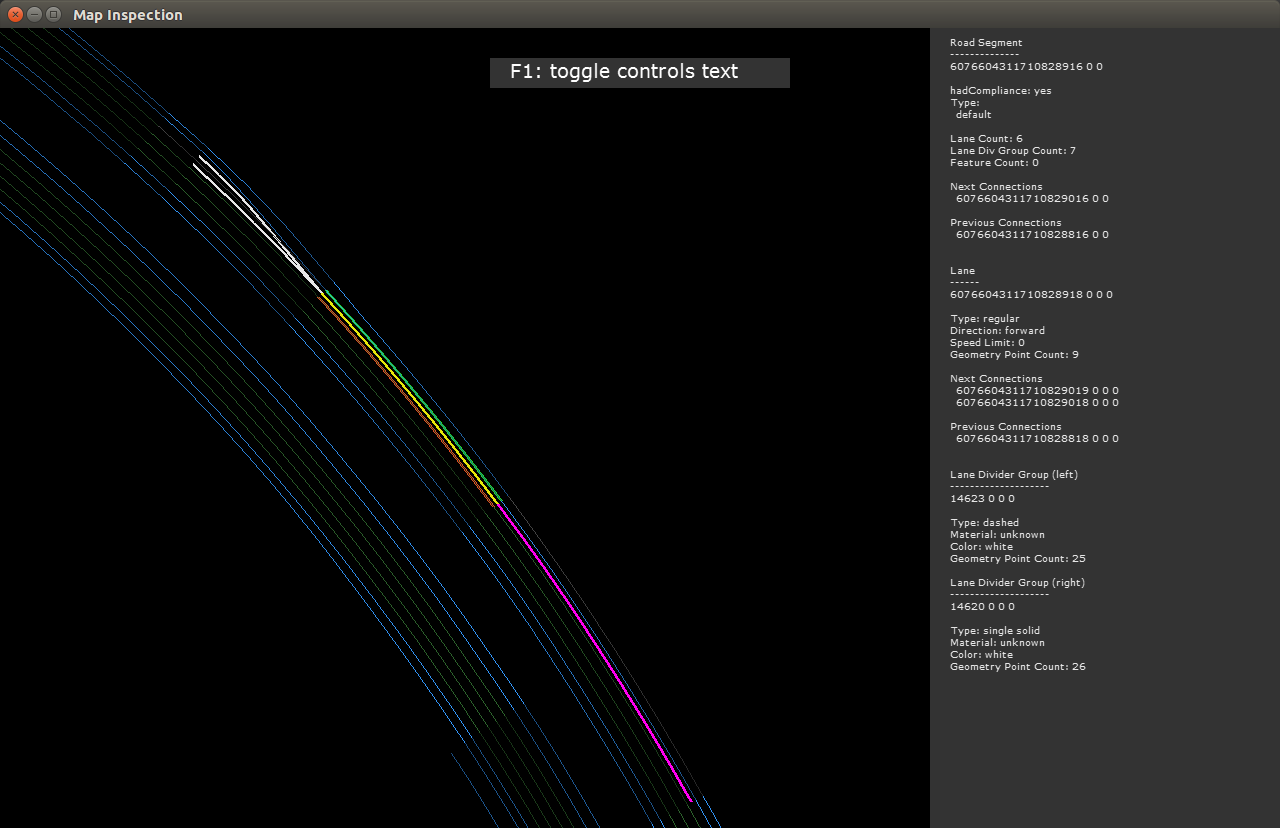
38 Click on a lane to highlight it, its lane dividers, and connected lanes (next and previous). The text tile on the right lists details about the lane selected.
40 The lines are shaded dark to bright in order to show where the road segments start and end.
42 When a lane is selected:
43 - Yellow line: selected lane.
44 - Red line: left lane divider group.
45 - Green line: right lane divider group.
46 - White lines: next connection lanes.
47 - Purple lines: previous connection lanes.
49 Press 'Esc' to close the application.