2 * Copyright (c) 2019-2020, NVIDIA CORPORATION. All rights reserved.
4 * NVIDIA Corporation and its licensors retain all intellectual property
5 * and proprietary rights in and to this software, related documentation
6 * and any modifications thereto. Any use, reproduction, disclosure or
7 * distribution of this software and related documentation without an express
8 * license agreement from NVIDIA Corporation is strictly prohibited.
11 @page dwx_gui_recording2_tool GUI Recording Tool
13 @note This tool is available in both **NVIDIA DriveWorks** and **NVIDIA DRIVE Software** releases.
15 This tool is available on the x86 Host System and NVIDIA DRIVE<sup>™</sup> OS Linux.
17 The GUI recording tool builds on top of the @ref dwx_recorder_textui_tool,
18 but provides a graphical user interface for operation and visualizing
21 @section gtgui2_starting Starting the Recording Application
23 Run this tool by executing:
25 cd /usr/local/driveworks/tools/capture
26 ./recorder-qtgui <rig file> OR <rig_directory>
28 @section qtgui2_using_interface Using the Interface
30 The home screen of the recorder GUI is composed of several parts as
31 illustrated in the following screenshot.
32 1. [Recorder](#recorder) button.
33 2. [Settings](#settings) button.
36 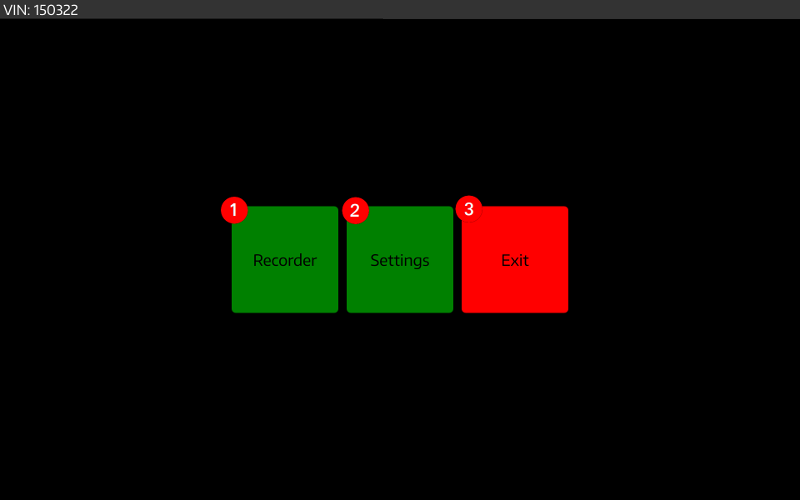
41 The main screen of the recorder GUI is composed of several parts as
42 illustrated in the following screenshot:
43 1. Main button to return to Home screen.
44 2. [Route](#route) setting drop boxes.
45 3. [Start Recording](#start_recording) control button.
46 4. [Storage Status](#storage_status) info.
47 5. [Sensor Status](#sensor_status).
50 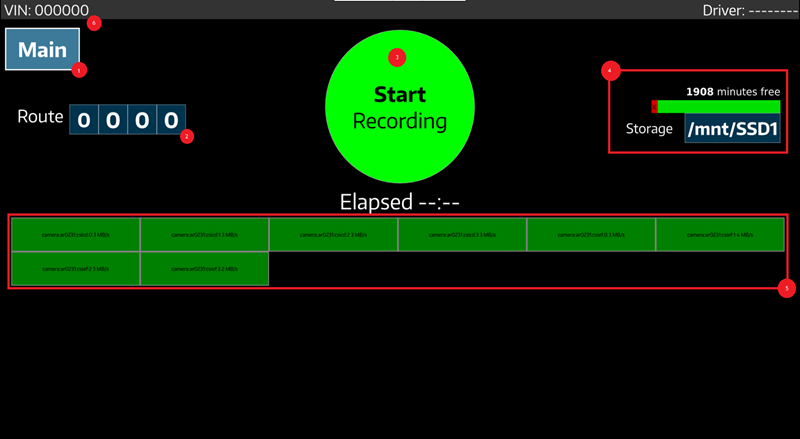
55 The route can be set by selecting numbers from the 4 drop boxes.
56 This semantics of route are user-defined, but a file containing this
57 route number will be included in the recording.
59 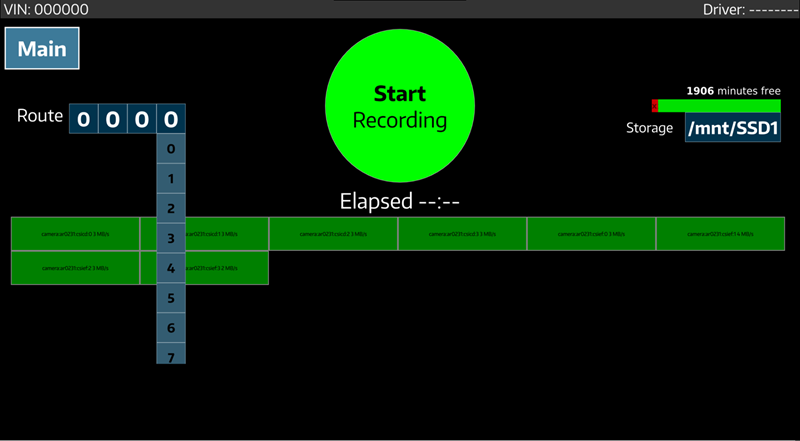
61 <a name="start_recording">
64 When you press the Record button, the application starts recording and
65 the Start button is replaced by a Stop Recording button.
67 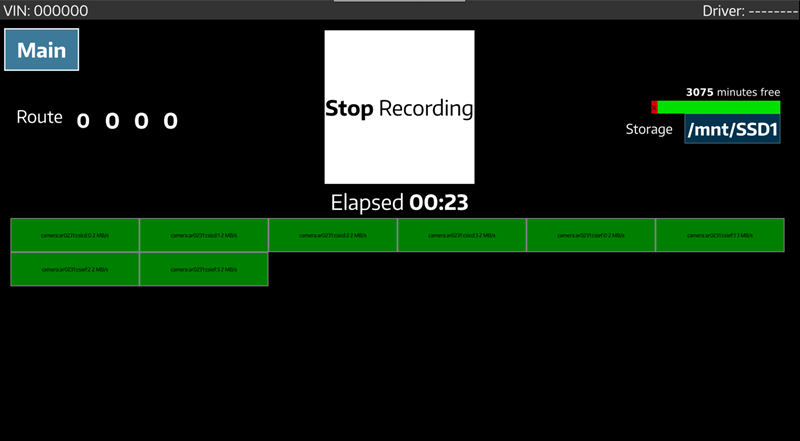
69 The Elapsed time item marked in the picture indicates the time elapsed
70 since the start of the recording. Pressing the RECORD button again stops
71 the current recording procedure.
73 @note The RECORD button will be disabled with the message `Disk Full/No Disk`
74 in case no valid storage medium is found or the available disks are full.
76 @note The RECORD button will be disabled with the message `Failure` in case
77 one of the sensor initialization fails during startup. The log to diagnose
78 the failure can be found on the console.
80 <a name="sensor_status">
83 If sensor initialization succeeds, a block for the sensor containing its name
84 is added to the grid in the recoder window. These blocks also indicate the
85 data rate (measured at disk sink) for that sensor. The color of this block
86 is used to indicate the status - green and red, respectively.
88 <a name="storage_status">
91 The Storage field shows the storage usage, including:
93 1. Total free percentage.
94 2. Estimated remaining recording time.
95 3. Usage of each available storage device.
97 The selection of storage device for the current recording can be made by
98 opening the storage drop box, as shown below.
100 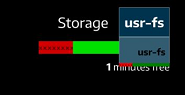
105 <a name="storage_management">
106 ### Storage Management
108 This screen allows one to erase disk volumes that are connected to the device.
109 In a distributed recording environment, this screen has capability to erase
110 disks on all slave devices, as well.
112 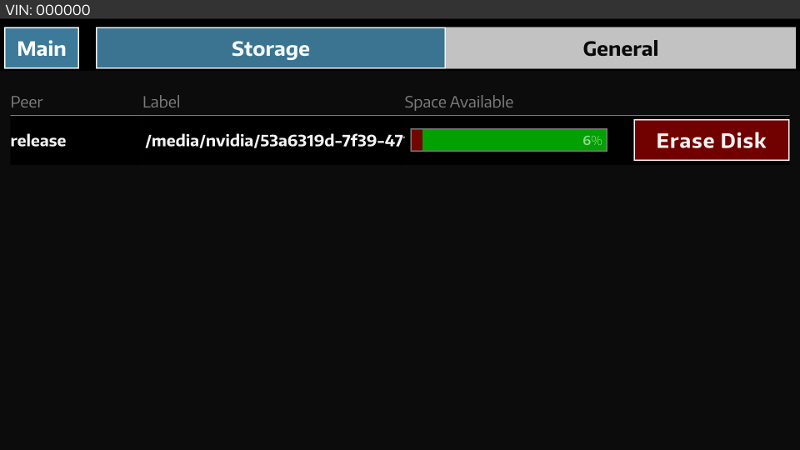
114 <a name="vin_selection">
116 On the general setting page, the last 6 digits of the VIN number can be selected,
117 and will be in a file in the recording folder.
119 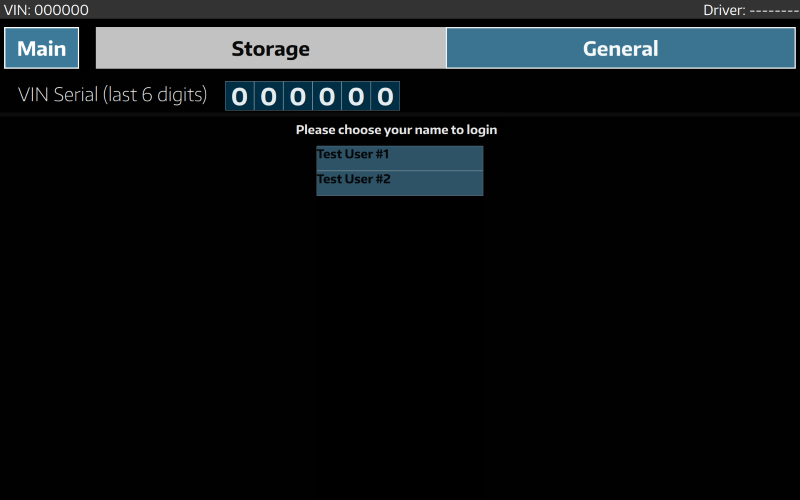
121 <a name="driver_selection">
123 On the general settings page, the name of the driver performing the recording can be
124 selected from a list. This will be included as part of the metadata file (named "aux_info")
125 that is stored in the recording folder.
127 The list of available driver names is specified in a text file, named "login.txt".
128 This file should contain a single driver name per line, as shown in the example below:
133 The "login.txt" file shall be placed in the same directory as the rig configuration file.
134 In case a rig_directory is used, place this file in the rig_directory.
136 @section qtgui2_distributed_recording Distributed Recording
138 See @ref dwx_devguide_rec_distrec
140 @section qtgui2_configuring Configuring the Recorder
142 See @ref dwx_config_ref