1 # Copyright (c) 2018-2019 NVIDIA CORPORATION. All rights reserved.
3 @page dwx_image_capture_sample Image Capture Sample
6 @section dwx_image_capture_description Description
8 The Image Capture sample shows how to record a video from an NVIDIA<sup>®</sup> CUDA<sup>®</sup> image or
9 directly from the rendering window. To differentiate the two sources, the sample renders different text on the screen.
11 @section dwx_image_capture_running Running the Sample
13 The command line for the sample is:
15 ./sample_image_capture --capture-bitrate=[integer]
16 --capture-file=[path/to/output/h264/file]
17 --capture-framerate=[integer]
18 --capture-screen=[0|1]
22 --capture-bitrate=[integer]
23 Defines the suggested bitrate for the output file. The actual bitrate might be different, depending on the input.
24 For example, if the input is a black windows the output frame rate will be very close to 0.
25 Default value: 10000000
27 --capture-file=[path/to/output/h264/file]
28 Specifies the path to the captured video.
29 Default value: capture.h264
31 --capture-framerate=[integer]
32 Specifies the rate at which frames are captured.
35 --capture-screen=[0|1]
36 Specifies whether to capture the current window on a synthetic CUDA image.
39 @subsection dwx_image_capture_examples Example
41 #### To record with default parameters in a specific output file
43 ./sample_image_capture --capture-file=path/to/captureOutput.h264
45 @section dwx_image_capture_output Output
47 The sample creates a window and renders a coloured pattern and a floating "DriveWorks" text.
49 - When recording directly from screen, the text is also visible in the recording.
50 - When recording from a synthetic CUDA image, there is no rendered text.
52 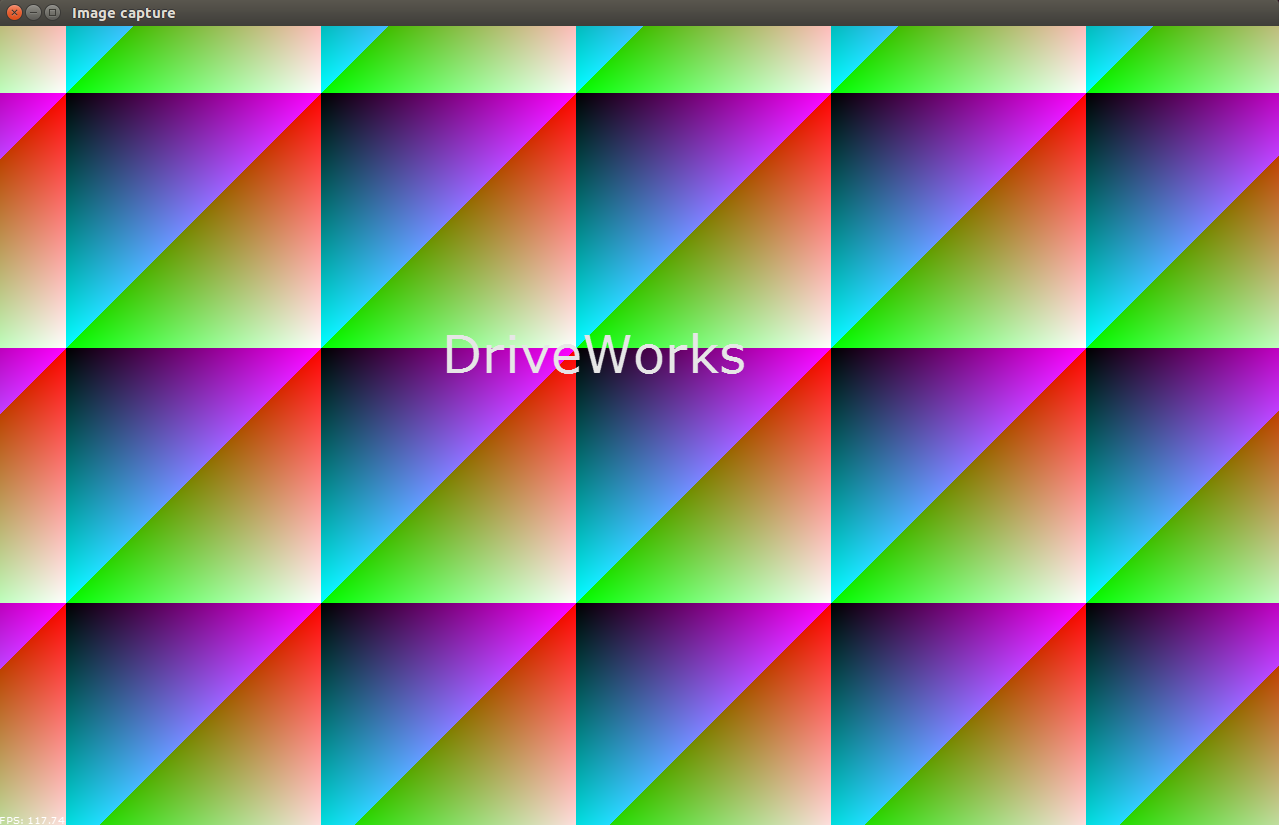
54 @section dwx_image_capture_more Additional information
56 For more information, see @ref image_mainsection .