1 # Copyright (c) 2019-2020, NVIDIA CORPORATION. All rights reserved.
3 @page dwx_lidar_replay_sample Lidar Replay Sample
6 @section dwx_lidar_replay_sample_description Description
8 The Lidar Replay sample demonstrates how to connect to a Lidar and visualize the generated point cloud in 3D.
10 @note Custom software for the __OUSTER_OS2_128__ Lidar is required for DriveWorks support. Please contact your NVIDIA representative for more information.
12 @section dwx_lidar_replay_sample_running Running the Sample
14 The Lidar Replay sample, sample_lidar_replay, accepts the following parameters:
16 ./sample_lidar_replay --protocol=[lidar.virtual|lidar.socket|lidar.custom]
17 --params=[comma/separated/key/value/pairs]
18 --show-intensity=[true|false]
21 --protocol=[lidar.virtual|lidar.socket|lidar.custom]
22 Specifies which Lidar driver to use.
23 - `lidar.virtual`: replays from file.
24 - `lidar.socket`: live Lidar replay.
25 - `lidar.custom` is used for custom full sensor plugin based lidars
26 Default value: lidar.virtual
28 --params=[comma/separated/key/value/pairs]
29 Different parameters are available for each Lidar driver.
30 Default value: file=path/to/data/samples/sensors/lidar/lidar_velodyne_64.bin
32 --show-intensity=[true|false]
33 Enables an alternative HUE based rendering mode, which renders intensity
34 proportional to wavelength. Higher intensities are in blue, while lower intensities are in red.
35 In default mode, color is rendered by 2D distance from the origin where red is near and blue is far.
38 During runtime, the following sample interactions are available:
40 - Mouse left button: Rotates the point cloud.
41 - Mouse wheel: Zooms in or out.
43 @note For a full list of key/value pairs that can be passed to --params see @ref dwx_sensor_enum_sample .
45 @subsection dwx_lidar_replay_sample_examples Examples
47 #### Display live Lidar point clouds
49 ./sample_lidar_replay --protocol=[lidar protocol] --params=device=[type of device],ip=[lidar IP address],dip=[IP address of UDP packet receiver],port=[lidar port],hres=[valid horizontal resolution],return-mode=[valid return mode],scan-frequency=[valid frequency] (--show-intensity=[true])
51 - The Lidar must be up and running, and connected to the network.
52 - dip (Destination IP Address) is applicable only for device OUSTER_OS1 and OUSTER_OS2.
53 - hres (Horizontal Resolution) is applicable only for device OUSTER_OS1 and OUSTER_OS2.
54 - return-mode is applicable only for device Velodyne Lidars.
55 - Scan frequency is usually preset using the Lidar vendor tools. The exception
56 is the Ouster Lidar (valid values are 10 and 20 Hz).
57 - For a full list of currently supported devices, see @ref dwx_sensor_enum_sample.
59 #### Display recorded Lidar point clouds
61 ./sample_lidar_replay --protocol=lidar.virtual --params=file=[lidar file] (--show-intensity=[true])
63 - The Lidar file can be obtained with the provided recording tools.
64 - If no arguments are passed, a default Lidar file is loaded.
66 @section dwx_lidar_replay_sample_output Output
68 The sample opens a window to display a 3D point cloud.
70 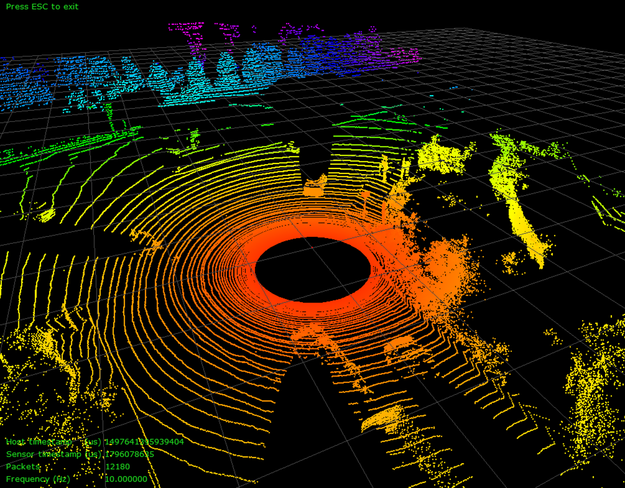
72 @section dwx_lidar_replay_sample_more Additional Information
74 For more details see @ref lidar_mainsection.
76 In case of packet drops see @ref lidar_usecase3.