
Distributed Tracing with Tempo#
Overview#
Dynamo supports OpenTelemetry-based distributed tracing for visualizing request flows across Frontend and Worker components. Traces are exported to Tempo via OTLP (OpenTelemetry Protocol) and visualized in Grafana.
Requirements: Set DYN_LOGGING_JSONL=true and OTEL_EXPORT_ENABLED=true to export traces to Tempo.
This guide covers single GPU demo setup using Docker Compose. For Kubernetes deployments, see Kubernetes Deployment.
Note: This section has overlap with Logging of OpenTelemetry Tracing since OpenTelemetry has aspects of both logging and tracing. The tracing approach documented here is for persistent trace visualization and analysis. For short debugging sessions examining trace context directly in logs, see the Logging guide.
Environment Variables#
Variable |
Description |
Default |
Example |
|---|---|---|---|
|
Enable JSONL logging format (required for tracing) |
|
|
|
Enable OTLP trace export |
|
|
|
OTLP gRPC endpoint for Tempo |
|
|
|
Service name for identifying components |
|
|
Getting Started Quickly#
1. Start Observability Stack#
Start the observability stack (Prometheus, Grafana, Tempo, exporters). See Observability Getting Started for instructions.
2. Set Environment Variables#
Configure Dynamo components to export traces:
# Enable JSONL logging and tracing
export DYN_LOGGING_JSONL=true
export OTEL_EXPORT_ENABLED=true
export OTEL_EXPORTER_OTLP_TRACES_ENDPOINT=http://localhost:4317
3. Start Dynamo Components (Single GPU)#
For a simple single-GPU deployment, start the frontend and a single vLLM worker:
# Start the frontend with tracing enabled (default port 8000, override with --http-port or DYN_HTTP_PORT env var)
export OTEL_SERVICE_NAME=dynamo-frontend
python -m dynamo.frontend --router-mode kv &

# Start a single vLLM worker (aggregated prefill and decode)
export OTEL_SERVICE_NAME=dynamo-worker-vllm
python -m dynamo.vllm --model Qwen/Qwen3-0.6B --enforce-eager \
--otlp-traces-endpoint="$OTEL_EXPORTER_OTLP_TRACES_ENDPOINT" &

wait
This runs both prefill and decode on the same GPU, providing a simpler setup for testing tracing.
Alternative: Disaggregated Deployment (2 GPUs)#
Run the vLLM disaggregated script with tracing enabled:
# Navigate to vLLM launch directory
cd examples/backends/vllm/launch

# Export tracing env vars, then run the disaggregated deployment script.
./disagg.sh
Note: disagg.sh sets additional per-worker port environment variables (e.g., DYN_VLLM_KV_EVENT_PORT,
VLLM_NIXL_SIDE_CHANNEL_PORT) to avoid ZMQ “Address already in use” conflicts when multiple workers run on the
same host. If you run the components manually, make sure you mirror those port settings.
#!/bin/bash
set -e
trap 'echo Cleaning up...; kill 0' EXIT

# Enable tracing
export DYN_LOGGING_JSONL=true
export OTEL_EXPORT_ENABLED=true
export OTEL_EXPORTER_OTLP_TRACES_ENDPOINT=http://localhost:4317

# Run frontend (default port 8000, override with --http-port or DYN_HTTP_PORT env var)
export OTEL_SERVICE_NAME=dynamo-frontend
python -m dynamo.frontend --router-mode kv &

# Run decode/ingress worker (make sure to wait for start up)
export OTEL_SERVICE_NAME=dynamo-worker-decode
DYN_SYSTEM_PORT=8081 CUDA_VISIBLE_DEVICES=0 python3 -m dynamo.vllm \
    --model Qwen/Qwen3-0.6B \
    --enforce-eager \
    --otlp-traces-endpoint="$OTEL_EXPORTER_OTLP_TRACES_ENDPOINT" &

# Run prefill worker, make sure to wait for start up
export OTEL_SERVICE_NAME=dynamo-worker-prefill
DYN_SYSTEM_PORT=8082 \
DYN_VLLM_KV_EVENT_PORT=20081 \
VLLM_NIXL_SIDE_CHANNEL_PORT=20097 \
CUDA_VISIBLE_DEVICES=1 python3 -m dynamo.vllm \
    --model Qwen/Qwen3-0.6B \
    --enforce-eager \
    --otlp-traces-endpoint="$OTEL_EXPORTER_OTLP_TRACES_ENDPOINT" \
    --is-prefill-worker &
For disaggregated deployments, this separates prefill and decode onto different GPUs for better resource utilization.
4. Generate Traces#
Send requests to the frontend to generate traces (works for both aggregated and disaggregated deployments). Note the x-request-id header, which allows you to easily search for and correlate this specific trace in Grafana:
curl -H 'Content-Type: application/json' \
-H 'x-request-id: test-trace-001' \
-d '{
  "model": "Qwen/Qwen3-0.6B",
  "max_completion_tokens": 100,
  "messages": [
    {"role": "user", "content": "What is the capital of France?"}
  ]
}' \
http://localhost:8000/v1/chat/completions
5. View Traces in Grafana Tempo#
Open Grafana at
http://localhost:3000Login with username
dynamoand passworddynamoNavigate to Explore (compass icon in the left sidebar)
Select Tempo as the data source (should be selected by default)
In the query type, select “Search” (not TraceQL, not Service Graph)
Use the Search tab to find traces:
Search by Service Name (e.g.,
dynamo-frontend)Search by Span Name (e.g.,
http-request,handle_payload)Search by Tags (e.g.,
x_request_id=test-trace-001)
Click on a trace to view the detailed flame graph
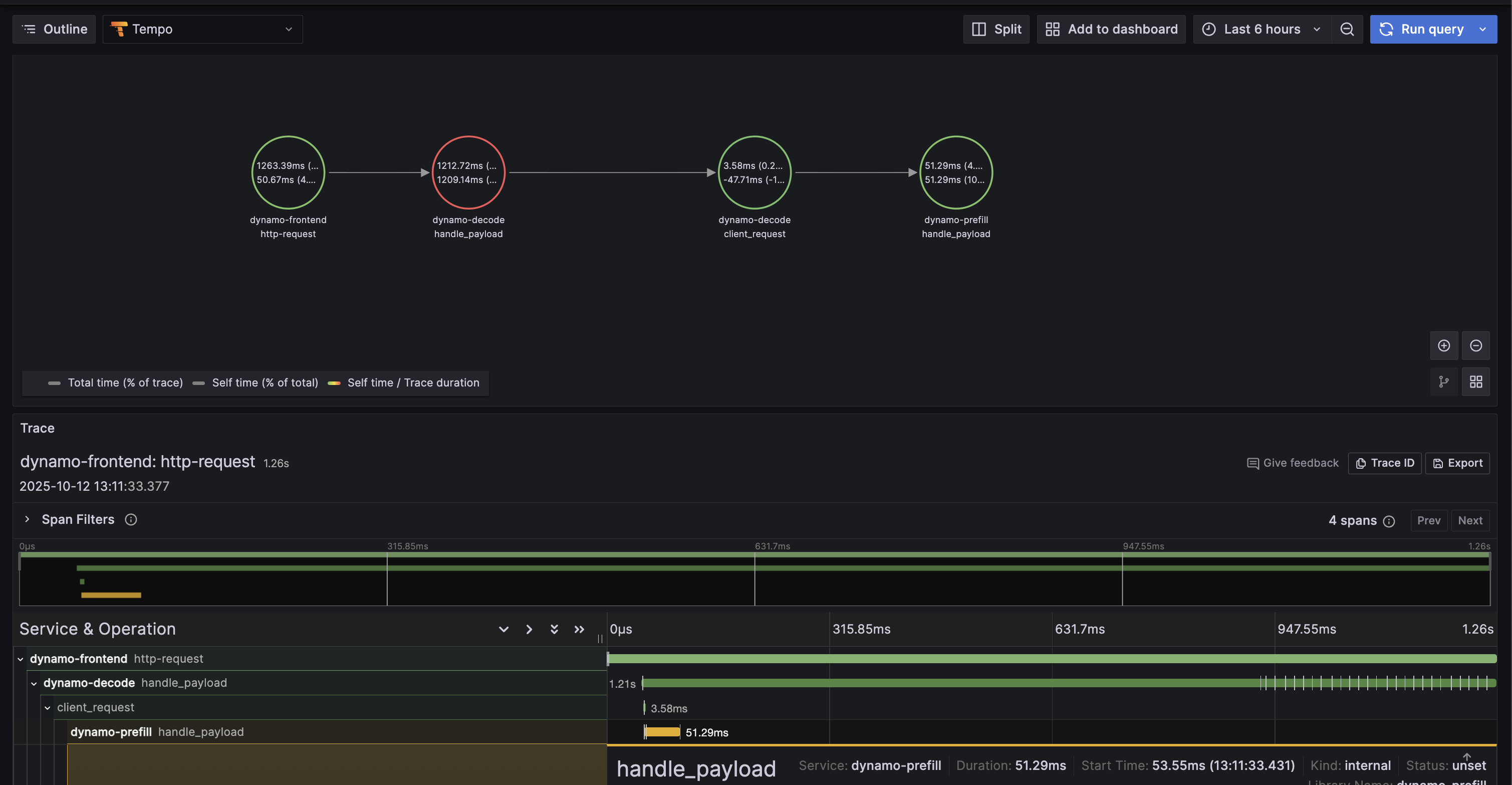
Example Trace View#
Below is an example of what a trace looks like in Grafana Tempo:
6. Stop Services#
When done, stop the observability stack. See Observability Getting Started for Docker Compose commands.
Kubernetes Deployment#
For Kubernetes deployments, ensure you have a Tempo instance deployed and accessible (e.g., http://tempo.observability.svc.cluster.local:4317).
Modify DynamoGraphDeployment for Tracing#
Add common tracing environment variables at the top level and service-specific names in each component in your DynamoGraphDeployment (e.g., examples/backends/vllm/deploy/disagg.yaml):
apiVersion: nvidia.com/v1alpha1
kind: DynamoGraphDeployment
metadata:
  name: vllm-disagg
spec:
  # Common environment variables for all services
  env:
    - name: DYN_LOGGING_JSONL
      value: "true"
    - name: OTEL_EXPORT_ENABLED
      value: "true"
    - name: OTEL_EXPORTER_OTLP_TRACES_ENDPOINT
      value: "http://tempo.observability.svc.cluster.local:4317"

  services:
    Frontend:
      # ... existing configuration ...
      extraPodSpec:
        mainContainer:
          # ... existing configuration ...
          env:
            - name: OTEL_SERVICE_NAME
              value: "dynamo-frontend"

    VllmDecodeWorker:
      # ... existing configuration ...
      extraPodSpec:
        mainContainer:
          # ... existing configuration ...
          env:
            - name: OTEL_SERVICE_NAME
              value: "dynamo-worker-decode"

    VllmPrefillWorker:
      # ... existing configuration ...
      extraPodSpec:
        mainContainer:
          # ... existing configuration ...
          env:
            - name: OTEL_SERVICE_NAME
              value: "dynamo-worker-prefill"
Apply the updated DynamoGraphDeployment:
kubectl apply -f examples/backends/vllm/deploy/disagg.yaml
Traces will now be exported to Tempo and can be viewed in Grafana.