# Duplicating and Sharing Dashboards
## Duplicating a Dashboard
You can duplicate a dashboard and use it as a starting point for a different dashboard.
To duplicate a dashboard:
1. Click the three dots icon next to the share icon
2. Select "Duplicate dashboard" from the drop-down menu.
3. A new, identical dashboard will be created with "(Copy)" appended to the original dashboard name.
4. Click the title section of the new dashboard to edit its name.
5. Click "**Save**."
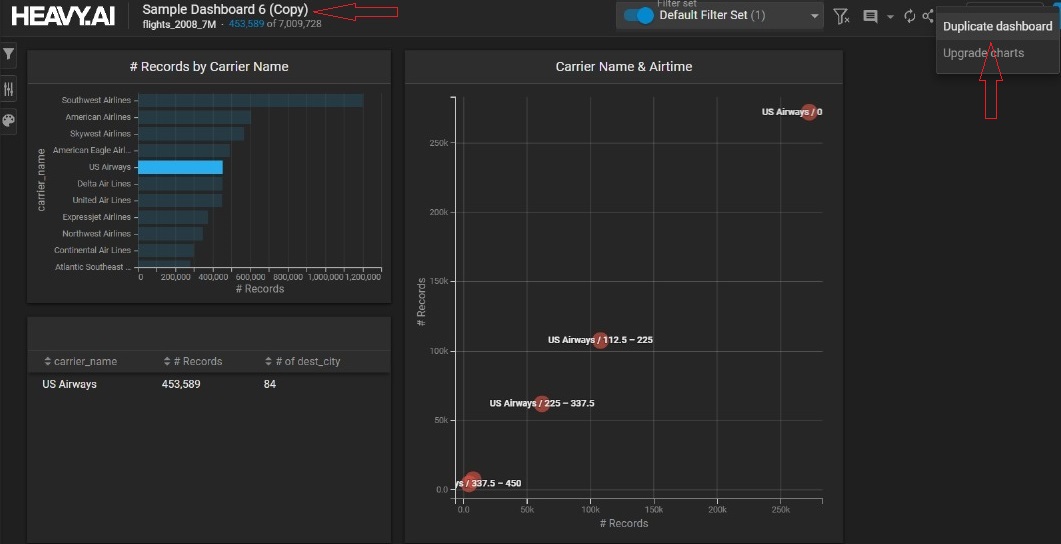
Use **Duplicate** to create a copy of a dashboard; do not rename a dashboard and save it. If you rename a dasboard and then save it, the *original dashboard is overwritten with the renamed dashboard*, and no duplicate is created.
## Sharing a Dashboard
You can share a saved dashboard with specific users or roles.
To share a dashboard:
1. Click **Share**.
2. Click the **Search** field to browse a list of users and roles. You can also type the first few characters of a user or role name to search.
3. Click to select a user or role. To remove a user or role, click the **x** at the end of the row.
4. Click the **Copy** icon at the bottom to copy the dashboard URL.
5. Click **Apply**.
6. Send the URL to the selected users and let them now they are authorized to use the dashboard.
When viewing the dashboard, you can click the **Share** icon at any time to add or remove users.
On the Dashboards page, the **Shared** column lets you distinguish between dashboards you have shared versus dashboards shared with you by others.
|  | Dashboards you have shared |
| ---------------------------------------------------------------------- | -------------------------------------- |
|  | Dashboards others have shared with you |
Users that have been assigned the restricted\_sharing role cannot share a dashboard, and the **Share** icon is unavailable.
## Exporting and Importing a Dashboard Definition
You can use `heavysql` to export a dashboard definition as a JSON file, then import the dashboard definition to another HEAVY.AI instance.
To export a dashboard definition:
1. Start [heavysql](/apis-and-interfaces/heavysql).
2. Enter the following backslash command:
```
\export_dashboard ""
```
Where `` is the name of the dashboard in Heavy Immerse and `` is the name and location to create the JSON file.
For example:
```
heavysql> \export_dashboard "Sample Dashboard" /home/heavyai/exported_dash.json
```
To import a dashboard definition:
1. Copy the export file to a location available to another HEAVY.AI instance.
2. Enter the following backslash command:
```
\import_dashboard ""
```
Where `` is the location and name of a file exported from another OmniSci instance.
For example:
```
heavysql> \import_dashboard "Sample Dashboard" /home/heavyai/my_dashboard.json
```