# HEAVY.AI Installation on Ubuntu
This is an end-to-end recipe for installing HEAVY.AI on a Ubuntu 22.04 machine using CPU and GPU devices.
The order of these instructions is significant. To avoid problems, install each component in the order presented.
## Assumptions
These instructions assume the following:
* You are installing on a “clean” Ubuntu 22.04 host machine with only the operating system installed.
* Your HEAVY.AI host only runs the daemons and services required to support HEAVY.AI.
* Your HEAVY.AI host is connected to the Internet.
## Preparation
Prepare your Ubuntu machine by updating your system, creating the HEAVY.AI user (named heavyai), installing kernel headers, installing CUDA drivers, and optionally enabling the firewall.
### Update and Reboot
1. Update the entire system:
```bash
sudo apt update
sudo apt upgrade
```
2. Install the utilities needed to create Heavy.ai repositories and download archives:
```bash
sudo apt install curl
sudo apt install libncurses5
```
3. Install the headless JDK and the utility `apt-transport-https`:
```bash
sudo apt install default-jre-headless apt-transport-https
```
4. Reboot to activate the latest kernel:
```bash
sudo reboot
```
### Create the HEAVY.AI User
Create a group called `heavyai` and a user named `heavyai`, who will be the owner of the HEAVY.AI software and data on the filesystem.
1. Create the group, user, and home directory using the `useradd` command with the `--user-group` and `--create-home` switches.
```bash
sudo useradd --user-group --create-home --group sudo heavyai
```
2. Set a password for the user:
```bash
sudo passwd heavyai
```
3. Log in with the newly created user:
```bash
sudo su - heavyai
```
## Installation
Install the HEAVY.AI using APT and a tarball.
The installation using the APT package manager is recommended to those who want a more automated install and upgrade procedure.
### Install NVIDIA Drivers GPU OPTION
If your system uses NVIDIA GPUs, but the drivers not installed, install them now.\
See [install-nvidia-drivers-and-vulkan-on-ubuntu.md](/installation-and-configuration/installation/installing-on-ubuntu/install-nvidia-drivers-and-vulkan-on-ubuntu "mention") for details.
### Installing with APT
Download and add a GPG key to APT.
```bash
curl https://releases.heavy.ai/GPG-KEY-heavyai | sudo apt-key add -
```
Add a source apt depending on the edition (Enterprise, Free, or Open Source) and execution device (GPU or CPU) you are going to use.
```bash
echo "deb https://releases.heavy.ai/ee/apt/ stable cuda" \
| sudo tee /etc/apt/sources.list.d/heavyai.list
```
```bash
echo "deb https://releases.heavy.ai/ee/apt/ stable cpu" \
| sudo tee /etc/apt/sources.list.d/heavyai.list
```
```bash
echo "deb https://releases.heavy.ai/os/apt/ stable cuda" \
| sudo tee /etc/apt/sources.list.d/heavyai.list
```
```bash
echo "deb https://releases.heavy.ai/os/apt/ stable cpu" \
| sudo tee /etc/apt/sources.list.d/heavyai.list
```
Use `apt` to install the latest version of HEAVY.AI.
```bash
sudo apt update
sudo apt install heavyai
```
If you need to install a specific version of HEAVY.AI, because you are upgrading from Omnisci or for different reasons, you must run the following command:
```
hai_version="6.0.0"
sudo apt install heavyai=$(apt-cache madison heavyai | grep $hai_version | cut -f 2 -d '|' | xargs)
```
### Installing with a Tarball
First create the installation directory.
```bash
sudo mkdir /opt/heavyai && sudo chown $USER /opt/heavyai
```
Download the archive and install the software. A different archive is downloaded depending on the Edition (Enterprise, Free, or Open Source) and the device used for runtime (GPU or CPU).
```bash
curl \
https://releases.heavy.ai/ee/tar/heavyai-ee-latest-Linux-x86_64-render.tar.gz \
| sudo tar zxf - --strip-components=1 -C /opt/heavyai
```
```bash
curl \
https://releases.heavy.ai/ee/tar/heavyai-ee-latest-Linux-x86_64-cpu.tar.gz \
| sudo tar zxf - --strip-components=1 -C /opt/heavyai
```
```bash
curl \
https://releases.heavy.ai/os/tar/heavyai-os-latest-Linux-x86_64.tar.gz \
| sudo tar zxf - --strip-components=1 -C /opt/heavyai
```
```bash
curl \
https://releases.heavy.ai/os/tar/heavyai-os-latest-Linux-x86_64-cpu.tar.gz \
| sudo tar zxf - --strip-components=1 -C /opt/heavyai
```
## Configuration
Follow these steps to prepare your HEAVY.AI environment.
### Set Environment Variables
For convenience, you can update .bashrc with these environment variables
```bash
echo "# HEAVY.AI variable and paths
export HEAVYAI_PATH=/opt/heavyai
export HEAVYAI_BASE=/var/lib/heavyai
export HEAVYAI_LOG=$HEAVYAI_BASE/storage/log
export PATH=$HEAVYAI_PATH/bin:$PATH" \
>> ~/.bashrc
source ~/.bashrc
```
Although this step is optional, you will find references to the HEAVYAI\_BASE and HEAVYAI\_PATH variables. These variables contain respectively the paths where configuration, license, and data files are stored and where the software is installed. Setting them is strongly recommended.
### Initialization
Run the `systemd` installer to create heavyai services, a minimal config file, and initialize the data storage.
```bash
cd $HEAVYAI_PATH/systemd
./install_heavy_systemd.sh
```
Accept the default values provided or make changes as needed.
The script creates a data directory in `$HEAVYAI_BASE/storage` (default `/var/lib/heavyai/storage`) with the directories `catalogs`, `data`, `export` and `log`.The `import` directory is created when you insert data the first time. If you are HEAVY.AI administrator, the `log` directory is of particular interest.
### Activation
Start and use HeavyDB and Heavy Immerse. [¹](/installation-and-configuration/installation/installing-on-ubuntu/centos-yum-gpu-ee#in-the-os-edition-heavy-immerse-service-is-unavailable.)
Heavy Immerse is not available in the OSS Edition, so if running the OSS Edition the `systemctl` command using the `heavy_web_server` has no effect.
Enable the automatic startup of the service at reboot and start the HEAVY.AI services.
```bash
sudo systemctl enable heavydb --now
sudo systemctl enable heavy_web_server --now
```
```bash
sudo systemctl enable heavydb --now
```
### Configure Firewall OPTIONAL
If a firewall is not already installed and you want to harden your system, install the`ufw`.
```bash
sudo apt install ufw
sudo ufw allow ssh
```
To use Heavy Immerse or other third-party tools, you must prepare your host machine to accept incoming HTTP(S) connections. Configure your firewall for external access.
```bash
sudo ufw disable
sudo ufw allow 6273:6278/tcp
sudo ufw enable
```
Most cloud providers use a different mechanism for firewall configuration. The commands above might not run in cloud deployments.
For more information, see [https://help.ubuntu.com/lts/serverguide/firewall.html](https://help.ubuntu.com/lts/serverguide/firewall.html).
### Licensing HEAVY.AI ee-free only
If you are using Enterprise or Free Edition, you need to validate your HEAVY.AI instance with your license key.
**Skip this section if you are on Open Source Edition** [²](/installation-and-configuration/installation/installing-on-ubuntu/centos-yum-gpu-ee#in-the-os-edition-heavy-immerse-service-is-unavailable.-1)
1. Copy your license key of Enterprise or Free Edition from the registration email message. \
\
If you do not have a license and you want to evaluate HEAVI.AI in an unlimited
enterprise environment, contact your Sales Representative or register for your 30-day trial of Enterprise Edition [here](https://www.heavy.ai/product/downloads/enterprise).\
\
If you need a Free License you can get one [here](https://www.heavy.ai/product/downloads/free).
2. Connect to Heavy Immerse using a web browser connected to your host machine on port 6273. For example, `http://heavyai.mycompany.com:6273`.
3. When prompted, paste your license key in the text box and click **Apply**.
4. Log into Heavy Immerse by entering the default username (`admin`) and password (`HyperInteractive`), and then click **Connect**.
.
### **Final Checks**
To verify that everything is working, load some sample data, perform a `heavysql` query, and generate a Pointmap using Heavy Immerse [¹](/installation-and-configuration/installation/installing-on-ubuntu/centos-yum-gpu-ee#in-the-os-edition-heavy-immerse-service-is-unavailable.)
#### Load Sample Data and Run a Simple Query
HEAVY.AI ships with two sample datasets of airline flight information collected in 2008, and a census of New York City trees. To install sample data, run the following command.
```bash
cd $HEAVYAI_PATH
sudo ./insert_sample_data --data /var/lib/heavyai/storage
```
```bash
# Enter dataset number to download, or 'q' to quit:
Dataset Rows Table Name File Name
1) Flights (2008) 7M flights_2008_7M flights_2008_7M.tar.gz
2) Flights (2008) 10k flights_2008_10k flights_2008_10k.tar.gz
3) NYC Tree Census (2015) 683k nyc_trees_2015_683k nyc_trees_2015_683k.tar.gz
```
Connect to HeavyDB by entering the following command in a terminal on the host machine (default password is HyperInteractive):
```bash
$HEAVYAI_PATH/bin/heavysql
password: ••••••••••••••••
```
Enter a SQL query such as the following
```sql
SELECT origin_city AS "Origin",
dest_city AS "Destination",
AVG(airtime) AS "Average Airtime"
FROM flights_2008_10k WHERE distance < 175
GROUP BY origin_city, dest_city;
```
The results should be similar to the results below.
```sql
Origin|Destination|Average Airtime
Austin|Houston|33.055556
Norfolk|Baltimore|36.071429
Ft. Myers|Orlando|28.666667
Orlando|Ft. Myers|32.583333
Houston|Austin|29.611111
Baltimore|Norfolk|31.714286
```
#### Create a Dashboard Using Heavy Immerse ee-free only [¹](/installation-and-configuration/installation/installing-on-ubuntu/centos-yum-gpu-ee#in-the-os-edition-heavy-immerse-service-is-unavailable.)
After installing Enterprise or Free Edition, check if Heavy Immerse is running as intended.
1. Connect to Heavy Immerse using a web browser connected to your host machine on port 6273. For example, `http://heavyai.mycompany.com:6273`.
2. Log into Heavy Immerse by entering the default username (`admin`) and password (`HyperInteractive`), and then click **Connect**.
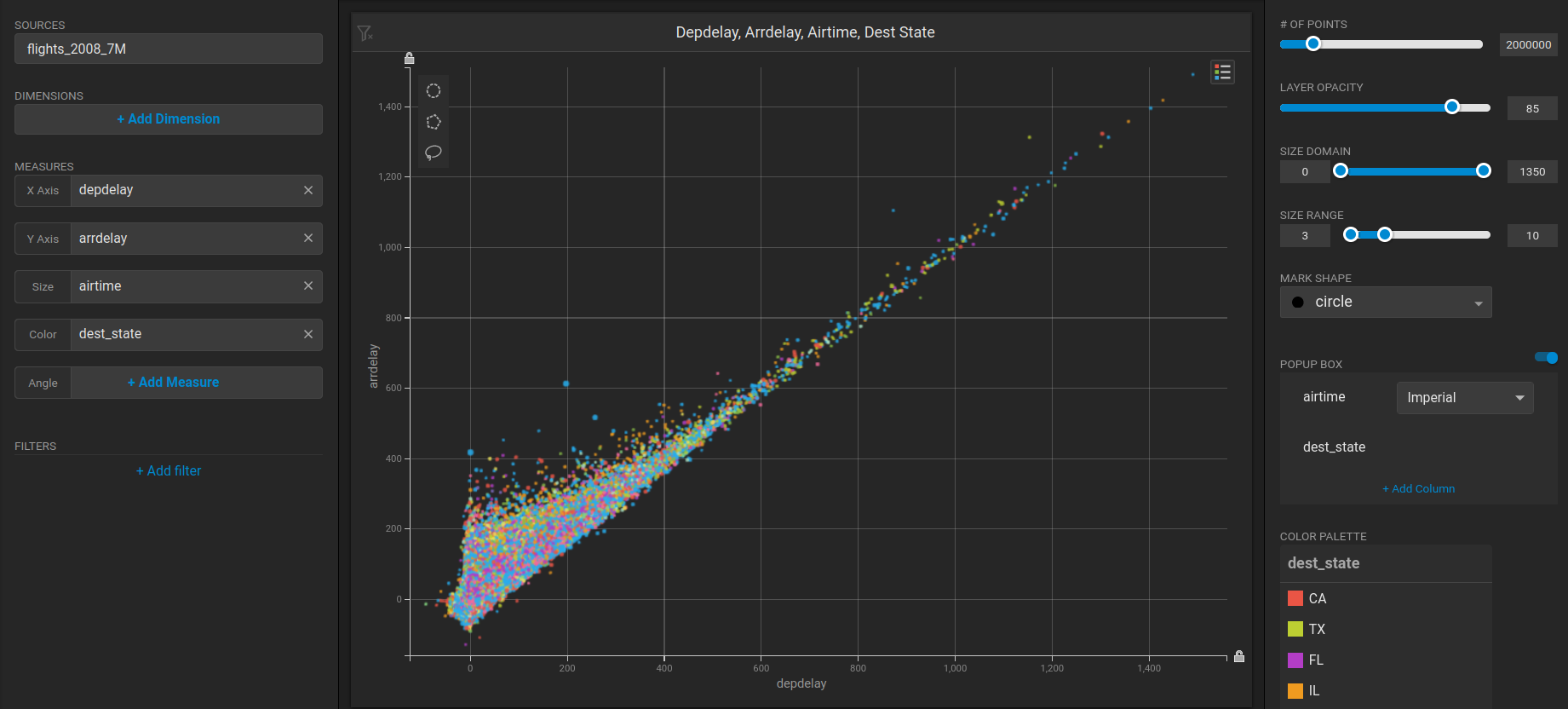
Create a new dashboard and a Scatter Plot to verify that **backend rendering** is working.
1. Click **New Dashboard**.
2. Click **Add Chart**.
3. Click **SCATTER**.
4. Click **Add Data Source**.
5. Choose the *flights\_2008\_10k* table as the data source.
6. Click **X Axis +Add Measure**.
7. Choose *depdelay*.
8. Click **Y Axis +Add Measure**.
9. Choose *arrdelay*.
10. Click Size **+Add Measure**.
11. Choose *airtime.*
12. Click Color **+Add Measure**.
13. Choose *dest\_state.*
The resulting chart shows, unsurprisingly, that there is a correlation between departure delay and arrival delay.\\
Create a new dashboard and a Table chart to verify that Heavy Immerse is working.
1. Click **New Dashboard**.
2. Click **Add Chart**.
3. Click **Bubble**.
4. Click **Select Data Source**.
5. Choose the *flights\_2008\_10k* table as the data source.
6. Click **Add Dimension**.
7. Choose *carrier\_name*.
8. Click **Add Measure**.
9. Choose *depdelay*.
10. Click **Add Measure**.
11. Choose *arrdelay*.
12. Click **Add Measure**.
13. Choose *#Records.*
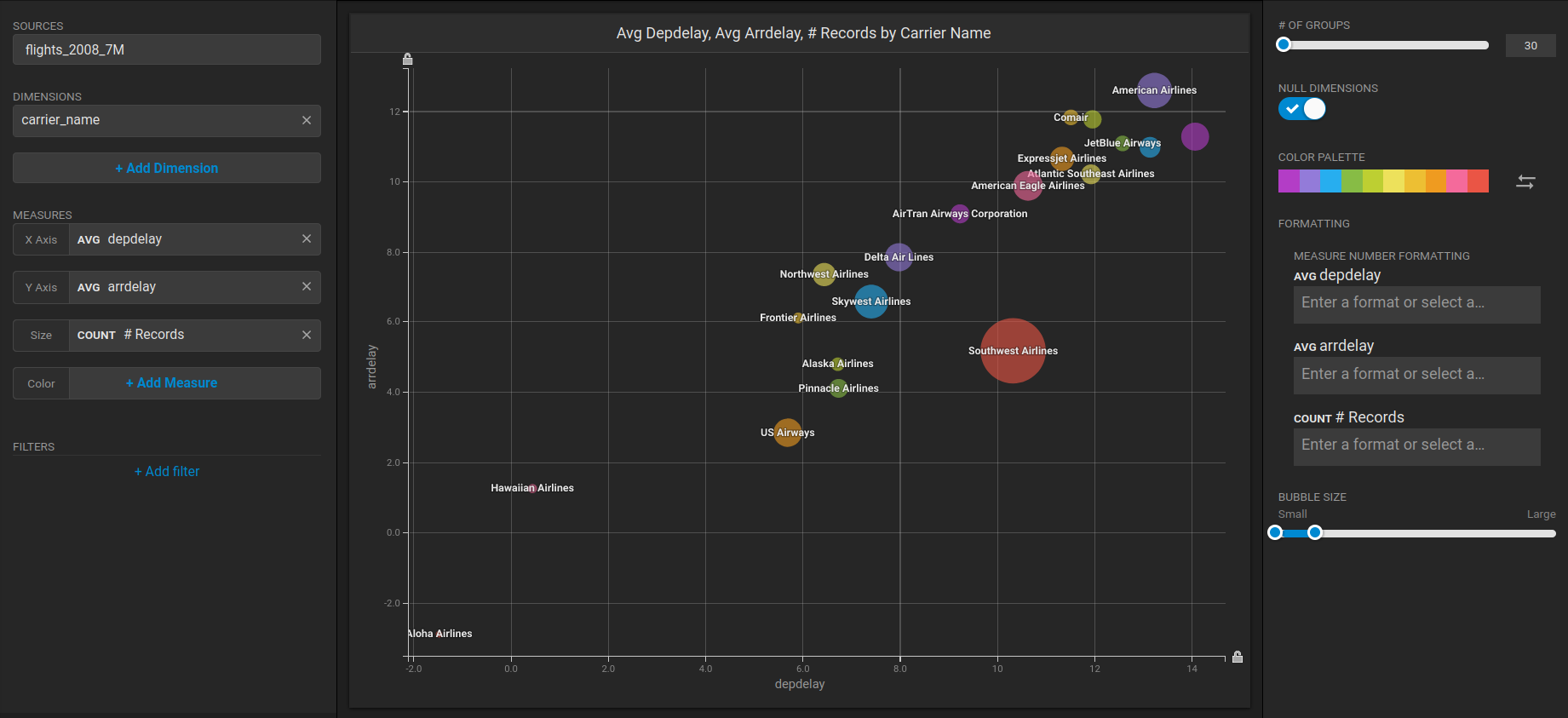
The resulting chart shows, unsurprisingly, that also the average departure delay is correlated to the average of arrival delay, while there is quite a difference between Carriers.\\
#### ¹ In the OS Edition, Heavy Immerse is unavailable.
#### ² The OS Edition does not require a license key.