# Install NVIDIA Drivers and Vulkan on Ubuntu
## Installation Prerequisites
**Hardware Check**
Check that your system has a compatible NVIDIA GPU. If you don't know the exact GPU model in your system run this command:
```bash
lspci -v | egrep "NVIDIA"
```
This command should output one row per installed NVIDIA GPU. Check that your hardware is compatible on our [Hardware Requirements](/installation-and-configuration/system-requirements/hardware) page. Note that you can still install the CPU Edition of HEAVY.AI on machines that do not have an NVIDIA GPU.
**Pre-Installation Updates**
Upgrade the system and the kernel, then the machine if needed.
```bash
sudo apt update
```
```bash
sudo apt upgrade -y
sudo reboot
```
### **Install Kernel Headers**
Install kernel headers and development packages.
```bash
sudo apt install linux-headers-$(uname -r)
```
Install the extra packages.
```bash
sudo apt install pciutils
```
## Installing Vulkan Library
The rendering engine of HEAVY.AI (present in Enterprise Editions) requires a Vulkan-enabled driver and the Vulkan library. Without these components, the database itself may not be able to start.
Install the Vulkan library and its dependencies using `apt`.
```bash
sudo apt install libvulkan1
```
For more information about troubleshooting Vulkan, see the [Vulkan Renderer](/troubleshooting-and-special-topics/vulkan-graphics-api-beta) section.
## Installing NVIDIA Drivers
Installing NVIDIA drivers with support for the CUDA platform is required to run GPU-enabled versions of HEAVY.AI.
Each version of HEAVY.AI has a minimum required driver version, which is documented in the [Software Requirements](/installation-and-configuration/system-requirements/software-requirements) page. You can generally install NVIDIA drivers newer than the minimum required version, but the version listed in our [Software Requirements](/installation-and-configuration/system-requirements/software-requirements) page reflects the NVIDIA driver used for software testing.
You can install NVIDIA drivers in multiple ways, we've outlined three available options below - we recommend Option 1.
* [Option 1](/installation-and-configuration/installation/installing-on-ubuntu/install-nvidia-drivers-and-vulkan-on-ubuntu#option-1-install-nvidia-drivers-with-cuda-toolkit-from-nvidia-website): Install NVIDIA drivers with CUDA toolkit from NVIDIA Website
* [Option 2](/installation-and-configuration/installation/installing-on-ubuntu/install-nvidia-drivers-and-vulkan-on-ubuntu#option-2-install-nvidia-drivers-via-.run-file-using-the-nvidia-website): Install NVIDIA drivers via .run file using the NVIDIA Website
* [Option 3](/installation-and-configuration/installation/installing-on-ubuntu/install-nvidia-drivers-and-vulkan-on-ubuntu#option-3-install-nvidia-drivers-using-apt): Install NVIDIA drivers using APT package manager
It is advisable to keep a record of the installation method used, as upgrading NVIDIA drivers will require the utilization of the same method for successful results.
#### What is CUDA? What is the CUDA toolkit?
CUDA is a parallel computing platform and application programming interface (API) model. It uses a CUDA-enabled graphics processing unit (GPU) for general-purpose processing. The CUDA platform provides direct access to the GPU virtual instruction set and parallel computation elements. For more information on CUDA unrelated to installing HEAVY.AI, see [https://developer.nvidia.com/cuda-zone](https://developer.nvidia.com/cuda-zone).
The CUDA Toolkit from NVIDIA provides everything you need to develop GPU-accelerated applications. The CUDA Toolkit includes GPU-accelerated libraries, a compiler, development tools and the CUDA runtime. The CUDA Toolkit is not required to run HEAVY.AI, but you must install the CUDA toolkit if you use advanced features like C++ User-Defined Functions and or User-Defined Table Functions to extend the database capabilities.
### **Option 1: Install NVIDIA Drivers with CUDA Toolkit from NVIDIA Website**
Open [https://developer.nvidia.com/cuda-toolkit-archive](https://developer.nvidia.com/cuda-toolkit-archive) and select the desired CUDA Toolkit version to install.
The minimum CUDA version supported by HEAVY.AI is 11.4. We recommend using a release that has been available for at least two months.
In the "Target Platform" section, follow these steps:
1. For "Operating System" select **Linux**
2. For Architecture" select **x86\_64**
3. For "Distribution" select **Ubuntu**
4. For "Version" select the version of your operating system (**20.04**)
5. For "Installer Type" choose **deb (network) \*\***
6. One by one, run the presented commands in the Installer Instructions section on your server.
**\*\*** You may optionally use any of the "Installer Type" options available.
If you choose to use the .run file option, prior to running the installer you will need to manually install `build-essentials` using `apt` and change permissions of the downloaded .run file to allow execution.
### **Option 2: Install NVIDIA Drivers via .run file using the NVIDIA Website**
Install the CUDA package for your platform and operating system according to the instructions on the NVIDIA website ([https://www.nvidia.com/download/index.aspx](https://www.nvidia.com/download/index.aspx)).
If you don't know the exact GPU model in your system run this command
```bash
lspci -v | egrep "3D|VGA*.NVIDIA" | awk -F '\[|\]' ' { print $2 } '
```
You'll get an output in the format Product Type, Series and Model
```
Tesla T4
```
In this example, the Product type is Tesla the Series is T (as Turing), and the model is T4.
1. Select the Product Type as the one you got with the command.
2. Select the correct Product Series and Product Type for your installation.
3. In the Operating System dropdown list, select **Linux 64-bit**.
4. In the CUDA Toolkit dropdown list, click a supported version (**11.4** or higher).
5. Click **Search**.
6. On the resulting page, verify the download information and click **Download**
7. On the subsequent page, if you agree to the terms, right click on "Agree and Download" and select "Copy Link Address". You may also manually download and transfer to your server, skipping the next step.
8. On your server, type `wget` and paste the URL you copied in the previous step. Press enter to download.
Please check that the driver's version you are downloading meets the HEAVI.AI [minimum requirements](/installation-and-configuration/system-requirements/software-requirements)
Install the tools needed for installation.
```bash
sudo apt install build-essential
```
Change the permissions of the downloaded .run file to allow execution, and run the installation.
```bash
chmod +x NVIDIA-Linux-x86_64-*.run
sudo ./NVIDIA-Linux--x86_64-*.run
```
### **Option 3: Install NVIDIA drivers using APT**
Install a specific version of the driver for your GPU by installing the NVIDIA repository and using the `apt` package manager.
Be careful when choosing the driver version to install. Ensure that your GPU's model is supported and that meets the HEAVI.AI [minimum requirements](/installation-and-configuration/system-requirements/software-requirements)
Run the command to get a list of the available driver's version
```bash
apt list nvidia-driver-*
Listing... Done
nvidia-driver-450/bionic-updates,bionic-security 460.91.03-0ubuntu0.18.04.1 amd64
nvidia-driver-450-server/bionic-updates,bionic-security 450.172.01-0ubuntu0.18.04.1 amd64
nvidia-driver-455/bionic-updates,bionic-security 460.91.03-0ubuntu0.18.04.1 amd64
nvidia-driver-460/bionic-updates,bionic-security 470.103.01-0ubuntu0.18.04.1 amd64
nvidia-driver-465/bionic-updates,bionic-security 470.103.01-0ubuntu0.18.04.1 amd64
nvidia-driver-470/bionic-updates,bionic-security 470.103.01-0ubuntu0.18.04.1 amd64
nvidia-driver-470-server/bionic-updates,bionic-security 470.103.01-0ubuntu0.18.04.1 amd64
nvidia-driver-495/bionic-updates,bionic-security 510.60.02-0ubuntu0.18.04.1 amd64
nvidia-driver-510/bionic-updates,bionic-security 510.60.02-0ubuntu0.18.04.1 amd64
nvidia-driver-510-server/bionic-updates,bionic-security 510.47.03-0ubuntu0.18.04.1 amd64
```
Install the driver version needed with `apt`
```bash
sudo apt install nvidia-driver-
```
### NVIDIA Driver Post-Installation steps
Reboot your system to ensure the new version of the driver is loaded
```bash
sudo reboot
```
#### **Verify Successful NVIDIA driver installation**
Run `nvidia-smi` to verify that your drivers are installed correctly and recognize the GPUs in your environment. Depending on your environment, you should see something like this to confirm that your NVIDIA GPUs and drivers are present.
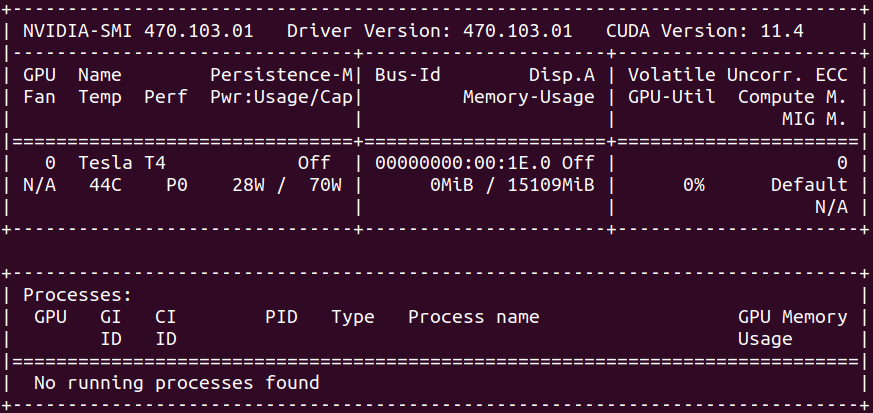
If you see an error like the following, the NVIDIA drivers are probably installed incorrectly:
```
NVIDIA-SMI has failed because it couldn't communicate with the NVIDIA driver.
Make sure that the latest NVIDIA driver is installed and running.
```
Review the installation instructions, specifically checking for completion of install prerequisites, and correct any errors.
## Install Vulkan library
The rendering engine of HEAVY.AI requires a Vulkan-enabled driver and the Vulkan library. Without these components, the database itself can't even start without disabling the back-end renderer.
Install the Vulkan library and its dependencies using `apt`.
```bash
sudo apt install libvulkan1
```
For more information about troubleshooting Vulkan, see the [Vulkan Renderer](/troubleshooting-and-special-topics/vulkan-graphics-api-beta) section.
## Advanced Installation
You must install the CUDA toolkit and Clang if you use advanced features like C++ User-Defined Functions and or User-Defined Table Functions to extend the database capabilities.
### Install CUDA Toolkit OPTIONAL
If you installed NVIDIA drivers using [Option 1](/installation-and-configuration/installation/installing-on-ubuntu/install-nvidia-drivers-and-vulkan-on-ubuntu#option-1-install-nvidia-drivers-with-cuda-toolkit-from-nvidia-website) above, the CUDA toolkit is already installed; you may proceed to the verification step below.
Install the NVIDIA public repository GPG key.
```bash
distribution=$(. /etc/os-release;echo $ID$VERSION_ID | sed -e 's/.//g')
sudo apt-key adv --fetch-keys \
https://developer.download.nvidia.com/compute/cuda/repos/$distribution/x86_64/3bf863cc.pub
```
Add the repository.
```bash
echo "deb http://developer.download.nvidia.com/compute/cuda/repos/$distribution/x86_64 /" \
| sudo tee /etc/apt/sources.list.d/cuda.list
apt update
```
List the available Cuda toolkit versions.
```bash
apt list cuda-toolkit-* | grep -v config
Listing...
cuda-toolkit-10-0/unknown 10.0.130-1 amd64
cuda-toolkit-10-1/unknown 10.1.243-1 amd64
cuda-toolkit-10-2/unknown 10.2.89-1 amd64
cuda-toolkit-11-0/unknown 11.0.3-1 amd64
cuda-toolkit-11-1/unknown 11.1.1-1 amd64
cuda-toolkit-11-2/unknown 11.2.2-1 amd64
cuda-toolkit-11-3/unknown 11.3.1-1 amd64
cuda-toolkit-11-4/unknown 11.4.4-1 amd64
cuda-toolkit-11-5/unknown 11.5.2-1 amd64
cuda-toolkit-11-6/unknown 11.6.2-1 amd64
cuda-toolkit-11-7/unknown 11.7.0-1 amd64
```
Install the CUDA toolkit using `apt`.
```bash
sudo apt install cuda-toolkit-
```
#### Verification
Check that everything is working and the toolkit has been installed.
```bash
/usr/local/cuda/bin/nvcc --version
nvcc: NVIDIA (R) Cuda compiler driver
Copyright (c) 2005-2020 NVIDIA Corporation
Built on Mon_Nov_30_19:08:53_PST_2020
Cuda compilation tools, release 11.2, V11.2.67
Build cuda_11.2.r11.2/compiler.29373293_0
```
### Install Clang OPTIONAL
You must install Clang if you use advanced features like C++ User-Defined Functions and or User-Defined Table Functions to extend the database capabilities. Install Clang and LLVM dependencies using `apt`.
```bash
sudo apt install clang
```
#### Verification
Check that the software is installed and in the execution path.
```bash
clang --version
clang version 10.0.0-4ubuntu1
Target: x86_64-pc-linux-gnu
Thread model: posix
InstalledDir: /usr/bin
```
For more information, see C++ [User-Defined Functions](/sql/data-manipulation-dml/functions-operators#user-defined-functions).