> For clean Markdown of any page, append .md to the page URL.
> For a complete documentation index, see https://docs.nvidia.com/holoscan/sdk-user-guide/llms.txt.
> For AI client integration (Claude Code, Cursor, etc.), connect to the MCP server at https://docs.nvidia.com/holoscan/sdk-user-guide/_mcp/server.
For better performance and to keep up with the high refresh rate of Holoscan applications, we recommend the use of a [G-SYNC display](https://www.nvidia.com/en-us/geforce/products/g-sync-monitors/specs/).
Holoscan has been tested with these two G-SYNC displays:
* [Asus ROG Swift PG279QM](https://rog.asus.com/us/monitors/27-to-31-5-inches/rog-swift-pg279qm-model/)
* [Asus ROG Swift 360 Hz PG259QNR](https://rog.asus.com/us/monitors/23-to-24-5-inches/rog-swift-360hz-pg259qnr-model/)
Follow these steps to ensure G-SYNC is enabled on your display:
1. Open the "NVIDIA Settings" Graphics application (`nvidia-settings` in Terminal).
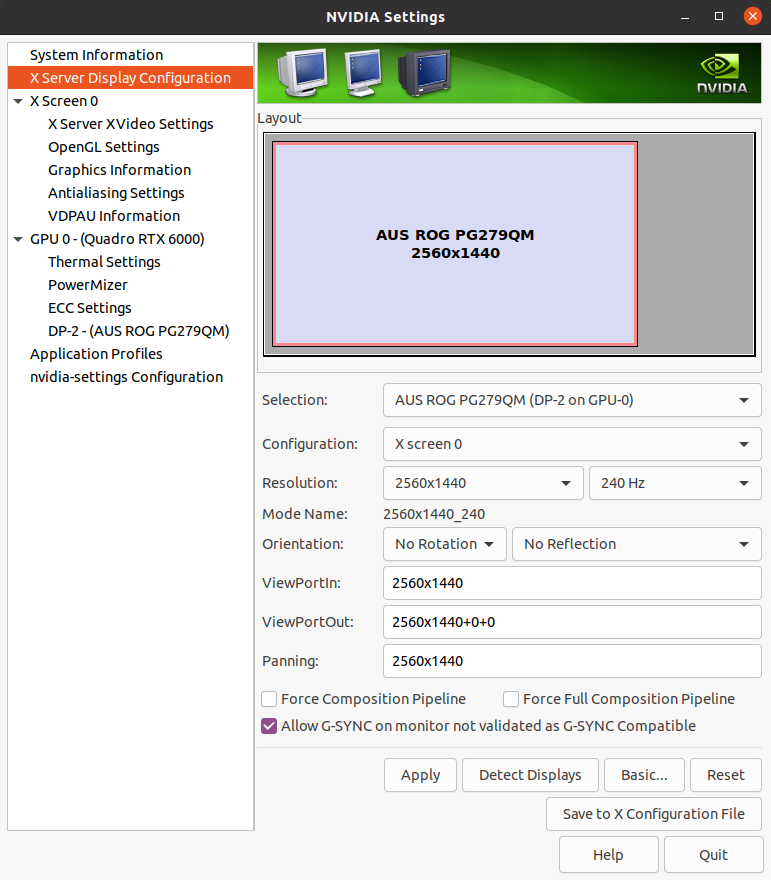
2. Click on `X Server Display Configuration` then the `Advanced` button. This will
show the `Allow G-SYNC on monitor not validated as G-SYNC compatible` option. Enable the option and click `Apply`:
Enable G-SYNC for the current display
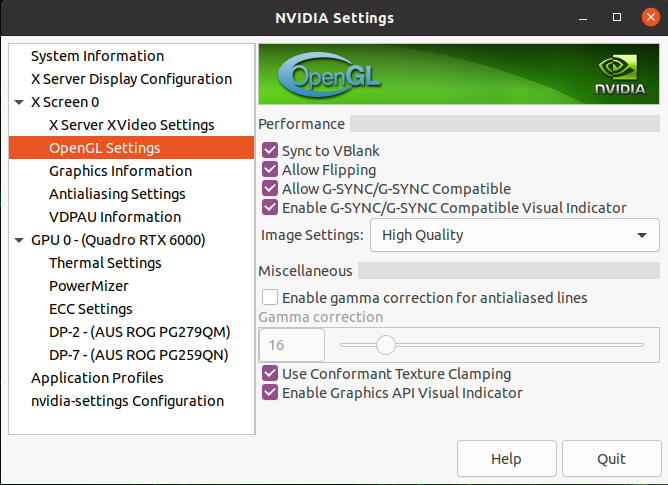
3. To show the refresh rate and G-SYNC label on the display window, click on `OpenGL Settings` for the selected display. Now click `Allow G-SYNC/G-SYNC Compatible` and
`Enable G-SYNC/G-SYNC Compatible Visual Indicator` options, then click `Quit`. This
step is shown in the image below. The `Gsync` indicator is at the top right of the screen
once the application is running.
Enable Visual Indicator for the current display