


Using IGX OS with BMC (Remote Media)#
IGX BMC has the support of USB remote media based on openbmc virtual media - docs/designs/virtual-media.md at master · openbmc/docs · GitHub
The IGX Developer Kit BMC enumerates USB virtual media devices to the Orin/Thor USB host, which helps to install IGX OS using the UEFI menu. IGX BMC can work as virtual media over CIFS transfer protocol.
CIFS samba server configuration in Ubuntu Desktop.
Install SAMBA and configure it on the Ubuntu Desktop. Place IGX OS into the SAMBA server path to initiate the BMC virtual media for the IGX OS image:
sudo apt update
sudo apt install samba
Now that Samba is installed, we need to create a directory for it to share.
mkdir /home/<username>/sambashare/Add samba configuration for sambashare directory
sudo vim /etc/samba/smb.conf
Add block to samba configuration to end of the smb.conf
[sambashare]
  comment = Samba on Ubuntu
  path = /home/username/sambashare
  read only = no
  browsable = yes
Update firewall settings and restart the samba service
sudo ufw allow samba
sudo service smbd restart
Set up user and password
sudo smbpasswd -a username
Enumerate BMC USB Virtual Media
Get the IGX OS release and copy the IGX OS image to the sambashare folder.
cp <IGX OS image> /home/username/sambashare/
Provide the BMC username and password to get the token.
export bmc=<BMC IP>
export token=`curl -k -H "Content-Type: application/json" -X POST https://${bmc}/login -d '{"username" : "<BMC Username>", "password" : "<BMC Passowrd>"}' | grep token | awk '{print $2;}' | tr -d '"'`
Fill the Samba username, password, and IGX OS file to enumerate the USB virtual media using the Redfish.
curl -k -H Content-Type:application/json -H "X-Auth-Token:$token" -X POST https://${bmc}/redfish/v1/Managers/IGX_BMC_0/VirtualMedia/USB1/Actions/VirtualMedia.InsertMedia -d '{"Image":"smb://<Ubuntu Desktop IP>/sambashare/<IGX OS filename>","WriteProtected":true,"UserName":"<SAMBA Username>","Password":"<SAMBA Password>","Inserted":true,"TransferMethod":"Stream","TransferProtocolType":"CIFS"}'
Ex: curl -k -H Content-Type:application/json -H "X-Auth-Token:$token" -X POST https://${bmc}/redfish/v1/Managers/IGX_BMC_0/VirtualMedia/USB1/Actions/VirtualMedia.InsertMedia -d '{"Image":"smb://192.168.1.1/sambashare/IGX-r36v0.1-2023-10-04-12-32-47.iso","WriteProtected":true,"UserName":"nvidia","Password":"nvidia","Inserted":true,"TransferMethod":"Stream","TransferProtocolType":"CIFS"}'
Confirm the USB Virtual Media entry in the IGX Orin/Thor host lsusb.

Install IGX OS from UEFI
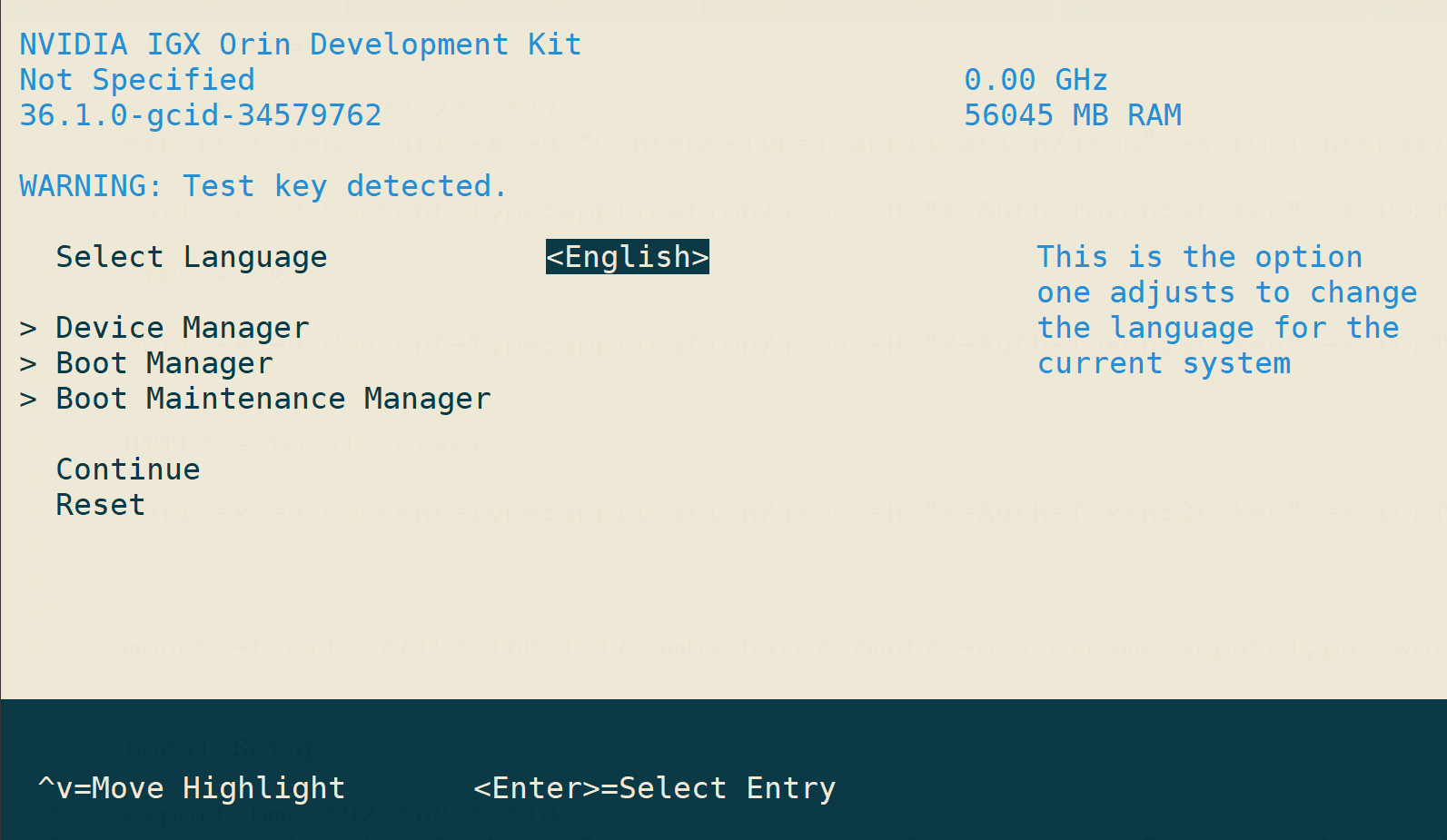
Reboot the Orin/Thor Dev Kit, wait until UEFI starts, then press ESC to enter the UEFI menu
For IGX-Thor, UART can be accessed via BMC can access MCU/IGX Host UART over LAN.
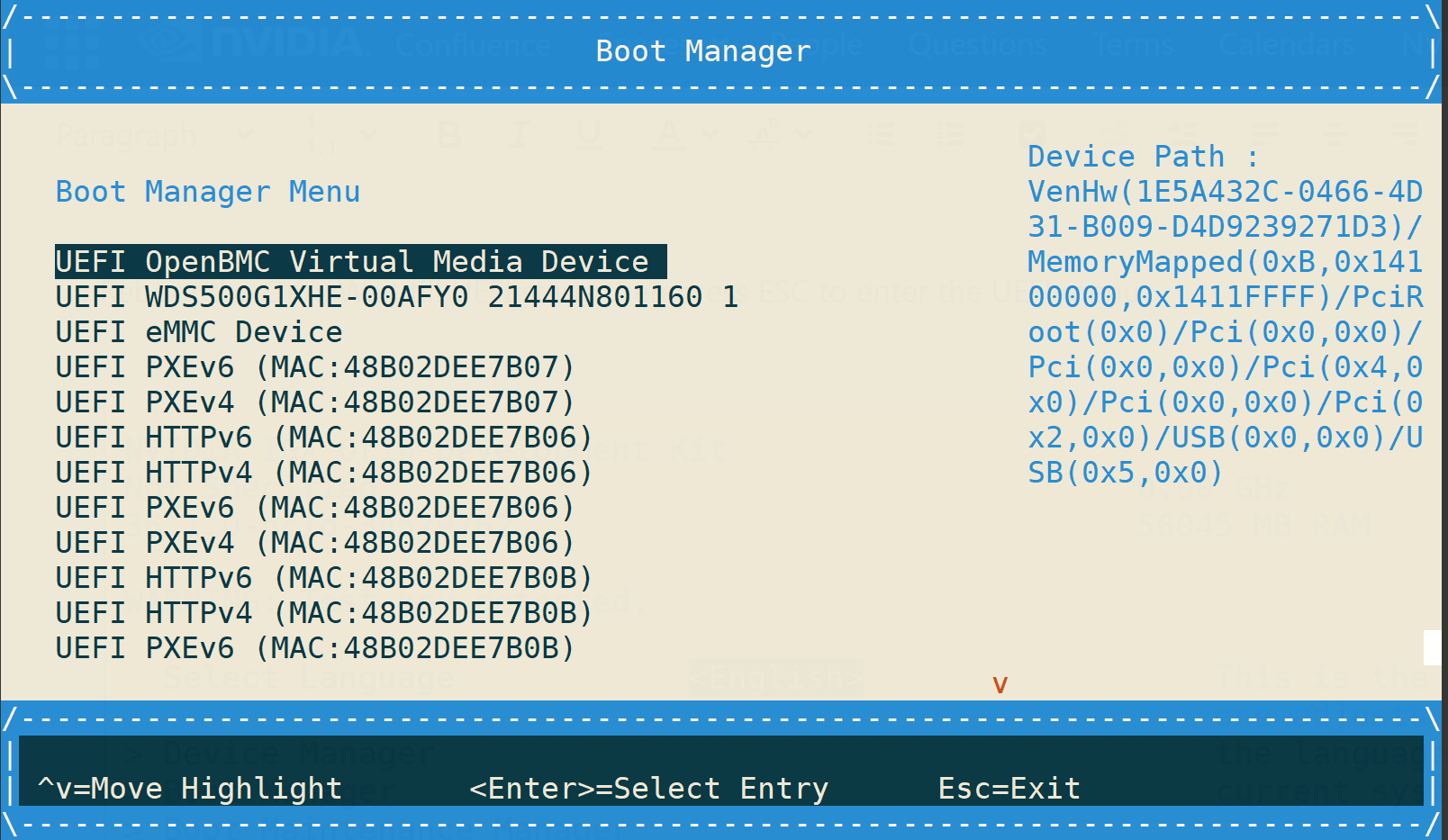
Select the Boot Manager with the down arrow(↓) key. USB Virtual media will be seen on the menu.
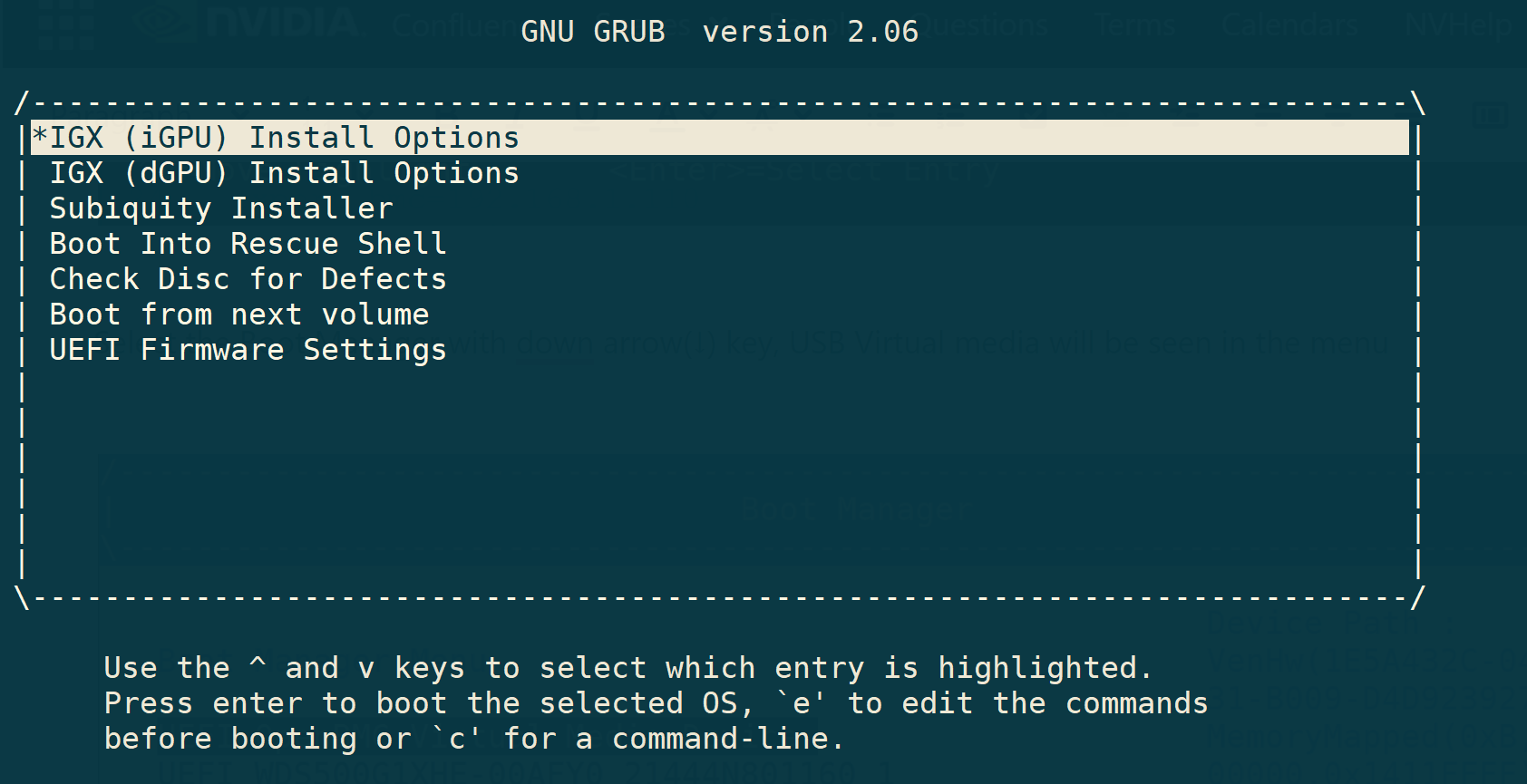
Select the UEFI 0penBMC Virtual Media, and install the IGX OS, or edit options using the e key before installation.
Eject current media using the below command if want to mount a new ISO
curl -k -H Content-Type:application/json -H "X-Auth-Token:$token" -X POST https://${bmc}/redfish/v1/Managers/IGX_BMC_0/VirtualMedia/USB1/Actions/VirtualMedia.EjectMedia -v