

NMC Autonomous Job Recovery Tutorials#
Use these tutorials to test NVIDIA Mission Control Autonomous Job Recovery (AJR) with a simulated job failure and a training workload that saves checkpoints.
Quick Start#
The following Slurm batch script writes a simulated failure to a log file so you can test AJR detection and recovery.
Fault Simulation Batch Script
#!/bin/bash

#SBATCH -t 00:05:00
#SBATCH --comment='{"APS": {"auto_resume_mode": "requeue", "max_requeue_times": 1}}'

DATETIME=`date +'date_%y-%m-%d_time_%H-%M-%S'`
echo 'Autonomous Job Recovery lightweight fault simulation test (auto resume mode: requeue)'

# Write a simulated segmentation fault after 30 seconds.
# Wait another 60 seconds, then exit with status 1.

srun --output="$(pwd)/%x_%j_$DATETIME.log" bash -c \
      "echo 'Start time: $DATETIME' && echo 'Sleeping 30 seconds' && \
      sleep 30 && echo 'Rank0: (1) segmentation fault: artificial segfault' && \
      echo 'Sleep another 60 seconds' && \
      sleep 60 && exit 1"
The #SBATCH --comment directive sets auto_resume_mode to requeue and limits the job to one requeue with max_requeue_times. Increase max_requeue_times if you need more attempts. The script has a time limit of 5 minutes.
Each attempt writes a log file whose name includes the job name, job ID, and execution date and time. The job step waits 30 seconds, writes a simulated segmentation fault, waits another 60 seconds, and exits with status 1.
Step-by-Step Instructions#
Save the preceding script as
are_test.sh.Submit the job to Slurm. Specify the job name with
-Jand the partition with-pbecause the script does not set them:sbatch -J are_test -p <partition-name> are_test.sh
Monitor the job status:
squeue --meCheck the log files in the working directory where you submitted the job. The
srun --outputpath uses this directory, and the timestamp gives each attempt its own file. After the test completes, expect two log files.Check that AJR detects the output as a
CRASHanomaly. After the first attempt finishes, the queue can briefly appear empty. AJR then requeues the job in a held state before releasing it to run again.The following output shows the job held and then running:
$ squeue --me
JOBID PARTITION        NAME       USER         ST   TIME  NODES  NODELIST(REASON)
2633  <partition-name> are_test   <user-name>  PD   0:00      1  (job requeued in held state)

$ squeue --me
JOBID PARTITION        NAME       USER         ST   TIME  NODES  NODELIST(REASON)
2633  <partition-name> are_test   <user-name>  R    0:10      1  <example-node-name>
Open Cockpit to verify the job status and inspect both attempts. The Slurm job ID stays the same after a requeue, but the attempt index increases.
If you configured Slack notifications, check the target channel for messages about the requeue, anomaly attribution, and release of the job to resume execution.
Quick Start for AJR and NVRx 0.6 Checkpointing Integration#
NVIDIA Resiliency Extension (NVRx) provides checkpointing features that you can use with AJR. This example uses NVRx 0.6. Only checkpointing integration is officially supported with AJR.
For instructions on integrating NVRx with your training jobs, refer to the NVRx documentation.
Prerequisites#
You need the following:
A functioning Slurm cluster with available GPUs.
A training workload with checkpointing enabled.
A container image configured for your training environment.
If you stage container images on Lustre, you can use the lfs utility to stripe the image across object storage targets (OSTs).
Configuring the Job#
Add the AJR directive to your batch script so AJR can monitor and manage the job:
#SBATCH --comment='{"APS": {"auto_resume_mode": "requeue"}}'
AJR recognizes the following log patterns as checkpoint save events by default:
save-checkpoint
SAVE_CHECKPOINT: iteration:.*, ckpt saving takes .* seconds
Saved checkpoint to
Jobs that use Megatron-LM need no additional configuration because the default patterns cover its checkpoint logs.
If your job uses a custom training loop with NVRx checkpointing, use one of the following methods to report checkpoint save events:
Write a log line that matches one of the preceding patterns when a checkpoint is saved.
Integrate the AJR training telemetry client library to report checkpoint events. Refer to AJR Training Telemetry Client Library Integration.
Ask your cluster administrator to add a pattern that matches your checkpoint logs.
Running the Job#
Submit the job to Slurm and let it save at least one checkpoint. Use Cockpit to monitor the job and checkpoint status.
If the job fails, AJR restarts it until it reaches the maximum number of requeues or you cancel it with scancel.
Monitoring and Performance#
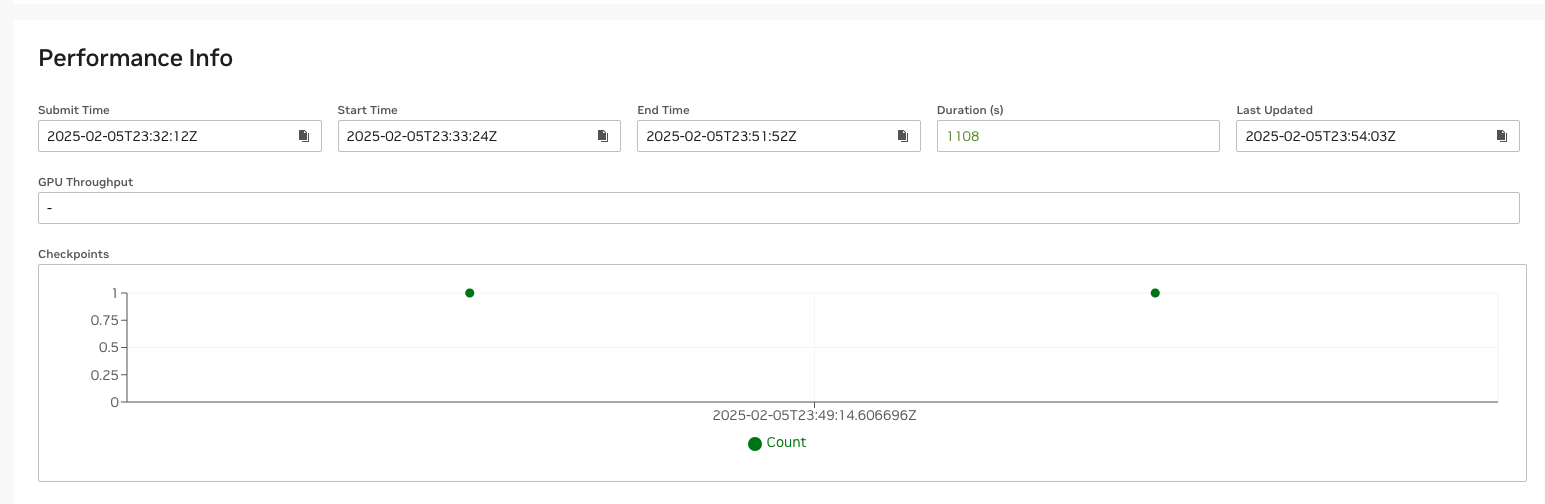
The Cockpit performance information section records when each checkpoint was saved, whether the job uses native Megatron-LM checkpointing or NVRx checkpointing. In the following example, 1778(0) identifies Slurm job 1778 and its first attempt, indexed 0.
The training efficiency dashboard displays downtime for each job and across all jobs. The following example shows 70.5% training time efficiency for job 1778, which restarted twice.
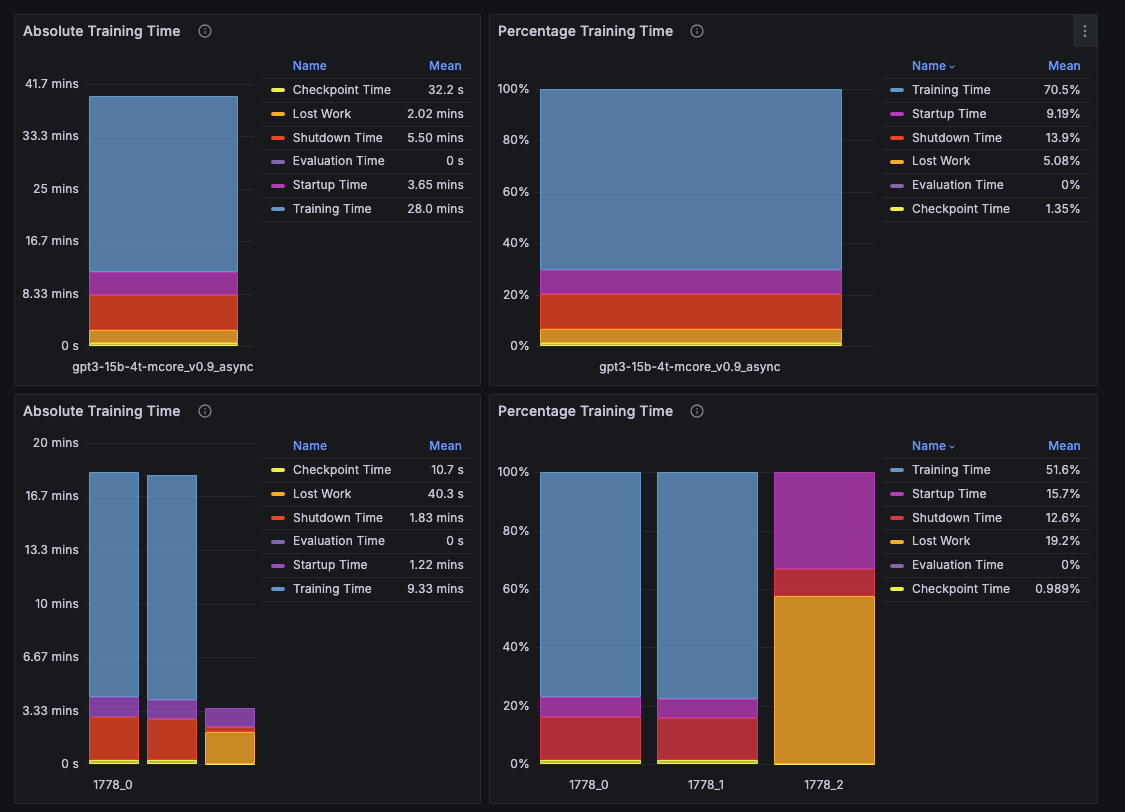
The second restart, 1778_2, was manually canceled before it saved a checkpoint to illustrate the impact of an unsuccessful restart. Its performance data therefore shows no checkpoint save. AJR uses the first checkpoint save to determine whether a restart succeeds. You can configure this threshold for each deployment.
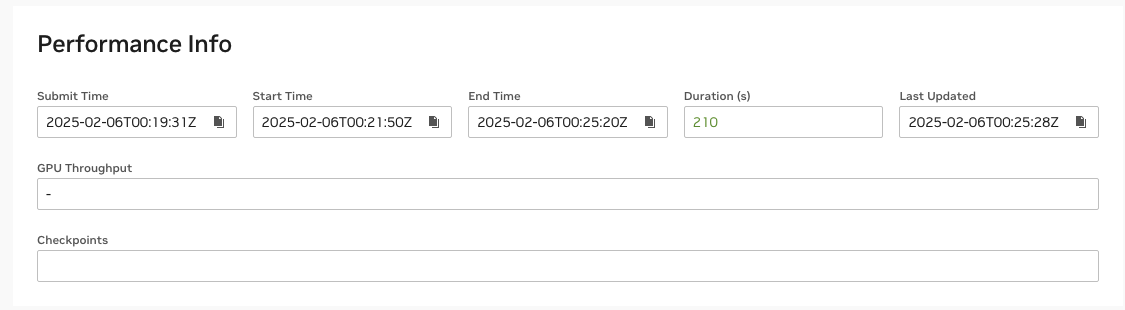
If you stage SquashFS container images on Lustre, the start time includes container initialization and loading. This can take significant time at large scale.
Creating a Container SquashFS Image#
To optimize container loading, create a directory on Lustre and stripe it across all available OSTs before copying your SquashFS image into it. Replace <image-path> with the source image path and <image-name> with its filename:
mkdir high_stripe_images
lfs setstripe -c -1 high_stripe_images
cp <image-path> ./high_stripe_images/
lfs getstripe high_stripe_images/<image-name>
Check the reported stripe count against the available OSTs in your environment.