Simulation Management
This page covers the simulation lifecycle, checkpoints, and simulation history in NVIDIA Air.
Simulation Lifecycle
A simulation in NVIDIA Air transitions through several states during its lifecycle. Understanding these states helps you monitor your simulation’s progress and troubleshoot issues.
Starting a Simulation
When you start a simulation, it progresses through the following states:
- Inactive: The simulation is not running. This is the initial state after creation or after shutdown.
- Requesting: Air is requesting compute resources for your simulation.
- Provisioning: Air is assigning workers and setting up the infrastructure for your nodes.
- Booting: The nodes in your simulation are starting up.
- Active: The simulation is fully running. You can connect to node consoles and interact with your network.
Stopping a Simulation
When you stop a simulation, Air can optionally save your progress:
- Shutting Down: The nodes are gracefully shutting down.
- Saving: Air is saving a checkpoint of your simulation’s current state (if enabled).
- Inactive: The simulation has stopped and resources are released.
By default, stopping a simulation creates a checkpoint so you can resume from where you left off.
Viewing Simulation Status
The simulation status badge appears next to your simulation name and in the simulations list. Common statuses include:
| Status | Description |
|---|---|
| inactive | Simulation is stopped and not consuming resources |
| active | Simulation is running |
| booting | Nodes are starting up |
| saving | A checkpoint is being saved |
Checkpoints
Checkpoints are snapshots of your simulation’s state at a specific point in time. They allow you to save your work and resume later without losing configuration changes or data.
How Checkpoints Work
- When you stop a running simulation, Air automatically saves a checkpoint by default.
- Checkpoints capture the state of all nodes in your simulation, including any configuration changes you made.
- You can start a simulation from any saved checkpoint to restore that exact state.
Viewing Checkpoints
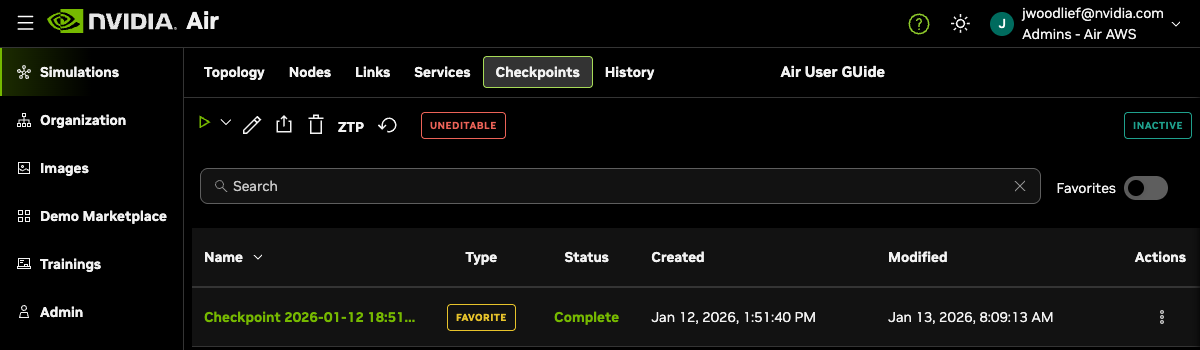
To view your simulation’s checkpoints, open your simulation and select the Checkpoints tab.
Starting from a Checkpoint
To start your simulation from a specific checkpoint:
- Click the dropdown arrow next to the Start Simulation button.
- Select the checkpoint you want to restore.

The simulation starts and restores all nodes to the state captured in that checkpoint.
Favorite Checkpoints
Mark important checkpoints as favorites to protect them from automatic deletion. Favorite checkpoints display “Favorites” in the Type column instead of “standard”. When your organization reaches its checkpoint storage limit, Air deletes the oldest non-favorite checkpoints first to make room for new ones.
Checkpoint Limits
Each organization has a maximum number of checkpoints that can be stored per simulation. When this limit is reached:
- Air automatically deletes older checkpoints to make room for new ones.
- Favorite checkpoints are preserved longer than non-favorite checkpoints.
- The most recent checkpoints are kept by default.
Simulation History
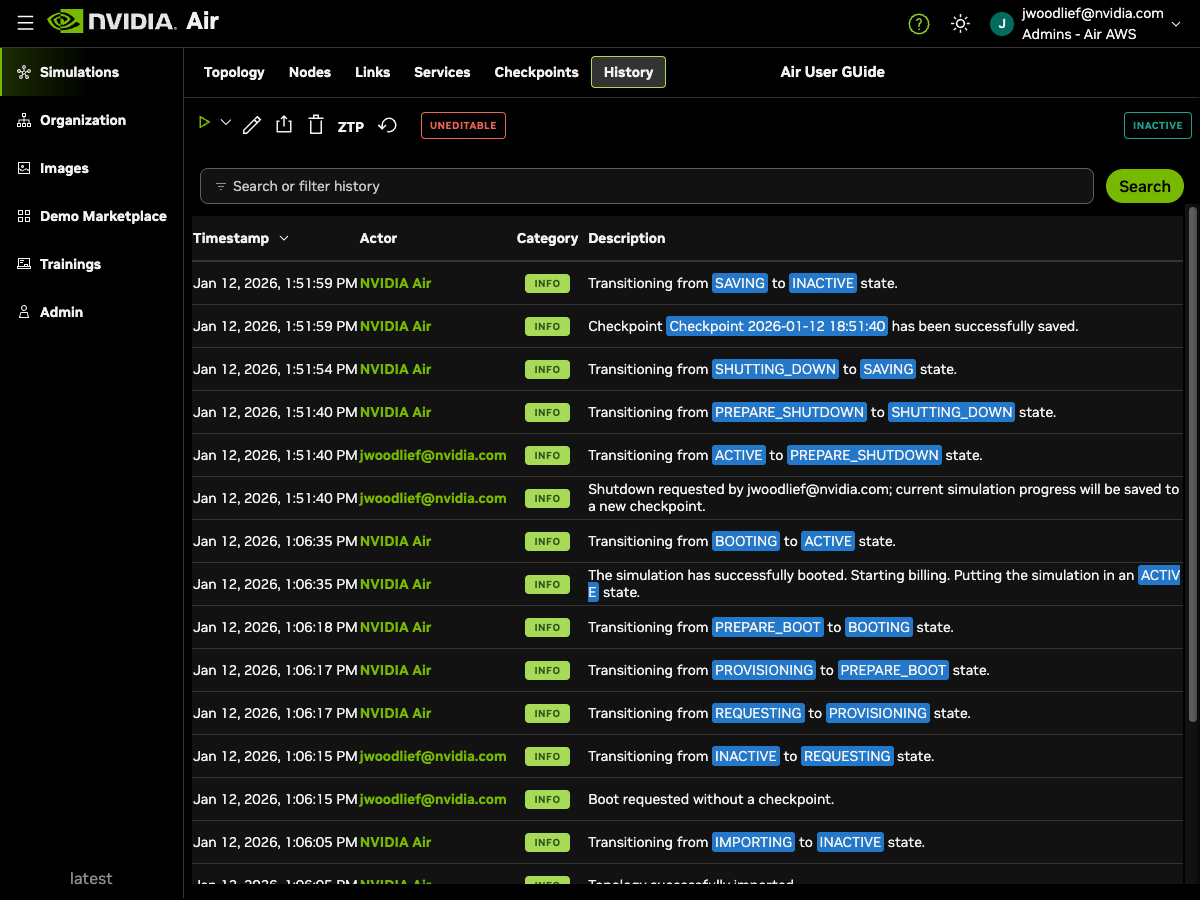
The History tab provides a detailed log of all events that occurred during your simulation’s lifecycle. This is useful for understanding what happened to your simulation and for debugging issues.
Viewing History
To view your simulation’s history:
- Open your simulation.
- Select the History tab.
History Entry Fields
Each history entry contains:
| Field | Description |
|---|---|
| Timestamp | When the event occurred |
| Actor | Who or what triggered the event (user email or “NVIDIA Air” for system events) |
| Category | Event type: INFO, WARNING, or ERROR |
| Description | Details about what happened |
Common History Events
The history log captures events such as:
- Simulation creation: When the simulation was created and by whom
- State transitions: Changes between lifecycle states (inactive, booting, active, etc.)
- Checkpoint operations: When checkpoints are created or deleted
- User actions: Start, stop, and configuration changes initiated by users
- Errors: Any issues encountered during simulation operations
Filtering History
Use the search box at the top of the History tab to filter events by keyword. This helps you quickly find specific events in simulations with extensive history.