
Query the Nemotron-Parse-v1.2 API#
For more information on this model, refer to the model card on Hugging Face.
Launch NIM#
Make sure you complete the steps in Get Started with NIM before you launch the NIM.
The following command launches a Docker container for this specific model:
# Choose a container name for bookkeeping
export CONTAINER_NAME="nvidia-nemotron-parse-v1.2"

# The container name from the previous ngc registry image list command
Repository="nemotron-parse-v1.2"
Latest_Tag="1.7.0-variant"

# Choose a VLM NIM Image from NGC
export IMG_NAME="nvcr.io/nim/nvidia/${Repository}:${Latest_Tag}"

# Choose a path on your system to cache the downloaded models
export LOCAL_NIM_CACHE=~/.cache/nim/nvidia/nemotron-parse-v1.2
mkdir -p "${LOCAL_NIM_CACHE}"

# Start the VLM NIM
docker run -it --rm --name=$CONTAINER_NAME \
--runtime=nvidia \
--gpus all \
--shm-size=16GB \
-e NGC_API_KEY=$NGC_API_KEY \
-v "$LOCAL_NIM_CACHE:/opt/nim/.cache" \
-p 8000:8000 \
$IMG_NAME
Request examples#
cURL#
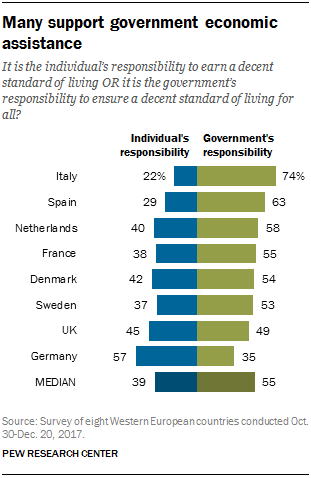
In a cURL request, you can provide an image URL or send the image data as a
Base64-encoded string (see Passing images). The
following request uses an
image
URL:
curl -X 'POST' 'http://0.0.0.0:8000/v1/chat/completions' \
    -H 'Accept: application/json' \
    -H 'Content-Type: application/json' \
    -d '{
        "model": "nvidia/nemotron-parse-v1.2",
        "messages": [
            {
                "role": "user",
                "content": [
                    {
                        "type": "text",
                        "text": "</s><s><predict_bbox><predict_classes><output_markdown><predict_no_text_in_pic>"
                    },
                    {
                        "type": "image_url",
                        "image_url":
                            {
                                "url": "https://raw.githubusercontent.com/vis-nlp/ChartQA/main/ChartQA%20Dataset/val/png/5090.png"
                            }
                    }
                ]
            }
        ],
        "temperature": 0.0,
        "repetition_penalty": 1.1
    }'
Note
LangChain and LlamaStack integrations are not supported.
Note
You should use greedy sampling (temperature=0.0) with a repetition penalty
of 1.1 for better quality results.
Python#
Provide an image URL or send the image data as a Base64-encoded string (refer to Passing images). The following example uses image data encoded as a Base64-encoded string:
import base64
from openai import OpenAI

client = OpenAI(
    base_url="http://0.0.0.0:8000/v1",
    api_key="not-used"
)

# Read and base64-encode the image
with open("image.png", "rb") as f:
    img_b64 = base64.b64encode(f.read()).decode("utf-8")

prompt_text = "</s><s><predict_bbox><predict_classes><output_markdown><predict_no_text_in_pic>"

resp = client.chat.completions.create(
    model="nvidia/nemotron-parse-v1.2",
    messages=[
        {
            "role": "user",
            "content": [
                {
                    "type": "text",
                    "text": prompt_text,
                },
                {
                    "type": "image_url",
                    "image_url": {
                        # You can provide the image URL or send the image
                        # data as a Base64-encoded string. See the Passing
                        # images section for more information.
                        "url": f"data:image/png;base64,{img_b64}",
                    },
                },
            ],
        }
    ],
    temperature=0.0,
    extra_body={
        "repetition_penalty": 1.1,
        "top_k": 1,
        "skip_special_tokens": False,
    },
)
print(resp.choices[0].message.content)
Control tokens#
The prompt string used in the request examples above contains control tokens that are required for correct model output. Passing natural language instructions instead of or alongside the control tokens will degrade model response quality.
The recommended default prompt extracts bounding boxes, classes, and text in Markdown formatting for all use cases:
</s><s><predict_bbox><predict_classes><output_markdown><predict_no_text_in_pic>
or:
</s><s><predict_bbox><predict_classes><output_markdown><predict_text_in_pic>
If necessary, you can use a prompt that omits text extraction and only outputs bounding boxes and classes:
</s><s><predict_bbox><predict_classes><output_no_text><predict_no_text_in_pic>
For more details on available control tokens, refer to the model card on Hugging Face.
Passing images#
NIM for VLMs follows the OpenAI specification to pass images as part of the HTTP payload in a user message.
Public direct URL
Passing the direct URL of an image will cause the container to download that image at runtime.
{
  "type": "image_url",
  "image_url": {
    "url": "https://raw.githubusercontent.com/vis-nlp/ChartQA/main/ChartQA%20Dataset/val/png/5090.png"
  }
}
Base64 data
Another option, useful for images not already on the web, is to first Base64-encode the image bytes and send the data in your payload.
{
  "type": "image_url",
  "image_url": {
    "url": "data:image/png;base64,SGVsbG8gZGVh...ciBmZWxsb3chIQ=="
  }
}
To convert images to base64, you can use the base64 command, or in Python:
with open("image.png", "rb") as f:
    image_b64 = base64.b64encode(f.read()).decode()
Bounding box detection script#
Use the following example Python script to overlay the predicted bounding boxes on the input image and verify the accuracy of bounding box detection and label classification.
This script depends on the postprocessing.py and latex2html.py modules from the
NVIDIA-Nemotron-Parse-v1.2 Hugging Face repository.
Clone the repository and copy the required files to the
same directory where the script is run:
pip install Pillow beautifulsoup4
wget https://huggingface.co/nvidia/NVIDIA-Nemotron-Parse-v1.2/resolve/main/postprocessing.py
wget https://huggingface.co/nvidia/NVIDIA-Nemotron-Parse-v1.2/resolve/main/latex2html.py
The following script builds on the Python example
above. It takes the resp object returned by the Chat Completions API call
and overlays the detected bounding boxes on the original image:
from PIL import Image, ImageDraw
from postprocessing import (
    extract_classes_bboxes,
    transform_bbox_to_original,
    postprocess_text,
)

# 'resp' is the response from the Python example above
generated_text = resp.choices[0].message.content

# Open the same image used in the request
image = Image.open("image.png").convert("RGB")

# Extract classes, bounding boxes, and texts from the model output
classes, bboxes, texts = extract_classes_bboxes(generated_text)
bboxes = [
    transform_bbox_to_original(bbox, image.width, image.height)
    for bbox in bboxes
]

# Postprocess the extracted text
texts = [
    postprocess_text(
        text,
        cls=cls,
        table_format="markdown",
        text_format="markdown",
        blank_text_in_figures=False,
    )
    for text, cls in zip(texts, classes)
]

# Print detected elements
for cl, bb, txt in zip(classes, bboxes, texts):
    print(cl, ": ", txt)

# Draw bounding boxes on the image and save
draw = ImageDraw.Draw(image)
for bbox in bboxes:
    draw.rectangle(
        (bbox[0], bbox[1], max(bbox[0], bbox[2]), max(bbox[1], bbox[3])),
        outline="red",
        width=2,
    )
image.save("annotated_output.png")