Pixel History
NVIDIA Nsight Graphics allows you to inspect which draw events contributed to a pixel’s values up to the currently selected event.
To view Pixel History:
- Open the Resources page by going to Frame Debugger > Resources.
- Click on the Graphical page. (For more details, see the Resources View.)
-
Zoom in or out of the render target image to make it easier to select a pixel.
- Click on the render target image.
- Move the scroll wheel on the mouse to zoom in and out.
- Click and drag the render target image to move the image up and down, and side to side.
- Click on the Select Pixel link. The crosshairs change color.
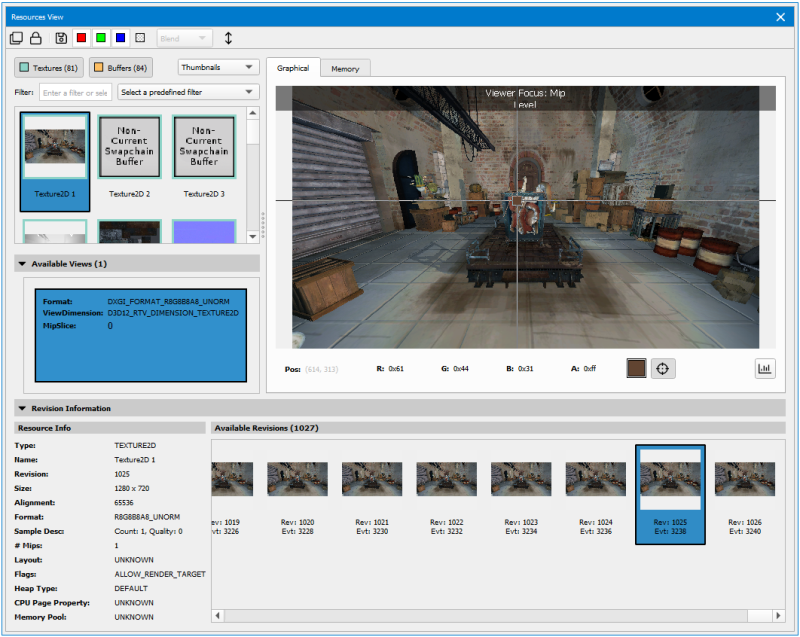
- Use the mouse to move the crosshairs over the pixel you want to inspect.
- Click the mouse on the pixel of interest. The Pixel History page opens, showing pixel information for each draw event that generated a change to that pixel's attributes.
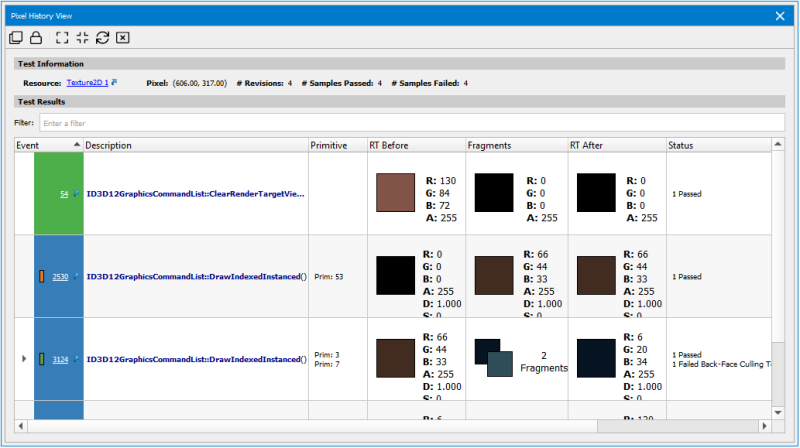
To see the draw call page for a particular draw call, click on the corresponding Event/Draw Call link.
To open the source code of the draw call, click on the corresponding Debug Pixel link.

NVIDIA® Nsight Graphics Documentation Rev. 2018.4.180813 ©2018. NVIDIA Corporation. All Rights Reserved.