NGC Account Setup#
Sign In to NGC#
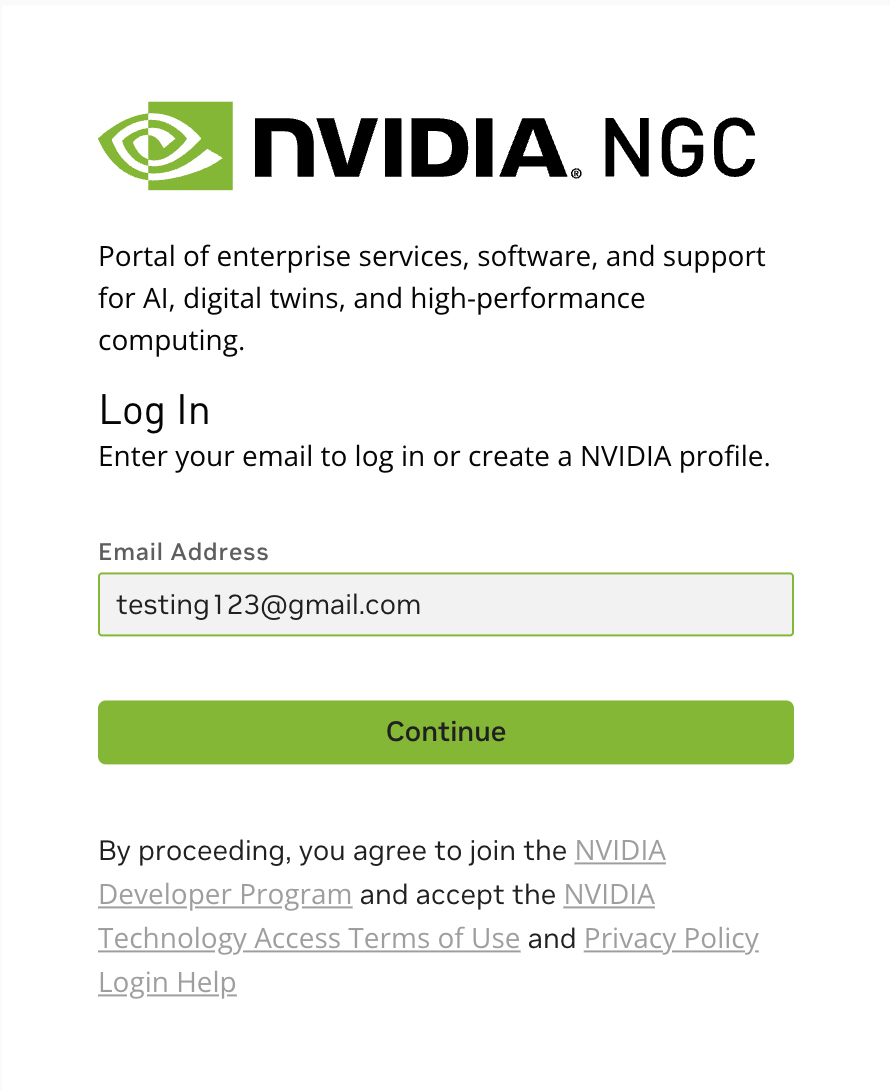
Navigate to the NGC sign-in page at https://ngc.nvidia.com/signin.
Enter your email address and click Continue to proceed with account creation.
Create Your Account#
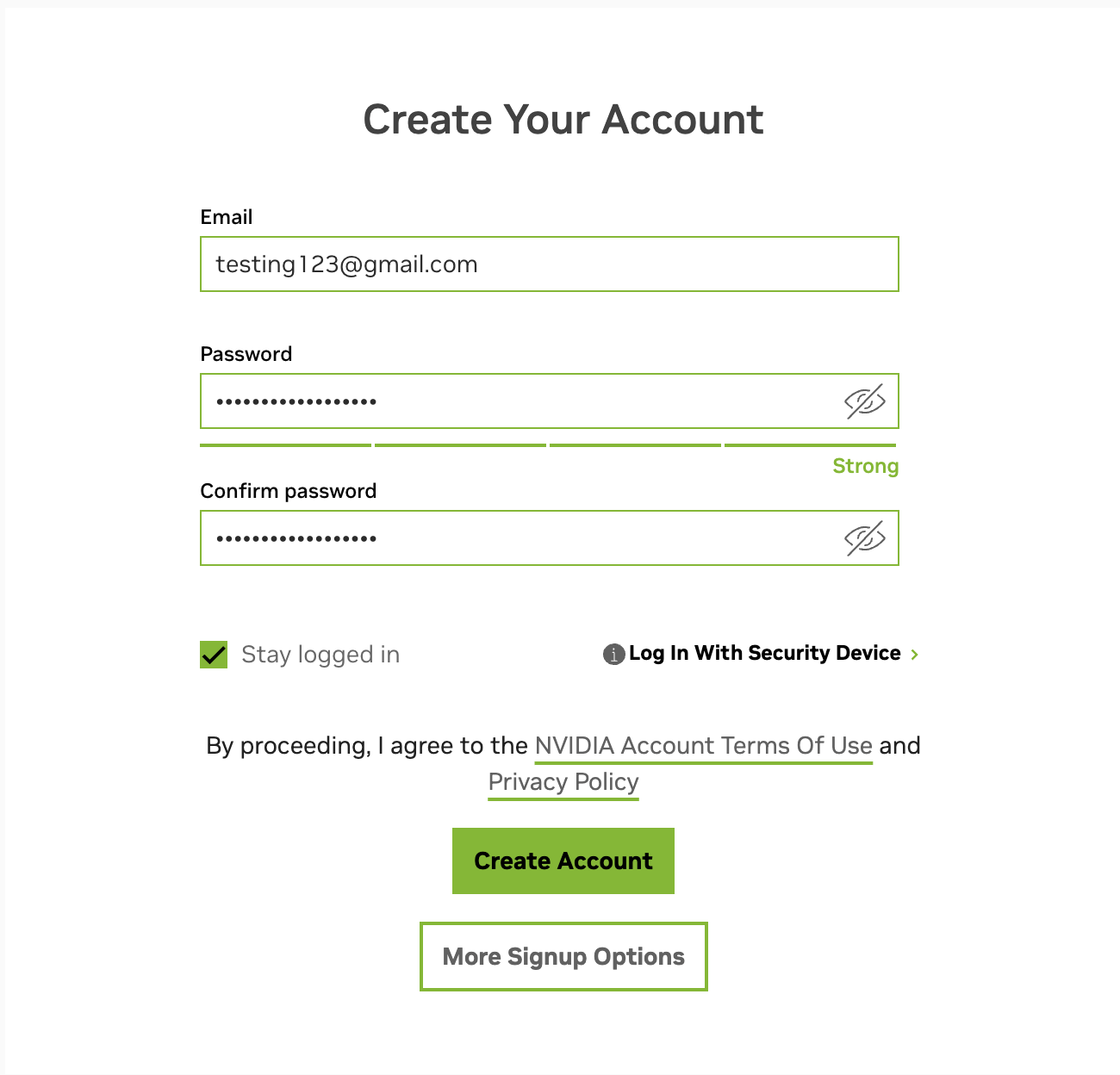
You will be prompted to create an NVIDIA account. Enter a Password and Confirm password, then click Create Account.
A 6-digit verification code will be sent to the email address you provided. Enter the code and click Continue to verify your identity.
An “Almost done!” window will appear asking for your recommendation and communication preferences. Select your preferences and click Submit to complete registration.
Create an NVIDIA Cloud Account#
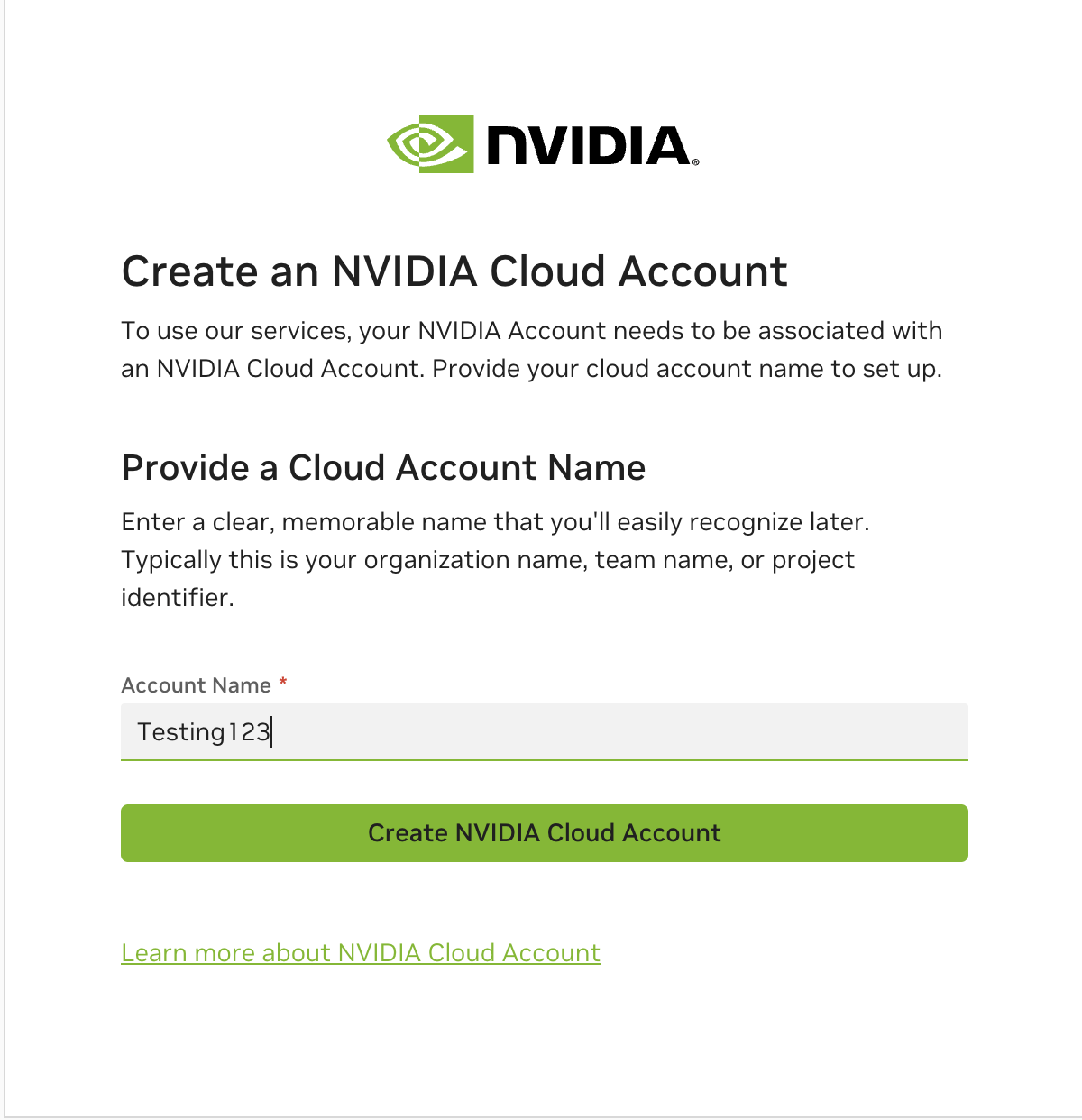
To use NVIDIA services, your NVIDIA Account needs to be associated with an NVIDIA Cloud Account. Provide a clear, memorable Account Name — typically your organization name, team name, or project identifier.
Once entered, click Create NVIDIA Cloud Account to proceed.
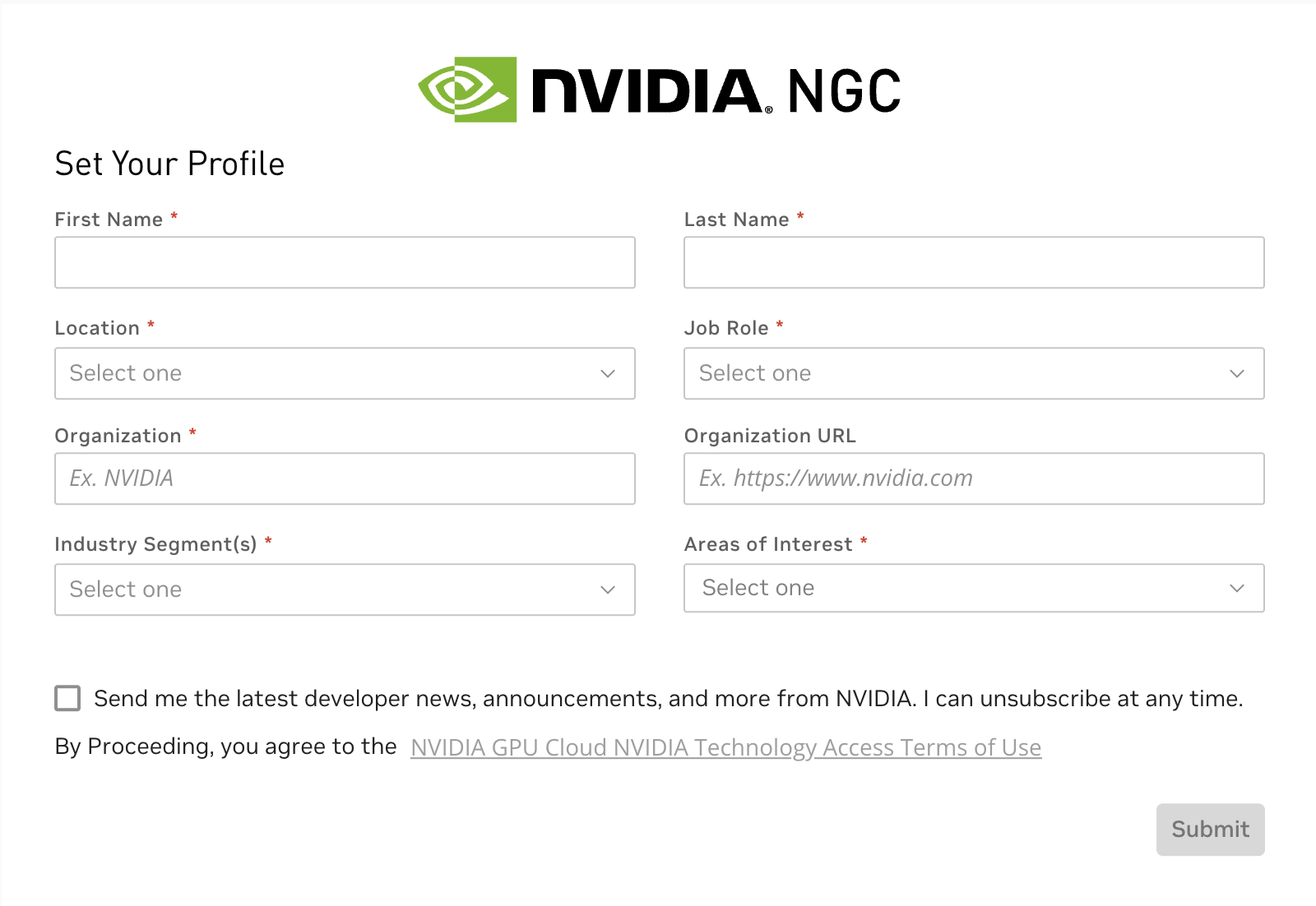
Set Your Profile#
Fill in all the required profile information and click Submit to save your profile.
A popup will appear confirming that your NGC account gives you access to the free NVIDIA Developer Program. Click Continue to proceed.
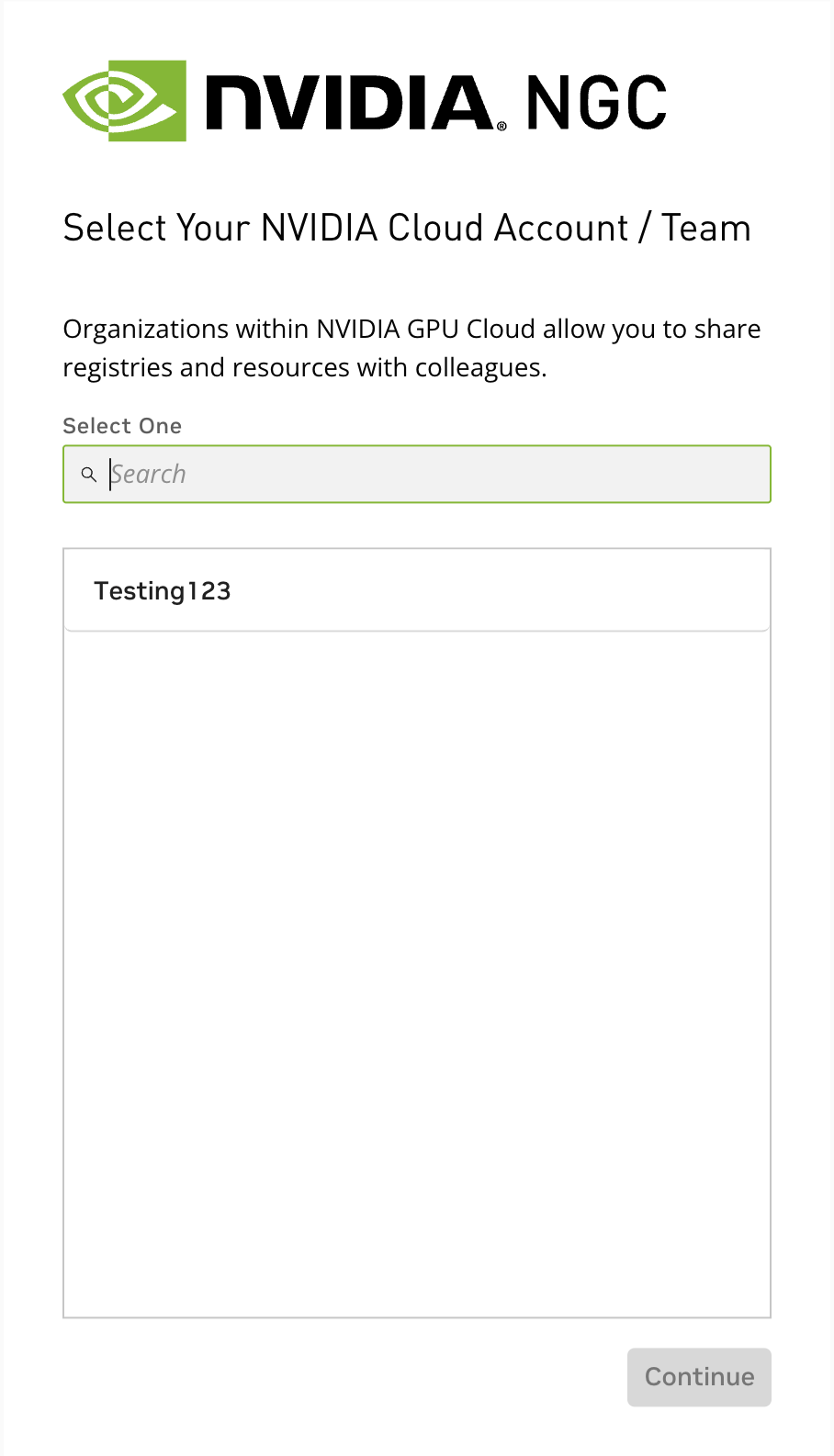
Select Your NVIDIA Cloud Account / Team#
Select the appropriate team/account from the list and click Continue.
Enabling Attestation Services#
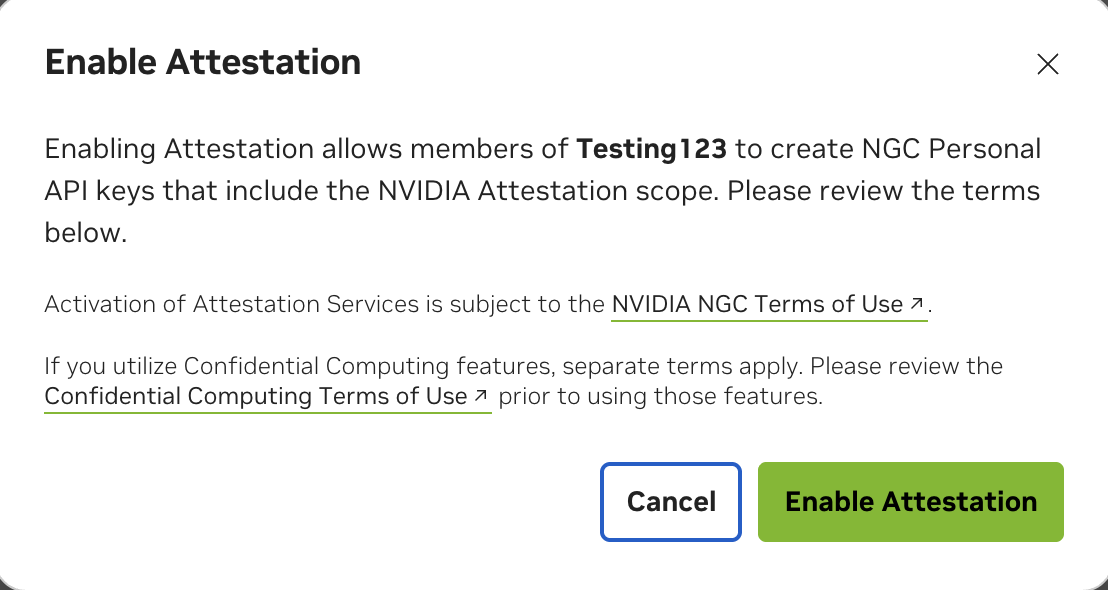
When you sign in to your NGC account for the first time, an Enable Attestation dialog will appear automatically. If the dialog does not appear, navigate to https://org.ngc.nvidia.com/setup/api-keys?flow=attestation.
Click Enable Attestation to enable Attestation Services. Note: By enabling attestation, you are also agreeing to the terms of use indicated on the enablement page.
Once enabled, you can authorize members of your organization to create Personal API keys that include the
NVIDIA Attestationscope.