CUDA on WSL User Guide
1. Overview
The CUDA on WSL User Guide provides a comprehensive overview of how to run NVIDIA CUDA applications on Windows Subsystem for Linux (WSL). It details the setup process, hardware and software requirements, installation steps for the CUDA Toolkit, and known limitations. The guide highlights WSL’s capability to enable native Linux tools and workflows on Windows while leveraging the GPU acceleration provided by NVIDIA drivers. It also offers troubleshooting tips and links to additional resources, making it a key reference for developers using CUDA within a Windows environment.
2. NVIDIA GPU Computing on WSL
WSL (Windows Subsystem for Linux) is a Windows feature that enables users to run native Linux applications, containers, and command-line tools directly on Windows. For an overview of WSL, refer to the Microsoft WSL documentation.
CUDA support on WSL requires WSL 2 or later; WSL 1 does not support GPU acceleration. In this guide, WSL refers to WSL 2 and later.
WSL offers the following benefits:
Linux applications can run as-is in WSL. WSL runs a Linux kernel in a lightweight virtual machine that provides full compatibility with the mainstream Linux kernel, allowing support for native Linux applications including popular Linux distributions.
WSL is tightly integrated with the Microsoft Windows operating system, which allows Linux applications to run alongside and interoperate with Windows applications.
With NVIDIA CUDA support for WSL, developers can use NVIDIA GPU-accelerated computing for data science, machine learning, and inference on Windows through WSL. NVIDIA driver support for WSL includes not only CUDA but also DirectX and DirectML support.
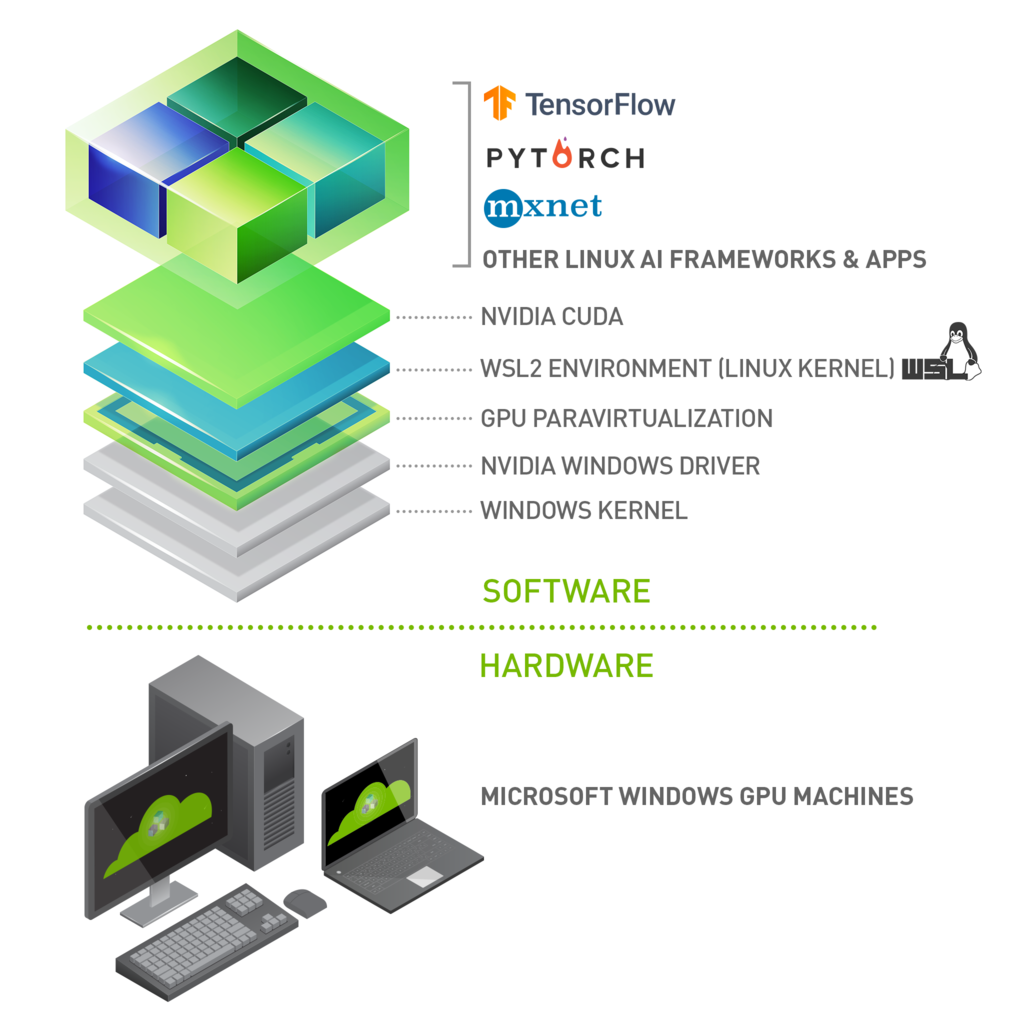
This document describes a workflow for getting started with running CUDA applications or containers in a WSL environment.
2.1. NVIDIA Compute Software Support on WSL
This table summarizes the compatibility of the NVIDIA software stack with WSL.
Package |
Compatibility |
Installation |
|---|---|---|
NVIDIA Windows Driver |
Use the latest Windows production driver. For the minimum driver version required by this CUDA Toolkit release, refer to the CUDA Toolkit Release Notes.
|
Download Windows drivers from https://www.nvidia.com/drivers/. |
Docker support |
Supported with the latest NVIDIA Container Toolkit, using Docker CLI or Docker Desktop. |
Refer to the NVIDIA Container Toolkit Installation Guide. |
CUDA Toolkit and CUDA Developer Tools |
Supported. CUDA Toolkit 13.x supports Turing and later GPU architectures. Compute Sanitizer Nsight Systems CLI and CUPTI (Trace) Developer tools - Debuggers Developer tools - Profilers |
Install the standard Linux CUDA Toolkit packages. Refer to Step 4: Install the CUDA Toolkit. |
CUDA-X Libraries for Data Science |
Supported. |
Refer to the CUDA-X Libraries for Data Science Installation Guide. |
NCCL |
2.12 or later |
Refer to the NCCL Installation Guide. |
3. Getting Started with CUDA on WSL
To get started with running CUDA on WSL, complete these steps in order:
3.1. Step 1: Install NVIDIA Driver for GPU Support
Install the latest NVIDIA GeForce or NVIDIA RTX Windows display driver for your GPU from https://www.nvidia.com/drivers/. For supported GPUs and system requirements, refer to WSL System Requirements and Limitations.
Note
This is the only driver you need to install. Do not install any Linux display driver in WSL.
3.2. Step 2: Install WSL
For full installation details, refer to Microsoft’s Install WSL guide.
-
Launch your preferred Windows Terminal / Command Prompt / PowerShell and install WSL:
wsl.exe --install
-
Ensure you have the latest WSL kernel:
wsl.exe --update
-
New installations use WSL 2 by default. If you have an existing distribution that runs on WSL 1, convert it:
wsl.exe --set-version <distribution-name> 2
3.3. Step 3: Set Up a Linux Development Environment
From a Windows terminal, enter WSL:
C:\> wsl.exe
The default distribution is Ubuntu. To change to a different distribution from the command line and to review other WSL commands, refer to the following resources:
From this point you should be able to run any existing Linux application which requires CUDA. Do not install any driver within the WSL environment. To build CUDA applications, install the CUDA Toolkit as described in Step 4: Install the CUDA Toolkit.
3.4. Step 4: Install the CUDA Toolkit
The latest NVIDIA Windows GPU Driver fully supports WSL. With CUDA support in the driver, existing applications (compiled elsewhere on a Linux system for the same target GPU) can run unmodified within the WSL environment.
To compile new CUDA applications, install the CUDA Toolkit for Linux inside your WSL distribution. CUDA application development is fully supported in WSL, so you can compile new CUDA Linux applications with the latest CUDA Toolkit for Linux. To learn how to compile CUDA applications, refer to the CUDA documentation for Linux.
Important
Once a Windows NVIDIA GPU driver is installed on the system, CUDA becomes available within WSL. The CUDA driver installed on the Windows host is stubbed inside WSL as libcuda.so. Therefore, you must not install any NVIDIA Linux GPU driver within WSL. Do not install the cuda-drivers or nvidia-open packages. Installing a Linux driver overwrites the driver that is mapped into WSL from the Windows host.
Starting with CUDA 13.4, the cuda meta package no longer installs the NVIDIA driver. You can install the standard Linux CUDA Toolkit packages for any Linux distribution that NVIDIA supports. A separate WSL-specific CUDA Toolkit package is no longer required.
3.4.1. Installing the CUDA Toolkit Packages
Follow the instructions for your Linux distribution in the CUDA Installation Guide for Linux or on the CUDA Toolkit Downloads page. Select Linux, your architecture, and your distribution.
The recommended entry point to install the latest CUDA Toolkit is the cuda-toolkit meta package. For example, on Ubuntu:
sudo apt install cuda-toolkit
To install an earlier CUDA Toolkit version, install the corresponding cuda-toolkit-X-Y meta package.
3.4.2. Migrating from the WSL-Ubuntu Repository
The WSL-Ubuntu CUDA repository (https://developer.download.nvidia.com/compute/cuda/repos/wsl-ubuntu/x86_64/) is deprecated and does not provide CUDA Toolkit 13.4 or later. If you previously configured this repository, migrate to the CUDA repository for a supported Linux distribution:
-
Remove the WSL-Ubuntu repository configuration:
-
If the WSL
cuda-keyringpackage is installed, remove it:sudo apt remove --purge cuda-keyring
Otherwise, manually remove the
/etc/apt/sources.list.d/cuda-wsl-ubuntu-x86_64.listrepository entry.
-
-
Download and install the
cuda-keyringpackage for your distribution and architecture. For example, on Ubuntu 26.04 (x86_64):wget https://developer.download.nvidia.com/compute/cuda/repos/ubuntu2604/x86_64/cuda-keyring_1.1-1_all.deb sudo dpkg -i cuda-keyring_1.1-1_all.deb
-
Refresh the package metadata:
sudo apt update
Install the CUDA Toolkit, as described in Installing the CUDA Toolkit Packages.
4. WSL System Requirements and Limitations
GPU acceleration in WSL is available on NVIDIA GeForce and NVIDIA RTX GPUs running in WDDM mode. It is not available on NVIDIA RTX GPUs running in TCC mode or on data center GPUs.
CUDA Toolkit 13.x supports Turing and later GPU architectures.
Use Windows 11 or Windows 10 version 21H2 or later. Windows 11 is recommended because Windows 10 reached end of support on October 14, 2025.
Keep the WSL kernel up to date by running
wsl.exe --update. To check your WSL and kernel versions, runwsl.exe --version.
4.1. Known Limitations for Linux CUDA Applications
The following table lists the known limitations on WSL that may affect CUDA applications that use some of these features that are fully supported on Linux.
Limitations |
Impact |
|---|---|
Unified Memory - Full managed memory support is not available on native Windows and therefore WSL will not support it for the foreseeable future. |
Full Unified Memory features are not available, so applications that rely on them may not work. If your application uses managed memory, your application could see reduced performance and high system memory usage. Concurrent CPU/GPU access is not supported. CUDA queries will say whether it is supported or not and applications are expected to check this. |
Pinned system memory (example: System memory that an application makes resident for GPU accesses) availability for applications is limited. |
For example, some deep learning training workloads, depending on the framework, model and dataset size used, can exceed this limit and may not work. |
Root user on bare metal (not containers) will not find |
Use |
With the NVIDIA Container Toolkit for Docker, only |
On multi-GPU systems it is not possible to filter for specific GPU devices by using specific index numbers to enumerate GPUs. |
4.2. Features Not Yet Supported
The following table lists the set of features that are currently not supported.
Limitations |
Impact |
|---|---|
NVML ( |
GPU utilization, active compute process are some queries that are not yet supported. Modifiable state features (ECC, Compute mode, Persistence mode) will not be supported. |
OpenGL-CUDA interoperability is not yet supported. |
Applications relying on OpenGL will not work. |
5. Appendix
5.1. Troubleshooting
5.1.1. Container Runtime Initialization Errors
In some cases, when running a Docker container, you may encounter nvidia-container-cli : initialization error:
$ sudo docker run --gpus all nvcr.io/nvidia/k8s/cuda-sample:nbody nbody -gpu -benchmark
docker: Error response from daemon: OCI runtime create failed: container_linux.go:349: starting container process caused "process_linux.go:449: container init caused \"process_linux.go:432: running prestart hook 0 caused \\\"error running hook: exit status 1, stdout: , stderr: nvidia-container-cli: initialization error: driver error: failed to process request\\\\n\\\"\"": unknown.
ERRO[0000] error waiting for container: context canceled
This usually indicates that the Windows OS build, WSL, the NVIDIA Windows driver, or the NVIDIA Container Toolkit may not be installed correctly. Ensure that your system meets the WSL System Requirements and Limitations and that you are using the latest NVIDIA Windows driver and the latest NVIDIA Container Toolkit.
Ensure that the docker daemon is running:
$ sudo service docker stop
$ sudo service docker start
Or start the daemon directly and see if that resolves the issue:
$ sudo dockerd
If you are still running into this issue, use the dxdiag tools from the Run dialog and provide the diagnostic logs to NVIDIA by posting in the Developer Forums or by filing a report.
You can also use the CUDA on WSL Developer Forums to get in touch with NVIDIA product and engineering teams for help.
5.1.2. Checking WSL Kernel Version
-
To check your WSL and kernel versions, run the following command in PowerShell:
wsl.exe --version
Alternatively, check the kernel version from within your distribution:
wsl.exe cat /proc/version
-
If your WSL kernel is out of date, update it:
wsl.exe --update
5.2. WSL, Virtual Machines, and Containers
To learn how WSL compares with traditional virtual machines and containers, refer to the following Microsoft resources:
6. Notices
6.1. Notice
This document is provided for information purposes only and shall not be regarded as a warranty of a certain functionality, condition, or quality of a product. NVIDIA Corporation (“NVIDIA”) makes no representations or warranties, expressed or implied, as to the accuracy or completeness of the information contained in this document and assumes no responsibility for any errors contained herein. NVIDIA shall have no liability for the consequences or use of such information or for any infringement of patents or other rights of third parties that may result from its use. This document is not a commitment to develop, release, or deliver any Material (defined below), code, or functionality.
NVIDIA reserves the right to make corrections, modifications, enhancements, improvements, and any other changes to this document, at any time without notice.
Customer should obtain the latest relevant information before placing orders and should verify that such information is current and complete.
NVIDIA products are sold subject to the NVIDIA standard terms and conditions of sale supplied at the time of order acknowledgement, unless otherwise agreed in an individual sales agreement signed by authorized representatives of NVIDIA and customer (“Terms of Sale”). NVIDIA hereby expressly objects to applying any customer general terms and conditions with regards to the purchase of the NVIDIA product referenced in this document. No contractual obligations are formed either directly or indirectly by this document.
NVIDIA products are not designed, authorized, or warranted to be suitable for use in medical, military, aircraft, space, or life support equipment, nor in applications where failure or malfunction of the NVIDIA product can reasonably be expected to result in personal injury, death, or property or environmental damage. NVIDIA accepts no liability for inclusion and/or use of NVIDIA products in such equipment or applications and therefore such inclusion and/or use is at customer’s own risk.
NVIDIA makes no representation or warranty that products based on this document will be suitable for any specified use. Testing of all parameters of each product is not necessarily performed by NVIDIA. It is customer’s sole responsibility to evaluate and determine the applicability of any information contained in this document, ensure the product is suitable and fit for the application planned by customer, and perform the necessary testing for the application in order to avoid a default of the application or the product. Weaknesses in customer’s product designs may affect the quality and reliability of the NVIDIA product and may result in additional or different conditions and/or requirements beyond those contained in this document. NVIDIA accepts no liability related to any default, damage, costs, or problem which may be based on or attributable to: (i) the use of the NVIDIA product in any manner that is contrary to this document or (ii) customer product designs.
No license, either expressed or implied, is granted under any NVIDIA patent right, copyright, or other NVIDIA intellectual property right under this document. Information published by NVIDIA regarding third-party products or services does not constitute a license from NVIDIA to use such products or services or a warranty or endorsement thereof. Use of such information may require a license from a third party under the patents or other intellectual property rights of the third party, or a license from NVIDIA under the patents or other intellectual property rights of NVIDIA.
Reproduction of information in this document is permissible only if approved in advance by NVIDIA in writing, reproduced without alteration and in full compliance with all applicable export laws and regulations, and accompanied by all associated conditions, limitations, and notices.
THIS DOCUMENT AND ALL NVIDIA DESIGN SPECIFICATIONS, REFERENCE BOARDS, FILES, DRAWINGS, DIAGNOSTICS, LISTS, AND OTHER DOCUMENTS (TOGETHER AND SEPARATELY, “MATERIALS”) ARE BEING PROVIDED “AS IS.” NVIDIA MAKES NO WARRANTIES, EXPRESSED, IMPLIED, STATUTORY, OR OTHERWISE WITH RESPECT TO THE MATERIALS, AND EXPRESSLY DISCLAIMS ALL IMPLIED WARRANTIES OF NONINFRINGEMENT, MERCHANTABILITY, AND FITNESS FOR A PARTICULAR PURPOSE. TO THE EXTENT NOT PROHIBITED BY LAW, IN NO EVENT WILL NVIDIA BE LIABLE FOR ANY DAMAGES, INCLUDING WITHOUT LIMITATION ANY DIRECT, INDIRECT, SPECIAL, INCIDENTAL, PUNITIVE, OR CONSEQUENTIAL DAMAGES, HOWEVER CAUSED AND REGARDLESS OF THE THEORY OF LIABILITY, ARISING OUT OF ANY USE OF THIS DOCUMENT, EVEN IF NVIDIA HAS BEEN ADVISED OF THE POSSIBILITY OF SUCH DAMAGES. Notwithstanding any damages that customer might incur for any reason whatsoever, NVIDIA’s aggregate and cumulative liability towards customer for the products described herein shall be limited in accordance with the Terms of Sale for the product.
6.2. OpenCL
OpenCL is a trademark of Apple Inc. used under license to the Khronos Group Inc.
6.3. Trademarks
NVIDIA and the NVIDIA logo are trademarks or registered trademarks of NVIDIA Corporation in the U.S. and other countries. Other company and product names may be trademarks of the respective companies with which they are associated.