Create Endpoints from NVIDIA NIM
Learn how to create dedicated endpoints from NVIDIA NIM.
For enhanced performance and seamless compatibility, NVIDIA‑optimized models from the NIM container registry are available on DGX Cloud Lepton.
Prerequisites
These models require an NVIDIA account with access to the NIM container registry.
NVIDIA Registry
You must have an NVIDIA account with access to the NIM container registry and configure the registry auth key on DGX Cloud Lepton.
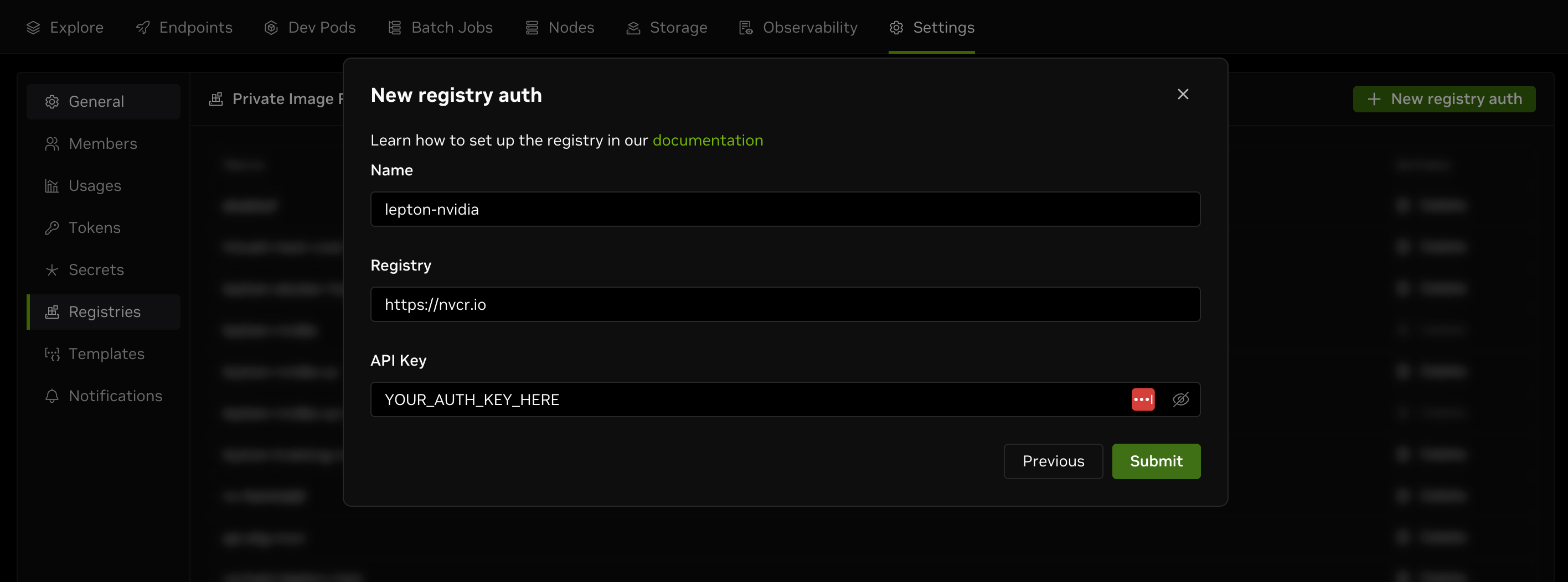
Refer to this guide for details. Once the registry auth key is created, add a private registry via Settings > Registries > New Registry Auth.
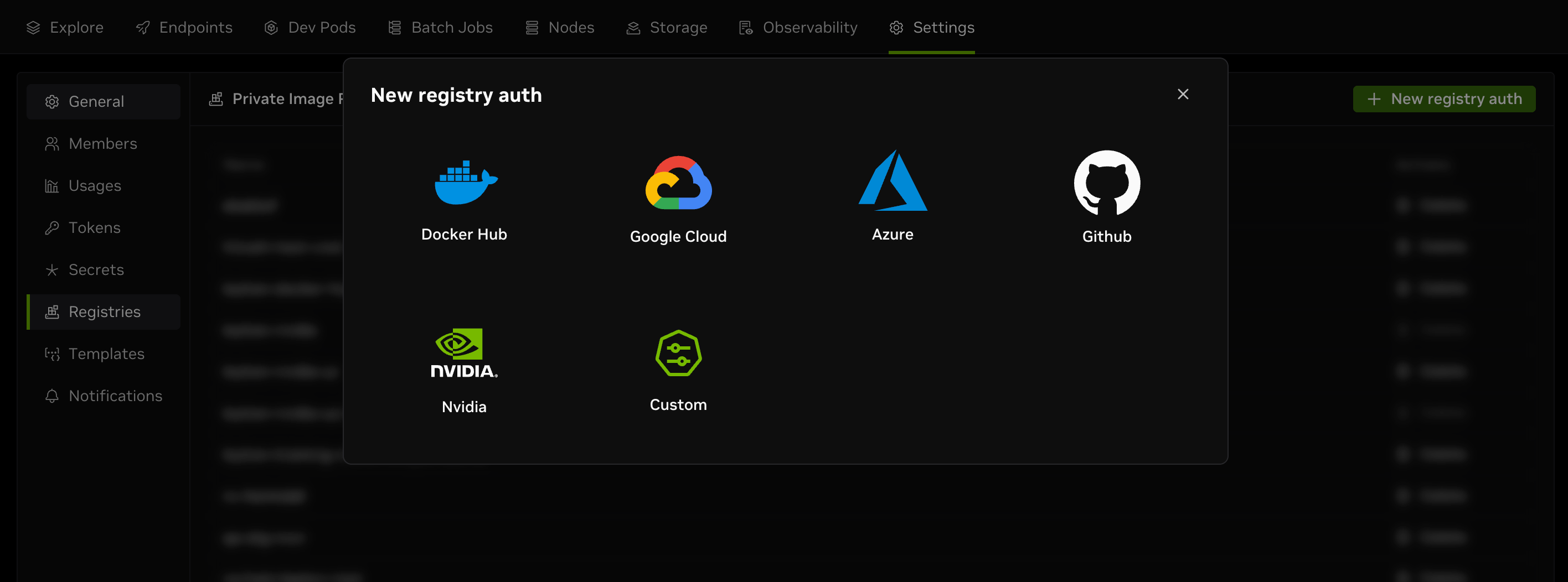
Choose NVIDIA as the registry type and paste the registry auth key in the API Key field.
NGC API Key
Besides the registry auth key, you also need an NGC API key. Navigate to the NGC API key creation page and click Generate Personal Key.
In the Service Included field, select Public API Endpoints.
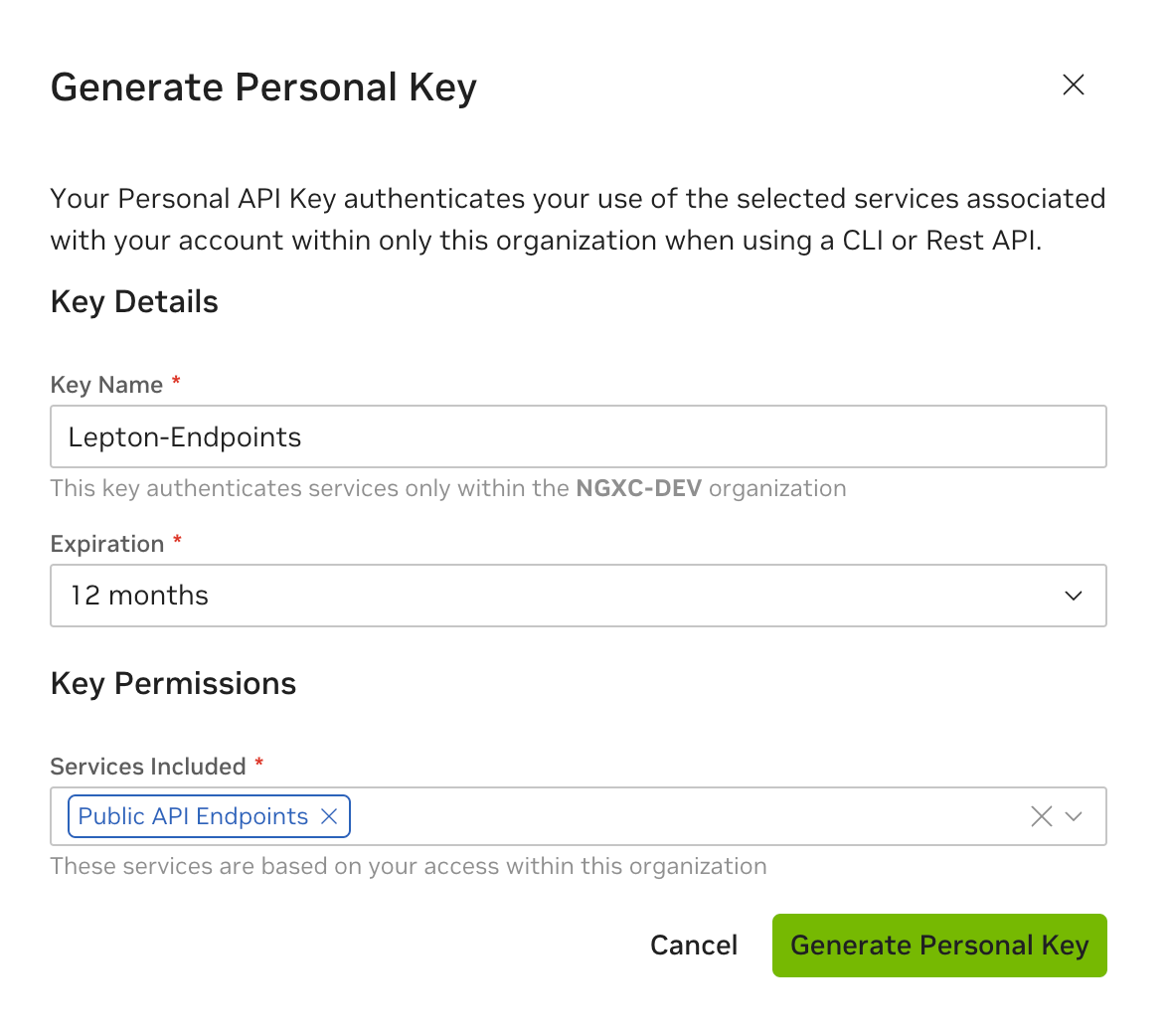
Store the NGC API key on DGX Cloud Lepton as a secret.
Create endpoint from NVIDIA NIM
Navigate to the Create Endpoint page on the dashboard.
For Endpoint name, enter nim-endpoint or any name you prefer.
For Resource, choose an appropriate resource based on the model size.
For NIM configuration:
- Select a model image from the list of built‑in models, or enter a custom model image.
- Select the NVIDIA registry auth you created (see registry auth).
- Select the NGC API key you saved as a secret in your workspace.
For other endpoint‑related configurations, refer to this guide.
For NIM engine‑related configurations, refer to this guide. Configure the NIM engine by setting the relevant environment variables.
When finished, click Create Endpoint to create the endpoint.