Organization Structure
Learn about DGX Cloud Lepton's two-tiered hierarchical structure for managing users across Organization and Workspaces.
DGX Cloud Lepton employs a two-tiered, hierarchical structure—the Organization and the Workspace—to effectively manage users and access control within a customer's environment.
Organizational Hierarchy
The platform structures the customer environment into two main components:
1. Organization (Org)
Purpose: The overarching entity that represents the customer's organization, enabling management of users and resources at the organizational scale.
Administrative Control: The Org Admin manages users and resources at this top level.
2. Workspaces
Purpose: Workspaces represent distinct groups or units within the Organization. This structure enables flexible, multi-team arrangements under a single Org and facilitates localized management at the workspace level.
Administrative Control: The Workspace Admin and Org Admin have the permissions necessary to manage all aspects of a specific workspace.
Organization and Workspace Management
The Organization acts as the centralized entity for grouping multiple workspaces and users, enabling unified management of members, roles, and resources across all contained workspaces.
Creating a New Organization
- Upon first login to DGX Cloud Lepton, you are directed to the organization creation page. Provide the Organization name and select the NVIDIA Cloud Account (NCA) to use for your Lepton Organization.
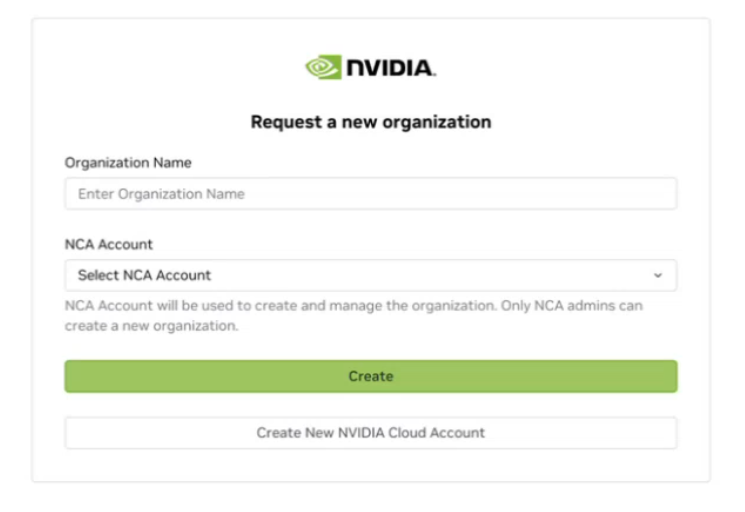
If you do not have an NCA, select the option to create one: NVIDIA Cloud Account (NCA).
- The request is submitted and enters a "pending" state, requiring approval from the Lepton admin team.
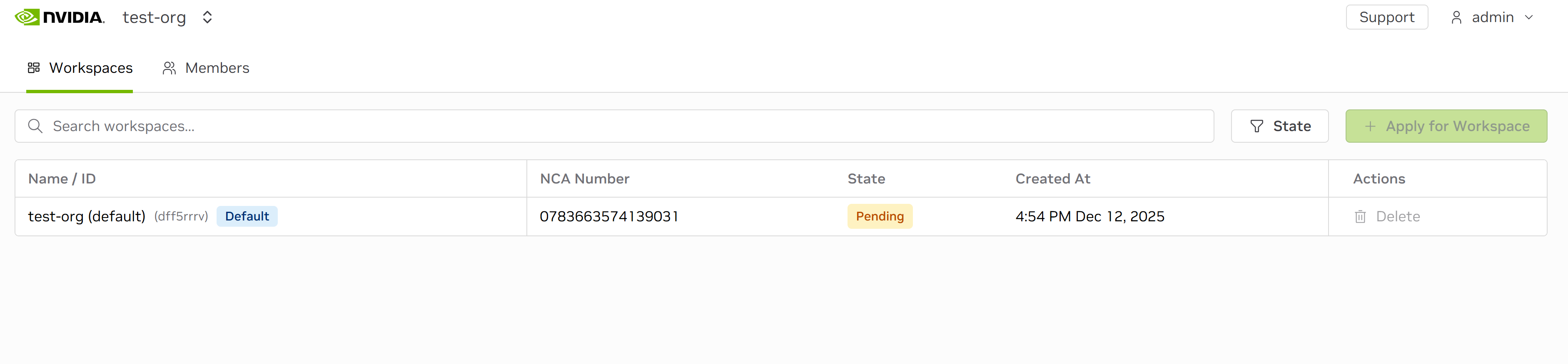
- Once approved, a default workspace is automatically provisioned for the Organization.
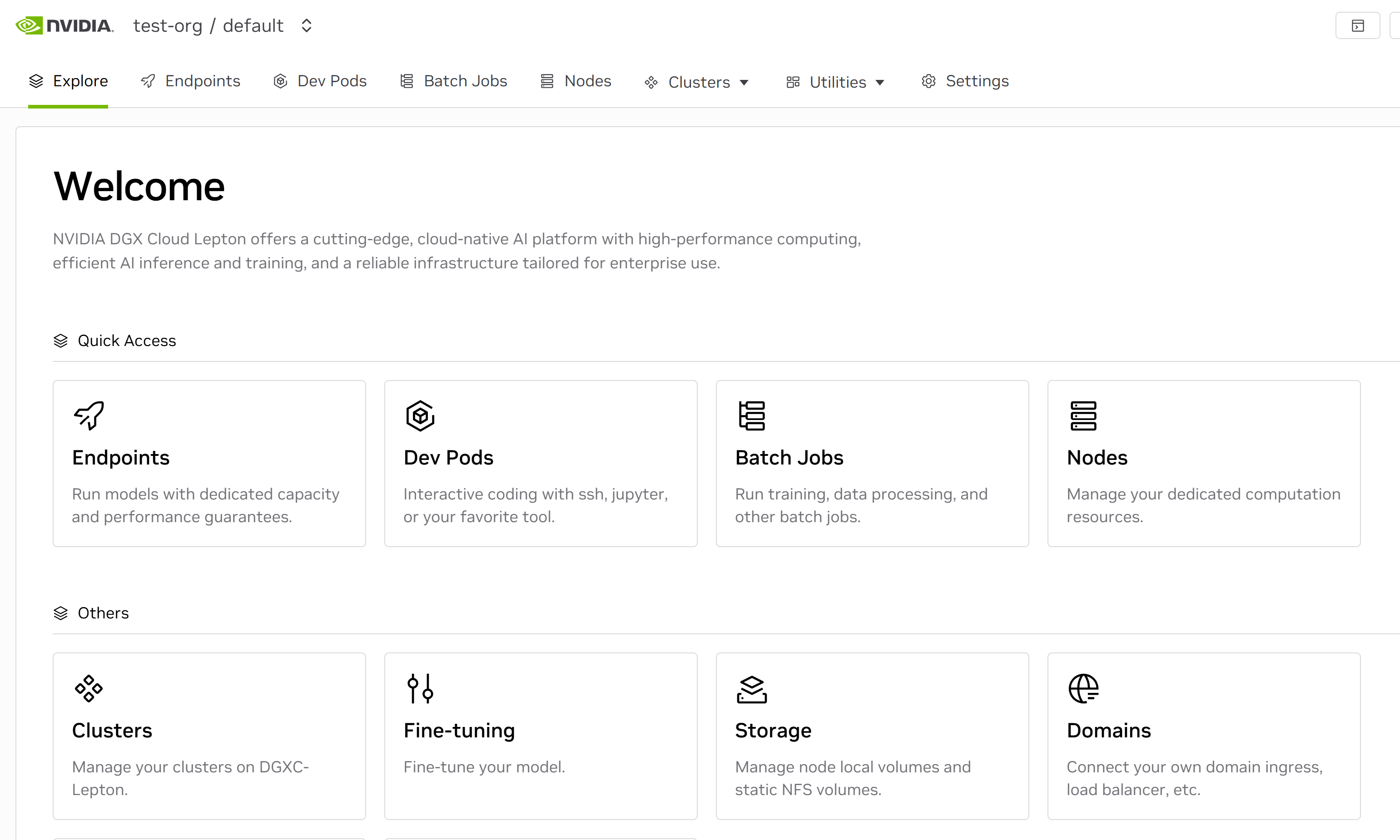
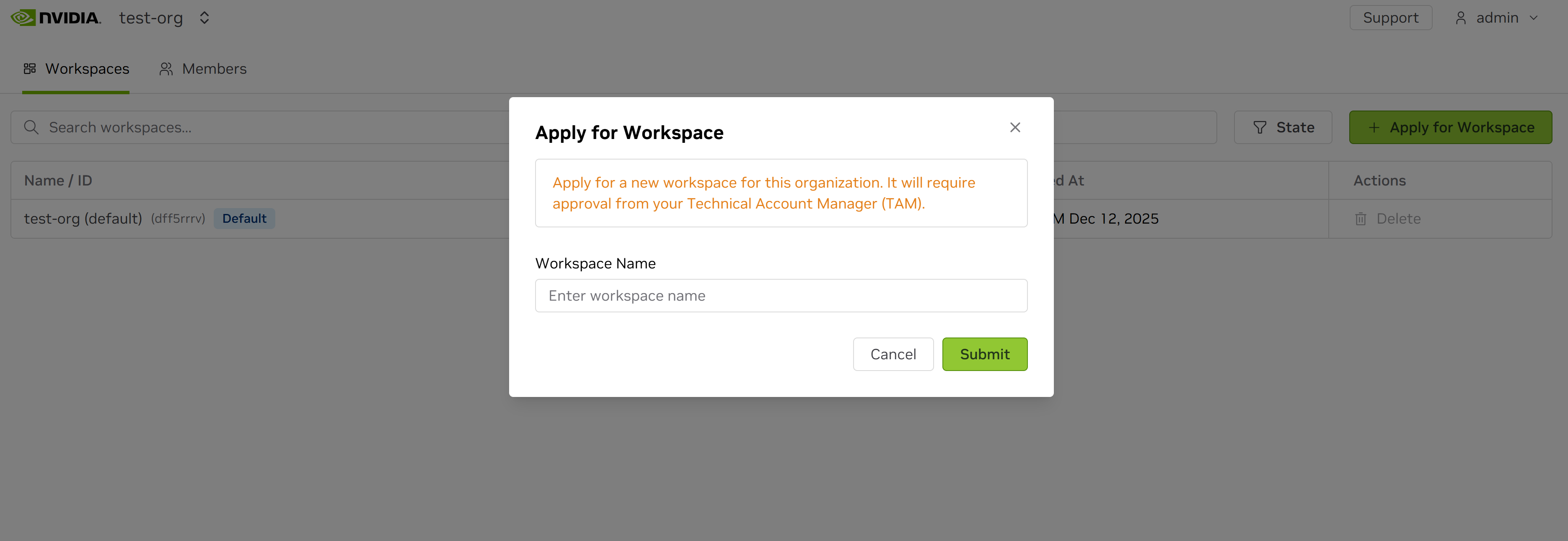
From the dashboard, the Org admin can view the Organization and associated workspaces, manage organization-level settings, request new organizations, and create additional workspaces beyond the initial default.
Transitioning Existing Workspaces
For existing Lepton customers with workloads running in standalone workspaces, the following steps integrate them into the new organizational structure:
Requesting an Organization
- Request Initiation - Log in to the existing Workspace. Use the top-left dropdown menu to select "Request Organization."
- Naming and NCA Selection - Provide a name for the Organization and select the NVIDIA Cloud Account (NCA).
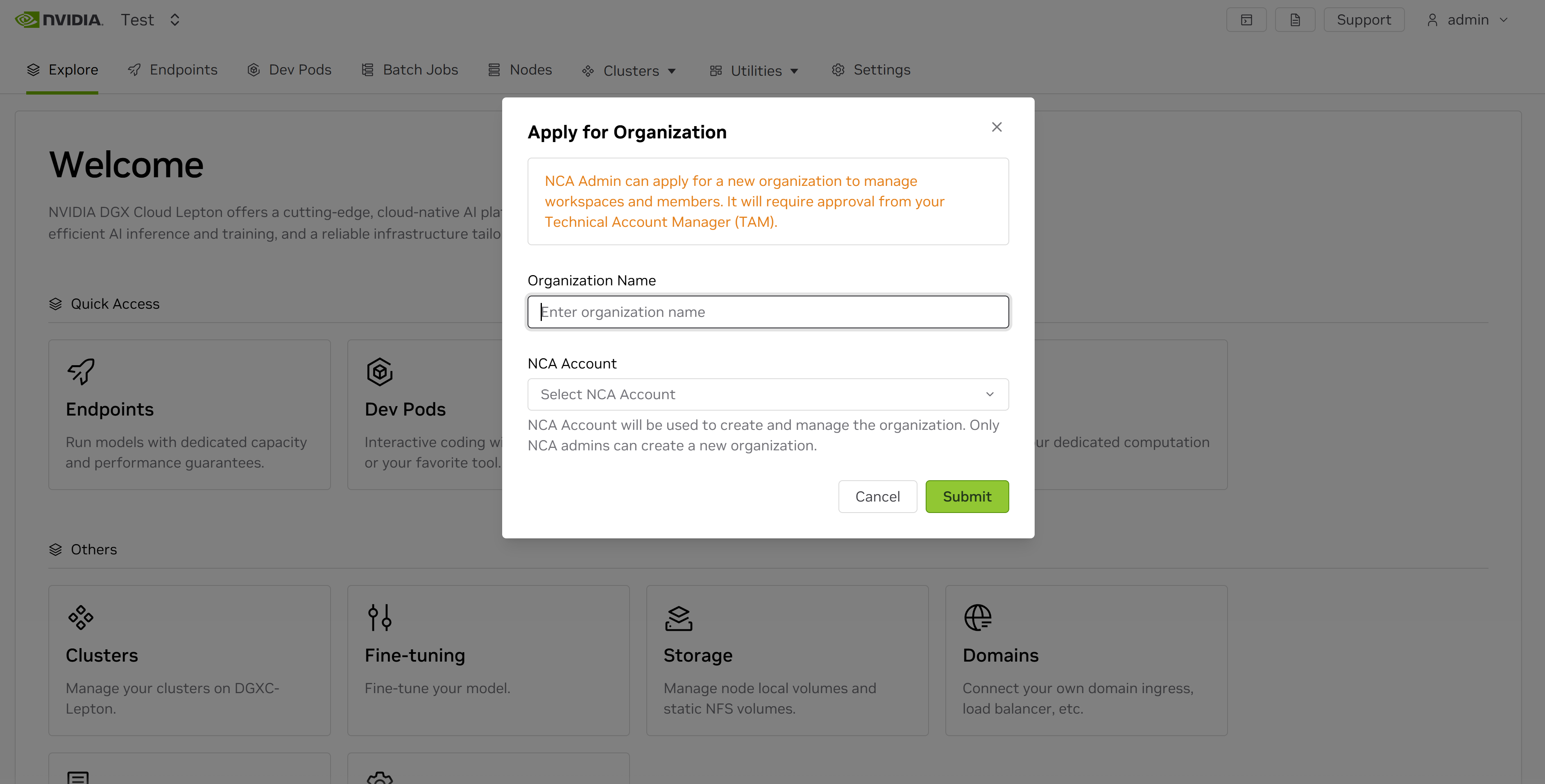
An NCA currently tied to a legacy workspace can still be used for a new organization request.
- Submission - Submit the request, which will be marked as pending.
Activating the Organization
- TAM Notification - Inform your Technical Account Manager (TAM) once the Organization request is submitted.
- Review and Migration - The TAM will review and activate the Organization. They will also migrate the existing, legacy workspace into the newly created Organization.
- Dashboard View - After migration, the legacy workspace appears in a secondary dropdown under the Organization Name in the dashboard selector, rather than in the main workspace selector.
Once the Organization is approved, an empty default workspace is created for your organization. If you do not need the additional workspace, contact your TAM to have it deleted.
User Management in an Organization
User access is managed across two layers: the Organization level and the Workspace level.
Organization-Level Membership
Users must first be onboarded to the Organization, establishing them in the central member pool and assigning an Organization Role.
| Org Role | Role Assignment | Scope and Permissions |
|---|---|---|
| Admin | Assigned automatically to the user who initiates the organization request, or added by an existing Org Admin. | Responsible for overall organization management. Can manage Org members, create workspaces, and assign roles (including Workspace Admin) within the Organization. |
| User | Added by the Org Admin | Has access to organization resources but no admin permissions at the organization level. |
Adding Organization Members
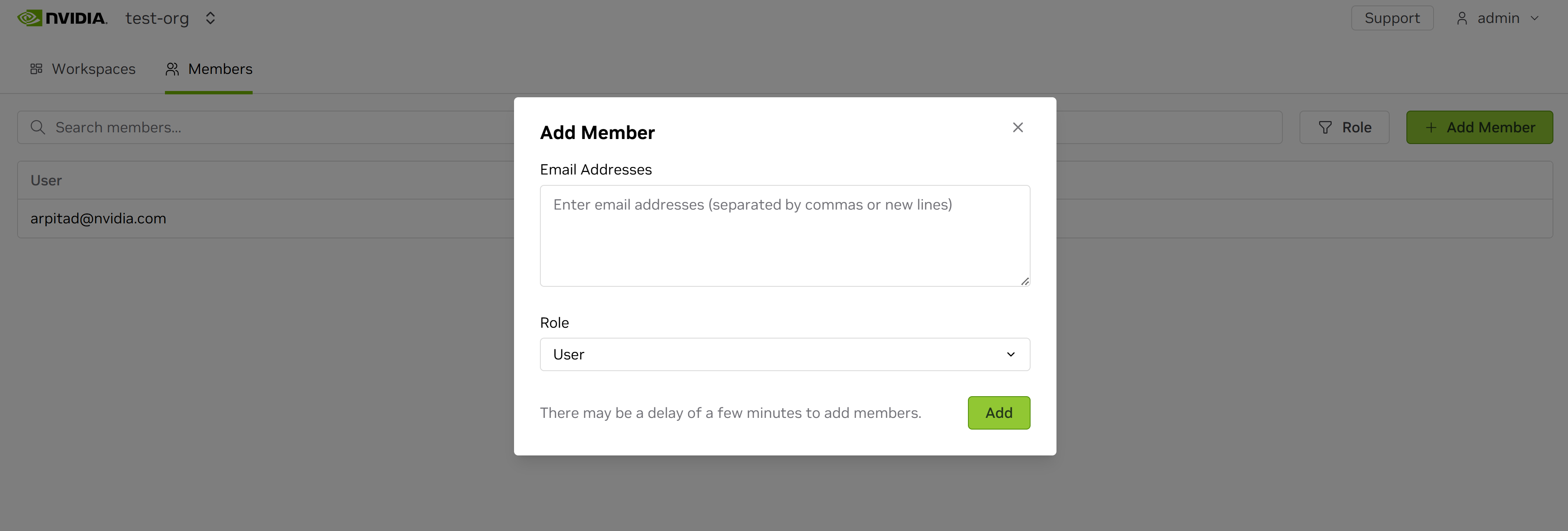
- Navigate to the organization's member management section.
- Enter the email address of the user to invite them.
- Assign the user a role (Admin or User) during the invitation process.
- The invited user will receive an email to join the organization.
Workspace-Level Access
Workspace access governs permissions within a specific workspace (e.g., managing quotas for users, creating jobs).
Membership Constraint
- Users must be added to the Organization before they can be added to any workspace.
- A Workspace Admin can only add users from the Organization's existing user pool; they cannot invite new users directly to the workspace.
Role Assignment
- The Workspace Admin manages the addition and removal of Users within their workspace.
- Users are assigned specific Workspace Roles (for example, Viewer, Admin, or custom roles). For more detail, consult the Members section of the documentation.
Important Considerations:
- A user's organization role and their workspace role are separate. For instance, a user designated as an Org User can still be assigned Admin capabilities for a specific workspace.
- The organization level currently does not support custom roles; it only supports the default Admin and User roles.