
BSP Setup#
BSP Installation#
Installation Options#
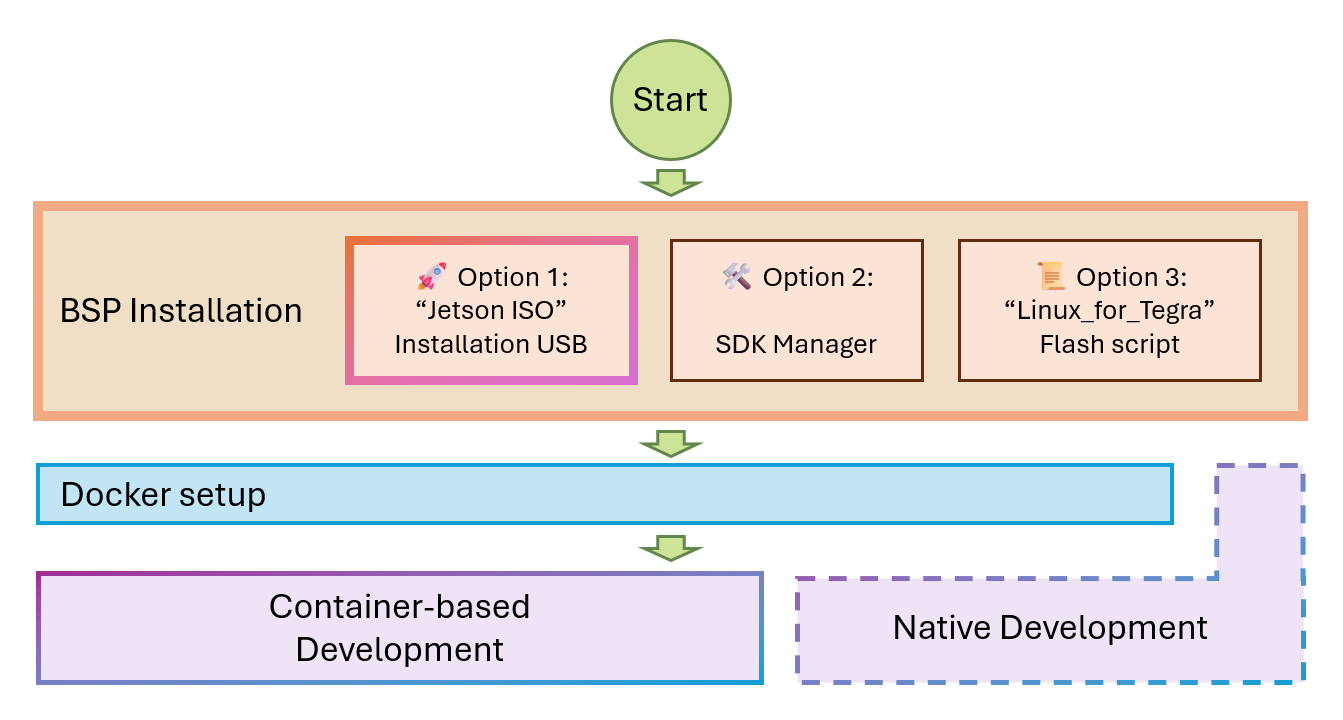
Comparison#
🚀 Jetson ISO |
🛠️ SDK Manager |
📜 Flash script |
|
|---|---|---|---|
📋 Short Summary |
USB installation disk to flash BSP (plus alpha) |
GUI software to flash BSP and install JetPack packages |
Ubuntu script to flash BSP |
🖥️ Ubuntu Host PC |
❌ Not required |
✅ Required |
✅ Required |
⏱️ Flash time |
⚡ Less than 15 min |
⌛ About 30 min |
⌛ About 30 min |
🔧 Install BSP? |
✅ Yes |
✅ Yes |
✅ Yes |
🐳 Install Docker? |
✅ Yes |
💡 Yes, when chosen in 2nd stage |
❌ No |
📦 Install JetPack components |
❌ No |
💡 Yes, when chosen in 2nd stage |
❌ No |
👥 Who is this for? |
🌟 Everybody including beginner |
🧑💻 Who has an Ubuntu PC |
🛠️ Product Developers |
Option 1. 🚀 “Jetson ISO” Installation USB#
Recommended for everybody.
This method is what’s illustrated in the Quick Start Guide.
Option 2. 🛠️ NVIDIA SDK Manager#
See Jetson section of SDK Manager documentation.
https://docs.nvidia.com/sdk-manager/install-with-sdkm-jetson/index.html
Option 3. 📜 “Linux_for_Tegra” flash script#
See Jetson Linux Developer Guide.
https://docs.nvidia.com/jetson/archives/r39.2.1/DeveloperGuide/IN/QuickStart.html https://docs.nvidia.com/jetson/archives/r39.2.1/DeveloperGuide/SD/FlashingSupportJetsonThor.html
BSP Upgrade#
This section covers how to upgrade between supported L4T minor revisions using APT.
Important
Upgrading to r39.2.x (r39.2, r39.2.1) is not supported through the APT steps below. To move to r39.2.x, use one of the installation methods described in the Quick Start Guide or the BSP Installation section: Jetson ISO, NVIDIA SDK Manager, or the Linux_for_Tegra flash script.
See also
For more details on the update mechanism, see the official Jetson Linux Developer Guide:
Upgrading from r38.2.x to r38.4.x#
Follow these steps to upgrade your Jetson Thor from L4T r38.2.x to r38.4.x.
1. Check the Current L4T Revision#
First, verify your current L4T version:
cat /etc/nv_tegra_release
You should see output indicating R38 (release), REVISION: 2.x.
2. Backup and Update the APT Source List#
Before modifying the source list, create a backup:
sudo cp /etc/apt/sources.list.d/nvidia-l4t-apt-source.list /etc/apt/sources.list.d/nvidia-l4t-apt-source.list.bak
Update the source list to point to r38.4:
sudo sed -i 's/r38\.2/r38.4/g' /etc/apt/sources.list.d/nvidia-l4t-apt-source.list
Verify the change was applied correctly:
tail -n5 /etc/apt/sources.list.d/nvidia-l4t-apt-source.list
3. Perform the Upgrade#
Update the package list and upgrade:
sudo apt update && sudo apt upgrade -y
4. Reboot#
Reboot to apply the changes:
sudo reboot
5. Verify the Upgrade#
After reboot, confirm the upgrade was successful:
cat /etc/nv_tegra_release
You should now see R38 (release), REVISION: 4.x.
Tip
If something goes wrong during the upgrade, you can restore the original source list from the backup:
sudo cp /etc/apt/sources.list.d/nvidia-l4t-apt-source.list.bak /etc/apt/sources.list.d/nvidia-l4t-apt-source.list