

Re-enable USB stick installation#
This workaround applies to Jetson ISO releases earlier than JetPack 7.2 and to JetPack 7.2 and later OOBE recovery cases where the display path hangs during boot.
Starting with JetPack 7.2, you can normally reinstall using the Jetson ISO without manually changing UEFI settings. If you want to use an earlier installation USB stick on a Jetson AGX Thor Developer Kit that has been used or set up before, or if the JetPack 7.2 or 7.2.1 ISO boot path hangs while starting the OOBE service, you might need to perform a special operation in the UEFI setup menu.
Overview#
When to use this workaround#
You want to use a previously used or set up device
You want a fresh start and need to reinstall the BSP (*Jetson Linux*) on the same device
You received a used Jetson AGX Thor Developer Kit and want to install with the USB stick
Something went wrong in the BSP installation process and you are starting over
You are using a Jetson ISO from a release earlier than JetPack 7.2
You are using the JetPack 7.2 or 7.2.1 ISO and the Ubuntu boot hangs while starting the OOBE service
Why this workaround is needed#
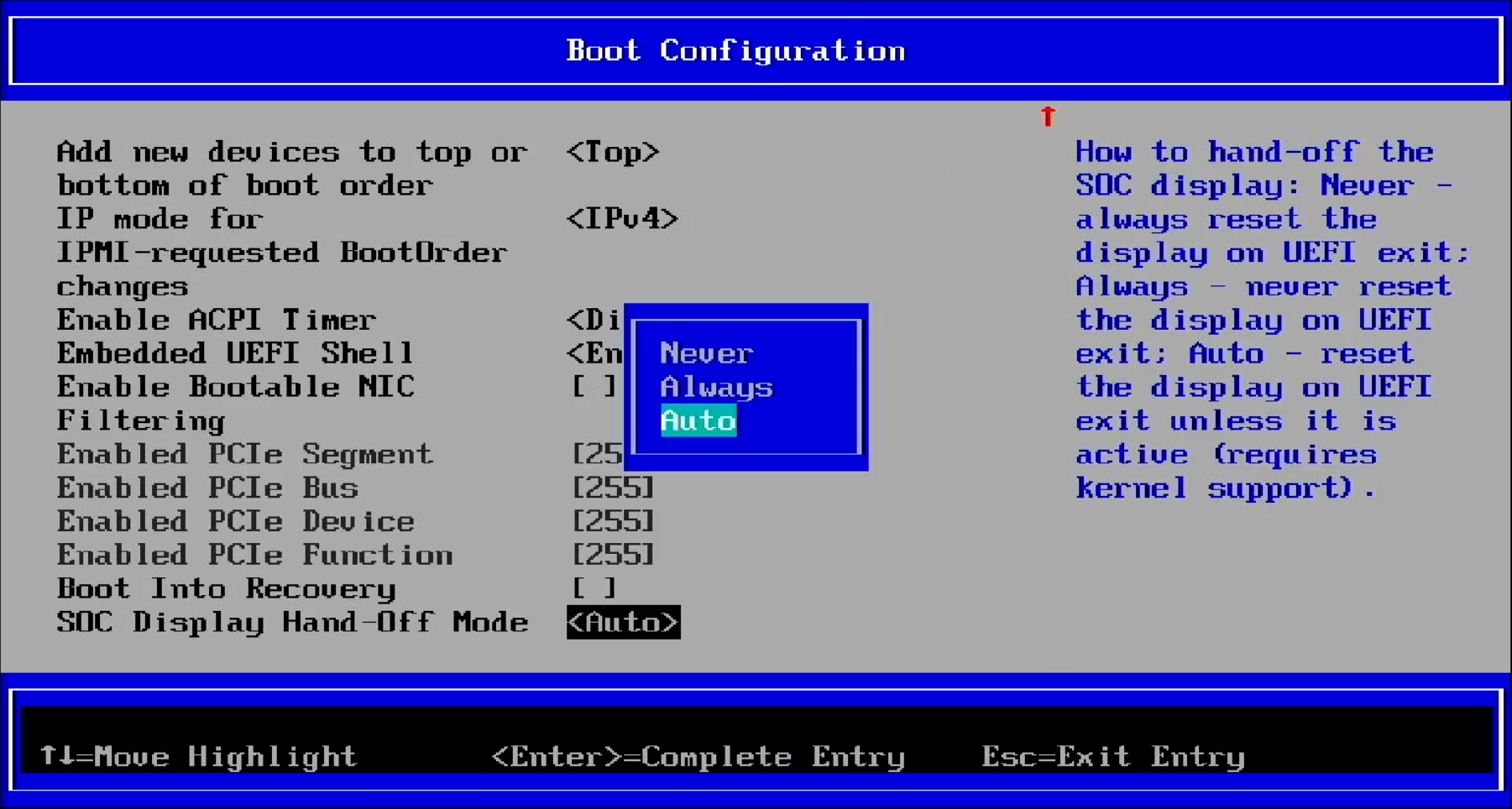
During the USB stick installation, the SOC Display Hand-Off mode is required to enable display output, so we must use UEFI framebuffer with the hand-off mode set to Auto. However, for regular OS usage after installation, earlier JetPack 7.x releases (for example, JetPack 7.0 / BSP 38.2) reset the SOC Display Hand-Off mode to Never for GPU display driver compatibility.
The issue stems from the fact that the current GPU display driver does not properly support hand-off mode.
Jetson AGX Thor Developer Kit has UEFI firmware (38.0.0-gcid-41245178) and its setting flashed at the factory in such way it is ready for the installation with the USB stick.
On releases earlier than JetPack 7.2, once the installation is done, the SOC Display Hand-Off mode can be reset to Never, so it requires the manual re-enabling if to use the USB installation stick again.
The workaround - Interim Solution#
Required UEFI change: Enable SOC Display Hand-Off Mode#
Turn on the Jetson AGX Thor Developer Kit by pressing the power button (the middle button in the row).
While on the NVIDIA logo screen (when a display is attached) or the pre-boot options screen (in headless mode), hit Esc key repeatedly to enter into the UEFI setup menu.
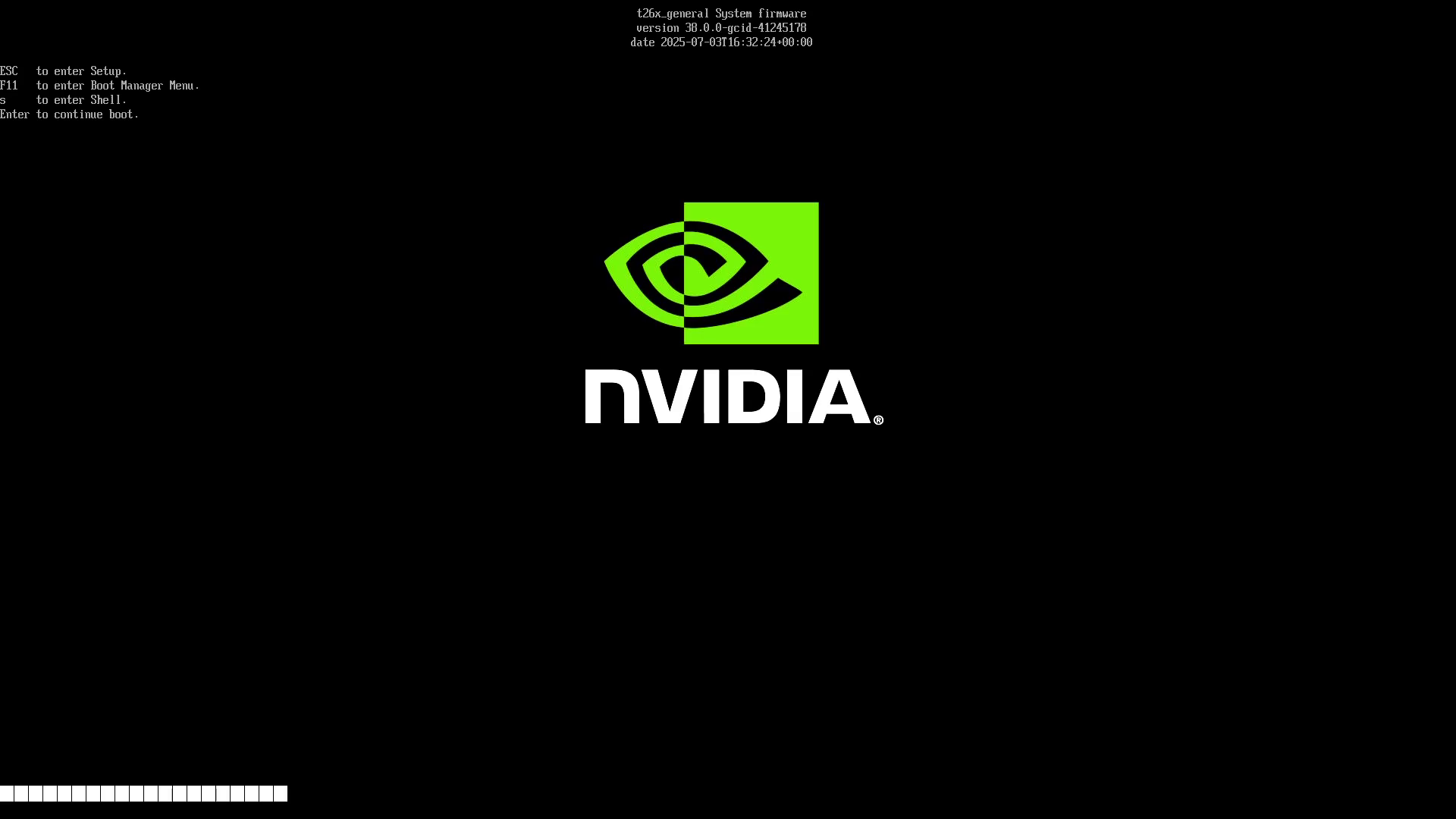
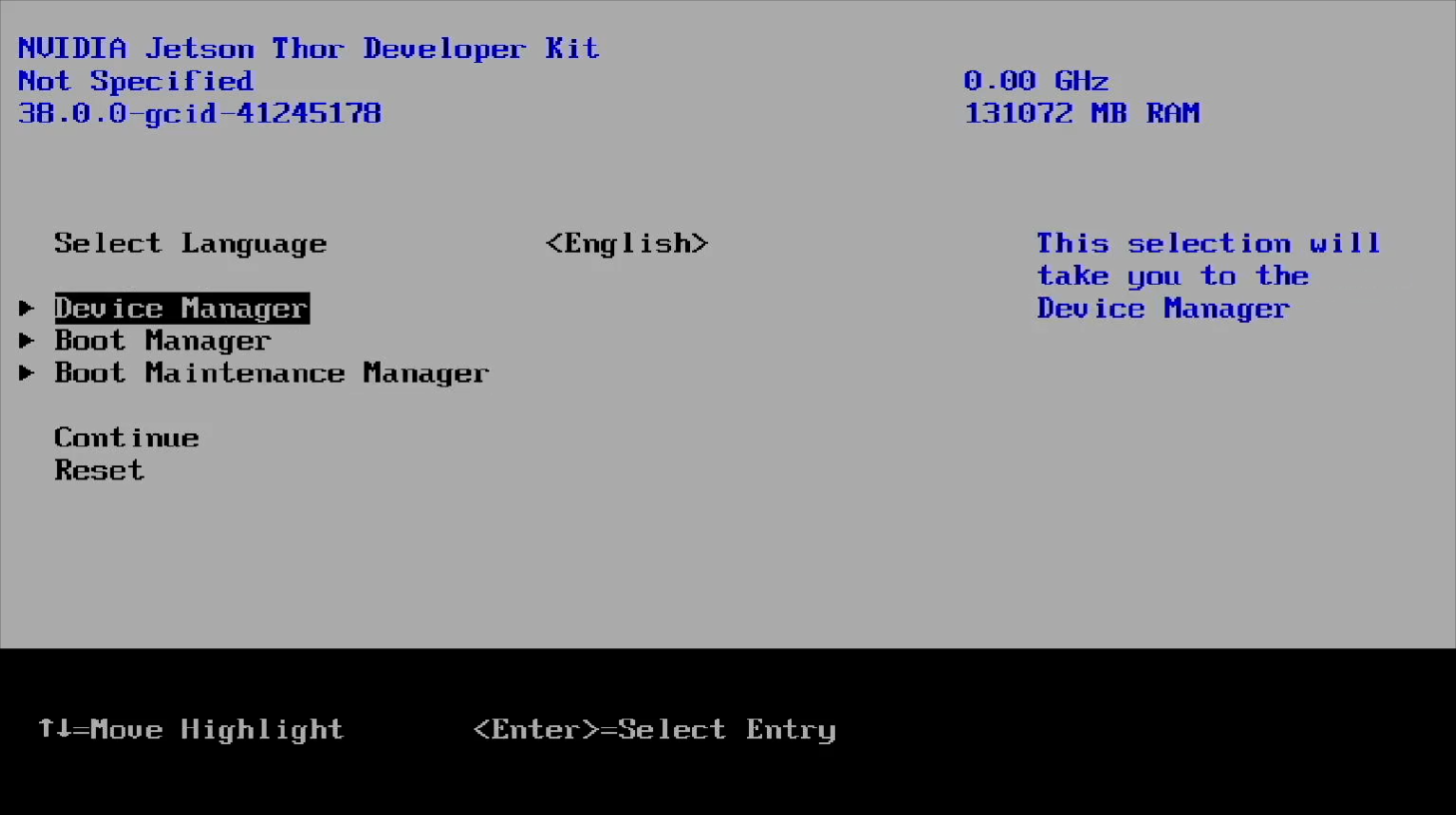
Select Device Manager by hitting ↑ (up) and ↓ (down) keys, and press Enter key.
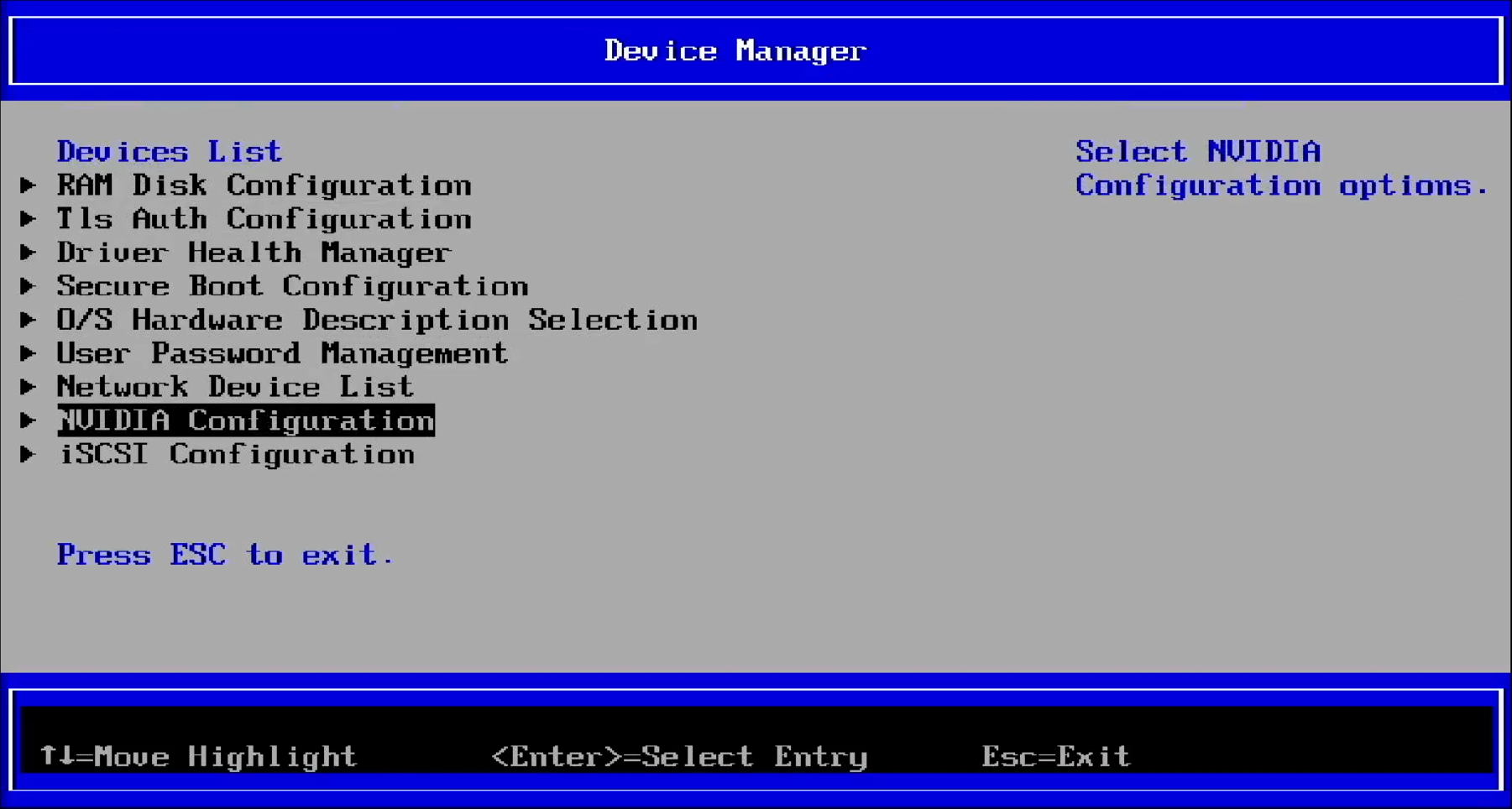
Select NVIDIA Configuration by hitting ↑ (up) and ↓ (down) keys, and press Enter key.
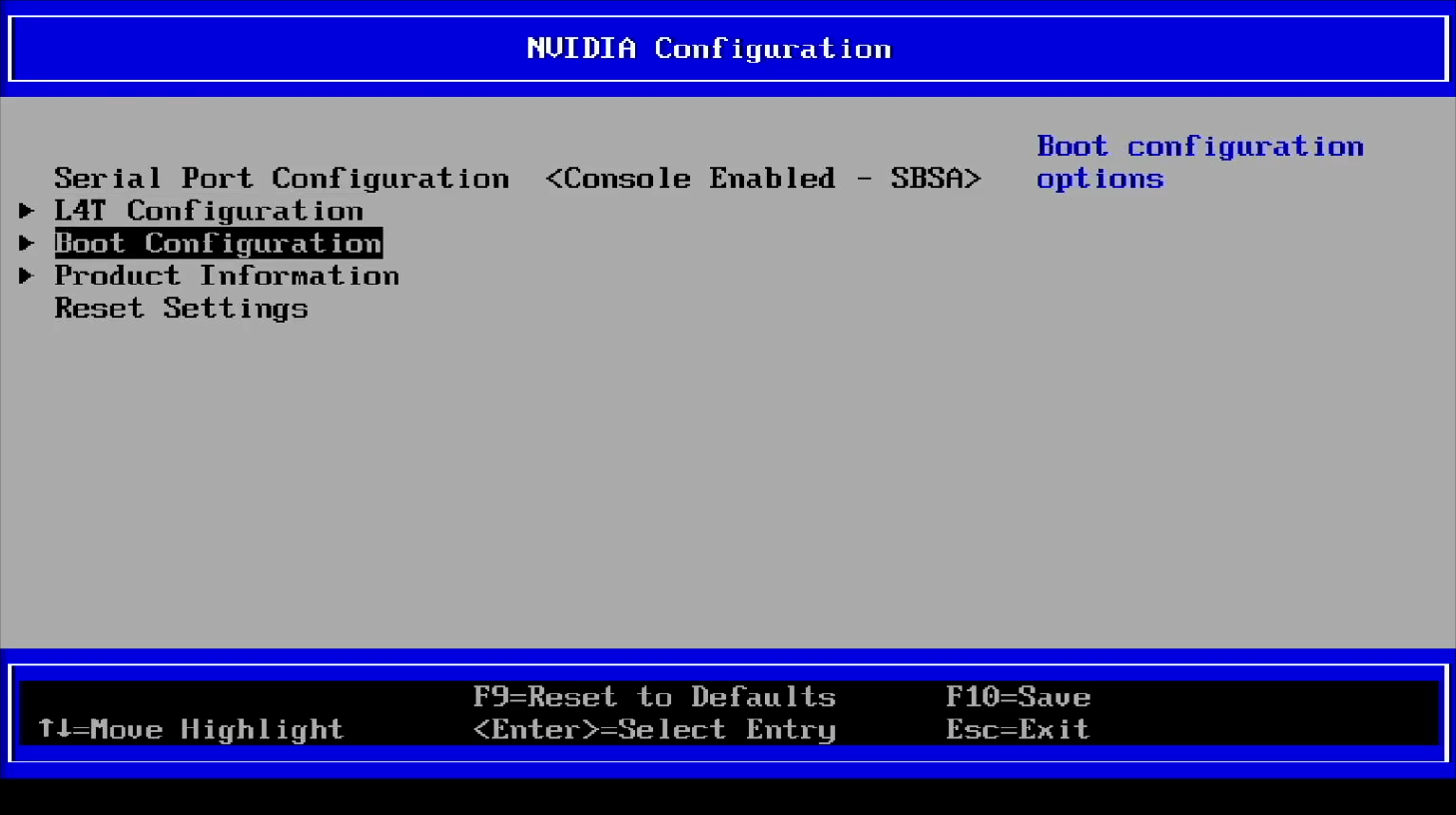
Select Boot Configuration by hitting ↑ (up) and ↓ (down) keys, and press Enter key.
Scroll to the next screen by hitting ↓ (down) key repeatedly and select SOC Display Hand-Off Mode, then press Enter key.
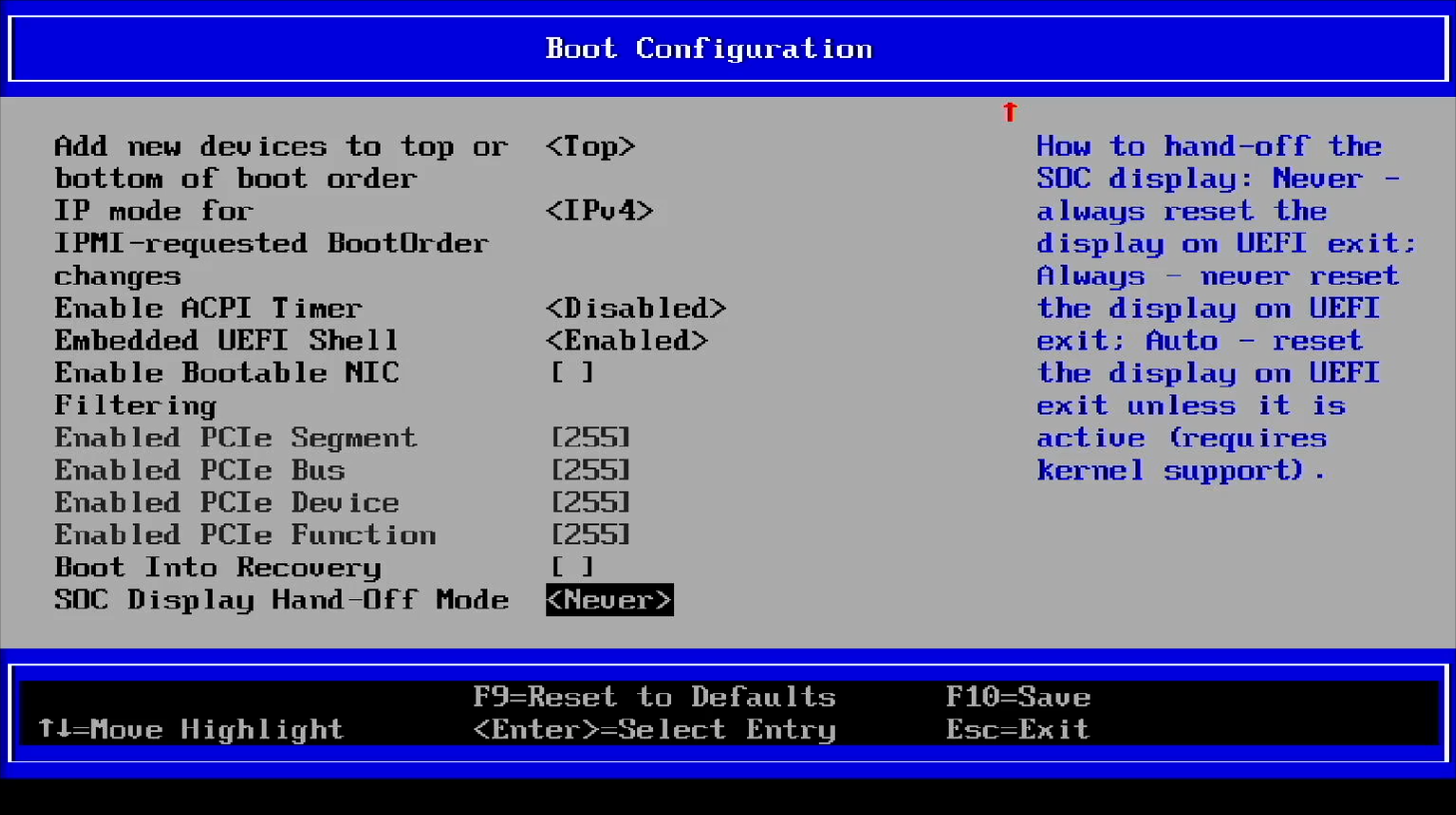
Change the mode to Auto by hitting ↓ (down) key and press Enter key. (The original setting should have been Never)
Continue to select the next item SOC Display Hand-Off Method, then choose the framebuffer path for your recovery case and press Enter key.
Note
Updated (2025-09-07): This step was initially missing in the instruction on this page. Please be sure to change both items.
SOC Display Hand-Off Mode
SOC Display Hand-Off Method
Important
For JetPack 7.2 and later (Jetson ISO r39.2, r39.2.1) OOBE recovery, use simplefb. This path has been tested for cases where efifb hangs the display path while Ubuntu is starting the OOBE service.
For Jetson ISO releases earlier than JetPack 7.2, use efifb unless directed otherwise by release-specific guidance.
Save the change
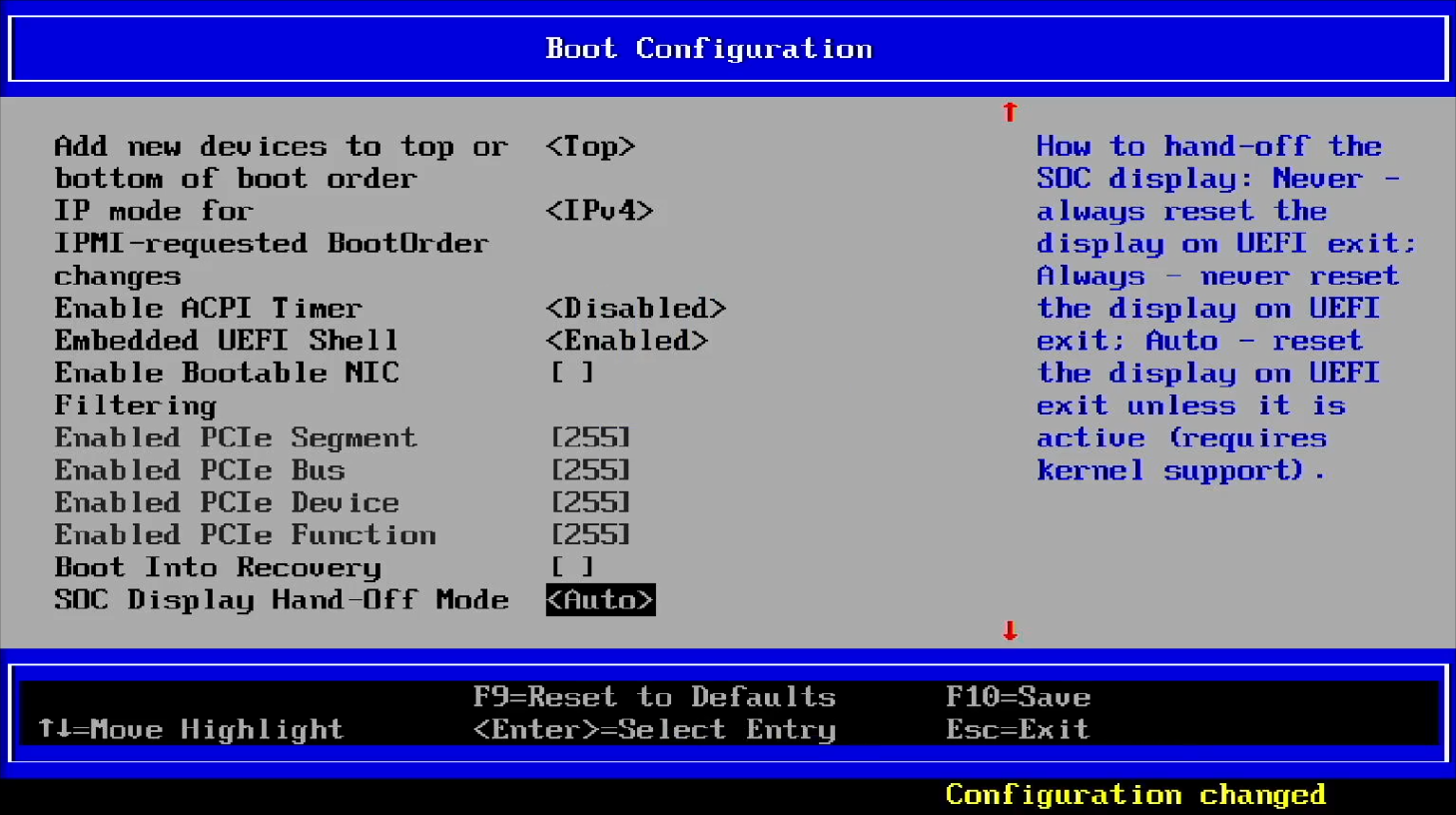
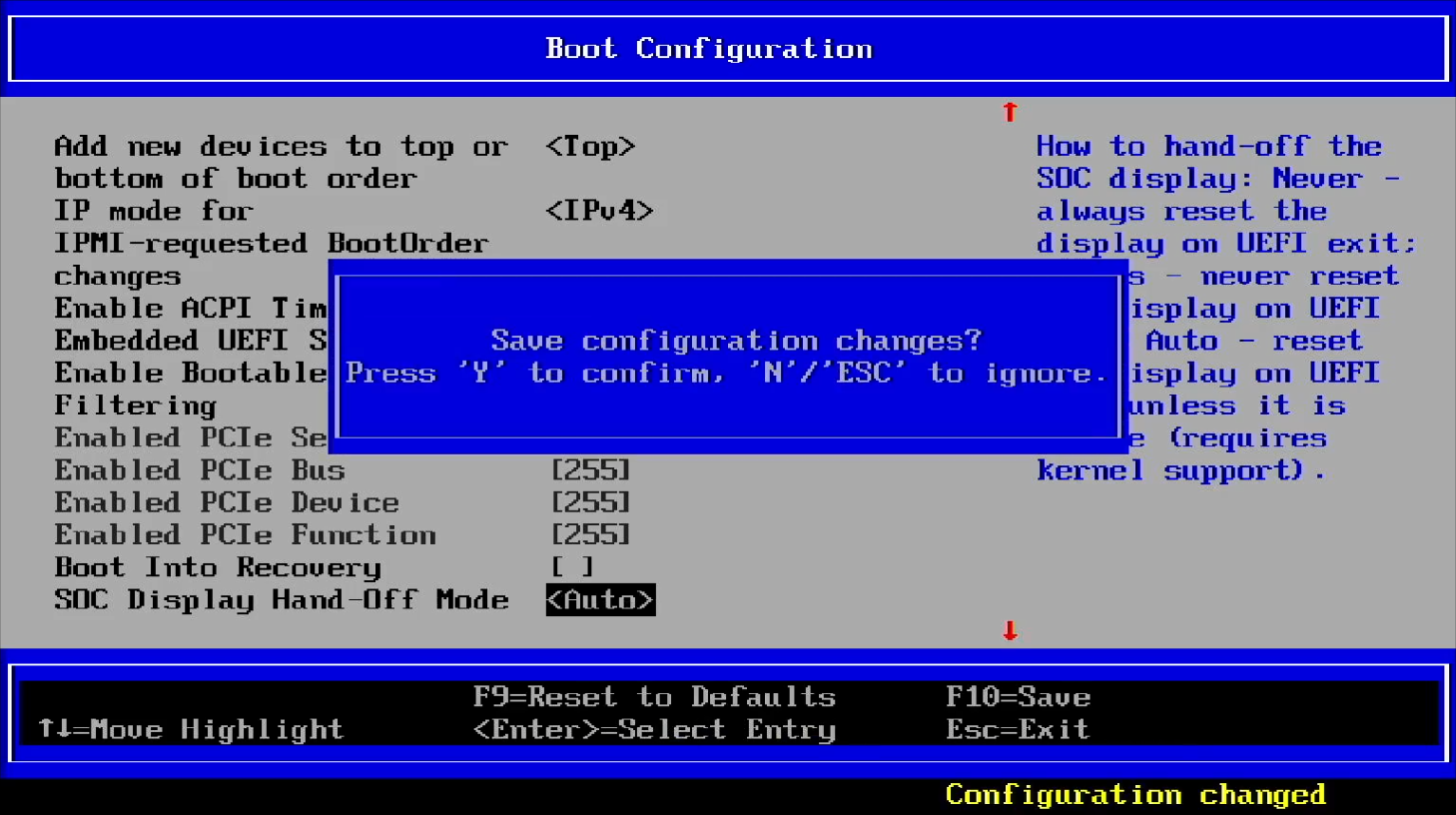
Press F10 key to save the changes.
Press y key to confirm the change.
Press Esc key multiple times to exit to the top menu of UEFI setup menu.
Select Reset by hitting ↑ (up) and ↓ (down) keys, and press Enter key.
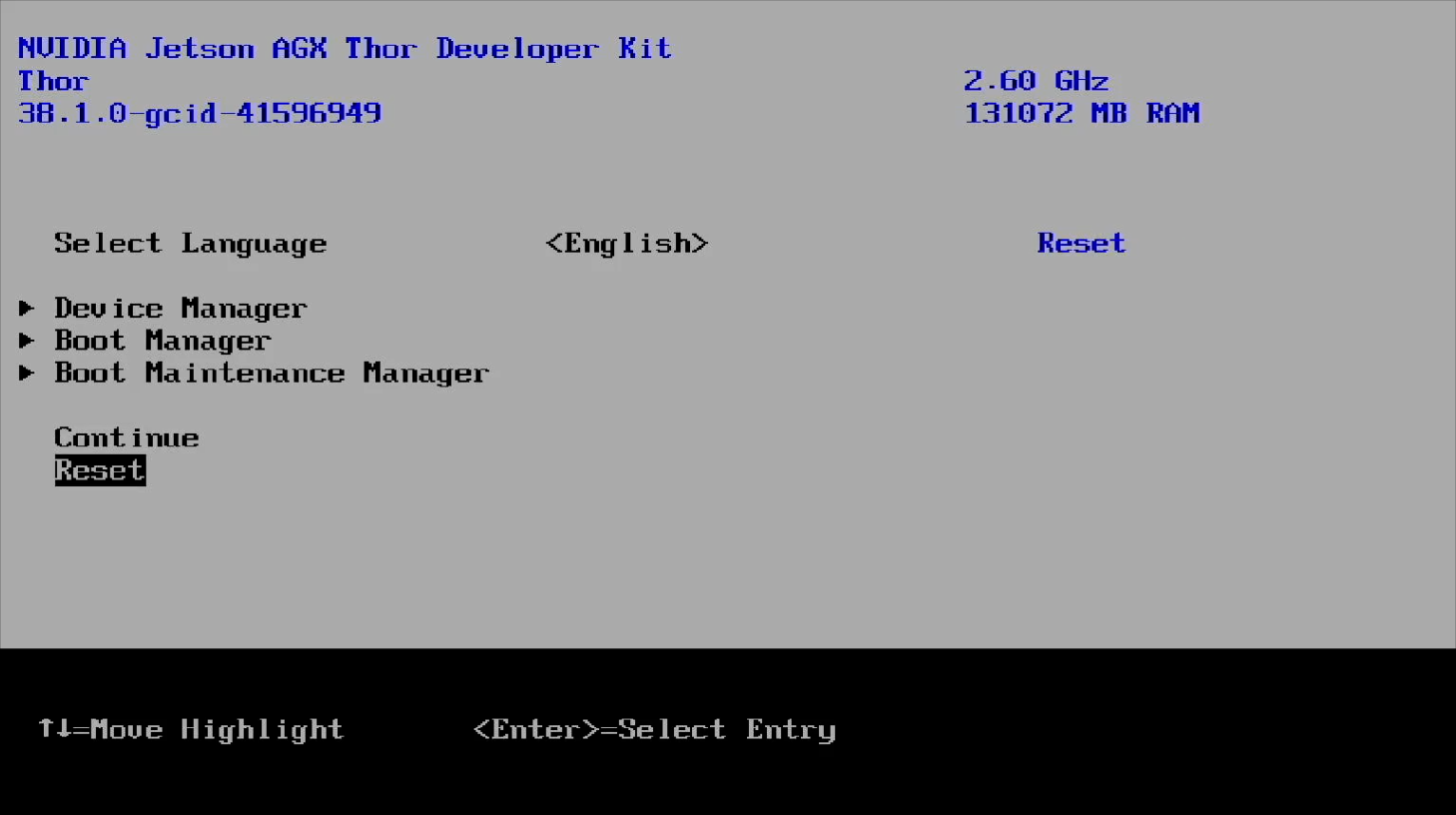
Now you should be able to use the USB stick installation again by following the same process as described in the Quick Start Guide.
The USB stick installer sets the SOC Display Hand-Off mode back to Never for the regular OS usage, so you don’t need to manually reset this setting again.