

Connecting to NVIDIA Mission Control Autonomous Hardware Recovery#
NVIDIA Mission Control autonomous hardware recovery’s authentication relies on BCM’s LDAP authentication so that users will leverage their BCM credentials to login to NVIDIA Mission Control autonomous hardware recovery.
Upon successful authentication, the user session receives a short lived JWT and refresh token. The JWT is used for identity and refreshed by the UI at expiration time.
An administrator can opt to manage users and groups using BCM. Any changes will automatically be reflected within NVIDIA Mission Control autonomous hardware recovery. There are two options to access NVIDIA Mission Control autonomous hardware recovery. The first option is to authenticate using SSO with BCM identity. The other option is to go to the url for the NVIDIA Mission Control autonomous hardware recovery UI. You will be presented with a login screen.
Login screen
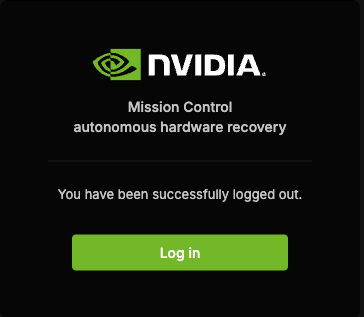
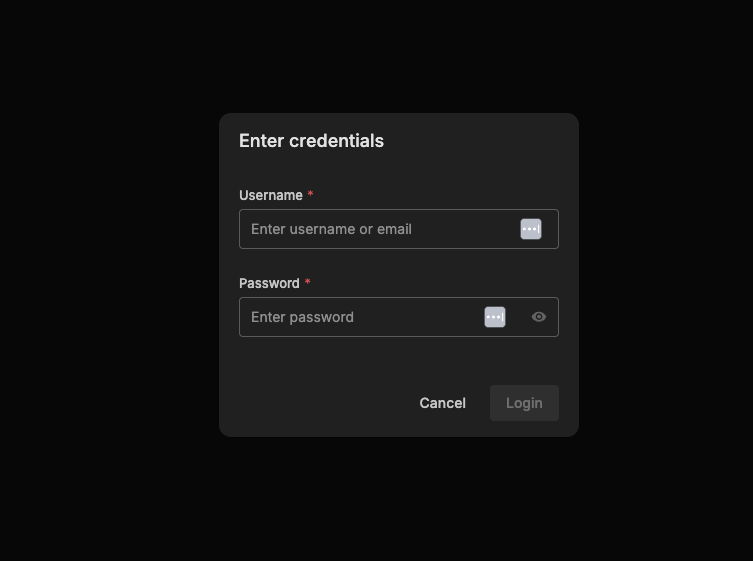
Once you click the login button, the authentication page appears where you can enter credentials.
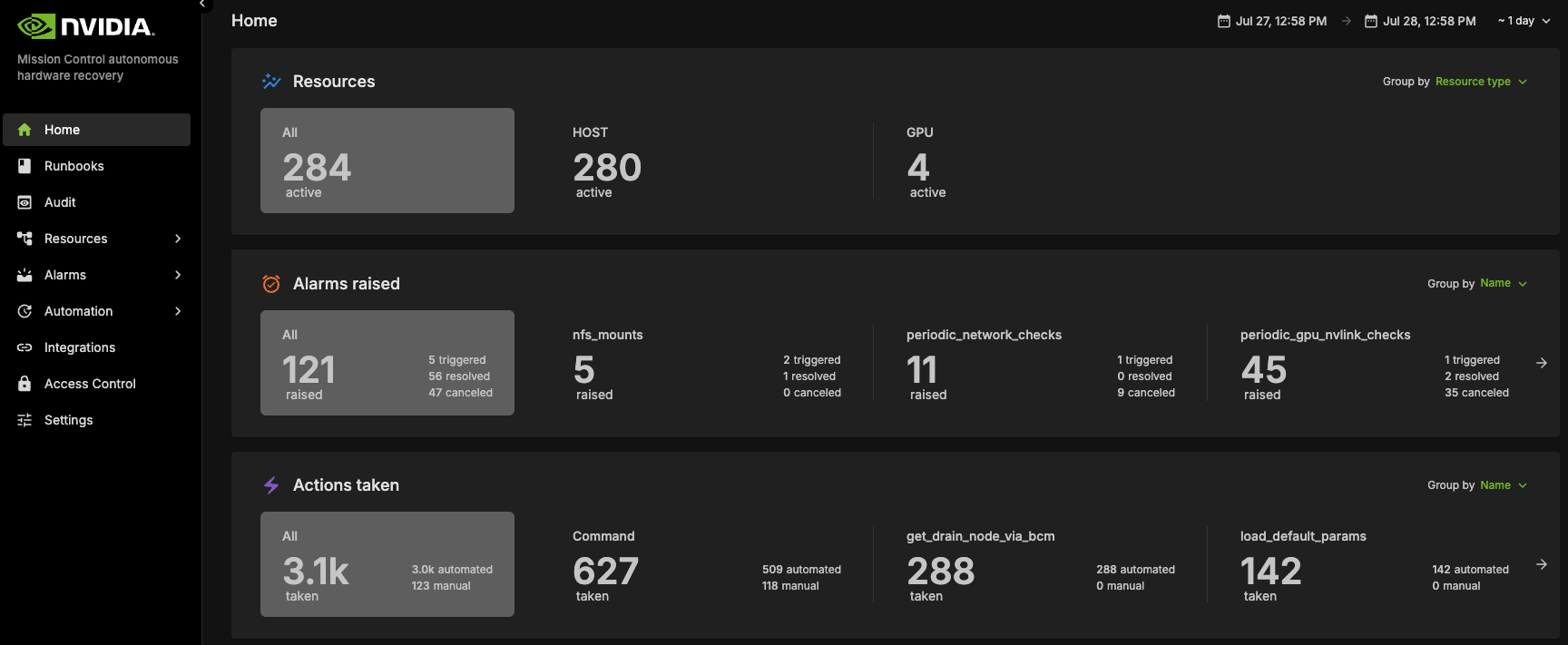
Main landing page
Users are authorized to perform different activities within NVIDIA Mission Control autonomous hardware recovery by configuring permission policies. Policies determine if the user can view resources and execute actions (named and/or anonymous). Action execution can be limited to a maximum number of impacted resources and / or specific resources. Permissions can also be attached to runbooks to allow / disallow certain users or groups.
New users are first created in BCM before they are able to access NVIDIA Mission Control autonomous hardware recovery. Upon logging in, there is a default permission policy that every user is assigned. The permissions of this policy are determined by the administrator. The administrator role has permission to perform any action in NVIDIA Mission Control autonomous hardware recovery. The configurator role has the permission to create, edit, delete any artifacts in NVIDIA Mission Control autonomous hardware recovery. By default, new users are granted administer and configure roles until the privileges are overridden. Defaults can be modified in the Access Control section of the NVIDIA Mission Control autonomous hardware recovery UI.
GB300 (Limited Feature Support)#
Firmware Upgrades with NVIDIA Mission Control autonomous hardware recovery#
NVIDIA Mission Control autonomous hardware recovery provides functionality for upgrading, cycling, and verifying firmware and the corresponding OS within your GB300 racks. The four distinct components for which firmware can be upgraded using this process are:
Compute trays
Switches
Mellanox
NVOS
The workflow invocation is performed via autonomous hardware recovery’s Runbooks. To view all Firmware upgrade related runbooks, you may search by the FIRMWARE_UPGRADE label.
GB200#
Dashboard#
NVIDIA Mission Control autonomous hardware recovery dashboard provides a comprehensive view of the status of all resources in the cluster, displaying the progress of testing at various stages for each node (control, compute and switch nodes). It shows which tests are completed, which ones have passed, and which have failed. This allows users to easily track the overall health and status of the cluster, identify any issues, and assess the readiness of each resource.
Navigating to Dashboards#
Visit the NVIDIA Mission Control autonomous hardware recovery homepage, navigate to the ‘Resources’ menu, and click on ‘Dashboards’ to access the dashboard page.
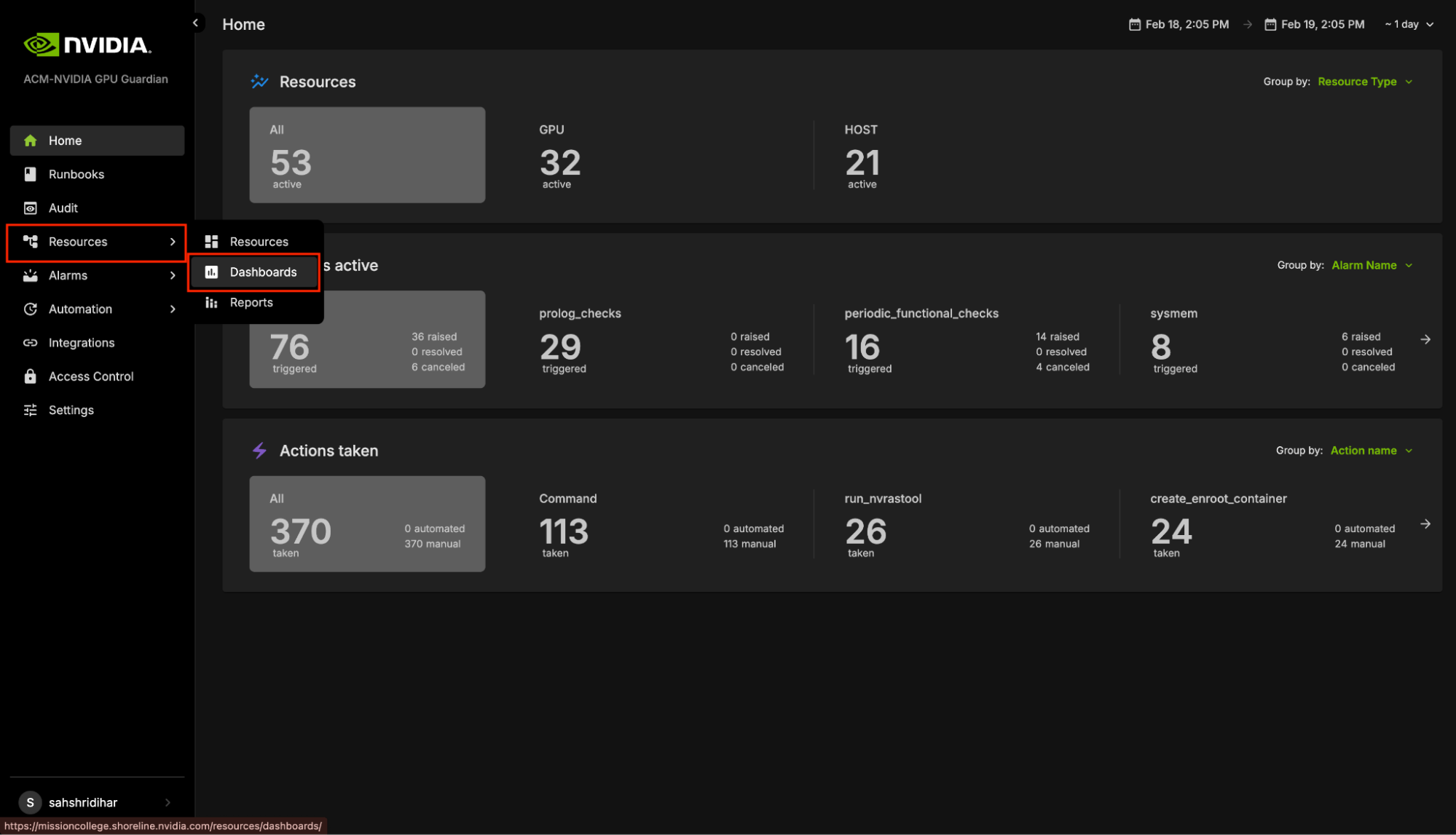
The Landing page contains two tabs: Dashboards and Dashboard Views.
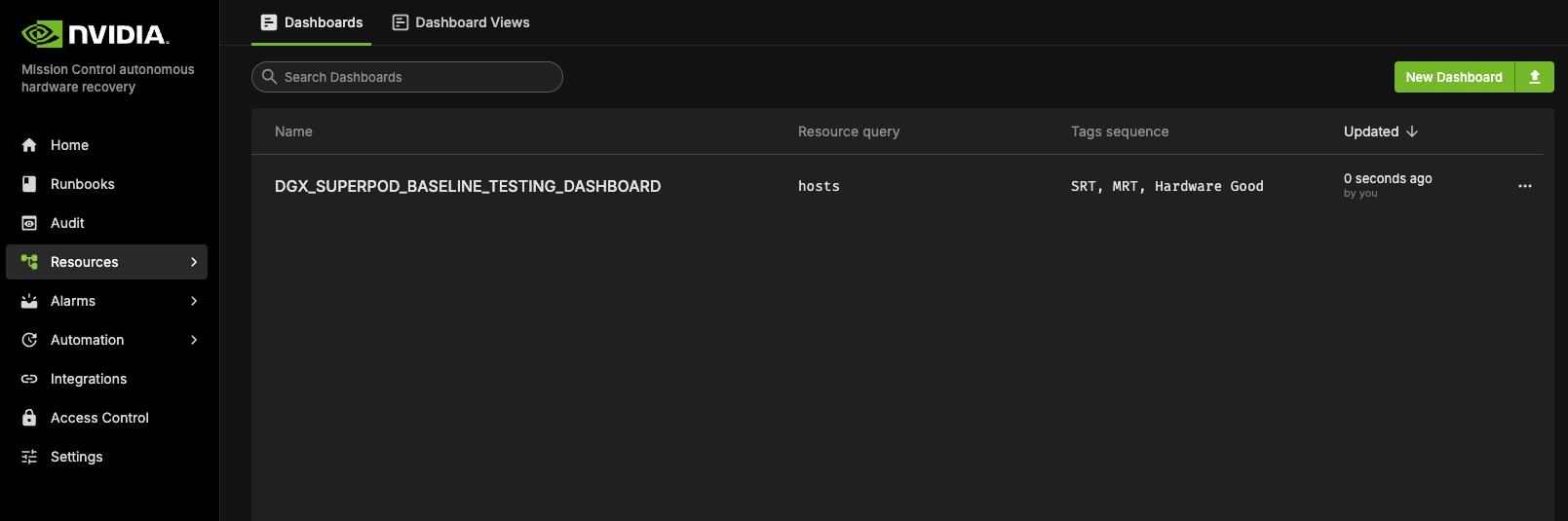
The Dashboards lists all the Dashboards available. All these dashboards reflect the current status of the cluster and the test status.
A Dashboard View is a snapshot of the Dashboard that captures the data at a specific point in time. This snapshot remains static, preserving the exact state and data of the Dashboard as it appeared at that moment, regardless of any future changes or updates to the live data.
Cluster Validation#
The NVIDIA Mission Control autonomous hardware recovery portal enables efficient automation of baseline testing procedures. This comprehensive testing framework can be flexibly executed across various scales of infrastructure, from individual compute nodes to complete racks or multiple rack configurations. The system performs extensive validation of critical compute node components, including CPU/GPU/Memory/storage functionality, network connectivity, and firmware versioning. Additionally, it incorporates industry-standard performance benchmarking tools such as HPL, NCCL, and Nemotron(Large Language Model) to assess system capabilities. This streamlined approach significantly enhances both testing efficiency and thoroughness while reducing execution time.
Entrypoint of Automated Testing#
A centralized automated baseline testing interface has been established to facilitate streamlined test execution and management. This unified entry point provides comprehensive access to the testing framework, enabling efficient navigation and one click implementation of all testing procedures.
To access the baseline testing interface:
Access the NVIDIA Mission Control autonomous hardware recovery portal using your credentials and navigate to the Runbooks section.
Locate the “DGX_SUPERPOD_BASELINE_TESTING” runbook through the search functionality (please reference the interface depicted below)
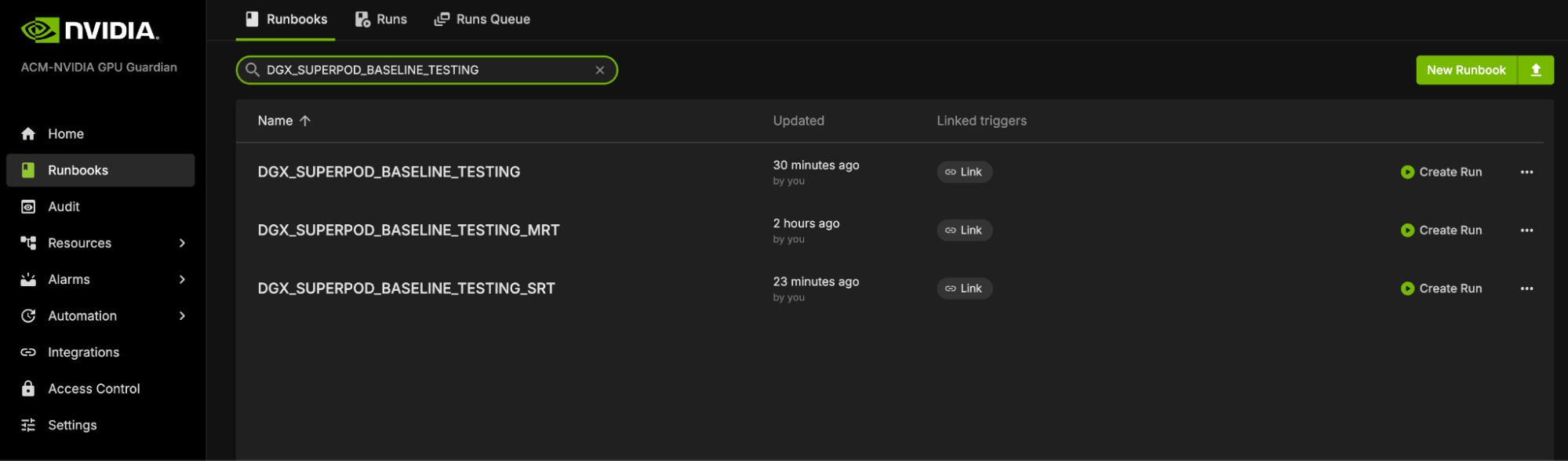
Upon selecting the “DGX_SUPERPOD_BASELINE_TESTING” runbook, you will be presented with the interface shown below.
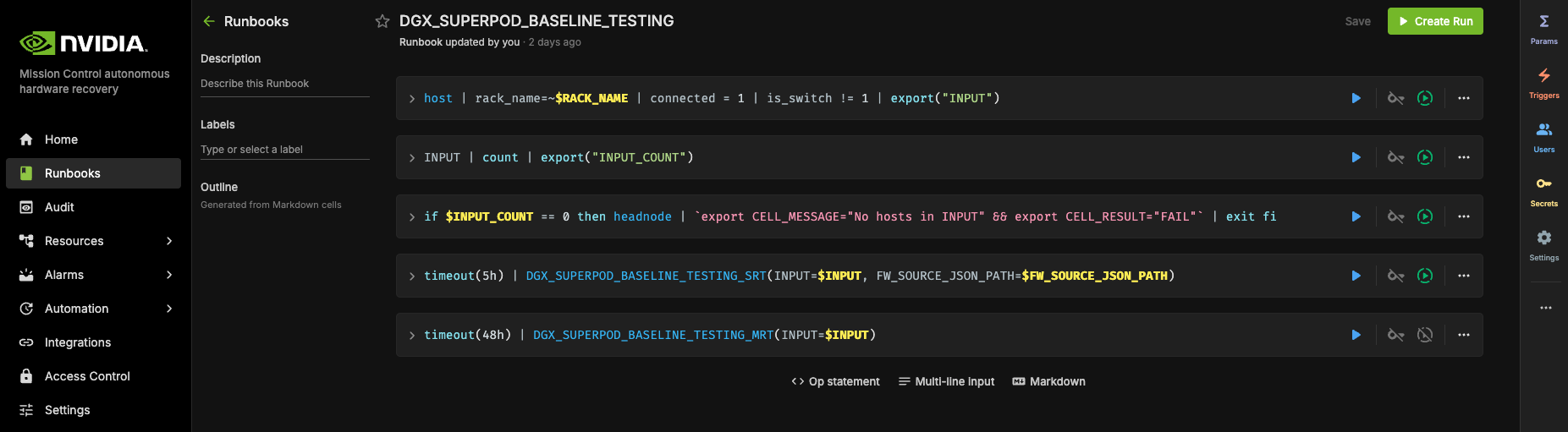
More about initializing and customizing these runbooks can be found in the extended Automated Hardware Recovery guide.
Firmware checks#
NVIDIA Mission Control autonomous hardware recovery includes Firmware checks which extracts the current firmware versions of the trays and the switches, and compares it with the expected versions specified in the Golden Config File. The Golden Config file includes the expected version for all the components such as OS, HMC, ConnectX etc, and is already prepopulated.
Reports of Testings#
NVIDIA Mission Control autonomous hardware recovery provides reports for baseline testing, reflecting the status of nodes (compute and switches) at each test stage. These reports help identify and troubleshoot root causes.
To access the NVIDIA Mission Control autonomous hardware recovery reports, click on Resources in the side menu, then select Reports.
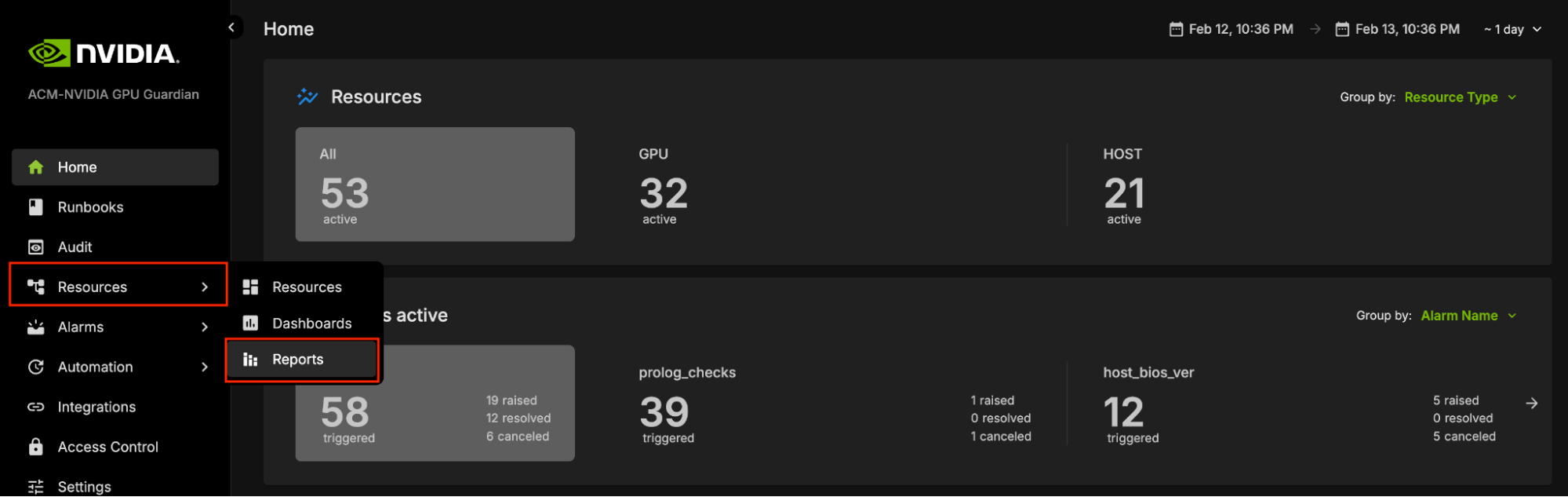
The Landing page contains two tabs: Report Templates and Published Reports.
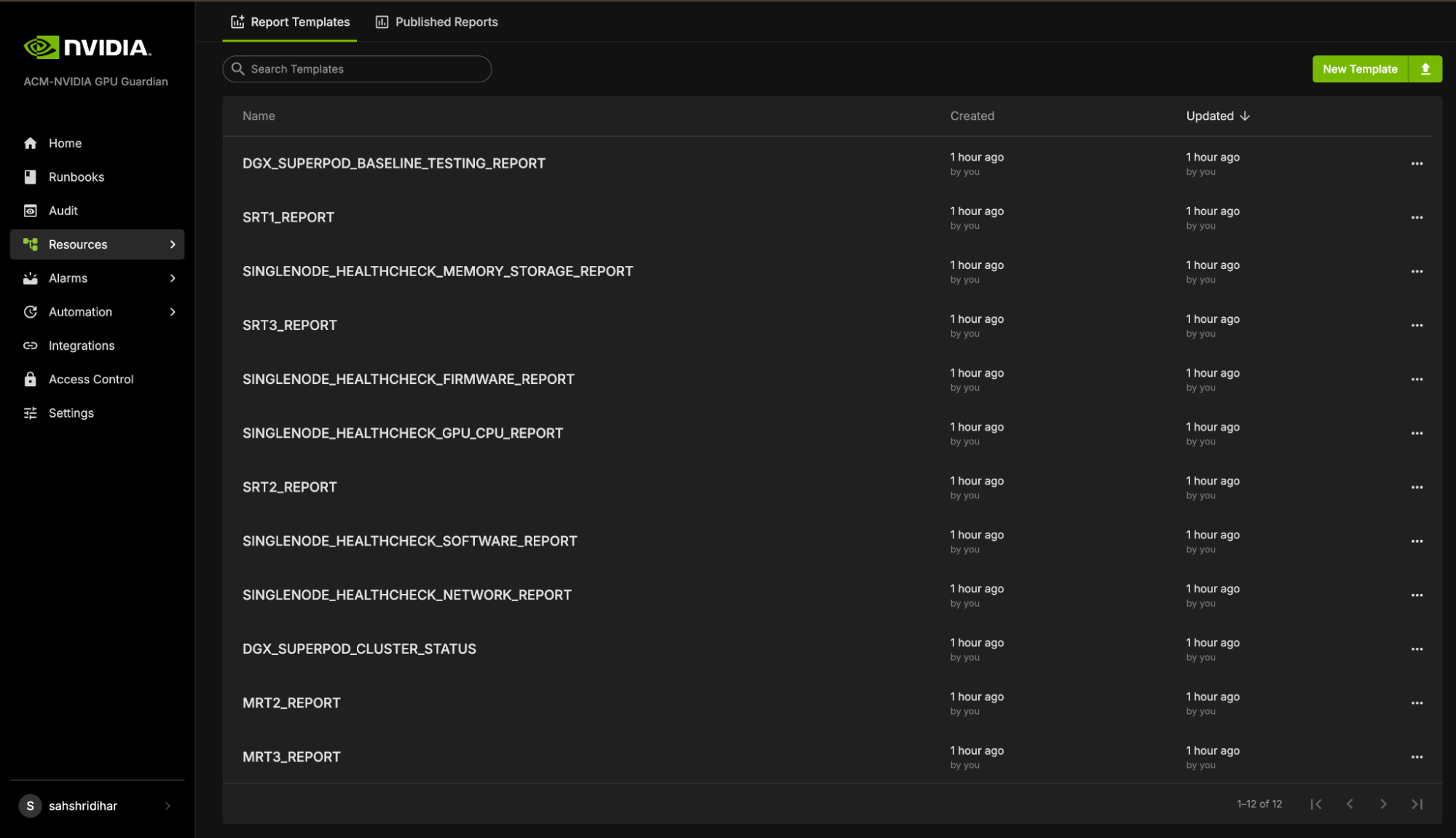
Report Templates provide templates for each stage of Baseline testing. These templates include bar graphs that display the PASS or FAIL status for different nodes during the tests. However, these templates are static and do not store any test data. This means that while you can view the templates, you cannot save or modify the test results within them.
Health Checks & Alerts#
NVIDIA Mission Control autonomous hardware recovery provides a full suite of automated health checks to detect failures at the tray, rack, and system levels for GB200. In addition, system wide health checks are performed by integrating with the UFM and NetQ network control planes. Health check data is reported back to BCM’s BaseView and/or the in-cluster LGTM stack. These health checks are performed at two layers: BCM job invocation, and as periodic health checks through NVIDIA Mission Control autonomous hardware recovery.
Alarms Dashboard#
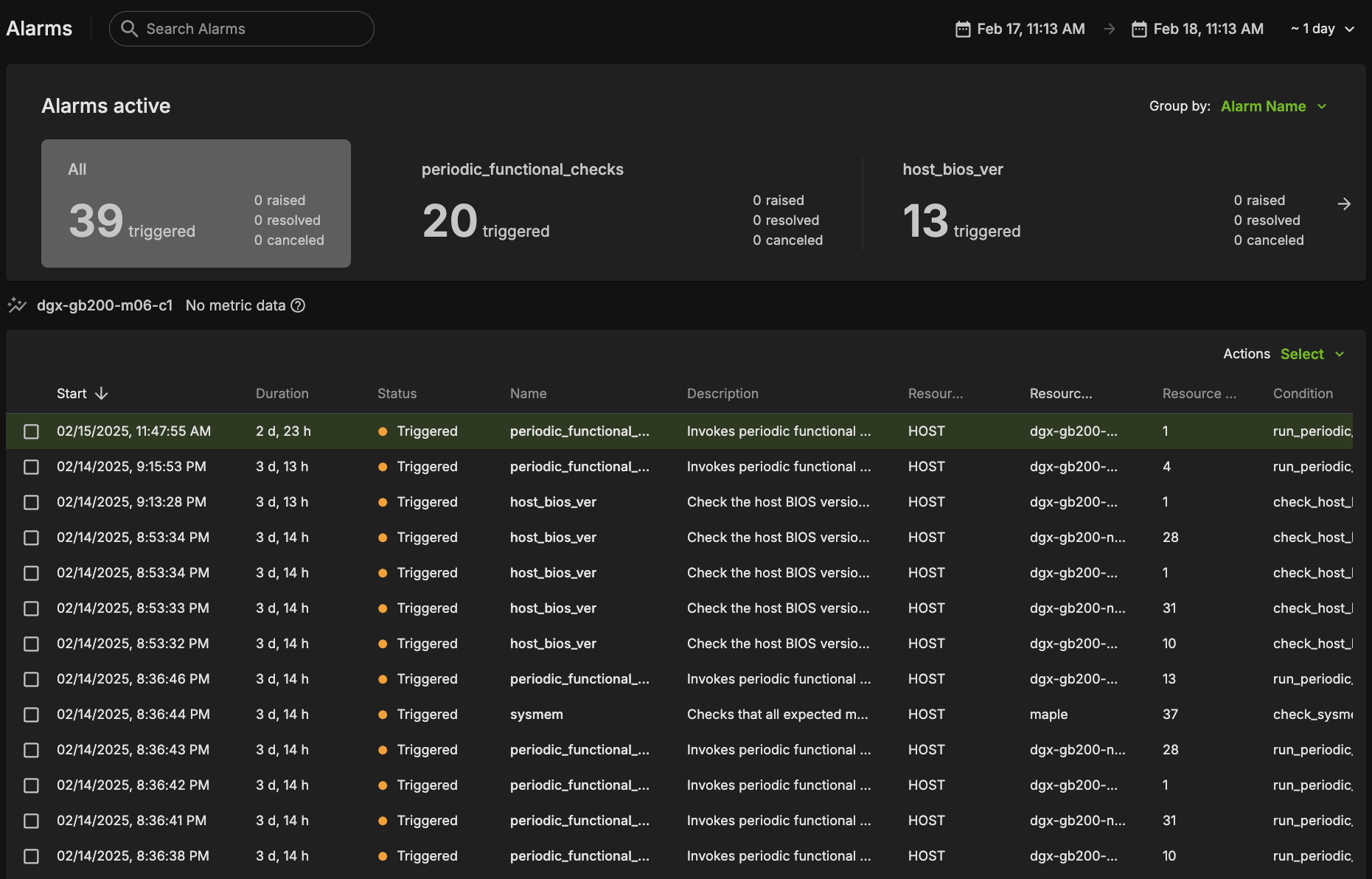
The alarms dashboard is an overview of all alarms and the state of your system. In this view, alarms are summarized by counts of alarms firing, alarms firing most frequently, and a configurable list of most frequently firing, canceled, or resolved alarms. This is meant to be a starting point for any investigations of possible issues with your systems, and you may click any alarm for further details.
BCM Slurm Job Lifecycle Checks (Prolog and Epilog)#
When a Slurm job is submitted, the Autonomous Hardware Recovery Agent automatically runs a set of checks at the start and end of the job to validate node health and stability. These are known as Prolog and Epilog checks.
Prolog Checks (run before the job starts):
If a check fails, the node is marked as DRAIN, and the job is re-queued.
If it passes, the job proceeds normally. Epilog Checks (run after the job finishes):
If a check fails, the node is also marked as DRAIN.
These scripts are automatically pushed to each node when the job runs, but they are not visible or configurable through the Nvidia Autonomous Hardware Recovery UI. To review them, navigate to Shoreline_files/scripts/slurm in the NVIDIA Mission Control package.
Note: Prolog and Epilog checks are disabled by default and should only be enabled after the nodes are confirmed to be healthy. Use the following runbooks to manage them:
SLURM_CHECKS_ENABLE– enables the checksSLURM_CHECKS_DISABLE– disables the checks
Unlike the Prolog and Epilog checks, Periodic Checks are defined within the NVIDIA Mission Control autonomous hardware recovery interface as Alarms, and are detailed in the next section. They will be automatically enabled for racks that pass Single Rack Testing but may also be manually enabled or disabled for specific racks by running the ALARMS_RACK_ENABLE AND ALARMS_RACK_DISABLE runbooks.
Periodic Health Checks (Alarms)#
Periodic Checks are separate from Prolog and Epilog and run at regular intervals to monitor system health. These are managed as Alarms in the Nvidia Autonomous Hardware Recovery UI and perform the following:
Automatically enabled for racks that pass Single Rack Testing
Automatically disabled during firmware upgrade and Break/fix
Can be manually enabled or disabled at any time
The alarm_base is the Resource Query they run against. To control them manually, use the following runbooks:
ALARMS_RACK_ENABLE– enables periodic alarms for selected racks. Please note, a node having themaintenancetag will override these settings.ALARMS_RACK_DISABLE– disables them
Periodic Checks are fully visible and configurable in the UI through the alarm section. Below is a list of the configured Alarms, grouped by their check interval:
Frequent Checks (5m)#
The system will run the following checks to check your system on a regular, 5 minute time period.
bmc_sensors#
Checks the sensors from the Baseboard Management Controller (BMC) to ensure the proper data is returned.
sysmem#
Checks that all expected memory DIMMs are present.
dns_host#
Checks the DNS configuration and resolution for the host.
eth_state#
Checks that the ConnectX devices are present, active, and in the physical LinkUp state using ibstat, and also matching the expected transfer rate.
raid_count#
Checks that the raid configuration matches the expected mdstat configuration.
gpu_temp_history#
Checks System Event Log (SEL) history looking for GPU temperature issues.
gpu_alloc_temp#
Checks if the GPU temperatures are above a threshold.
periodic_bmc_host_checks#
The following groups of periodic functional checks are a subset of the BCM Prolog checks that run at predefined intervals as NVIDIA Mission Control autonomous hardware recovery Alarms. These checks consist of:
check_bmc_ipmi_version : Checks BMC IPMI version against an expected value
check_nvidia_module_loaded : Verifies the NVIDIA module is loaded in the host OS
check_host_os_version : Verifies the DGX OS version matches the expected value
check_nvsm_status : Verify the NVSM service is currently active
periodic_cpu_mem_checks#
The following groups of periodic functional checks system memory:
check_cpu_health : Verifies CPU sockets and cores are present and online
check_dimm_count : Checks that all expected memory DIMMs are present
check_dimm_size : Checks that the size of each memory DIMM matches the expected values
check_memory_swap_size : Checks that the memory swap size matches the expected value
periodic_gpu_nvlink_checks#
The following groups of periodic functional perform NV Link related checks:
check_gpu_pci : Checks that all GPUs are present on the lspci interface and with the correct link width and speed
check_gpu_error : Checks GPUs for ECC errors, retired pages, and throttles present
check_gpu_powerstate : Checks the powerstate for each GPU and compares against an expected value
check_gpu_param : Checks that specified GPU parameters are present and correct for the host
check_nvlink_health : Checks that links are active for each GPU, the speed is correct, fabric registration has been completed, are running at full bandwidth, and belong to the same NVLink domain and partition.
check_gpu_topology :Checks that there are no issues with the p2p topology within the node
check_gpu_telemetry : Checks that various sensors can be successfully read from the GPU using nvidia-smi
check_gpu_power_limit : Checks that the power limit is correct for each GPU
check_nvidia_inforom_ver : Checks that the inforom version is correct for each GPU
check_gpu_clock_info :Checks that the maximum clock speed is correct for each GPU
check_remapped_row : Checks if any remapped row events have occurred
periodic_network_checks#
check_ib_ber_and_ro : Checks if the PCI_WR_ORDERING field is set to relaxed and also the bit error rate of the CX7 using mlxlink
check_ib_port_rcv_errors :Check Infiniband devices port RCV errors
check_ib_cables : Checks the cable info using mlxcables
check_bf3_speed : Validates that the BlueField devices are operating at the correct speed and that the proper number of devices are in the “Up” state. This check will run, but never fail
periodic_storage_checks#
check_pex_switch_health : Checks that the PEX switches are present, have the correct PCIe link speed and width, and the downstream devices have enumerated to lspci
check_cx_config : Checks that the ConnectX devices have the correct PCIe link speed and width using lspci and ACS config using setpci
check_nvme_health : Checks that the PCIe link speed and width of each NMVe device matches the expected value
check_storage_dir : Checks that the host has functional access to the home storage
check_storage_util : Checks that the used local storage on the host is below a given threshold
periodic_error_checks#
Checks journald for machine check events, Xid, AER, CPER, I/O, GPU fell off the bus, and other generic errors.
Hourly Checks#
nfs_mounts#
Verifies required mount points.
daily_informational#
This setting checks for issues where the severity and remediation may not be critical. This alarm will only be triggered once per day, and results may be viewed in the resulting runbook run.
check_sel_event : Read the SEL events from the BMC and ensure none are asserted
check_dgx_os_version : Verifies the DGX OS version matches the expected value
check_gpu_vbios_ver : Checks the VBIOS version of the GPUs and compares against an expected value
check_nvme_fw_ver : Checks that the FW version for each NVMe matches an expected value
check_kernel_commandline_opt : Verifies the specified kernel option(s) is present in the current kernel’s boot parameters
check_host_bios_ver : Verifies the system’s BIOS version
check_kernel_ver : Verifies the current version of the Linux kernel
check_host_package_versions : Queries the installed packages on the host
nv_container_cli_info : Retrieves information about the NVIDIA container CLI (driver and devices)
Daily Checks#
cpu_stepping#
Checks that the CPU stepping parameter is correct for each CPU.
numa_node_count#
Checks that the correct count of Non-uniform memory access (NUMA) nodes are configured with the CPU cores.
NVIDIA Mission Control autonomous hardware recovery Alarm Configuration#
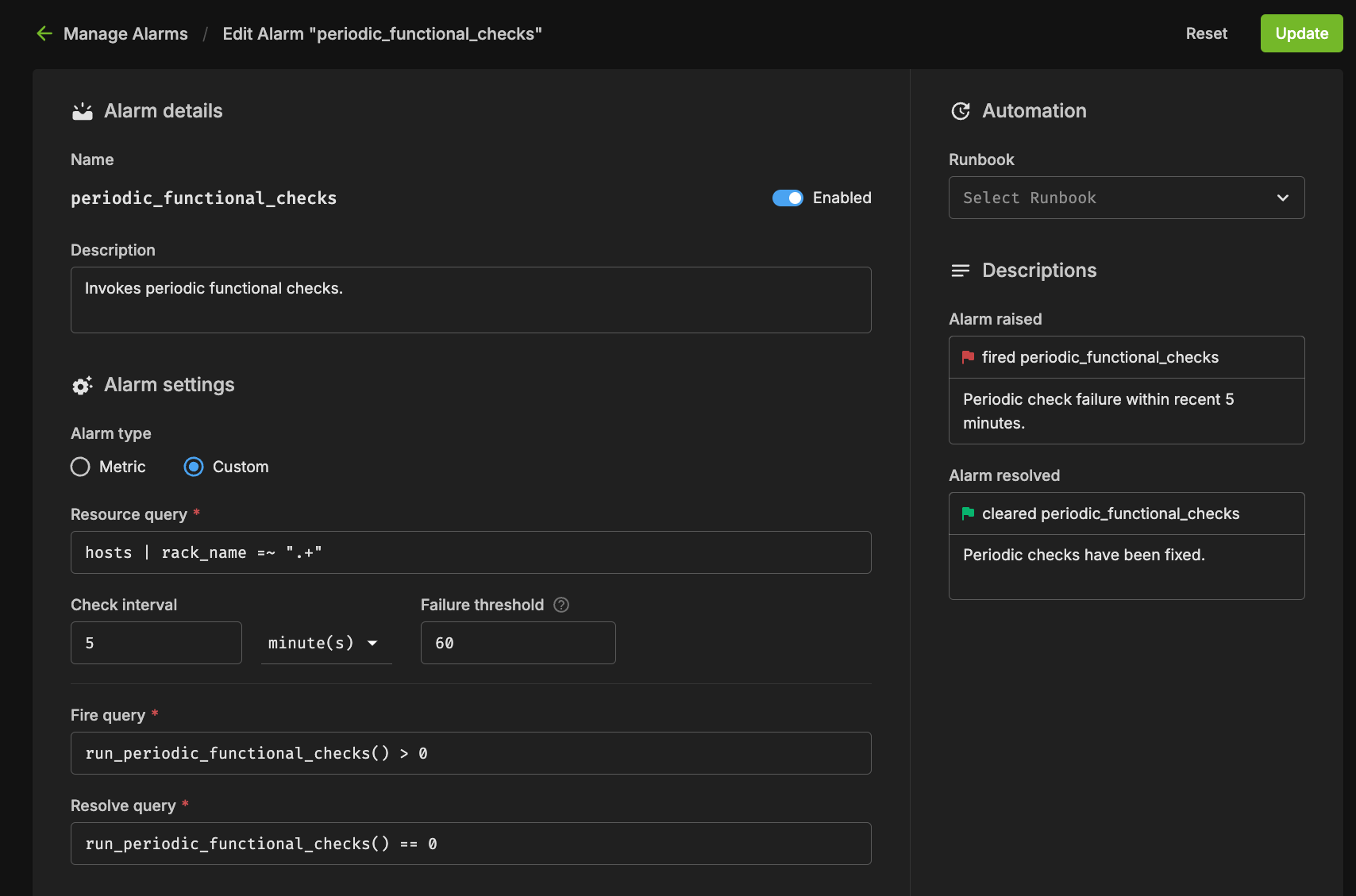
There are several components to an alarm, with the key pieces being the Resource Query, Fire Query, Resolve Query, Check Interval, and Automation. Below you can see an example configuration.
Resource Query#
The resource query allows you to customize the resources (hosts, pods, gpus) on which the checks will be performed. In the example above, the `hosts | rack_name =~ “.*”` will only check alarms on hosts which have a value set for the “rack_name” tag.
Fire Query#
The fire query is a condition that, when true, will cause the alarm to begin firing. It will be run at each interval.
Resolve Query#
Similar to the fire query, the Resolve query is a condition that will resolve the alarm when true. Resolving an alarm will cause firing to cease and the state to change to Resolved.
Check Interval#
The interval at which the fire and resolve queries are checked.
Alarm States#
If an Alarm has triggered, it will be in one of the following three states:
Triggered#
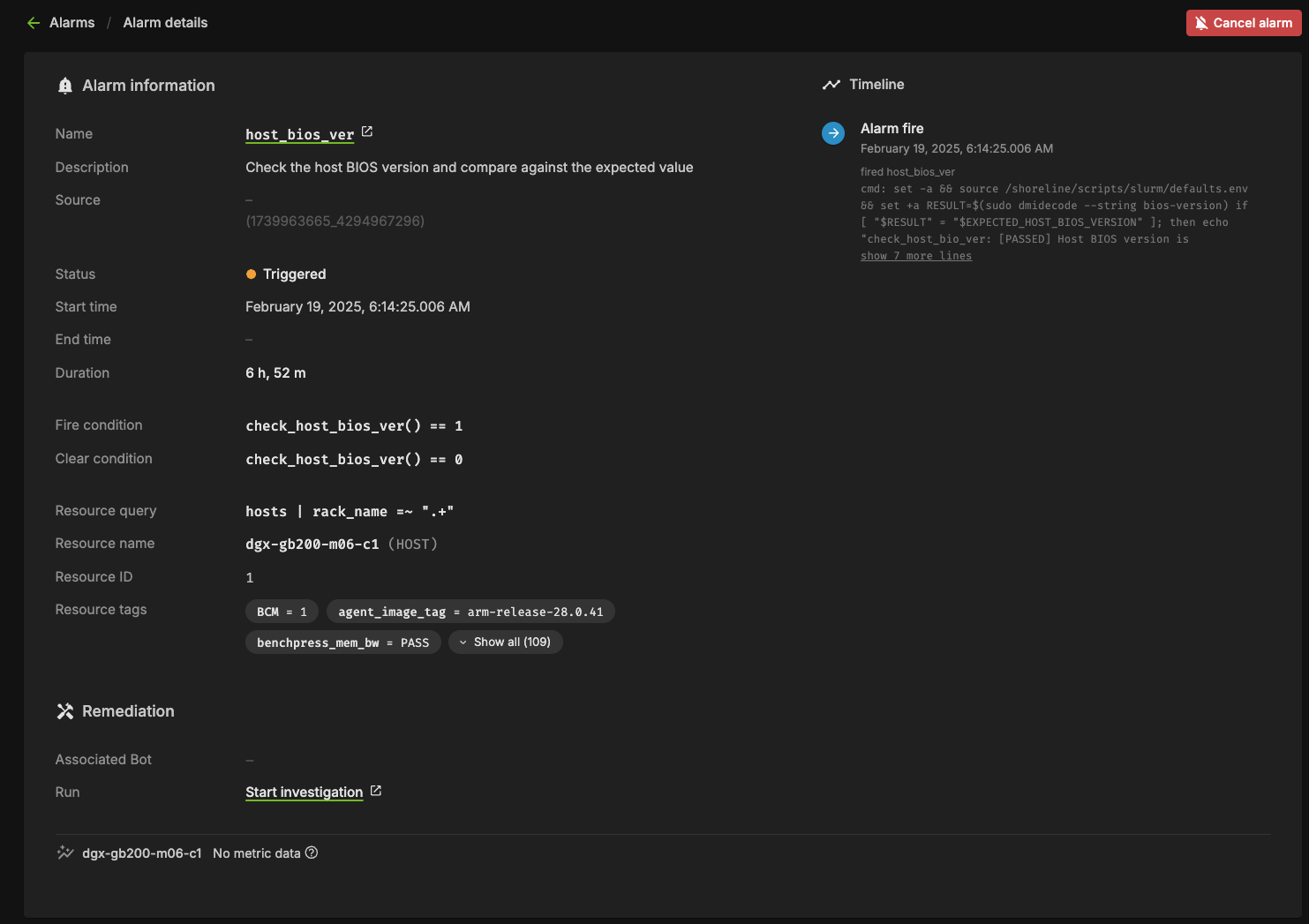
This state means the alarm is currently firing. Any automation (break/fix) will subsequently be invoked to remediate any issues, potentially resolving the alarm. Alternatively, the user could cancel the alarm by clicking the “Cancel alarm.”
Clicking into the triggering alarm will give you more details on what caused the alarm, metadata and resources relating to the alarm, and will also allow you to view log output from the check itself.
Resolved#
When the clear query of an alarm evaluates to true for a firing alarm, the status will be changed to Resolved. Automation triggered runbooks will invoke break/fix operations that should be configured to result in a resolved alarm.
Canceled#
When a user cancels an alarm from the dashboard, or from the triggered alarm itself, its state will become Canceled. Also, if an alarm configuration is changed for an alarm in the Triggered state, it will be canceled since it was triggered against a defunct configuration.
Firmware Upgrades with NVIDIA Mission Control autonomous hardware recovery#
NVIDIA Mission Control autonomous hardware recovery provides functionality for upgrading, cycling, and verifying firmware and the corresponding OS within your GB200 racks. The four distinct components for which firmware can be upgraded using this process are:
Compute trays
Switches
Mellanox
NVOS
The workflow invocation is performed using autonomous hardware recovery’s Runbooks. To view all Firmware upgrade related runbooks, you may search using the FIRMWARE_UPGRADE label.
NVIDIA Mission Control autonomous hardware recovery Break/Fix Workflow#
NVIDIA Mission Control autonomous hardware recovery provides automated break/fix workflows to handle tray failures for GB200. These workflows execute a series of diagnostic steps to determine the cause of the failure and take necessary repair steps and create Support tickets, when opted in to the support ticket service, for the issues that cannot be auto resolved.
The automated break/fix workflow is designed to efficiently diagnose and remediate issues, with clear paths for different failure scenarios and comprehensive validation to ensure systems are properly restored to service.
Key Features#
Automatic Detection: Identifies drained nodes without manual intervention
Intelligent Triage: Routes to appropriate diagnostic workflows based on failure symptoms
Comprehensive Diagnostics: Performs thorough hardware and software checks
Automated Remediation: Attempts to resolve issues without human intervention when possible
Detailed Reporting: Provides comprehensive logs for RMA or further troubleshooting
Entrypoint of Break/Fix Workflow#
A centralized automated break/fix interface has been established to facilitate streamlined diagnostics and remediation. This unified entry point provides comprehensive access to the break/fix framework, enabling efficient navigation and implementation of all remediation procedures.
Break/Fix Workflow Components#
The break/fix system consists of several key components that work together to diagnose and remediate issues with compute trays. Below is a detailed explanation of each component:
BREAKFIX_TRIGGER#
The entry point runbook that:
Runs automatically every five minutes using the time trigger
Checks for any drained nodes in BCM
Initiates the triage process for affected nodes
Routes to the appropriate diagnostic workflow
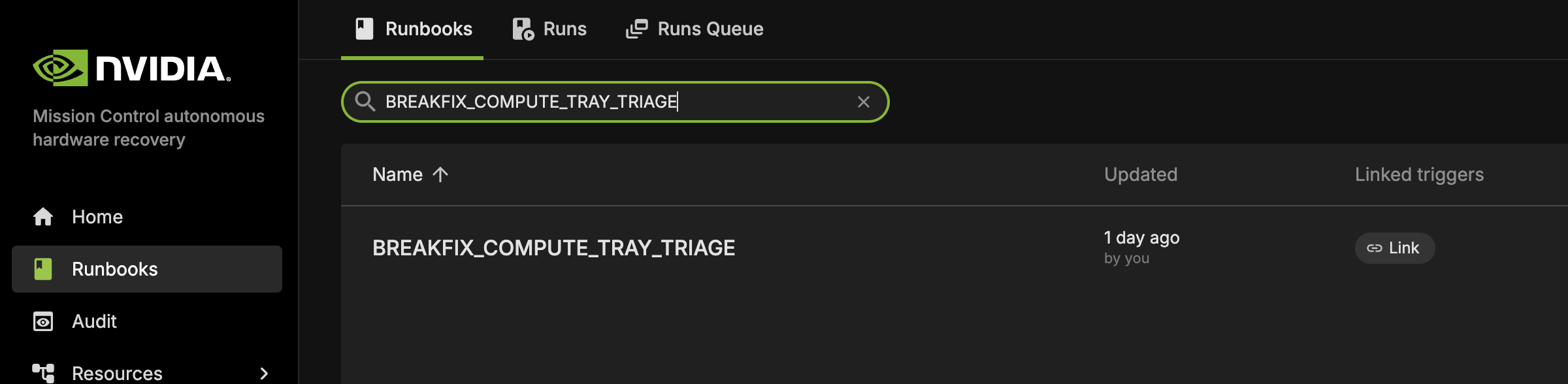
BREAKFIX_COMPUTE_TRAY_TRIAGE#
This runbook is automatically triggered by BREAKFIX_TRIGGER and performs comprehensive triage on drained compute trays.
GPU_RECOVERY#
This specialized diagnostic runbook is automatically invoked by BREAKFIX_COMPUTE_TRAY_TRIAGE when GPU-related issues are detected.

BREAKFIX_COMPUTE_TRAY_VALIDATION#
This runbook is automatically executed after remediation actions to validate system health as part of the automated workflow following triage and recovery operations.

BREAKFIX_DIAG_DUMP#
This runbook is automatically triggered when validation tests fail, collecting comprehensive diagnostic information for support ticket creation.

NVIDIA Mission Control autonomous hardware recovery Break/Fix Post RMA#
The NVIDIA Mission Control autonomous hardware recovery Break/Fix Post RMA workflow automates the process of bringing hardware components back into service after a Return Merchandise Authorization (RMA) replacement. This workflow ensures that replaced hardware is properly configured, firmware is updated to the correct versions, and the component is thoroughly validated before returning to production.
Key Features#
Automated Configuration: Configures replaced hardware components with proper settings
Firmware Updates: Updates firmware to match the required versions for the environment
Boot Order Correction: Ensures proper boot sequence for reliable operation
Comprehensive Validation: Performs thorough testing to verify hardware functionality
Seamless Integration: Automatically returns validated hardware to service
Post RMA Workflow Components#
The Post RMA workflow consists of several key steps that ensure replaced hardware is properly configured and validated:
Physical Replacement Procedures#
Compute Tray Removal: Detailed step-by-step instructions for safely removing failed compute trays, including power down procedures, cable disconnection, and proper handling
Compute Tray Installation: Comprehensive installation guide covering component migration (M.2 boot drive, E1.S cache drives, HMC, BMC, TPM), rail installation, and cable reconnection
Component Migration: Transfer of critical components from old tray to new tray while maintaining proper slot assignments and ESD protection
BCM Inventory Update#
ONLY REQUIRED FOR NEW HARDWARE: Updates BCM inventory information using the
BREAKFIX_POST_RMA_UPDATE_BCM_INVENTORYrunbook when a new compute tray is installedSkip this step for repaired trays as MAC addresses remain unchanged
Ensures MAC addresses and other hardware identifiers are correctly registered in BCM (new MAC addresses are provided by the Enterprise Support team who manage serial numbers and asset inventory for customer deployments)
Enables proper management and monitoring of the replaced hardware
BMC Credential Management#
Creates necessary BMC credential files for secure access to hardware components
Establishes secure communication channels for configuration operations
BlueField Configuration#
Checks if BlueField devices are in NIC mode
Enables OPROM on BlueField devices to ensure proper initialization
Configures hardware components for optimal operation
Boot Order Correction#
Ensures the boot sequence is properly configured
Prevents boot failures and improves system reliability
Performs power reset through BMC after configuration changes
Connectivity Verification#
Verifies SSH connectivity to compute nodes
Checks BCM device status to ensure proper registration
Confirms network accessibility before proceeding with firmware updates
Firmware Updates#
Compute Firmware: Updates compute firmware using the
BREAKFIX_FIRMWARE_UPGRADE_COMPUTE_POST_RMArunbookMellanox Firmware: Updates BlueField and ConnectX firmware using the
BREAKFIX_FIRMWARE_UPGRADE_MELLANOX_POST_RMArunbookEnsures all hardware components are running the correct firmware versions
System Validation#
Waits for hosts to come back online after each firmware update cycle
Verifies agent connectivity to ensure management capabilities
Runs comprehensive validation tests using
BREAKFIX_COMPUTE_TRAY_VALIDATIONOpens nodes in BCM and validates Slurm readiness for successful nodes
Post RMA Workflow Results#
After successful completion of the Post RMA workflow:
Hardware Configuration:
Physical components (M.2, E1.S drives, HMC, BMC, TPM) properly migrated to new tray
BlueField devices configured in NIC mode with OPROM enabled
Boot order corrected for reliable system startup
Power management and connectivity verified
Firmware Updates:
Compute firmware updated to specified versions using
BREAKFIX_FIRMWARE_UPGRADE_COMPUTE_POST_RMAMellanox BlueField and ConnectX firmware updated to specified versions using
BREAKFIX_FIRMWARE_UPGRADE_MELLANOX_POST_RMAAll firmware components validated against expected versions
System Integration:
SSH connectivity to compute nodes verified
BCM device status confirmed and registered
Agent connectivity established for management capabilities
Comprehensive validation tests passed using
BREAKFIX_COMPUTE_TRAY_VALIDATION
Service Restoration:
Nodes automatically opened in BCM for job scheduling
Slurm readiness validated for successful nodes
Hardware returned to production service automatically
Failure Handling: For any components that fail validation:
System maintains them in non-production state with maintenance tags
Detailed error logs available in runbook execution cells
Manual intervention required to address specific failure causes
Nodes remain drained until issues are resolved
NVIDIA Mission Control autonomous hardware recovery Domain Triage#
The BREAKFIX_DOMAIN_TRIAGE runbook provides manual diagnostics and troubleshooting for NVSwitch and NVLink domain-level issues. This workflow can be automatically triggered by BREAKFIX_TRIGGER when an entire rack is in broken state, or manually executed when domain-level problems are identified. This workflow is designed to collect comprehensive diagnostic information when problems are detected at the domain level, facilitating efficient resolution and minimizing system downtime.
Domain Triage Workflow Components#
The Domain Triage workflow consists of several key steps that ensure thorough diagnosis of NVSwitch and NVLink domain issues:
Compute Node Management#
Adds AHR maintenance tags to all compute nodes in the affected rack
Drains compute nodes from Slurm to prevent workloads from running during diagnostics (no jobs will be scheduled on the entire rack)
NVSwitch Credential Management#
Retrieves BMC credentials for NVSwitches from BCM
Establishes secure access to NVSwitch components for diagnostics
Collects system rack serial numbers for identification
Diagnostic Data Collection#
Dumps BMC logs from NVSwitches to capture hardware-level events
Runs NVDebug tool to collect detailed information about NVSwitch status
Executes Nvlmapper tool to check NVLink status and connectivity
Runs PartnerDiag for comprehensive hardware diagnostics
Case Management#
Collects and organizes all diagnostic logs into a single package
Creates a Support ticket with all relevant diagnostic information
Attaches detailed logs to facilitate efficient troubleshooting
NVIDIA Mission Control autonomous hardware recovery Break/Fix Switch Post RMA#
Switch Post RMA Introduction#
The NVIDIA Mission Control autonomous hardware recovery Break/Fix Switch Post RMA workflow automates the process of bringing NVSwitch components back into service after a Return Merchandise Authorization (RMA) replacement. This comprehensive workflow includes both physical switch tray replacement procedures and automated software configuration to ensure that replaced switch hardware is properly configured, firmware is updated to the correct versions, and the component is thoroughly validated before returning to production.
Key Features#
Physical Replacement Procedures: Detailed instructions for safe switch tray removal and installation with proper cooling and power management
Compute Node Management: Adds maintenance tags and drains compute nodes during switch replacement to prevent workload interference
Switch Connectivity Verification: Establishes and verifies SSH connectivity to replaced switch components
Factory Reset and ZTP: Performs factory reset and monitors Zero Touch Provisioning for clean initialization
Firmware Updates: Updates switch firmware to match required versions using
BREAKFIX_FIRMWARE_UPGRADE_SWITCH_POST_RMASystem Validation: Comprehensive testing including NMX controller verification, compute node reboots, and compute tray validation
Switch Post RMA Workflow Components#
The Switch Post RMA workflow consists of several key steps that ensure replaced switch hardware is properly configured and validated:
Physical Replacement Procedures#
Switch Tray Removal: Detailed instructions for powering down the entire rack, cooling procedures, cable disconnection, and safe tray removal
Switch Tray Installation: Comprehensive installation guide covering rail migration, tray insertion, cable reconnection, and power-on sequence
Compute Node Management#
Adds maintenance tags to all compute nodes in the affected rack
Drains compute nodes from Slurm to prevent workload interference during switch replacement
BCM Inventory Update#
ONLY REQUIRED FOR NEW HARDWARE: Updates BCM inventory information using
BREAKFIX_POST_RMA_UPDATE_SWITCH_BCM_INVENTORYwhen a new switch is installedSkip this step for repaired switches as MAC addresses remain unchanged
Ensures BMC MAC and COMe MAC addresses are correctly registered in BCM (new MAC addresses are provided by the Enterprise Support team who manage asset inventory for customer deployments)
Enables proper management and monitoring of the replaced switch hardware
Switch Connectivity and Configuration#
Retrieves switch IP and credentials from BCM
Verifies SSH connectivity to the switch node
Updates ZTP settings in BCM with NVOS image file configuration
Ensures the switch is reachable for configuration operations
Factory Reset and ZTP#
Performs factory default reset on the switch
Monitors Zero Touch Provisioning (ZTP) status until successful completion
Creates support tickets if ZTP fails
Switch BMC Credential Management#
Retrieves BMC credentials for NVSwitches from BCM
Establishes secure access to switch components for diagnostics
Collects system rack serial numbers for identification
Firmware Updates#
Upgrades switch firmware to the specified version using
BREAKFIX_FIRMWARE_UPGRADE_SWITCH_POST_RMAVerifies switch connectivity after firmware updates
System Health and Validation#
Performs switch tray health checks
Verifies NMX-C and NMX-T controller status on the active switch node
Reboots all compute nodes in the rack to ensure proper connectivity
Waits for agent connectivity to confirm successful recovery
Validates there are no inactive NVLinks
Runs comprehensive compute tray validation using
BREAKFIX_COMPUTE_TRAY_VALIDATION
B200#
Dashboard#
NVIDIA Mission Control autonomous hardware recovery dashboard provides a comprehensive view of the status of all resources in the cluster, displaying the progress of testing at various stages for each node (control, compute and switch nodes). It shows which tests are completed, which ones have passed, and which have failed. This allows users to easily track the overall health and status of the cluster, identify any issues, and assess the readiness of each resource.
Navigating to Dashboards#
Visit the NVIDIA Mission Control autonomous hardware recovery homepage, navigate to the ‘Resources’ menu, and click on ‘Dashboards’ to access the dashboard page.
The Landing page contains two tabs: Dashboards and Dashboard Views.
The Dashboards lists all the Dashboards available. All these dashboards reflect the current status of the cluster and the test status.
A Dashboard View is a snapshot of the Dashboard that captures the data at a specific point in time. This snapshot remains static, preserving the exact state and data of the Dashboard as it appeared at that moment, regardless of any future changes or updates to the live data.
Cluster Validation#
The NVIDIA Mission Control autonomous hardware recovery portal enables efficient automation of baseline testing procedures for DGX B200 systems. This comprehensive testing framework can be flexibly executed across various scales of infrastructure, from individual compute nodes to multiple node configurations. The system performs extensive validation of critical compute node components, including CPU/GPU/Memory/storage functionality, network connectivity, and firmware versioning. Additionally, it incorporates industry-standard performance benchmarking tools such as HPL, NCCL, and Nemotron (Large Language Model) to assess system capabilities. This streamlined approach significantly enhances both testing efficiency and thoroughness while reducing execution time.
Note: In B200 systems, “Unit” refers to an individual compute node.

Entrypoint of Automated Testing#
A centralized automated baseline testing interface has been established to facilitate streamlined test execution and management. This unified entry point provides comprehensive access to the testing framework, enabling efficient navigation and one-click implementation of all testing procedures.
To access the baseline testing interface:
Access the NVIDIA Mission Control autonomous hardware recovery portal using your credentials and navigate to the Runbooks section.
Locate the “DGX_SUPERPOD_BASELINE_TESTING” runbook through the search functionality (please reference the interface depicted below)

Upon selecting the “DGX_SUPERPOD_BASELINE_TESTING” runbook, you will be presented with the interface shown below. The subsequent sections of this documentation will provide detailed guidance on executing various testing procedures.

Firmware checks#
NVIDIA Mission Control autonomous hardware recovery includes firmware checks that extract the current firmware versions of the trays and switches, and compare them with the expected versions specified in the Source of Truth (SOT) file. The SOT file includes the expected versions for all components such as OS, HMC, ConnectX, etc., and is prepopulated. The SOT file can be obtained from the NVIS team.
The runbook extracts the expected versions of all firmware components and compares the current versions against them.
Updating the SOT file#
Place the SOT JSON file on the headnode and provide the complete file path as the input FW_SOURCE_JSON_PATH to the DGX_SUPERPOD_BASELINE_TESTING runbook. To update the file, simply replace it with the new file and update the path in the input parameter of the runbook accordingly.
Thresholds and Defaults#
The thresholds and default values for various tests are defined in the Golden Config File. The runbook picks the appropriate values, and compares it against the values on the nodes. This includes defaults such as number of GPUs and expected benchmarks for benchmarking tests (such as SRT2).
Golden Config File#
The Golden Config File (referred to as the defaults.env file on the trays and control nodes) contains the expected values for all benchmark thresholds, and other relevant settings. This file is distributed across all trays and loaded as environment variables, making its contents available during testing.

Updating the Golden Config File#
To update the value of defaults.env file, navigate to the file under Shoreline_files/scripts/slurm/defaults.env
Once the changes are made and saved, use the NVIDIA Mission Control autonomous hardware recovery Runbook Deployment section (from the NMC AHR installation documentation) to apply them via OpenTofu. This process will create a File object on NVIDIA Mission Control autonomous hardware recovery, which pushes the updated file automatically to all control and compute trays. Various tests, including firmware checks, prolog, and epilog checks, source the defaults.env file and utilize the expected values, now available as environment variables.
Reports of Testings#
NVIDIA Mission Control autonomous hardware recovery provides reports for baseline testing, reflecting the status of nodes (compute and switches) at each test stage. These reports help identify and troubleshoot root causes.
To access the NVIDIA Mission Control autonomous hardware recovery reports, click on Resources in the side menu, then select Reports.

The Landing page contains two tabs: Report Templates and Published Reports.

Report Templates provide templates for each stage of Baseline testing. These templates include bar graphs that display the PASS or FAIL status for different nodes during the tests. However, these templates are static and do not store any test data. This means that while you can view the templates, you cannot save or modify the test results within them.
To generate a report that records the test results along with timestamps, click Publish. This action will create a new report based on the template, which will capture the current status of the tests. The report will display PASS for tests that were successful and FAIL for those that did not pass, with each status reflecting the most up-to-date information. The report also includes links to additional reports at the top of the page. These links allow you to access the detailed results of the individual SUT and MUT tests that make up each stage, giving you a deeper insight into the performance and status of each test within the overall baseline testing process.
Note: Reports reflect updated information only after the SUT and MUT tests have been executed.
Automated Health Checks with NVIDIA Mission Control autonomous hardware recovery#
Introduction#
NVIDIA Mission Control autonomous hardware recovery provides a full suite of automated health checks to detect failures at the tray, node, and system levels. In addition, system wide health checks are performed by integrating with the UFM and NetQ network control planes. Health check data is reported back to BCM’s BaseView and/or the in-cluster LGTM stack. These health checks are performed at two layers: BCM job invocation, and as periodic health checks via NVIDIA Mission Control autonomous hardware recovery.
Alarms Dashboard#
The alarms dashboard is an overview of all alarms and the state of your system. In this view, alarms are summarized by counts of alarms firing, alarms firing most frequently, and a configurable list of most frequently firing, canceled, or resolved alarms. This is meant to be a starting point for any investigations of possible issues with your systems, and you may click any alarm for further details.

BCM Slurm Job Lifecycle Checks (Prolog and Epilog)#
When a Slurm job is submitted, the Autonomous Hardware Recovery Agent automatically runs a set of checks at the start and end of the job to validate node health and stability. These are known as Prolog and Epilog checks. Prolog Checks (run before the job starts):
If a check fails, the node is marked as DRAIN, and the job is re-queued.
If it passes, the job proceeds normally. Epilog Checks (run after the job finishes):
If a check fails, the node is also marked as DRAIN.
These scripts are automatically pushed to each node when the job runs, but they are not visible or configurable through the Nvidia Autonomous Hardware Recovery UI. To review them, navigate to Shoreline_files/scripts/slurm in the NVIDIA Mission Control package.
Note: Prolog and Epilog checks are disabled by default and should only be enabled after the nodes are confirmed to be healthy. Use the following runbooks to manage them:
SLURM_CHECKS_ENABLE– enables the checksSLURM_CHECKS_DISABLE– disables the checks
Unlike the Prolog and Epilog checks, Periodic Checks are defined within the NVIDIA Mission Control autonomous hardware recovery interface as Alarms, and are detailed in the next section. They will be automatically enabled for racks that pass Single Rack Testing but may also be manually enabled or disabled for specific racks by running the “ALARMS_ENABLE” AND “ALARMS_DISABLE” runbooks.
Periodic Health Checks (Alarms)#
Periodic Checks are separate from Prolog and Epilog and run at regular intervals to monitor system health. These are managed as Alarms in the Nvidia Autonomous Hardware Recovery UI and perform the following:
Automatically enabled for racks that pass Single Rack Testing
Automatically disabled during firmware upgrade and Break/fix
Can be manually enabled or disabled at any time
The alarm_base is the Resource Query they run against. To control them manually, use the following runbooks:
ALARMS_ENABLE– enables periodic alarms for selected racks. Please note, a node having themaintenancetag will override these settings.ALARMS_DISABLE– disables them
Periodic Checks are fully visible and configurable in the UI through the alarm section. Below is a list of the configured Alarms, grouped by their check interval:
Frequent Checks (5m)#
The system will run the following checks to check your system on a regular, 5 minute time period.
bmc_sensors#
Checks the sensors from the Baseboard Management Controller (BMC) to ensure the proper data is returned.
sysmem#
Checks that all expected memory DIMMs are present.
dns_host#
Checks the DNS configuration and resolution for the host.
eth_state#
Checks that the ConnectX devices are present, active, and in the physical LinkUp state using ibstat, and also matching the expected transfer rate.
raid_count#
Checks that the raid configuration matches the expected mdstat configuration.
gpu_temp_history#
Checks System Event Log (SEL) history looking for GPU temperature issues.
gpu_alloc_temp#
Checks if the GPU temperatures are above a threshold.
periodic_bmc_host_checks#
The following groups of periodic functional checks are a subset of the BCM Prolog checks that run at predefined intervals as NVIDIA Mission Control autonomous hardware recovery Alarms. These checks consist of:
check_bmc_ipmi_version : Checks BMC IPMI version against an expected value
check_nvidia_module_loaded : Verifies the NVIDIA module is loaded in the host OS
check_host_os_version : Verifies the DGX OS version matches the expected value
check_nvsm_status : Verify the NVSM service is currently active
periodic_cpu_mem_checks#
The following groups of periodic functional checks system memory:
check_cpu_health : Verifies CPU sockets and cores are present and online
check_dimm_count : Checks that all expected memory DIMMs are present
check_dimm_size : Checks that the size of each memory DIMM matches the expected values
check_memory_swap_size : Checks that the memory swap size matches the expected value
periodic_gpu_nvlink_checks#
The following groups of periodic functional perform NVLink related checks:
check_gpu_pci : Checks that all GPUs are present on the lspci interface and with the correct link width and speed
check_gpu_error : Checks GPUs for ECC errors, retired pages, and throttles present
check_gpu_powerstate : Checks the powerstate for each GPU and compares against an expected value
check_gpu_param : Checks that specified GPU parameters are present and correct for the host
check_nvlink_health : Checks that links are active for each GPU, the speed is correct, fabric registration has been completed, are running at full bandwidth, and belong to the same NVLink domain and partition.
check_gpu_topology : Checks that there are no issues with the p2p topology within the node
check_gpu_telemetry : Checks that various sensors can be successfully read from the GPU using nvidia-smi
check_gpu_power_limit : Checks that the power limit is correct for each GPU
check_nvidia_inforom_ver : Checks that the inforom version is correct for each GPU
check_gpu_clock_info : Checks that the maximum clock speed is correct for each GPU
check_remapped_row : Checks if any remapped row events have occurred
periodic_network_checks#
check_ib_ber_and_ro : Checks if the PCI_WR_ORDERING field is set to relaxed and also the bit error rate of the ConnectX using mlxlink
check_ib_port_rcv_errors : Check Infiniband devices port RCV errors
check_ib_cables : Checks the cable info using mlxcables
check_bf3_speed : Validates that the BlueField devices are operating at the correct speed and that the proper number of devices are in the “Up” state. This check will run, but never fail
periodic_storage_checks#
check_pex_switch_health : Checks that the PEX switches are present, have the correct PCIe link speed and width, and the downstream devices have enumerated to lspci
check_cx_config : Checks that the ConnectX devices have the correct PCIe link speed and width using lspci and ACS config via setpci
check_nvme_health : Checks that the PCIe link speed and width of each NMVe device matches the expected value
check_storage_dir : Checks that the host has functional access to the home storage
check_storage_util : Checks that the used local storage on the host is below a given threshold
periodic_error_checks#
Checks journald for machine check events, Xid, AER, CPER, I/O, GPU fell off the bus, and other generic errors.
Hourly Checks#
nfs_mounts#
Verifies required mount points.
daily_informational#
Checks for which the severity and remediation may not be critical. This alarm will only be triggered once per day, and results may be viewed in the resulting runbook run.
check_sel_event : Read the SEL events from the BMC and ensure none are asserted
check_dgx_os_version : Verifies the DGX OS version matches the expected value
check_gpu_vbios_ver : Checks the VBIOS version of the GPUs and compares against an expected value
check_nvme_fw_ver : Checks that the FW version for each NVMe matches an expected value
check_kernel_commandline_opt : Verifies the specified kernel option(s) is present in the current kernel’s boot parameters
check_host_bios_ver : Verifies the system’s BIOS version
check_kernel_ver : Verifies the current version of the Linux kernel
check_host_package_versions : Queries the installed packages on the host
nv_container_cli_info : Retrieves information about the NVIDIA container CLI (driver and devices)
Daily Checks#
cpu_microcode_version#
Checks the CPU microcode version and compares against an expected value.
cpu_stepping#
Checks that the CPU stepping parameter is correct for each CPU.
numa_node_count#
Checks that the correct count of Non-uniform memory access (NUMA) nodes are configured with the CPU cores.
NVIDIA Mission Control autonomous hardware recovery Alarm Configuration#
There are several components to an alarm, with the key pieces being the Resource Query, Fire Query, Resolve Query, Check Interval and Automation. Below you can see an example configuration.

Resource Query#
The resource query allows you to customize the resources (hosts, pods, gpus) on which the checks will be performed. In the example above, the `hosts | name =~ “.*”` will only check alarms on hosts which have a value set for the “name” tag.
Fire Query#
The fire query is a condition that, when true, will cause the alarm to begin firing. It will be run at each interval.
Resolve Query#
Similar to the fire query, the Resolve query is a condition that will resolve the alarm when true. Resolving an alarm will cause firing to cease and the state to change to Resolved.
Check Interval#
The interval at which the fire and resolve queries are checked.
Automation#
You may use the Automation settings to have Runbooks triggered when an alarm fires, and you may also customize the informational messages that are displayed in the Alarm’s logs.
Alarm States#
If an Alarm has triggered, it will be in one of the following three states:
Triggered#
This state means the alarm is currently firing. Any automation (break/fix) will subsequently be invoked to remediate any issues, potentially resolving the alarm. Alternatively, the user could cancel the alarm by clicking the “Cancel alarm.”
Clicking into the triggering alarm will give you more details on what caused the alarm, metadata and resources relating to the alarm, and will also allow you to view log output from the check itself.

Resolved#
When the clear query of an alarm evaluates to true for a firing alarm, the status will be changed to Resolved. Automation triggered runbooks will invoke break/fix operations that should be configured to result in a resolved alarm.
Canceled#
When a user cancels an alarm from the dashboard, or from the triggered alarm itself, its state will become Canceled. Also, if an alarm configuration is changed for an alarm in the Triggered state, it will be canceled since it was triggered against a defunct configuration.
Firmware Upgrades with NVIDIA Mission Control autonomous hardware recovery#
Overview#
NVIDIA Mission Control autonomous hardware recovery provides functionality for upgrading, cycling, and verifying firmware and the corresponding OS within your B200 racks. The three distinct components for which firmware can be upgraded using this process are:
Motherboard Tray (CPU, PCH, BMC)
GPU Tray (GPU, NVSwitches, HMC)
Mellanox Devices
The workflow invocation is performed via autonomous hardware recovery’s Runbooks. To view all Firmware upgrade related runbooks, you may search by the FIRMWARE_UPGRADE label as shown below.


NVIDIA Mission Control autonomous hardware recovery Break/Fix Workflow#
Break/Fix Introduction#
NVIDIA Mission Control autonomous hardware recovery provides automated break/fix workflows to handle node failures for DGX B200 systems. These workflows execute a series of diagnostic steps to determine the cause of the failure and take necessary repair steps and create Support tickets for the issues that cannot be auto resolved.
The automated break/fix workflow is designed to efficiently diagnose and remediate issues, with clear paths for different failure scenarios and comprehensive validation to ensure systems are properly restored to service.
Note: In B200 systems, the break/fix workflow operates at the compute node level (individual DGX B200 servers), whereas in GB200 systems, it operates at the compute tray level (liquid-cooled units containing multiple GPU modules).


Figure: Compute Break/Fix Workflow - This diagram illustrates the end-to-end automated break/fix process for B200 systems, starting from the BREAKFIX_TRIGGER runbook that monitors for nodes drained with specific reasons every 5 minutes. The workflow shows how nodes are triaged through BREAKFIX_COMPUTE_TRAY_TRIAGE, which routes to either GPU_RECOVERY for GPU-specific issues or directly to validation. All paths converge on BREAKFIX_COMPUTE_TRAY_VALIDATION for comprehensive testing, with failed nodes proceeding to BREAKFIX_DIAG_DUMP for diagnostic collection and support ticket creation, while successful nodes are returned to service.
Key Features#
Automatic Detection: Identifies drained nodes without manual intervention
Intelligent Triage: Routes to appropriate diagnostic workflows based on failure symptoms
Comprehensive Diagnostics: Performs thorough hardware and software checks
Automated Remediation: Attempts to resolve issues without human intervention when possible
Detailed Reporting: Provides comprehensive logs for RMA or further troubleshooting
Entrypoint of Break/Fix Workflow#
A centralized automated break/fix interface has been established to facilitate streamlined diagnostics and remediation. This unified entry point provides comprehensive access to the break/fix framework, enabling efficient navigation and implementation of all remediation procedures.
To access the break/fix interface:
Access the NVIDIA Mission Control autonomous hardware recovery portal using your credentials and navigate to the Runbooks section.
Locate the “BREAKFIX_TRIGGER” runbook through the search functionality
Upon selecting the “BREAKFIX_TRIGGER” runbook, you will be presented with the interface showing the workflow for automated break/fix.

Run Break/Fix Workflow#
The BREAKFIX_TRIGGER is a time-triggered runbook that automatically runs every 5 minutes. When executed, it:
Automatically checks if there are any drained nodes from BCM
It checks the drain reason from BCM and proceeds only if the reason is in the allowed list (Excluded by ARE, Prolog error, Kill task failed, Epilog error, Duplicate jobid, Low RealMemory, or Not responding); otherwise, the runbook will exit.
Processes one node per execution cycle from the Slurm drained node pool and applies a maintenance tag in AHR to prevent duplicate processing, ensuring all drained nodes are handled sequentially across multiple runs
For each drained node, initiates the appropriate triage workflow
Begins diagnostic procedures based on the drain reason and node symptoms
No manual intervention is required to start the process
One can see the time trigger settings on the right side of the Runbook under Triggers, where it shows that it is currently enabled and runs every 5 minutes.

You can also manually trigger the workflow:
Navigate to the “BREAKFIX_TRIGGER” runbook in the Runbooks section
Select the “Create Run” button positioned in the top right corner of the interface

After initiating the process, a confirmation dialog will appear with a “View Run” link
Selecting this link will redirect you to a page displaying comprehensive job status and details
The automated nature of this workflow ensures that system issues are addressed promptly without requiring constant monitoring or manual intervention.
Break/Fix Workflow Components#
The break/fix system consists of several key components that work together to diagnose and remediate issues with compute nodes. Below is a detailed explanation of each component:
BREAKFIX_TRIGGER#
The entry point runbook that:
Runs automatically every 5 minutes via time trigger
Checks for any drained nodes in BCM
Initiates the triage process for affected nodes
Routes to the appropriate diagnostic workflow
BREAKFIX_COMPUTE_TRAY_TRIAGE#
This runbook is automatically triggered by BREAKFIX_TRIGGER and performs comprehensive triage on drained compute nodes.

This runbook performs comprehensive triage on drained compute nodes with two main workflows:
Workflow for DOWN Compute Nodes#
Initial Assessment
Tests connectivity using ping to check if compute nodes are UP or DOWN
Identifies nodes that are already down and require recovery
Recovery Process
Initiates power cycle for nodes that are down
Waits and checks if hosts come back online
Waits until the AHR agent is connected to confirm successful recovery
Failure Handling
Creates Support ticket for hosts that fail to start up (if opted in to support ticket service)
Validation
For recovered nodes, automatically runs BREAKFIX_COMPUTE_TRAY_VALIDATION to verify functionality
Workflow for UP Compute Nodes#
GPU Recovery Assessment
Checks if any GPU recovery action is present
Routes to GPU_RECOVERY runbook if GPU issues are detected
Automatically runs BREAKFIX_COMPUTE_TRAY_VALIDATION for nodes without specific issues
GPU_RECOVERY#
This specialized diagnostic runbook is automatically invoked by BREAKFIX_COMPUTE_TRAY_TRIAGE when GPU-related issues are detected.

This specialized diagnostic runbook focuses on GPU-related issues:
Verification and Assessment
Verifies the node is still drained from BCM
Categorizes recovery actions (Reboot, Reset, or None)
Recovery Actions Based on Type
For Reboot Action:
Reboots the node requiring GPU reboot
Waits for host to come back online
Automatically runs BREAKFIX_COMPUTE_TRAY_VALIDATION if host is up
Creates Support ticket for host that fail to start up (if opted in to support ticket service)
For Reset Action:
Resets the GPU
Automatically runs BREAKFIX_COMPUTE_TRAY_VALIDATION to verify on successful GPU reset
If reset fails, automatically runs BREAKFIX_DIAG_DUMP and creates a Support Ticket (if opted in to support ticket service)
For No Action Required:
Automatically runs BREAKFIX_COMPUTE_TRAY_VALIDATION directly
BREAKFIX_COMPUTE_TRAY_VALIDATION#
This runbook is automatically executed after remediation actions to validate system health as part of the automated workflow following triage and recovery operations.

After remediation actions, this runbook validates the system health:
Comprehensive Testing
Runs testing suites to validate the compute node
Executes HPL test (HPL use mpirun for single-node execution instead of Slurm for break/fix scenarios)
Runs AHR prolog script to prevent undraining of nodes that are still failing prolog checks, since undraining will result in them being drained again at the next Slurm invocation
Result Handling
For failed tests, automatically runs BREAKFIX_DIAG_DUMP for detailed diagnostics
For passed tests, undrains/untags the host to return it to service
BREAKFIX_DIAG_DUMP#
This runbook is automatically triggered when validation tests fail, collecting comprehensive diagnostic information for support ticket creation.

This runbook collects comprehensive diagnostic information:
Runs NVSSVT (NVIDIA System Software Validation Toolkit)
Collects NVSM (NVIDIA System Management) health dumps
Executes EUD (End User Diagnostics)
Runs Partnerdiag if necessary
Creates a consolidated diagnostic log dump package
Generates a Support ticket with diagnostic log for support (if opted in to support ticket service)
Prerequisites for EUD and Partnerdiag:
EUD: Binary must be installed on every compute node for execution
Partnerdiag: Binary must be installed on the head node under path
/cm/shared/partnerdiagIf these binaries are not properly installed, EUD and Partnerdiag will be skipped during diagnostic collection
View Break/Fix Result#
Users can monitor break/fix operations and determine outcomes through multiple methods:
Accessing Break/Fix Results#
Via Runbook Execution View:
Click “Runs” in the upper left corner
Filter by “BREAKFIX_TRIGGER” to see all break/fix executions
Select a specific run to view detailed execution flow

Via Resource Run History:
Navigate to “Resources” in the left panel and search for the resource (e.g., “node01”)

Click on the resource name

View the “Run History” page which displays all runbooks the resource participated in, with execution timestamps and status

Filter or search for BREAKFIX related runbooks to see the complete history of remediation attempts for that specific node

Understanding Break/Fix Outcomes#
Successful Recovery Indicators:
Node status changes from “DRAINED” to “IDLE” or “ALLOCATED” in BCM
Maintenance tag is removed from the node
BREAKFIX_COMPUTE_TRAY_VALIDATION shows “PASSED” status
Node is automatically returned to service
Failed Recovery Indicators:
Node remains in “DRAINED” state
Support ticket is automatically created (if opted in to support ticket service)
BREAKFIX_DIAG_DUMP execution indicates diagnostic collection
Maintenance tag remains on the node
Drain reason is updated to add “(AHR complete)” to indicate AHR processing has finished. Please note, “(AHR in-progress)” indicates Break/Fix is still processing the node.
Determining Recovery Path#
GPU Recovery Path:
Look for GPU_RECOVERY runbook execution in the workflow
Check if GPU reboot or reset actions were performed
Validation results indicate GPU functionality restoration
Power Cycle Recovery Path:
BREAKFIX_COMPUTE_TRAY_TRIAGE shows auxiliary power cycle execution
Node connectivity tests show successful recovery
Monitoring Ongoing Operations#
Break/fix operations run every 5 minutes automatically
Check the “maintenance” tag to see which nodes are currently being processed
Review recent BREAKFIX_TRIGGER executions to track system-wide break/fix activity
NVIDIA Mission Control autonomous hardware recovery Break/Fix Post RMA#
Break/Fix Post RMA Introduction#
The NVIDIA Mission Control autonomous hardware recovery Break/Fix Post RMA workflow automates the process of bringing hardware components back into service after a Return Merchandise Authorization (RMA) replacement. This workflow ensures that replaced hardware is properly configured, firmware is updated to the correct versions, and the component is thoroughly validated before returning to production.
For B200 systems, the Post RMA workflow focuses on individual compute node replacement, including GPU tray replacement following the procedures outlined in the DGX B200 Field Replaceable Units (FRU) documentation.

Figure: Break/Fix Post RMA Workflow for B200 - This diagram illustrates the comprehensive post-RMA process for B200 compute node replacement, starting with physical GPU tray replacement (if needed), followed by power-on, boot order verification, and firmware updates to ensure correct versions. The workflow then proceeds through system validation including agent connectivity verification and comprehensive testing via BREAKFIX_COMPUTE_TRAY_VALIDATION, and automatically returns validated hardware to service.
Key Features#
Automated Configuration: Configures replaced hardware components with proper settings
Firmware Updates: Updates firmware to match the required versions for the environment
Comprehensive Validation: Ensures hardware meets all operational requirements before return to service
Automatic Service Restoration: Returns validated nodes to production automatically
Post RMA Workflow Components#
The Post RMA workflow consists of several automated steps:
Physical Replacement Procedures#
GPU Tray Replacement Instructions (Two people are needed for this procedure)
Power down the system (system administrator)
Cordon the node from job scheduler so no more workloads are sent to the system
Shut down the system from the console
Confirm the system is turned off
Wait 5 minutes before working on the system to make sure the internal components have cooled off
Unplug all power cords from the power supplies
Note: Unlike GB200, B200 GPU tray has no front cables to disconnect
Prepare workspace and confirm clearance
Confirm there is enough space and clearance at the back of the rack to access and remove the GPU tray from the system
Prepare a solid flat surface that will hold the GPU tray
If needed, unplug cables that are in the way or remove PDUs that might be blocking access
If obstructions can’t be removed, the system may need to be pulled out of the rack using a mechanical lift
Release GPU tray from the system
Loosen the thumbscrews that hold the release levers in place
Pull the ejection levers out to disengage the midplane connectors
Note: The levers help eject the GPU tray connectors from the midplane
Pull the GPU tray out of the system
Fully extend the levers and begin pulling the tray out
Use extreme caution during this procedure to avoid damaging the sliding mechanism
The tray will stop sliding and lock halfway out. Use the buttons on both sides to release the tray from the locking mechanism
NOTE: Do not use the handles to carry the tray as they will bend and may break
With the help of another person, remove the GPU tray completely
Slowly pull out the GPU tray with the help of another technician (requirement due to weight and size)
Two people are necessary to support the weight of the component
Pull the tray all the way out until fully released from the system
Install the new GPU tray
With the help of another person, install the new GPU tray
Pick up the new tray with the help of your partner
Fully extend the levers so they don’t get in the way during insertion
Insert the GPU tray into the slot
Two people are necessary to support the weight of the component
Secure the GPU tray in the system
Use the levers to help with the mating of the connectors from the GPU tray to the midplane
Close the GPU tray levers to lock the tray in place
Tighten the GPU tray thumbscrews to secure the tray
Install all power cords
Plug in all the power cords to the power supplies
Power on the system and continue with automated workflow
Power on system from the console
Wait for system to boot up completely
Continue with GPU tray post RMA workflow in autonomous hardware recovery (AHR)
Power and Connectivity Verification#
After physical replacement:
System powers on successfully
BMC connectivity is established
Host OS boots properly
AHR agent connection is verified
Firmware Updates#
The workflow automatically:
Updates BMC firmware to the required version
Updates HGX firmware to the required version
Updates Mellanox firmware to the required version
System Validation#
Comprehensive validation through BREAKFIX_COMPUTE_TRAY_VALIDATION:
Hardware component detection
GPU functionality tests
Memory and storage validation
Network connectivity verification
Performance benchmarking (HPL test)
Prolog checks to ensure Slurm compatibility
Running the Post RMA Workflow#
Step 1: Update BCM Inventory (ONLY FOR NEW HARDWARE)#
Note: This step is ONLY required when installing a new compute tray. Skip this step for repaired trays as MAC addresses remain unchanged.
For new hardware replacement, update the BCM inventory with new MAC addresses and hardware identifiers:
Navigate to the “BREAKFIX_POST_RMA_UPDATE_BCM_INVENTORY” runbook in the Runbooks section

Configure the required parameters (MAC addresses and serial numbers are provided by the Enterprise Support team):
HOST_NAME: The hostname of the replaced hardware component (e.g., a07-p1-dgx-03-c08)
BF_PORT2_0_MAC: First Bluefield Port 2 MAC address (enp170s0f1np1)
BF_PORT2_1_MAC: Second Bluefield Port 2 MAC address (enp41s0f1np1)
BMC_MAC: MAC Address of the BMC (optional)
NODE_IDENTITY_MAC: Node Identity MAC (defaults to first Bluefield Port 2 if not specified) (optional)
TRAY_SERIAL_NUMBER: Serial Number of the Tray (optional)
Select “Create Run” to initiate the BCM inventory update

Monitor the execution progress to ensure successful completion
Step 2: Execute Main Post RMA Workflow#
After successfully updating the BCM inventory (if required for new hardware), proceed with the main Post RMA workflow:
To execute the Post RMA workflow:
Complete Physical Replacement
Follow the GPU tray replacement procedures outlined above
Ensure system is powered on and booting
Navigate to the BREAKFIX_POST_RMA Runbook
Access the NVIDIA Mission Control autonomous hardware recovery portal
Go to Runbooks section
Search for “BREAKFIX_POST_RMA”

Configure the required secrets (if not already configured):
AHR_API_ENDPOINT: The API endpoint URL for NVIDIA Mission Control
AHR_TOKEN: Authentication token for API access
To add or update these secrets:
In the Shoreline UI, go to Settings.
Click on the Secrets section.
Use the + Secret button to create:
AHR_API_ENDPOINT— Provide the correct API endpoint.AHR_TOKEN— Provide the secure API token.
If a secret already exists, click its name to update the value.
Click Save to persist the changes.
🔐 These secrets will be securely injected into the action at runtime.

Configure Required Parameters

HOST_NAME: The hostname of the replaced node (e.g., “node01”)
BMC_FIRMWARE_PATH: Full path to the BMC firmware package directory or .fwpkg file
HGX_FIRMWARE_PATH: Full path to the HGX firmware package directory or .fwpkg file
MELLANOX_FIRMWARE_PATH: Full path to the Mellanox firmware package directory or .fwpkg file
FW_SOURCE_JSON_PATH: Full path to the firmware source json file
Example:
HOST_NAME: a04-p01-dgx-04-c16
BMC_FIRMWARE_PATH: /cm/shared/firmware/nvfw_DGX_250629.1.0.fwpkg
HGX_FIRMWARE_PATH: /cm/shared/firmware/nvfw_HGX_DGXB100-B200x8_250828.1.1.fwpkg
MELLANOX_FIRMWARE_PATH: /cm/shared/firmware/network
FW_SOURCE_JSON_PATH: /cm/shared/firmware/firmware_source.json
Create and Monitor the Run
Click “Create Run” to initiate the workflow
Click “View Run” in the confirmation dialog
Monitor progress through each workflow step
Wait for Completion
The workflow will take approximately 2-3 hours depending on firmware updates required
Monitor for any errors or failures during execution
Post RMA Workflow Results#
Successful Post RMA Indicators#
All Steps Complete: Each workflow component shows “Complete” status
Firmware Updated: All firmware versions match the golden configuration
Validation Passed: BREAKFIX_COMPUTE_TRAY_VALIDATION completes successfully
Node Returned to Service: Node is automatically undrained and available for workloads
Tags Removed: Maintenance tags are cleared from the node
Failed Post RMA Indicators#
Firmware Update Failure: One or more firmware components failed to update
Boot Failure: System fails to boot after firmware update
Validation Failure: Hardware tests fail during BREAKFIX_COMPUTE_TRAY_VALIDATION
Agent Connection Timeout: AHR agent fails to connect within timeout period
Troubleshooting Post RMA Failures#
Firmware Update Failures:
Verify firmware package path is correct and accessible
Check BMC connectivity and credentials
Review firmware package compatibility with hardware
Manually retry firmware update step
Boot Failures:
Check power connections
Verify BMC is accessible
Review console logs for boot errors
Check boot order configuration
Validation Failures:
Review BREAKFIX_COMPUTE_TRAY_VALIDATION logs for specific test failures
Check hardware installation (GPU tray properly seated)
Verify all power connections
Review GPU detection and functionality
May require additional hardware troubleshooting or RMA
Agent Connection Timeouts:
Verify network connectivity
Check firewall rules
Ensure AHR agent service is running
Review agent logs on the compute node
Accessing Post RMA Results#
Via Runbook Execution:
Navigate to “Runs” in the left panel
Filter by “BREAKFIX_POST_RMA”
Select the specific run for your node
Review each step’s execution status and logs
Via Resource History:
Navigate to “Resources”
Search for the replaced node
Click on the node name
Review “Run History” for BREAKFIX_POST_RMA execution
Check timestamps and outcomes
NVIDIA Mission Control autonomous hardware recovery Domain Triage#
The BREAKFIX_DOMAIN_TRIAGE runbook provides manual diagnostics and troubleshooting for NVSwitch and NVLink domain-level issues. This workflow can be automatically triggered by BREAKFIX_TRIGGER when an entire rack is in broken state, or manually executed when domain-level problems are identified. This workflow is designed to collect comprehensive diagnostic information when problems are detected at the domain level, facilitating efficient resolution and minimizing system downtime.
Domain Triage Workflow Components#
The Domain Triage workflow consists of several key steps that ensure thorough diagnosis of NVSwitch and NVLink domain issues:
Compute Node Management#
Adds AHR maintenance tags to all compute nodes in the affected rack
Drains compute nodes from Slurm to prevent workloads from running during diagnostics (no jobs will be scheduled on the entire rack)
NVSwitch Credential Management#
Retrieves BMC credentials for NVSwitches from BCM
Establishes secure access to NVSwitch components for diagnostics
Collects system rack serial numbers for identification
Diagnostic Data Collection#
Dumps BMC logs from NVSwitches to capture hardware-level events
Runs NVDebug tool to collect detailed information about NVSwitch status
Executes Nvlmapper tool to check NVLink status and connectivity
Runs PartnerDiag for comprehensive hardware diagnostics
Case Management#
Collects and organizes all diagnostic logs into a single package
Creates a Support ticket with all relevant diagnostic information
Attaches detailed logs to facilitate efficient troubleshooting
NVIDIA Mission Control autonomous hardware recovery Break/Fix Switch Post RMA#
Switch Post RMA Introduction#
The NVIDIA Mission Control autonomous hardware recovery Break/Fix Switch Post RMA workflow automates the process of bringing NVSwitch components back into service after a Return Merchandise Authorization (RMA) replacement. This comprehensive workflow includes both physical switch tray replacement procedures and automated software configuration to ensure that replaced switch hardware is properly configured, firmware is updated to the correct versions, and the component is thoroughly validated before returning to production.
Key Features#
Physical Replacement Procedures: Detailed instructions for safe switch tray removal and installation with proper cooling and power management
Compute Node Management: Adds maintenance tags and drains compute nodes during switch replacement to prevent workload interference
Switch Connectivity Verification: Establishes and verifies SSH connectivity to replaced switch components
Factory Reset and ZTP: Performs factory reset and monitors Zero Touch Provisioning for clean initialization
Firmware Updates: Updates switch firmware to match required versions using
BREAKFIX_FIRMWARE_UPGRADE_SWITCH_POST_RMASystem Validation: Comprehensive testing including NMX controller verification, compute node reboots, and compute tray validation
Switch Post RMA Workflow Components#
The Switch Post RMA workflow consists of several key steps that ensure replaced switch hardware is properly configured and validated:
Physical Replacement Procedures#
Switch Tray Removal: Detailed instructions for powering down the entire rack, cooling procedures, cable disconnection, and safe tray removal
Switch Tray Installation: Comprehensive installation guide covering rail migration, tray insertion, cable reconnection, and power-on sequence
Compute Node Management#
Adds maintenance tags to all compute nodes in the affected rack
Drains compute nodes from Slurm to prevent workload interference during switch replacement
BCM Inventory Update#
ONLY REQUIRED FOR NEW HARDWARE: Updates BCM inventory information using
BREAKFIX_POST_RMA_UPDATE_SWITCH_BCM_INVENTORYwhen a new switch is installedSkip this step for repaired switches as MAC addresses remain unchanged
Ensures BMC MAC and COMe MAC addresses are correctly registered in BCM (new MAC addresses are provided by the Enterprise Support team who manage asset inventory for customer deployments)
Enables proper management and monitoring of the replaced switch hardware
Switch Connectivity and Configuration#
Retrieves switch IP and credentials from BCM
Verifies SSH connectivity to the switch node
Updates ZTP settings in BCM with NVOS image file configuration
Ensures the switch is reachable for configuration operations
Factory Reset and ZTP#
Performs factory default reset on the switch
Monitors Zero Touch Provisioning (ZTP) status until successful completion
Creates support tickets if ZTP fails
Switch BMC Credential Management#
Retrieves BMC credentials for NVSwitches from BCM
Establishes secure access to switch components for diagnostics
Collects system rack serial numbers for identification
Firmware Updates#
Upgrades switch firmware to the specified version using
BREAKFIX_FIRMWARE_UPGRADE_SWITCH_POST_RMAVerifies switch connectivity after firmware updates
System Health and Validation#
Performs switch tray health checks
Verifies NMX-C and NMX-T controller status on the active switch node
Reboots all compute nodes in the rack to ensure proper connectivity
Waits for agent connectivity to confirm successful recovery
Validates there are no inactive NVLinks
Runs comprehensive compute tray validation using
BREAKFIX_COMPUTE_TRAY_VALIDATION