

Basic Inference
After the NIM is running, confirm that the gRPC service is ready. Then, use the sample client to send a video and tracked bounding-box annotations and produce per-frame pose results.
Verify the Service and Install the Client
Complete the following steps before you send an inference request.
-
Perform a health check on the gRPC endpoint.
-
Install
grpcurlfrom github.com/fullstorydev/grpcurl/releases.Example commands to run on Ubuntu:
Without
sudo, extract the same package into a directory you own and put its binary on yourPATH: -
Run the health check. The server enables gRPC reflection, so no proto file is needed:
If the service is ready, you get a response similar to the following:
The same reflection exposes the inference method,
nvidia.ai4m.body_pose.v1.BodyPoseService/EstimateBodyPose, a bidirectional stream described in Input and Output.
-
-
Download the 3D Body Pose client code by cloning the gRPC client repository (NVIDIA-Maxine/nim-clients):
Run the install and proto steps from
nim-clients/body-pose/. The client itself runs from thescriptsfolder, so the client commands on this page use paths relative tonim-clients/body-pose/scripts/, and the sample assets are in../assets/. -
For the Python client, create a virtual environment and install the required dependencies. The client requires Python 3.10 to 3.12 with
pipandvenvavailable. The virtual environment is required on distributions whose system Python is marked externally managed, where a plainpip installfails witherror: externally-managed-environment.On Debian and Ubuntu,
python3 -m venvrequires thepython3-venvpackage (sudo apt install python3-venv). On Windows, activate with.venv\Scripts\activateinstead ofsource .venv/bin/activate. Keep the environment active for everypythoncommand on this page.
Compile the Protos (Optional)
The client ships pre-generated Python stubs under interfaces/. If you use those stubs, you can skip this step.
The proto files are available in the protos/proto folder. You can compile them to generate client interfaces in your preferred programming language. For more details, refer to Supported languages in the gRPC documentation. Use the grpcio-tools version pinned in requirements.txt.
Python
To compile protos on Linux, run the following commands:
To compile protos on Windows, run the following commands:
Input and Output
The 3D Body Pose NIM exposes a bidirectional streaming gRPC API. A single call processes one video stream:
- The client sends a first request that carries the stream configuration (
BodyPoseConfig) and the full tracked bounding-box annotation for the video, covering all frames. The annotation can instead be split across several requests, provided every one of them arrives no later than the firstvideo_datachunk; boxes sent after the video has started are not read. The server assembles the whole annotation before it decodes the video, not incrementally; only the video itself is streamed. - The client streams the compressed video file as byte chunks.
- The server decodes the frames, estimates the pose for each tracked box, and streams back frame-aligned pose results, followed by a final response that marks the stream as flushed.
Inputs
- Video: A compressed video file, streamed as raw byte chunks: H.264 (preferred), H.265, AV1, VP8 or VP9, in an MP4 or WebM/Matroska container, 4:2:0 chroma, 8-bit — the only pixel format this NIM accepts, on every codec; see Input Media. 10- and 12-bit content (HDR included) and 4:2:2/4:4:4 chroma are refused on the container header before any decoding, as is a codec this GPU’s decoder does not decode at all; a header that states neither chroma nor depth passes the product rule, so only the hardware rule and then the first-frame watchdog stand between it and the decoder. H.264 in MP4 is what these pages use in examples and what is tested most heavily. SDR only — HDR content is not supported. The server decodes the video; the client never decodes it. Constant frame rate (CFR) is required, and it is enforced. The decoder rejects a clip whose frame interval varies, including a constant-rate clip with a single dropped frame, with
INVALID_ARGUMENT(see Validation rules). The requirement itself follows from the annotation format rather than from the decoder — boxes are addressed byframe_id, so a frame index has to mean the same instant to your tracker and to the server. Under VFR it does not, and the poses would be matched to the wrong boxes without anything appearing to fail. Re-encode a VFR source to CFR before sending it. - Tracked bounding boxes: One box per tracked body per frame, in full-image pixel coordinates. The NIM does not run body detection, so this annotation is required. See Tracked Bounding-Box Annotation Format.
Output
The NIM returns pose data, not a rendered video. Each result carries the index of the decoded input frame it belongs to and one entry per tracked body in that frame: the box, 2D and 3D keypoints, confidences, joint rotations, rest pose, and root pose. All per-joint arrays have 77 entries in the Nova-77 skeleton order. For the fields and types, refer to Output Format.
Delayed Outputs
The model uses a temporal window, so pose results arrive behind the input. The server buffers approximately 120 frames before it emits the first result and sends keep-alive messages while it decodes and infers. Each result carries the index of the input frame it belongs to, so results stay frame-aligned. After the input ends, the server drains the buffered frames and sends a final response that marks the stream as flushed.
A constant frame rate is required. Tracked boxes are matched to frames by frame_id, so a variable-frame-rate clip, or a constant-rate clip with a dropped frame, is rejected with INVALID_ARGUMENT. Re-encode such a clip before sending it, for example with ffmpeg -i in.mp4 -r 30 -c:v libx264 -pix_fmt yuv420p out.mp4.
Tracked Bounding-Box Annotation Format
The client reads the tracked boxes from a text file with one row per tracked body per frame:
- Line 1 is the number of tracked bodies, from 1 to 50.
frame_idis the index of the decoded frame, starting at 0.- Boxes are in full-image pixel coordinates, where
x,yis the top-left corner. Integer and floating-point values are both accepted. - A box that overlaps a frame edge, including one with a negative origin, is passed to the model unclipped.
For example, two tracked bodies across two frames:
The client package ships a sample pair, assets/sample_video.mp4 and assets/sample_bbox.txt, which tracks 15 bodies over the 300 frames of the clip.
Limits
The sample client validates the annotation file before streaming any video, so an invalid file fails without a round trip to the server. The server validates the entire annotation again for every request because it does not trust the client. If it detects a violation, it ends the call with INVALID_ARGUMENT. This server-side validation is the only enforcement available to callers that use the gRPC API directly and bypass the sample client.
The server also guards against a malformed or hostile annotation with two ceilings no real clip approaches — 108,000 annotated frames (an hour at 30 fps) and 1,000,000 boxes in total — and answers INVALID_ARGUMENT above them.
Validation rules and silent fallbacks
- An annotation file that covers fewer frames than the video limits the result set to the annotated frames, and the RPC succeeds. The output file still has one line per decoded frame, and a frame without an annotation carries an empty
detectionslist. The client’s summary line,Received poses for {n} frame(s), counts only the frames that carry a body, so a count below the video’s frame count is the signal. Nothing on the wire flags it — a direct gRPC caller sees only that fewerreadyresponses contained bodies. If your tracker drops frames, check the annotated frame count against the video’s frame count before relying on the result count. - An annotation file that names frames beyond the end of the video fails with
INVALID_ARGUMENT, reporting both counts, for exampleannotation names frame index 299 (300 frames) but the video decoded only 150 frame(s) (indices 0-149). The server knows how many frames the video holds only once it has decoded all of them, so this check completes at the end of the stream: a long clip is decoded and inferred in full, and earlier poses are returned, before the rejection arrives. Compare your annotation’s highestframe_idagainst the video’s real frame count before you send it. - Constant frame rate is required, and it is enforced. The decoder measures the interval between consecutive frames and rejects the request with
INVALID_ARGUMENTwhen that interval varies — which includes a constant-rate clip with a single dropped frame. Because tracked boxes are addressed byframe_id, a missing frame would match every later pose to the wrong box, so the rejection is deliberate. The check needs three frames to form a verdict and fires when the deviating frame arrives, so a clip can fail part-way through after returning earlier poses. Re-encode at a constant frame rate, or trim the clip before the gap, and retry. - An invalid
focal_length(for exampleNaNor a negative value) silently falls back to the SDK auto-derived default instead of raising an error. - Which mode a request used (see Input Modes) is only observable via server log lines (
Video streamable: True/False,spooled N bytes for transactional decode) — there is no field in the response that reports it.
Quick Test with a Sample Input
To smoke-test the pipeline without a real detector or tracker, generate a short synthetic clip and a matching bounding-box file that tracks one full-frame body for every frame. Run these from nim-clients/body-pose/ with the virtual environment active; the first command moves to the scripts folder, where the client runs, and the two files land there. FFmpeg is a prerequisite; refer to Streaming Mode.
Send the pair to the NIM and write the poses to quick_test.json:
A full-frame box does not need to contain a real person; it only exercises the end-to-end path (streaming, decode, inference, output).
This is a pipeline smoke test, not a pose-quality test. For meaningful pose output, supply real tracked bounding boxes for actual people in the frame.
Do not use this 150-frame clip to measure throughput. The model buffers approximately 120 frames before the first result (see Delayed Outputs), so roughly 80% of a 150-frame run is startup fill, not steady-state processing — an fps figure computed over the whole clip will read far below the Performance Results tables, which explicitly exclude that buffering window. Benchmark with a clip of at least a few hundred frames, or measure only the post-buffer drain rate.
Expect the client to print Received poses for 150 frame(s) and exit 0. The output has 150 lines, one per frame, each carrying 77 (Nova-77) keypoints and rotations for tracking ID 1 — the model still runs on the full-frame box even though testsrc contains no person, so the values are not meaningful pose data. To count the lines:
Anything else (a non-zero exit, fewer than 150 lines, or an error) means the smoke test failed.
Error Contract
Each row names the gRPC status, what triggers it, the message template, and
which side raises it; a direct gRPC caller is subject to the server rows only.
Placeholders in {braces} are substituted at runtime; everything outside them
is literal.
Most server-side annotation rejections share one envelope:
A row whose message starts with frame {frame_id}: is a bullet inside this
envelope, not the whole details string, and one rejection can carry bullets
from several frames: the per-frame checks — non-finite coordinates, malformed
box sizes, duplicate tracking_ids and the per-frame box ceiling — are
collected and reported together. The whole-annotation ceilings
(MaxAnnotatedFrames, MaxAnnotatedBoxes) and the frame-overlap check stop at
the first offender.
The sample client prints whatever the server returned as
gRPC error: {STATUS}: {details} and exits 1. It checks its arguments and the
annotation file before it connects, and prints a failure there as
Configuration error: {message}, also exiting 1; the client rows below give
the {message} part.
Run Inference Using a Python Script
Run the client from the scripts folder (nim-clients/body-pose/scripts/), with the virtual environment active:
To view details of all command-line arguments, run:
The first request after the container reaches SERVING takes slightly longer than the following ones because of one-time connection setup. Subsequent requests reflect the actual processing performance.
Command-Line Arguments
Example Commands
The shipped sample is 300 frames at 1080p50 with 15 tracked bodies, so it takes far longer than the Quick Test: from under a minute to a few minutes, depending on the GPU. Because results are delayed by the model’s temporal window (refer to Delayed Outputs), the client prints the service-info banner and one Buffering: line, then nothing more while the server fills its window; the poses then arrive frame-aligned behind the input. In an interactive terminal, a Receiving poses progress bar counts the frames as they arrive. When the output is not a terminal, for example when a script captures it, the client prints nothing after the Buffering line until the stream completes and it prints its summary. That is the expected shape of a run, not a stall.
-
Estimate poses for the sample clip and write JSON Lines:
-
Also render the skeleton overlay onto the input video:
-
Supply a known camera focal length, in pixels:
Render the Skeleton Overlay
--overlay-output renders the Nova-77 skeleton onto the input video once the stream completes. The client reads the input video locally with OpenCV, draws each frame’s poses, and writes an MP4 with the same frame size and frame rate. 2D keypoints are drawn in green, 3D keypoints reprojected with a pinhole camera in red, and each tracked box in a per-track color with its ID. --draw-keypoints 2d or --draw-keypoints 3d draws only one of the two keypoint sets. For the command, refer to Example Commands.
When it finishes, the client prints Overlay video written to {path} ({n} frames). The pose output file is written as usual.
Supported Formats
A constant frame rate is required, and the requirement is enforced. Tracked boxes are matched to frames by frame_id, so a variable-frame-rate clip, or a constant-rate clip with a dropped frame, is rejected with INVALID_ARGUMENT. Re-encode before sending, for example with ffmpeg -i in.mp4 -r 30 -c:v libx264 -pix_fmt yuv420p out.mp4.
By default, the NIM accepts input videos up to 1 GiB. To change the limit, set NV_AI4M_MAX_INPUT_FILE_SIZE_BYTES on the container, as described in Environment Variables.
Output Format
Every per-joint array follows this Nova-77 joint order. The client package ships the same image as assets/nova77_skeleton.png.
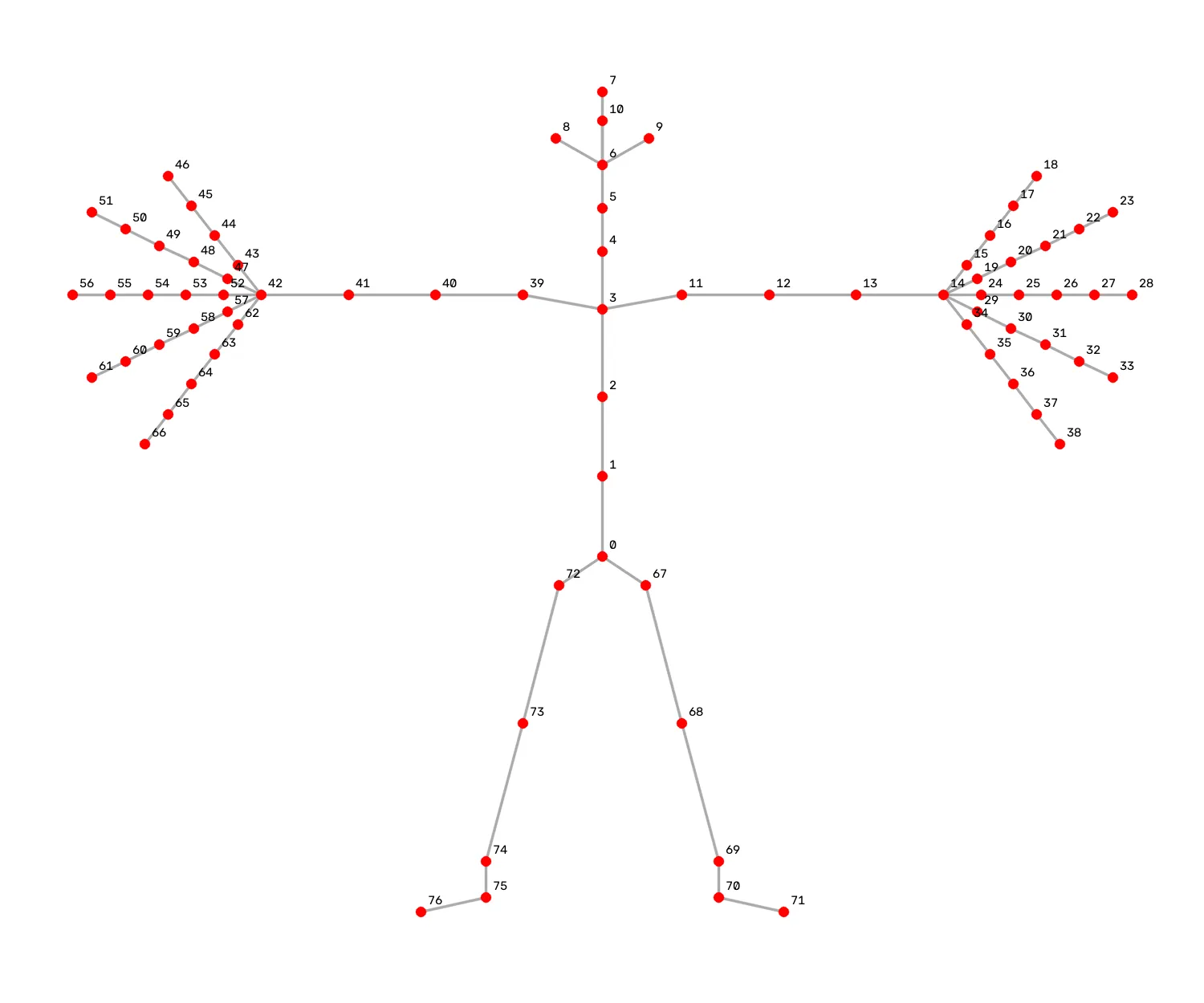
The client writes JSON Lines: one JSON object per line, one line for each frame the server returned, in frame order. Each line carries the frame index and one entry per tracked body in that frame:
To read the file in Python, parse one line at a time. For example, to print the number of frames and the number of bodies in the first frame of body_pose_output.json:
Input Modes
The NIM detects whether the input video is streamable and selects the corresponding mode automatically.
Streaming Mode
To convert an existing MP4 into a streamable one, move the moov atom to the front of the file with FFmpeg.
FFmpeg is a prerequisite for this step and for the transcode in Input Media. It runs on your own machine to prepare a clip before you send it; it is not part of the NIM and is not installed in the container. Check with ffmpeg -version, and if it is missing, install it from your distribution’s package manager or from a build listed at ffmpeg.org/download.html.
The shipped assets/sample_video.mp4 is not streamable, so it runs in transactional mode as shipped. From the scripts folder, convert it:
You can then specify the streamable video as input to the NIM:
Transactional Mode
If the input video is not streamable, the NIM waits until the complete file is received before it decodes and infers. No client change is needed; the server selects the mode.
For best performance, convert your videos to a streamable format so that the NIM can use streaming mode. Refer to the FFmpeg command earlier on this page.