

CUDA C++ Language Support#
Nsight Visual Studio Code Edition can configure CUDA C++ language support (auto-completion, go to definition, find references, rename with a compilation database) for your workspace using either clangd or Microsoft’s C/C++ extension.
Overview#
Getting CUDA C++ editing right can be non-trivial: the language provider needs CUDA include paths, the GPU architecture, and ideally a compilation database. Nsight VSCE guides this setup while keeping all project files user-owned.
A workspace folder is treated as a CUDA C++ workspace if it contains a .cu or .cuh file. For such workspaces, the extension selects or recommends an available language provider, or offers to install one. Setup runs automatically on activation, when workspace folders change, when installed extensions change, and when relevant settings change. It can also be run manually with the CUDA: Configure CUDA C++ Language Support command.
The extension writes configuration only when you have accepted setup: implicitly through a saved provider preference, or explicitly through a prompt or command. Pure auto-detection never writes to a project or its settings on its own. Automatic setup can be turned off per workspace with the nsight.cuda.languageSupport.autoConfigure setting.
Workspace folders on the file and vscode-remote schemes (local and Remote-SSH, WSL, containers) are configured. Virtual workspaces (for example, github.dev) are skipped.
Provider Selection#
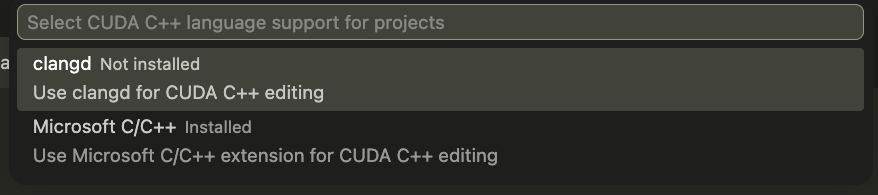
Two language providers are supported:
clangd: the clangd extension (
llvm-vs-code-extensions.vscode-clangd)cpptools: Microsoft’s C/C++ extension (
ms-vscode.cpptools)
The nsight.cuda.languageSupport.provider setting controls the choice: auto (default), clangd, or cpptools.
With auto:
If exactly one provider is installed, it is used.
If both are installed, the extension uses cpptools in Microsoft VS Code and clangd in other editors by default. Run CUDA: Configure CUDA C++ Language Support to choose a different provider for the workspace.
If neither is installed, the extension recommends cpptools in Microsoft VS Code and clangd in other editors (such as VSCodium), and offers to install it.
With an explicit clangd or cpptools value, that provider is used if installed; otherwise the extension prompts to install it. To disable language setup for a workspace, set nsight.cuda.languageSupport.autoConfigure to false.
If both clangd and cpptools are installed and active at the same time, the clangd extension surfaces its own IntelliSense-conflict prompt; the extension does not modify cpptools’ C_Cpp.intelliSenseEngine setting.
If you dismiss a prompt, the extension does not keep prompting automatically for that workspace. Running CUDA: Configure CUDA C++ Language Support retries the setup. When the set of installed providers changes, setup runs again and previously dismissed prompts that are relevant again may reappear.
clangd Setup#
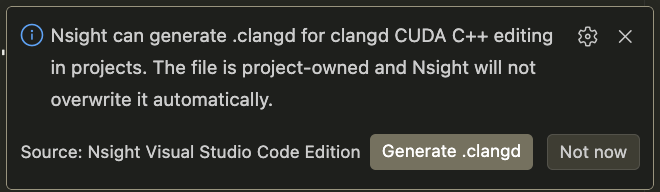
For clangd, the extension generates a project-owned .clangd configuration file in the workspace root. Two modes are available:
Full mode: uses
compile_commands.jsontogether with the CUDA.clangdtemplate. The compilation database is searched for in the workspace root, thecmake.buildDirectorysetting, and thebuilddirectory.Limited mode: uses the CUDA
.clangdtemplate without a compilation database (CompilationDatabase: None). If nocompile_commands.jsonis found, the extension shows a one-time per-workspace prompt offering this mode, and writes.clangdonly if you accept.
The generated .clangd resolves the following values:
The CUDA Toolkit root and include directories, derived from
nvcc. The extension searches fornvccinCUDA_HOME,CUDA_PATH,PATH,/usr/local/cuda, and versioned/usr/local/cuda-*directories. Whencompile_commands.jsonexists, absolutenvccpaths found there are tried before ambient CUDA installations.The GPU architecture: the
nsight.cuda.languageSupport.gpuArchsetting if set (for examplesm_90orsm_90a;compute_90andcompute_90aare accepted and normalized tosm_*form), otherwise the highest architecture found acrosscompile_commands.jsonentries, otherwisesm_80.
The generated configuration keeps CUDA include paths global, so host .cpp files can include CUDA runtime headers, but scopes CUDA language mode (-x cuda) to .cu and .cuh files. Projects that intentionally use CUDA syntax in other file types should edit the PathMatch rule in the project-owned .clangd.
The extension never overwrites an existing .clangd. If one already exists during automatic setup, it is left unchanged. Running CUDA: Generate .clangd when a .clangd already exists prompts you to generate a .clangd.nsight.example file for comparison; if the example file already exists, it is also left unchanged.
Microsoft C/C++ Extension Setup#
For Microsoft’s C/C++ extension, the extension searches for compile_commands.json in the workspace root, the cmake.buildDirectory setting, and the build directory.
If found, it writes one workspace-folder setting without touching values you have already set:
C_Cpp.default.compileCommands: the resolvedcompile_commands.json, if the workspace has not already set compile commands.
If no compile_commands.json is found, the extension makes no changes; cpptools’ own default IntelliSense applies.
The extension does not modify C_Cpp.intelliSenseEngine; if you have disabled cpptools IntelliSense, that choice is kept.
Commands and Settings#
Commands (available from the Command Palette):
CUDA: Configure CUDA C++ Language Support: runs provider selection and setup for the current workspace, including retrying previously dismissed prompts.
CUDA: Generate .clangd: generates the
.clangdconfiguration. If a.clangdfile already exists, prompts you to generate a.clangd.nsight.examplefile for comparison (only if one does not already exist).
Settings:
nsight.cuda.languageSupport.provider:auto(default),clangd, orcpptools.nsight.cuda.languageSupport.autoConfigure: enables or disables automatic language setup for the workspace.nsight.cuda.languageSupport.gpuArch: optional GPU architecture override used in the generated.clangd(clangd provider only), for examplesm_90orsm_90a.compute_90andcompute_90aare accepted aliases.
Troubleshooting#
The CUDA Toolkit is not found: install the CUDA Toolkit, or set
CUDA_HOMEorCUDA_PATHto its location, then rerun CUDA: Configure CUDA C++ Language Support. The extension reads these variables when generating.clangd; clangd itself reads the generated file.Completion works but CUDA headers are unresolved with clangd: the workspace likely has no
compile_commands.json. Generate one (for CMake projects, setCMAKE_EXPORT_COMPILE_COMMANDS=ON), then update the project-owned.clangdor run CUDA: Generate .clangd and compare with the generated.clangd.nsight.example. Note:.clangd.nsight.exampleis only created if one does not already exist; delete it first to get a fresh copy.Wrong GPU architecture in diagnostics: set
nsight.cuda.languageSupport.gpuArch(for examplesm_90) and rerun the configure command. When a.clangdfile already exists, apply the value from the regenerated.clangd.nsight.exampleto your.clangd. Note:.clangd.nsight.exampleis only created if one does not already exist; delete it first to get a fresh copy.No prompts appear: prompts are shown once per workspace and are not repeated after being dismissed. Run CUDA: Configure CUDA C++ Language Support to retry, and check that
nsight.cuda.languageSupport.autoConfigureis enabled andnsight.cuda.languageSupport.provideris set to the intended value.Both clangd and cpptools are installed: when
providerisauto, the extension silently picks the default (cpptools in VS Code, clangd elsewhere). To choose a provider, run CUDA: Configure CUDA C++ Language Support and setnsight.cuda.languageSupport.providertoclangdorcpptools, then rerun the configure command.
Notices
Notice
NVIDIA® Nsight™ Application Development Environment for Heterogeneous Platforms, Visual Studio Code Edition 2026.1.0 User Guide
THE INFORMATION IN THIS GUIDE AND ALL OTHER INFORMATION CONTAINED IN NVIDIA DOCUMENTATION REFERENCED IN THIS GUIDE IS PROVIDED “AS IS.” NVIDIA MAKES NO WARRANTIES, EXPRESSED, IMPLIED, STATUTORY, OR OTHERWISE WITH RESPECT TO THE INFORMATION FOR THE PRODUCT, AND EXPRESSLY DISCLAIMS ALL IMPLIED WARRANTIES OF NONINFRINGEMENT, MERCHANTABILITY, AND FITNESS FOR A PARTICULAR PURPOSE. Notwithstanding any damages that customer might incur for any reason whatsoever, NVIDIA’s aggregate and cumulative liability towards customer for the product described in this guide shall be limited in accordance with the NVIDIA terms and conditions of sale for the product.
THE NVIDIA PRODUCT DESCRIBED IN THIS GUIDE IS NOT FAULT TOLERANT AND IS NOT DESIGNED, MANUFACTURED OR INTENDED FOR USE IN CONNECTION WITH THE DESIGN, CONSTRUCTION, MAINTENANCE, AND/OR OPERATION OF ANY SYSTEM WHERE THE USE OR A FAILURE OF SUCH SYSTEM COULD RESULT IN A SITUATION THAT THREATENS THE SAFETY OF HUMAN LIFE OR SEVERE PHYSICAL HARM OR PROPERTY DAMAGE (INCLUDING, FOR EXAMPLE, USE IN CONNECTION WITH ANY NUCLEAR, AVIONICS, LIFE SUPPORT OR OTHER LIFE CRITICAL APPLICATION). NVIDIA EXPRESSLY DISCLAIMS ANY EXPRESS OR IMPLIED WARRANTY OF FITNESS FOR SUCH HIGH RISK USES. NVIDIA SHALL NOT BE LIABLE TO CUSTOMER OR ANY THIRD PARTY, IN WHOLE OR IN PART, FOR ANY CLAIMS OR DAMAGES ARISING FROM SUCH HIGH RISK USES.
NVIDIA makes no representation or warranty that the product described in this guide will be suitable for any specified use without further testing or modification. Testing of all parameters of each product is not necessarily performed by NVIDIA. It is customer’s sole responsibility to ensure the product is suitable and fit for the application planned by customer and to do the necessary testing for the application in order to avoid a default of the application or the product. Weaknesses in customer’s product designs may affect the quality and reliability of the NVIDIA product and may result in additional or different conditions and/or requirements beyond those contained in this guide. NVIDIA does not accept any liability related to any default, damage, costs or problem which may be based on or attributable to: (i) the use of the NVIDIA product in any manner that is contrary to this guide, or (ii) customer product designs.
Other than the right for customer to use the information in this guide with the product, no other license, either expressed or implied, is hereby granted by NVIDIA under this guide. Reproduction of information in this guide is permissible only if reproduction is approved by NVIDIA in writing, is reproduced without alteration, and is accompanied by all associated conditions, limitations, and notices.
Trademarks
NVIDIA, the NVIDIA logo, and cuBLAS, CUDA, CUDA-GDB, CUDA-MEMCHECK, cuDNN, cuFFT, cuSPARSE, DIGITS, DGX, DGX-1, DGX Station, NVIDIA DRIVE, NVIDIA DRIVE AGX, NVIDIA DRIVE Software, NVIDIA DRIVE OS, NVIDIA Developer Zone (aka “DevZone”), GRID, Jetson, NVIDIA Jetson Nano, NVIDIA Jetson AGX Xavier, NVIDIA Jetson TX2, NVIDIA Jetson TX2i, NVIDIA Jetson TX1, NVIDIA Jetson TK1, Kepler, NGX, NVIDIA GPU Cloud, Maxwell, Multimedia API, NCCL, NVIDIA Nsight Compute, NVIDIA Nsight Eclipse Edition, NVIDIA Nsight Graphics, NVIDIA Nsight Integration, NVIDIA Nsight Systems, NVIDIA Nsight Visual Studio Edition, NVIDIA Nsight Visual Studio Code Edition, NVLink, nvprof, Pascal, NVIDIA SDK Manager, Tegra, TensorRT, Tesla, Visual Profiler, VisionWorks and Volta are trademarks and/or registered trademarks of NVIDIA Corporation in the United States and other countries. Other company and product names may be trademarks of the respective companies with which they are associated.