


Known Issues#
NVIDIA vGPU telemetry gradually stops reporting in Aria dashboards#
Description#
A memory leak in the nvdGpuMgmtDaemon service causes the NVIDIA vGPU telemetry to gradually stop reporting vGPU metrics in Aria dashboards. Initially, after the ESXi host is rebooted or the nvdGpuMgmtDaemon service is restarted, all hosts report vGPU metrics correctly. However, as time passes, individual hosts stop reporting vGPU metrics until data collection stops entirely for the affected hosts.
The nvdGpuMgmtDaemon service runs on the ESXi host and is responsible for gathering GPU metrics and forwarding them to VMware Aria Operations. As time passes, the memory leak in the nvdGpuMgmtDaemon service causes the service to hang or become unresponsive.
Version#
This issue affects NVIDIA vGPU software 19 and 20 releases with which NVIDIA Virtual GPU Management Pack for VMware Aria Operations is being used.
Workaround#
Restart the nvdGpuMgmtDaemon service. If the issue persists after the service is restarted, reboot the ESXi host.
Note
These workarounds are temporary. The issue recurs after the service has run for enough time for the memory leak to cause the service to hang or become unresponsive again.
To restart the nvdGpuMgmtDaemon service:
Use secure shell (SSH) to log in to the affected ESXi host.
Terminate any stuck or defunct
nvdGpuMgmtDaemonandnv-hostengineprocesses.Get the process IDs of any stuck or defunct
nvdGpuMgmtDaemonprocesses.$ pgrep nvdGpuMgmtDaemon
Terminate the processes whose IDs you got in the previous step.
$ kill -9 <daemon-pids>
<daemon-pids>A space-separated list of the process IDs of the stuck or defunct
nvdGpuMgmtDaemonprocesses that you got in the previous step.
Get the process IDs of any stuck or defunct
nv-hostengineprocesses.$ pgrep nv-hostengine
Terminate the processes whose IDs you got in the previous step.
$ kill -9 <hostengine-pids>
<hostengine-pids>A space-separated list of the process IDs of the stuck or defunct
nv-hostengineprocesses that you got in the previous step.
Reset and reinitialize the
nv-hostenginecomponent state$ nv-hostengine -t $ nv-hostengine -d
Restart the
nvdGpuMgmtDaemonservice.$ /etc/init.d/nvdGpuMgmtDaemon start
Status#
Open
Note
Resolution of this issue involves addressing the memory leak in the affected releases of NVIDIA vGPU software with which NVIDIA Virtual GPU Management Pack for VMware Aria Operations is being used.
Ref. ##
4137319
GPU instance profile names are displayed incorrectly on the NVIDIA dashboards#
Description#
On hosts with an NVIDIA RTX PRO 6000 Blackwell GPU configured in MIG mode, GPU instance profile names displayed on the NVIDIA dashboards do not match the names reported by nvidia-smi mig -lgi on the ESXi host. Specifically, the +gfx suffix is missing from graphics-capable GPU instance profiles. For example, MIG 1g.24gb is shown instead of MIG 1g.24gb+gfx. In addition, the memory size reported for some profiles might differ slightly from the actual profile size.
Version#
This issue is caused by a software bug in NVIDIA vGPU software 20.0.
Status#
Resolved in NVIDIA vGPU software 20.1.
Ref. ##
6071879
Invalid GPM metric values might be displayed on the NVIDIA dashboards for MIG-backed, time-sliced vGPUs#
Description#
On ESXi hosts with an NVIDIA RTX PRO 6000 Blackwell GPU configured in MIG mode, GPM metrics are available for MIG-backed vGPUs that are allocated all of the GPU instance’s frame buffer. However, the NVIDIA dashboards might also display GPM metric values for MIG-backed, time-sliced vGPUs. These values are invalid and should be disregarded.
Note
GPM is supported only on MIG-backed vGPUs that are allocated all of the instance’s frame buffer.
Version#
The root cause of this issue is a known issue with NVIDIA vGPU software 20.0.
Status#
Resolved in NVIDIA vGPU software 20.1
Ref. ##
6071877
MIG related information is not displayed on the NVIDIA dashboards, even when MIG-backed vGPU VMs are running#
Description#
On ESXi hosts with MIG-enabled GPUs , MIG-related information might not be displayed on the NVIDIA dashboards for the host, even when MIG-backed vGPU VMs are active.
Version#
The root cause of this issue is a known issue with NVIDIA vGPU software 20.0.
Workaround#
Ensure that the VMs configured with MIG-backed vGPUs are powered on.
Restart the
nv-hostengineservice.
After the nv-hostengine service is restarted, MIG information is displayed on the NVIDIA dashboards.
Status#
Resolved in NVIDIA vGPU software 20.1
Ref. ##
6066777
GPU Instance Properties widget lists properties for time-sliced vGPUs as ?#
Description#
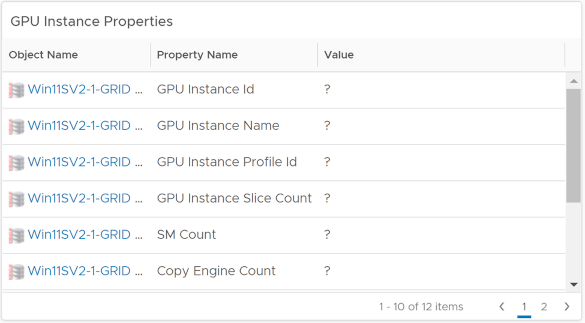
In VMware Aria Operations Manager releases 8.0 and 8.1, the GPU Instance Properties widget lists properties for time-sliced vGPUs as a ? character. For time-sliced vGPUs, the GPU Instance Properties widget should be empty because GPU instances are specific to MIG-backed vGPUs.
Version#
This issue affects VMware Aria Operations Manager releases 8.0 and 8.1.
Workaround#
Ignore the ? character that is displayed. In VMware Aria Operations Manager releases 8.0 and 8.1, absent metrics are shown as a ? character. This behavior does not affect the functionality of VMware Aria Operations.
Status#
Not an NVIDIA bug
Resolved by VMware in VMware Aria Operations Manager release 8.2.
Compute Instances List widget doesn’t list compute instances correctly#
Description#
In VMware Aria Operations Manager releases 8.0 and 8.1, the Compute Instances List widget doesn’t list compute instances correctly. This issue occurs because the Compute Instances List widget depends on a feature that was added to VMware Aria Operations Manager 8.2 for filtering instanced metrics and properties of active compute instances. Because this feature is not available in VMware Aria Operations Manager releases 8.0 and 8.1, the Compute Instances List widget in these releases cannot list compute instances correctly.
Version#
This issue affects VMware Aria Operations Manager releases 8.0 and 8.1.
Workaround#
Clear the vGPU filter in the Compute Instances List widget.
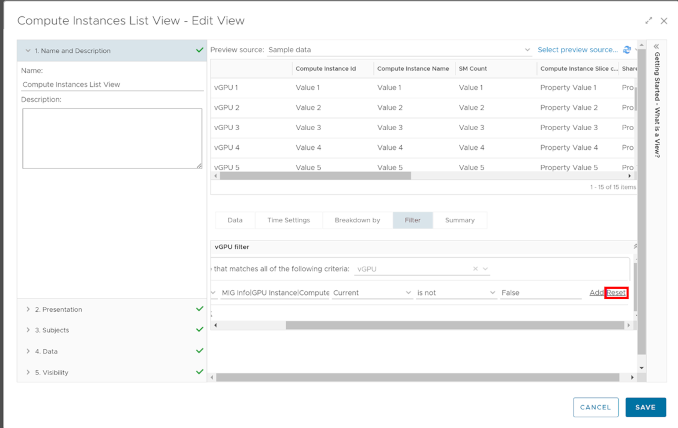
At the top right corner of the Compute Instances List View page, click Edit Widget.
Navigate to Output Data > Compute Instance List View > Edit.
On the Compute Instances List View, follow the Reset under the vGPU filter and click SAVE.
After the vGPU filter is cleared, the Compute Instances List View page listing all active and inactive compute instances. To differentiate between active and inactive compute instances, use the Compute Instance Alive option.
Status#
Not an NVIDIA bug
Resolved by VMware in VMware Aria Operations Manager release 8.2.
Properties of selected Application widget is not updated if no processes are running#
Description#
If a vGPU assigned to a VM in which no processes are running is selected on the NVIDIA Application Summary dashboard, only the Applications using graphics capabilities on selected vGPU widget is updated. The Properties of selected Application widget is not updated. Instead, the widget continues to display data from the last selected vGPU assigned to a VM with running processes. However, if the selected vGPU is assigned to a VM in which processes are running, the Applications using graphics capabilities on selected vGPU and the Properties of selected Application widgets are updated with the correct data.
Status#
Open
Ref. ##
4777041
The nvdGpuMgmtDaemon daemon is killed when multiple VMware Aria Operations instances are collecting data#
Description#
The nvdGpuMgmtDaemon daemon is killed when multiple VMware Aria Operations instances are collecting data from a single NVIDIA vGPU host. This issue does not occur when only one VMware Aria Operations instance is collecting data from the NVIDIA vGPU host. When the daemon is killed, GPU data collection fails.
Workaround#
Restart the nvdGpuMgmtDaemon manually from the ESXi host to resume data collection.
Status#
Open
Ref. ##
4600294
The Search for a vGPU widget lists only one vGPU after navigation from the GPU Summary dashboard#
Description#
After a user navigates from the GPU Summary dashboard to the vGPU Summary dashboard, the Search for a vGPU widget lists only one vGPU. This issue occurs when the user navigates between the dashboards by using the navigation button in the vGPUs running in selected GPU widget. When this issue occurs, the Search for a vGPU widget lists only the vGPU that was selected in the vGPUs running in selected GPU widget.
This issue occurs because the concept of dashboard-to-dashboard navigation was changed in vRealize Operations Manager release 8.3.
Version#
This issue affects vRealize Operations Manager release 8.3 and later 8.<x> updates.
Workaround#
In the Search for a vGPU widget on the vGPU Summary dashboard, click Reset Interaction.
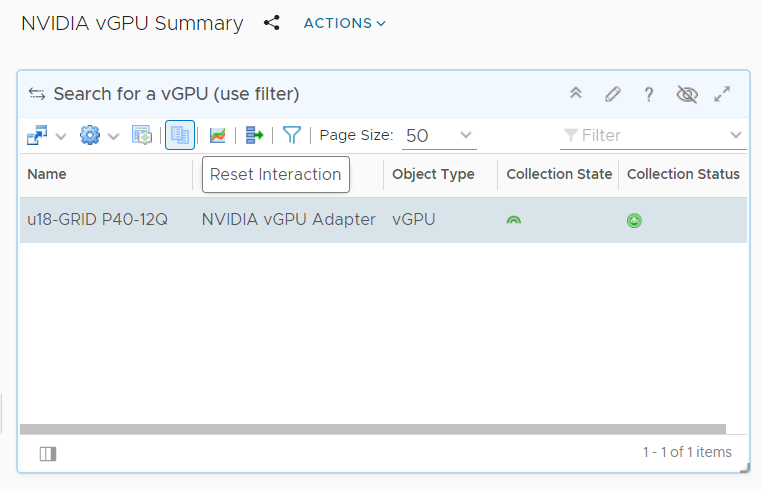
All the vGPUs present are now listed.
Status#
Not an NVIDIA bug
Ref. ##
200702483
NVIDIA vGPU adapter instance stops collecting data#
Description#
After some data collection cycles, the NVIDIA vGPU adapter instance randomly stops collecting data.
When this issue occurs, the following errors are written to the NVIDIA vGPU adapter log file:
Collector worker thread 25] (13350) com.nvidia.nvvgpu.adapter.client.DcgmClient.getHostConfig - Starting collection for host: 10.24.131.52
[30740] 2019-01-18 11:47:45,414 DEBUG [Collector worker thread 25] (13350) com.nvidia.nvvgpu.adapter.client.DcgmClient.getGroupInfo - Sending DCGM Command: GROUPINFO
[30741] 2019-01-18 11:48:03,805 DEBUG [pool-868-thread-1] (13350) com.nvidia.nvvgpu.adapter.client.CimClient.run - Retrieving hosts and initializing CIM Client instances
[30742] 2019-01-18 11:48:22,111 ERROR [pool-868-thread-1] (13350) com.nvidia.nvvgpu.adapter.client.CimClient.run - java.lang.RuntimeException: java.rmi.RemoteException:
VI SDK invoke exception:java.net.UnknownHostException: dc4dvvc01.nvidia.com
An error similar to the following example is also written to the NVIDIA vGPU log files, the /var/log/messages file, or the syslog file for all the hosts that are reporting failure:
Timeout error accepting SSL connection
The root cause of this issue is a known issue with VMware vSphere Hypervisor (ESXi).
Workaround#
In a plain-text editor, open the configuration file for the
sfcbservice/etc/sfcb/sfcb.cfgon the host where the adapter stopped collecting data.Change the value of the property
httpsProcsto8.Save your changes and quit the editor.
Restart the
sfcbservice.
Status#
Not an NVIDIA bug
Ref. ##
200486366
The Alerts on vGPUs running on the selected Host widget is not updated#
Description#
The Alerts on vGPUs running on the selected Host widget on the NVIDIA Host Summary dashboard is not updated. This issue affects only the NVIDIA Host Summary dashboard. The NVIDIA GPU Summary dashboard and the NVIDIA vGPU Summary dashboard are updated with the relevant alerts.
Workaround#
Note
This workaround does not work on vRealize Operations Manager 7.5 or later releases.
Edit and save the Alerts on vGPUs running on the selected Host widget on the NVIDIA Host Summary dashboard.
Status#
Not an NVIDIA bug
Ref. ##
200344549
NVIDIA vGPU data is missing from the VMware vRealize Operations dashboards#
Description#
To collect data from hosts in VMware vCenter that are running NVIDIA GPUs and an NVIDIA GPU Management Daemon that uses CIM Service Ticket-based authentication, which was introduced in NVIDIA vGPU software 20.0, each user of the NVIDIA vGPU adapter requires the CIM interaction privilege. If this privilege is not assigned, the user cannot use the NVIDIA vGPU adapter to collect data.
When this issue occurs, the adapter log files contain error messages similar to the following examples:
2019-07-01 17:40:32,296 DEBUG [pool-9771-thread-1] (117) com.nvidia.nvvgpu.adapter.client.CimClient.initializeWBEMClient - com.vmware.vim25.NoPermission
2019-07-01 17:40:32,296 WARN  [pool-9771-thread-1] (117) com.nvidia.nvvgpu.adapter.client.CimClient.initializeWBEMClient - CIM Connection to host: srvr-12.example.com failed. This host will be skipped from current collection cycle
2019-07-01 17:41:32,296 DEBUG [pool-9771-thread-1] (117) com.nvidia.nvvgpu.adapter.client.CimClient.run - Retrieving hosts and initializing CIM Client instances
2019-07-01 17:41:32,328 INFO  [pool-9771-thread-1] (117) com.nvidia.nvvgpu.adapter.client.CimClient.initializeWBEMClient - Initializing CIM Client for host: srvr-10.example.com
2019-07-01 17:41:32,330 DEBUG [pool-9771-thread-1] (117) com.nvidia.nvvgpu.adapter.client.CimClient.initializeWBEMClient - com.vmware.vim25.NoPermission
2019-07-01 17:41:32,331 WARN  [pool-9771-thread-1] (117) com.nvidia.nvvgpu.adapter.client.CimClient.initializeWBEMClient - CIM Connection to host: srvr-10.example.com failed. This host will be skipped from current collection cycle
2019-07-01 17:41:32,343 INFO  [pool-9771-thread-1] (117) com.nvidia.nvvgpu.adapter.client.CimClient.initializeWBEMClient - Initializing CIM Client for host: srvr-11.example.com
2019-07-01 17:41:32,346 DEBUG [pool-9771-thread-1] (117) com.nvidia.nvvgpu.adapter.client.CimClient.initializeWBEMClient - com.vmware.vim25.NoPermission
2019-07-01 17:41:32,346 WARN  [pool-9771-thread-1] (117) com.nvidia.nvvgpu.adapter.client.CimClient.initializeWBEMClient - CIM Connection to host: srvr-11.example.com failed. This host will be skipped from current collection cycle
2019-07-01 17:41:32,359 INFO  [pool-9771-thread-1] (117) com.nvidia.nvvgpu.adapter.client.CimClient.initializeWBEMClient - Initializing CIM Client for host: srvr-12.example.com
2019-07-01 17:41:32,362 DEBUG [pool-9771-thread-1] (117) com.nvidia.nvvgpu.adapter.client.CimClient.initializeWBEMClient - com.vmware.vim25.NoPermission
Workaround#
Assign the CIM interaction privilege that the NVIDIA vGPU adapter requires.
Status#
Not a bug.
Ref. ##
2639301
NVIDIA dashboards are not removed after the adapter is uninstalled#
Description#
After the NVIDIA vGPU adapter is uninstalled, NVIDIA dashboards are still present. These dashboards should be removed as a part of the uninstallation process.
Status#
Not an NVIDIA bug
Ref. ##
200343762