


Installing and Configuring the NVIDIA Virtual GPU Management Pack for VMware Aria Operations#
You can install or update the NVIDIA Virtual GPU Management Pack for VMware Aria Operations on an on-premises installation of VMware Aria Operations Manager or on VMware Aria Operations Cloud. After installing the NVIDIA Virtual GPU Management Pack for VMware Aria Operations, you must configure it by creating an NVIDIA vGPU adapter instance and, if you haven’t already done so, by creating a VMware vCenter adapter instance.
Installation and Configuration Prerequisites#
Before installing and configuring the NVIDIA Virtual GPU Management Pack for VMware Aria Operations, ensure that supported versions of the required software are available and configured as follows:
VMware Aria Operations Manager is installed or you have a VMware Aria Operations Cloud account.
The NVIDIA vGPU software driver package is installed and configured on the hosts in your VMware vSphere ESXi cluster.
If the NVIDIA Virtual GPU Manager in the NVIDIA vGPU software driver package is based on the VMware Daemon SDK (DSDK), both components of the NVIDIA Virtual GPU Manager must be installed and configured, namely:
NVIDIA vGPU hypervisor host driver
NVIDIA GPU Management daemon
For information about how to install and configure the NVIDIA vGPU software driver package, refer to Virtual GPU Software User Guide.
For details about which releases of the required software are supported, refer to Virtual GPU Management Pack for VMware Aria Operations Release Notes.
If the NVIDIA Virtual GPU Management Pack for VMware Aria Operations has previously been installed, back up any customized dashboards before updating the management pack. The update will overwrite any NVIDIA dashboard of the same name.
Installing or Updating the Management Pack#
You can install or update the NVIDIA Virtual GPU Management Pack for VMware Aria Operations on an on-premises installation of VMware Aria Operations Manager or on VMware Aria Operations Cloud.
Installing or Updating the Management Pack on Premises#
For an installation on VMware Aria Operations Manager on premises, the NVIDIA Virtual GPU Management Pack for VMware Aria Operations is distributed as a ZIP archive that contains a PAK (.pak) file.
Download the ZIP archive that contains the NVIDIA Virtual GPU Management Pack for VMware Aria Operations.
Log in to the NVIDIA Enterprise Application Hub with your NVIDIA Enterprise Account credentials.
On the NVIDIA APPLICATION HUB page that opens, click NVIDIA LICENSING PORTAL.
In the left navigation pane of the NVIDIA Licensing Portal dashboard page, click SOFTWARE DOWNLOADS.
On the Software Downloads page that opens, find and download the release of NVIDIA Virtual GPU Management Pack for VMware Aria Operations that you want.
Extract the PAK (
.pak) file from the ZIP archive that you downloaded.Ensure that the extracted file is accessible to the web browser that you are using to manage your vRealize Operations Manager instance.
Log in to your vRealize Operations Manager instance as an administrator user.
Start the Add Solution wizard.
On the vRealize Operations Manager Home page, expand Administration and select Integrations.
On the Integrations page that opens, click the Repository tab.
On the Repository tab, click ADD.
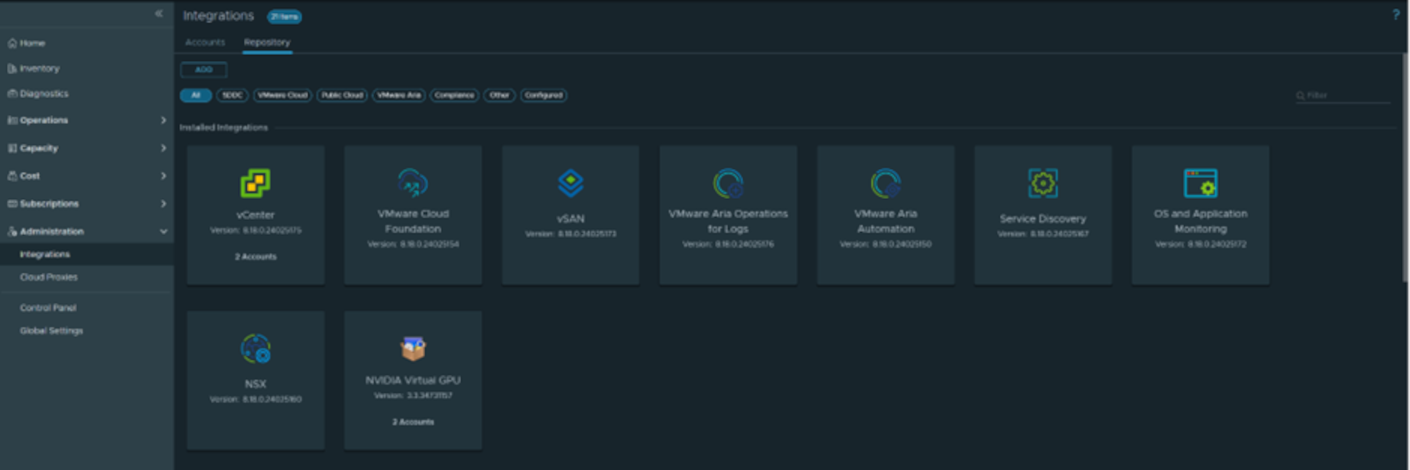
In the Add Solution wizard that opens, click Browse, navigate to your copy of the PAK file and select it, and click Open.
If you have previously installed the NVIDIA Virtual GPU Management Pack for VMware Aria Operations, select these options:
Install the PAK file even if it is already installed
Reset Default Content
Click Upload.
After VMware Aria Operations has uploaded NVIDIA Virtual GPU Management Pack for VMware Aria Operations, click Next.
The End User License Agreement (EULA) appears.
Accept the EULA for the NVIDIA Virtual GPU Management Pack for VMware Aria Operations.
Click Next to start the installation process.
When the installation is complete, click Finish.
This last page displays progress details for the installation.
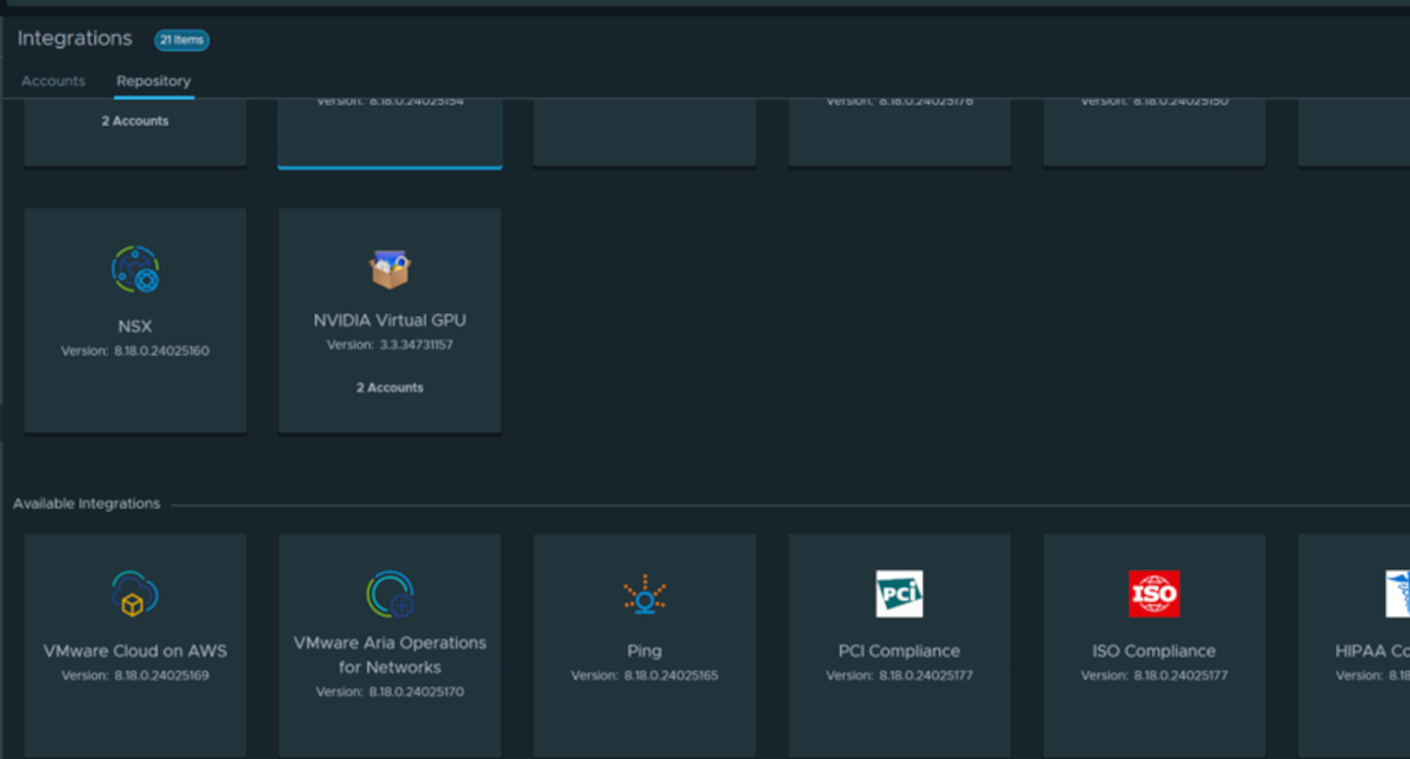
To confirm that the installation succeeded, on the Repository tab of the Integrations page, scroll through the Installed Integrations section until you see NVIDIA Virtual GPU Management Pack for VMware Aria Operations.
Installing or Updating the Management Pack on VMware Aria Operations Cloud#
For an installation on VMware Aria Operations Cloud, the NVIDIA Virtual GPU Management Pack for VMware Aria Operations is available on the Repository tab of the Integrations page.
Log in to VMware vRealize Operations Cloud as an administrator user.
Navigate to the Repository tab of the Integrations page.
On the VMware vRealize Operations Cloud page, expand Data Sources and select Integrations.
On the Integrations page that opens, click the Repository tab.
On the Repository tab, perform the step for installing or updating NVIDIA Virtual GPU Management Pack for VMware Aria Operations.
Action
Step
Install NVIDIA Virtual GPU Management Pack for VMware Aria Operations if it is not already installed.
In the Available Integrations area, locate NVIDIA Virtual GPU Management Pack for VMware Aria Operations and click GET.
Update an existing installation of NVIDIA Virtual GPU Management Pack for VMware Aria Operations.
In the Installed Integrations area, locate NVIDIA Virtual GPU Management Pack for VMware Aria Operations and click UPGRADE.
After you perform this step, VMware Aria Operations Cloud installs or updates the NVIDIA Virtual GPU Management Pack for VMware Aria Operations without prompting you for any information.
Creating an NVIDIA vGPU Adapter Instance#
After installing the NVIDIA Virtual GPU Management Pack for VMware Aria Operations, you must configure it by creating an NVIDIA vGPU adapter instance.
Note
If you haven’t already done so, you must also create a VMware vCenter adapter instance.
An NVIDIA vGPU adapter instance connects to a VMware vCenter Server instance and retrieves data from vGPU-enabled hosts in the server instance. You must provide the host name of the VMware vCenter Server instance that the adapter instance will connect to and credentials to be used for connecting to the server instance.
If you are not already logged in, log in to your vRealize Operations Manager instance as an administrator user.
Navigate to the Account Types page.
On the vRealize Operations Manager Home page, expand Administration and select Integrations.
On the Integrations page that opens, click ADD.
On the Account Types page that opens, select NVIDIA vGPU Adapter.
The New Account page opens.
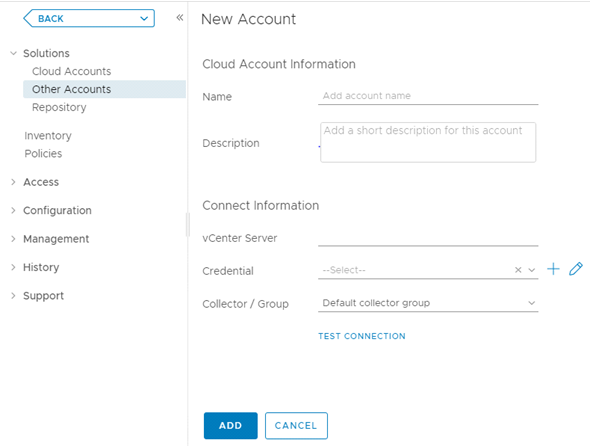
Provide the following information about the adapter instance that you are creating:
- Name
Enter the name of the instance as you want it to appear in vRealize Operations Manager, for example
vCenter_1.- Description
Enter a description that can help distinguish this instance when multiple NVIDIA vGPU adapter instances are configured.
- vCenter Server
Enter the fully qualified domain name or IP address of the VMware vCenter Server.
- Credential
Enter the credential name for logging in to the VMware vCenter Server instance.
If no suitable credential exists, click the plus sign and in the Manage Credential dialog box that opens, add the credentials for the user that will connect to this VMware vCenter Server instance.
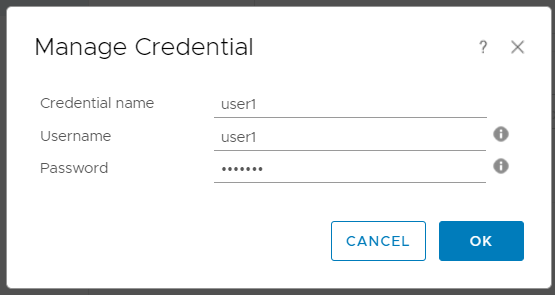
- Credential Name
Enter your choice of name that uniquely identifies the VMware vCenter Server login credentials.
- Username
Enter the login name of the VMware vCenter Server user. The user must have at least CIM privileges on all the hosts in the VMware vCenter Server instance.
- Password
Enter the password of the user.
Back on the New Account page, click Validate Connection to test the connection between the new adapter instance and the VMware vCenter Server
Click ADD.
VMware Aria Operations starts to collect data for NVIDIA virtual GPUs. After approximately ten to fifteen minutes, the Collection State of the NVIDIA vGPU changes to Collecting and the Collection Status changes to Data receiving.
After installing and configuring NVIDIA Virtual GPU Management Pack for VMware Aria Operations, verify the installation and configuration as explained in Viewing Data on NVIDIA Dashboards.
Assigning the CIM Interaction Privileges for the NVIDIA vGPU Adapter#
To collect data from hosts in VMware vCenter that are running NVIDIA GPUs and an NVIDIA GPU Management Daemon that uses CIM Service Ticket-based authentication, which was introduced in NVIDIA vGPU software 20.0, each user of the NVIDIA vGPU adapter requires the CIM interaction privilege. If this privilege is not assigned, the user cannot use the NVIDIA vGPU adapter to collect data.
Note
Perform this task only if at least one host in VMware vCenter is running the NVIDIA GPU Management Daemon that uses CIM Service Ticket-based authentication, which was introduced in NVIDIA vGPU software 20.0. If all hosts in VMware vCenter are running an earlier version that does not use CIM Service Ticket-based authentication, omit this task.
Log in to vCenter Server by using the vSphere Web Client.
Select Administration and, in the Access Control area, select Roles.
From the Roles Provider list, select your vCenter Server instance.
Click New.
In the New Role window that opens, define the properties of the role.
In the Role name field, type your choice of name for the role.
Scroll down and select the Host privilege.
In the right pane of the New Role window, click CIM.
CIM interaction is automatically selected.
Click CREATE.
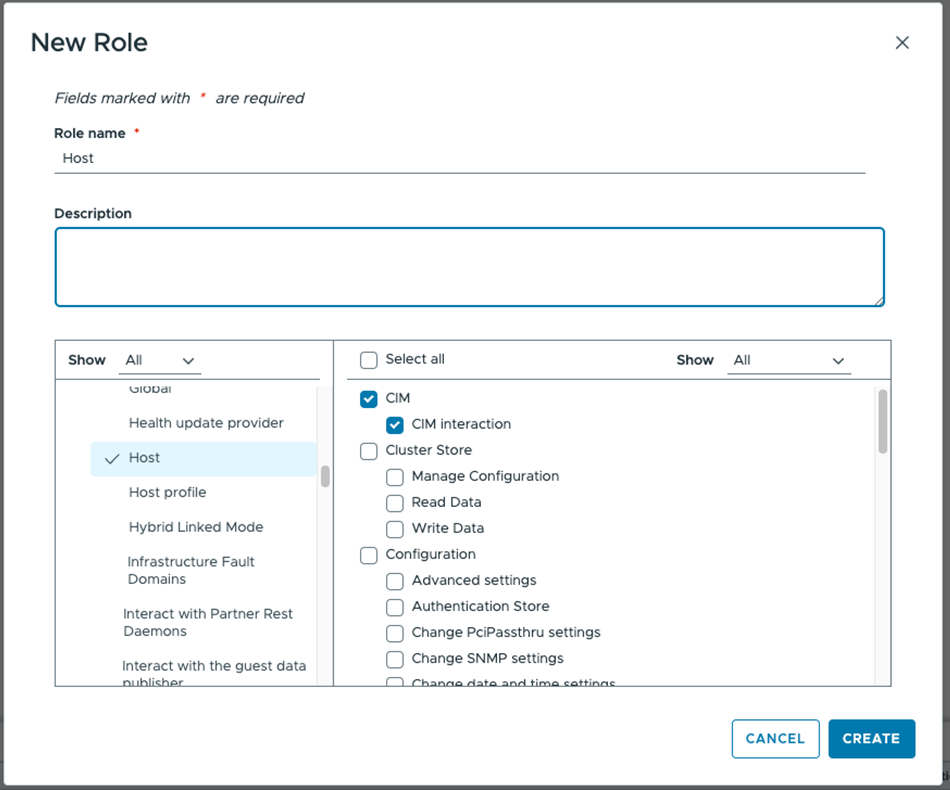
From the vSphere Web Client home page, go to Inventory, select your vCenter Server instance, and click the Permissions tab.
In the Users and Groups section, select the users and groups that will use the NVIDIA vGPU adapter.
Click Add.
In the Add Permission window that opens, select the required users and groups.
From the Role drop-down list, select the role that you created and set the Propagate to children option.
Click OK.
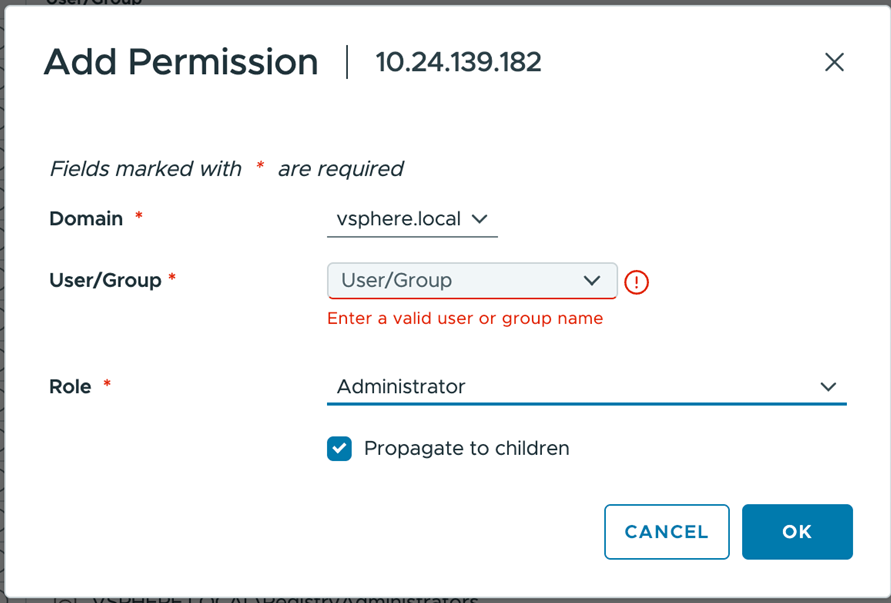
See also the following topics in the VMware vSphere documentation:
Adding a Class to the VMware Aria Operations Logs#
The NVIDIA vGPU Adapter gathers data only for the classes that are added to the VMware Aria Operations logs. You must set the logging level for a class when you add the class to the VMware Aria Operations logs.
You must add the following classes to the VMware Aria Operations logs:
The classes that are required for debugging
Note
In this release of NVIDIA Virtual GPU Management Pack for VMware Aria Operations, no required classes for debugging are added to the logs by default. In some earlier releases, required classes for debugging were added to the logs by default with a default logging level.
Any other class for which you want to gather data
The following classes are required for debugging:
com.nvidia.nvvgpu.adapter.NvVGPUAdaptercom.nvidia.nvvgpu.adapter.client.VropsInterfacecom.nvidia.nvvgpu.adapter.client.VsphereInterfacecom.nvidia.nvvgpu.adapter.client.Dcgm2xClientcom.nvidia.nvvgpu.adapter.client.DsdkClientcom.nvidia.nvvgpu.adapter.client.SrestClientcom.nvidia.nvvgpu.adapter.util.JsonResponseUtil
If you are not already logged in, log in to your vRealize Operations Manager instance as an administrator user.
Open the list of VMware Aria Operations log folders.
How to open the list of VMware Aria Operations log folders depends on your VMware Aria Operations release.
On the vRealize Operations Manager Home page, click Administration and in the Administration page that opens, select Support Logs.
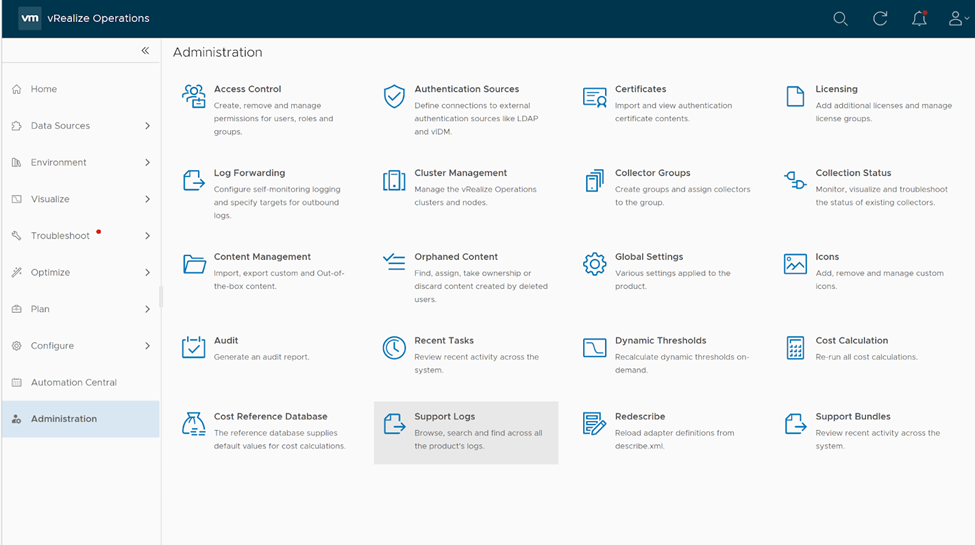
On the Support Logs page that opens, expand the list of subfolders under the vRealize Operations Manager node.
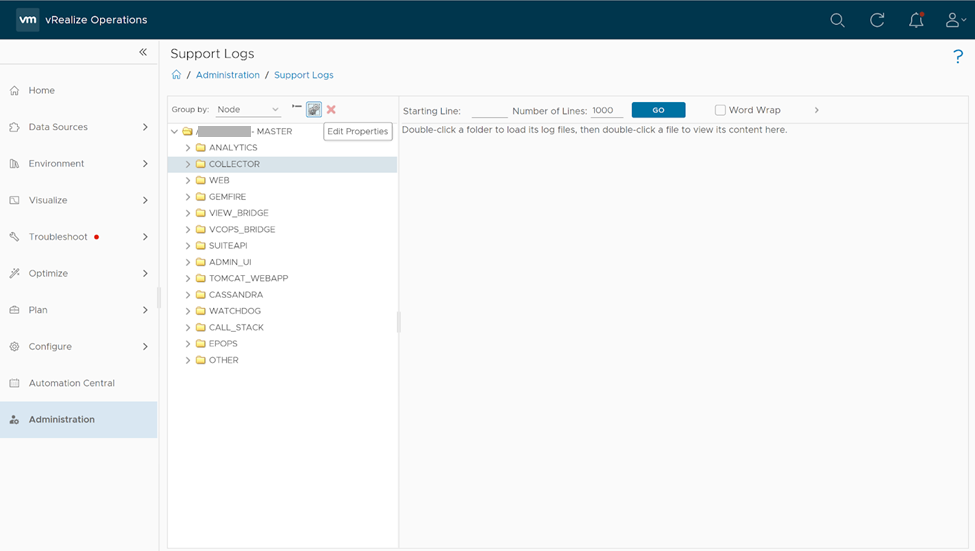
In the expanded list of subfolders, select COLLECTOR and click Edit Properties.
On the Edit Logger Configuration page that opens, click the plus sign that represents the Add Log Class button.
In the Add Log Class wizard that starts, specify the class that you want to add and set the logging level.